Google Cloud Platform Autodiscovery
Device42 Google Cloud Platform (GCP) discovery provides automated inventory of your GCP infrastructure, including virtual machines, Kubernetes clusters, databases, networks, and load balancers.
This page covers the GCP discovery items, permission requirements, and how to configure and run a GCP discovery job in Device42.
Google Cloud Platform Discovery Items
The following table lists the GCP items that Device42 discovers, the information generated for each item, and where to find it in Device42.
| Cloud Service or Object Name | Device42 Location | Accessed API | Information Generated |
|---|---|---|---|
| K8s (GKE) Discovery | Devices > Unknown | Compute API, Container API | Containers, pods, clusters |
| Networks (as VRF Groups) | Network > VRF Groups | Compute API | Name |
| Subnets | Networks > Subnets | Compute API | Mask, name, VRF Group |
| SQL DB | SQL Admin API | Tables, instances, and so on | |
| VMs | Devices > All Devices | Compute API | Type, name, RAM, OS, CPU, cores, and so on |
Device42 also discovers the following GCP items:
Storage:
- Cloud Device
- Cloud Disk
Networking:
- VPCs (VRF Groups)
- VPC Firewall Rules
- GCP Load Balancer
Databases:
- Cloud SQL
- GCP BigQuery Table
Kubernetes:
- Kubernetes Cluster
- Kubernetes Config Map
- Kubernetes Container
- Kubernetes Daemon Set
- Kubernetes Deployment
- Kubernetes Ingress
- Kubernetes Ingress Rule
- Kubernetes Namespace
- Kubernetes Node
- Kubernetes Persistent Volume
- Kubernetes Pod
- Kubernetes Quota
- Kubernetes Replica Set
- Kubernetes Replication Controller
- Kubernetes Service
- Kubernetes Service Port
- Kubernetes Stateful Set
- Kubernetes Volume
GCP Permission Requirements
The following permissions are required for a GCP discovery job. Create a custom IAM role with these permissions, or ensure they are included in existing roles assigned to your account or service account.
Click to expand the code block
bigquery.datasets.get
bigquery.models.getMetadata
bigquery.models.list
bigquery.tables.get
bigquery.tables.list
cloudsql.instances.list
compute.addresses.list
compute.backendServices.get
compute.disks.get
compute.disks.list
compute.firewalls.list
compute.globalForwardingRules.list
compute.images.get
compute.images.list
compute.instances.list
compute.machineTypes.get
compute.networks.list
compute.regions.list
compute.subnetworks.get
compute.targetSslProxies.get
container.clusters.list
container.configMaps.list
container.cronJobs.list
container.daemonSets.list
container.deployments.list
container.endpoints.list
container.ingresses.list
container.namespaces.get
container.namespaces.list
container.nodes.list
container.persistentVolumes.list
container.pods.list
container.replicaSets.list
container.replicationControllers.list
container.resourceQuotas.list
container.services.list
container.statefulSets.list
resourcemanager.projects.get
Create a GCP Discovery Job
You need a user account with the built-in GCP "Viewer" role before you can begin a GCP discovery job.
Set Up the Discovery Job
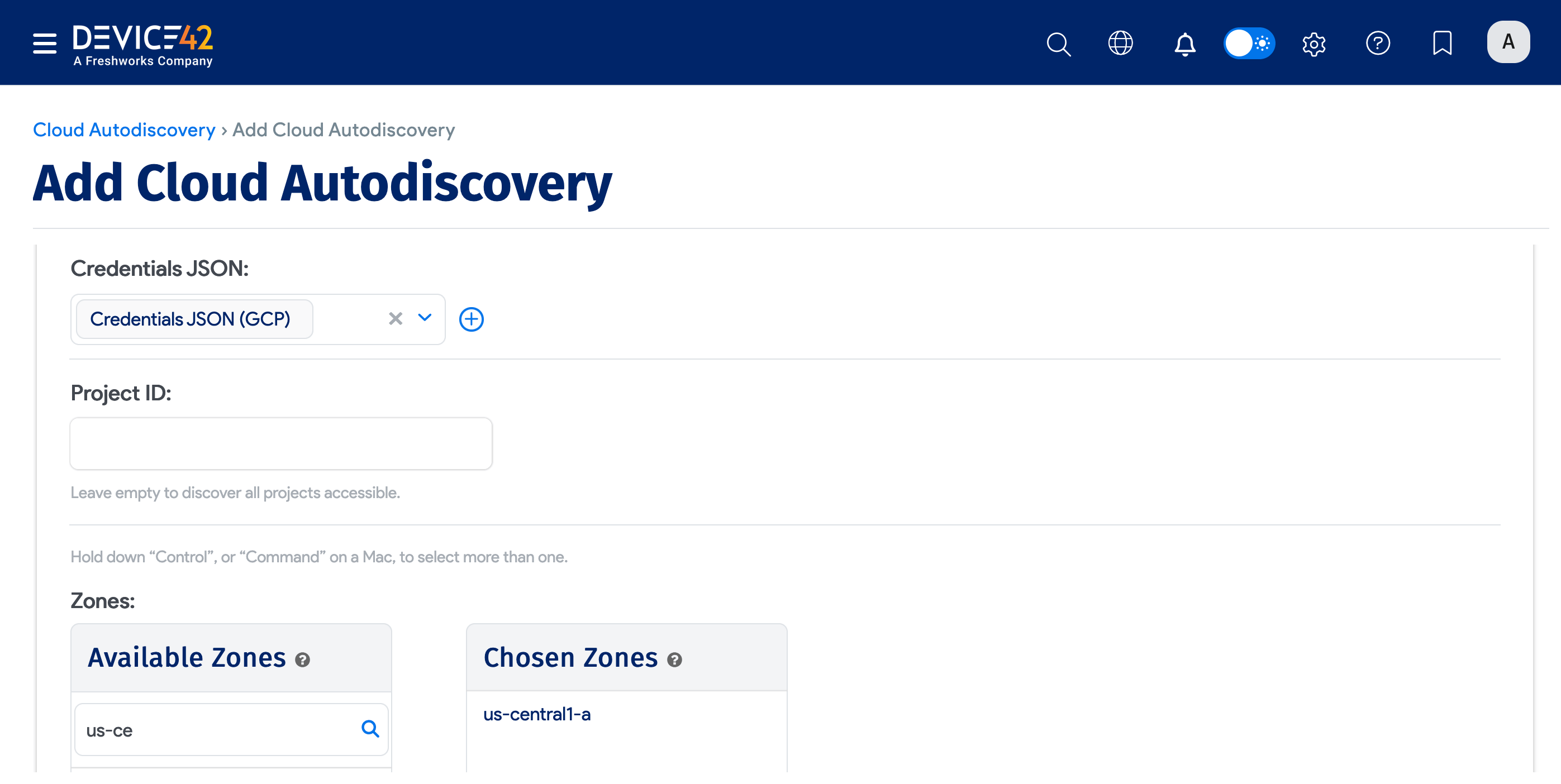
To create a new GCP discovery job, go to Discovery > Cloud and click + Add Cloud Autodiscovery. Choose Google Cloud as the discovery Type.
To discover all accessible projects, leave the Project ID field blank.
Provide JSON Credentials
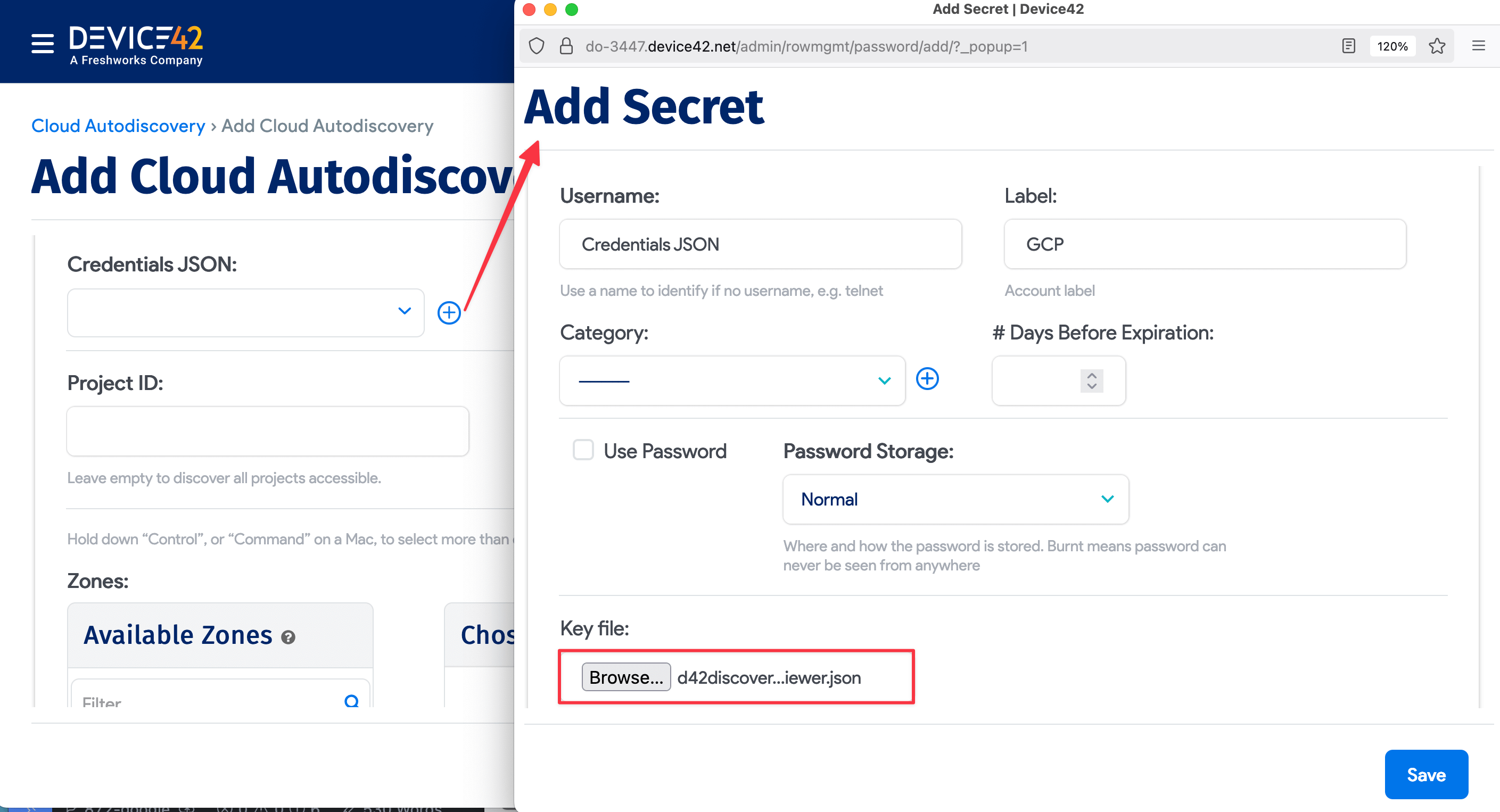
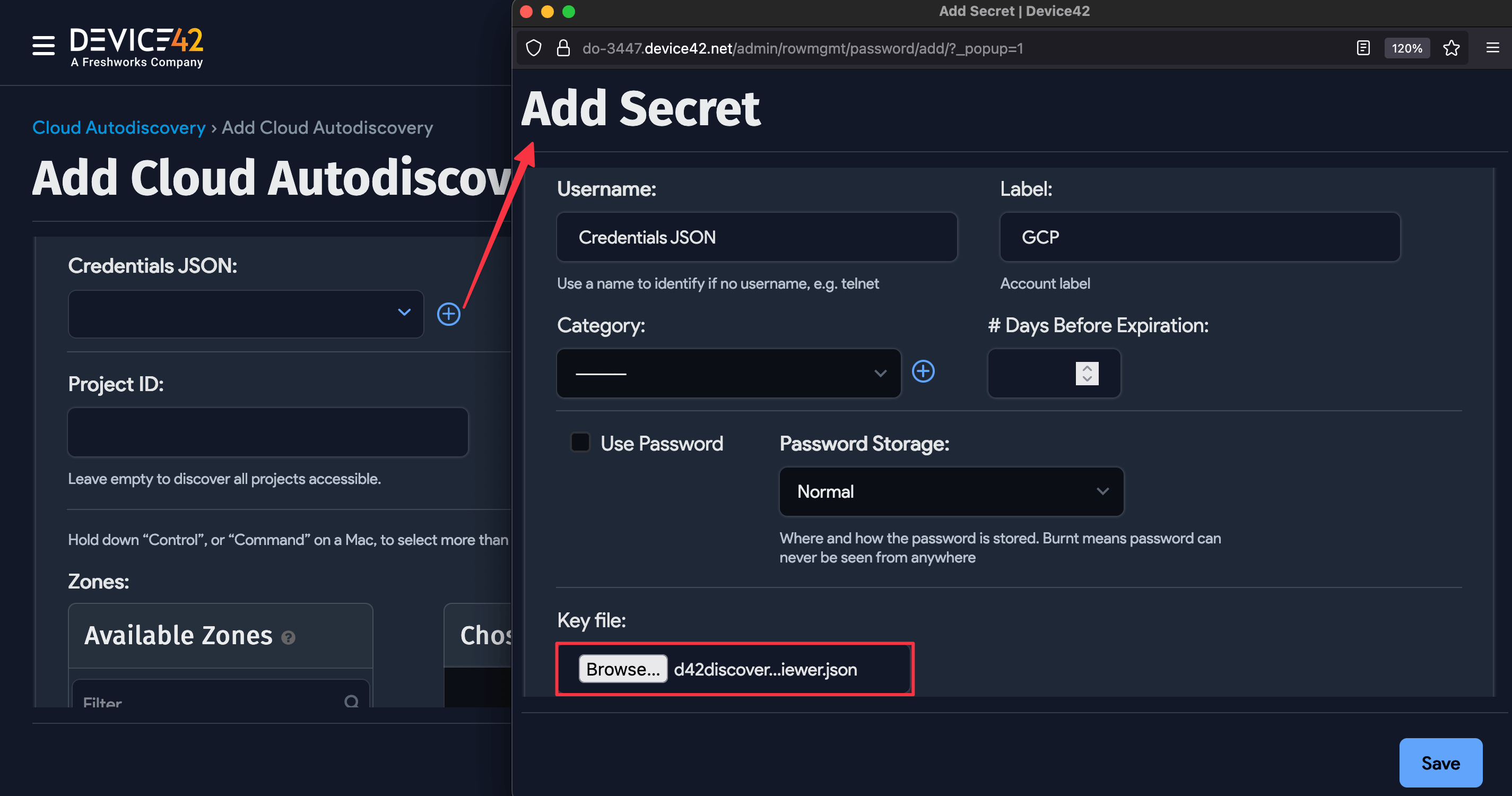
Add your Google Cloud Engine JSON key to the discovery job as a secret:
- Locate and save your Google Cloud Engine JSON key to your local machine.
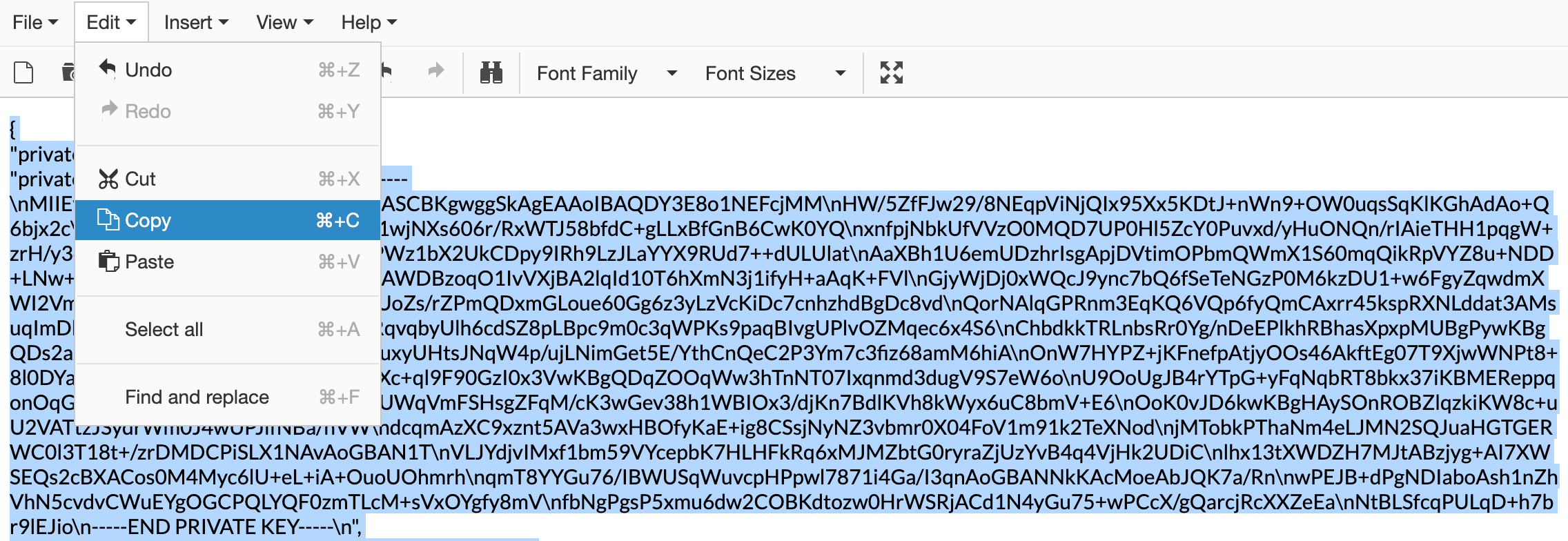
- Open the key in a text editor and copy its contents:
- Paste the copied JSON in its entirety into the Password field:
GCP Discovery Job Options
The following configuration options are available for GCP discovery jobs:
- Select Kubernetes Discovery to discover Kubernetes clusters hosted on GCP.
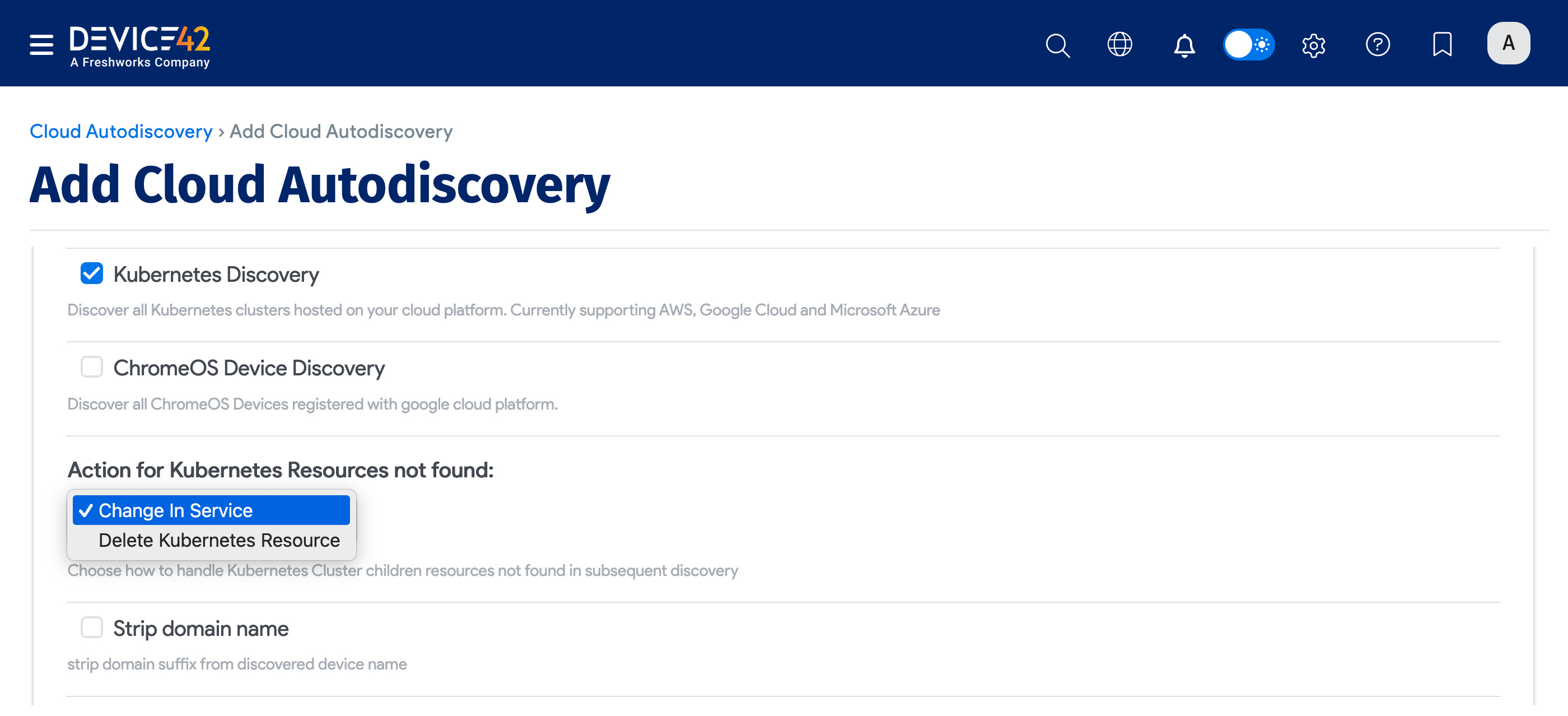
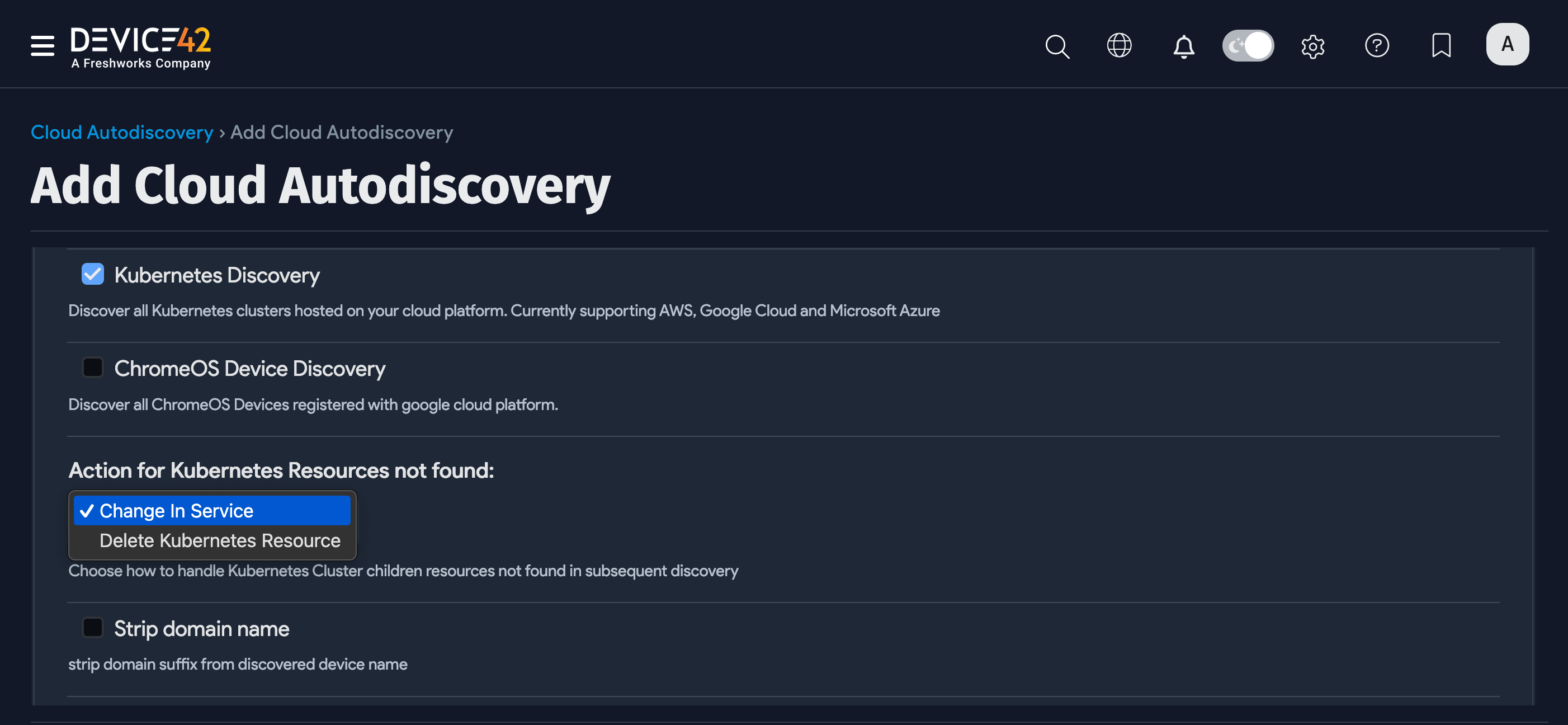
- Select Strip Domain Name to remove the domain name (everything after the first period) from the discovered name.
- Set an Object category for discovered devices to assign a specific category to discovered devices.
- Select Overwrite existing object categories to replace previously assigned categories with the current selection.
- Set a job Service Level (for example, "Development", "Deployment", or "Production") to apply to the discovered items. See Service Level and Object Category Options for details.
GCP Account Tags
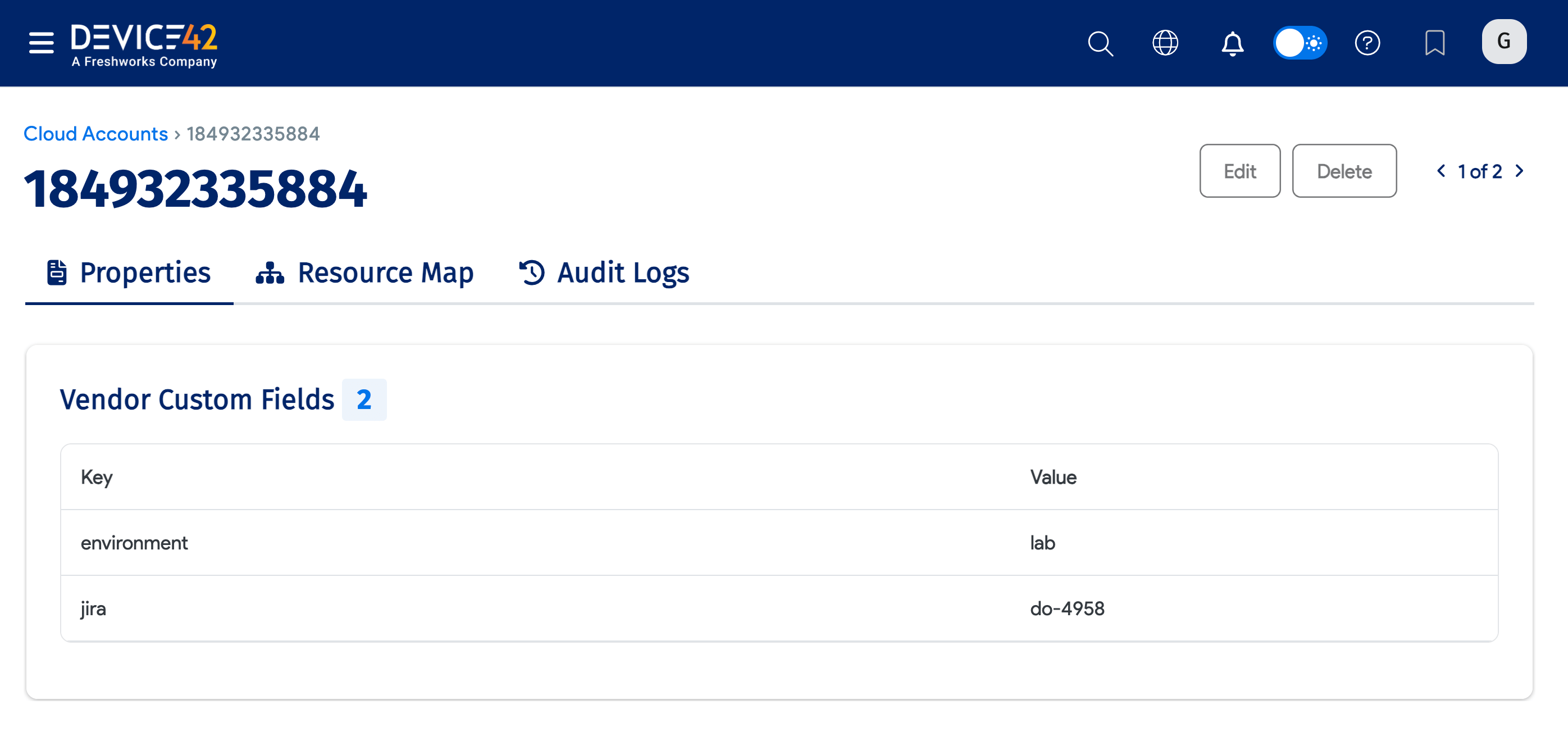
Navigate to Infrastructure > Cloud Infrastructure > Cloud Accounts and select your GCP account from the Cloud Accounts list page.
Discovered account-level tags are listed under the Vendor Custom Fields section.