Automox Autodiscovery
Automox cloud discovery retrieves up-to-date details about your devices, operating systems, and software packages directly into Device42, which serves as a source of truth for your IT environment.
This page outlines the Automox discovery items, authentication requirements, and how to set up and schedule a discovery job.
Automox Discovery Items
Device42 collects the following details when an Automox discovery job runs:
- Device name
- Serial number and UUID
- Operating System (name and version)
- Hardware make and model
- CPU model
- RAM
- Mounts
- IP and MAC addresses
- Installed software packages (display name and version)
Authentication Requirements
An Automox API key is required. In the Automox console, open Secrets & Keys and create or copy an API key. Device42 sends this API key as a bearer token when it requests data from Automox.
Create an Automox Discovery Job
Navigate to Discovery > Cloud and click Create.
Name the discovery job and select Automox from the Type dropdown.
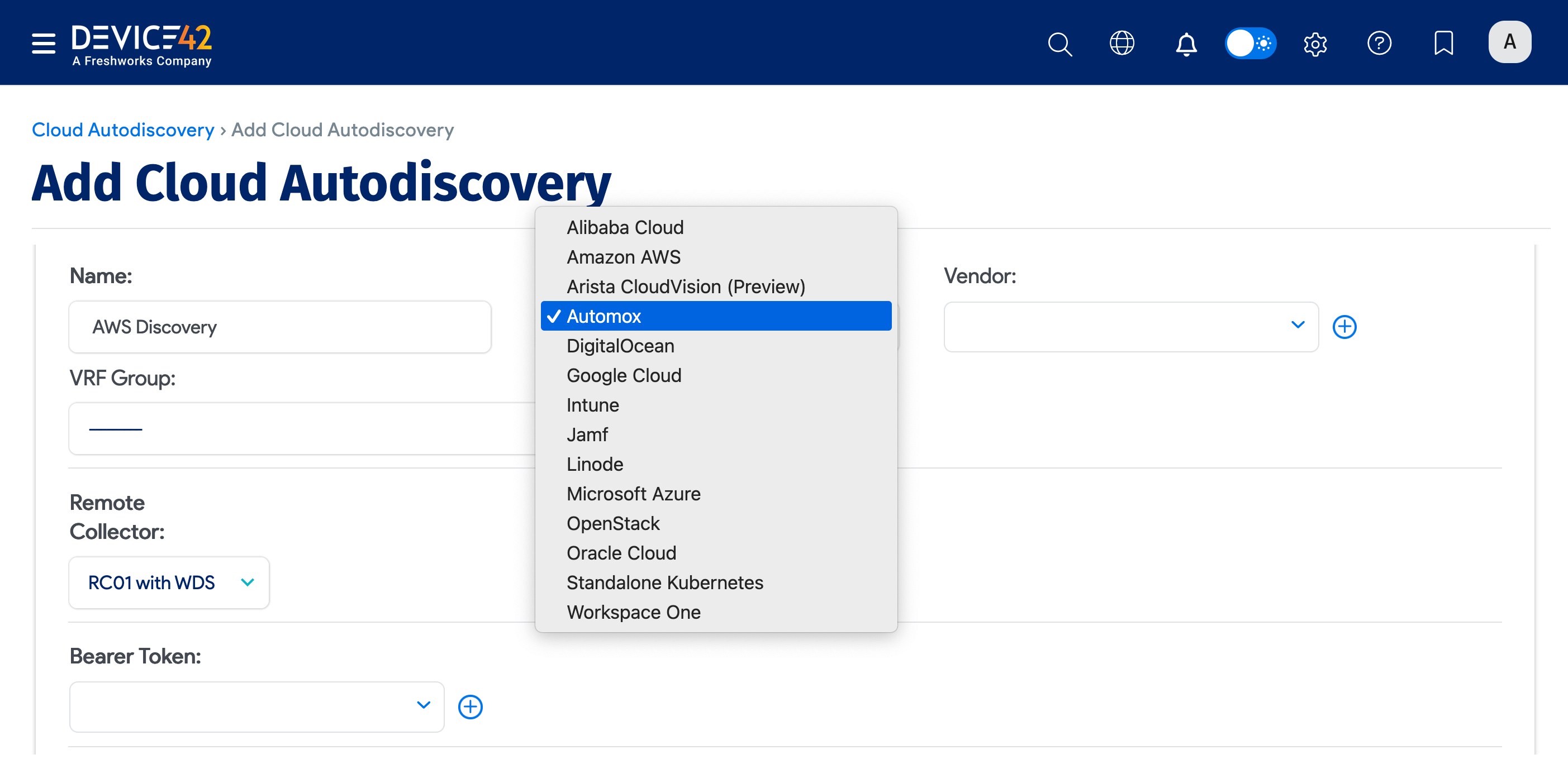
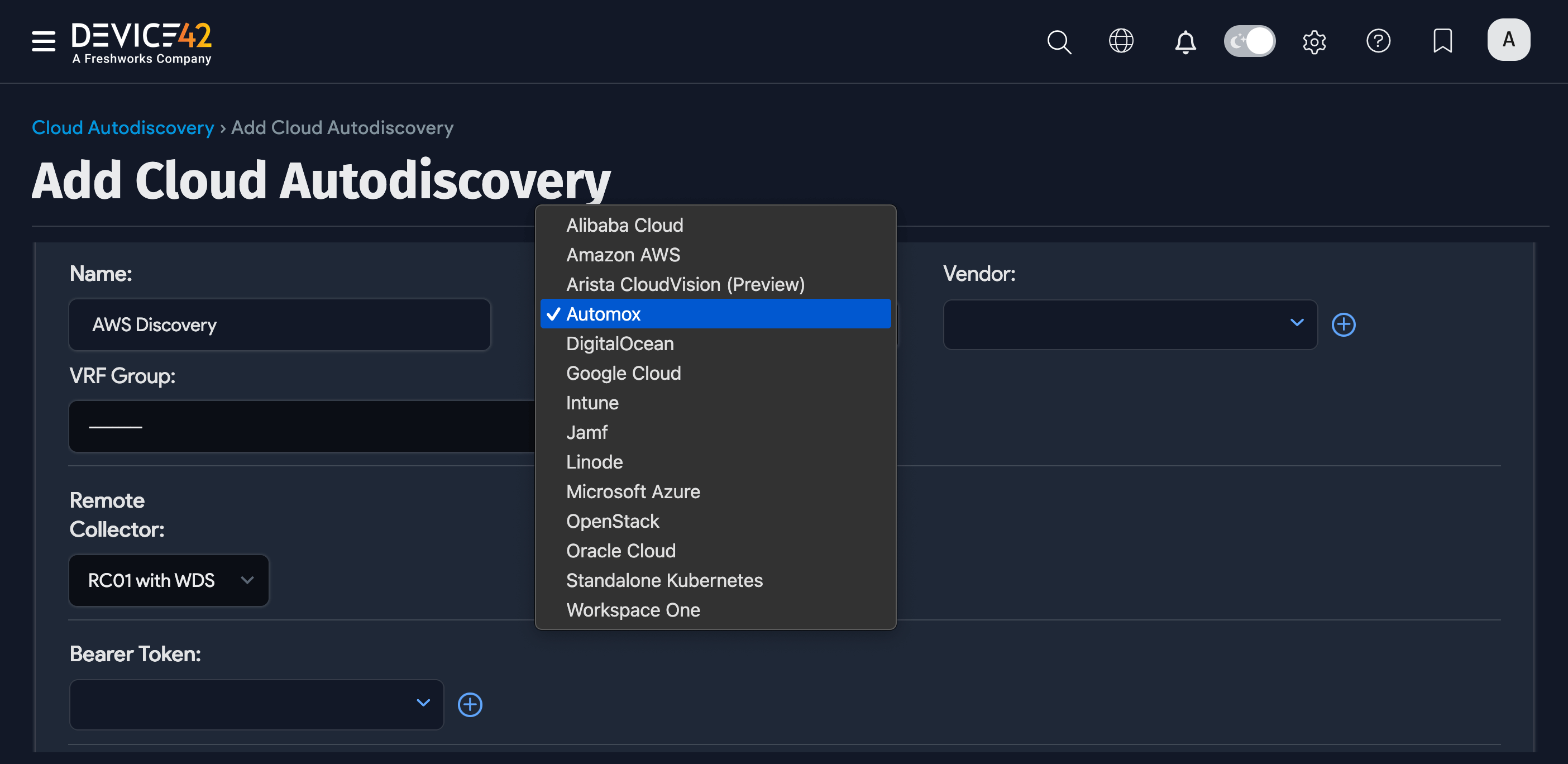
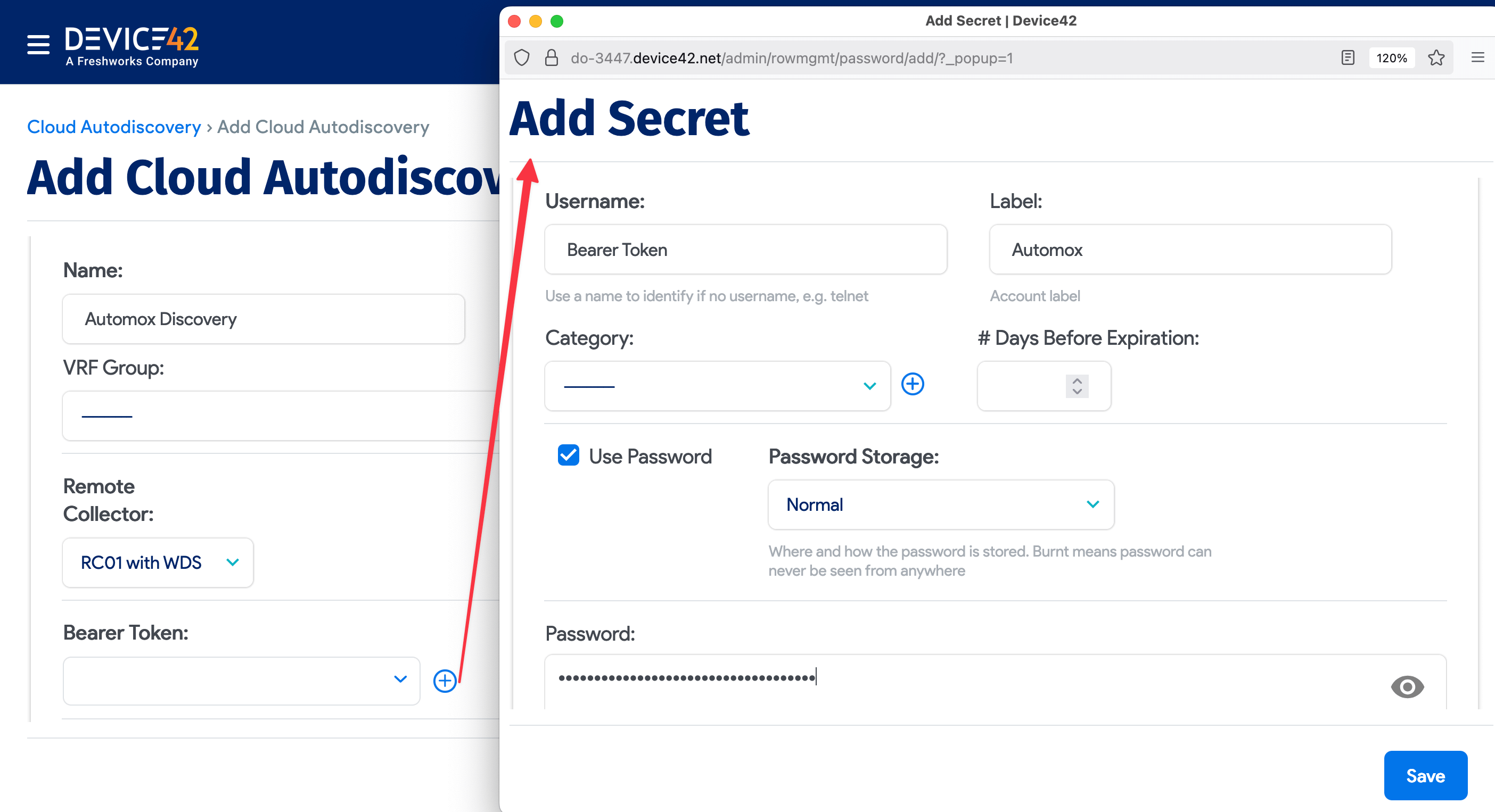
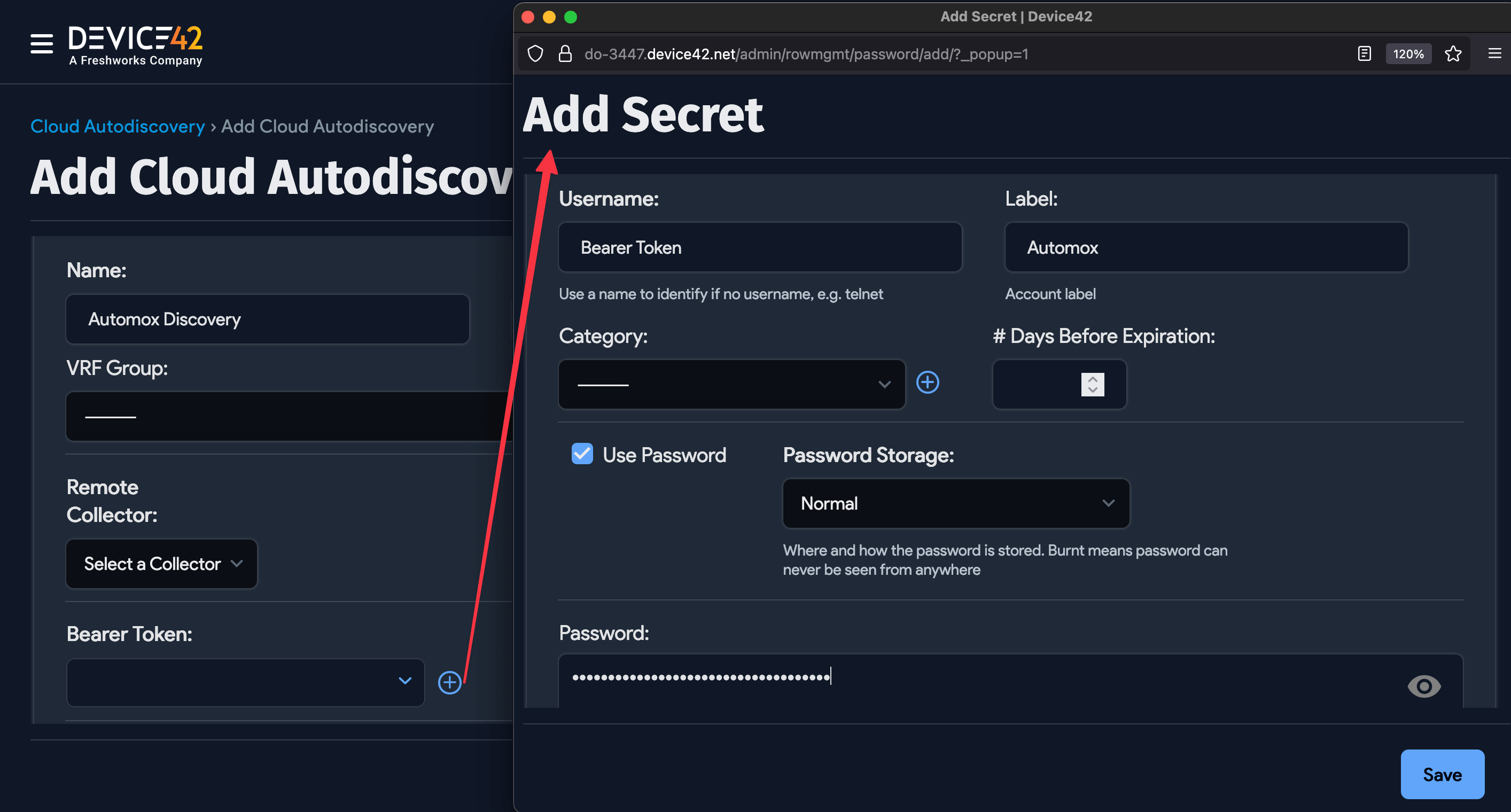
Select the Secret that contains your Automox API key in the Bearer Token field. To create a Secret, click the + icon, enter a descriptive name such as Bearer Token in the Username field, and paste the API key into the Password field.
Optional Fields
The following optional fields are available for Automox discovery jobs.
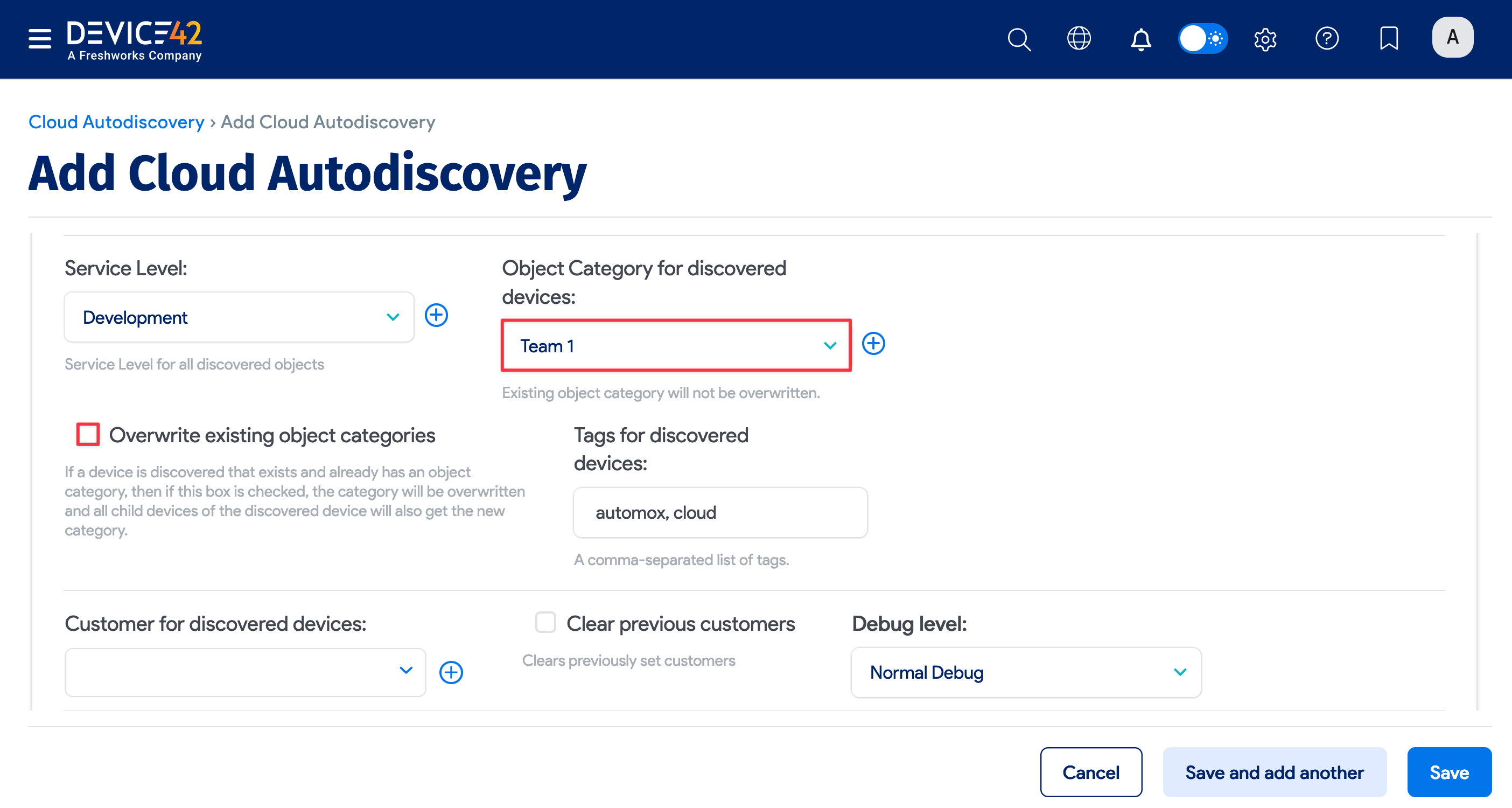
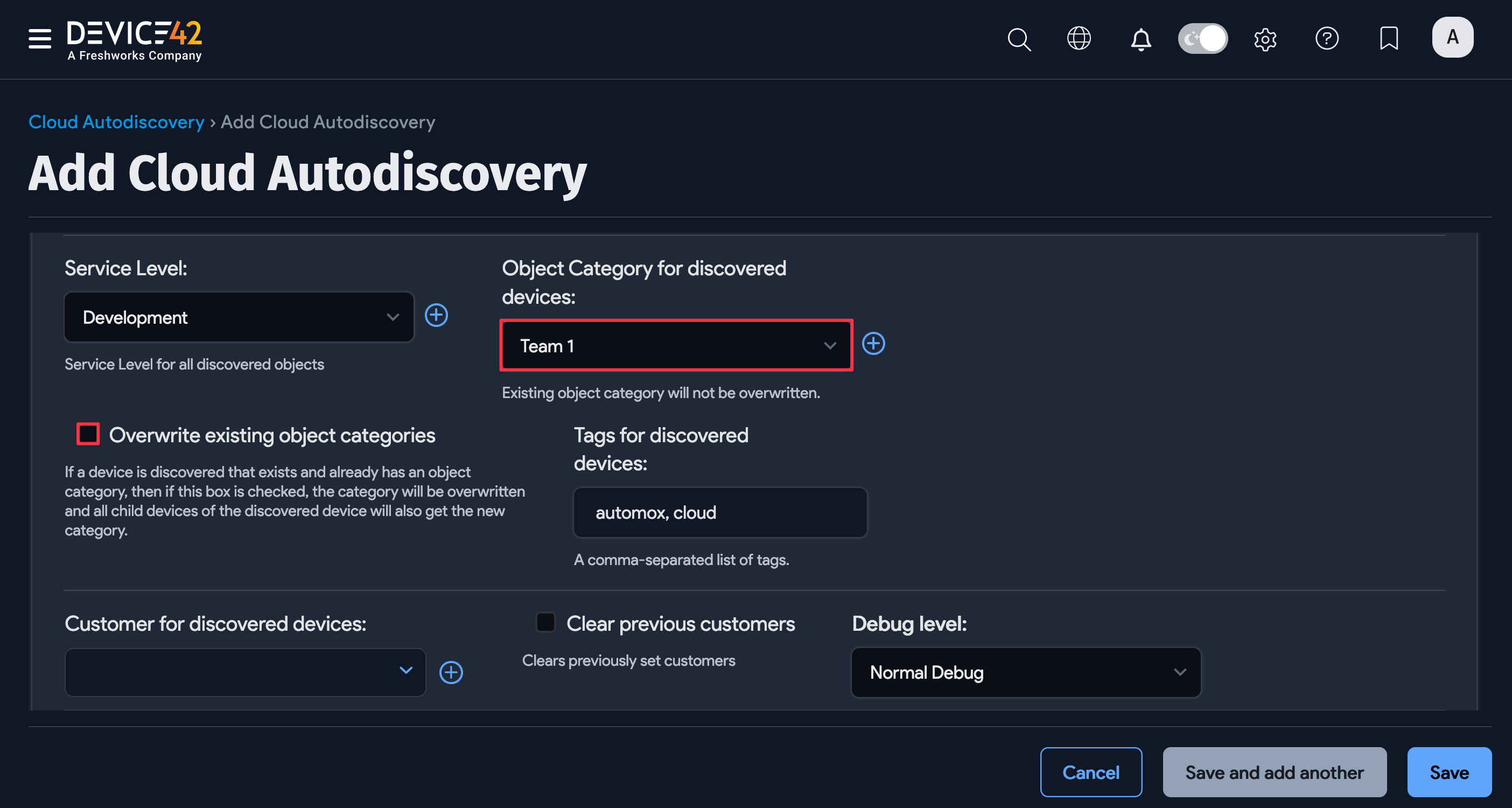
- Select or add a Service Level to associate with the discovered Automox Configuration Items.
- Choose an Object Category for discovered devices. To update the object category of existing devices to match the newly selected object, check the Overwrite existing object categories box.
- Add Tags for discovered devices to categorize and filter discovered devices by your chosen tags.
Schedule the Discovery Job
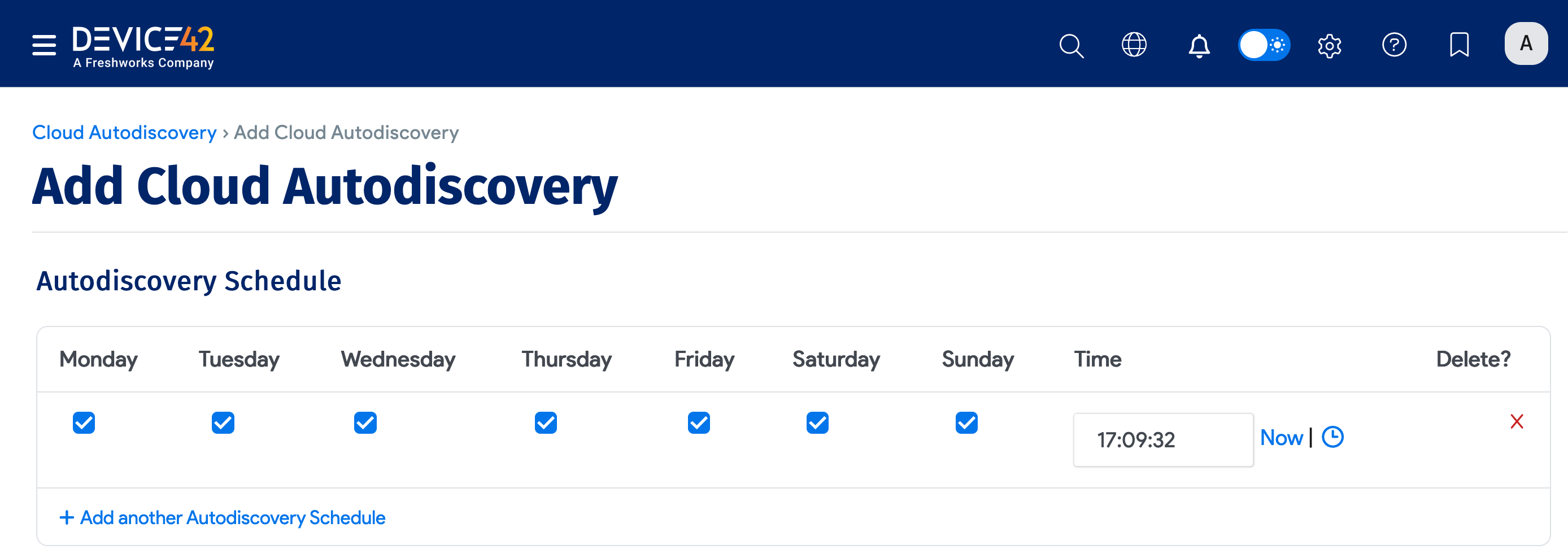
Automate the discovery process by choosing the days and times when the job runs.
Create multiple schedules using the + Add another Autodiscovery Schedule button.
Run the Discovery Job
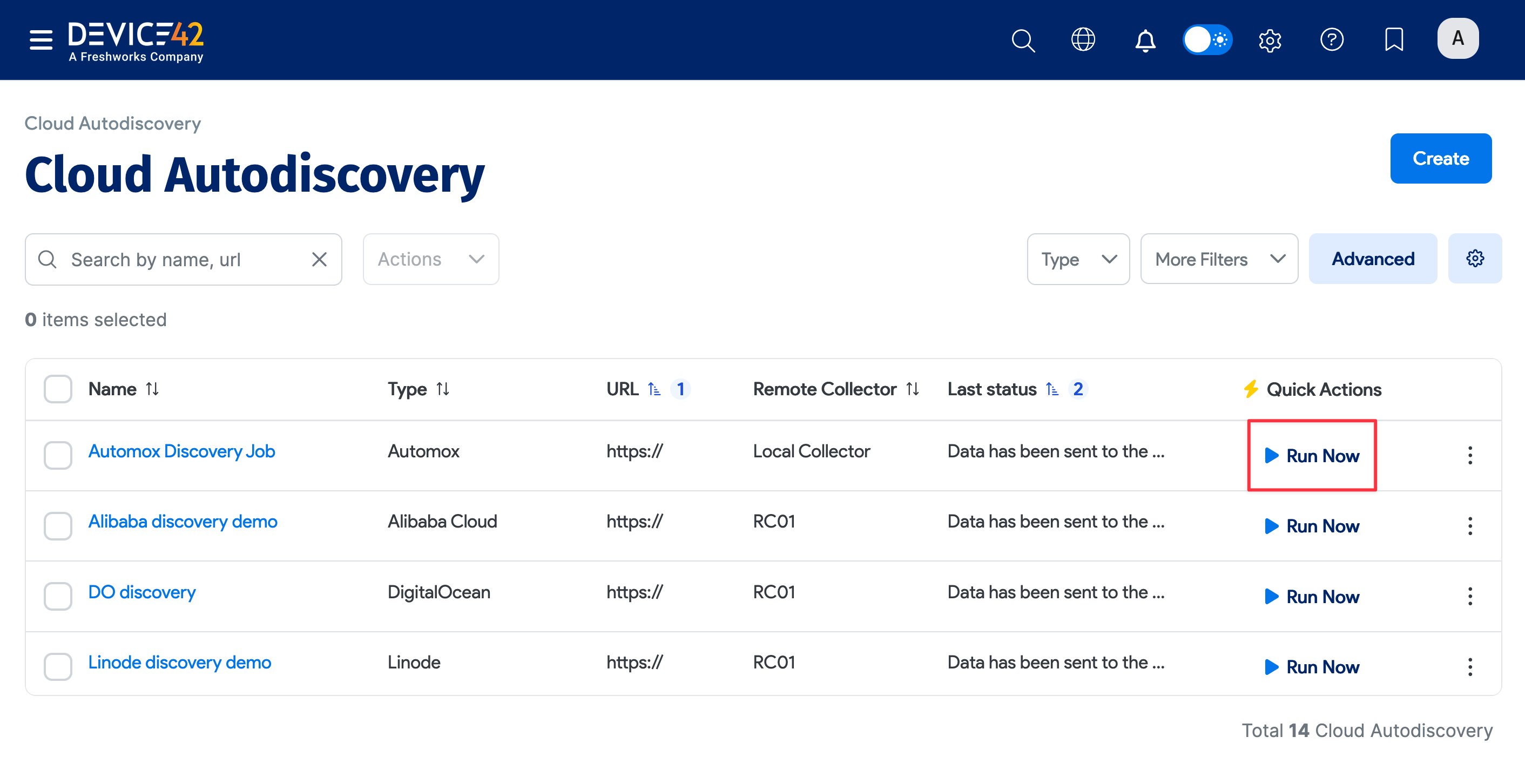
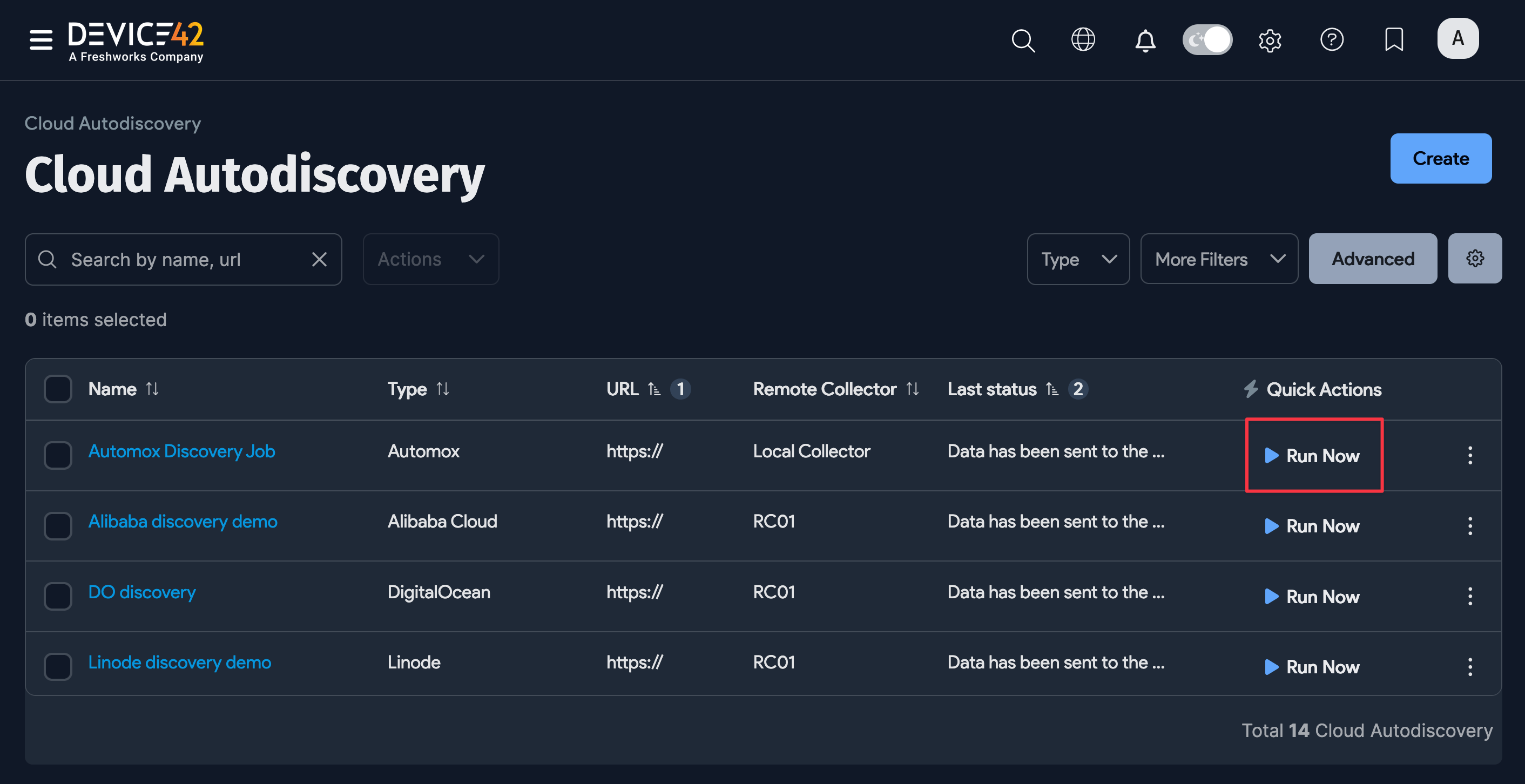
After saving, click Run Now on the job details page to run the job immediately.
You can also find the job on the Cloud Autodiscovery list page and click Run Now under the Quick Actions column to run the job at any time.