Kubernetes Autodiscovery
Device42 Kubernetes discovery identifies Kubernetes clusters, nodes, containers, and related resources across standalone environments and major cloud platforms including AWS, GCP, and Azure.
This page covers the Kubernetes discovery items, how to enable Kubernetes discovery for cloud platforms, and how to set up standalone Kubernetes discovery.
Kubernetes Discovery Items
The following table lists the Kubernetes components that Device42 discovers, the information generated, and where to find it in Device42.
| Cloud Service or Object Name | Where To Locate in Device42 | Information Generated |
|---|---|---|
| Nodes | Resources > Containers > Kubernetes | Type, version, OS |
| Containers | Resources > Containers > Kubernetes | Region, status, capacity, creation information, and so on |
| Whole Cluster Structure | Resources > Containers > Kubernetes | All general info, namespaces, endpoint details, custom fields |
Kubernetes Discovery for AWS, GCP, and Azure
Kubernetes discovery is available as an option for Amazon Web Services (AWS), Google Cloud Platform (GCP), and Microsoft Azure cloud discovery jobs.
- Navigate to Discovery > Cloud and click Create to configure a new discovery job.
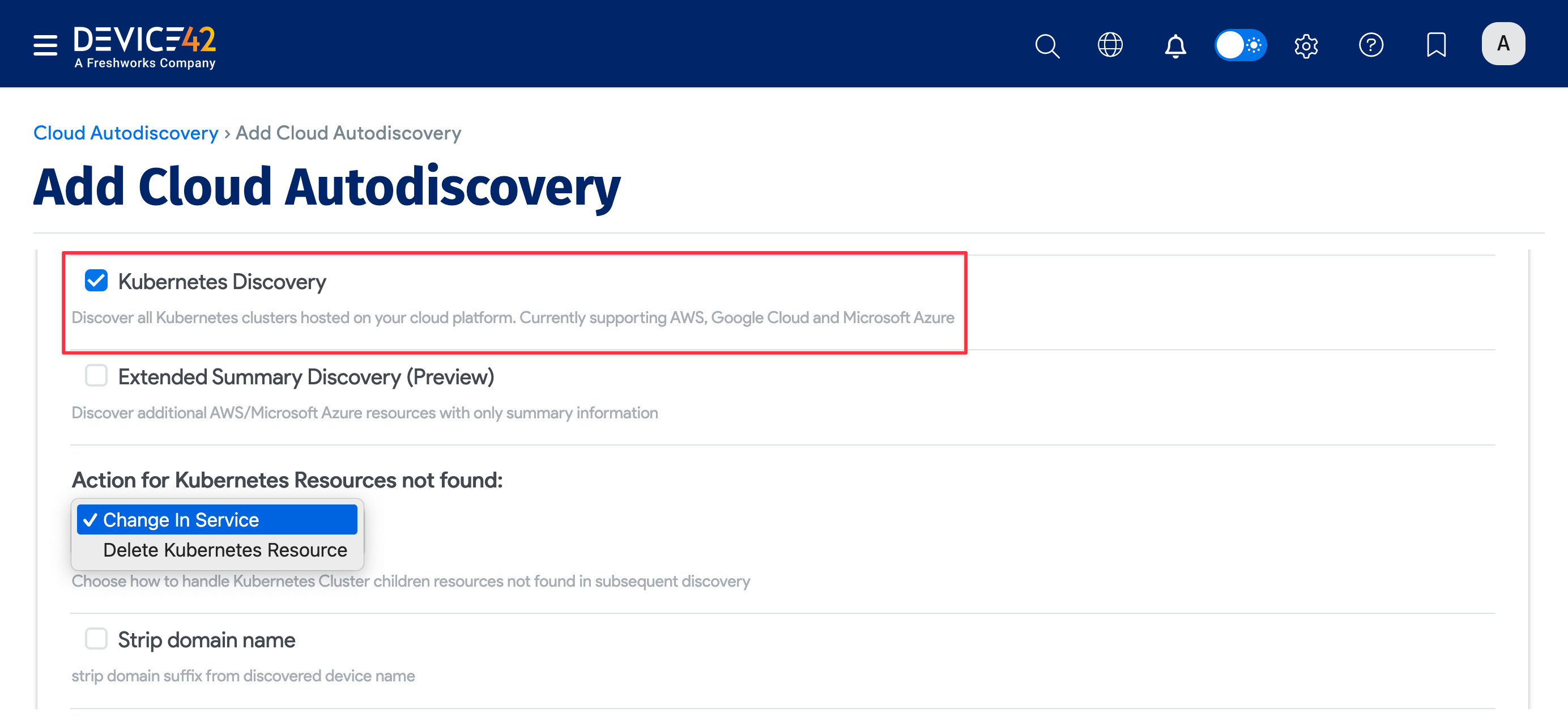
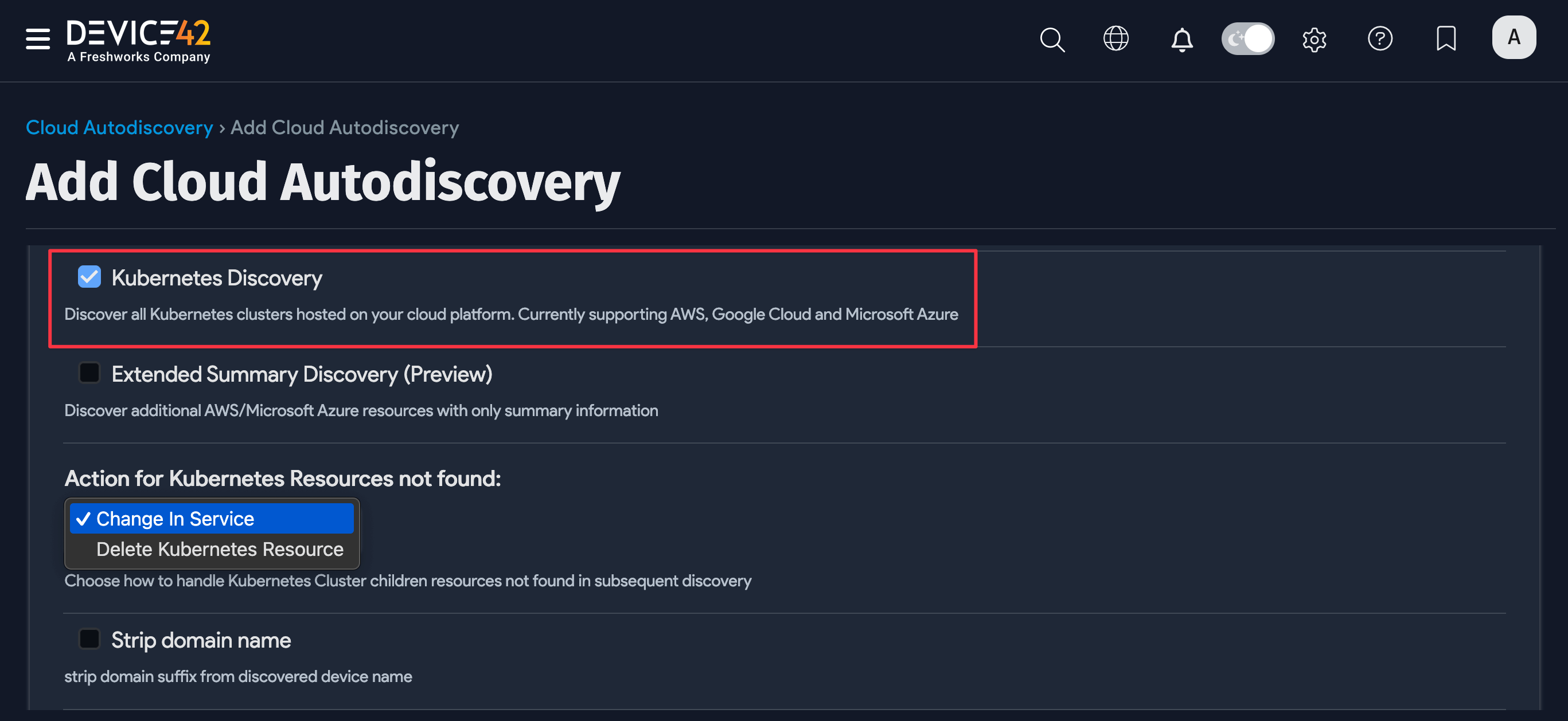
- Scroll down the Add Cloud Discovery form and check the Kubernetes Discovery option.
- Select an option under Action for Kubernetes Resources not found to choose the action Device42 takes when Kubernetes cluster child resources are not found during discovery.
Standalone Kubernetes Discovery
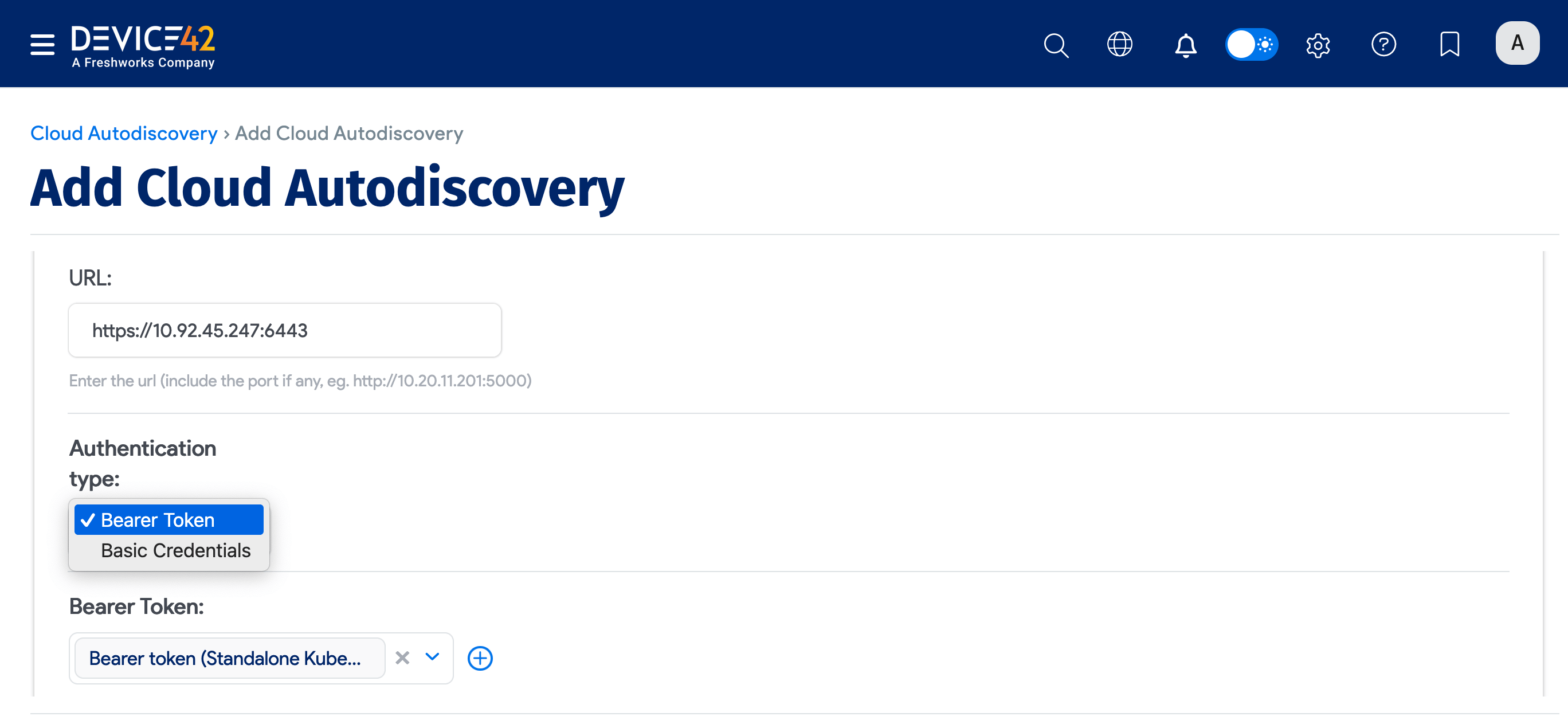
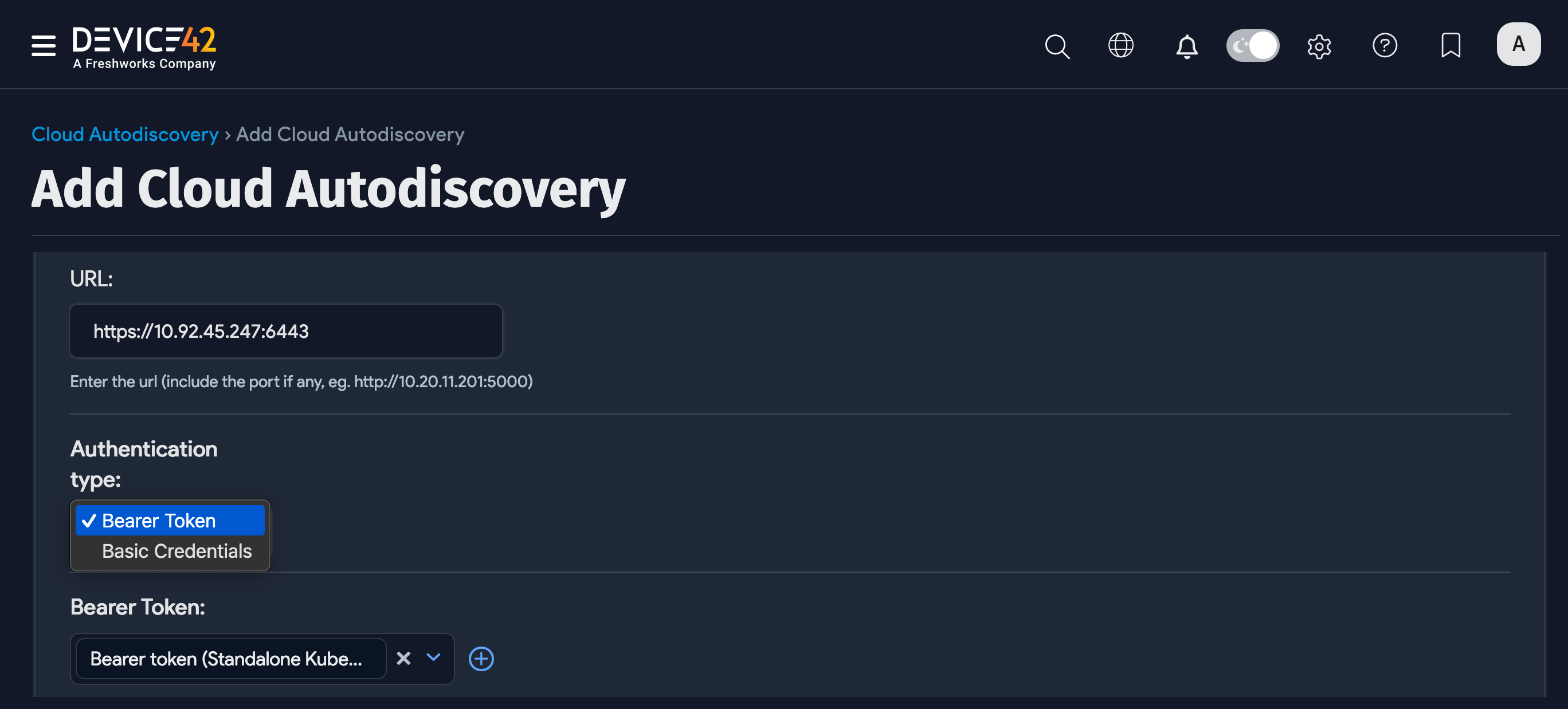
To discover a standalone Kubernetes cluster, navigate to Discovery > Cloud, click Create, and select Standalone Kubernetes from the Type dropdown. Fill in the following fields:
- Enter a URL.
- For Authentication type, choose between Bearer Token and Basic Credentials.
- Select an option under Action for Kubernetes Resources not found.
Optionally, you can choose a Vendor and a VRF Group. All vendors and VRF groups are user-defined.
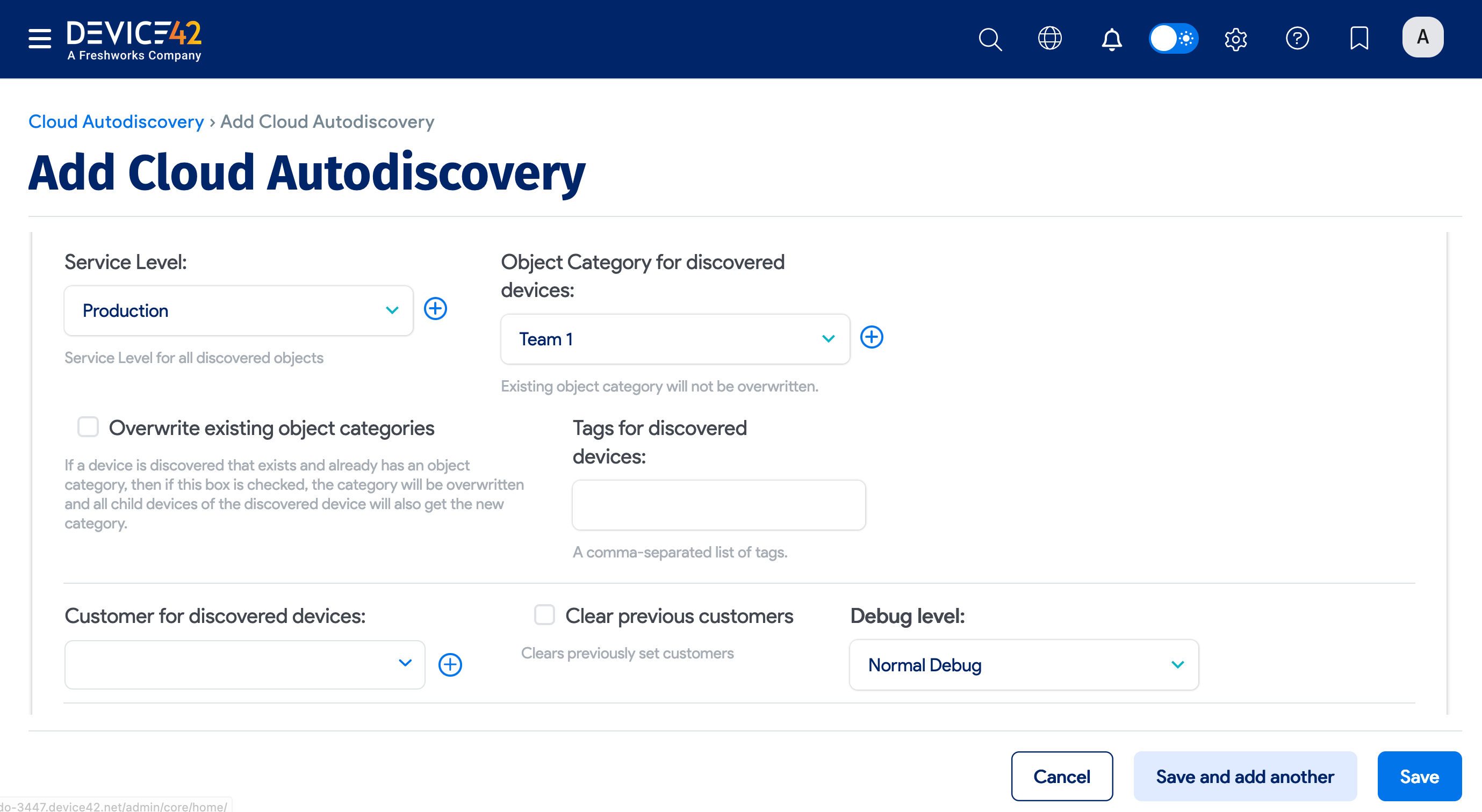
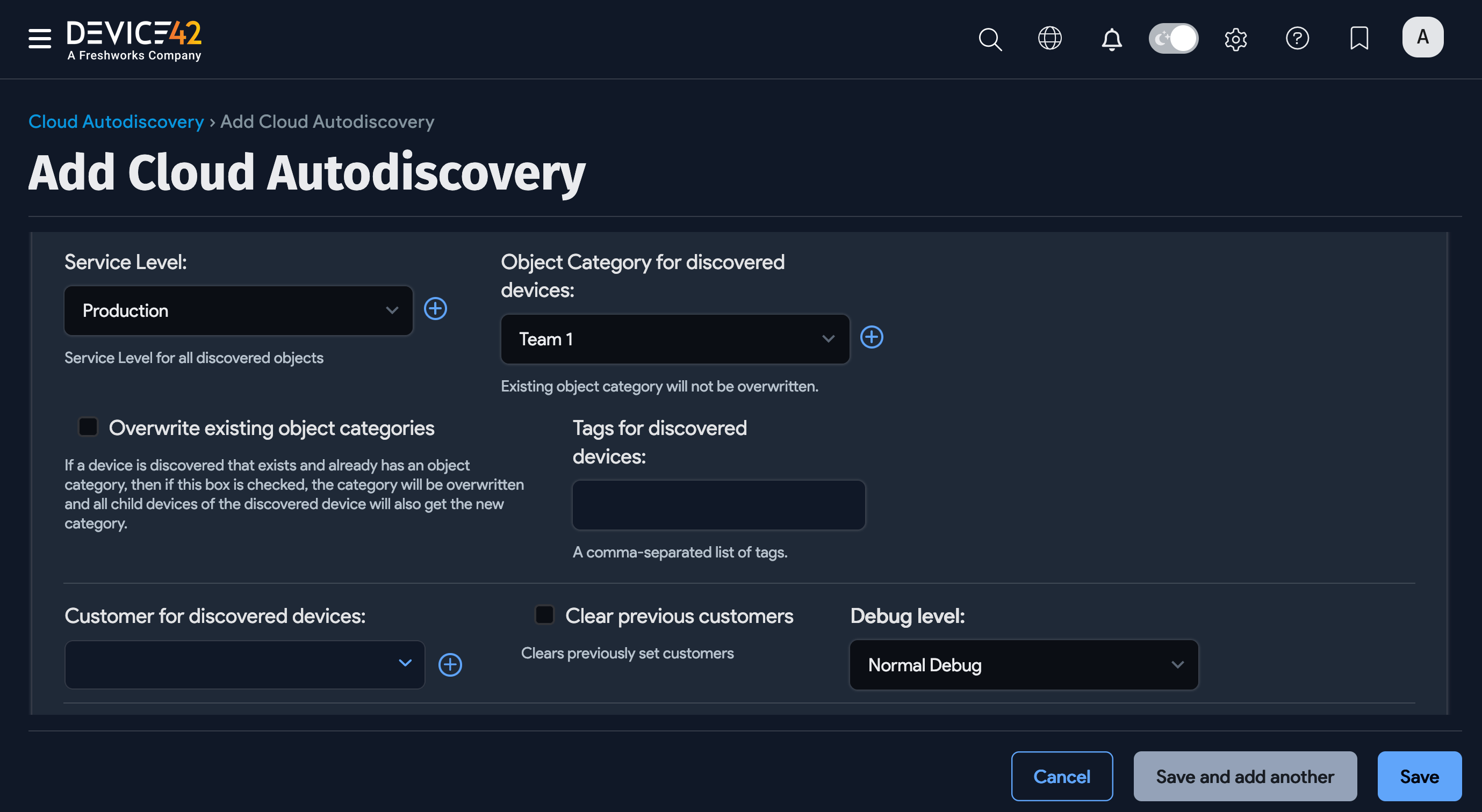
You can also set the Service Level for all discovered objects, such as "Development", "Deployment", or "Production". See Service Level and Object Category Options for details.
View Discovered Kubernetes Resources
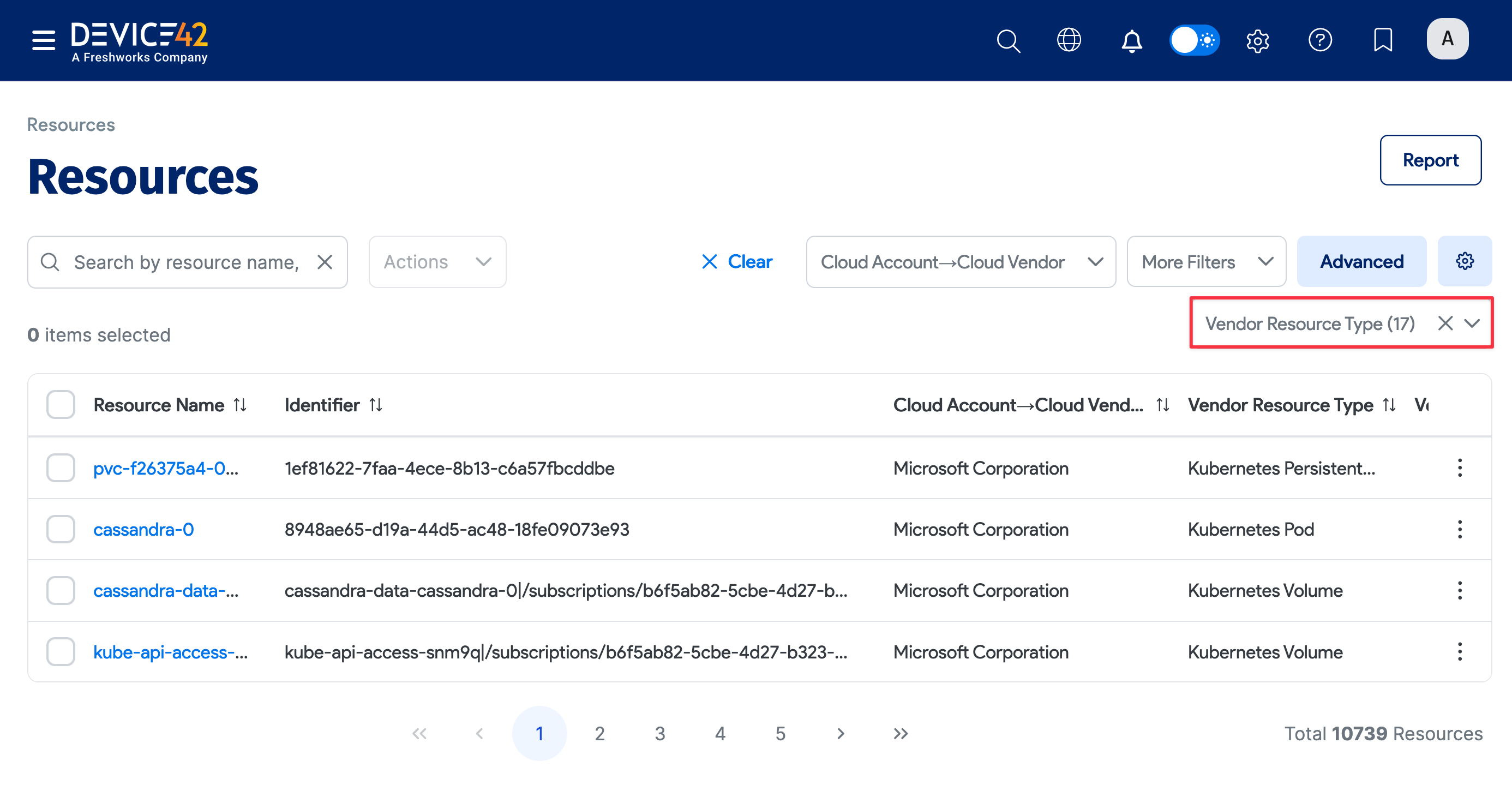
Discovered Kubernetes resources appear on the Resources list page.
- Navigate to Resources > All Resources from the main menu to display the list page.
- Use the Vendor Resource Type dropdown to choose which Kubernetes resources to include in the table.
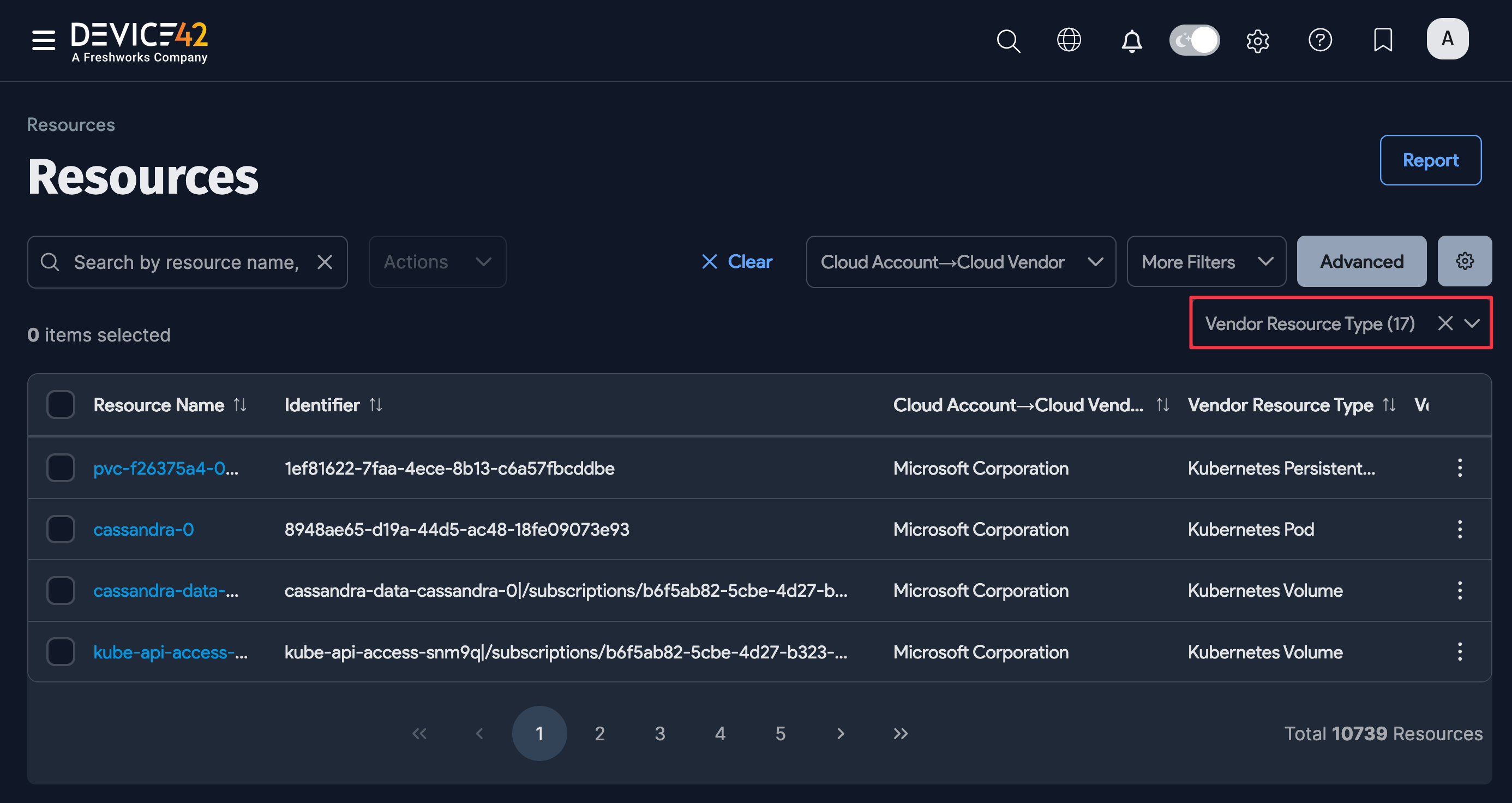
-
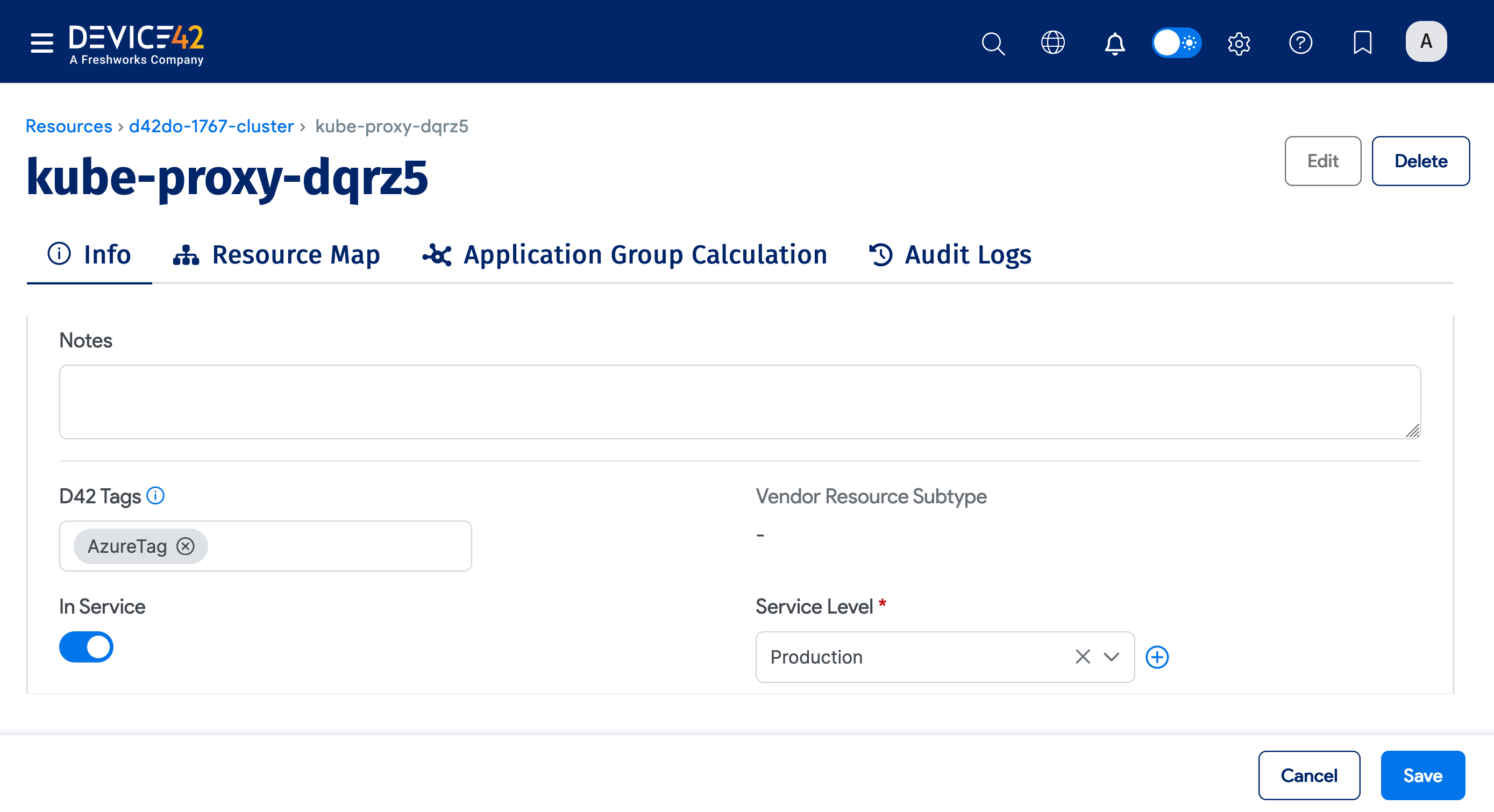
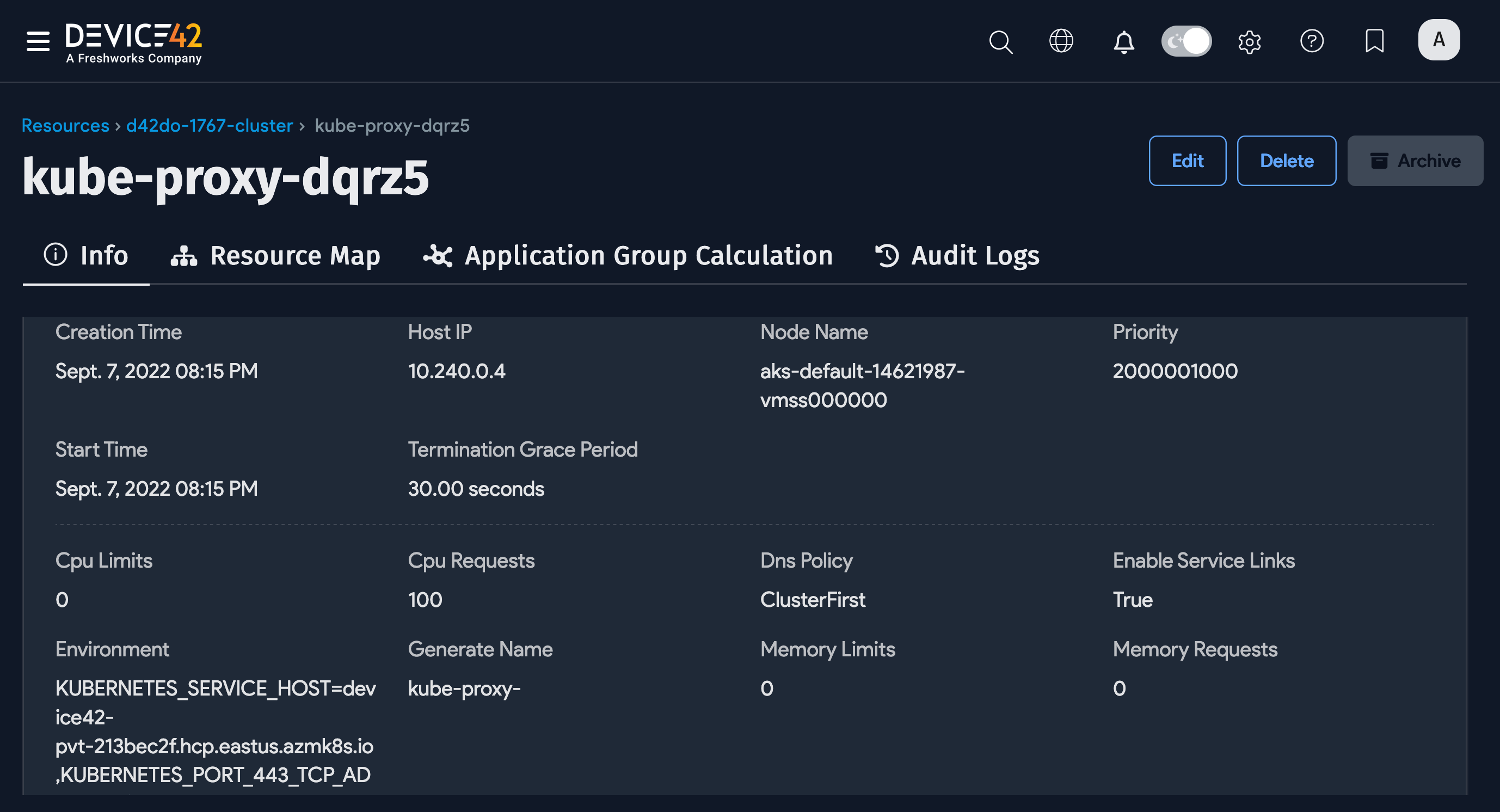
Click a Resource Name to view its properties.
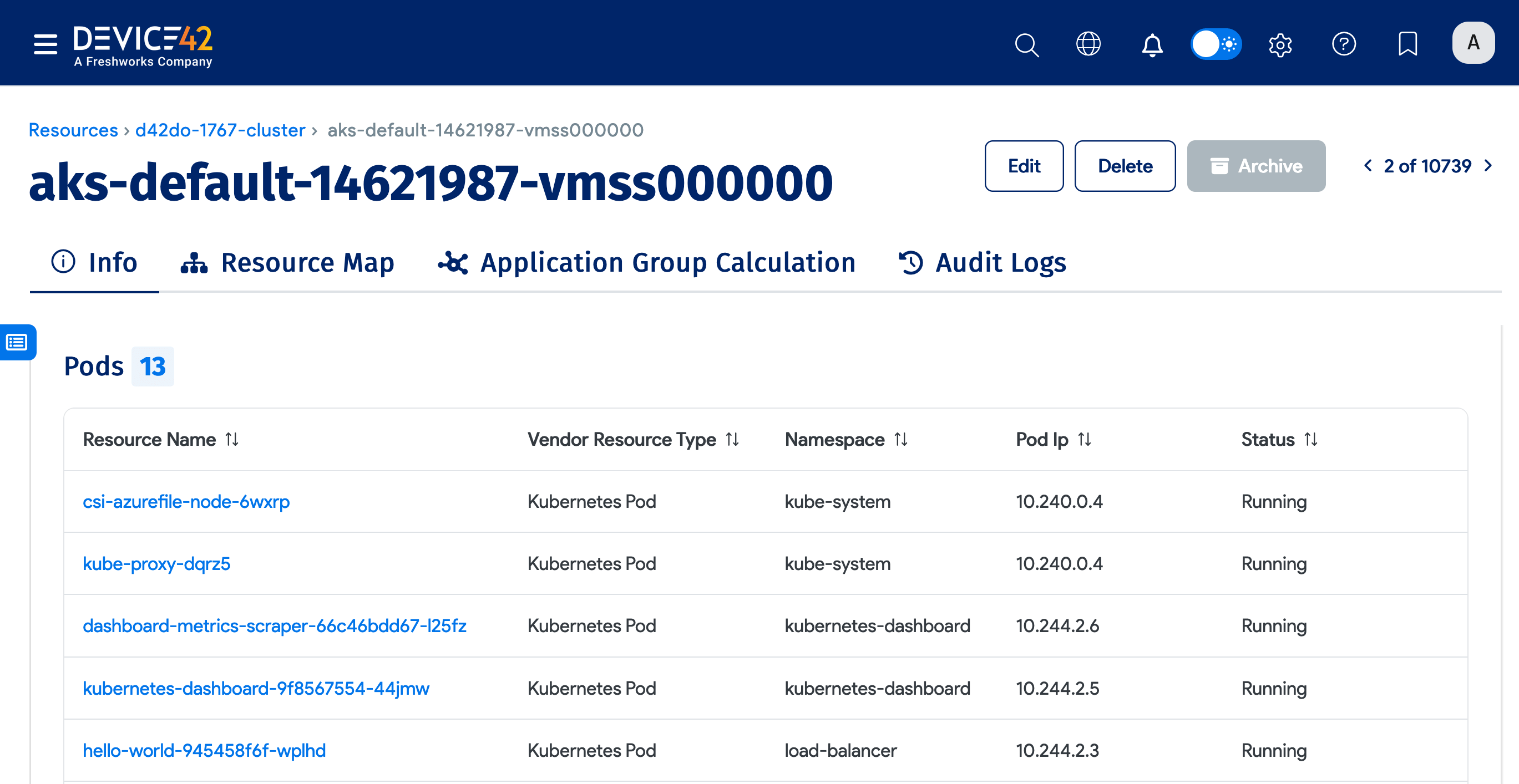
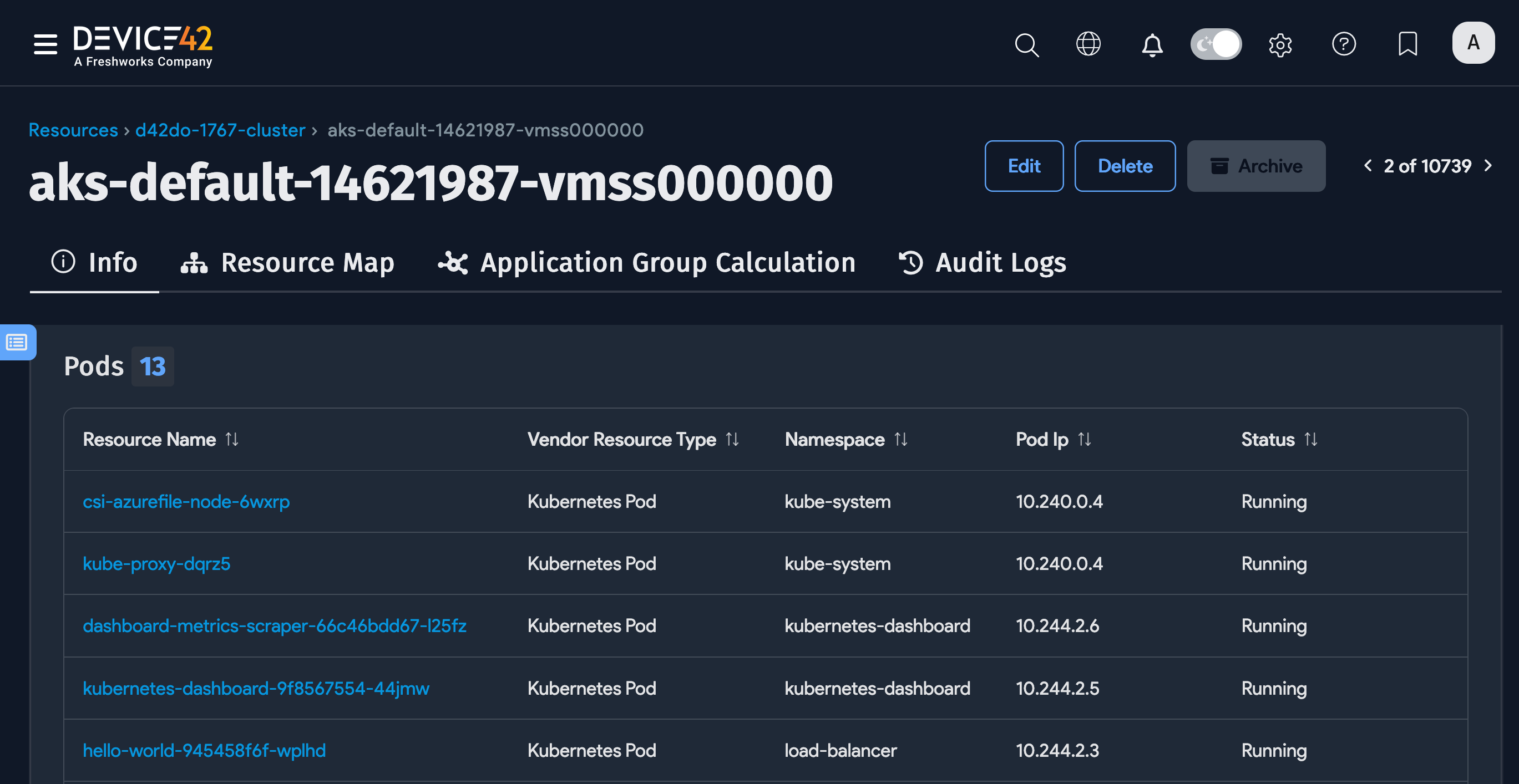
-
Click the available links to see details about each resource.
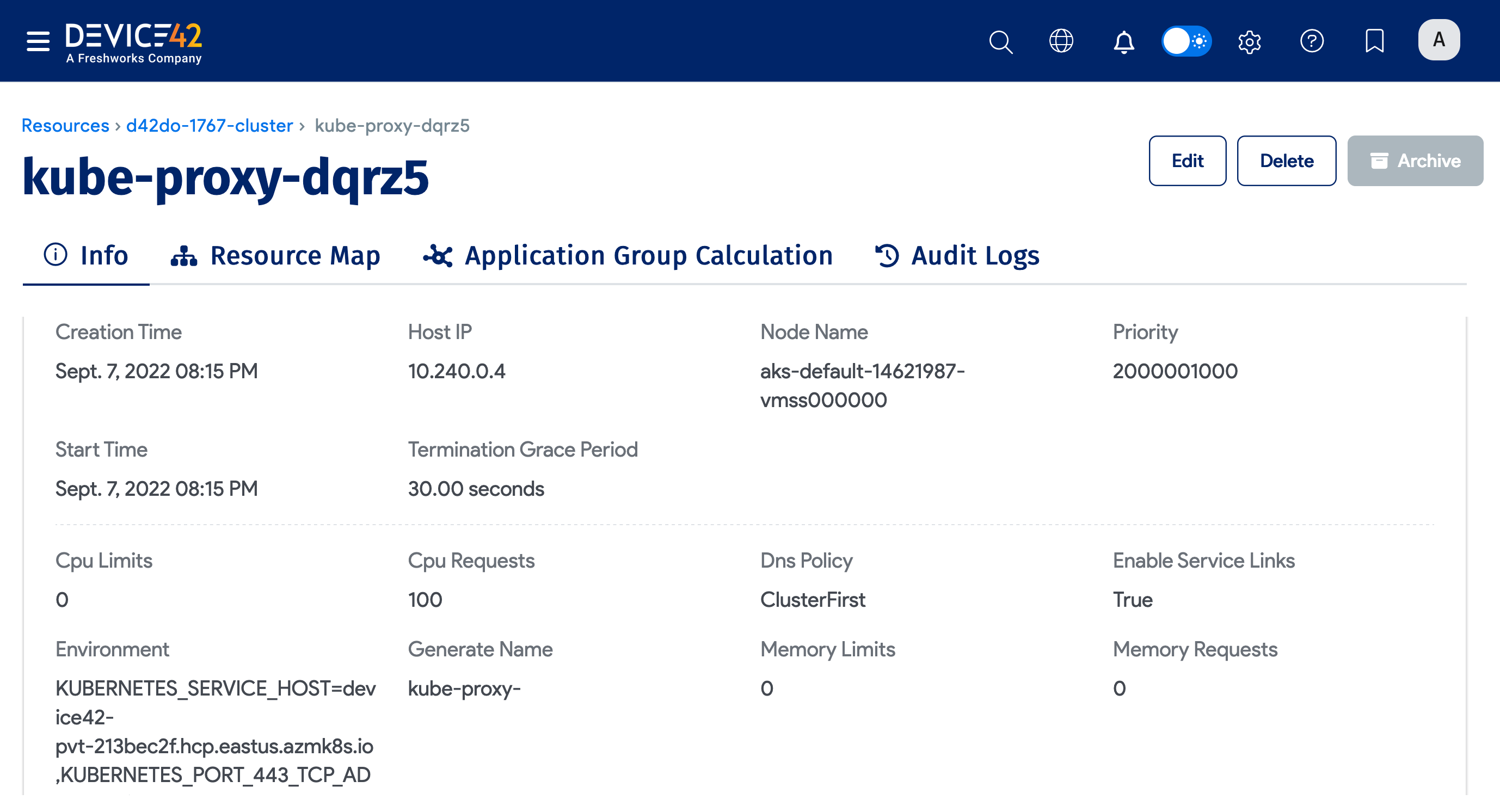
Edit Discovered Kubernetes Resources
Click Edit on the bottom right to edit resource information. You can edit Notes, Tags, the In Service status or level, and Custom Fields values.