Using APIs for Custom Autodiscovery
If you need discovery methods that are not provided by Device42, you can create your own discovery tools that use Device42 APIs to load data into a Device42 instance.
This page lists the available sample scripts and walks through an example using IronPython.
Device42 provides several sample scripts you can use as a basis for custom discovery tools, including the following:
api-sample.py: This script runs against a single Windows server and uploads info to the Device42 appliance.ad-sample.py: This script runs against Active Directory computers, servers, or a list of IP addresses, and uploads discovered systems info to the Device42 appliance.d42_api_linux_upload_sample_script.py: This script runs on a single *nix system and uploads info to the Device42 appliance.sample-script-facter-facts-to-d42.py: This script runs on a Puppet master and uploads nodes info from Facter fact files to the Device42 appliance.d42_api_solaris_sample_script.py: This script runs on an individual Solaris system and uploads info to the Device42 appliance.linux_auto_dics_multi.py: This script runs on a *nix system with Paramiko to get inventory using SSH from an IP range, and uploads to the Device42 appliance.winservice.py: This script runs against Active Directory computers, servers, or a list of IP addresses, and uploads discovered services as application components to the Device42 appliance.
All these scripts are written in Python, but you can use any programming language that calls RESTful APIs.
The remainder of this page demonstrates how to use one of these scripts. The example uses IronPython, as it is simple to install. You can drop the executables into a folder and run them as long as you have the .NET 4 framework installed.
Install IronPython Binaries
You need the following software to follow along with this example:
- IronPython
- The .NET Framework 4
- PowerShell version 1 or 2 (preferred)
- Device42 sample scripts (the latest versions are under the
srcfolder)
After installing PowerShell and the .NET Framework 4, download the installer or binaries for IronPython. The binaries are recommended, as you can unzip the folder and start using them right away.
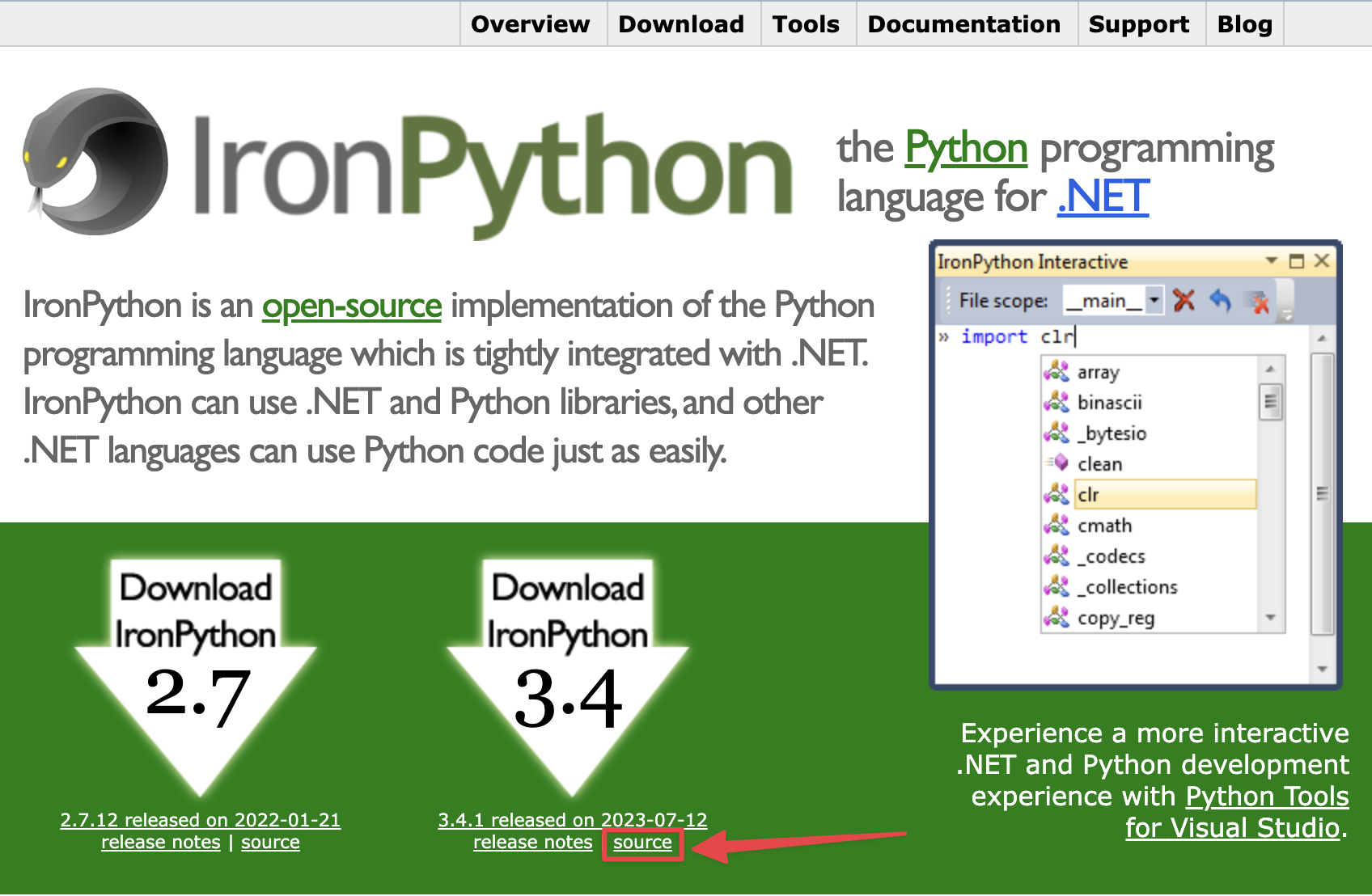
Download the Sample Script (api-sample.py)
Download the latest script.
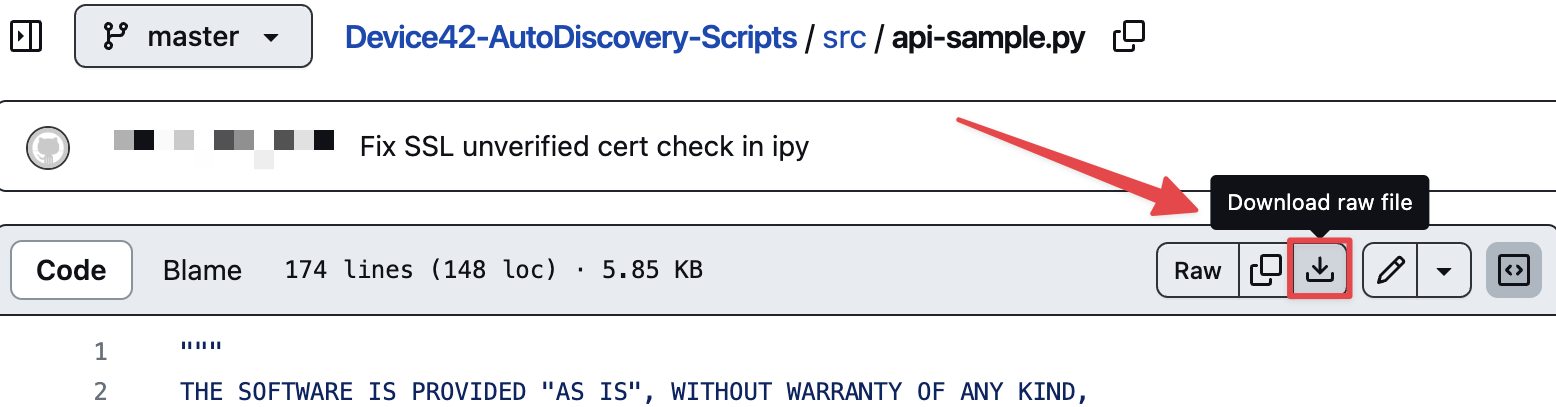
Click on the script file to open it, then click the download button and save the file in the same folder as the unzipped binaries for IronPython.
Prepare the Sample Script for Your Environment
Open the script and locate the following sections:
BASE_URL=API_DEVICE_URL=BASE_URL+API_IP_URL =BASE_URL+USER =PASSWORD=

Edit the sections as follows:
- Change the value of
BASE_URLto the URL for the Device42 appliance. Ensure there is no trailing/at the end of the URL. Example:BASE_URL='https://d42app.device42.pvt'. - Change the values for
USERandPASSWORDto the credentials for an administrator user with login access to the Device42 appliance.
Run the Script
From the command line, go to the folder containing the binaries for IronPython and run ipy.exe. Pass the script name as the argument:
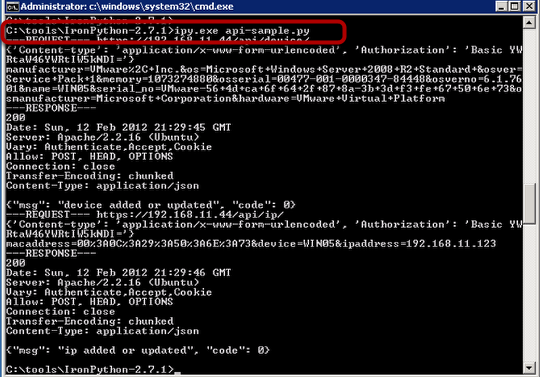
You should see the device added in the Device42 portal with the IP and MAC address details.