Cloud Resources
Cloud resources are items identified and returned by Device42 discovery jobs. You can visualize them in the resource map view and sort by cloud vendor, region, subnet, Virtual Private Cloud (VPC), and other resource types.
This page covers how to view cloud accounts, use the resource map, and navigate resource details.
While you can display Azure and GCP environments in the resource map, AWS currently displays more detailed information.
View Cloud Resources
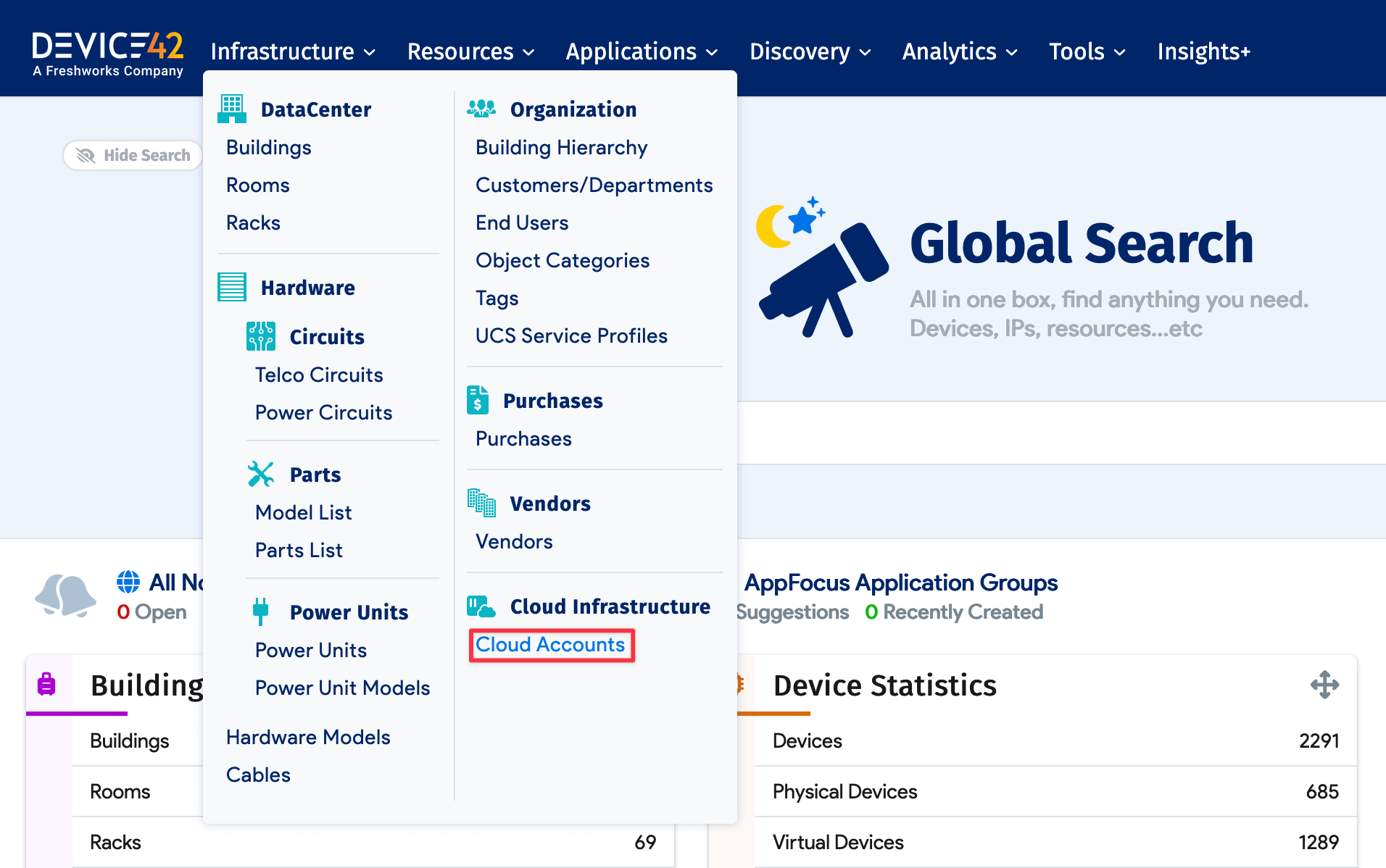
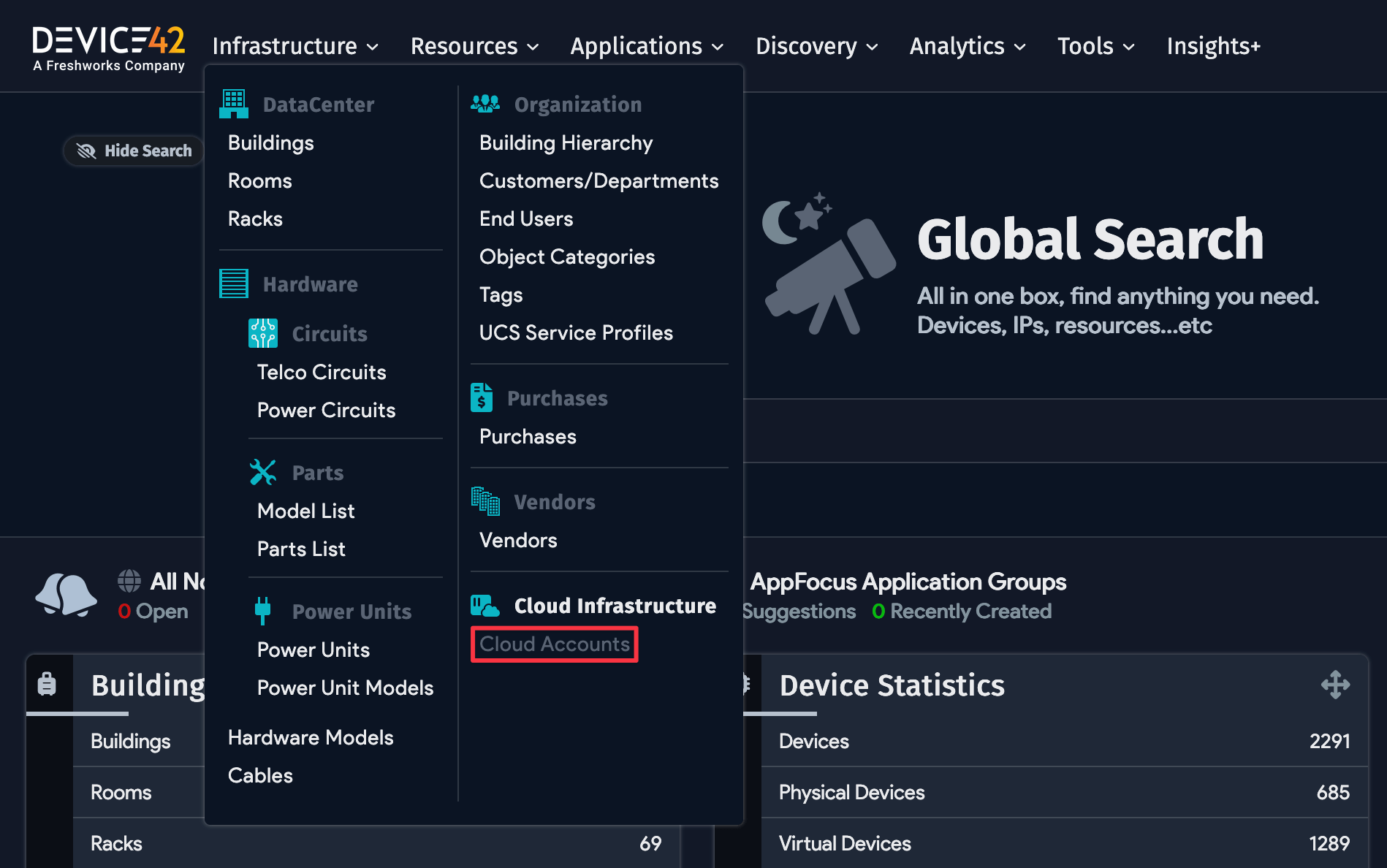
Navigate to Infrastructure > Cloud Infrastructures > Cloud Accounts from the main menu to display the Cloud Accounts list page.
Filter Cloud Accounts
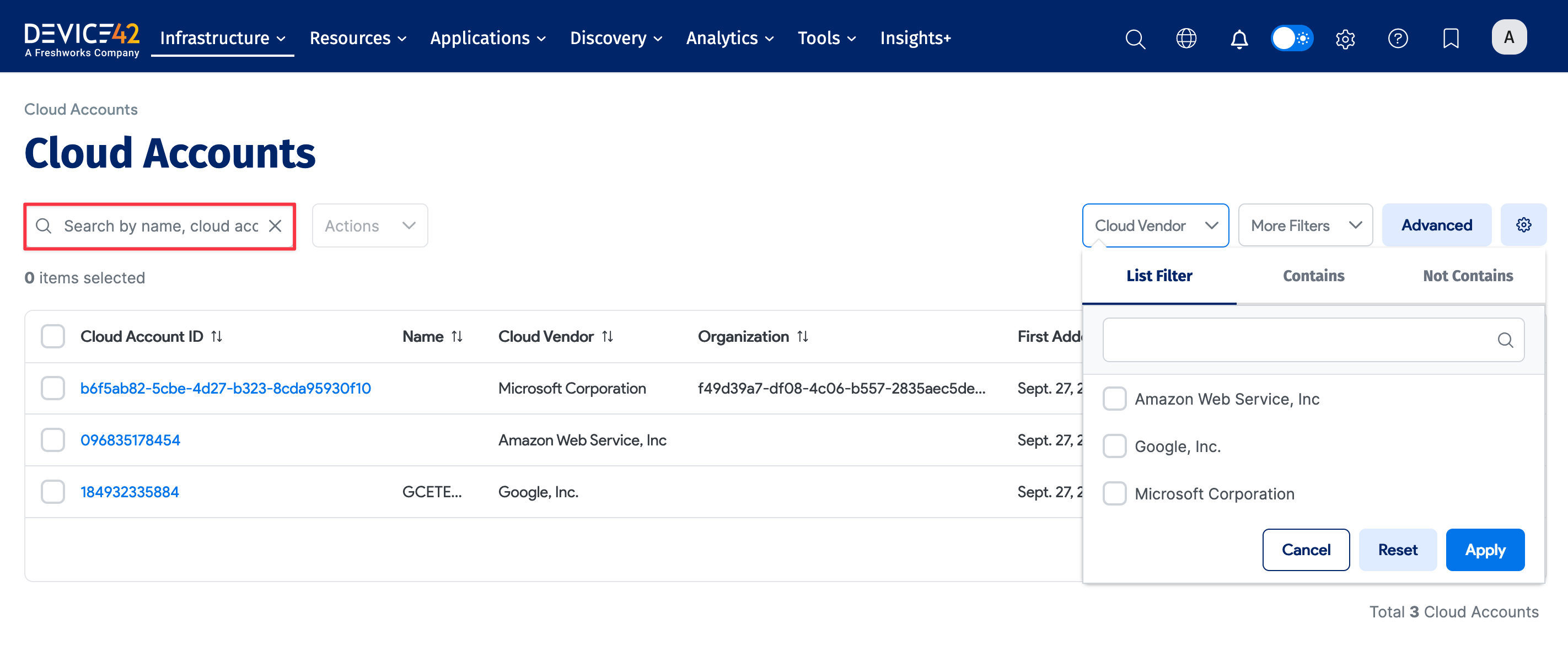
From the Cloud Accounts list page, you can use the search bar and Cloud Vendor dropdown to filter the cloud accounts. Add additional filtering criteria using the More Filters button.
Resource Map View
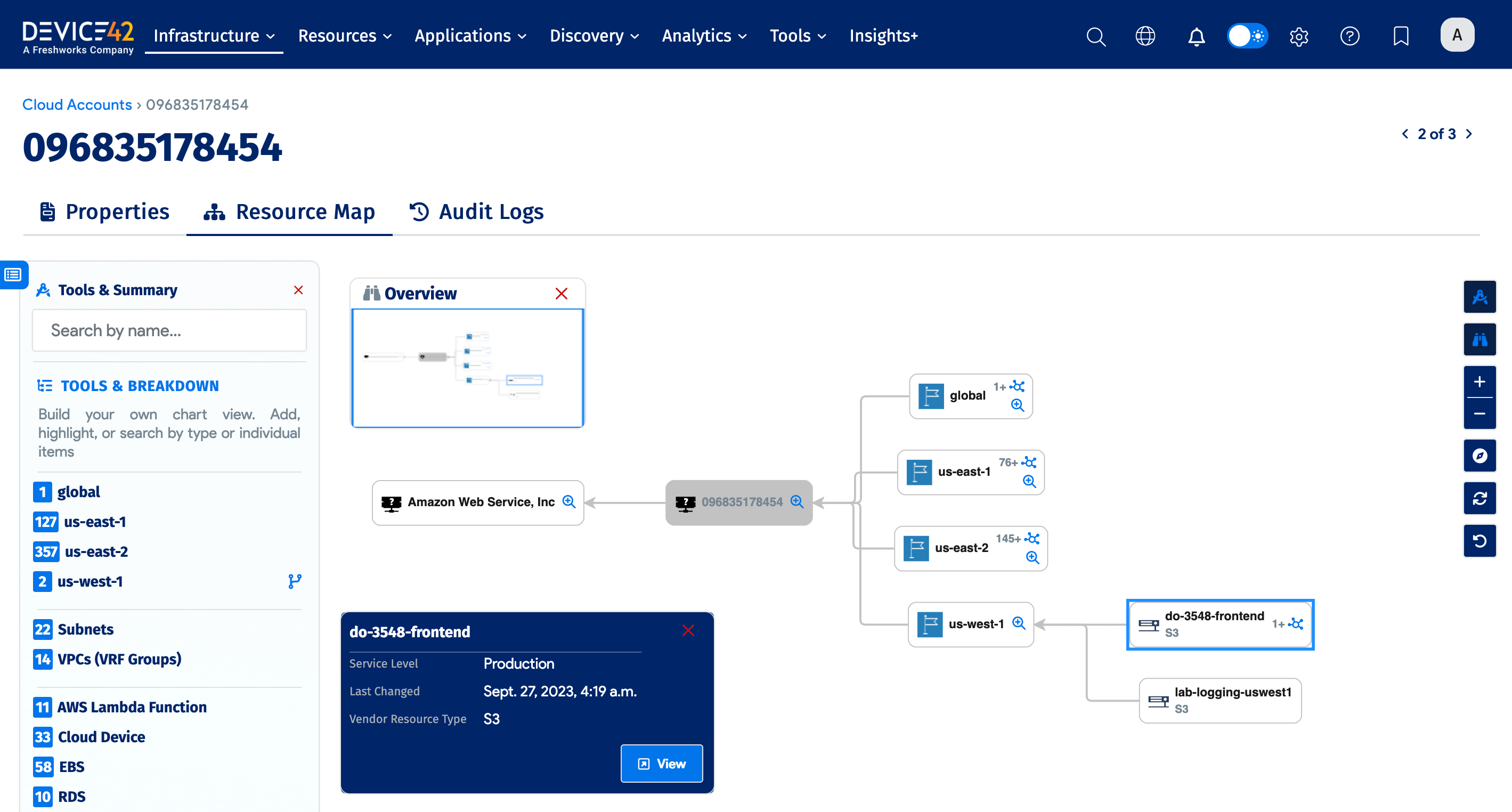
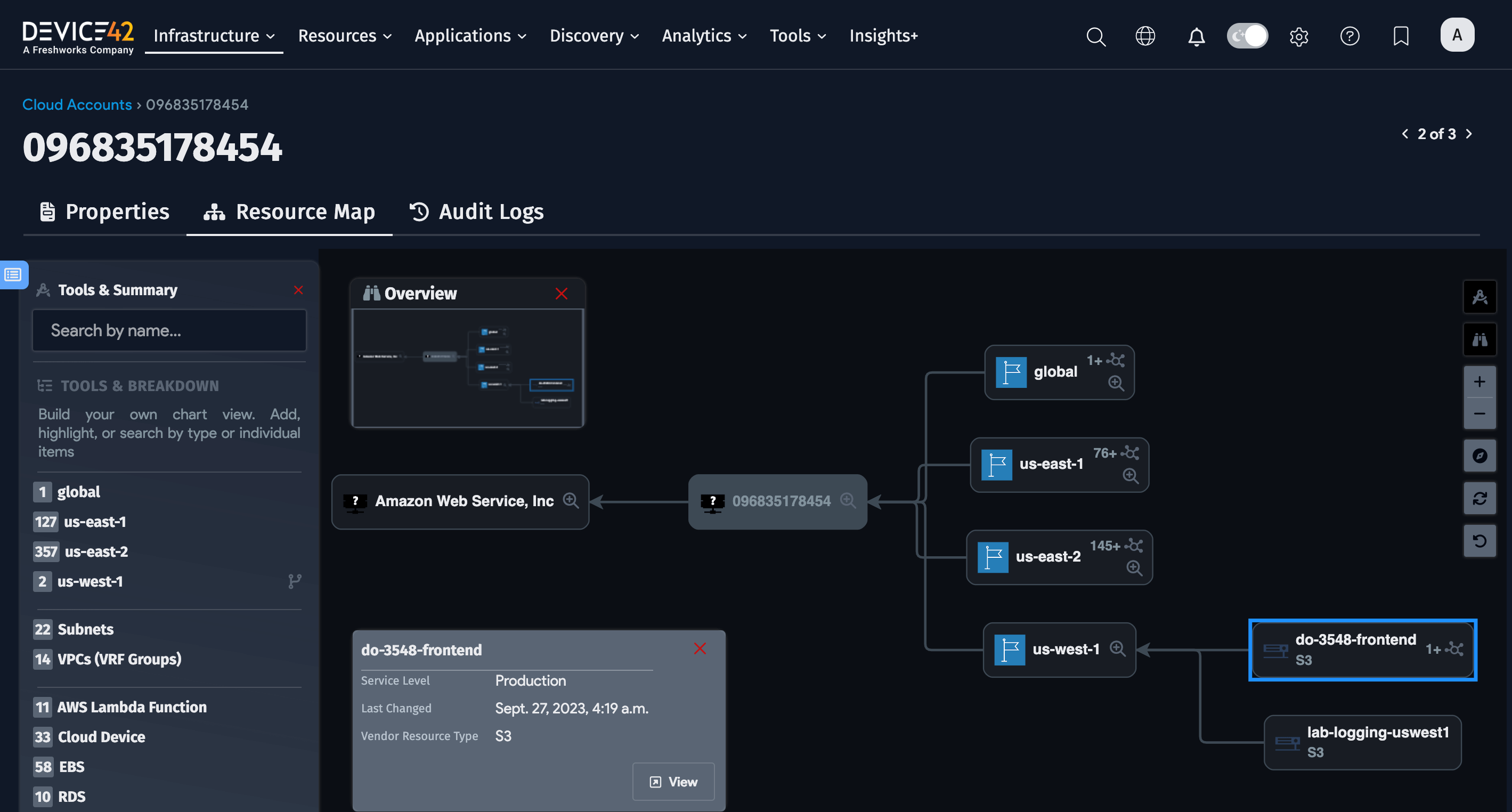
From the list page, click a cloud account to view its details, then click Resource Map to view the account and its related resources in a chart. Click the account level or provider to display additional cloud accounts in your environment.
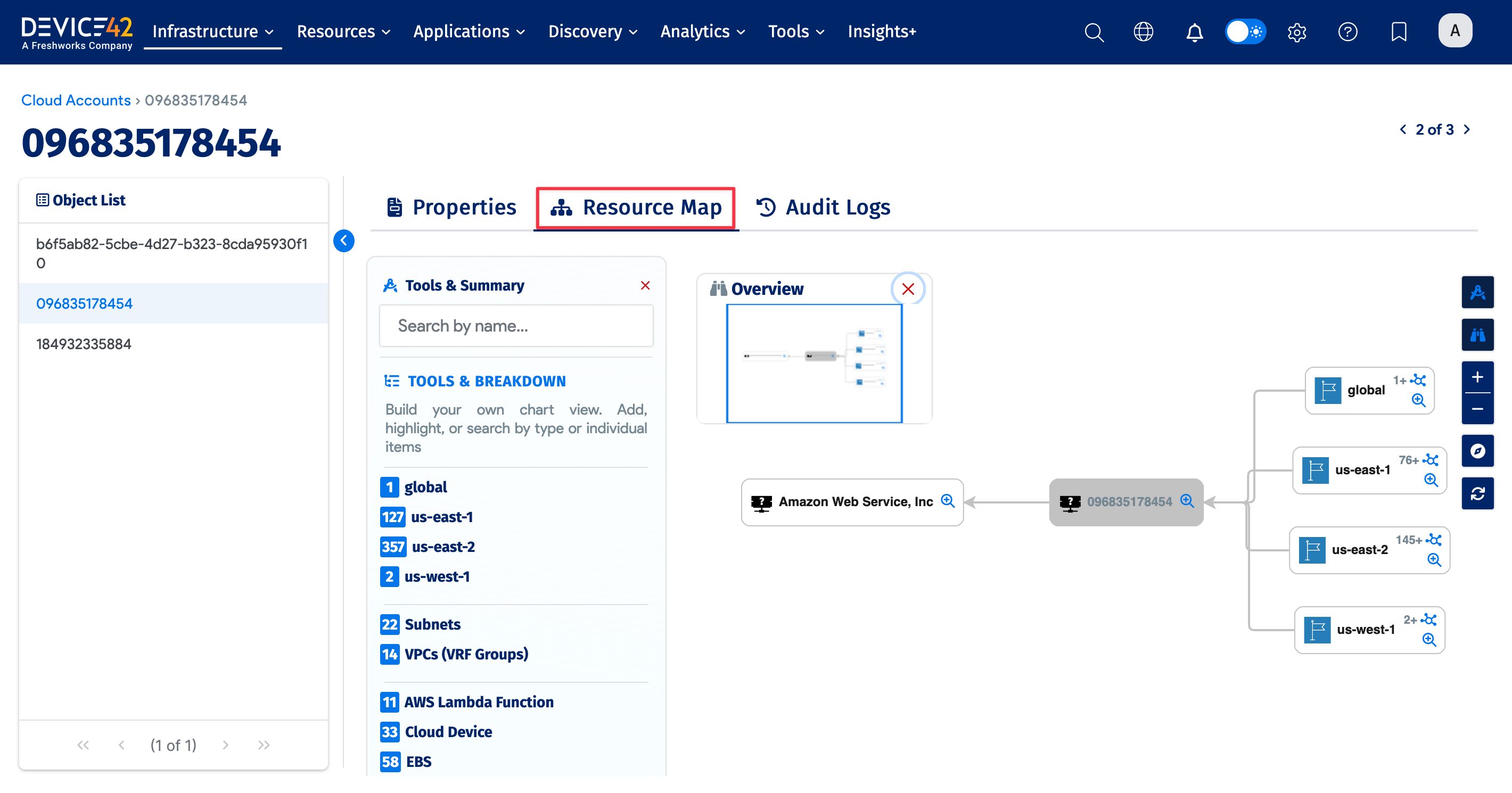
The Show All option can be applied to all areas in the resource map. Large environments may take a few seconds to fully populate.
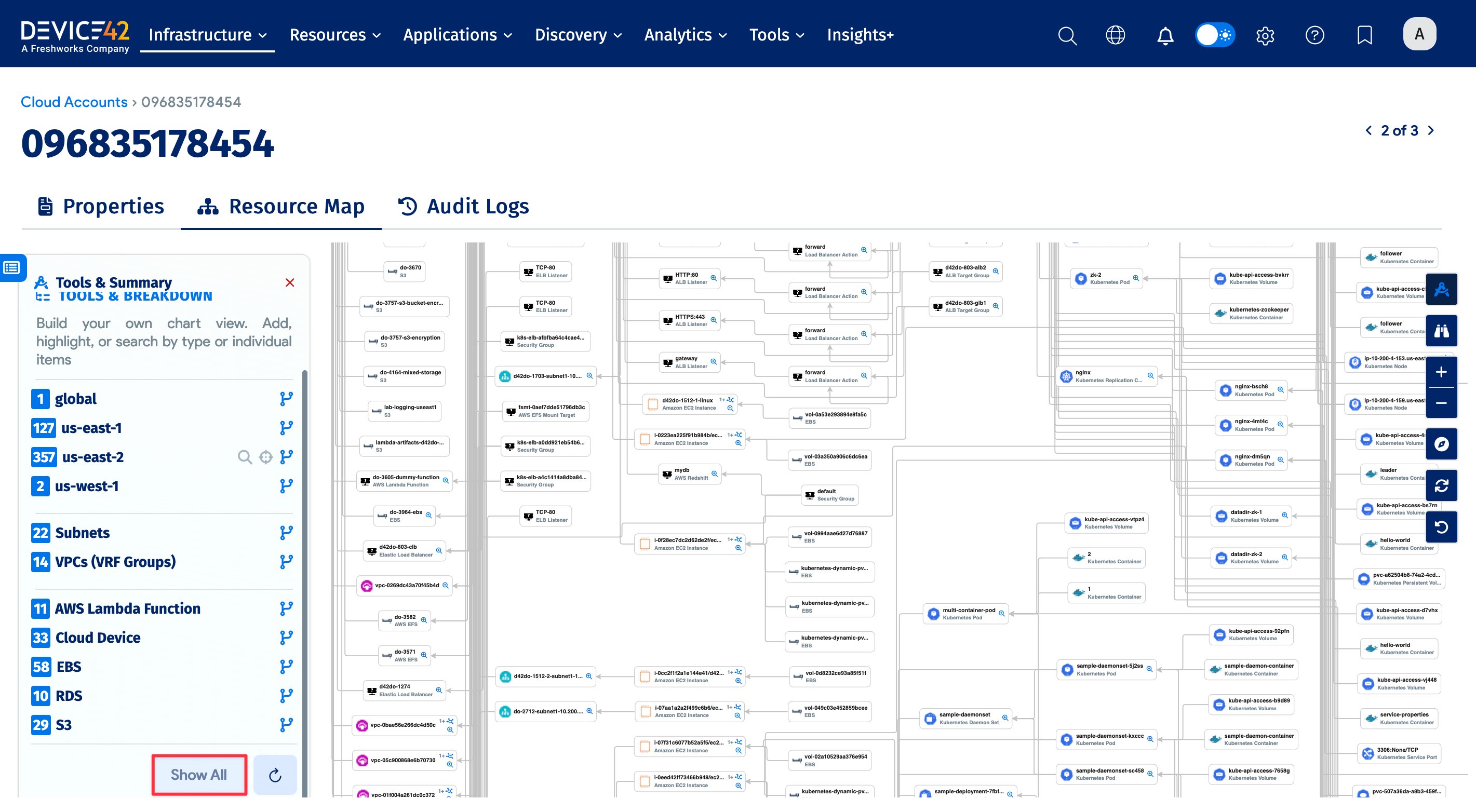
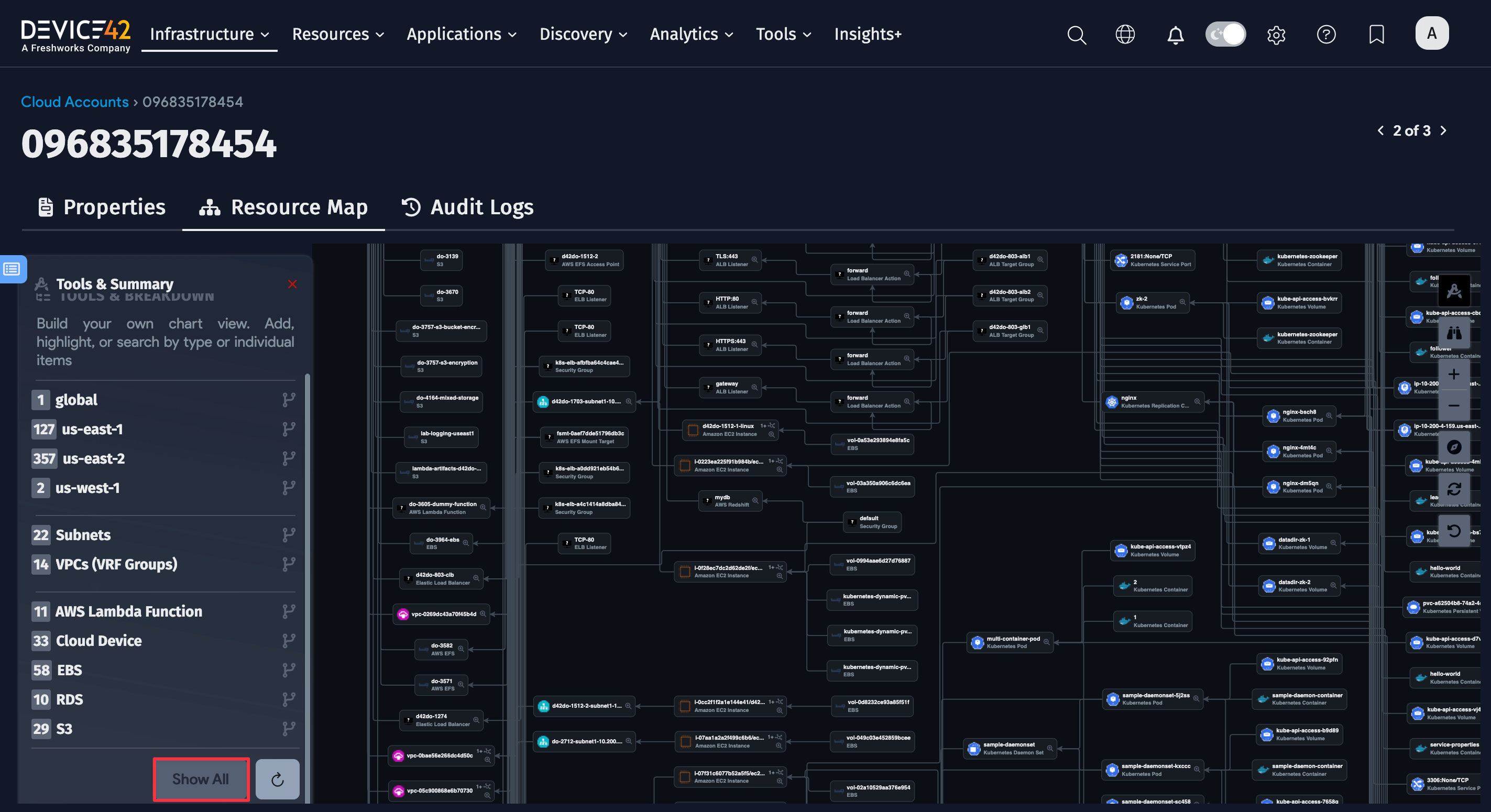
Tools and Summary Panel
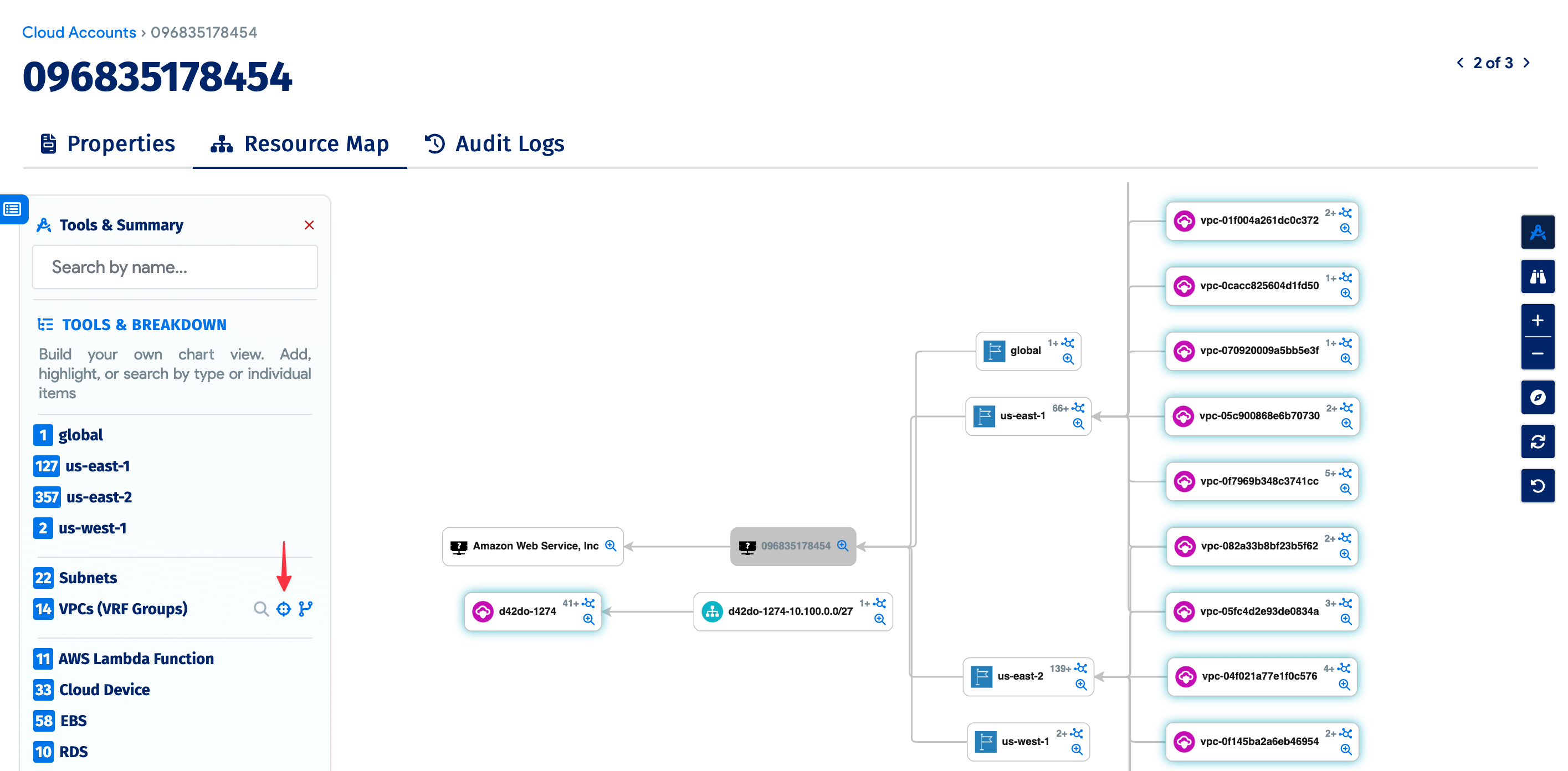
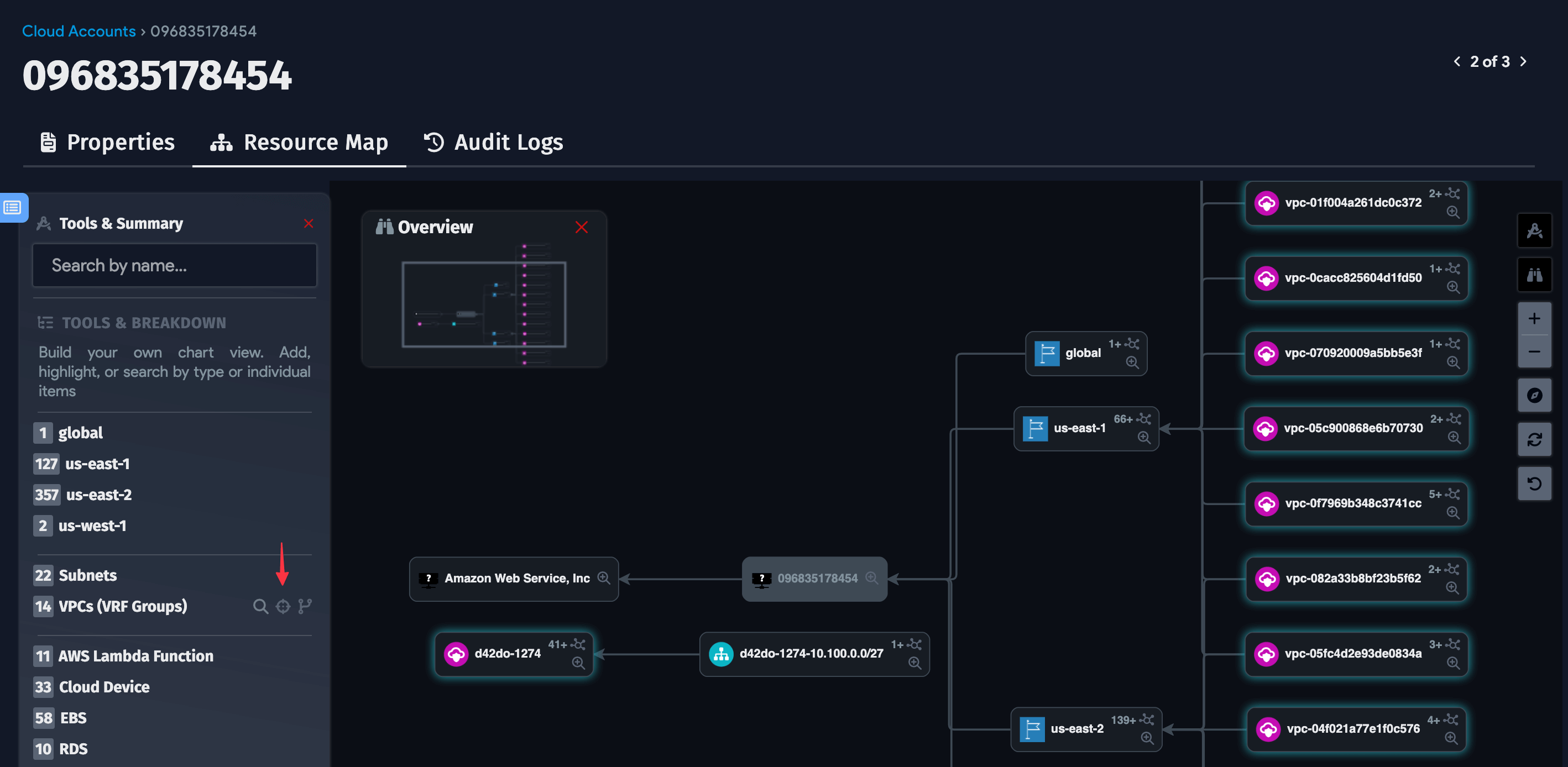
Use the summary panel on the left to search by resource name and quickly identify your assets.
Below the search bar are filter options organized by resource type. For example, click the target icon for VPCs (VRF Groups) to highlight those items on the map.
View Details with Resource Icons
Regions and some resource items have an expand icon (1) to drill down into resources, and a magnifying glass icon (2) to view the resources in a region.
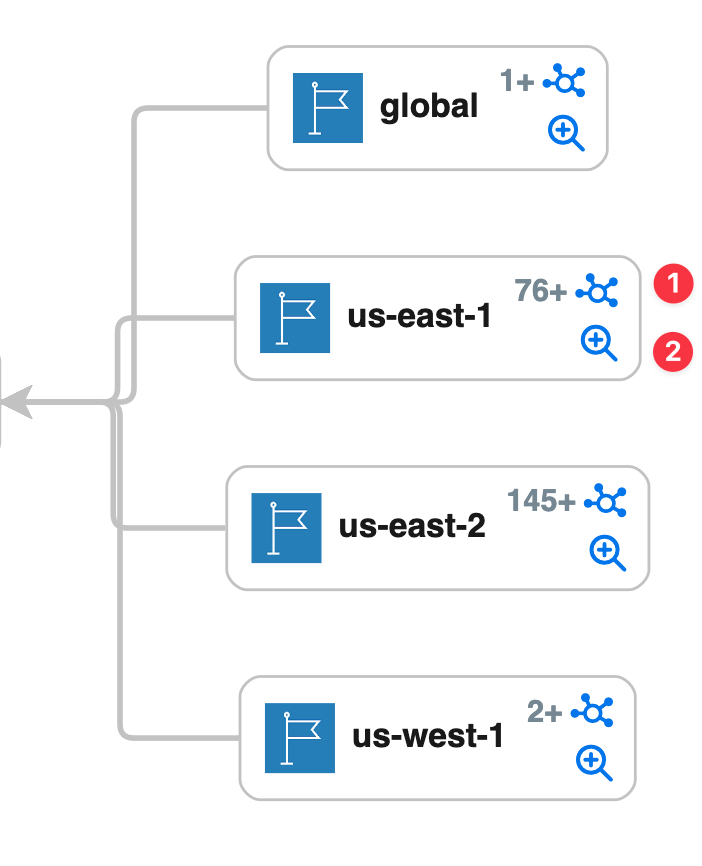
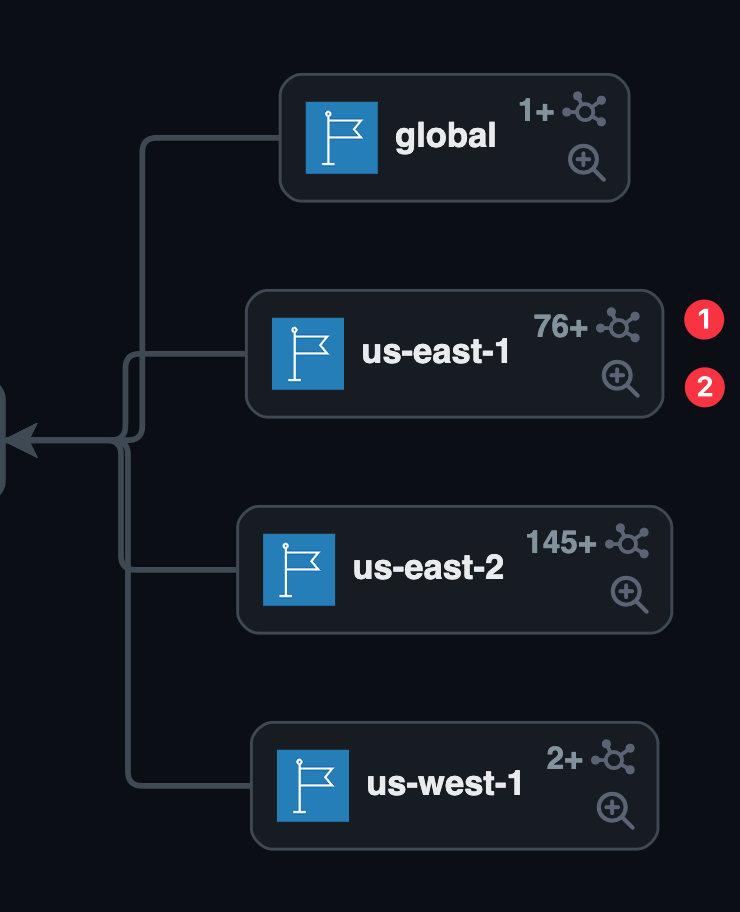
The magnifying glass icon changes to a compass icon and opens an info box listing the resources and assets within that region. Click Show All to load and display all listed resources on the map.
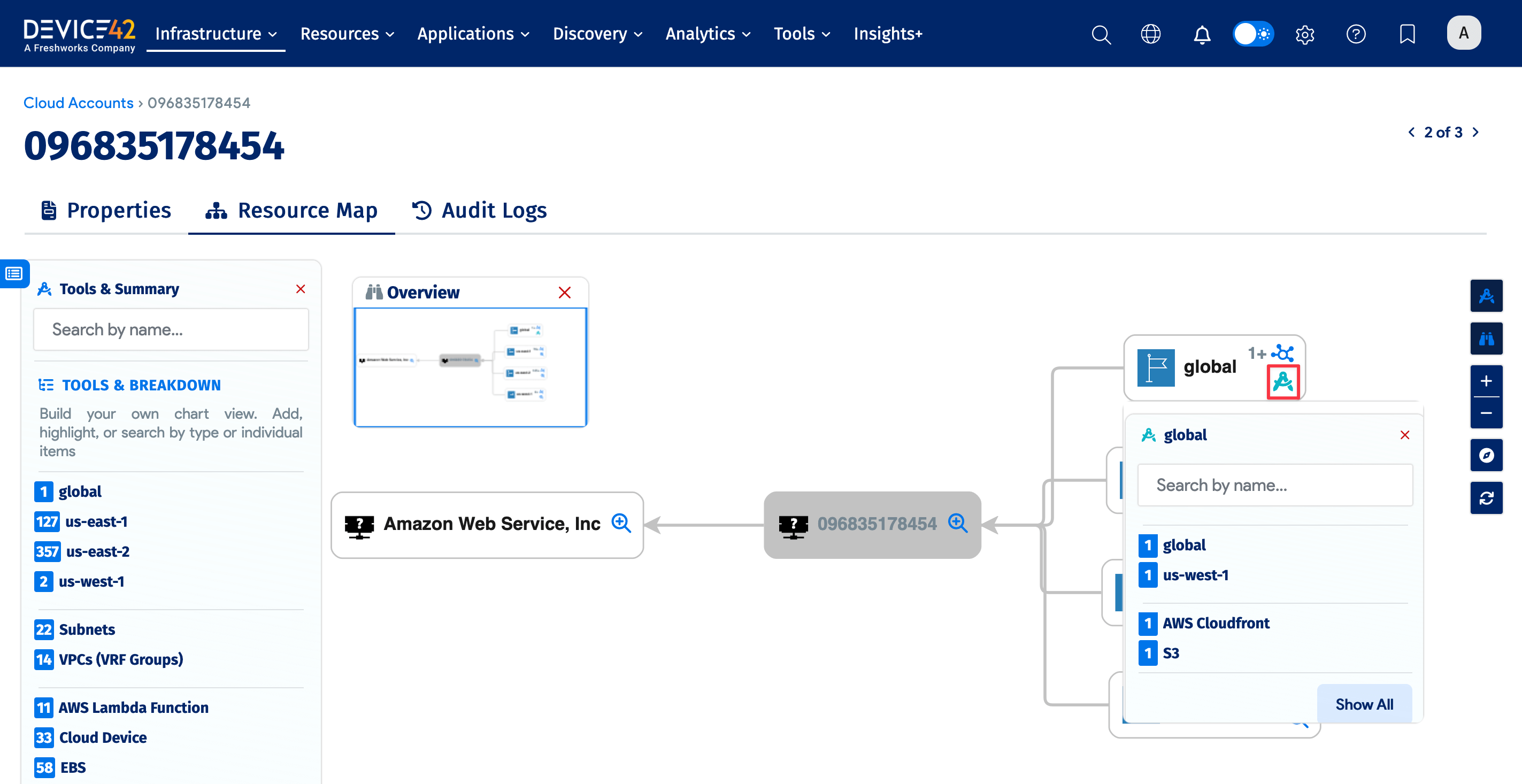
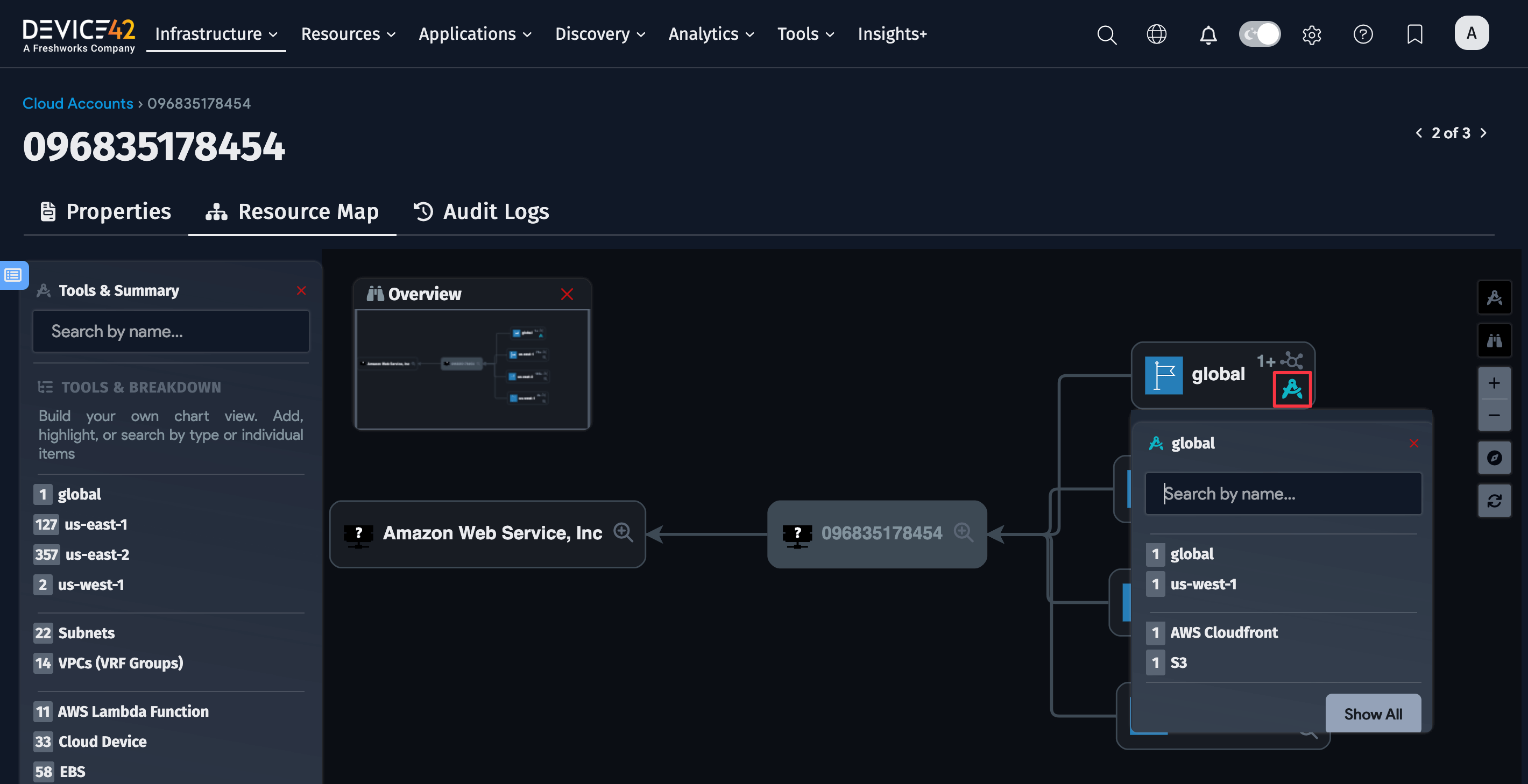
Click the expand icon and select a resource to open a summary box with details such as Service Level, Last Changed date and time, Vendor Resource Type, and Resource Categories.