On-Prem Databases
On-premises (on-prem) databases are non-cloud database instances identified and returned by Device42 discovery jobs. You can view the discovered on-prem database details, edit fields, and manage related resources.
This page covers how to view, edit, delete, and associate on-prem databases with Business Services.
View On-Prem Databases
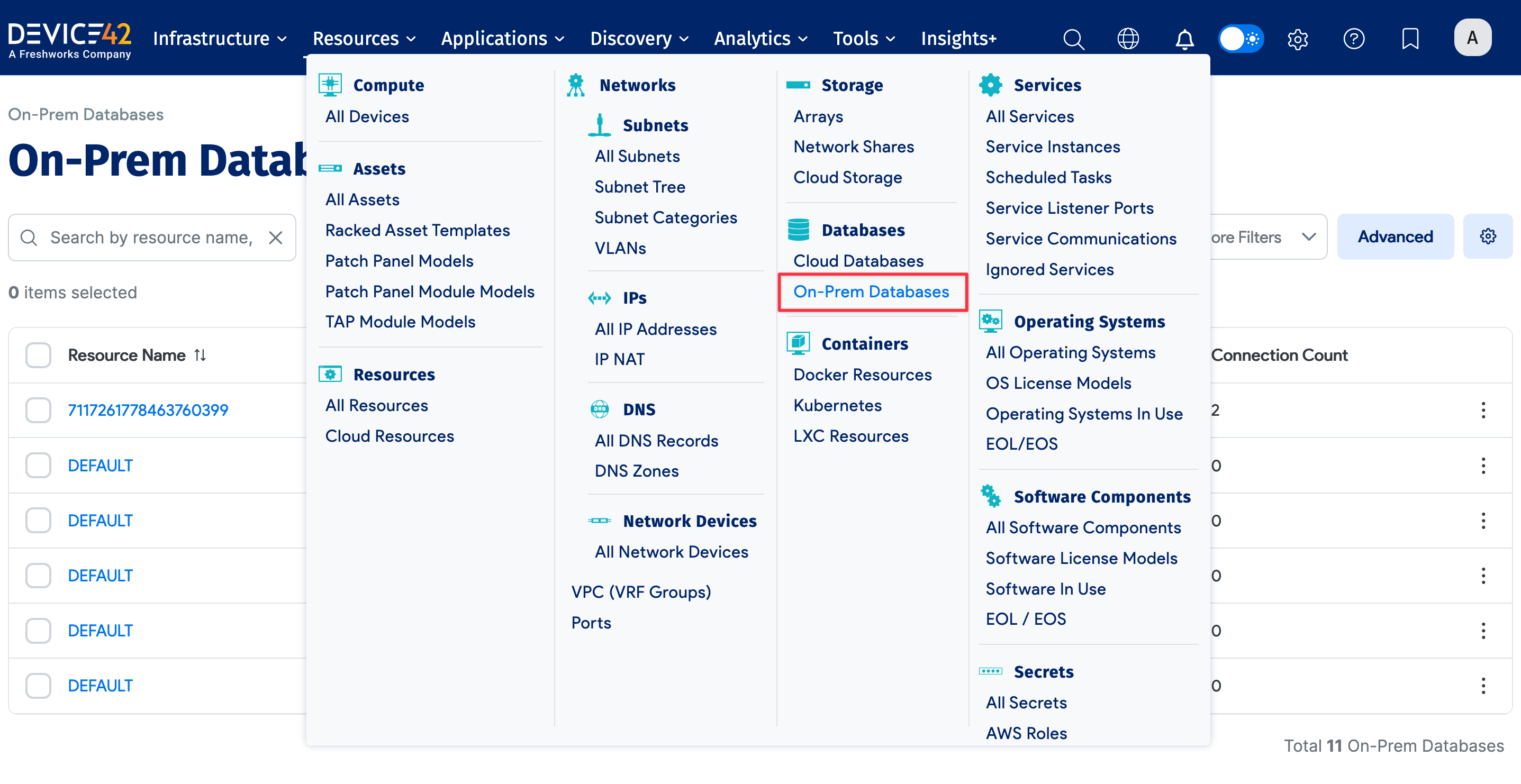
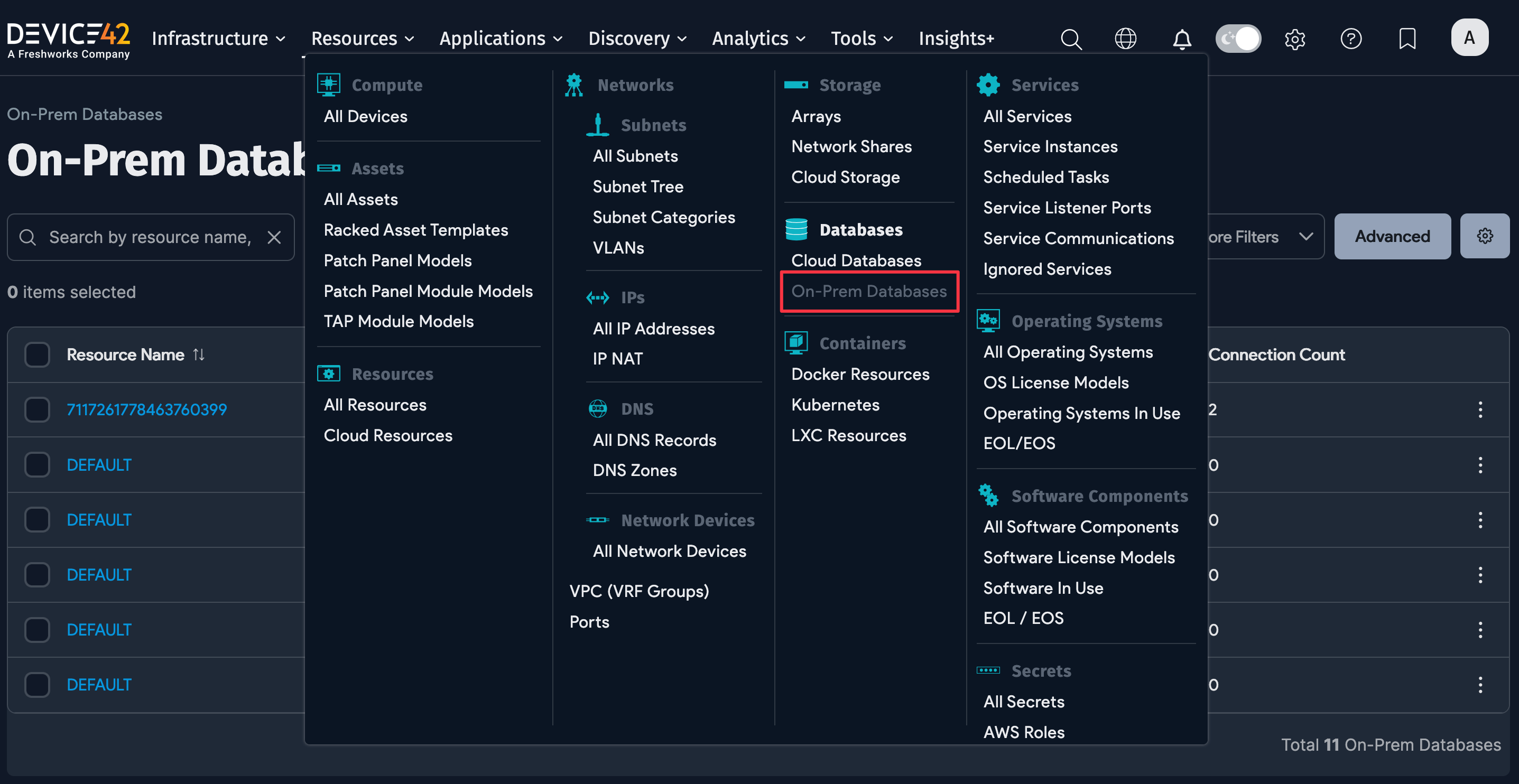
Select Resources > Databases > On-Prem Databases from the main menu.
Use the list page filters to find specific databases:
- Search by resource name, host, database type
- Database Type filter
- More Filters for additional filter options
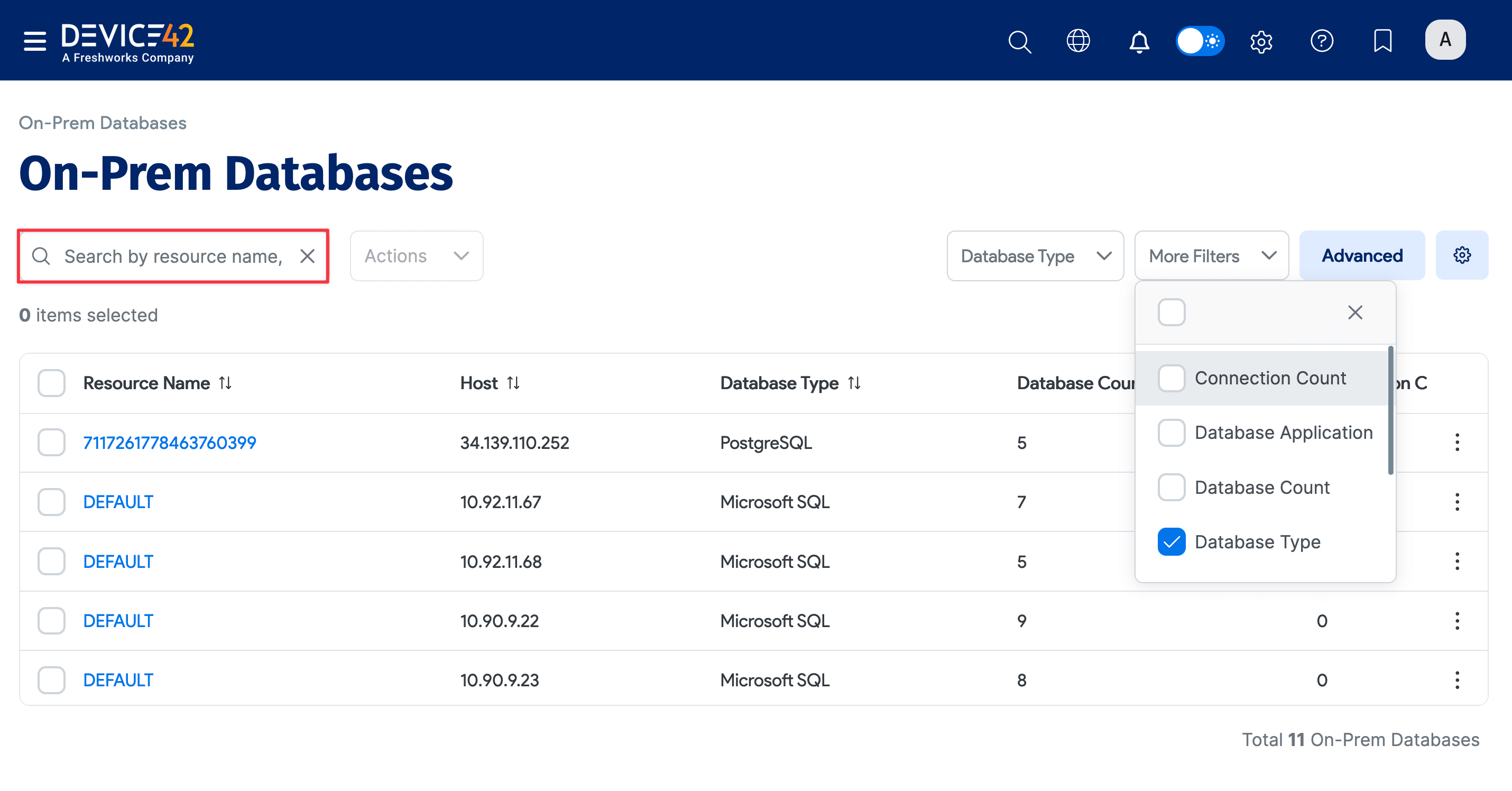
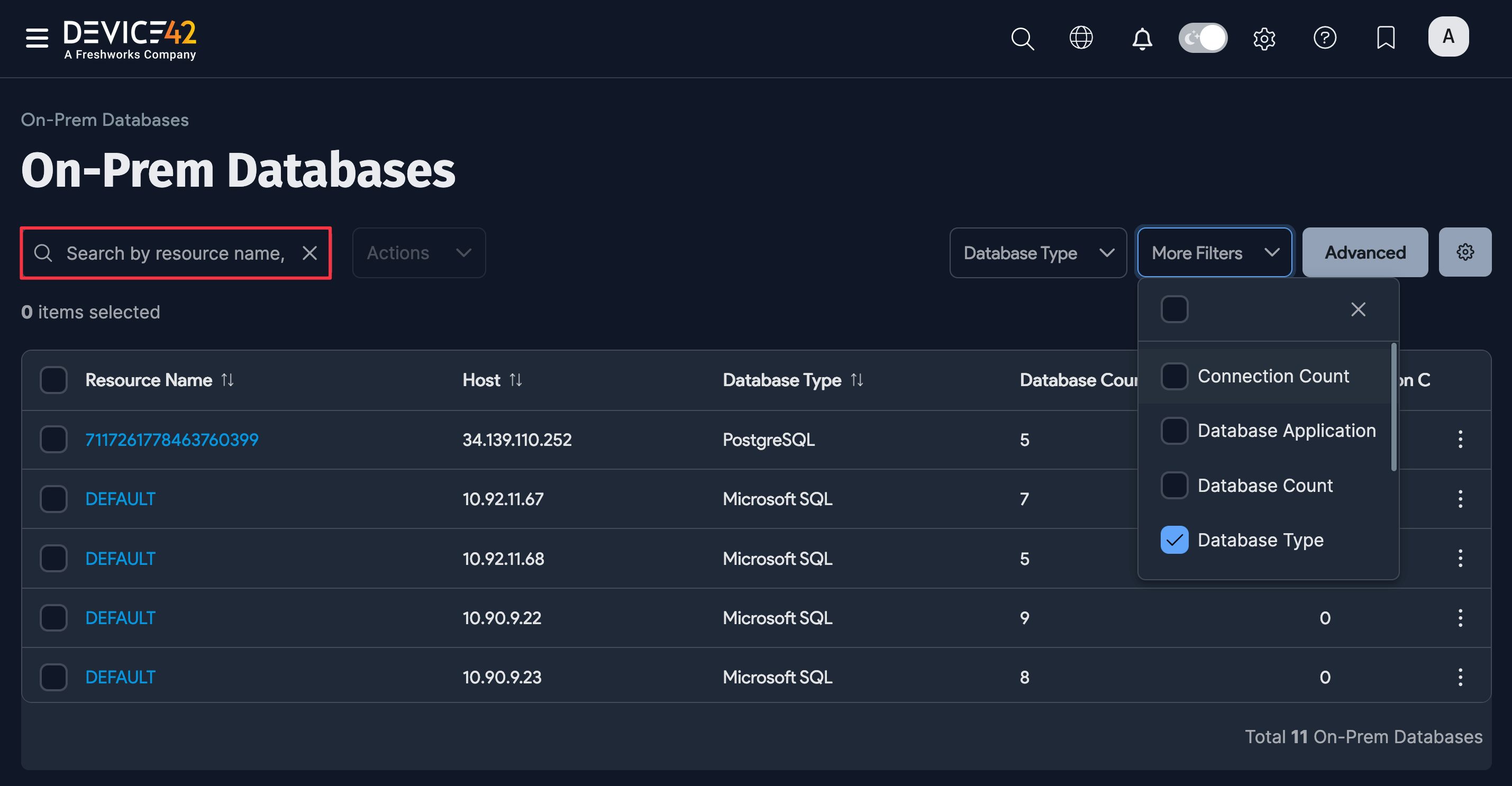
Click an on-prem database name to see its details.
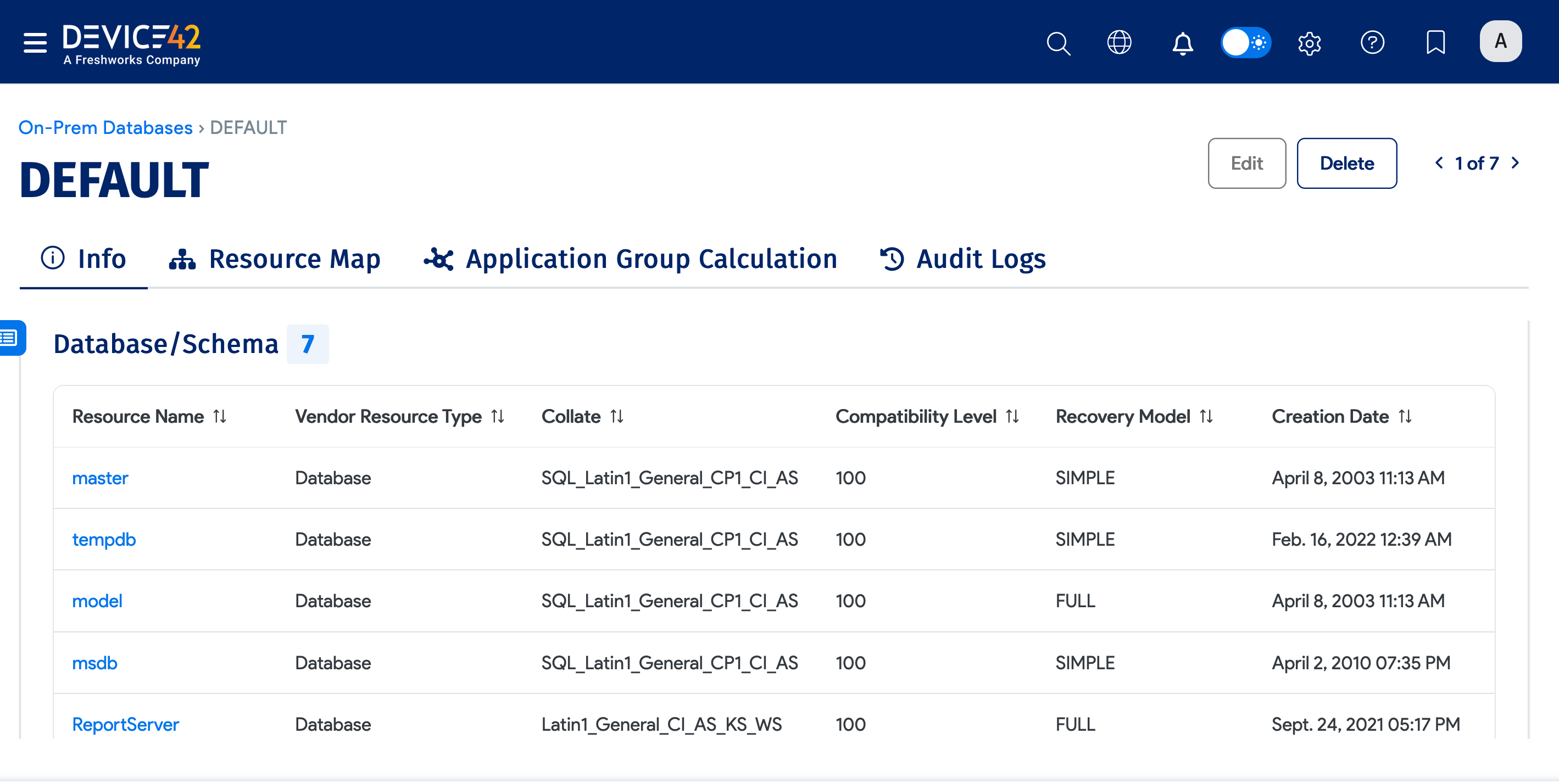
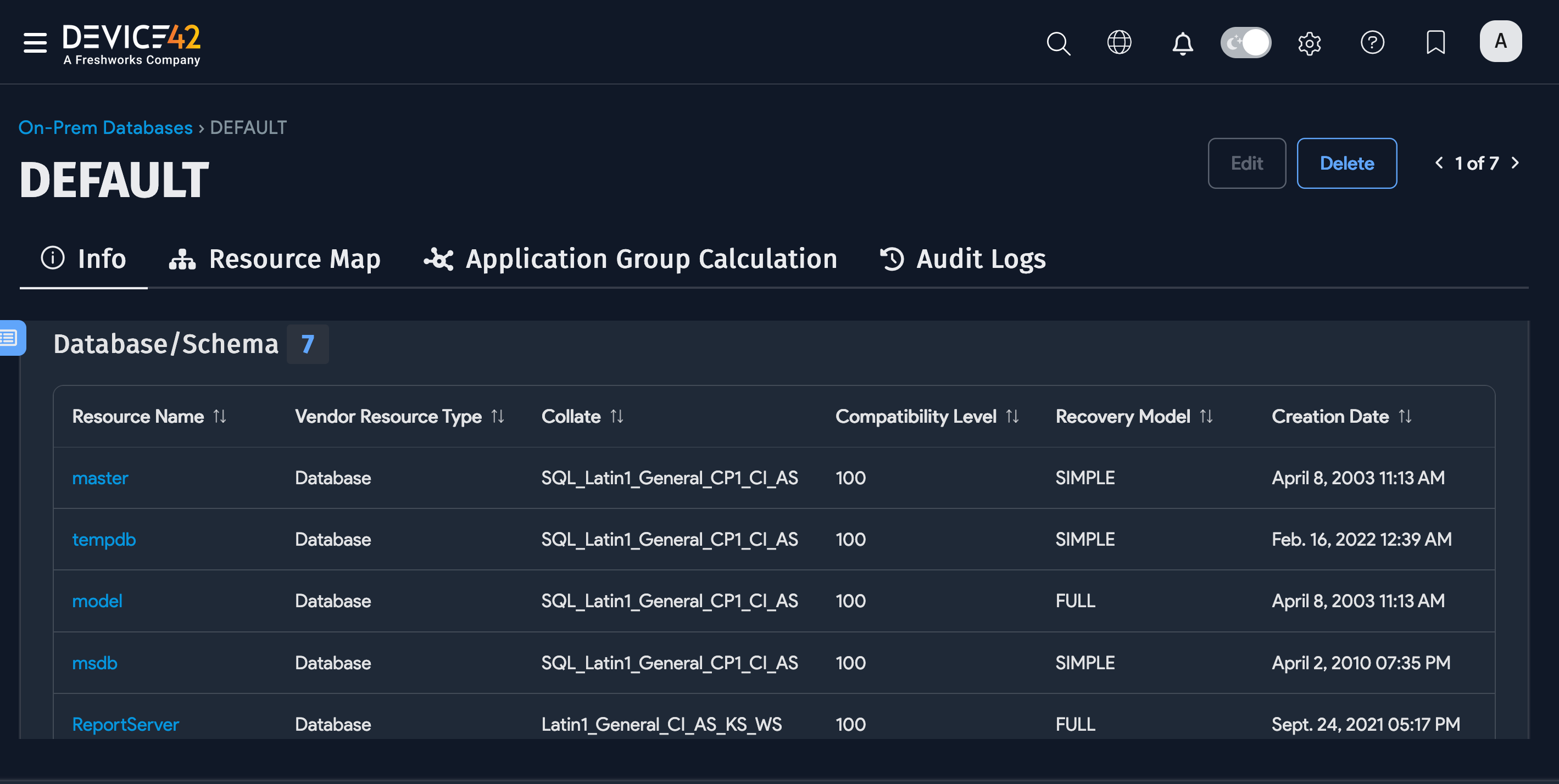
Edit On-Prem Databases
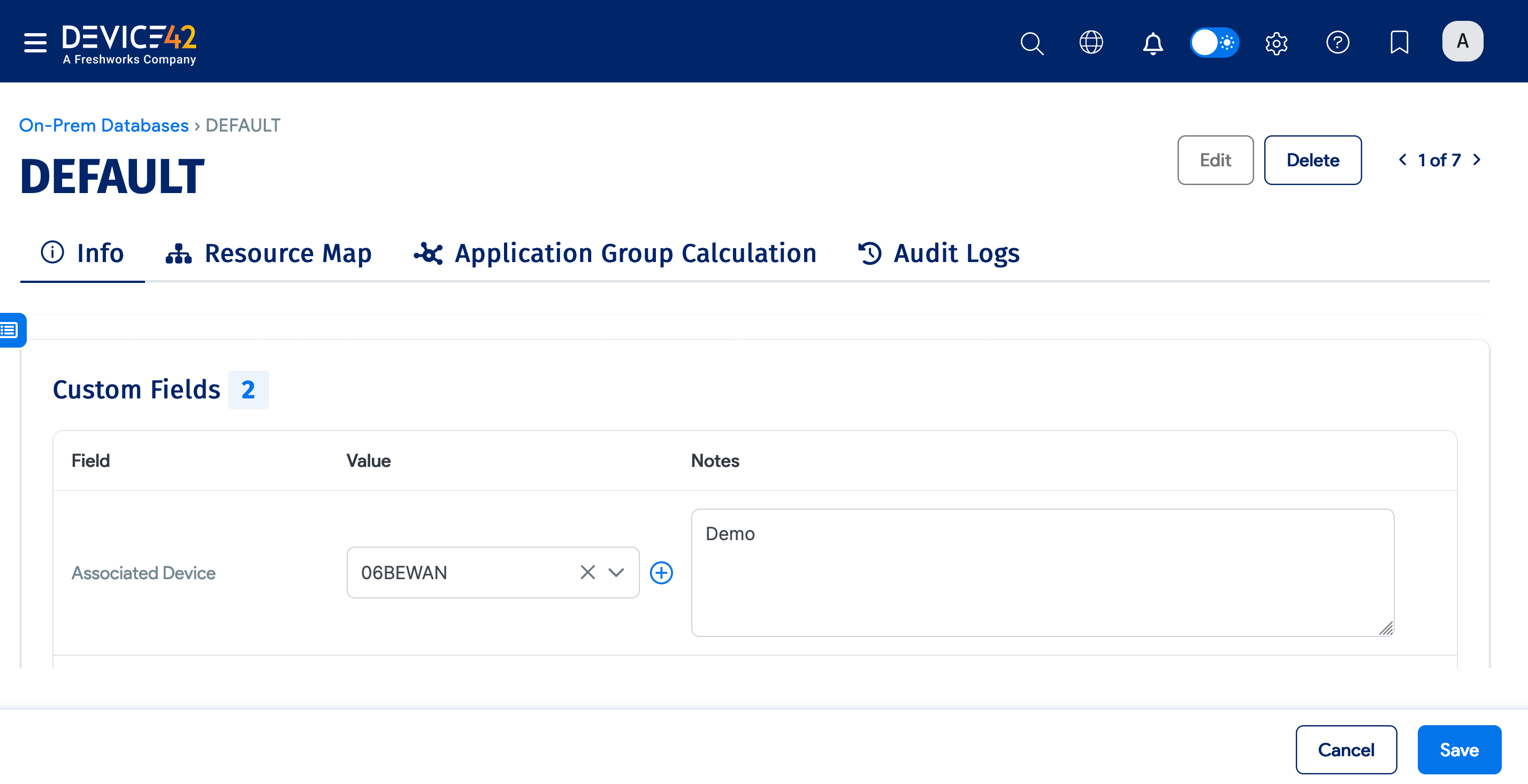
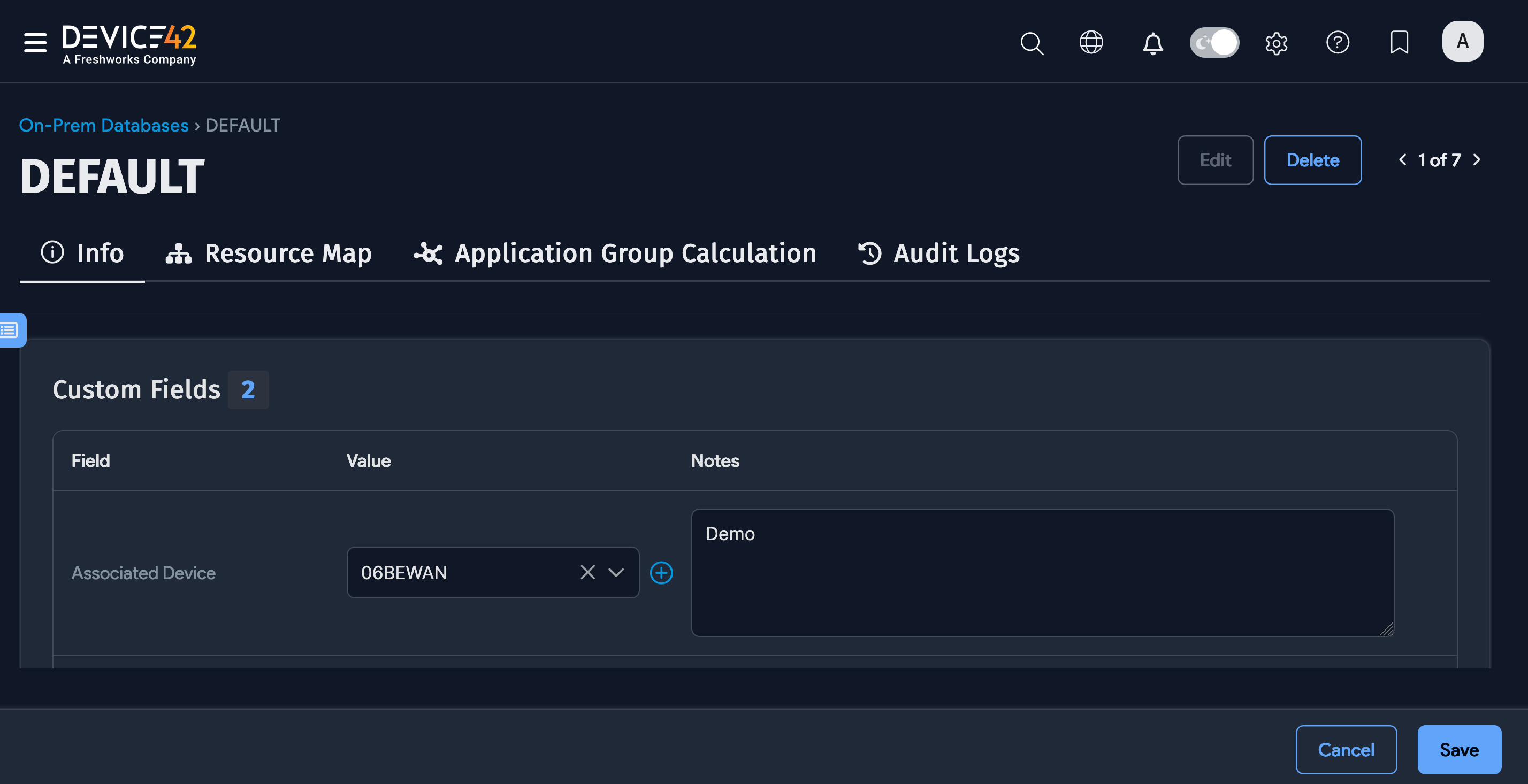
From the database details page, click Edit to modify the following fields: Database Instance Application Component, Custom Fields, Notes, Tags, and Service Level.
Delete On-Prem Databases
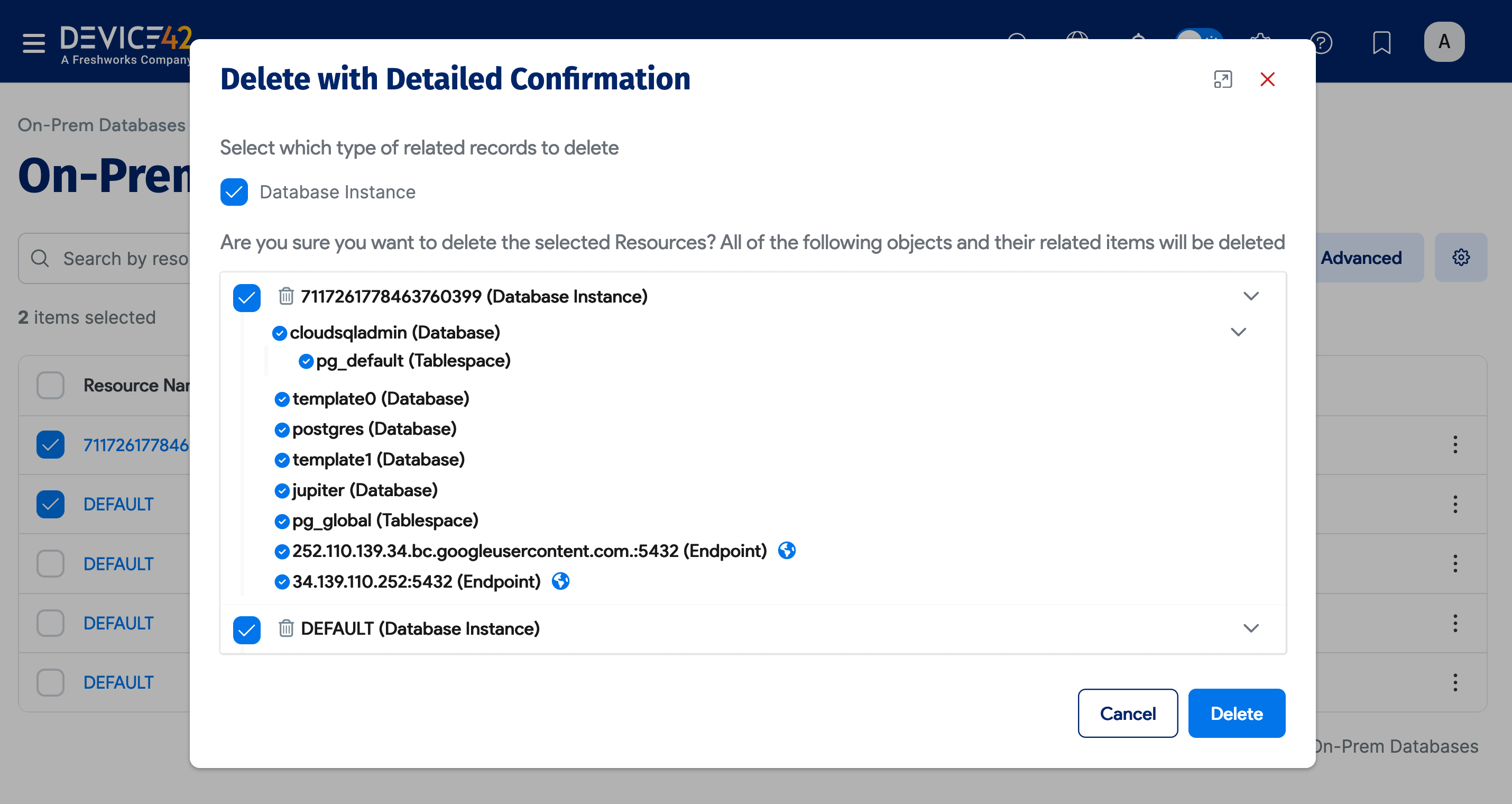
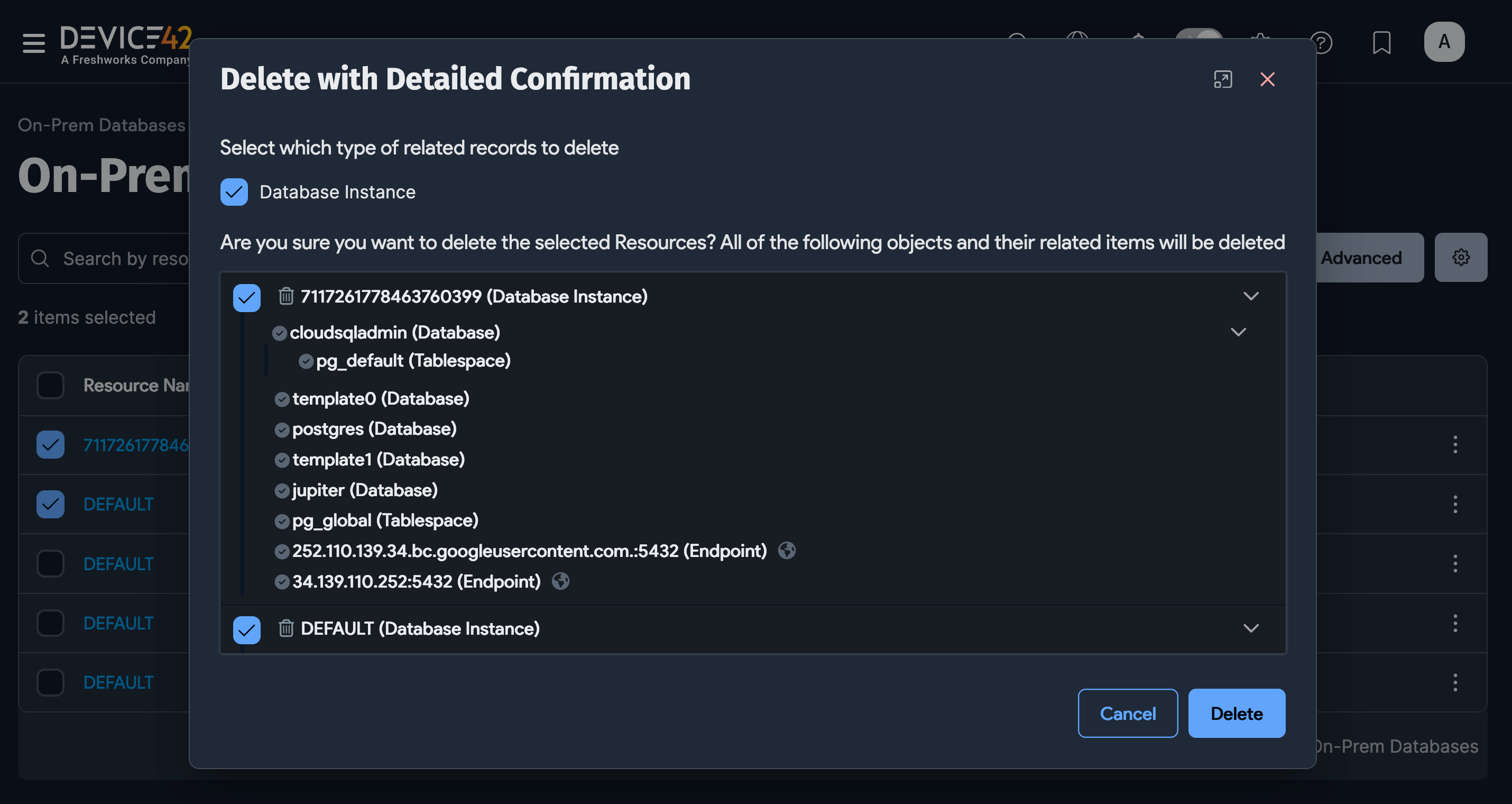
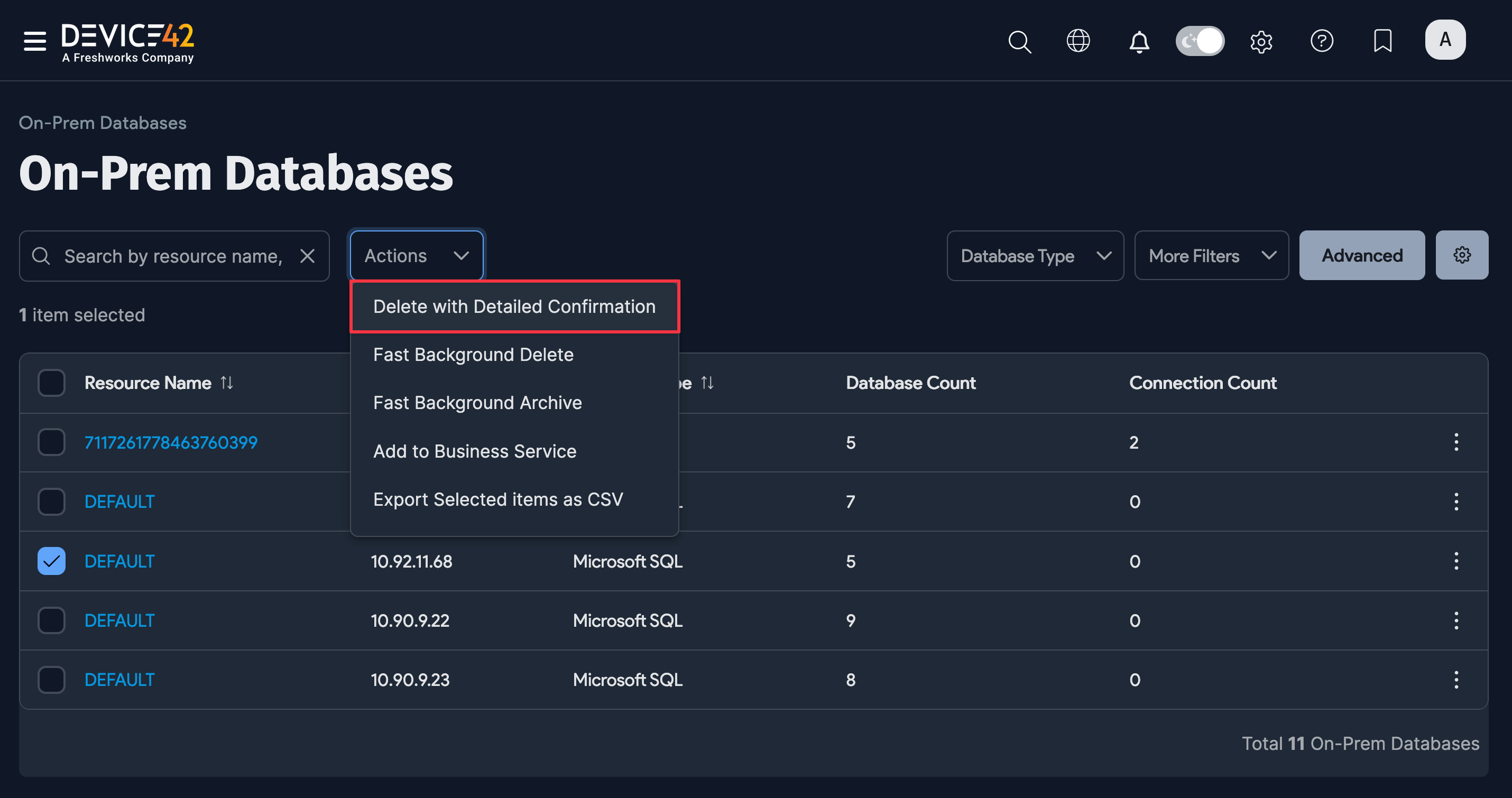
Select one or more database instances on the on-prem databases list page. From the Actions dropdown menu, select Fast Background Delete, Fast Background Archive, or Delete with Detailed Confirmation.
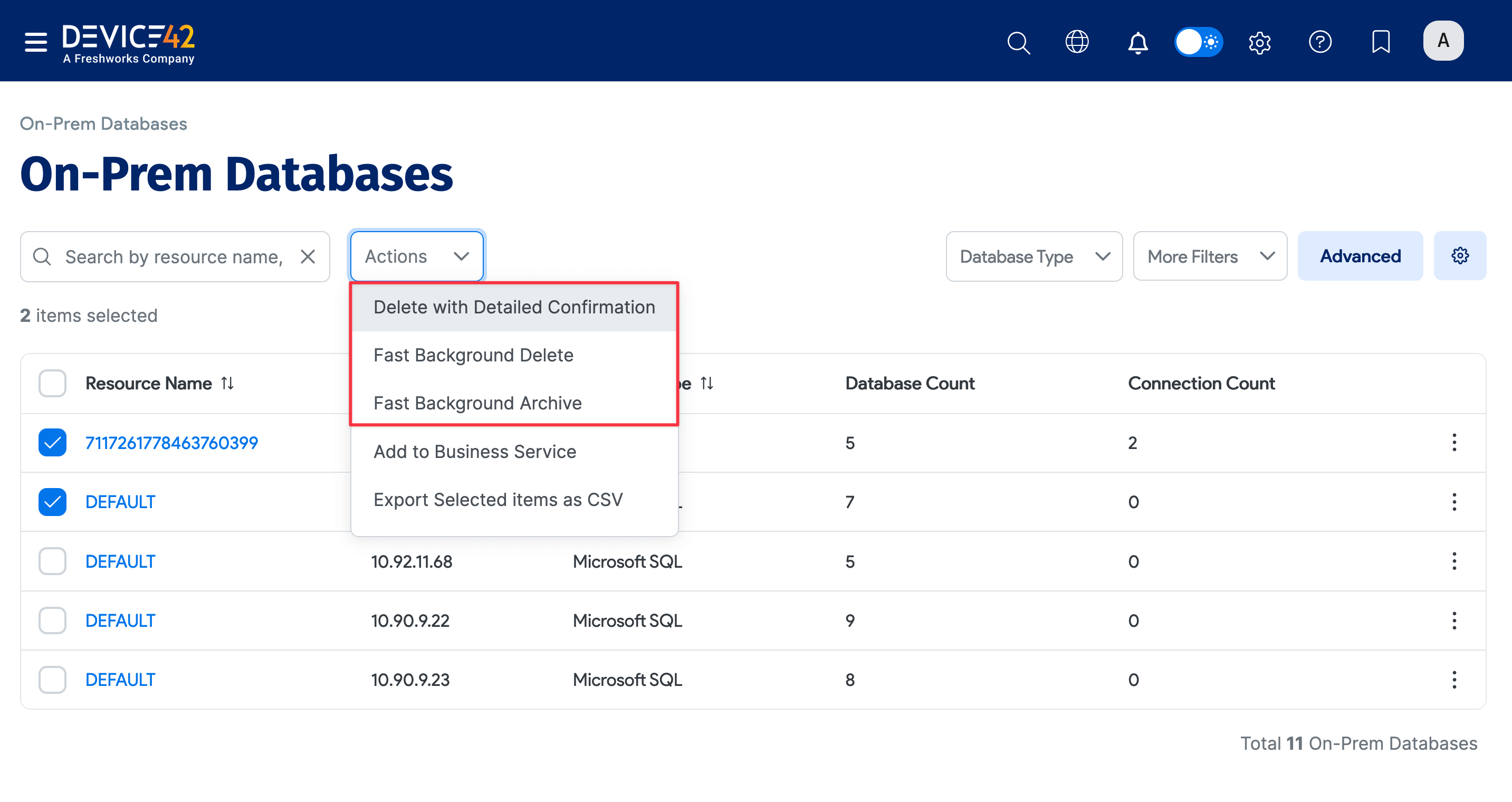
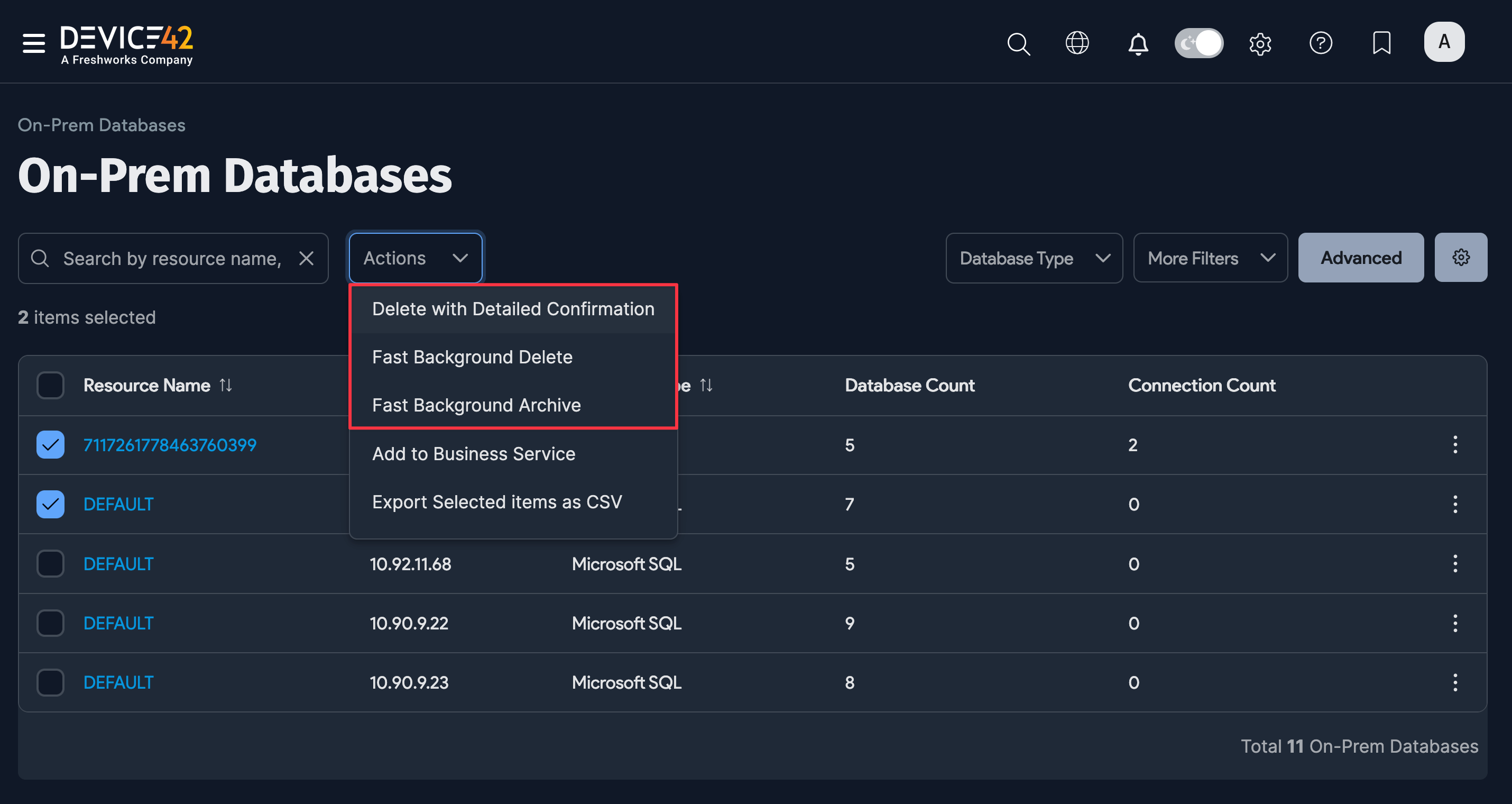
Confirm or cancel the deletion when prompted.
Add an On-Prem Database to a Business Service
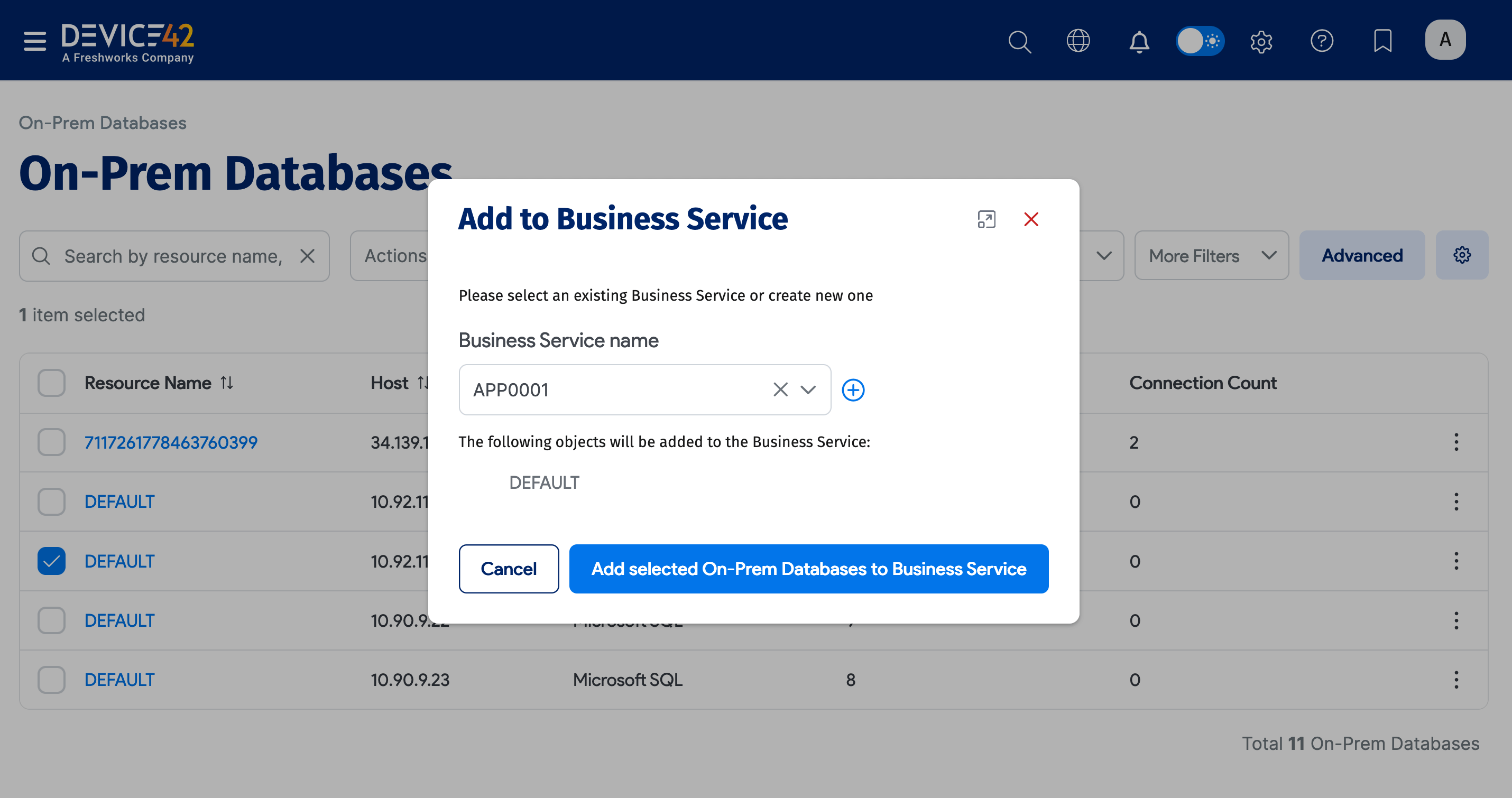
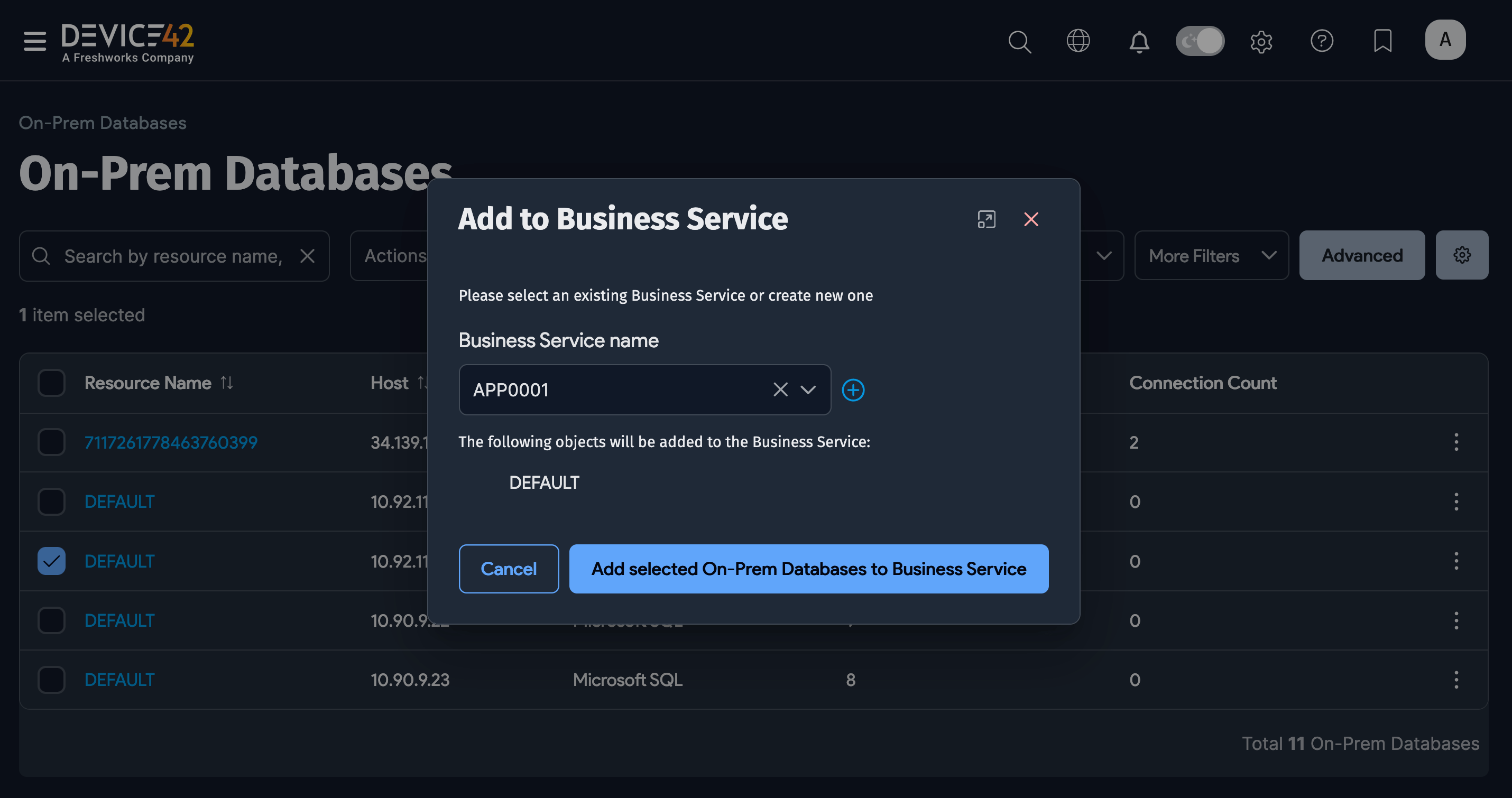
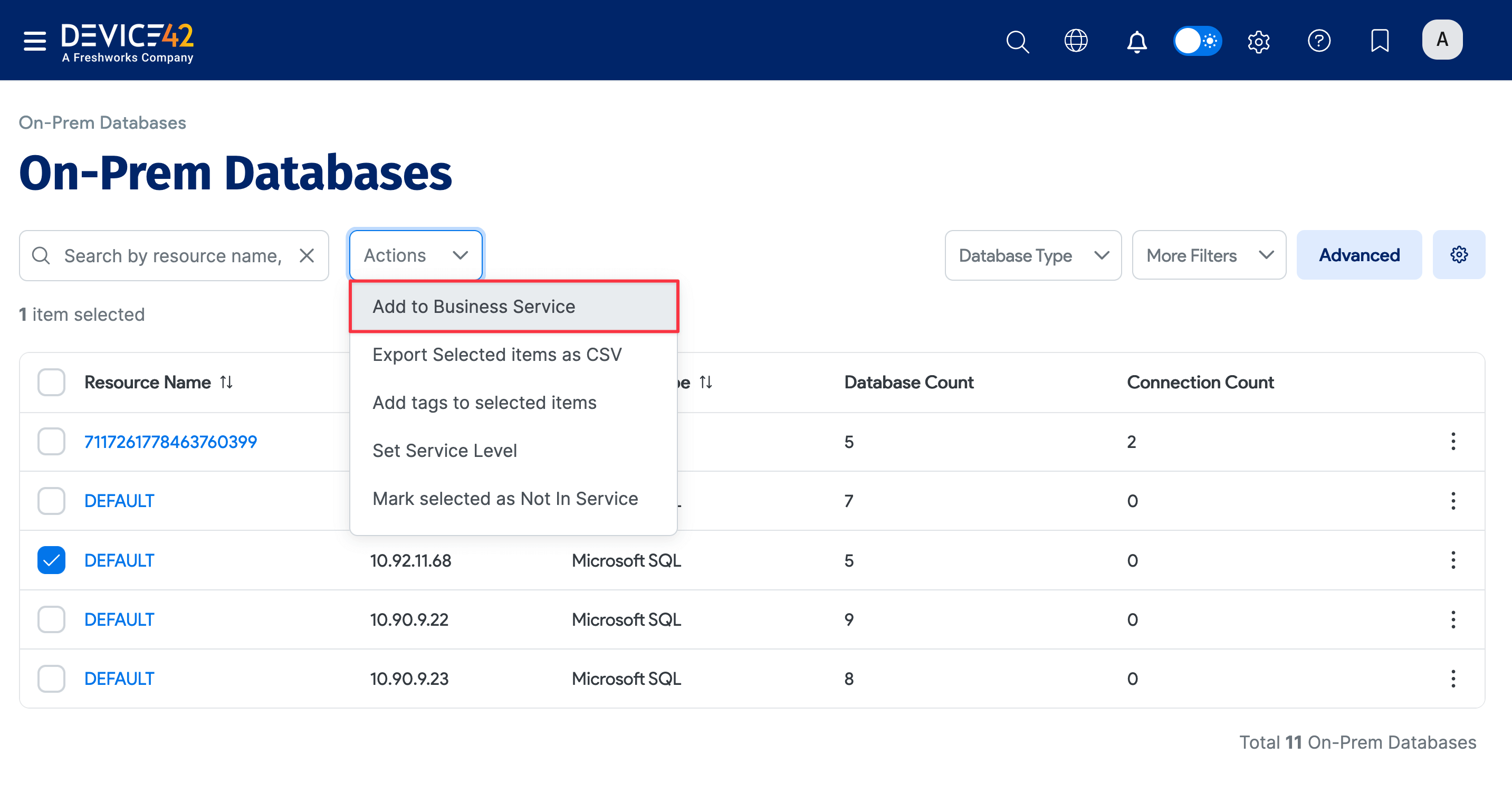
You can add an on-prem database to an existing or new Business Service. Select one or more database instances on the on-prem databases list page and choose Add to Business Service from the Actions dropdown menu.
Select a Business Service name from the dropdown list or click the plus icon to create a new Business Service. Click Add selected On-Prem Database to Business Service to confirm.