Cloud Databases
Device42 discovery jobs identify and return database instances running on cloud platforms. You can view the resource details, related databases, and topology maps of these items.
This page covers how to view, edit, and delete cloud databases in Device42.
View Cloud Databases
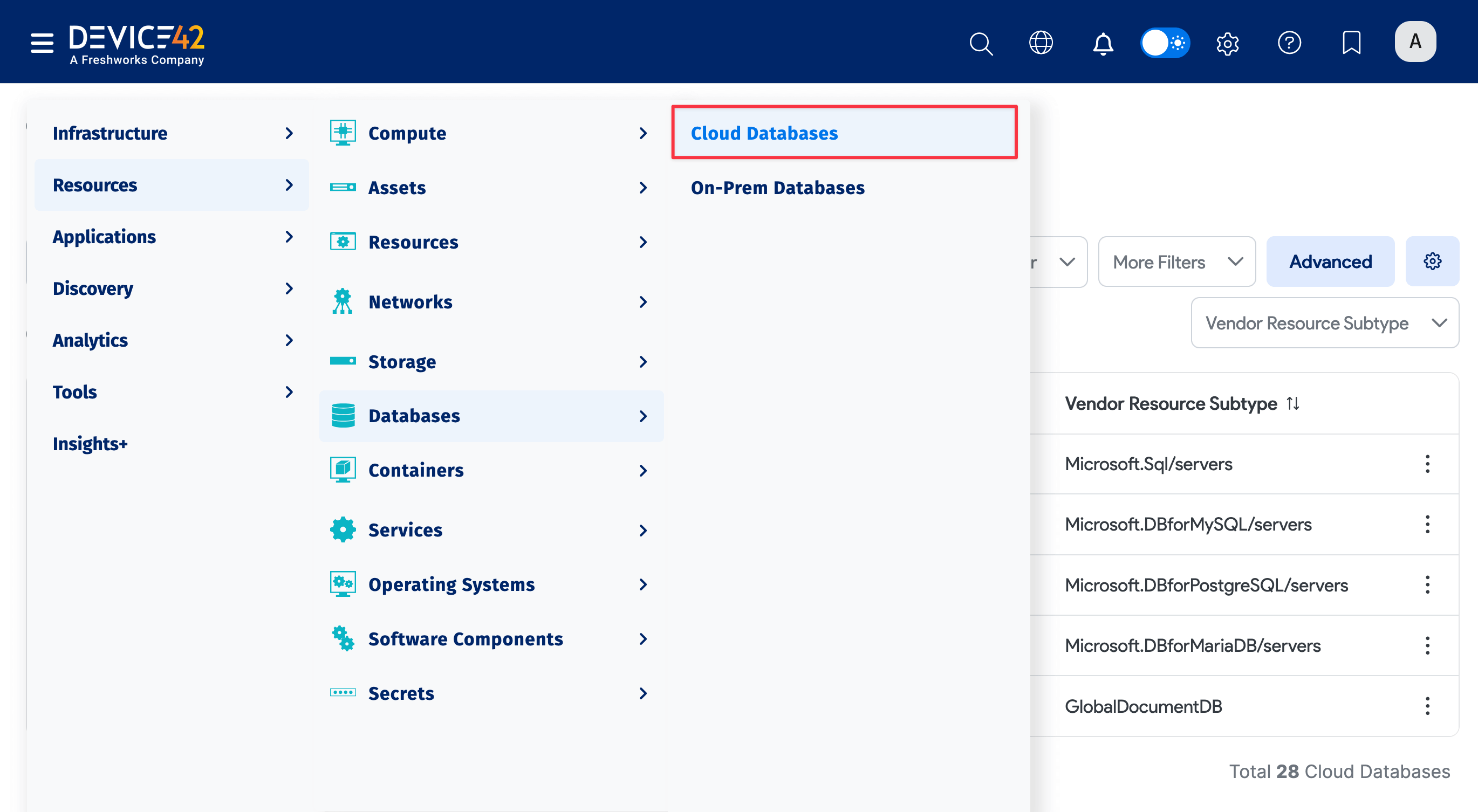
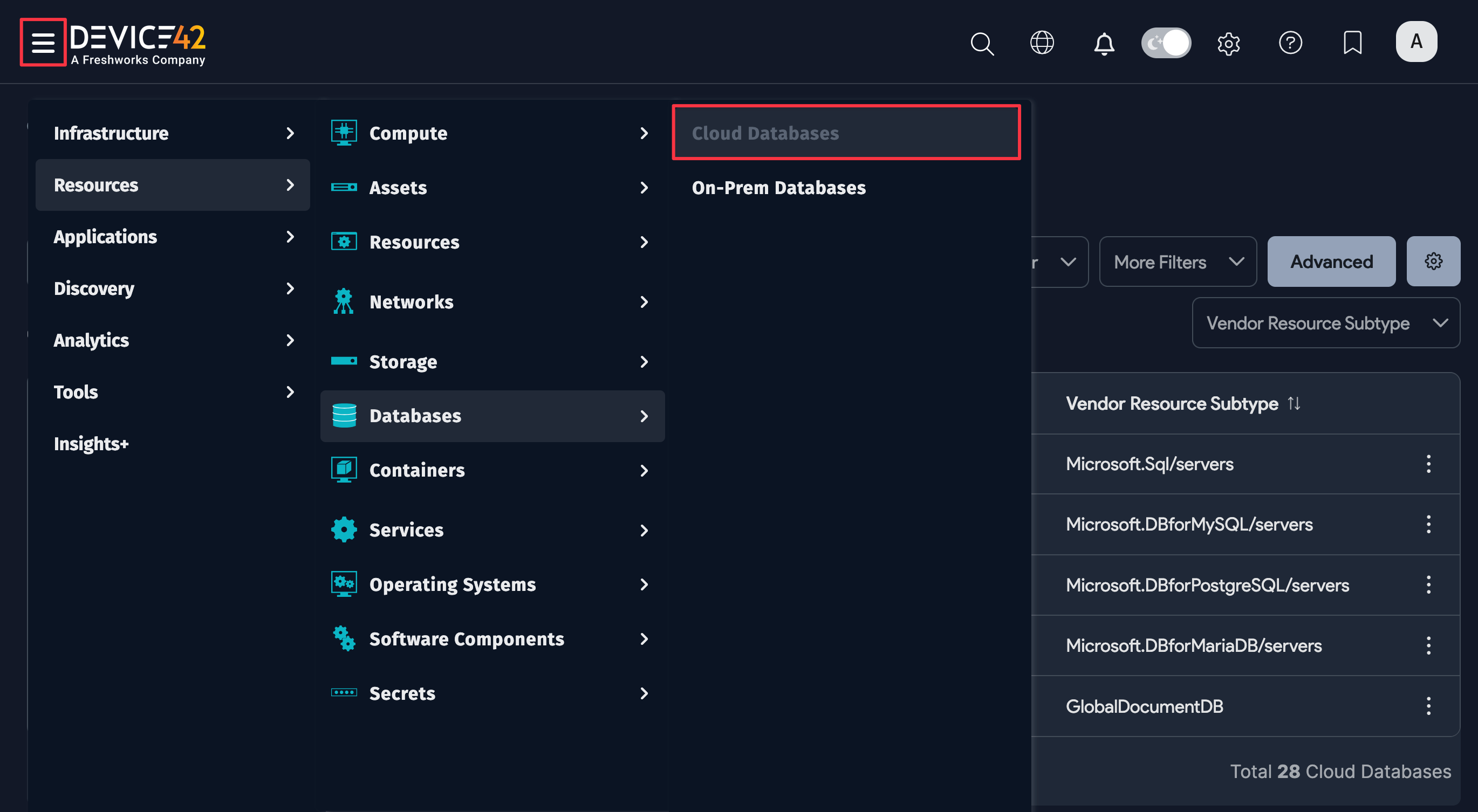
Select Resources > Cloud Databases from the Device42 menu to display the Cloud Databases list page.
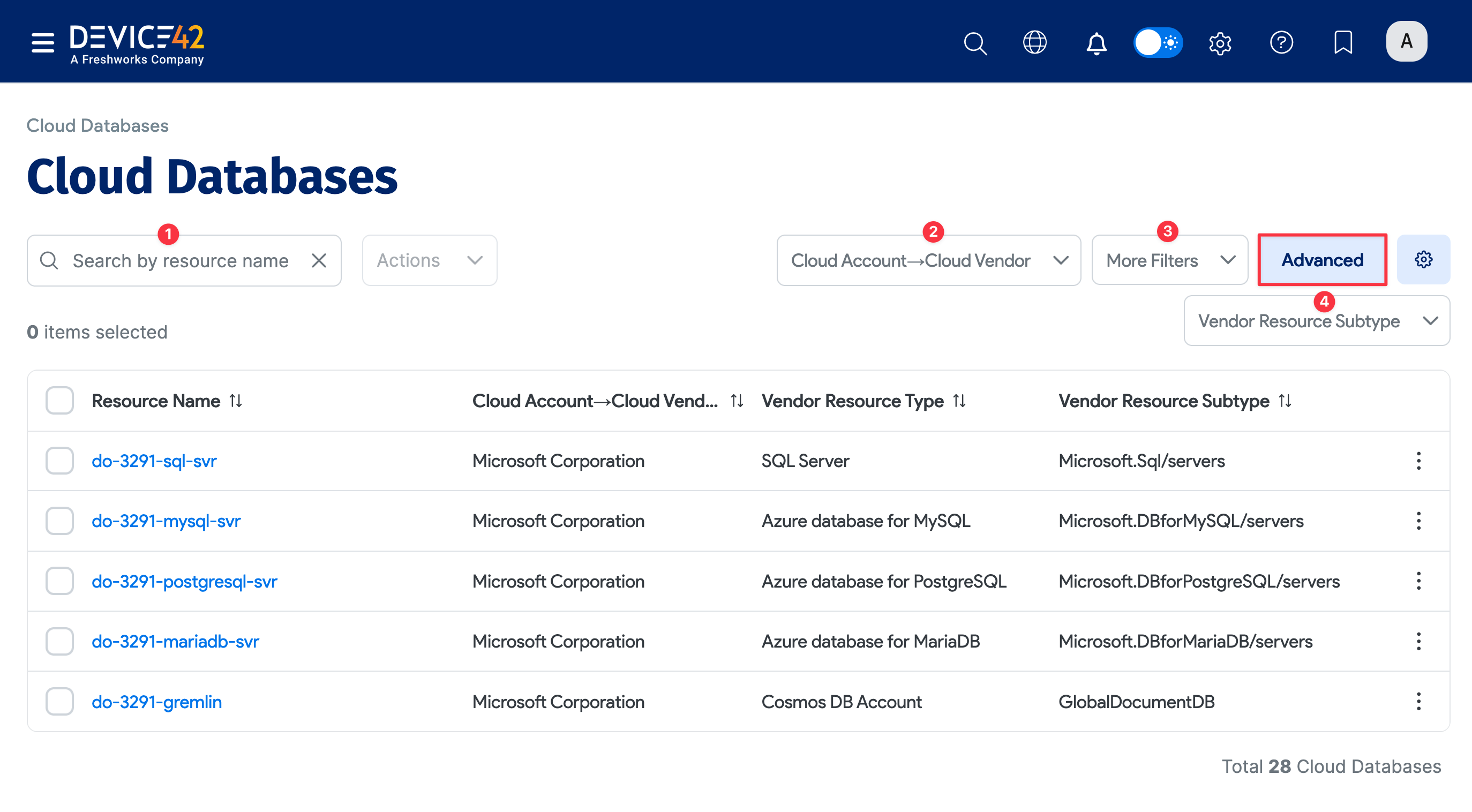
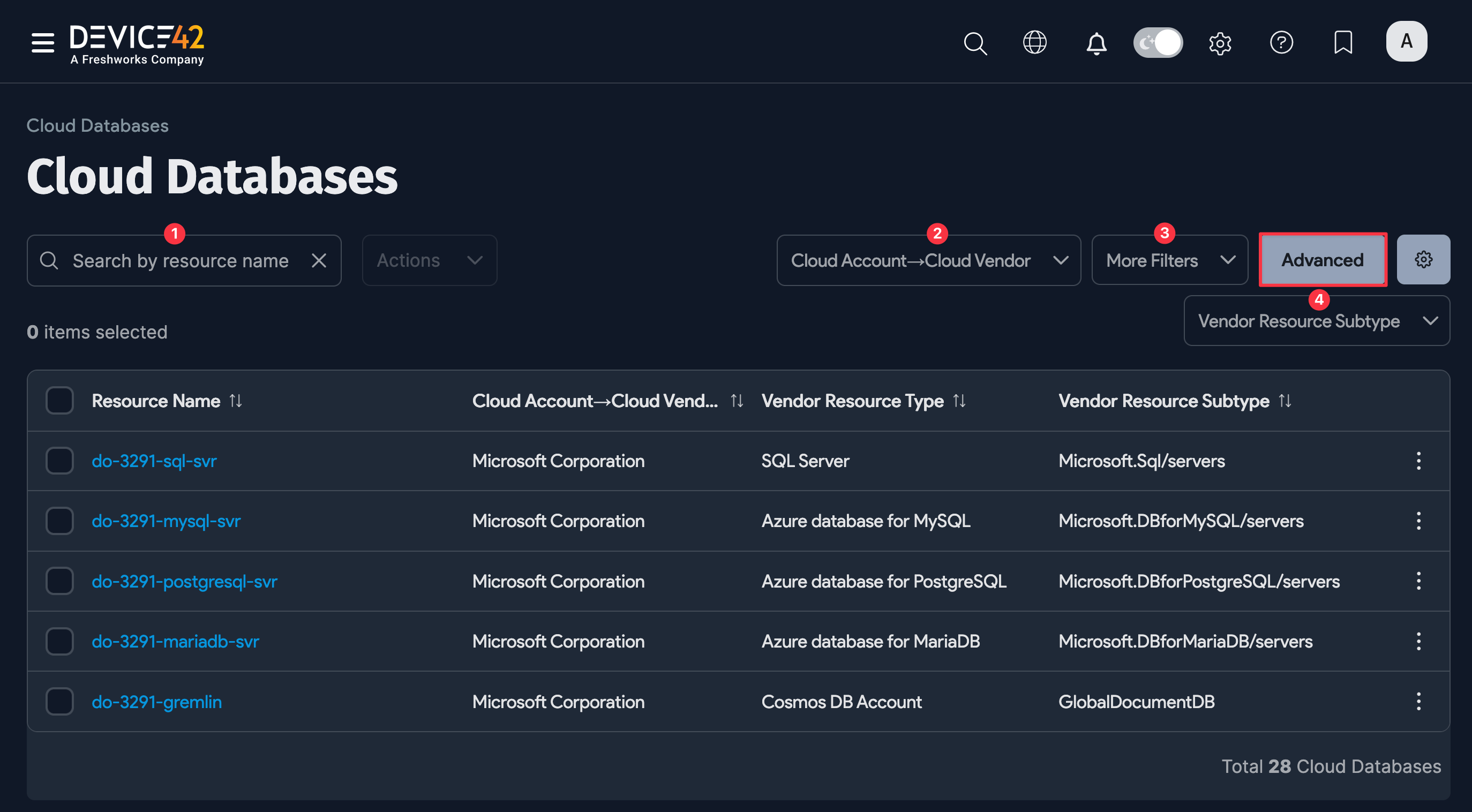
Use the list page filters to find specific cloud databases:
- Search by resource name (1)
- Cloud Account > Cloud Vendor (2)
- More Filters (3) for additional filter options
- Vendor Resource Subtype (4)
Use the Advanced Search option to construct more specific searches. See the Advanced Search Feature page for instructions.
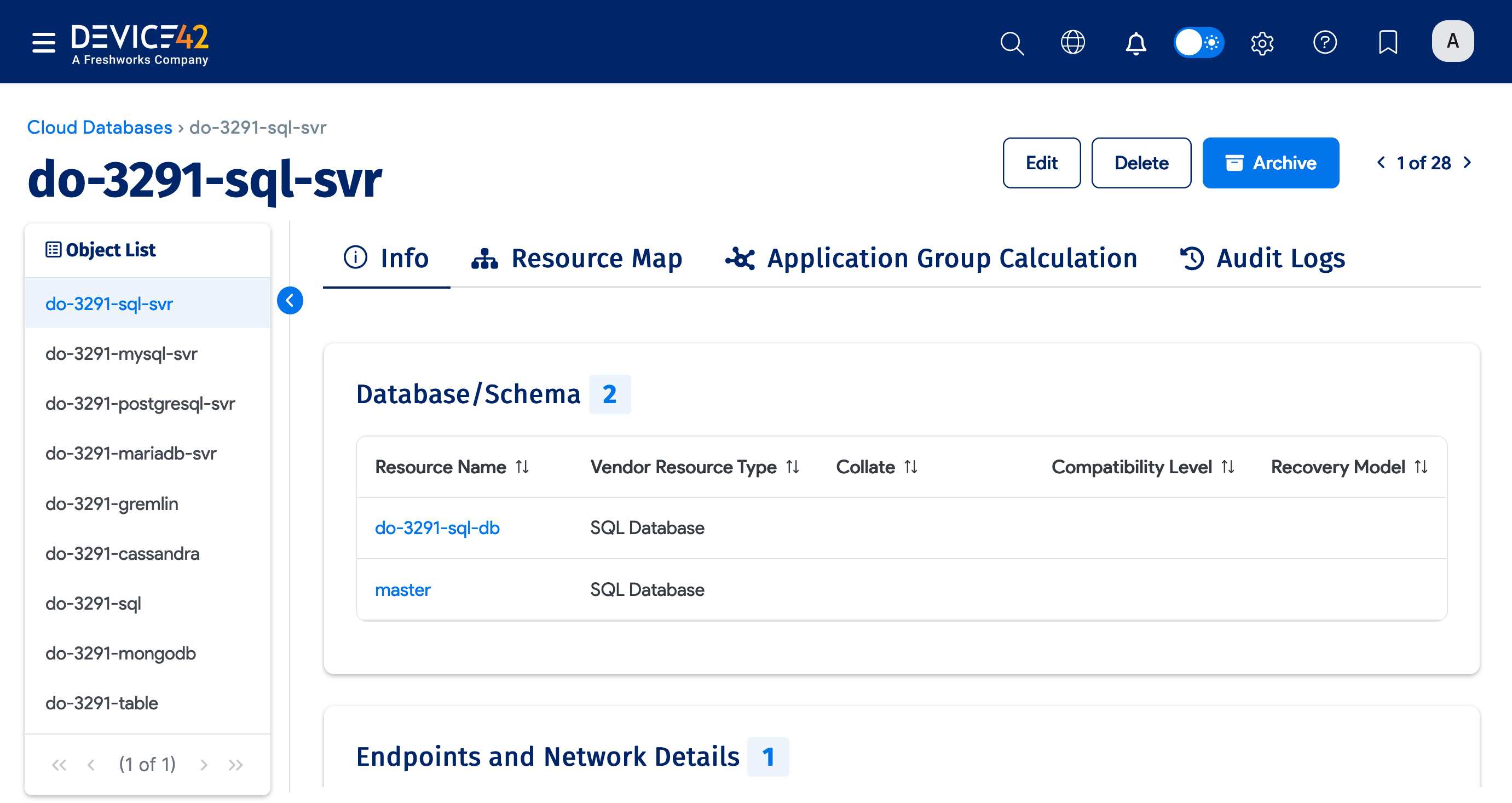
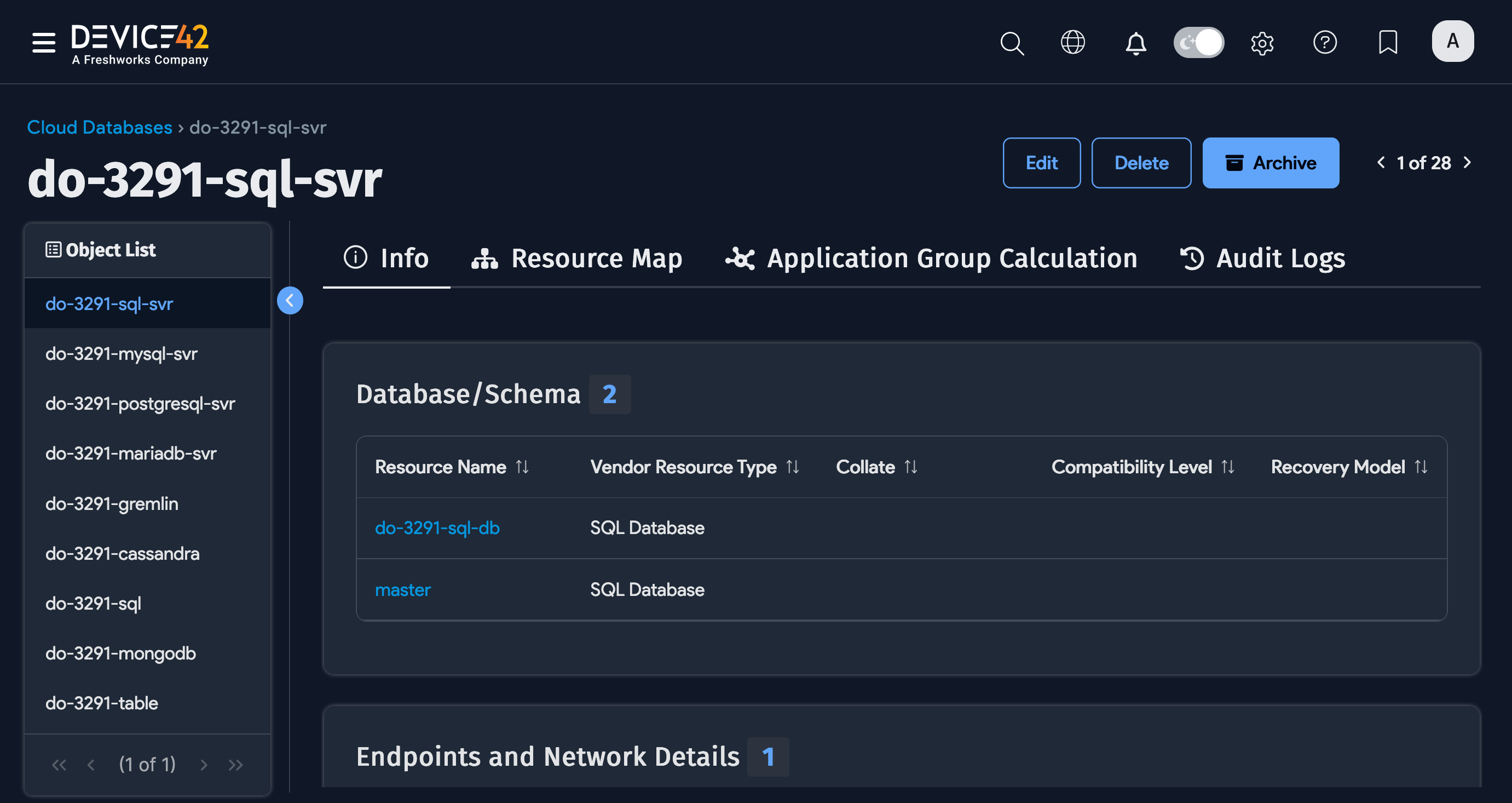
Click on the name of a cloud database to see details about that database. You can use the links under Database/Schema to view further information about the database and its related resources.
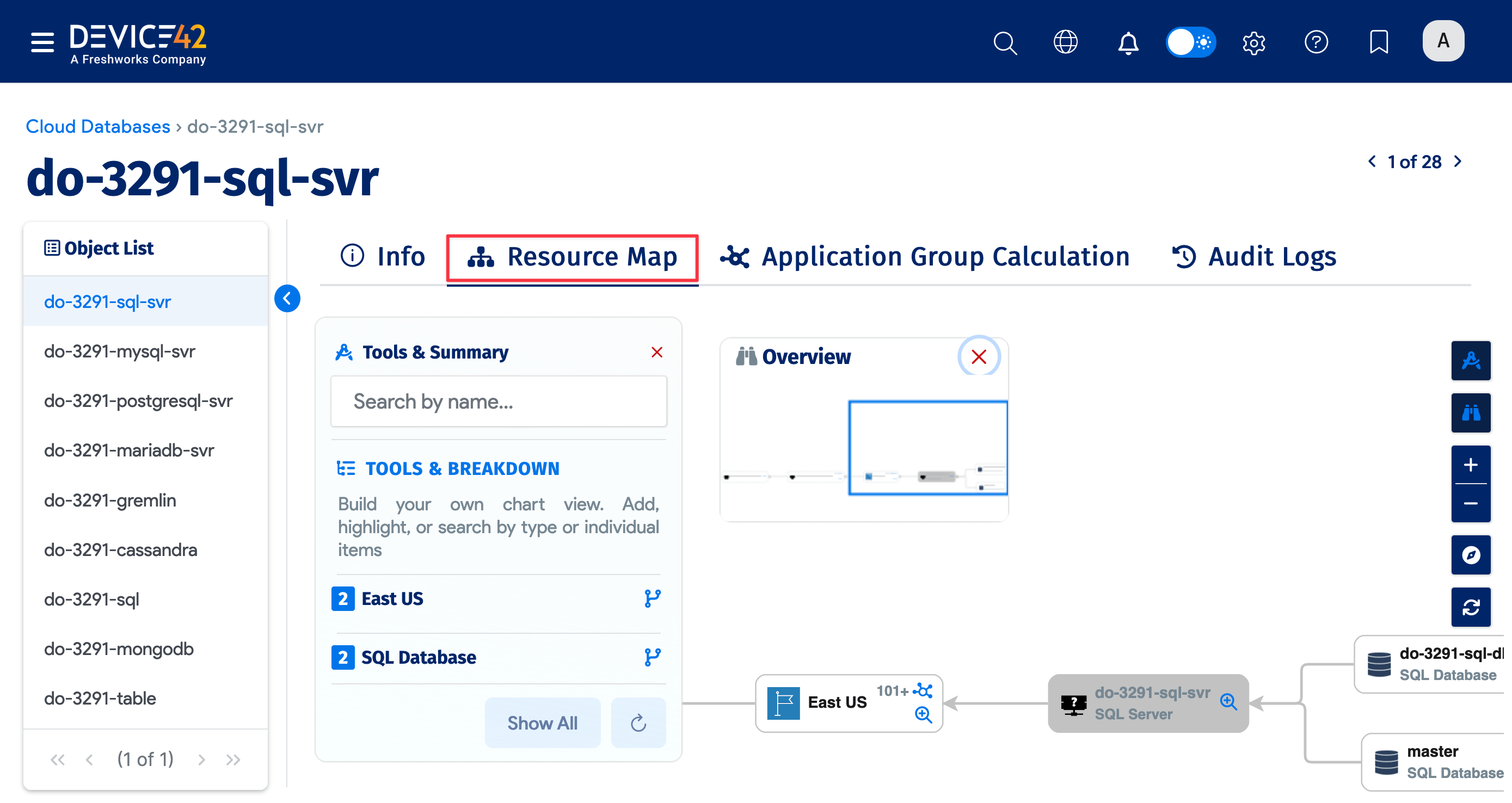
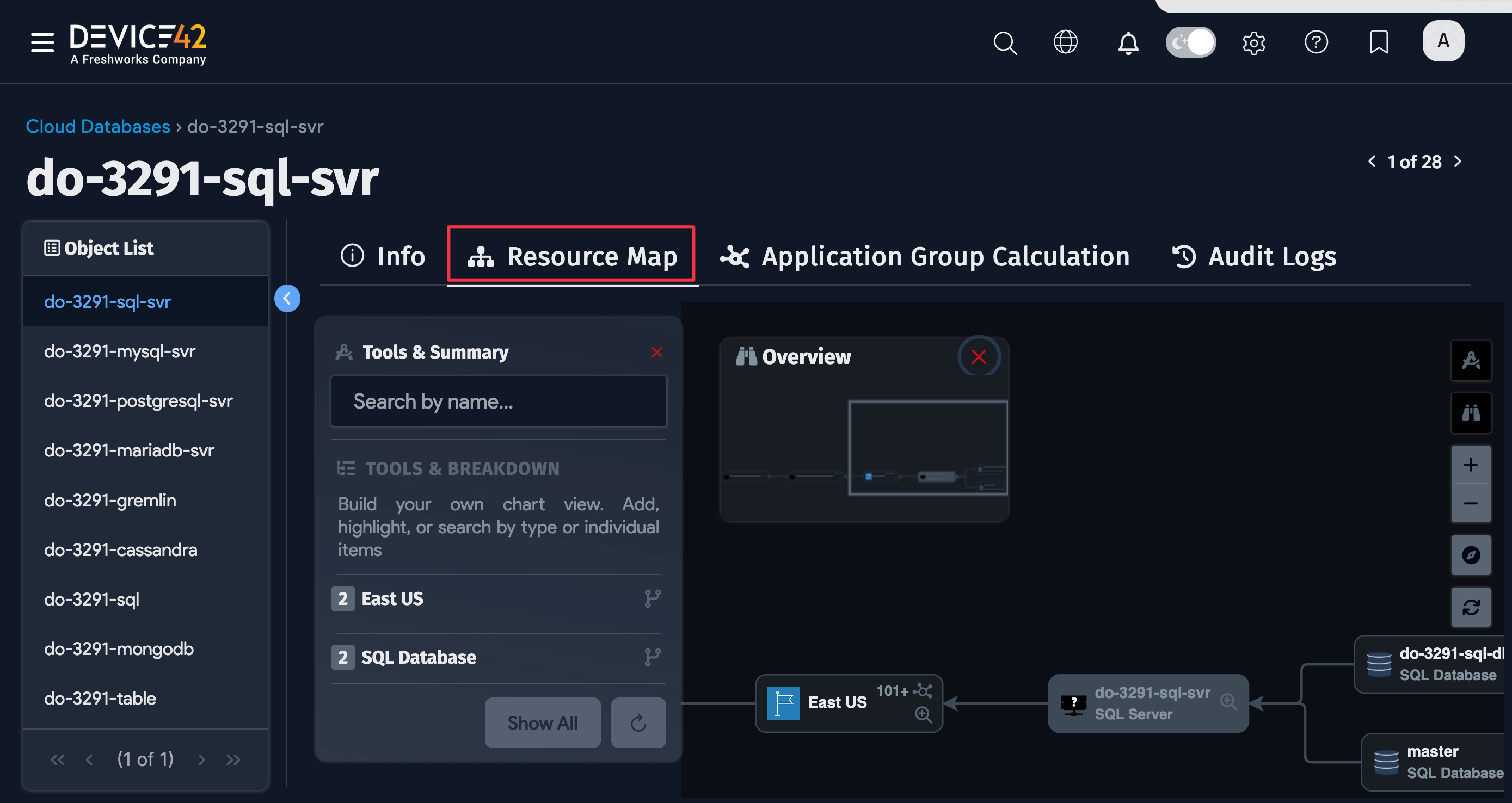
Resource Map
Click Resource Map on the top left of the page to see the topology map for the cloud database. You can select which Resource Types to include in the map.
Application Group Calculation
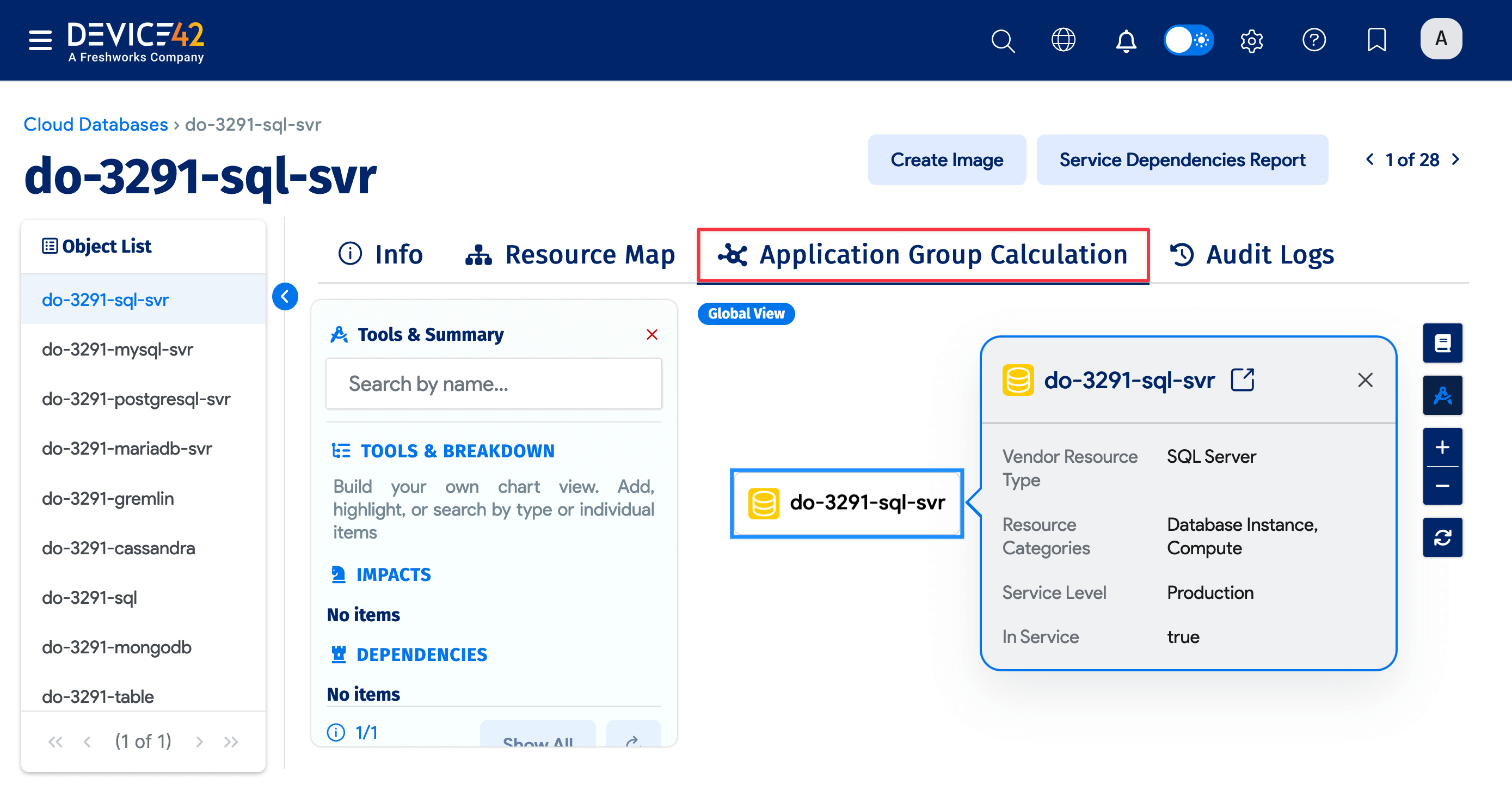
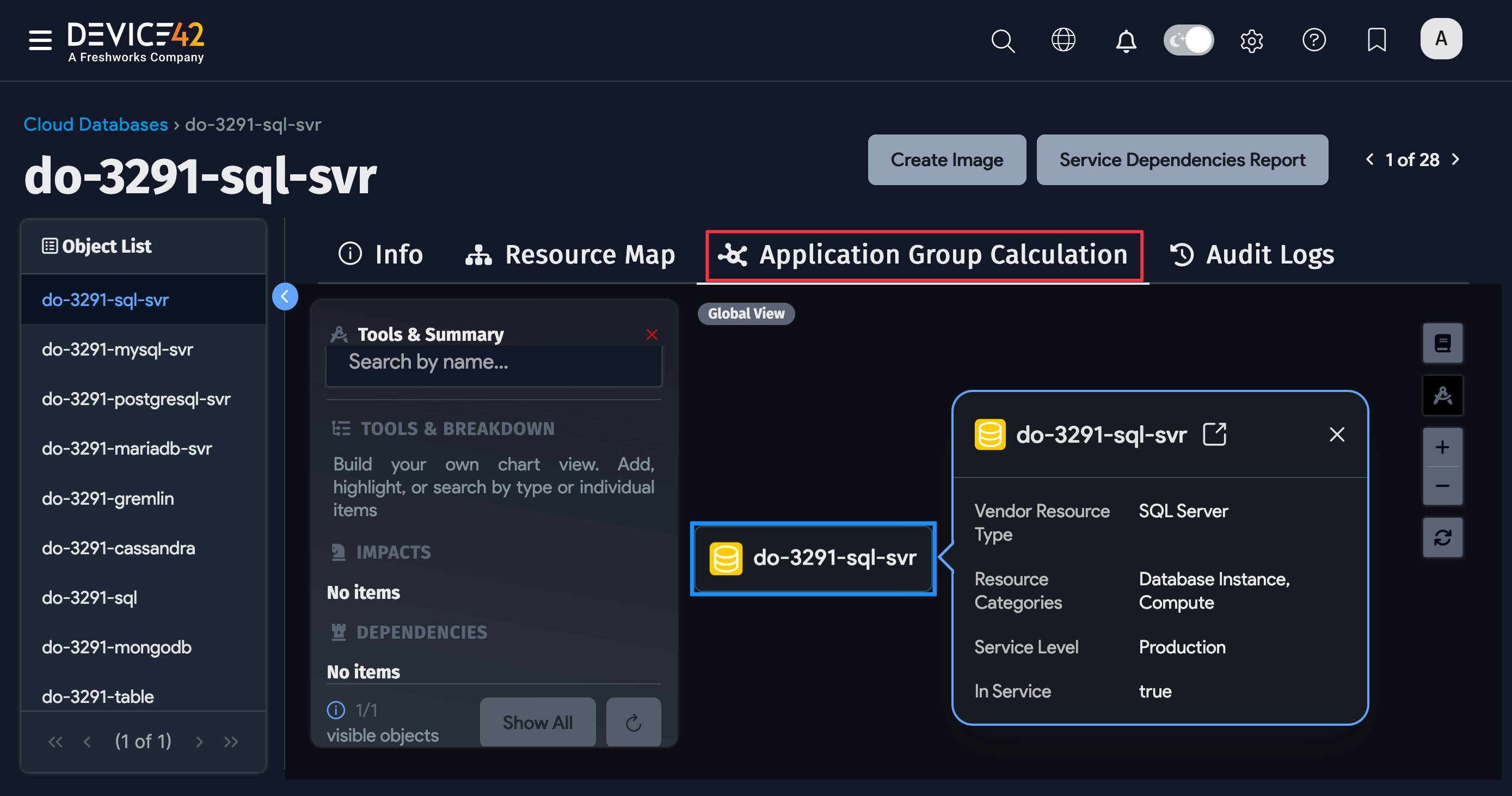
Click the Application Group Calculation tab at the top of the page to view a visualization of the Application Group calculation for the cloud database.
Edit Cloud Databases
Click the Edit button on the Info page of a cloud database to modify the following fields:
- Notes and Tags
- In Service (toggle Yes or No)
- Service Level
- Custom Field values
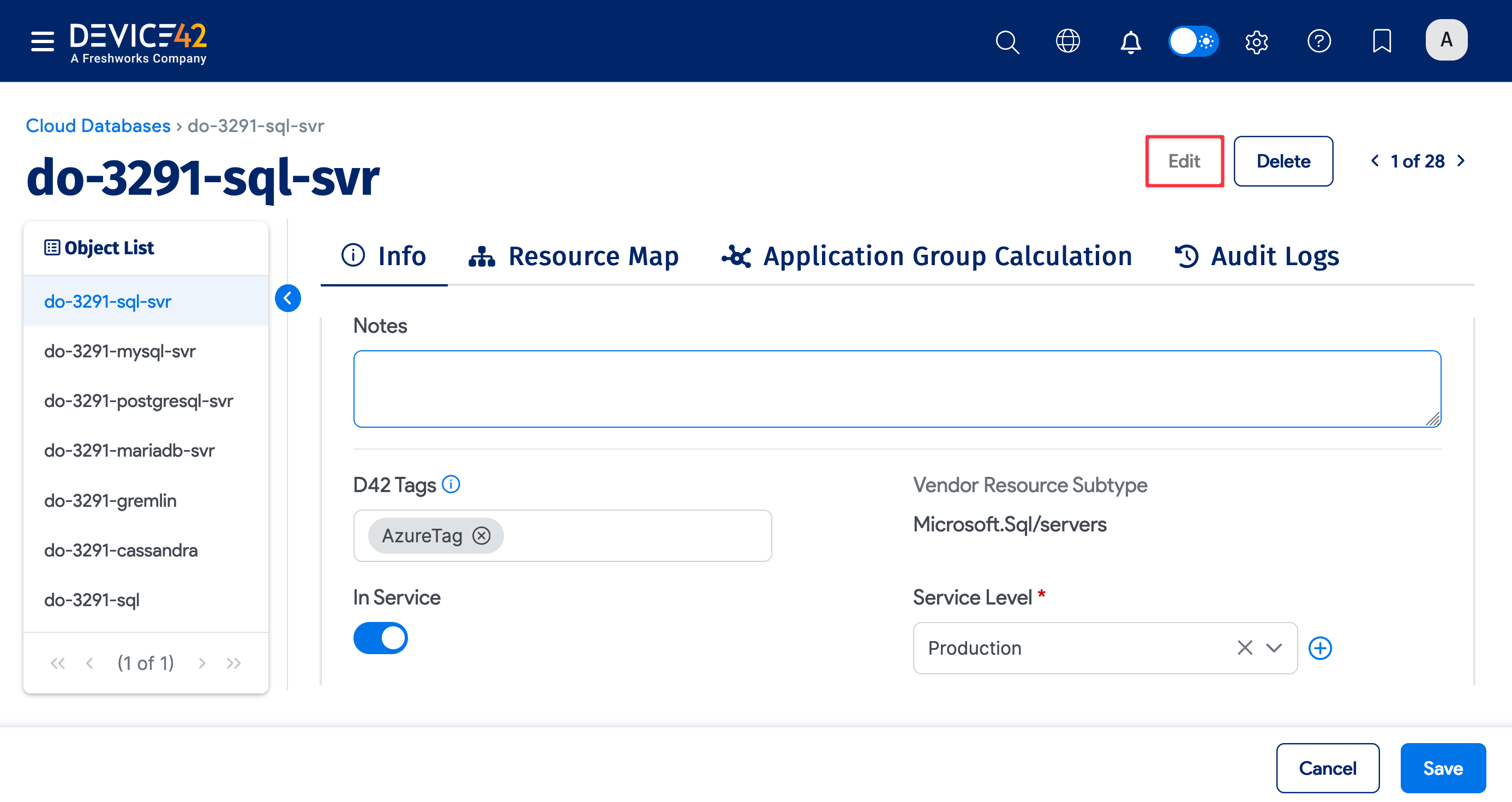
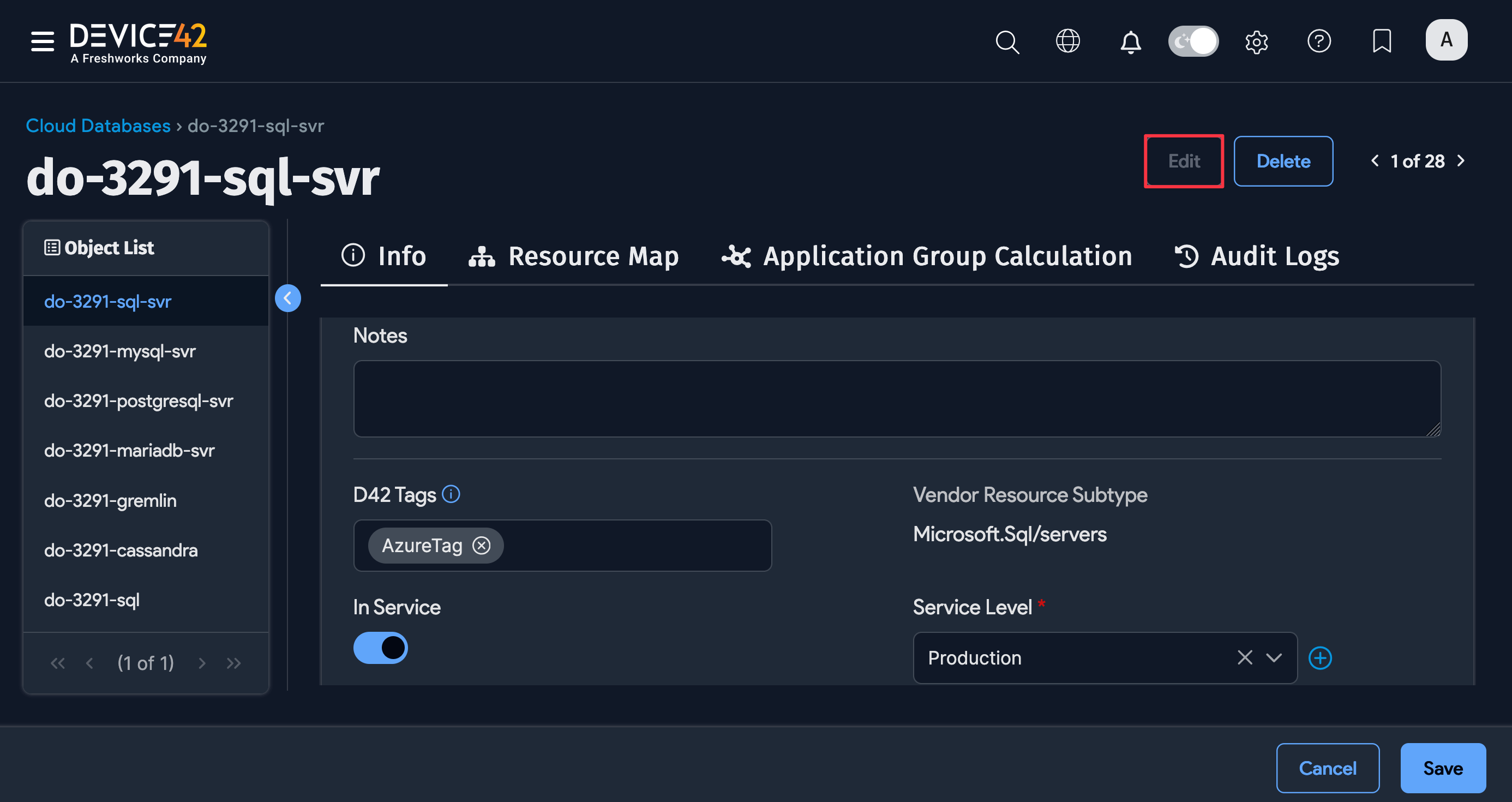
Click Save to save your changes or Cancel to discard them.
Delete Cloud Databases
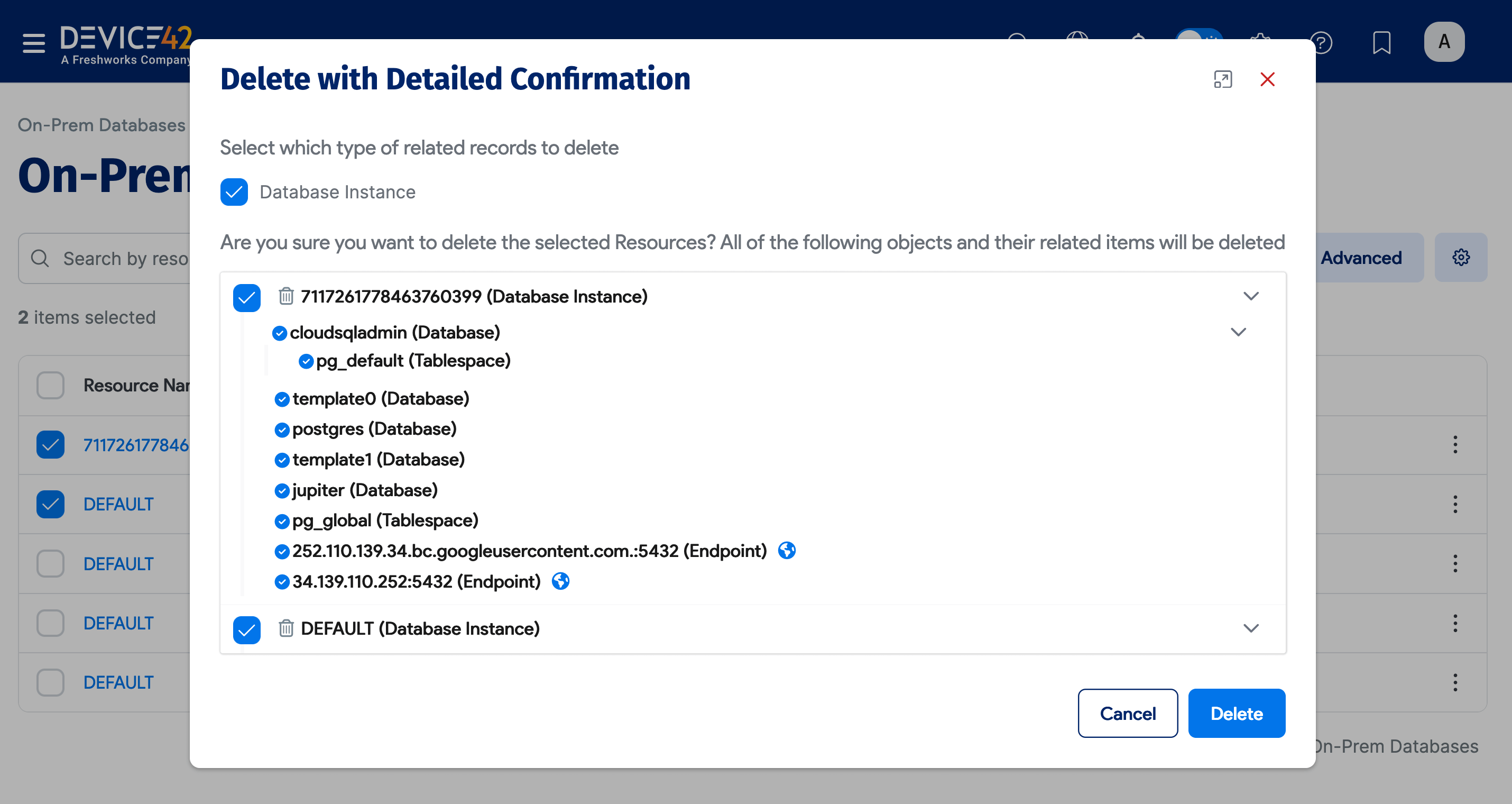
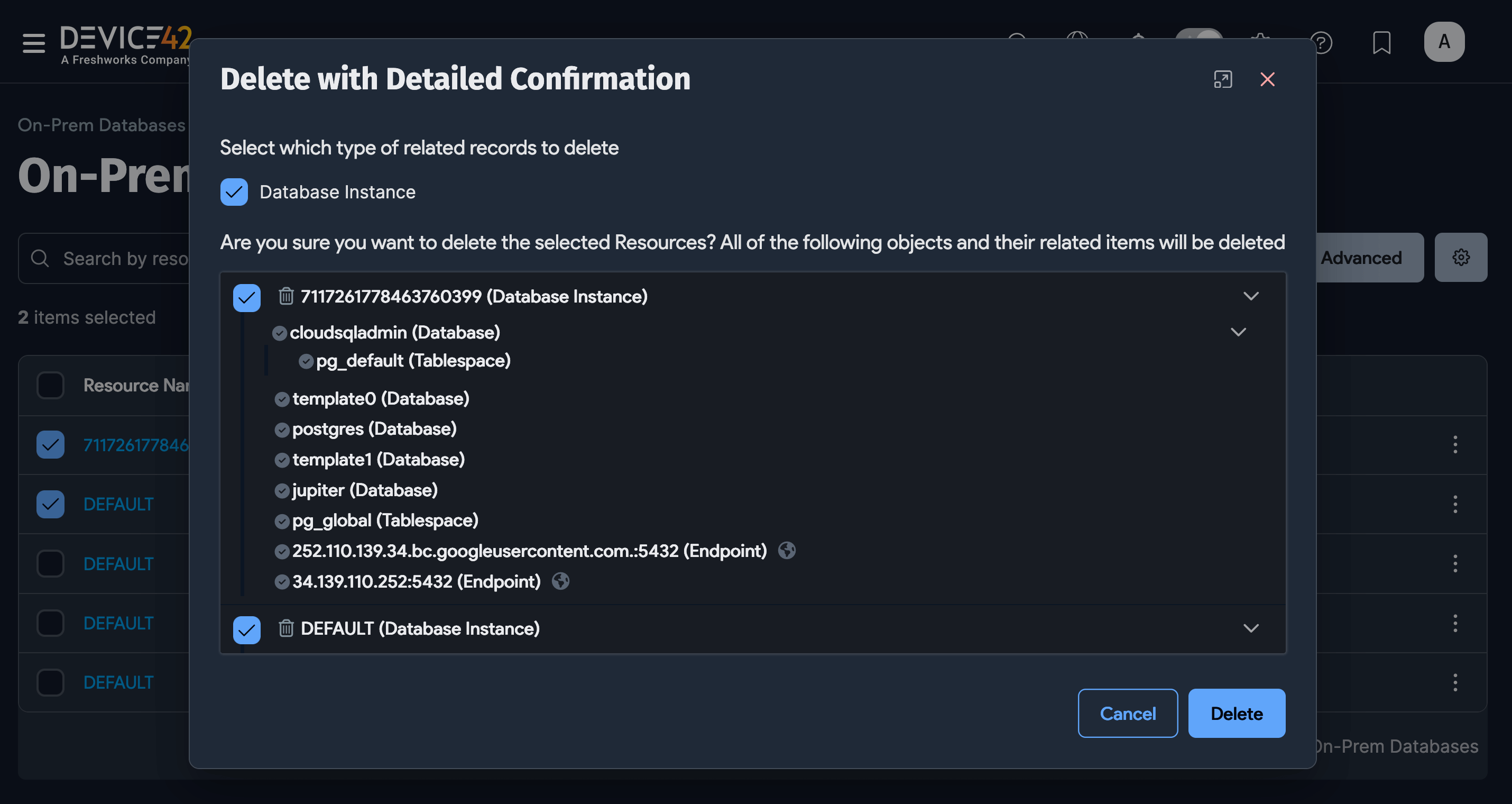
Select one or more databases on the Cloud Databases list page. From the Actions dropdown, select Fast Background Delete, Fast Background Archive, or Delete with Detailed Confirmation.
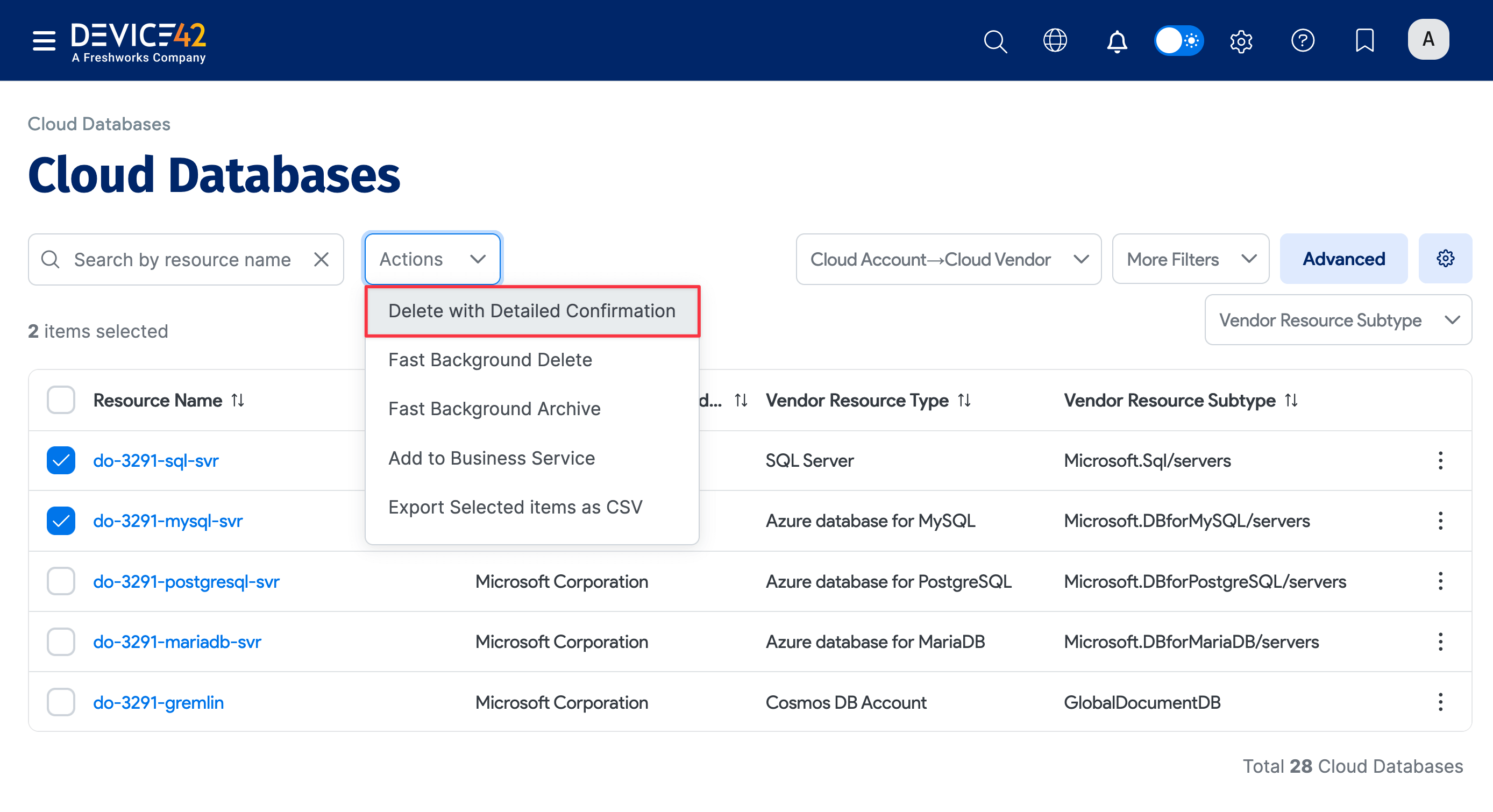
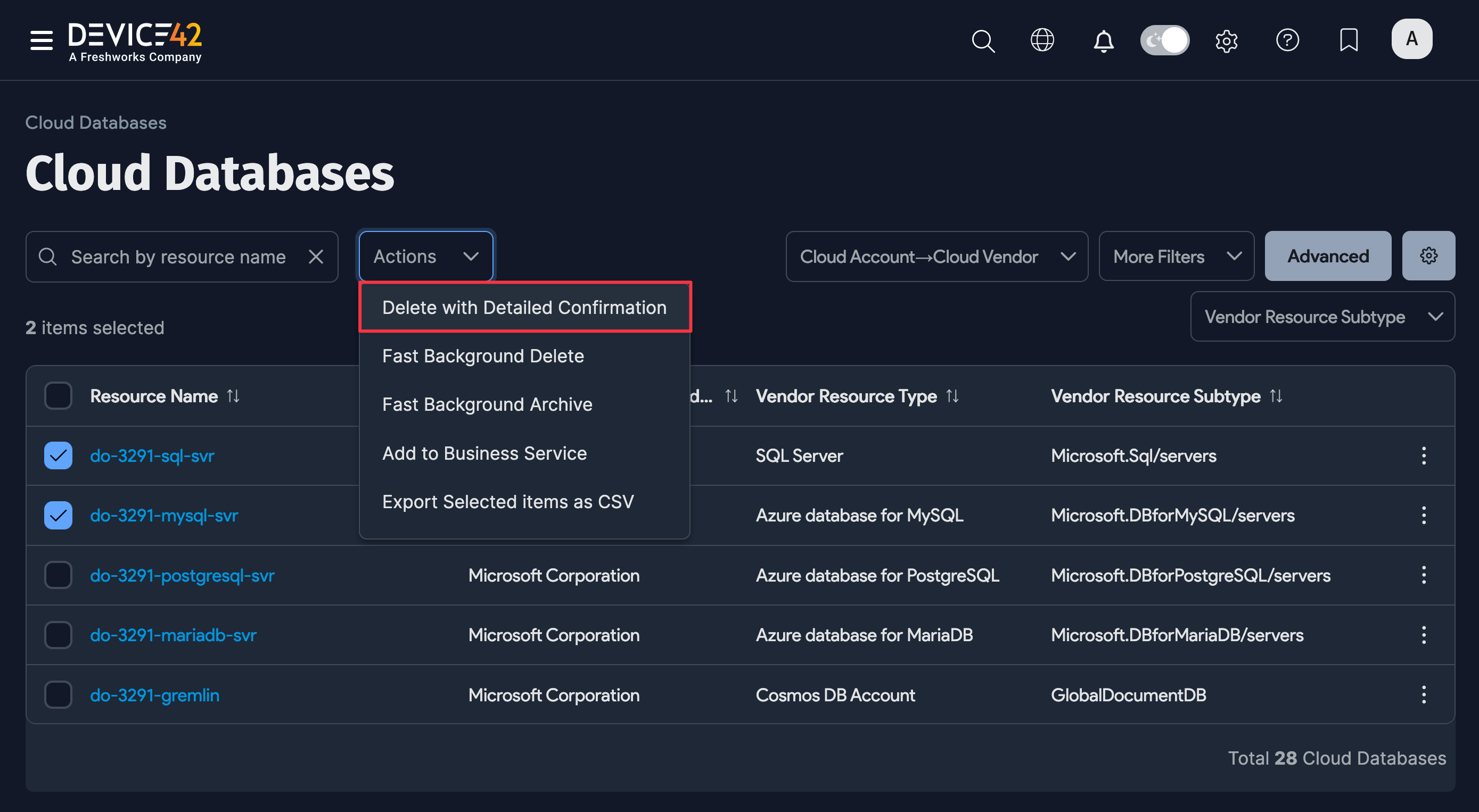
Confirm or cancel the deletion when prompted.
DOQL Views and API
Additional cloud database data is available through DOQL views and the API for quick data extraction. Some of these fields may not yet have corresponding UI elements. See the API reference website for more information.