Cisco UCS Cluster / ACI Fabric Autodiscovery
This page is for Device42 administrators who need to discover Cisco UCS clusters and ACI fabric networks.
Device42 polls your Cisco UCS (Unified Computing System) Manager to discover cluster device information or ACI (Application Centric Infrastructure) Fabric to discover your SDN (software-defined networks).
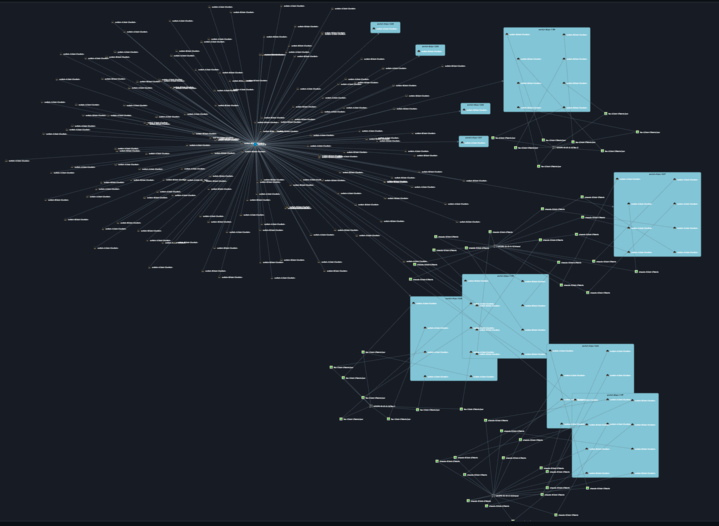
UCS discovery jobs include network connectivity information beyond the original chassis and blade relationship data for UCS clusters. This provides a comprehensive overview of your entire cluster's connectivity, complete with port-channel aggregation information.
The image below shows an example of network connectivity discovered for a UCS cluster:
Set Up Cisco UCS Cluster or ACI Fabric Discovery
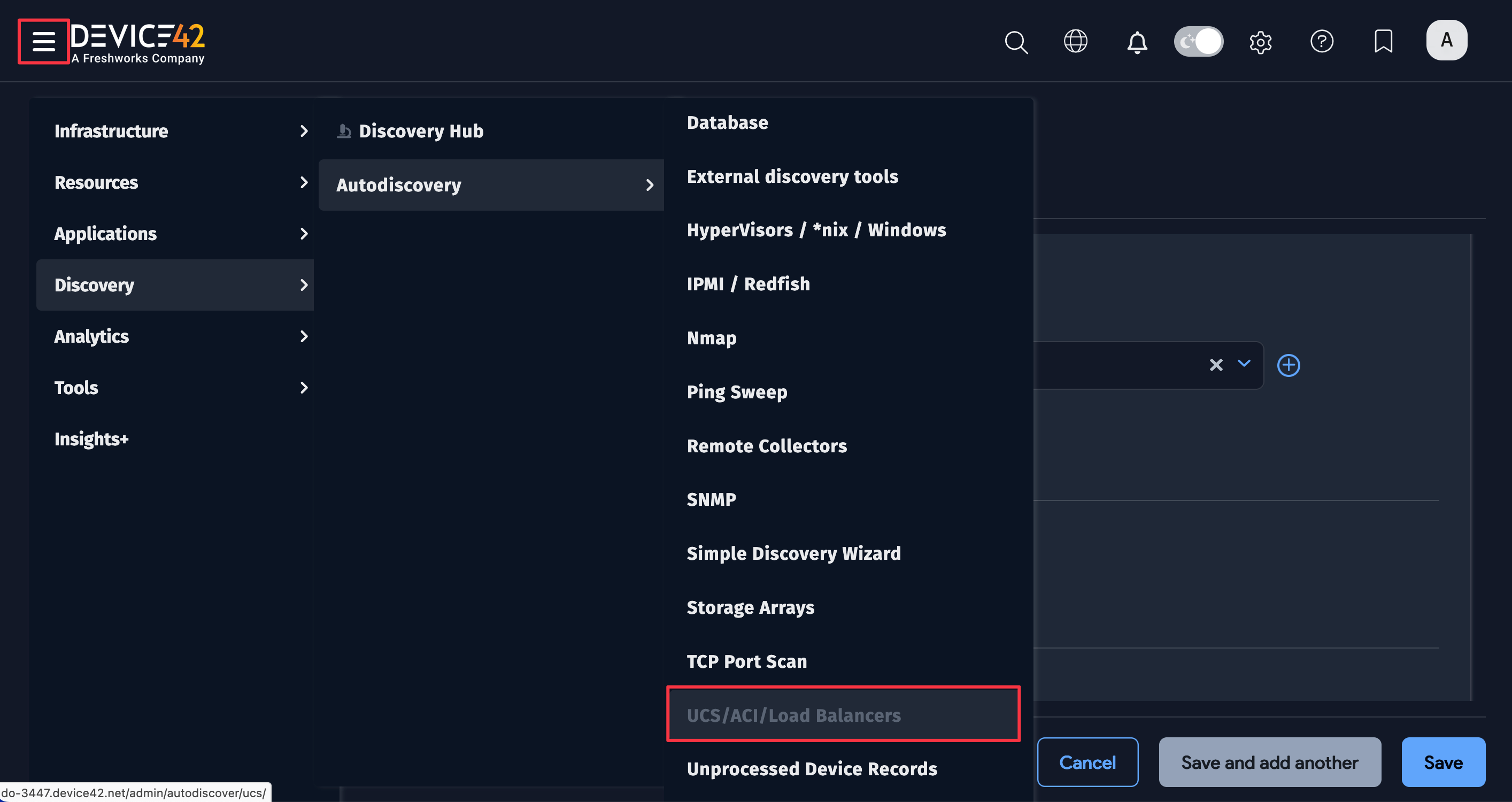
Create a job by navigating to Discovery > Autodiscovery > UCS/ACI/Load Balancers.
UCS, ACI, and load balancers share the same discovery job page. If you need to configure load balancer discovery, see F5/Load Balancer Discovery.
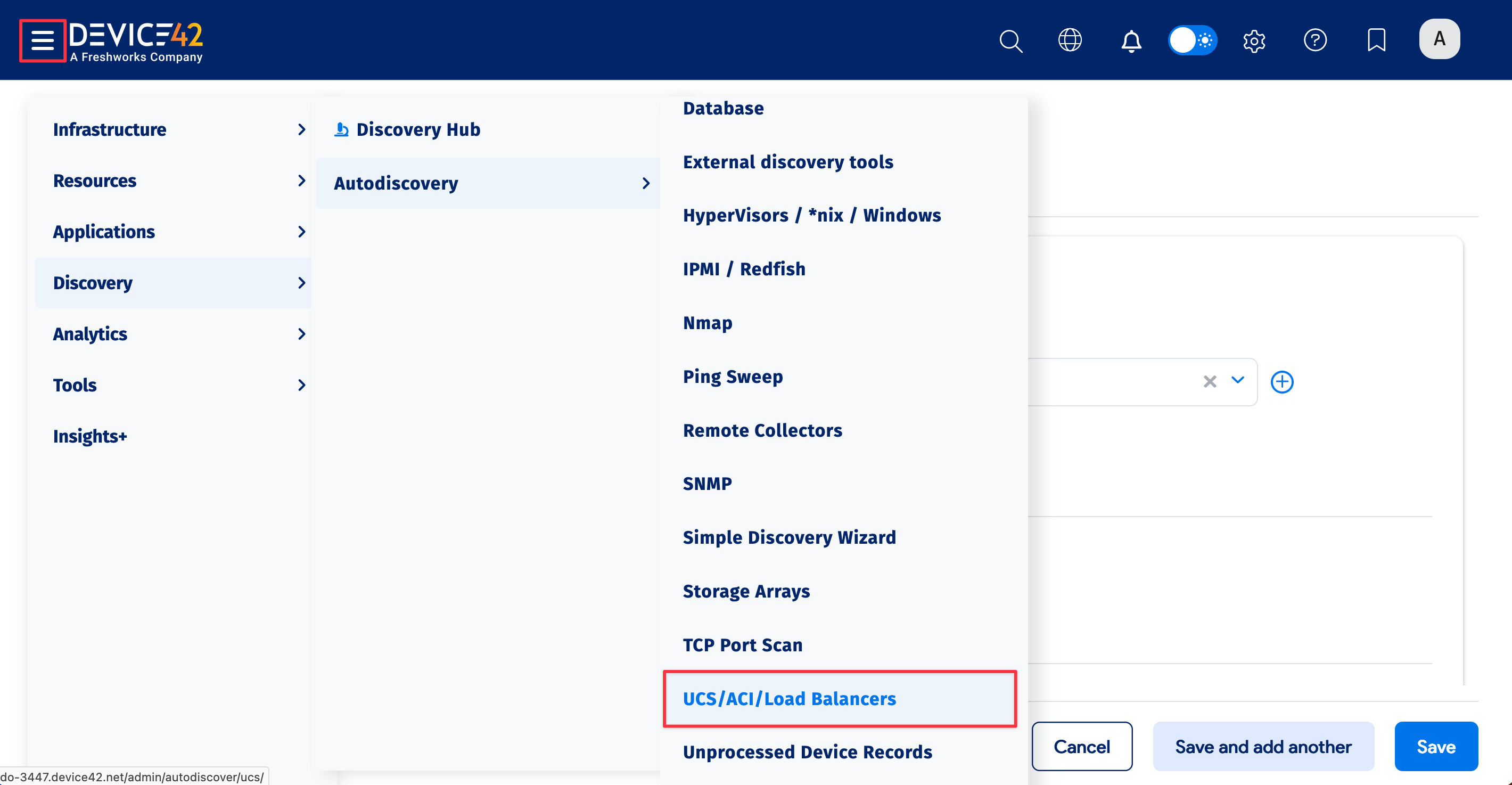
Add your Cisco UCS Manager or ACI Fabric discovery job by entering one or more IPs or FQDNs. Enter credentials for an account with appropriate permissions.
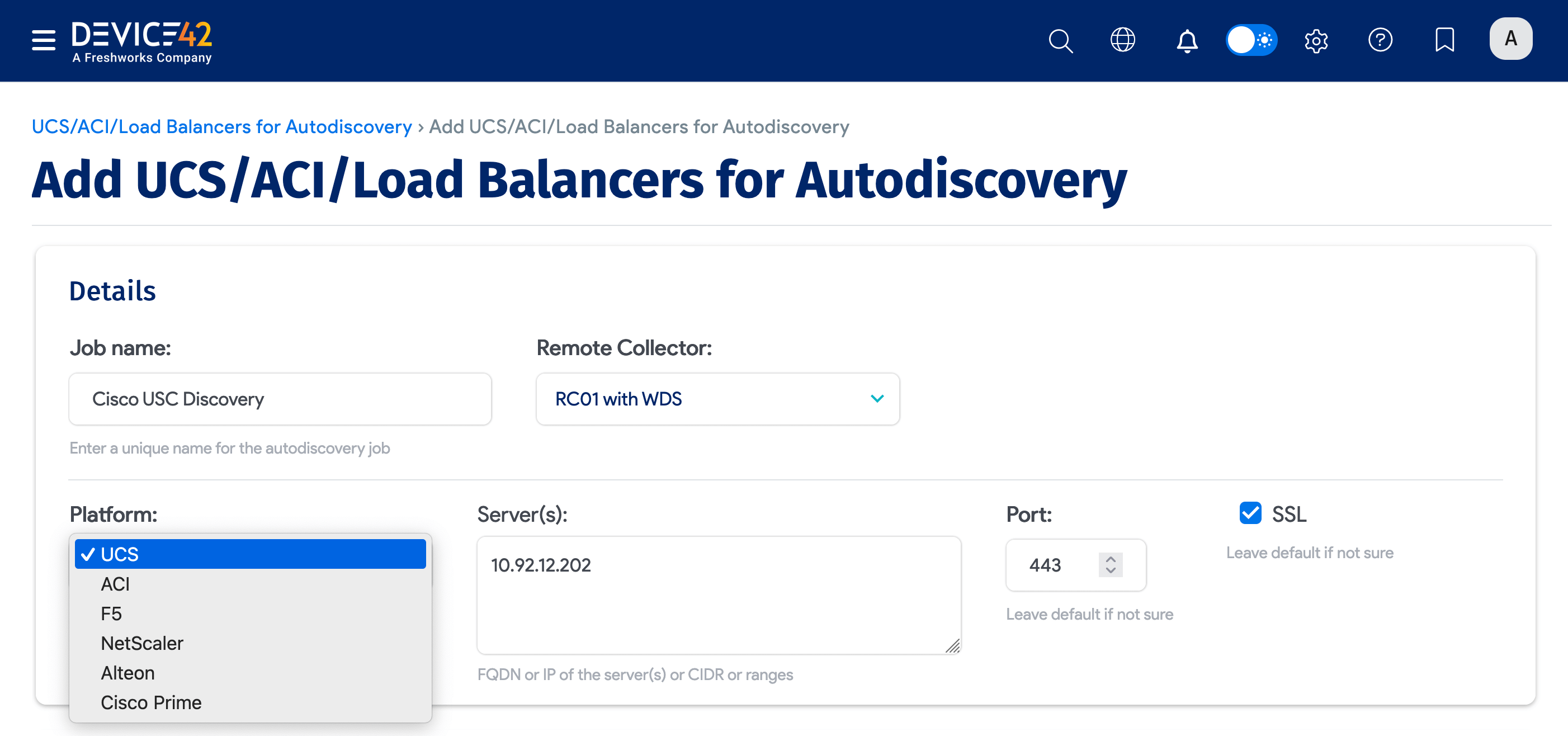
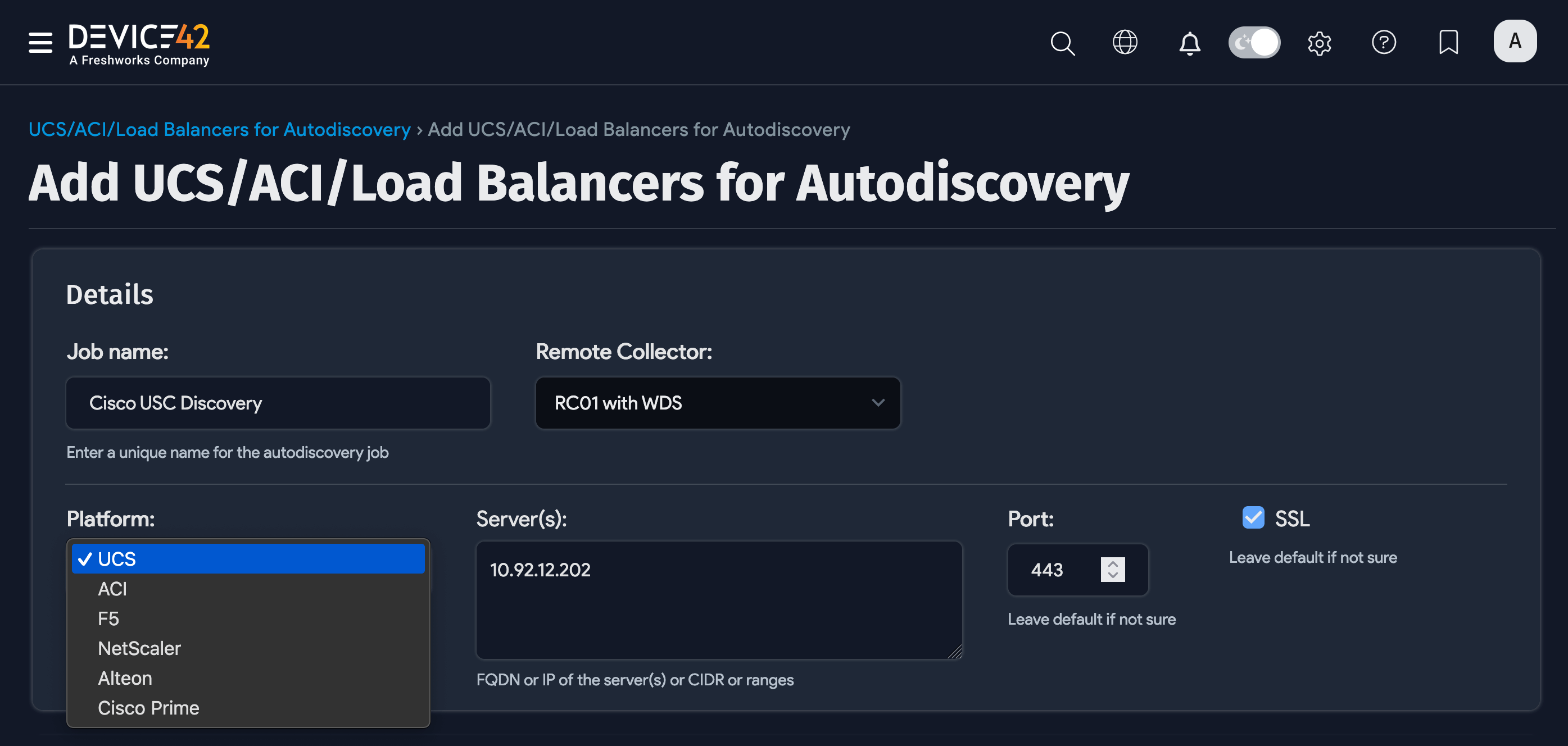
UCS Cluster / ACI Fabric Discovery Options
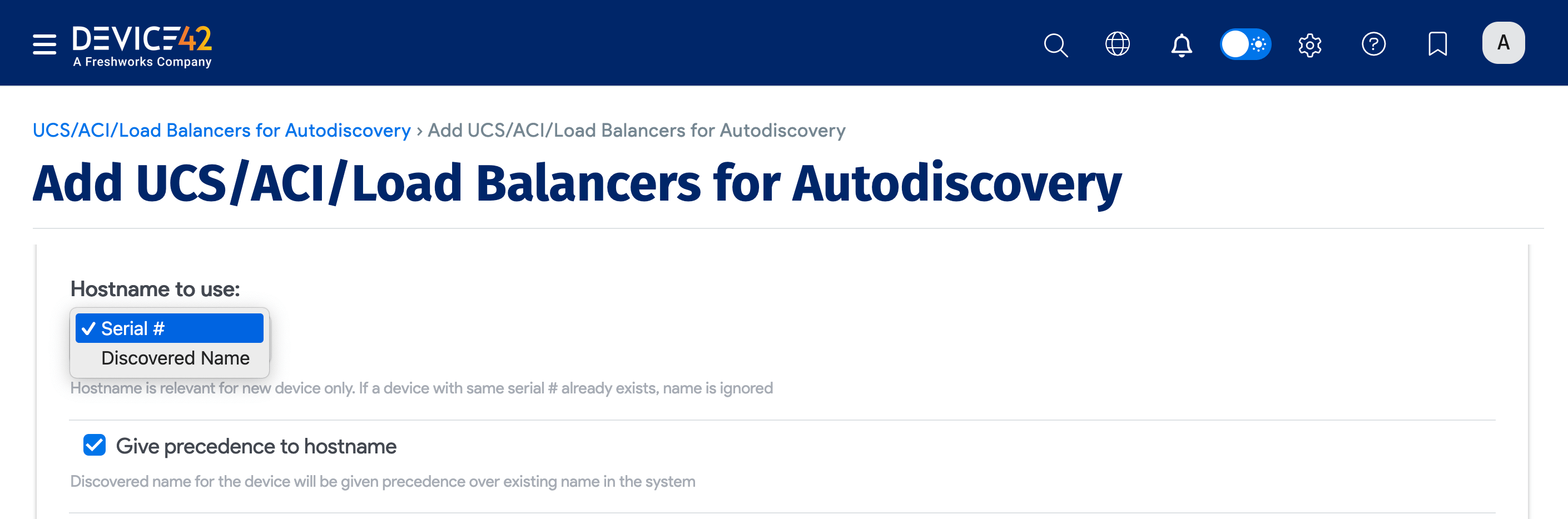
Configure the following options to control how Device42 handles discovered UCS and ACI devices:
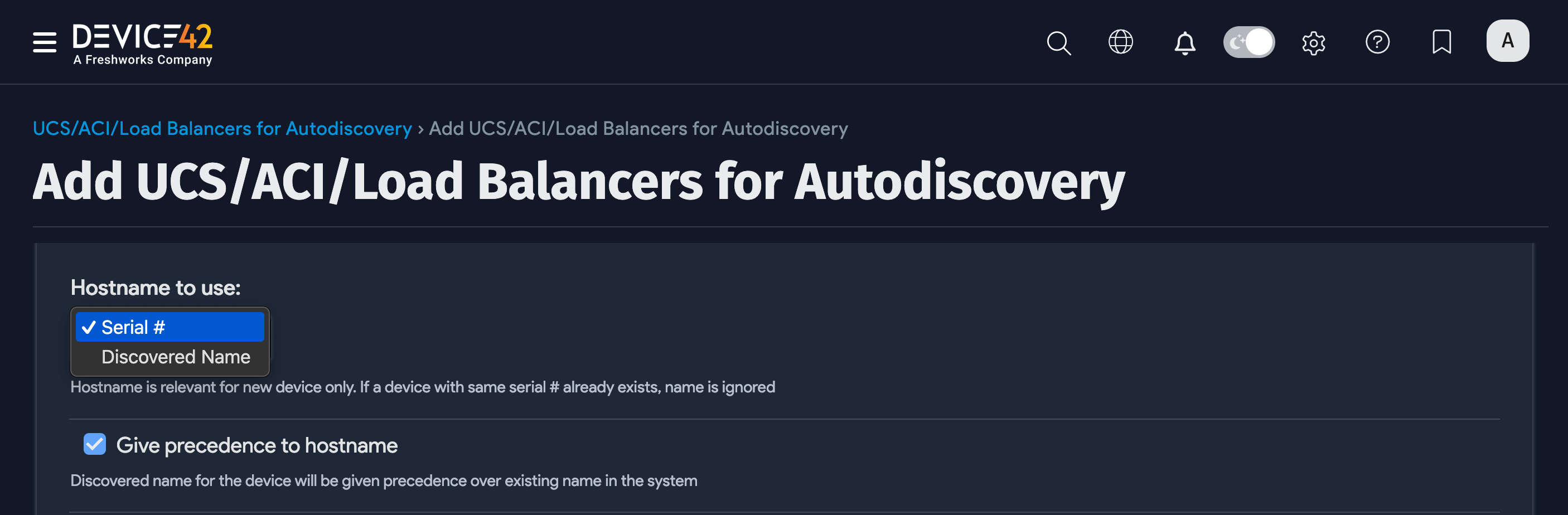
- Hostname to use: Choose the Discovered Name or Serial # hostname format to use for newly discovered devices.
- Give precedence to hostname: Select to force overwrite the existing hostname for devices that already exist using the hostname option.
- VRF Group for discovered devices: Assign discovered devices to a VRF group.
- Object Category for discovered devices: Place discovered objects into the chosen category in Device42.
- Overwrite existing object categories: Select to overwrite the object category for devices that
already exist in Device42.
Device and Chassis Names
If Device42 does not find an existing device for the chassis or blade based on the serial number, it adds a new device. The Name is derived from the DN and the serial number of the device.
Check the Give precedence to hostname option to use the discovered name for the device instead of its given name.
Run the Discovery Job
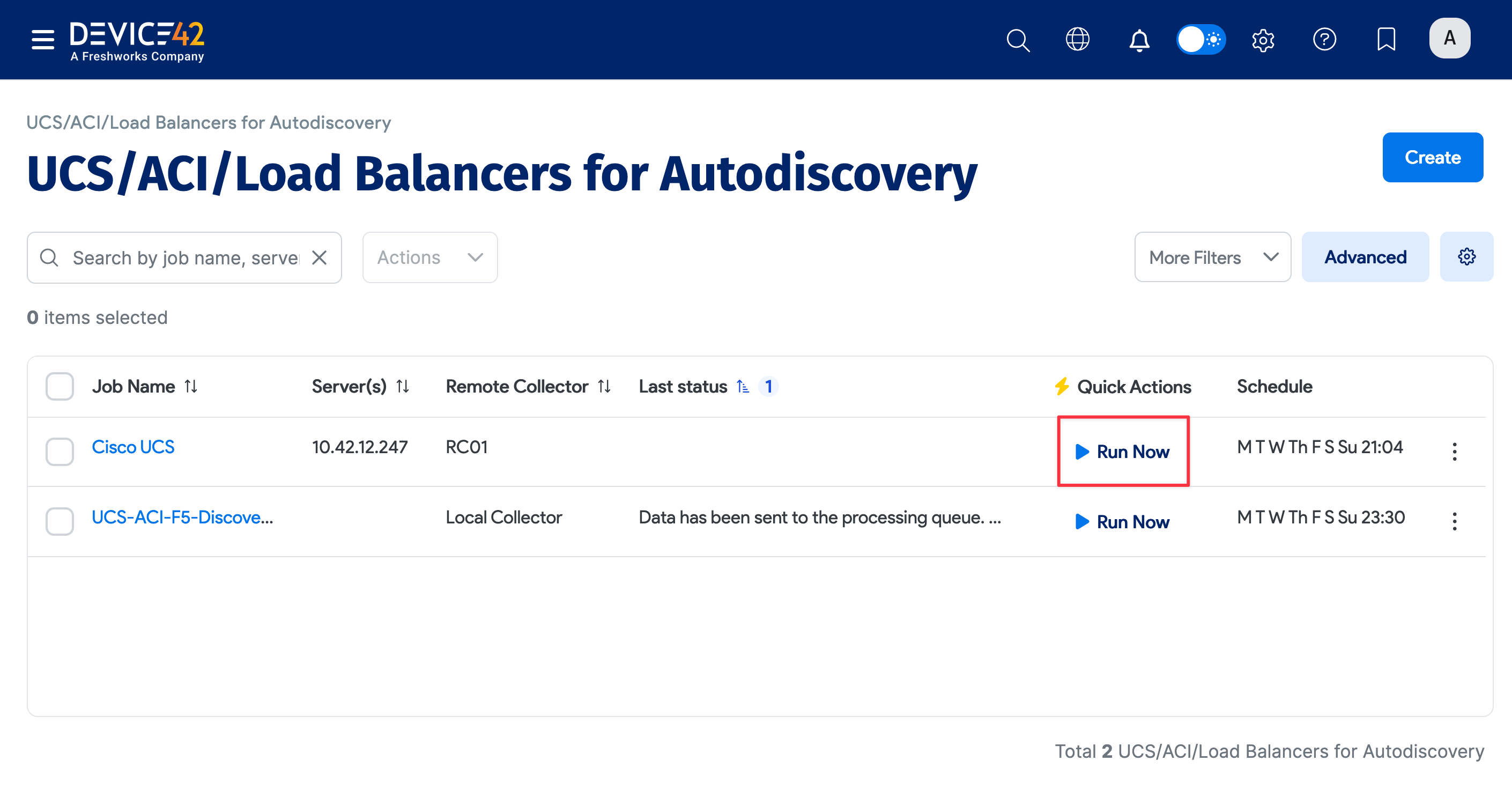
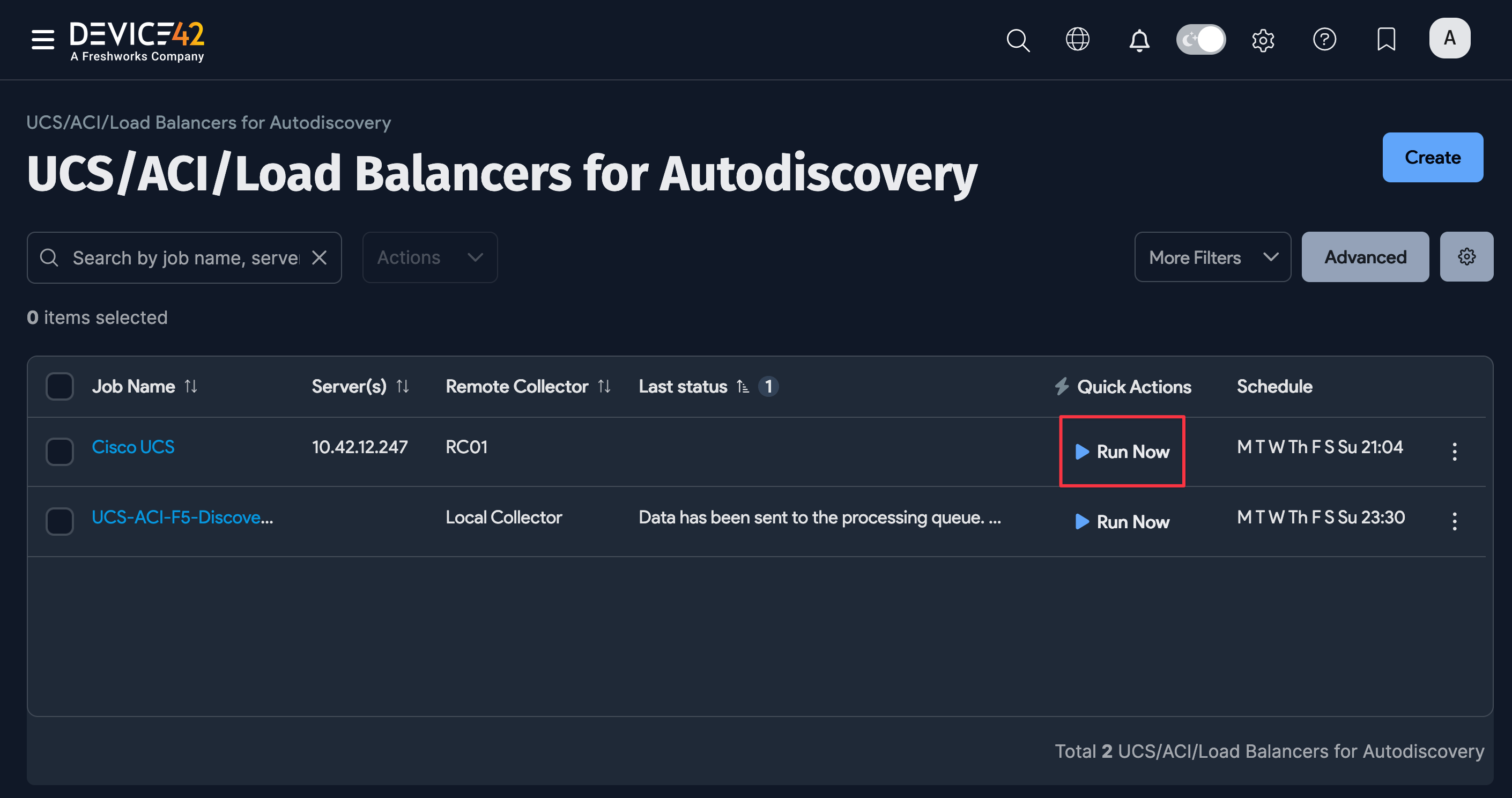
Device42 does not automatically run newly created jobs on the first day to prevent running a large number of jobs at once. To run a job after its initial creation, click the Run Now button on the job details page. You can also run the job from the UCS/ACI/Load Balancers for Autodiscovery list page.
Schedule the Discovery Job
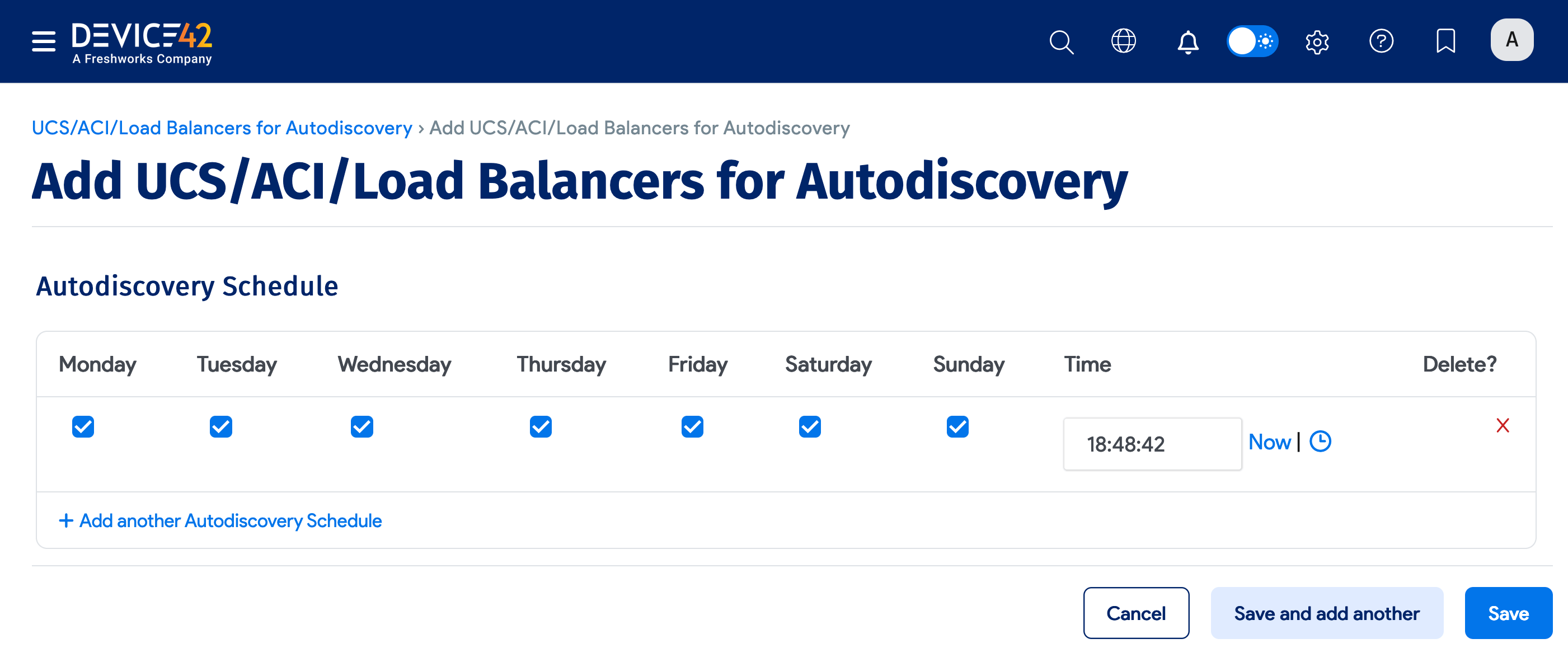
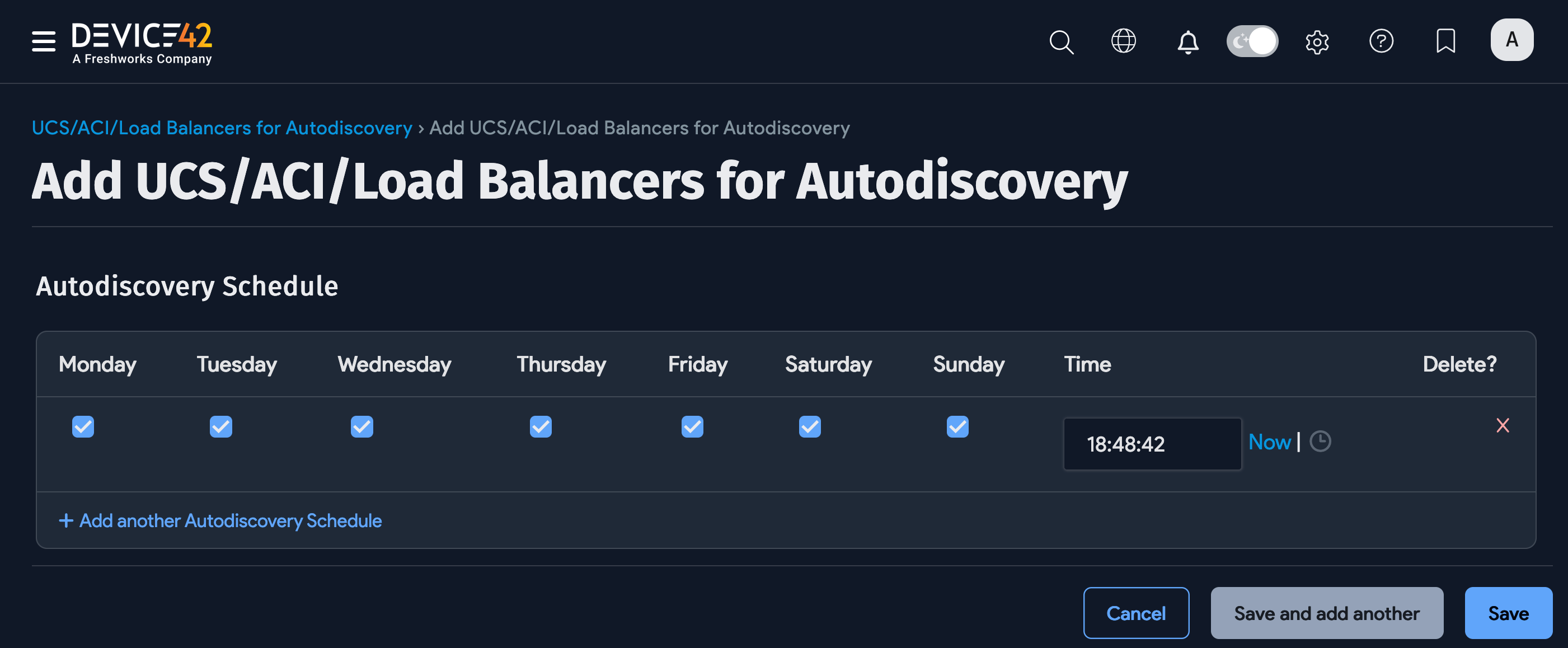
When creating or editing a job, you can set one or more schedules by clicking + Add another Autodiscovery Schedule.
Service Profiles
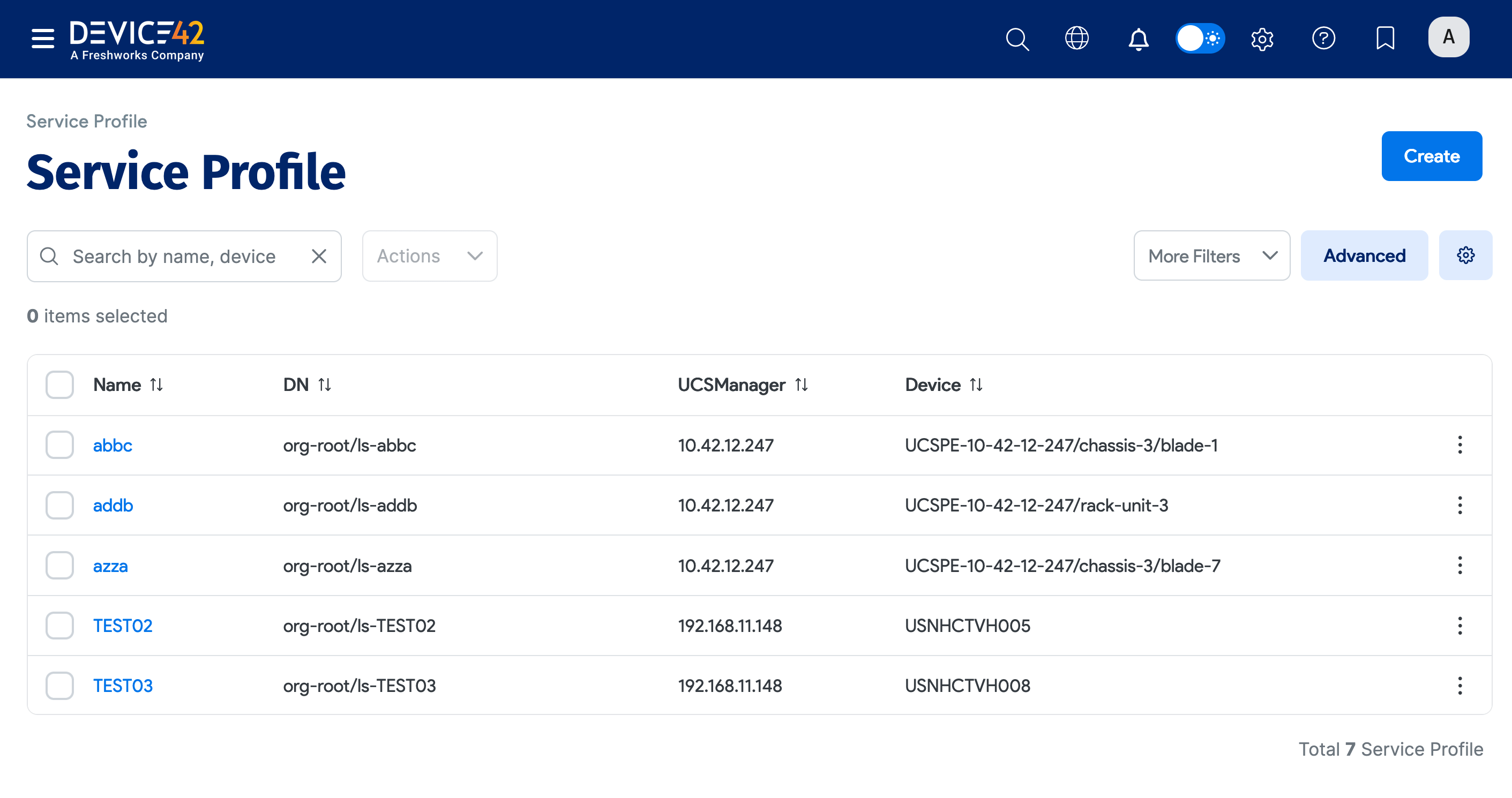
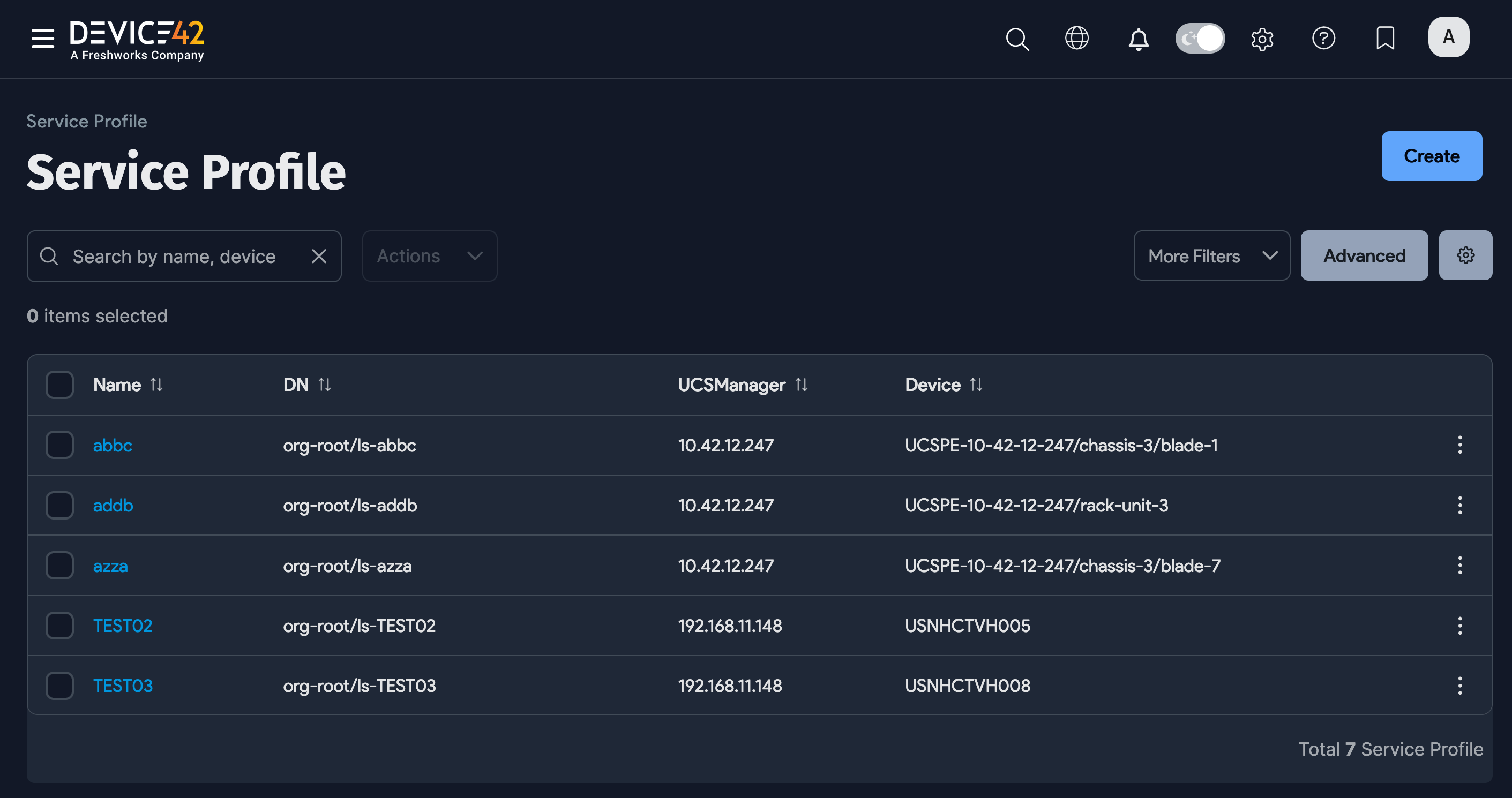
Navigate to Infrastructure > Organization > UCS Service Profiles to see a list of discovered service profiles. You can view the Name, DN, UCSManager, and Device information for each profile.
Search for specific profiles using the search bar on the Service Profile list page or the main dashboard.