Autodiscovery
This page is for Device42 administrators who need a comprehensive guide to discovery in Device42. Use this page as your central reference to find all available discovery types, learn how to manage and schedule discovery jobs, and navigate to detailed documentation for each discovery method.
If you are new to Device42 discovery, see Getting Started With Autodiscovery for the recommended initial discovery sequence and setup guidance. For operational best practices on running and maintaining discovery jobs, see Autodiscovery Best Practices.
Device42 offers several discovery tools, some of which are internal to Device42 while some run externally. Find the internal discovery job types under the Discovery menu of the Main Appliance.
All discovery jobs can be run on a regular schedule to automate a significant portion of your network documentation.
Do not set up an discovery scan using critical production account credentials! Please create a separate, dedicated account to use only for discovery.
Account lockout could result in an otherwise avoidable outage depending on your permissions and configured password policies.
Get Started
Plan your discovery process by referencing the recommended Initial Discovery Sequence and set up your environment to get the most out of the discovery process. Contact our support team for additional guidance.
Start With the Network
Running network discovery first is recommended to lay the framework for the rest of your discoveries. By first discovering your network, you collect data on the in-use subnets that contain all of the IP addresses to be discovered and construct the Layer 2 framework by discovering VLANs with live MAC addresses.
Note that starting with the network is not a requirement, but if IPs are discovered before adding subnets, those IPs will end up in a catch-all subnet named "undefined". In this case, you can manually add relevant subnets before re-running the discovery.
Discovery Exclusion List
Prevent discovery from attempting communication with specific devices by adding them to the global exclusion list under Tools > Global Settings.
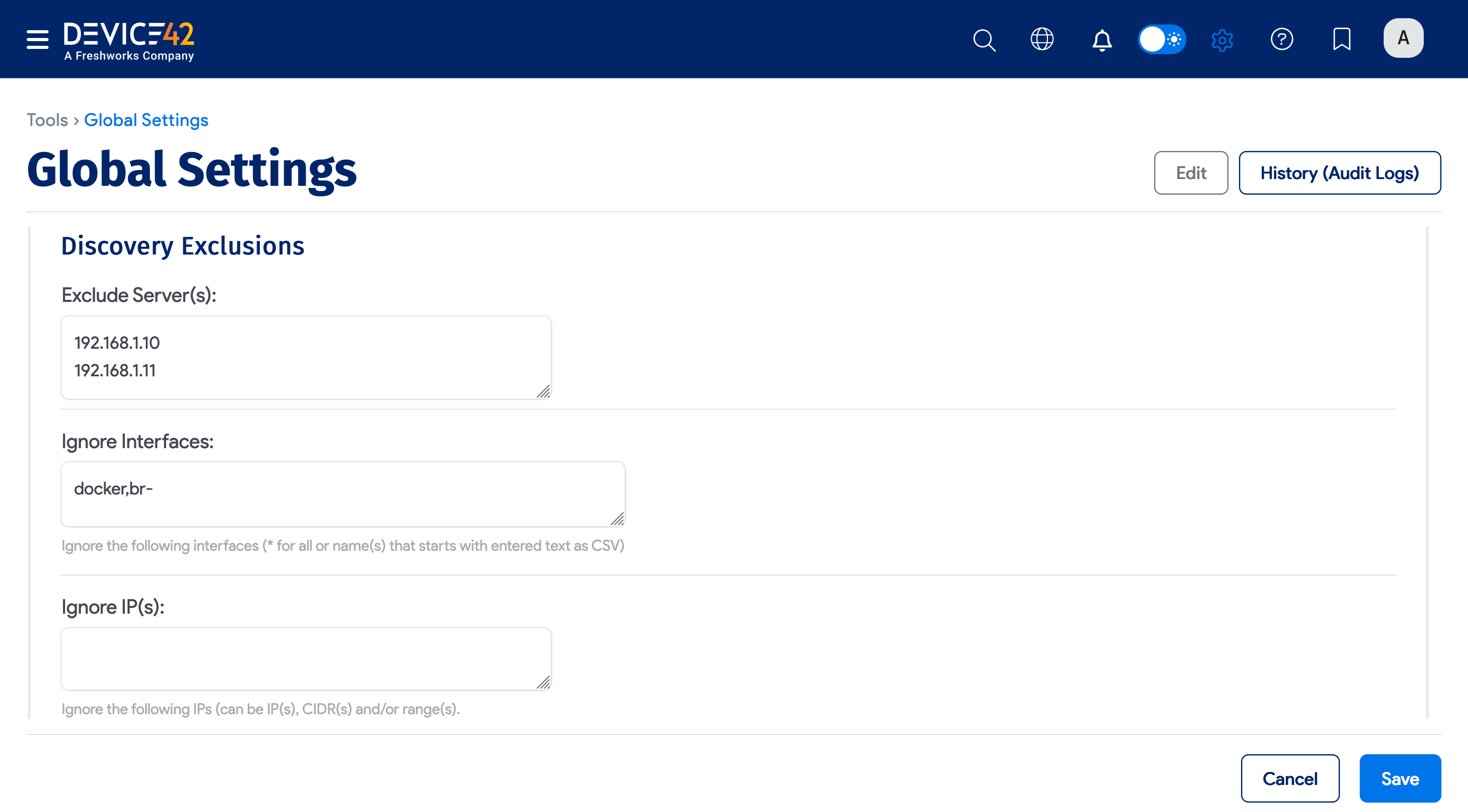
The exclusion list is automatically copied and displayed on all new jobs to prevent newly created jobs from attempting any discovery action on these IP addresses.
The list of excluded IPs copied to the job can be seen in the newly created job's Excluded Server(s) section.
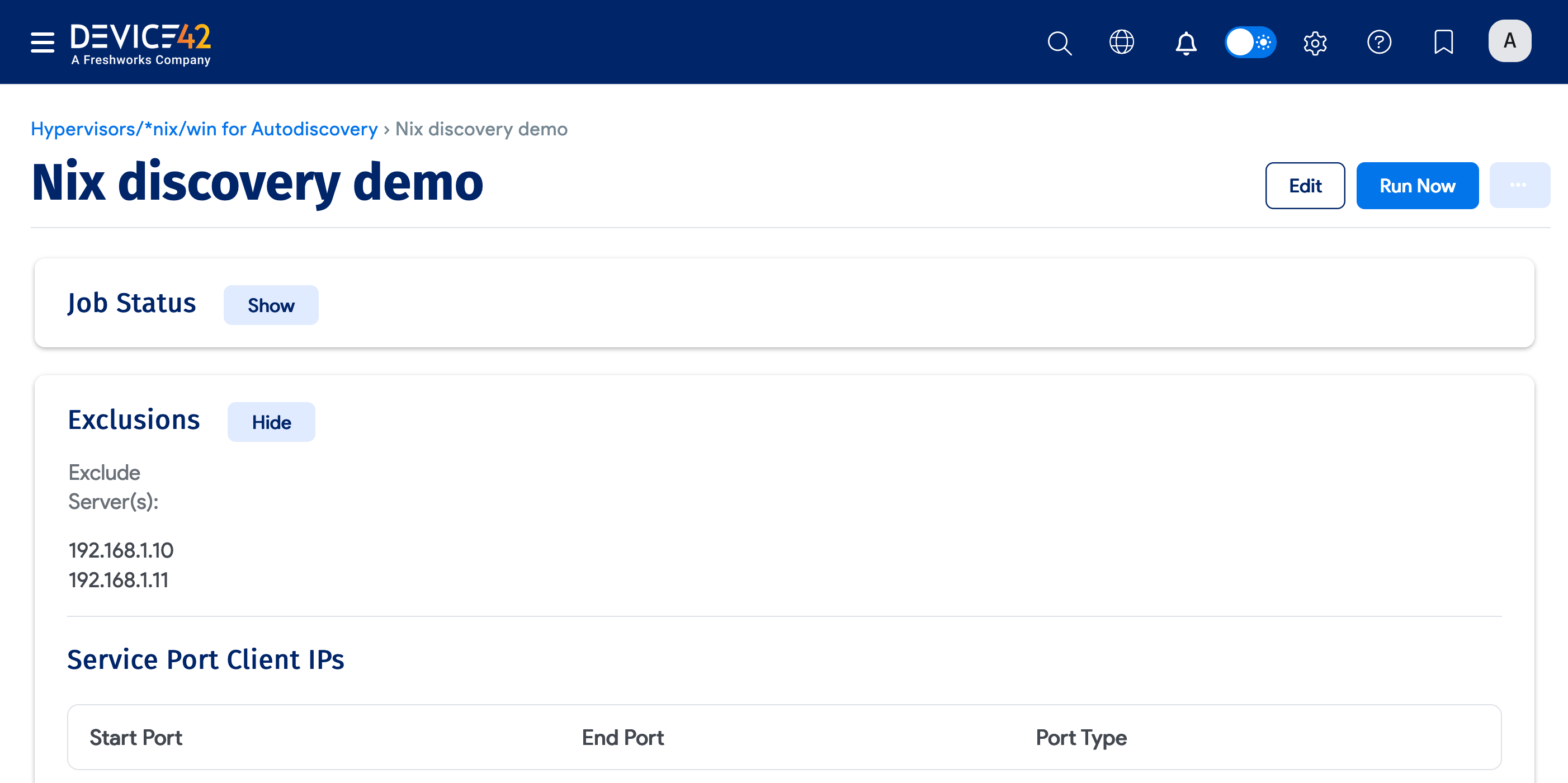
Note that previously created jobs will not be affected or updated with changes to the exclusion list.
Manage Discovery Jobs
Learn how to clone discovery jobs, run multiple jobs, and about retry behavior.
Remote Collector (RC)
The Device42 remote collector (RC) is a lightweight virtual appliance (a VM) that can be quickly deployed, for example, in places like a secure network segment. RCs can be selected to run discovery jobs by simply choosing them when creating the job. Choose the desired RC from the Remote Collector dropdown when initially setting up a new discovery job, or editing an existing discovery job. Most discovery jobs that can be launched from the Device42 Discovery menu support running from a deployed RC.
For more information, see the dedicated Remote Collector page.
Clone Discovery Jobs
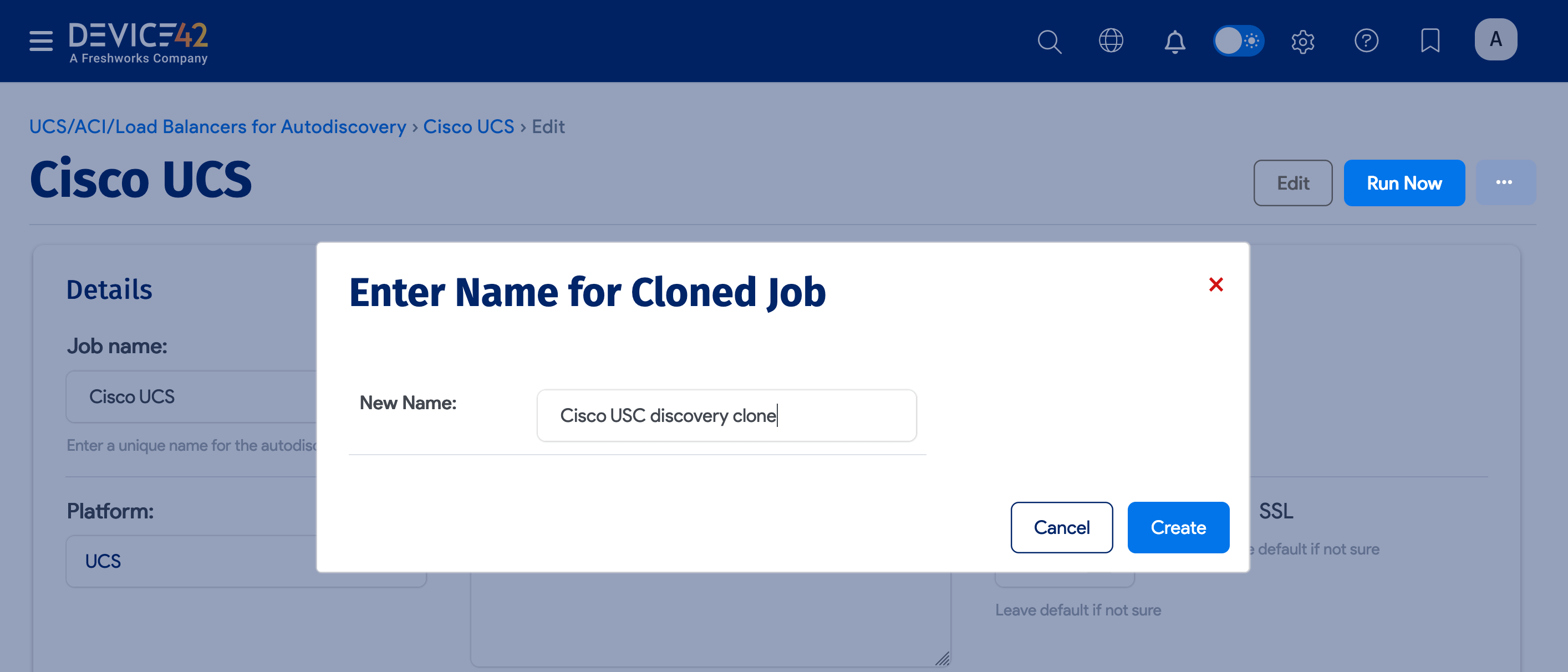
Clone a discovery job to create a copy of the job with all its settings without manually re-entering all the job details. You can then modify the cloned job for your specific purposes.
- From a discovery list page, click a discovery job name of the job you want to clone and then click Edit.
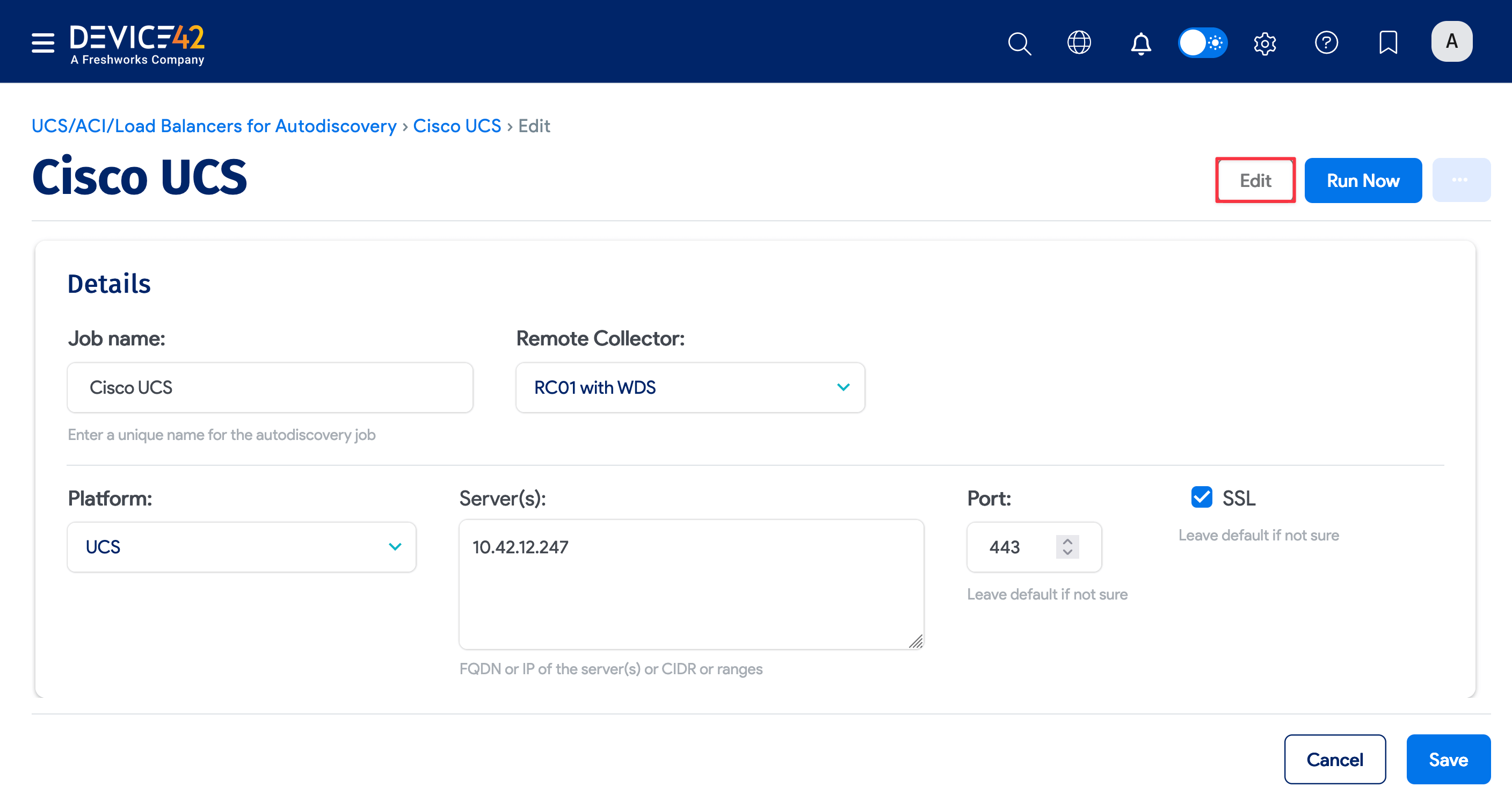
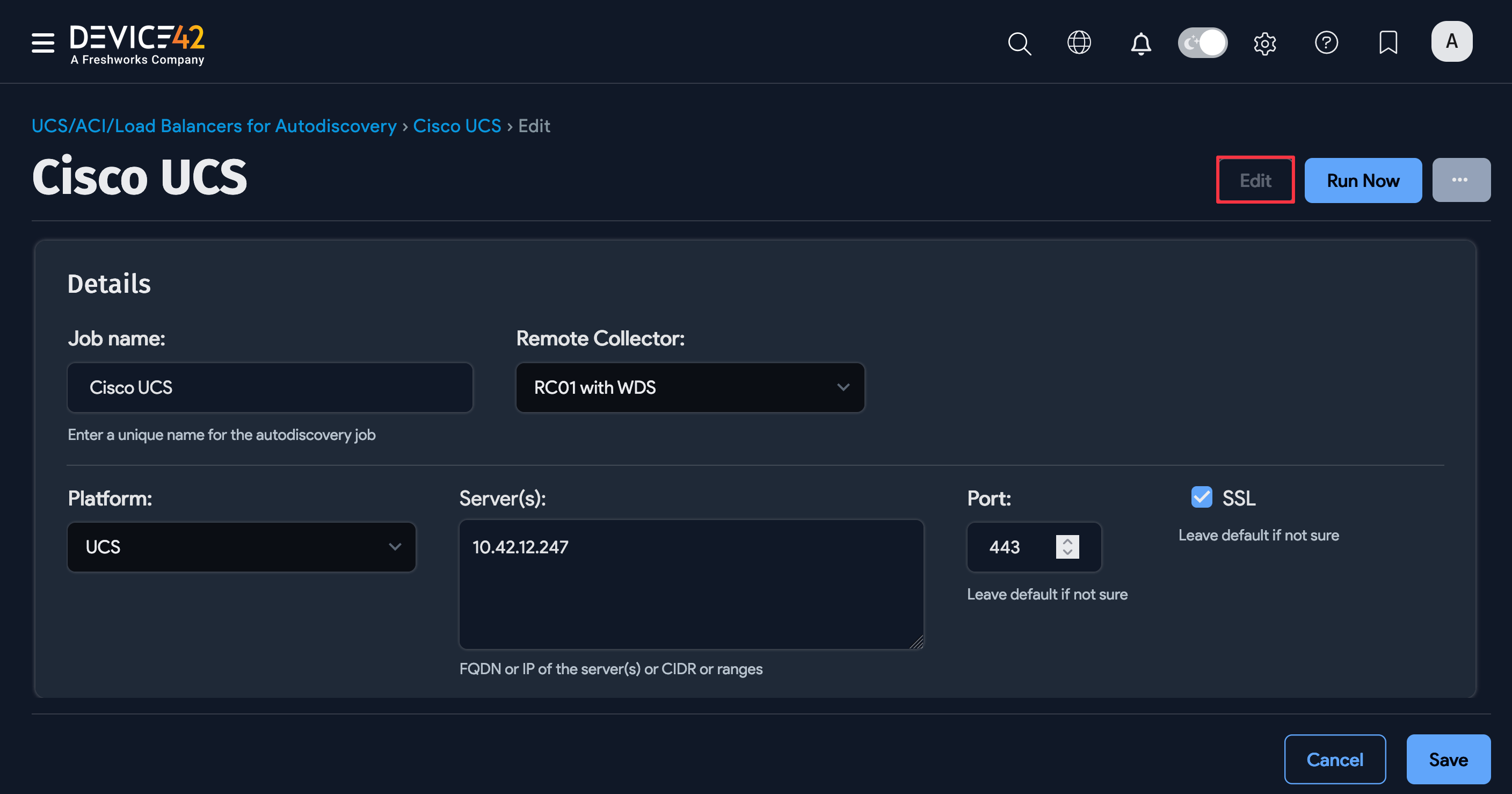
- Click the ellipse menu in edit mode and Clone Job.
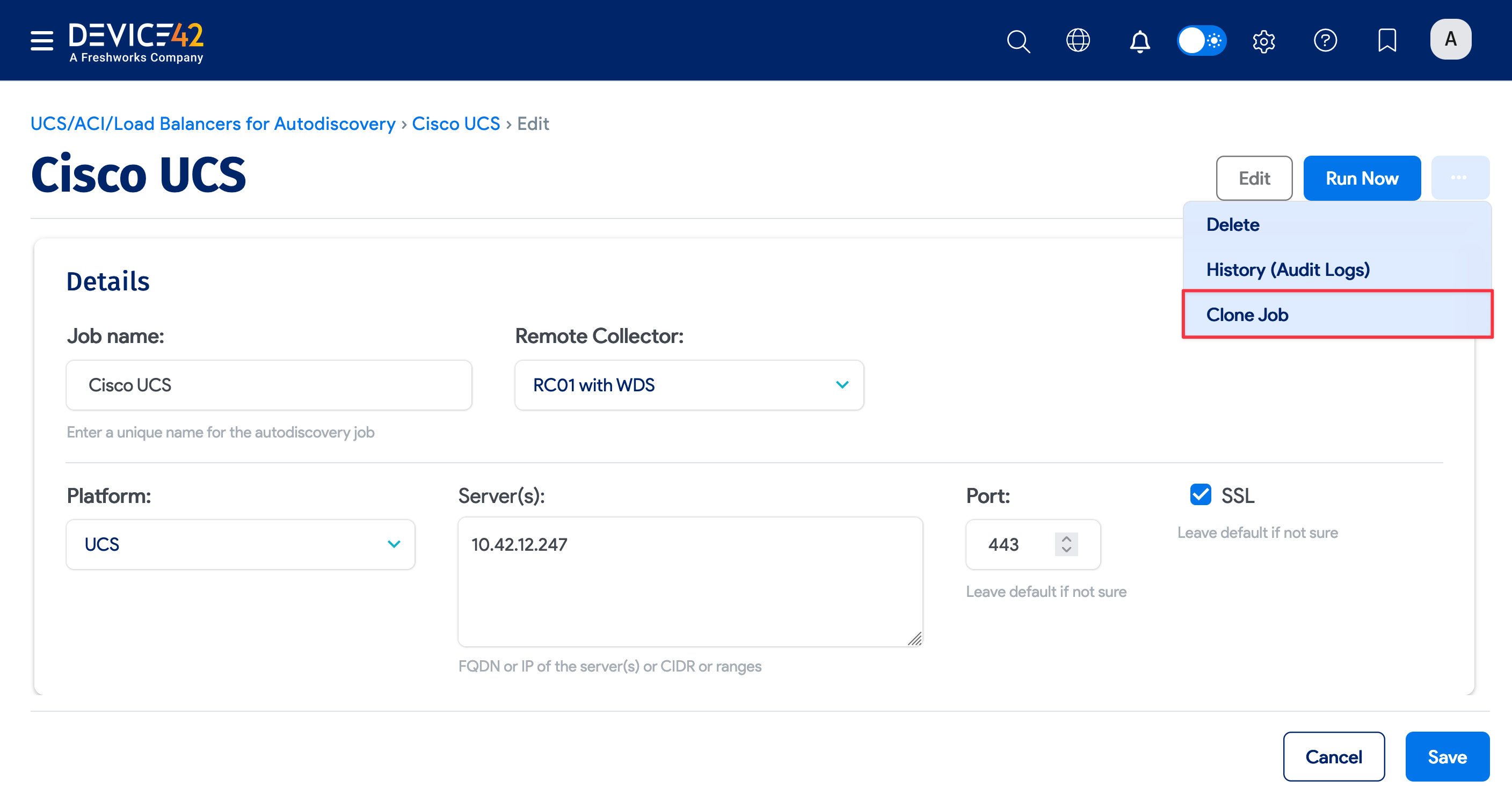
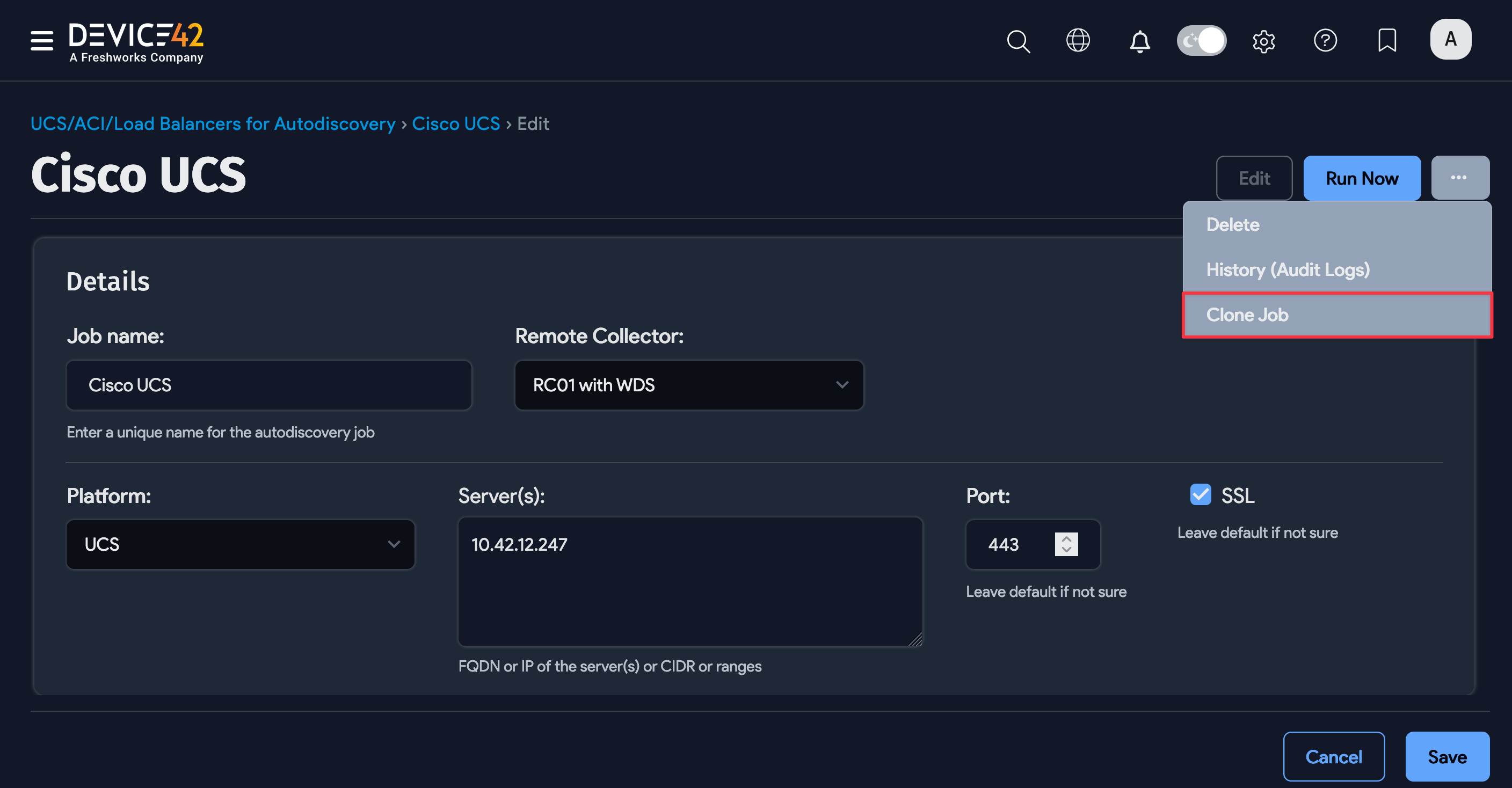
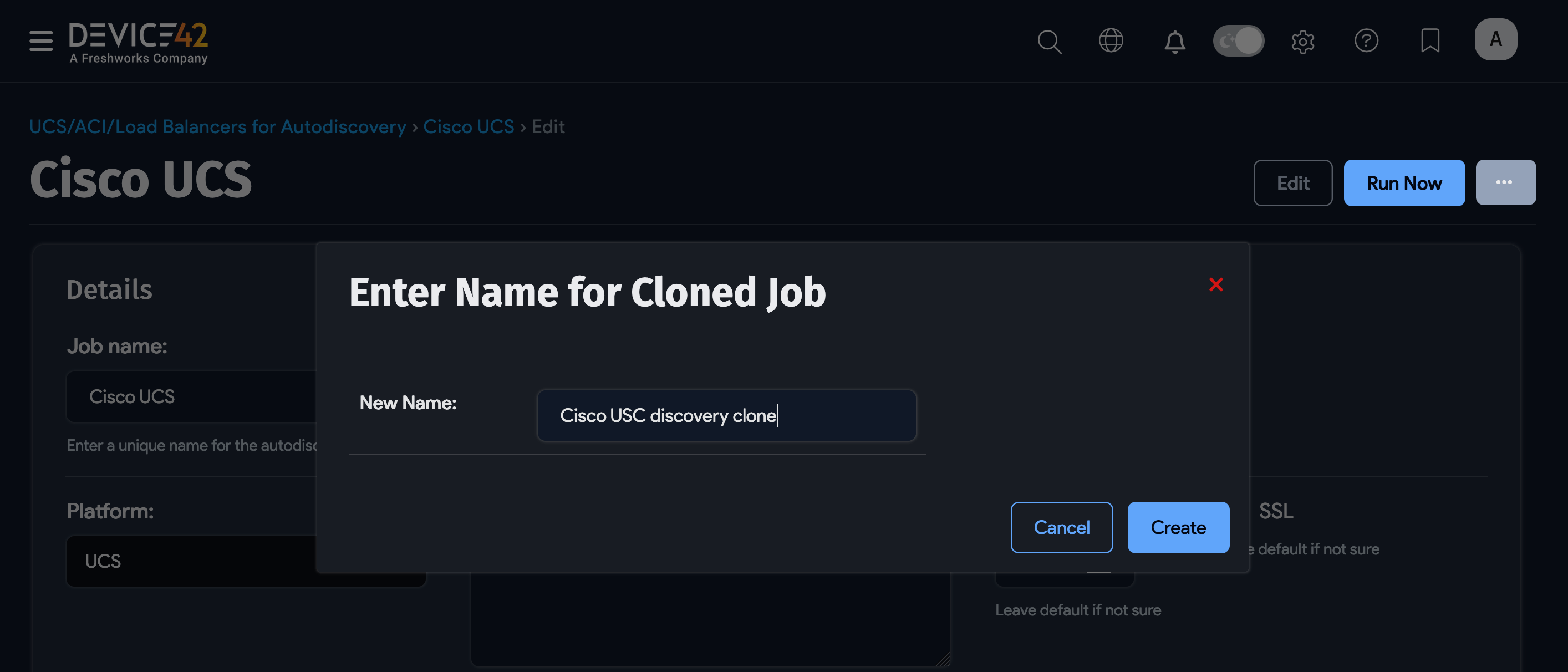
- Enter a new name for the cloned job and click Create.
Run Multiple Discovery Jobs Concurrently
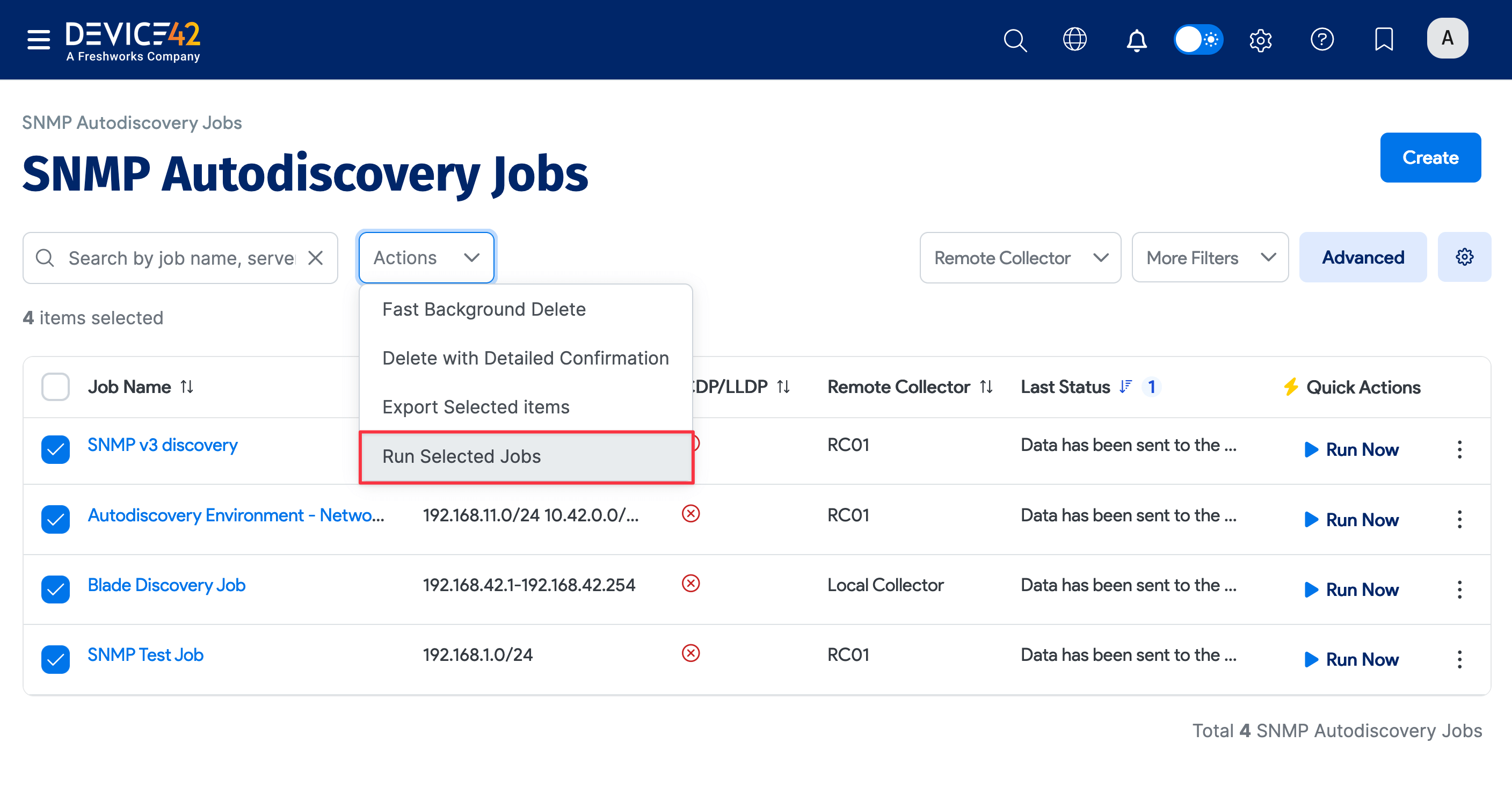
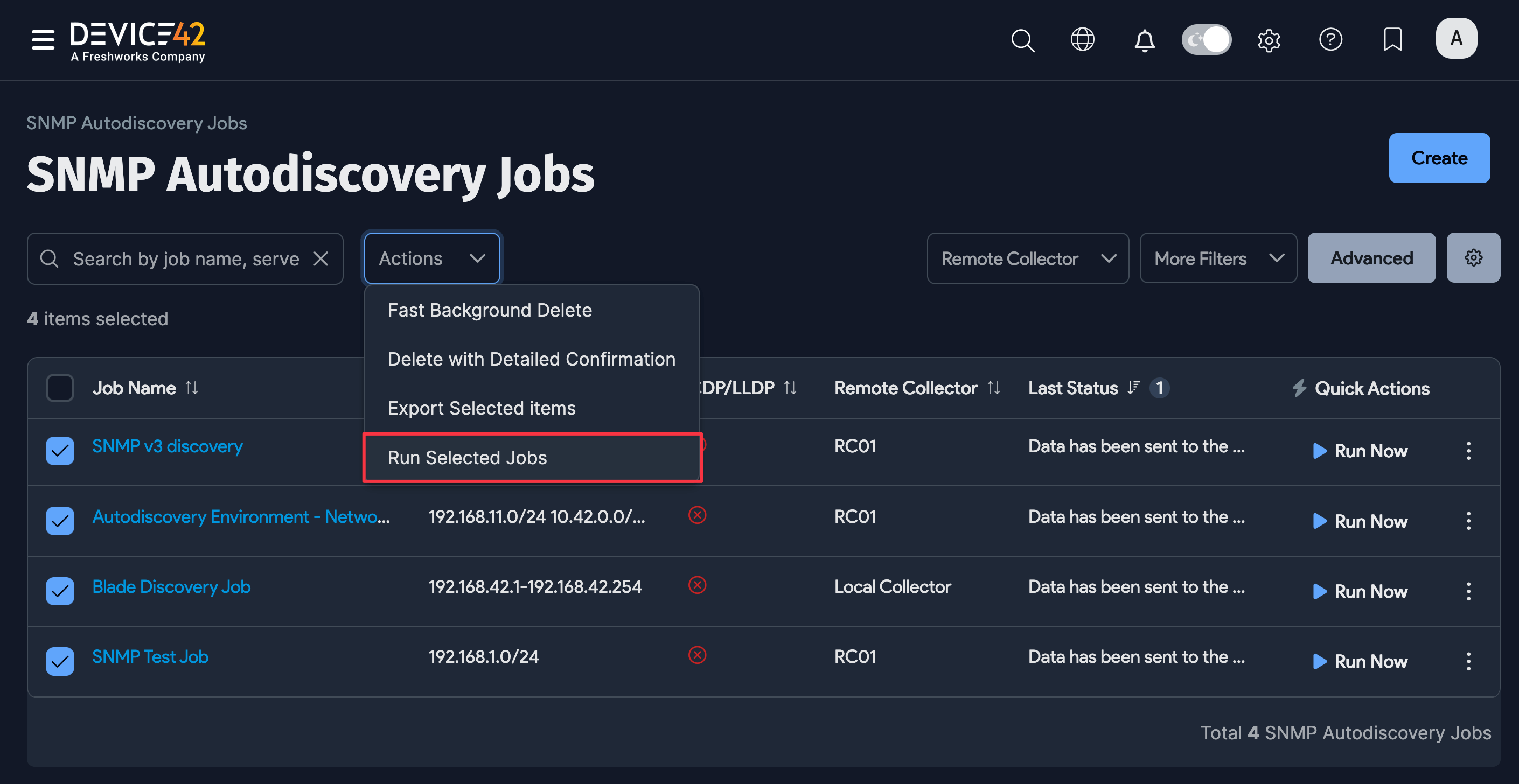
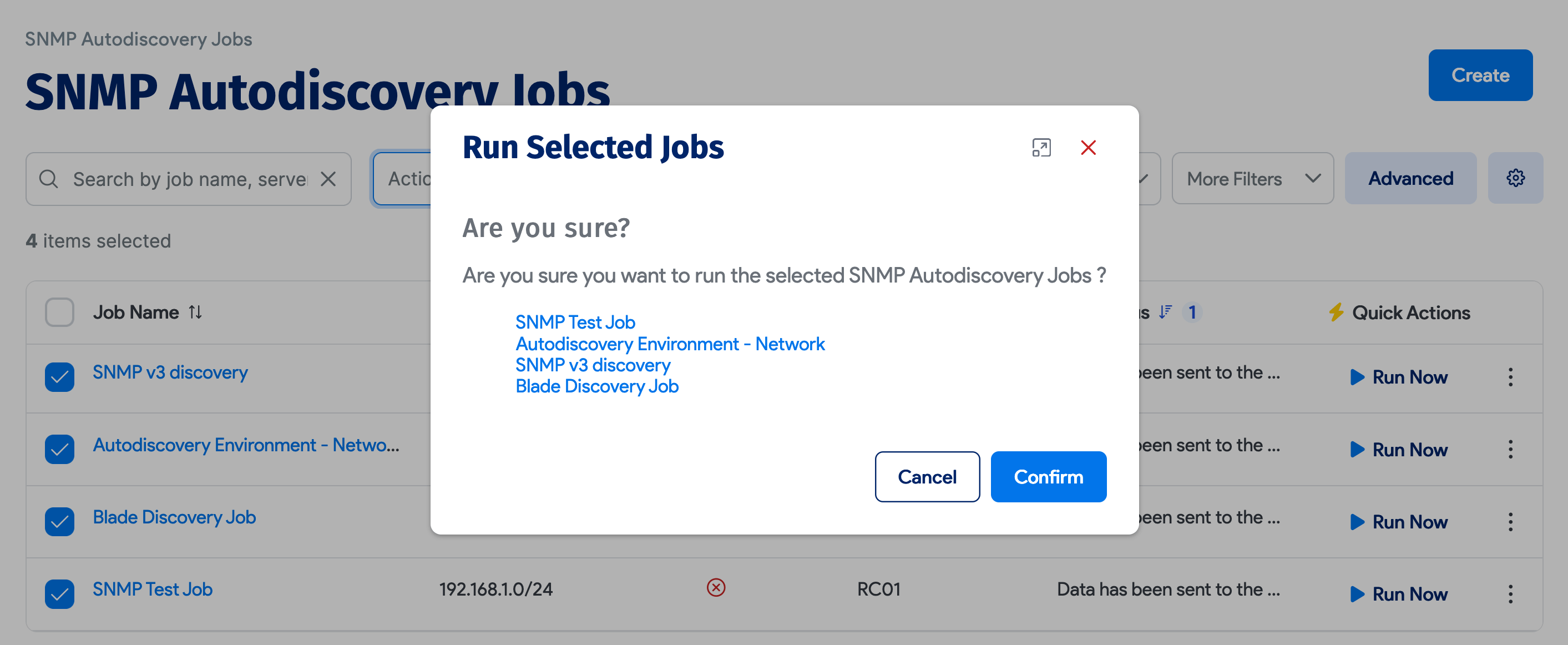
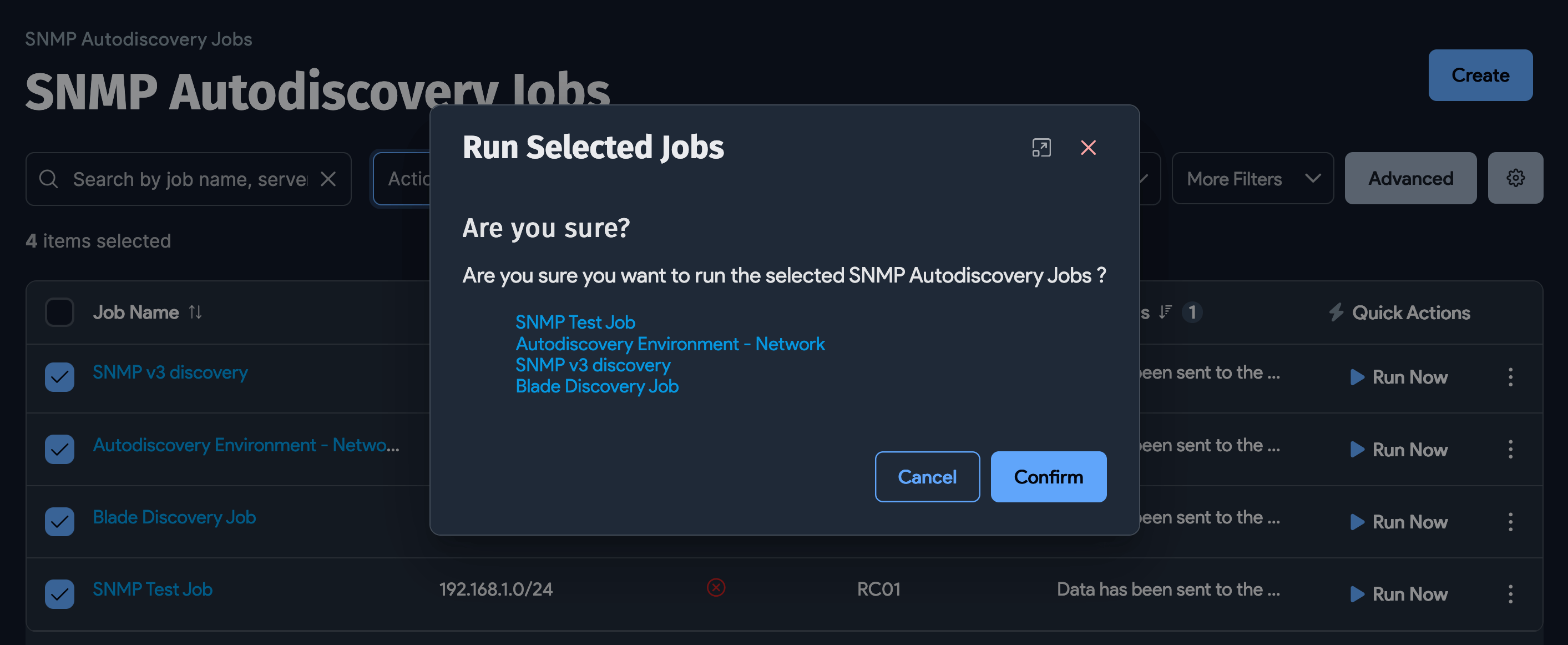
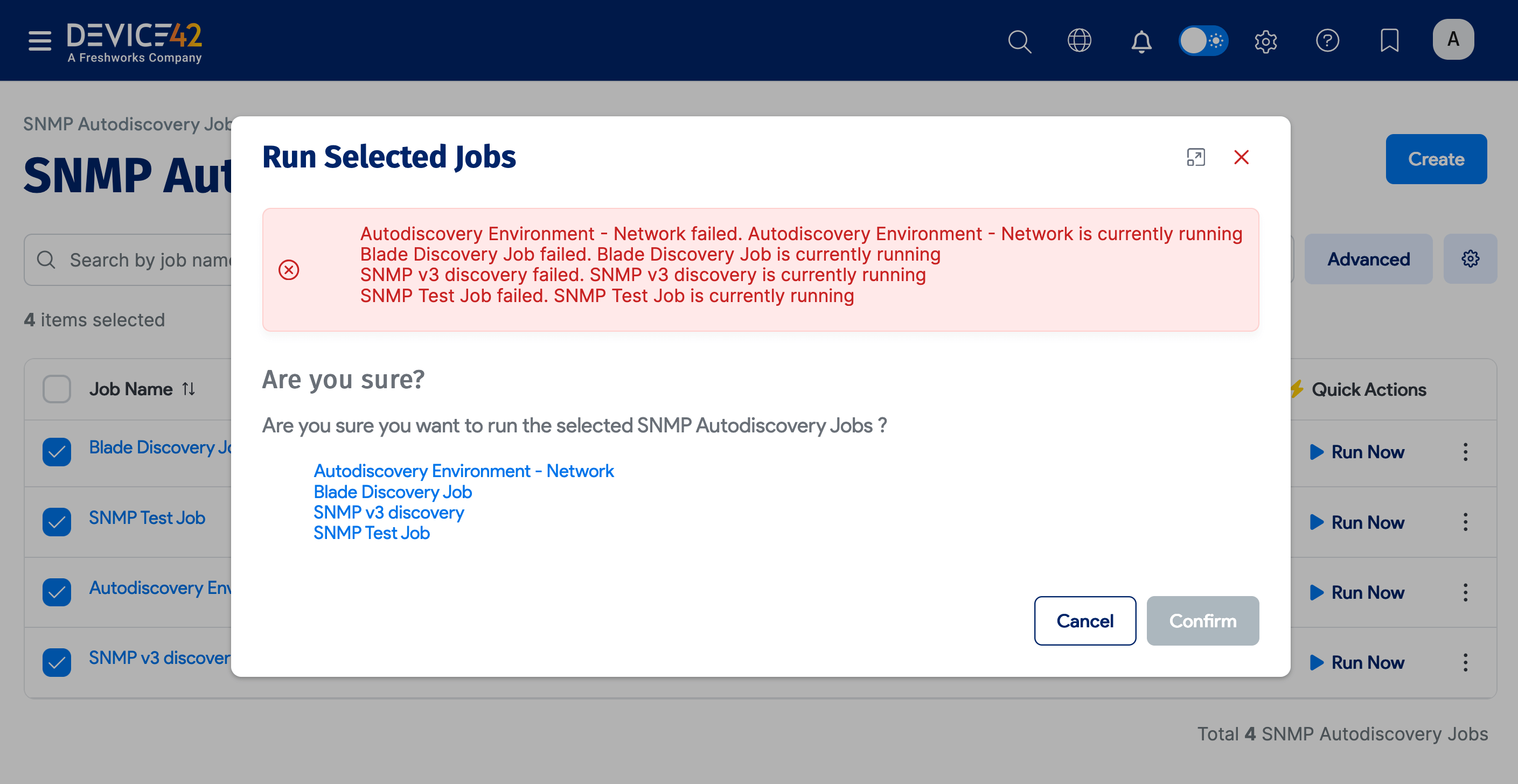
You can run multiple discovery jobs concurrently. From the discovery job list page, select the jobs you want to run concurrently and then select Run Selected Jobs from the Actions dropdown.
-
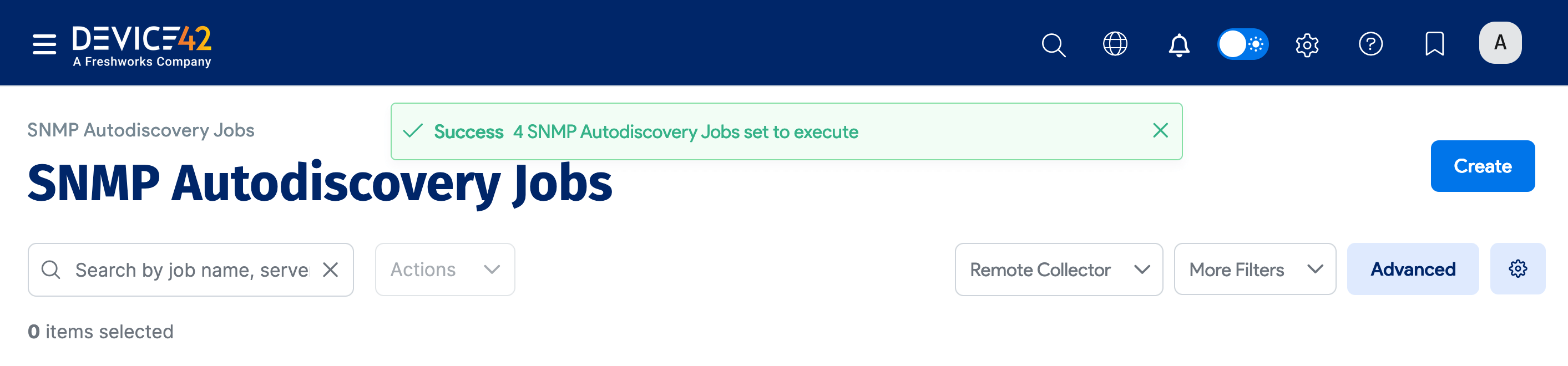
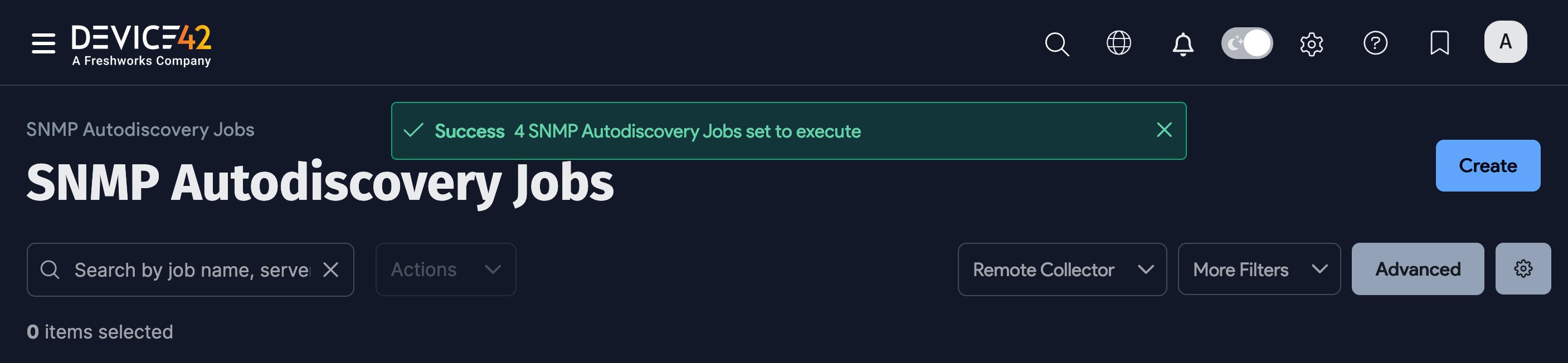
When all the selected jobs are able to run, a success message appears.
-
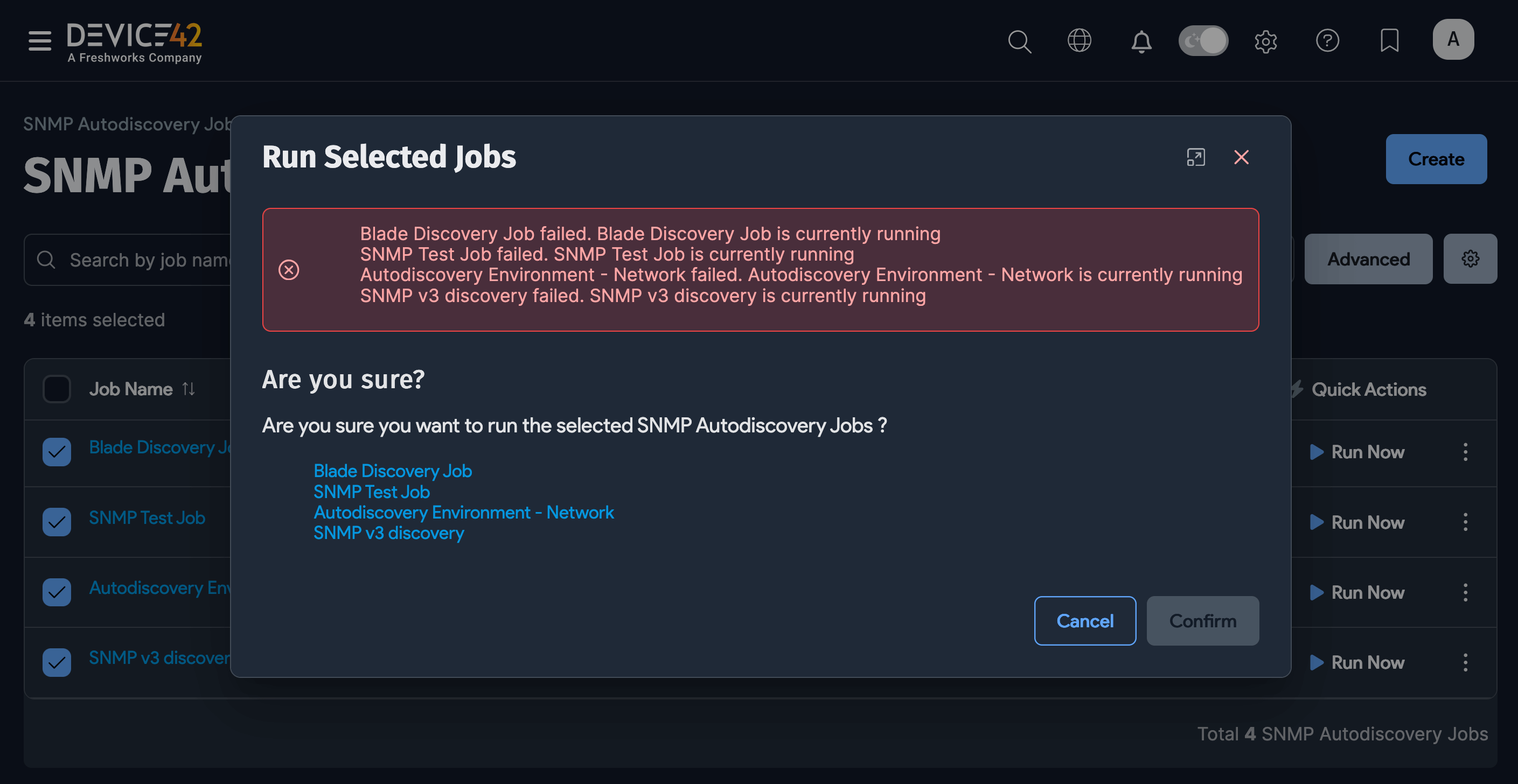
If the job(s) fail, the error messages are shown in the dialog box.
Scanning Timeout, Retries, and Failure Behavior
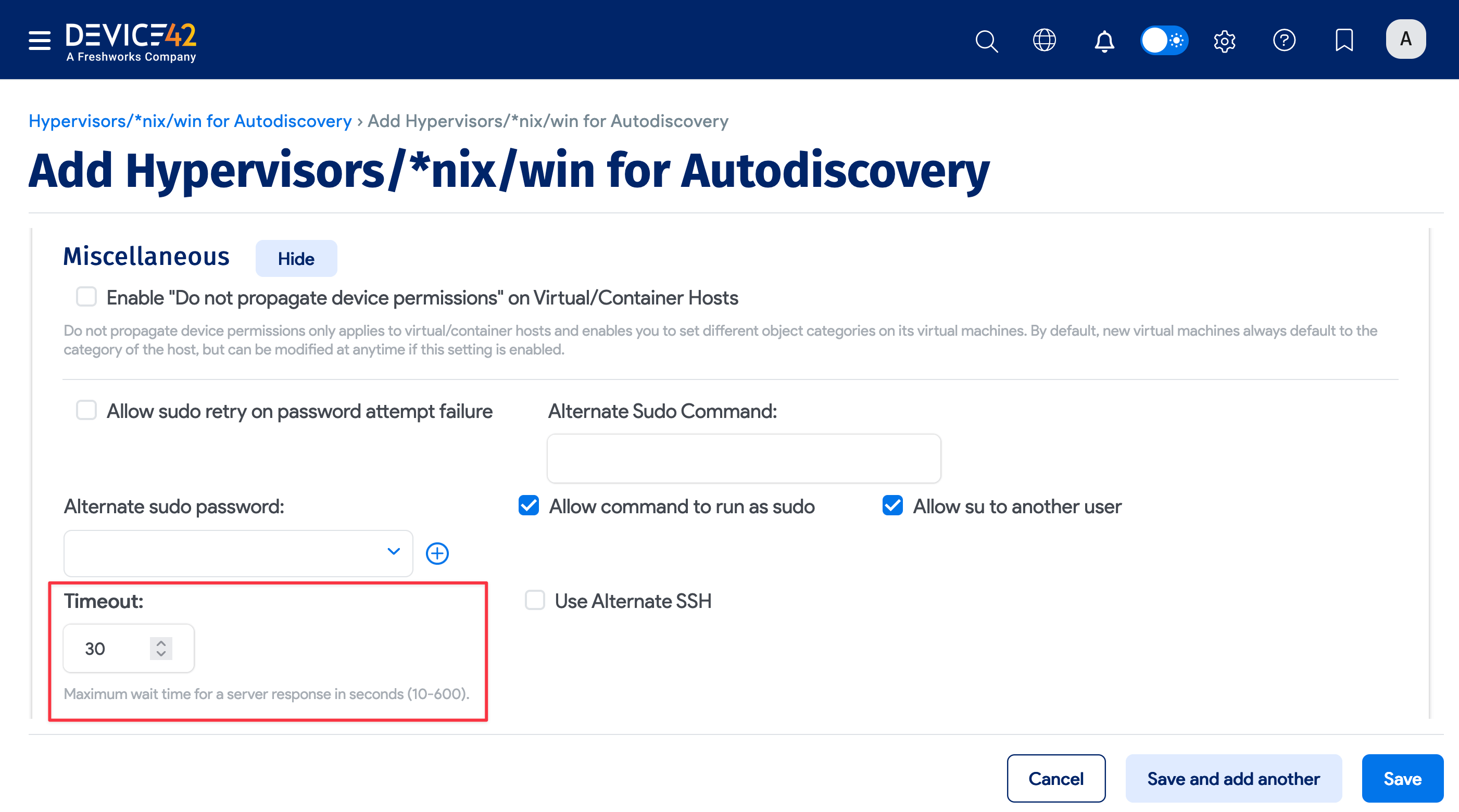
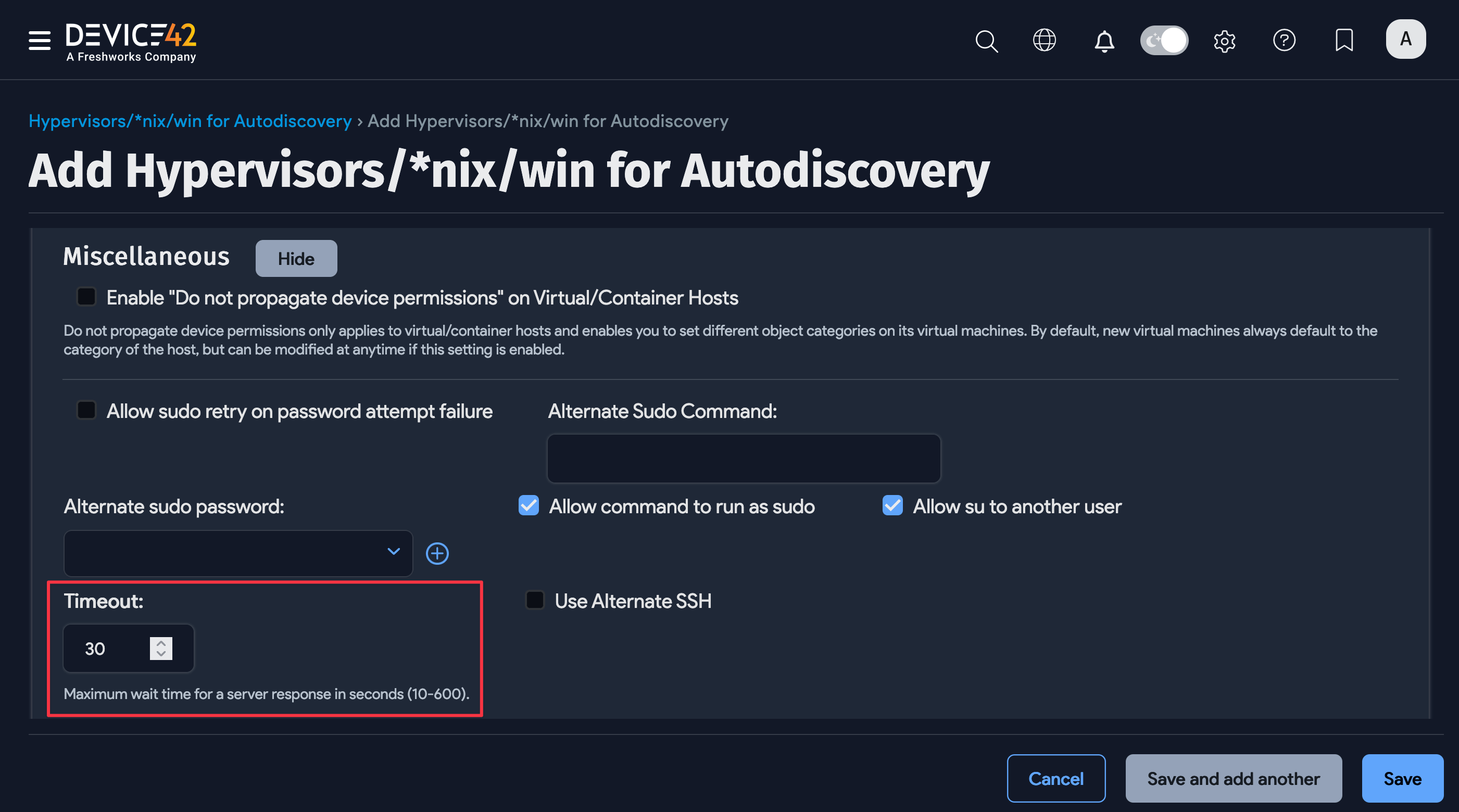
For *nix scans (via SSH), you can set the scanning timeout when configuring the discovery job under the Miscellaneous section.
Retries are done in Windows Discovery Service (WDS) scans. WDS retries a scan until it either gets a successful set of results or fails with the same errors across several retries. This design accounts for sporadic failures due to system load or temporary network issues with WMI/WDS.
Agent-Based and Offline Discovery
There are special situations when using an agent for discovery makes more sense. Device42 offers optional discovery agents for many platforms. See Device42 Agent-Based discovery to learn more.
Agent-Based Offline Discovery and Upload Tool
There are some edge cases where the network, or lack of network, doesn't allow communication back to the main Device42 appliance for a variety of reasons.
Whether remote collectors can't be deployed or the policy simply doesn't allow it, Device42 has the solution:
- See Device42 Offline Agent-based discovery
- Download the Offline Discovery Data Processing Tool or Agent Log Upload Utility.
Infrastructure and Platform Discovery
Discover hardware, cloud platforms, hypervisors, and network devices.
Blade Systems Discovery
Use SNMP discovery to collect HP and IBM Blade System (or Blade Center) chassis and blade details. See Blade Systems Autodiscovery for more information.
The Cisco UCS Manager is supported as well. You can discover chassis, blade, service profile information, and more. See Cisco UCS Cluster for more information.
Cloud Platform Discovery
Connect to Amazon AWS, Alibaba Cloud, Microsoft Azure, Digital Ocean, Google Cloud, Linode, and OpenStack from the cloud discovery under Discovery > Cloud. Cloud discovery details can be found on the Cloud Platforms Autodiscovery page.
DNS Discovery
DNS discovery is built into Device42 and can do zone transfer(s) from your DNS server(s). DNS discovery is run and scheduled from the Device42 web UI under Discovery > DNS Zone Sync (One way).
Hypervisor / *nix / Windows Discovery
Hypervisors, Windows, and Linux/UNIX discovery jobs can all be created under Discovery > HyperVisors / *nix / Windows.
- Windows-based machine inventory details are discovered with WMI.
- Linux machines' inventory details are discovered via SSH.
- VMWare hypervisor host and guest VM details are discovered using appropriate APIs (VMware, WMI).
- Hyper-V hypervisors/guests are discovered as Windows machines using WinRM, and documented separately.
Visit the dedicated page for each machine type:
IPMI Discovery
Discover iLO, iDrac, or other IPMI/BMC boards with basic hardware info and BMC IP and MAC address for a given IP range. If the server has already been discovered by OS-level discovery methods, the BMC IP and MAC address will show up in the device properties.
Visit IPMI/Redfish Autodiscovery for details.
Midrange / Mainframe Discovery (IBM AS/400 and z/OS)
Device42 supports agent-less mainframe and mid-range discovery of both the IBM i / AS400 mid-range platform and the IBM z/OS mainframe platform.
Network / SNMP Discovery
Run an SNMP discovery job from the Device42 web UI main menu under Discovery > SNMP.
Using SNMP v1/v2c/v3 discovery for network devices, you can automate the discovery of:
- Network device inventory
- Subnets / VLANs
- IP to MAC associations
- MAC to switch port associations
- Switch port status and remote port associations
Other SNMP-Based Discovery
SNMP discoveries can also be used to discover many other types of devices, like power devices, UPS, ATS, and other SNMP-compatible network-connected hardware. Many environmental sensors also support SNMP discovery.
To run an SNMP v1/v2c/v3 discovery against any SNMP-compatible endpoint, see SNMP - Network Discovery.
VMware / Citrix XenServer / oVirt / Redhat Virtualization / KVM
Hypervisors are discovered via the Device42 web UI under Discovery > HyperVisors / *nix / Windows. Using native APIs, Device42 connects to your VMWare vCenter server(s), ESX server(s), Citrix XenServer, oVirt, or Redhat Virtualization servers and retrieves host details, inventory details, and guest VM details.
See Virtual Machine Autodiscovery for more information.
Configuration Management and Integrations
Integrate Device42 with configuration management tools and APIs.
Node Data From Chef and Puppet
To manage and integrate your configuration management data with Device42, you can use the following scripts:
-
Send Ohai node data from Chef server to Device42: Sync node data from Chef.
-
Sync Puppet facts to Device42: Script to sync Puppet nodes information.
-
See the Device42 API Autodiscovery GitHub repo for another Puppet integration script that reads the YAML factor files and populates inventory details in Device42 using the RESTful API.
Use REST APIs
You can automate inventory management and integrate with your own scripts or other programs using the Device42 RESTful APIs as shown in the Create Hardware Models video.
Ping Sweep Utility
The open-source, standalone Ping Sweep tool uses NMAP in the background to run ping sweeps against the selected network(s), uploading discovered IP, MAC, and reverse DNS details via Device42's RESTful APIs. The Ping Sweep tool is written in .NET.
There is also a ping sweep tool built into Device42. Find it in the UI under Discovery > Ping Sweep. The UI-based ping sweep may be deprecated in the future and the standalone tool is much faster.
Next Steps
To dive deeper into specific discovery topics, take a look at this category's subpages in the sidebar.