IP Addresses
IP addresses in Device42 must be unique per VRF group. You can have two subnets with overlapping IP ranges as long as they are in different VRF groups. With overlapping subnet ranges, discovery and import will add or modify the IP in the first matching subnet found in the list.
The IP list page includes a Devices column displaying all devices associated with an IP in comma-separated format. You can also add or remove device associations from the IP edit page.
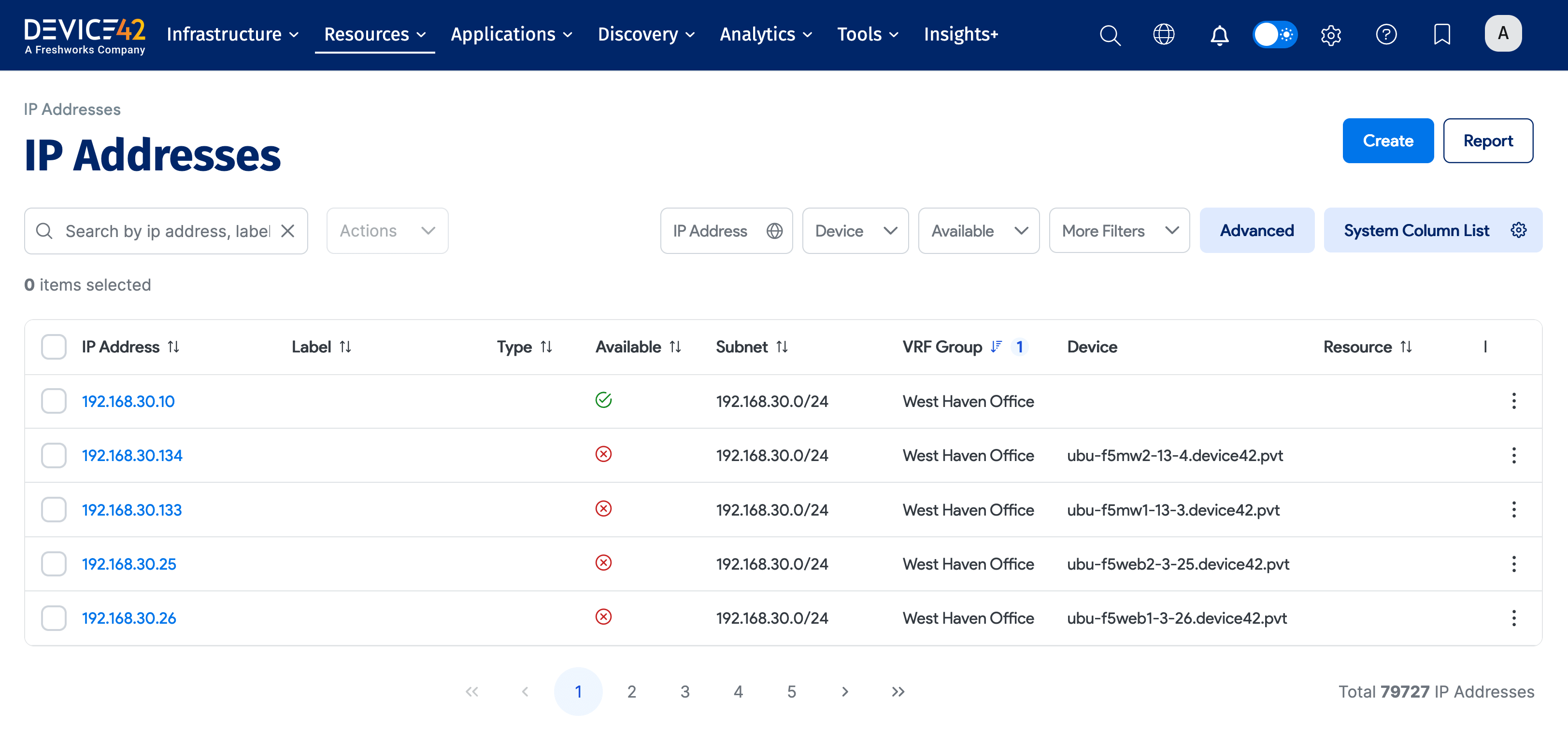
IP Addresses List Page
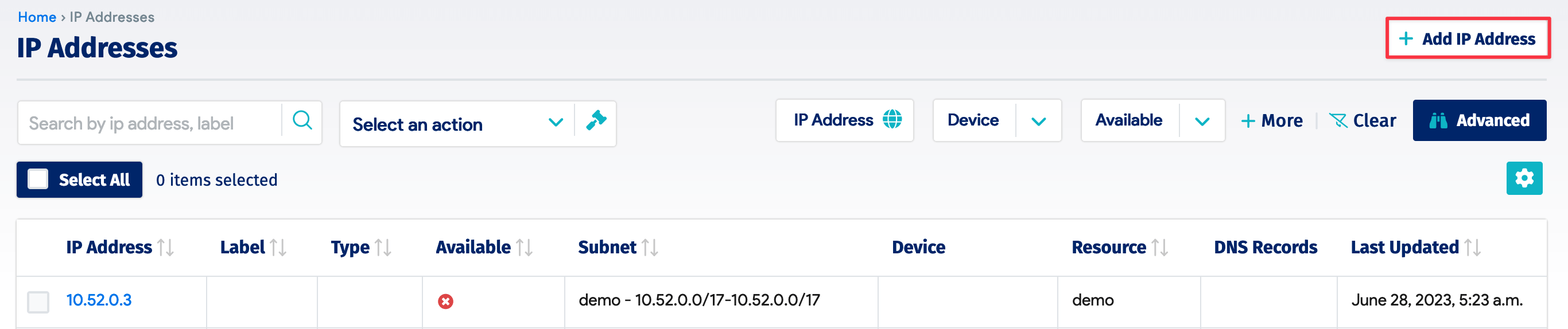
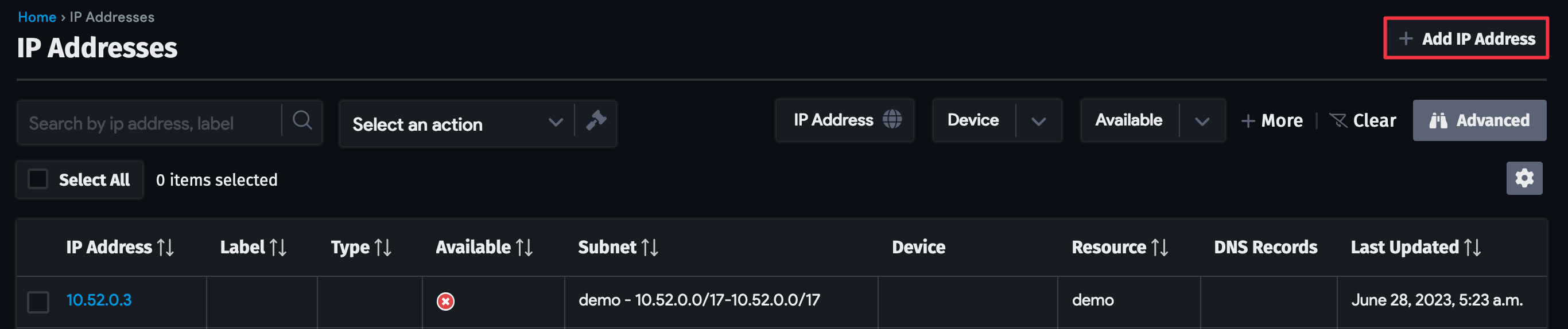
Navigate to Resources > IPs > All IP Addresses to view the IP addresses list page.
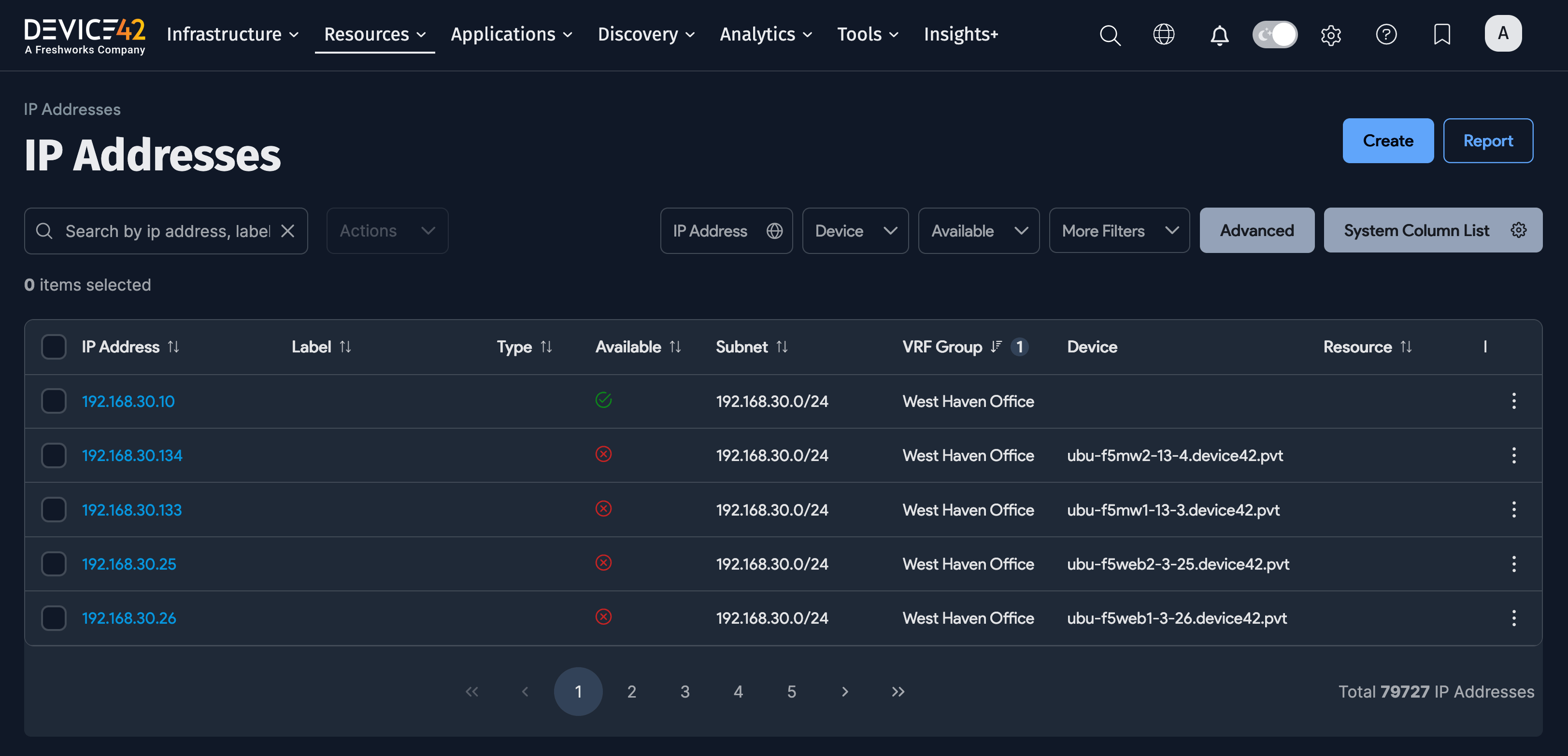
The list page shows IPv4 and IPv6 addresses that you can sort by any field. A VRF Group column displays the VRF group that each IP address belongs to. You can also filter by type, availability, updated time stamp, subnet, VRF group, and tags. Search for IPs with full or partial entries, and click on any IP to view its details.
Bulk Actions for IP Addresses
Select IP addresses from the list, choose an action from the Select an action dropdown menu, and confirm in the dialog.

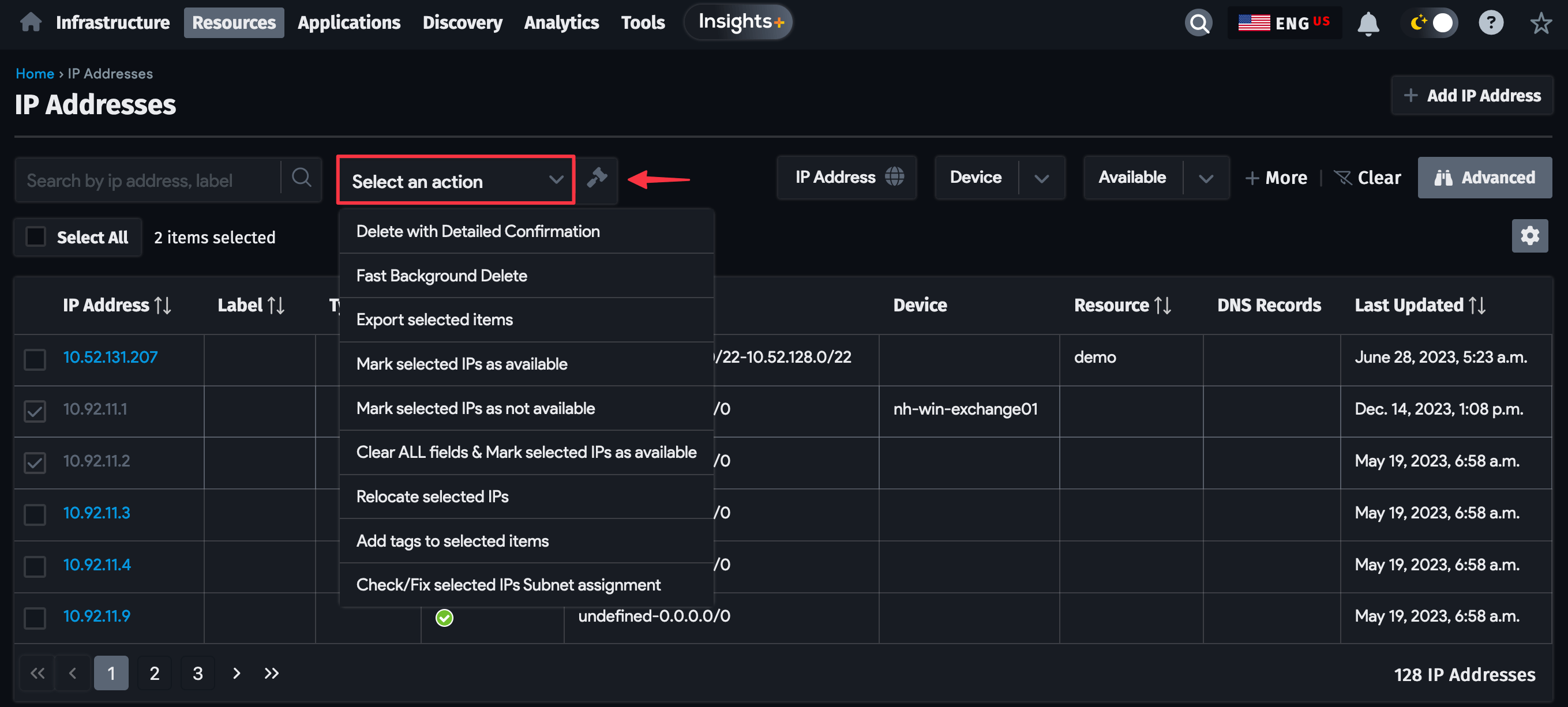
The following bulk actions are available:
- Export selected items to CSV: Create a CSV export file.
- Do a re-importable export for selected items: Create an export file that you can re-import.
- Delete with Detailed Confirmation: Display a prompt before deleting.
- Fast Background Delete: Delete without a prompt.
- Mark selected IP as available: Mark IPs as available only if they have no device association.
- Mark selected IPs as not available: Mark selected IPs as not available.
- Clear ALL fields and Mark selected IPs as available: Clear all device associations for the selected IPs and mark them as available.
- Relocate Selected IPs: Display a matching subnets page based on the selected IPs. Only IPs within the target subnet range will be moved.
- Add tags to selected items: Add a comma-separated list of tags.
- Check/Fix selected IPs Subnet assignment: Display a page to check or fix the subnet assignment.
View an IP Address
Click on an IP address to view its details.
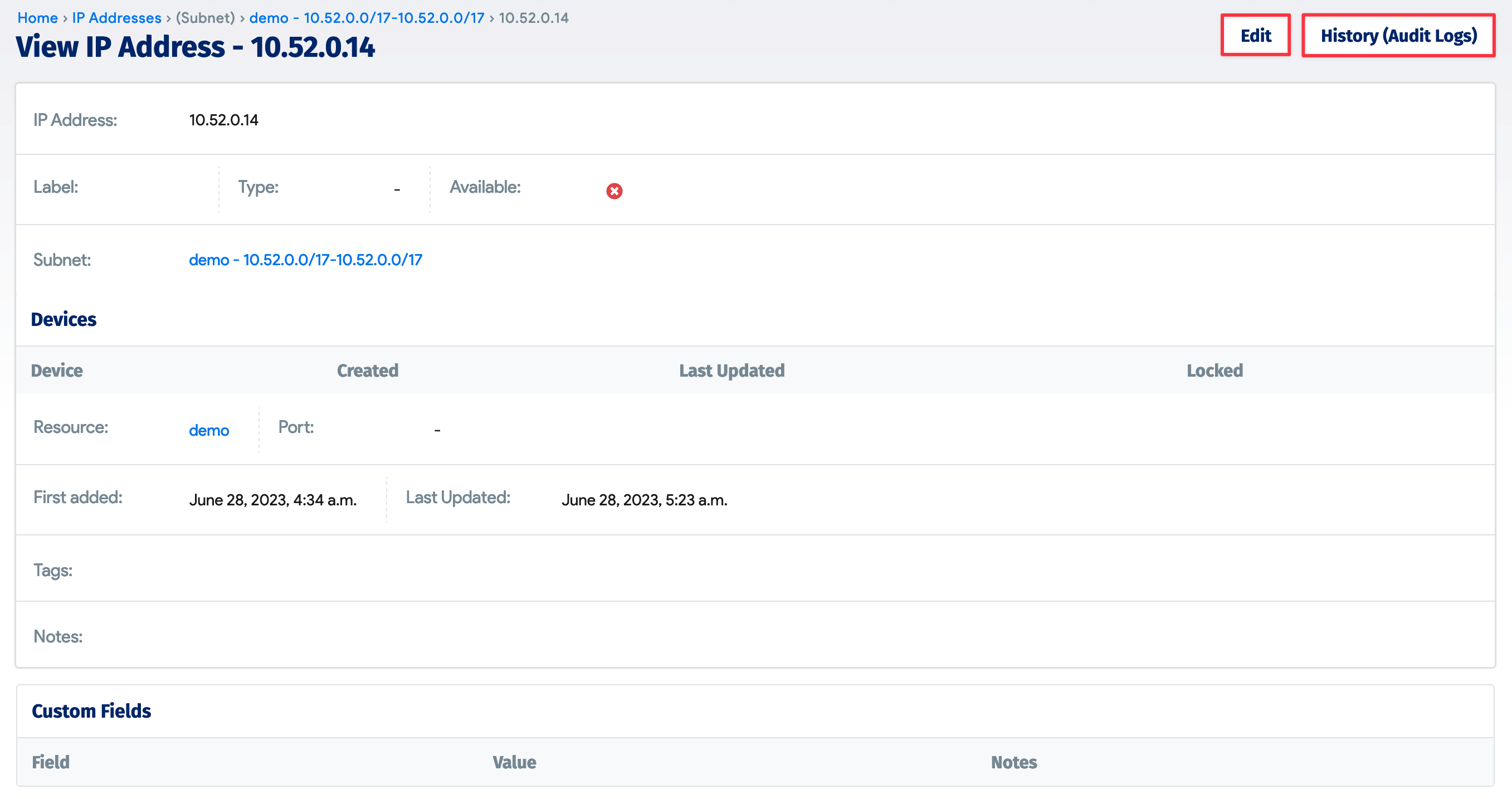

View the history of changes from the History (Audit Logs) tab at the top of the page. If you have appropriate permissions, the Edit button is available. All DNS records that use this IP are shown on the view page as well.
The Resource field links to the Kubernetes cluster that is currently holding that IP.
The Configuration Resource and Configuration Resource Item fields apply only to Kubernetes cloud discovery jobs (see cloud platforms discovery) and are populated automatically. Do not populate these fields for a regular IP address.
Add an IP Address
Click Create on the list page to add a new IP address.
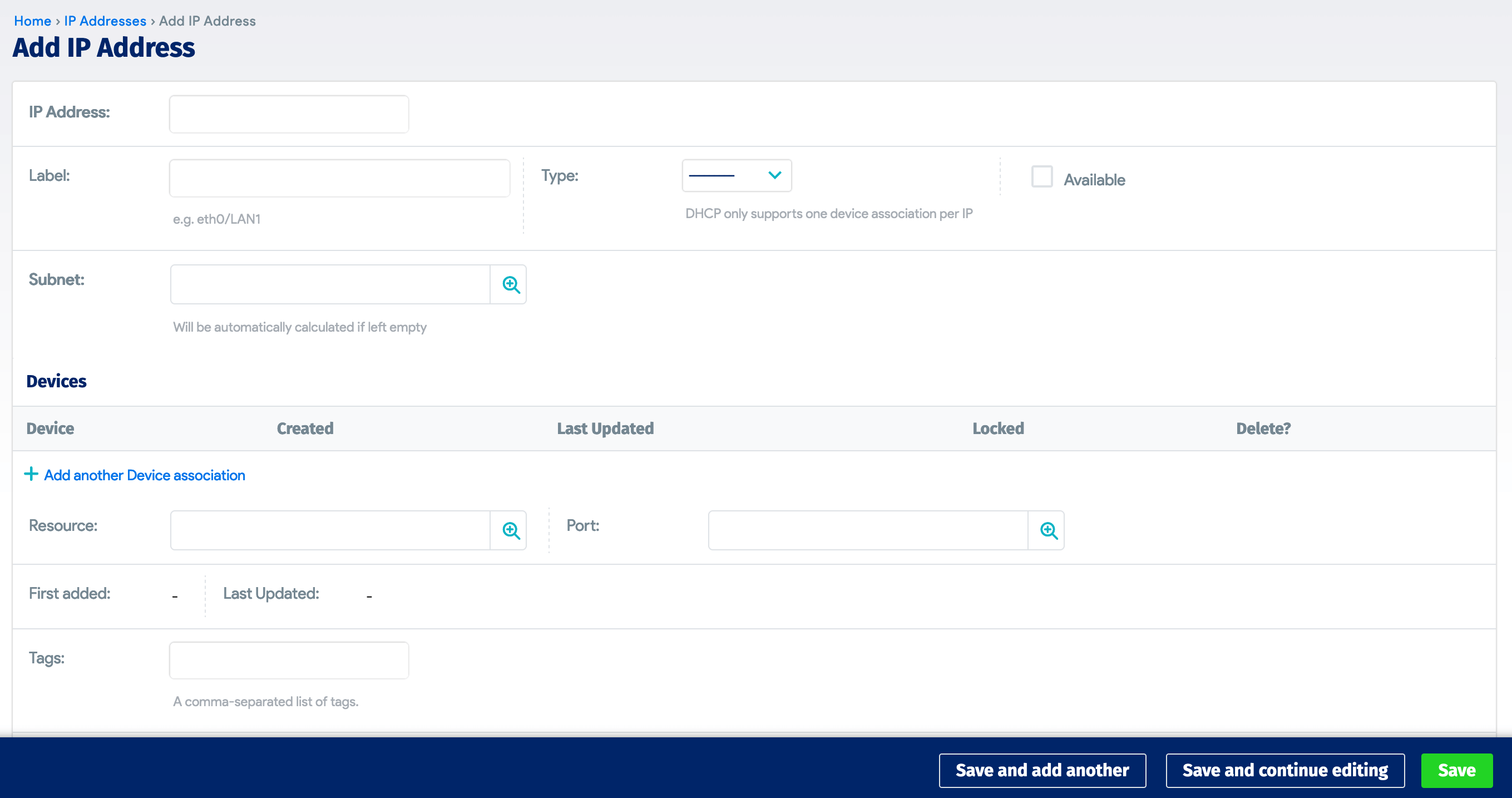
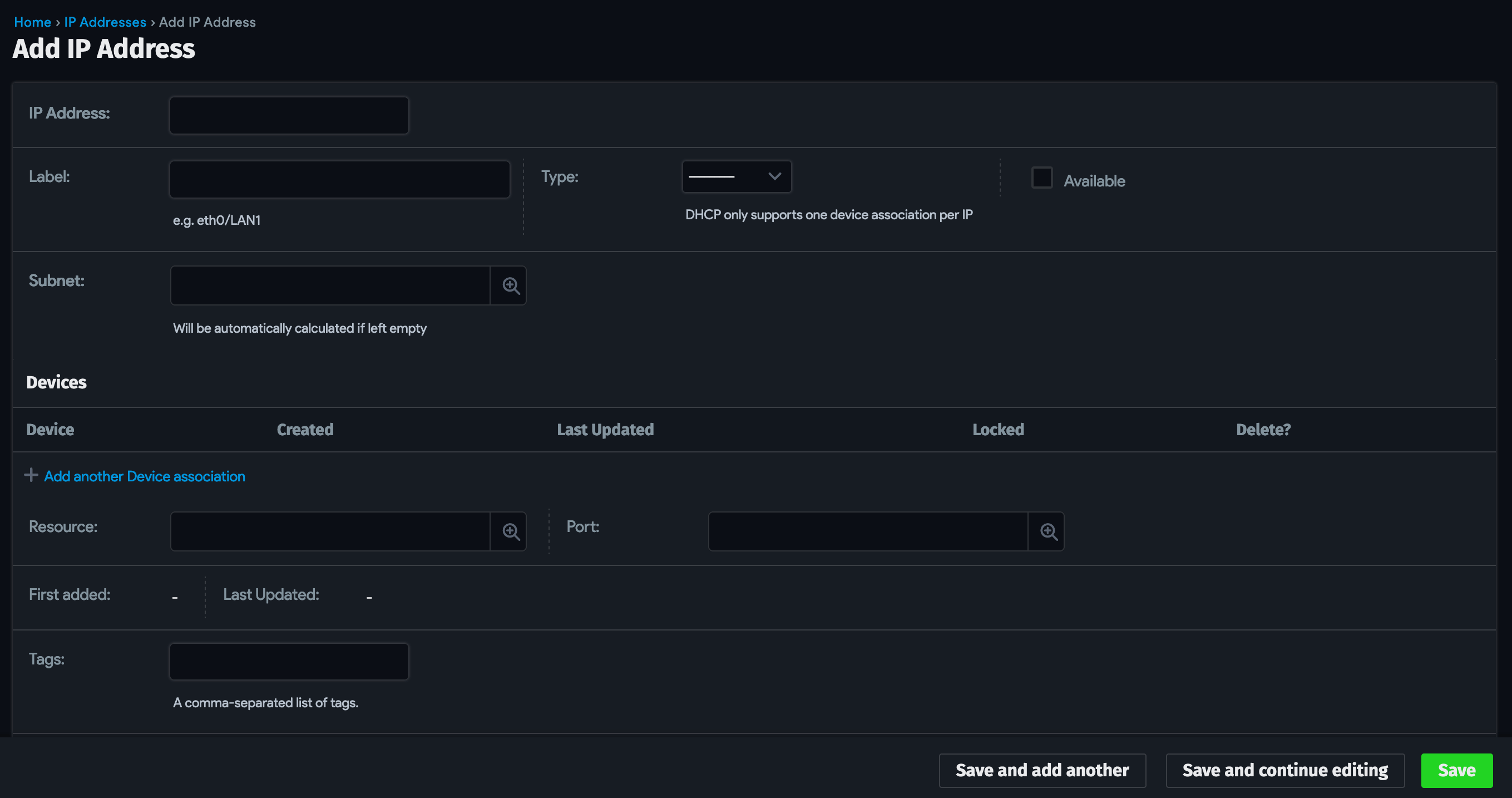
The Subnet field is required. Device42 automatically checks that the IP falls within the allowed range in the subnet and prevents duplicate IPs within the same VRF group or subnet. You can choose an existing device and port or add new ones from this page.
Associate Devices With an IP Address
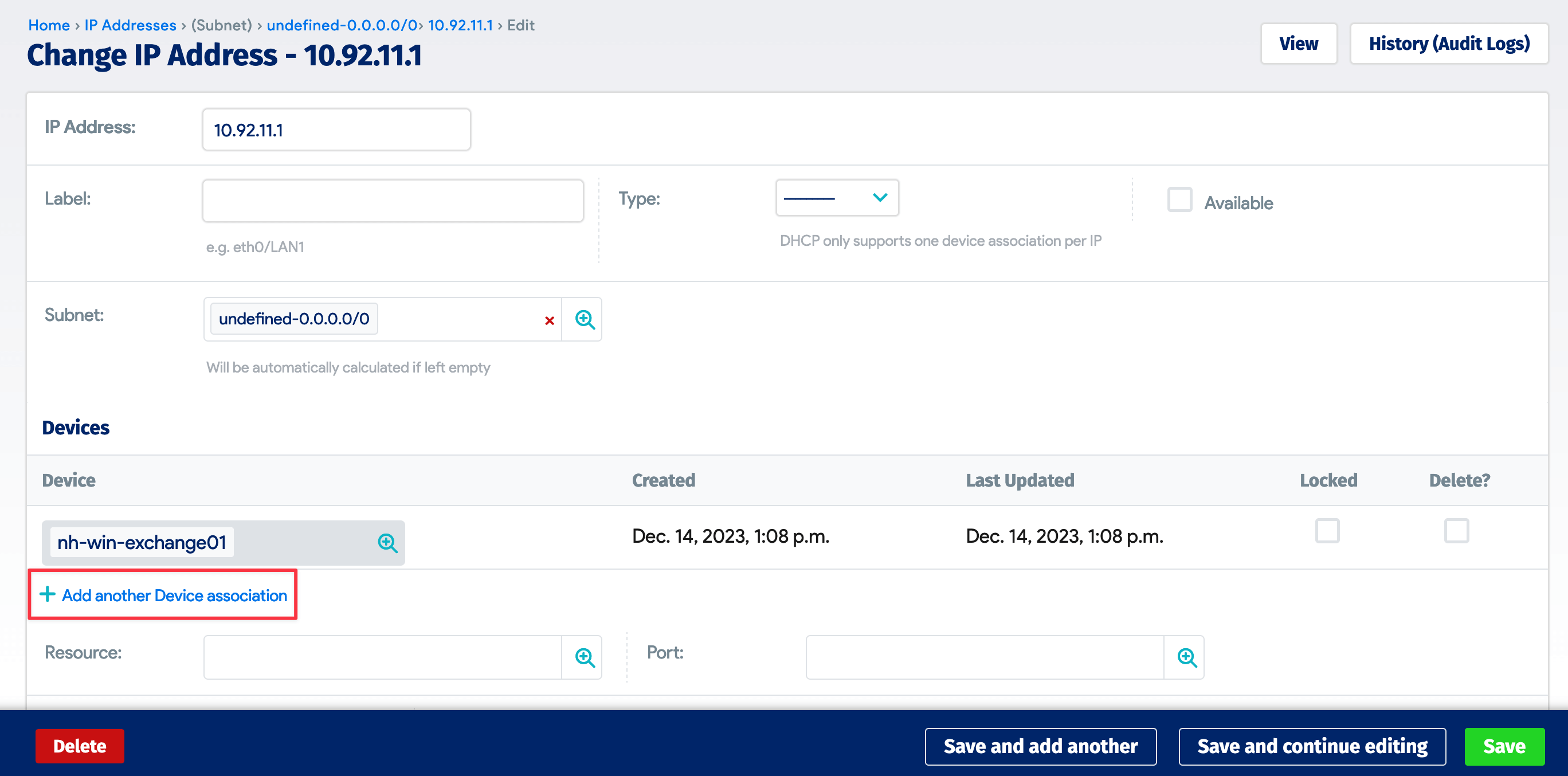
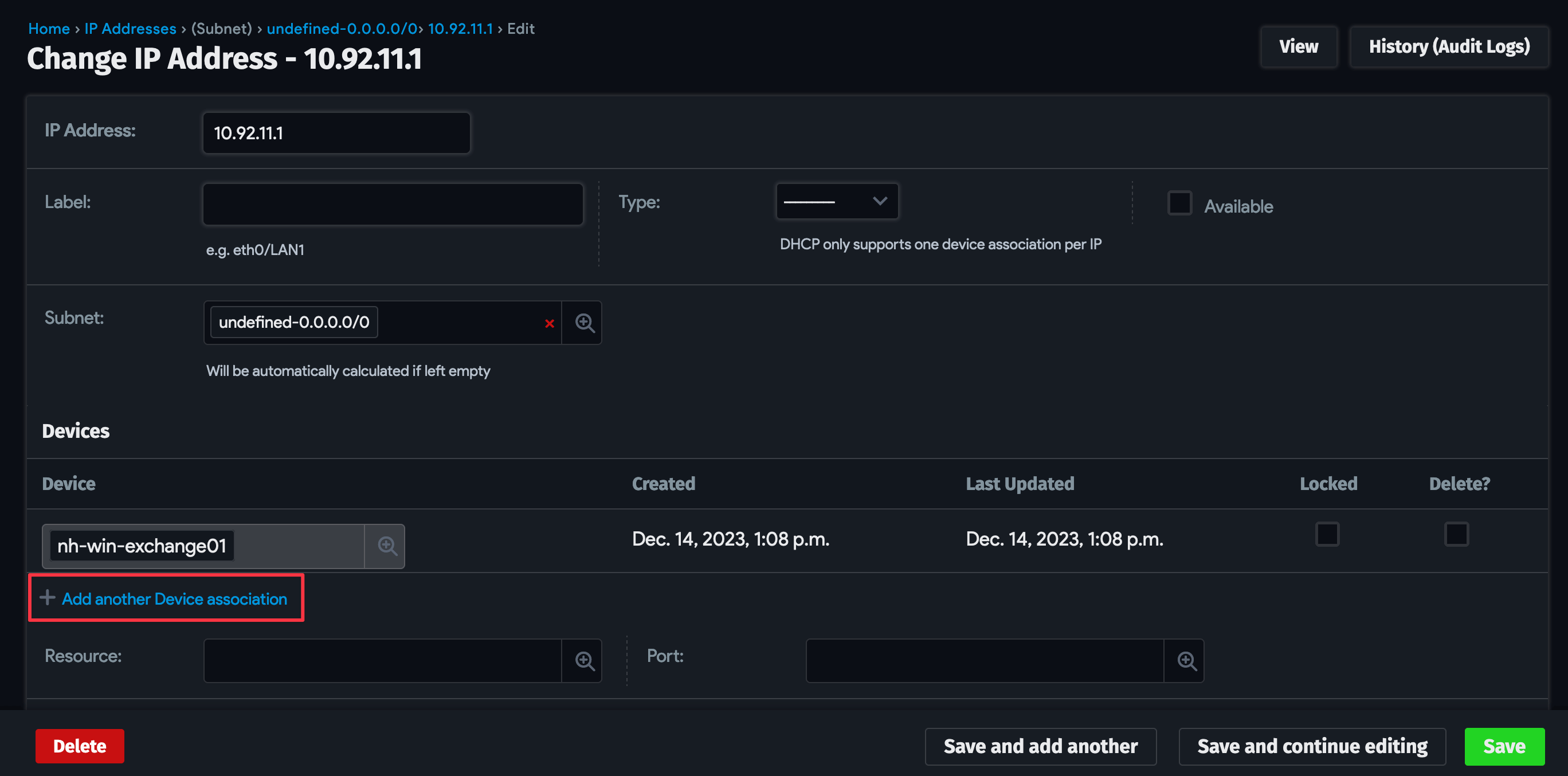
To associate additional devices with an existing IP address, click Edit on the IP address view page, then click + Add New.
Navigate to Resources > DNS > All DNS Records to add DNS A or AAAA records for the IP. The records will be reflected on the IP address view page.
Manage IP Addresses from the Command Line
You can check whether an IP exists, suggest the next available IP, and add an IP from the command line using the Device42 REST APIs.