Subnet Tree View
The subnet tree view provides a visual, hierarchical display of your subnets organized by VRF group. From the tree view, you can add, edit, nest, and relocate subnets and IPs without navigating away from the page.
Navigate to Resources > Networks > Subnet Tree to open the tree view.
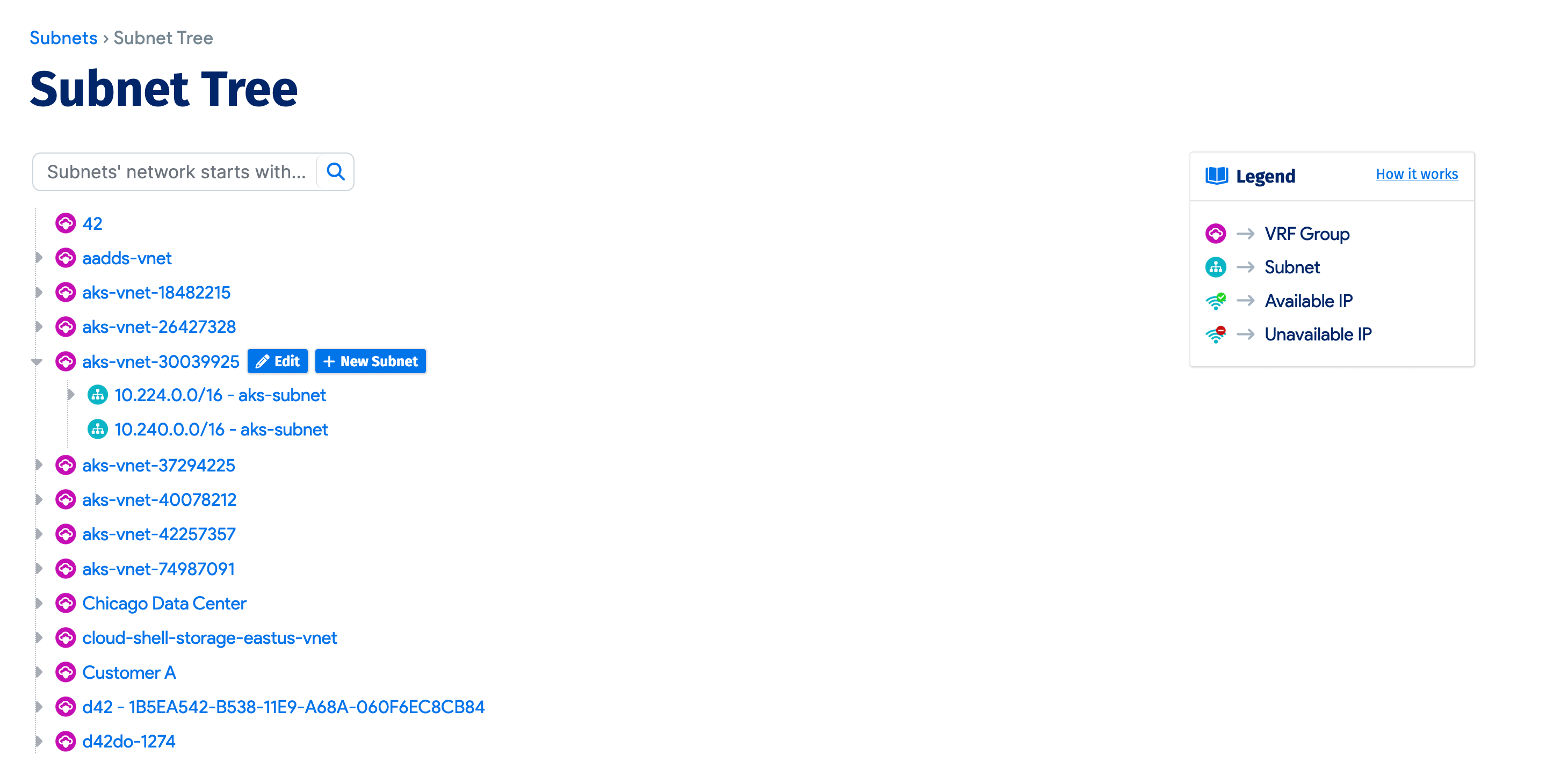
Subnets in the tree view are grouped into VRF groups. Because VRF groups have building associations, the VRF group display also includes the building name.
Add new subnets to a VRF group by hovering over it and clicking the + New Subnet button.
Hover for Details
Hover your mouse over any VRF group, subnet, or IP to see more details. The subnet details include a small graph showing the percentage of IP addresses used.
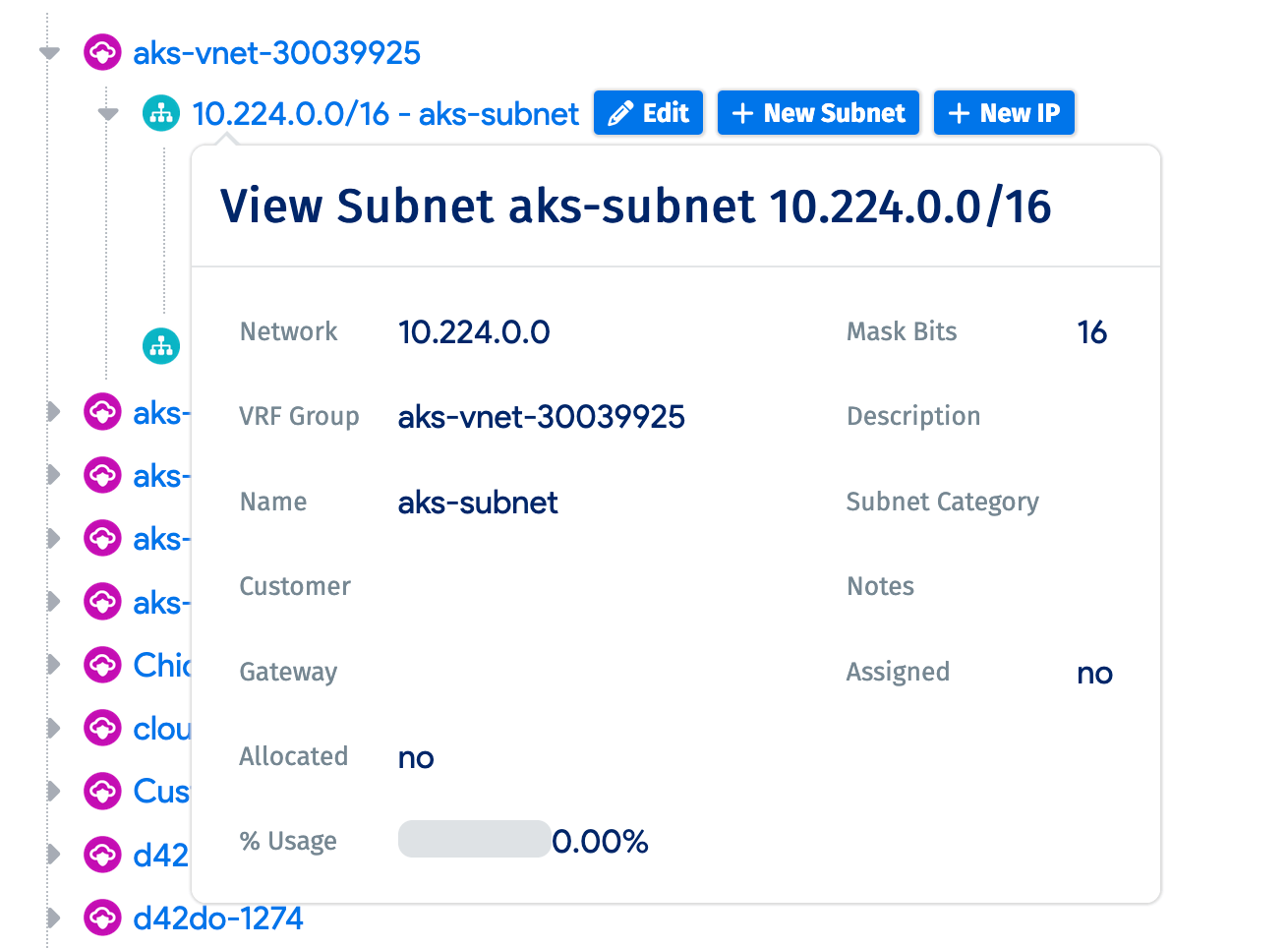
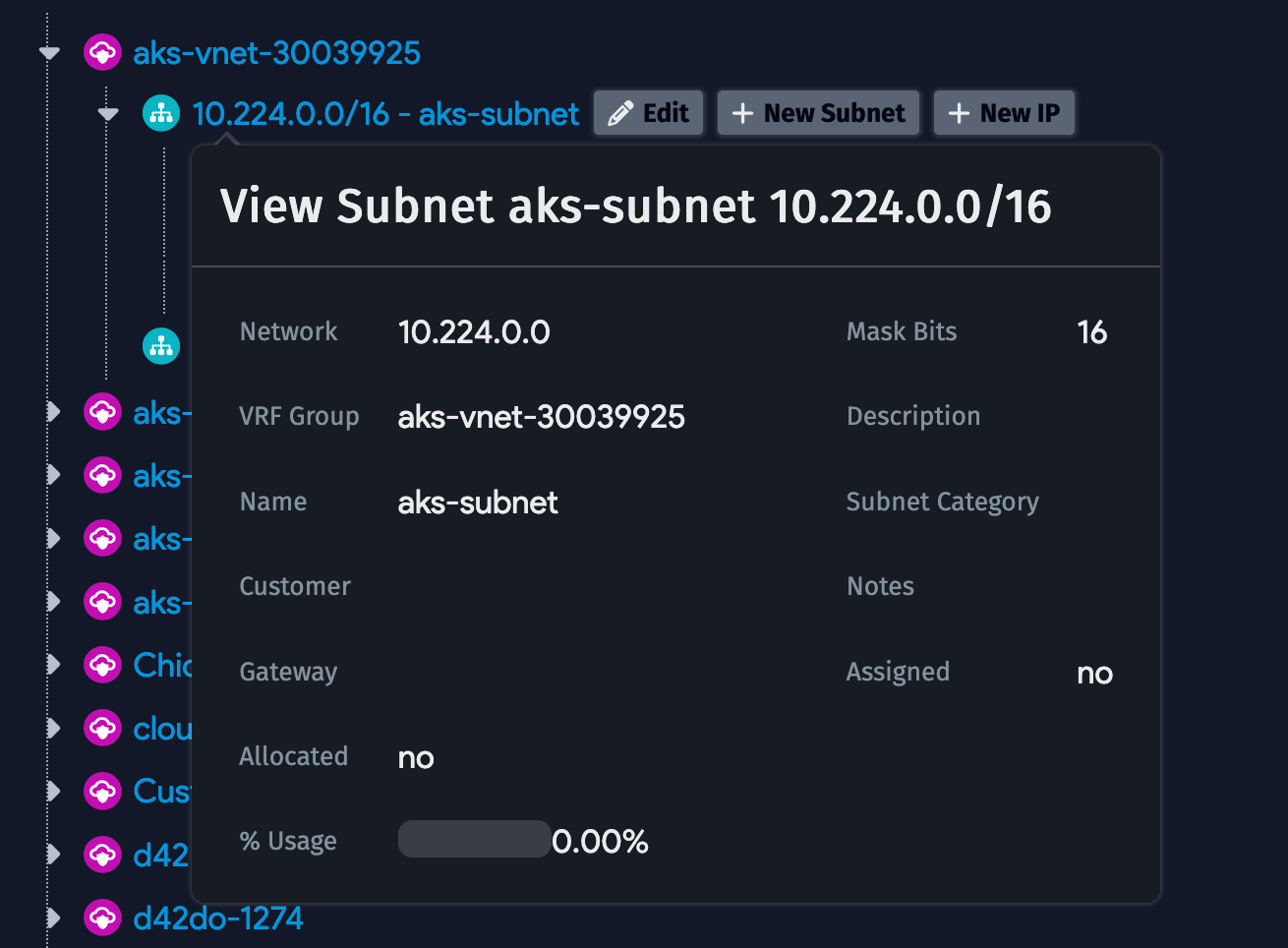
Each subnet and VRF group has an Edit button next to it for making changes directly from the tree view.
Add or Edit IPs
Use the + New IP button next to each subnet to add a new IP. For subnets smaller than /24, a list of all unused IPs in that subnet is displayed for selection. For larger subnets, you are presented with the Add IP Address dialog to enter the details directly.
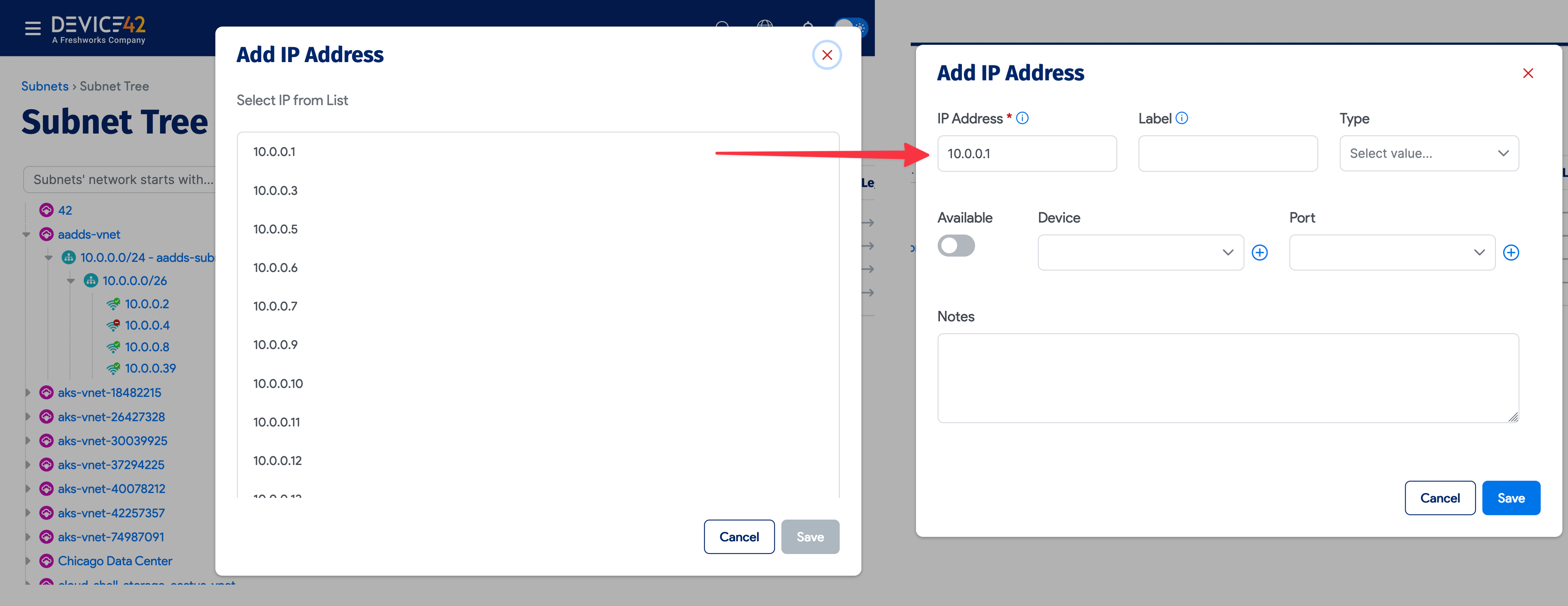
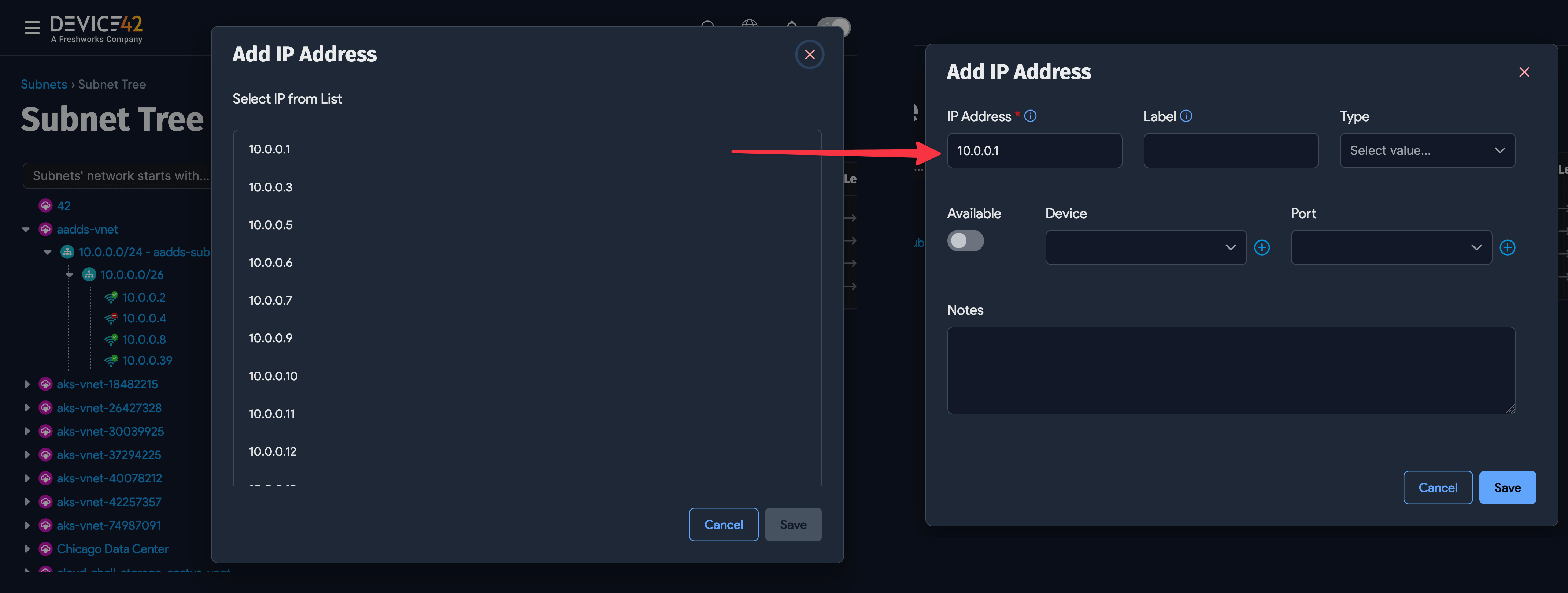
Each IP also has an Edit button next to it for making changes from this page.
Nest Subnets
Use the + New Subnet button next to each subnet to create a nested subnet. Clicking this button displays a tree-like view of available subnets within that subnet to choose from. You can also drag and drop subnets into another subnet or another VRF group. Drag and drop is disabled for trees with over 2000 subnets.
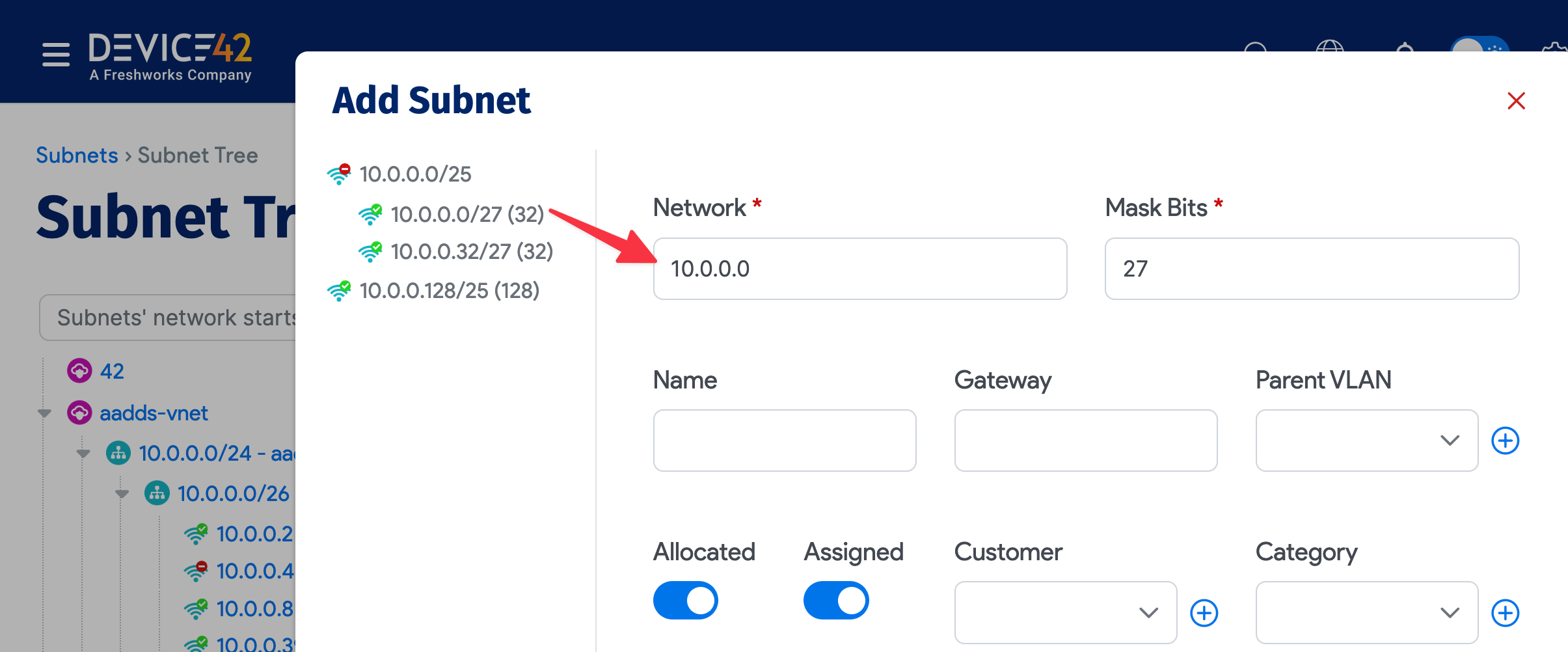
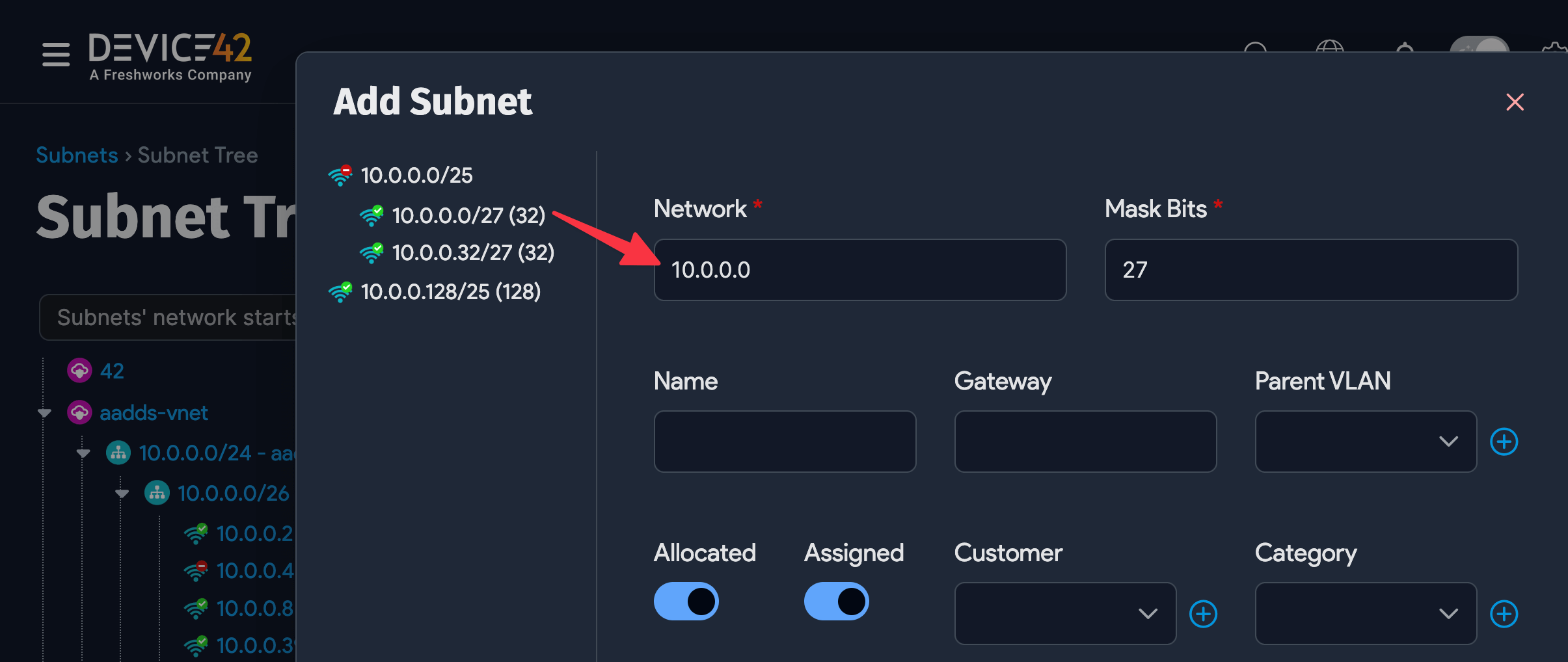
Drag-and-drop functionality is disabled for trees with over 2,000 subnets.
View Available Subnets
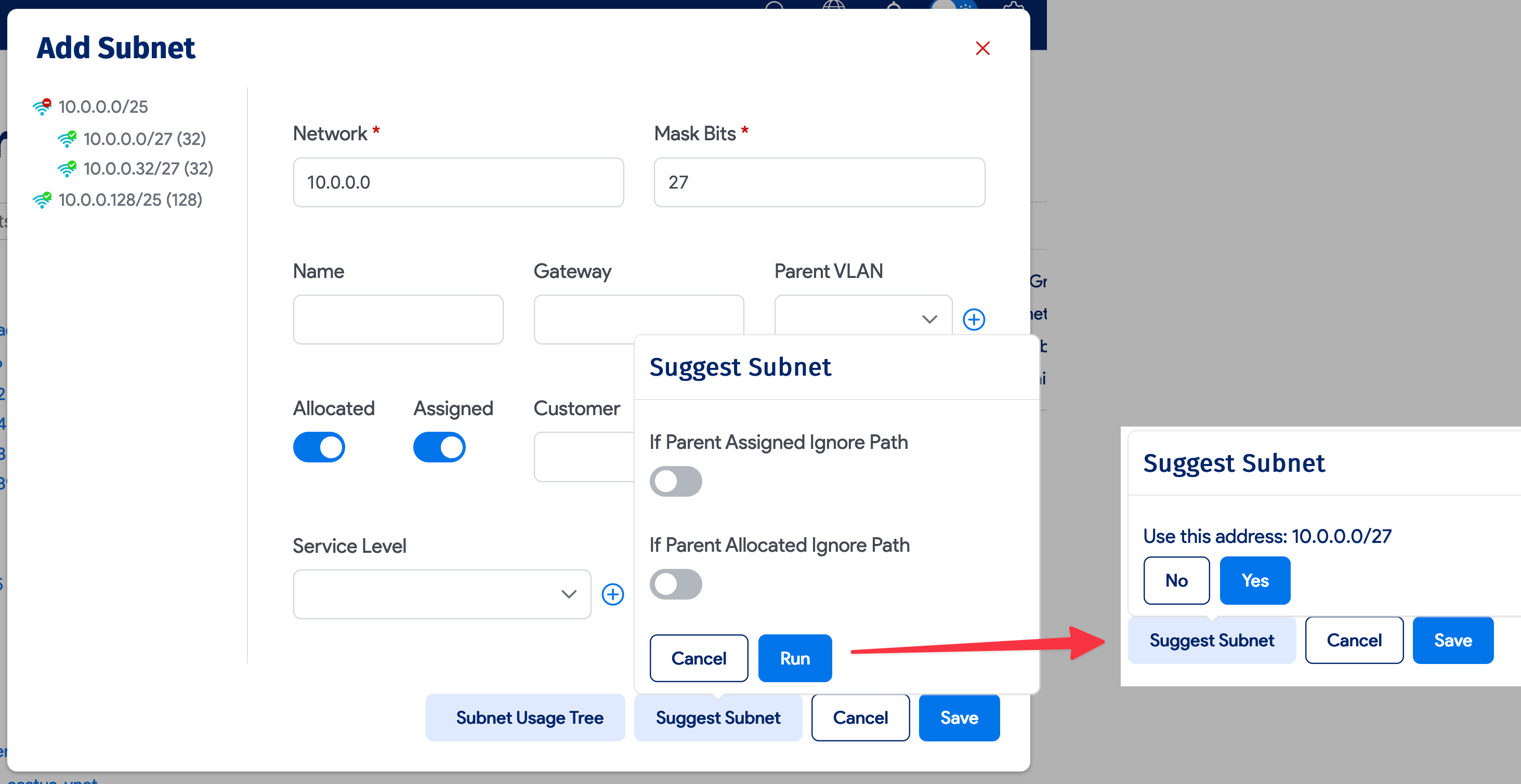
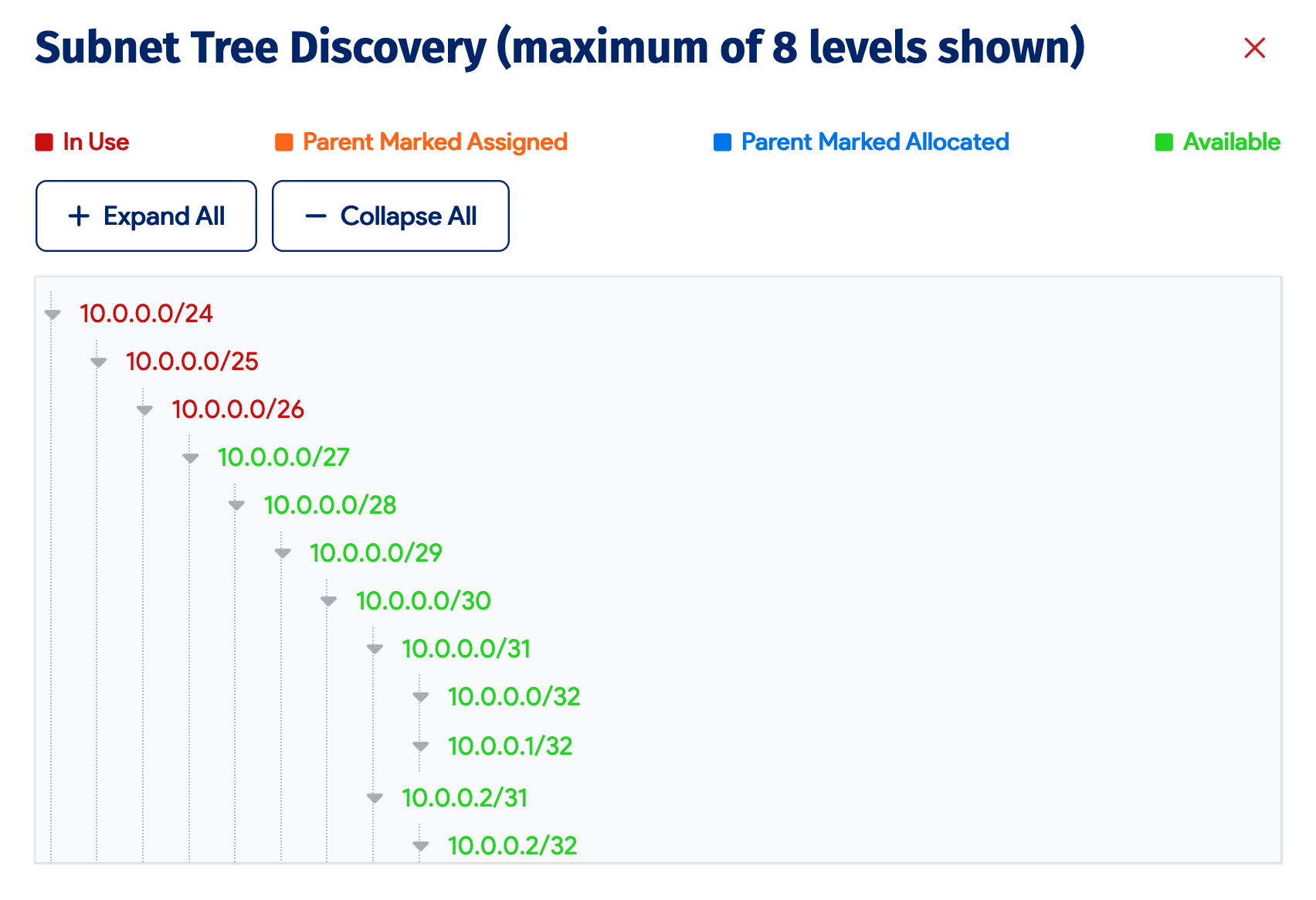
Click the Subnet Usage Tree button to view used and available subnets at a glance.
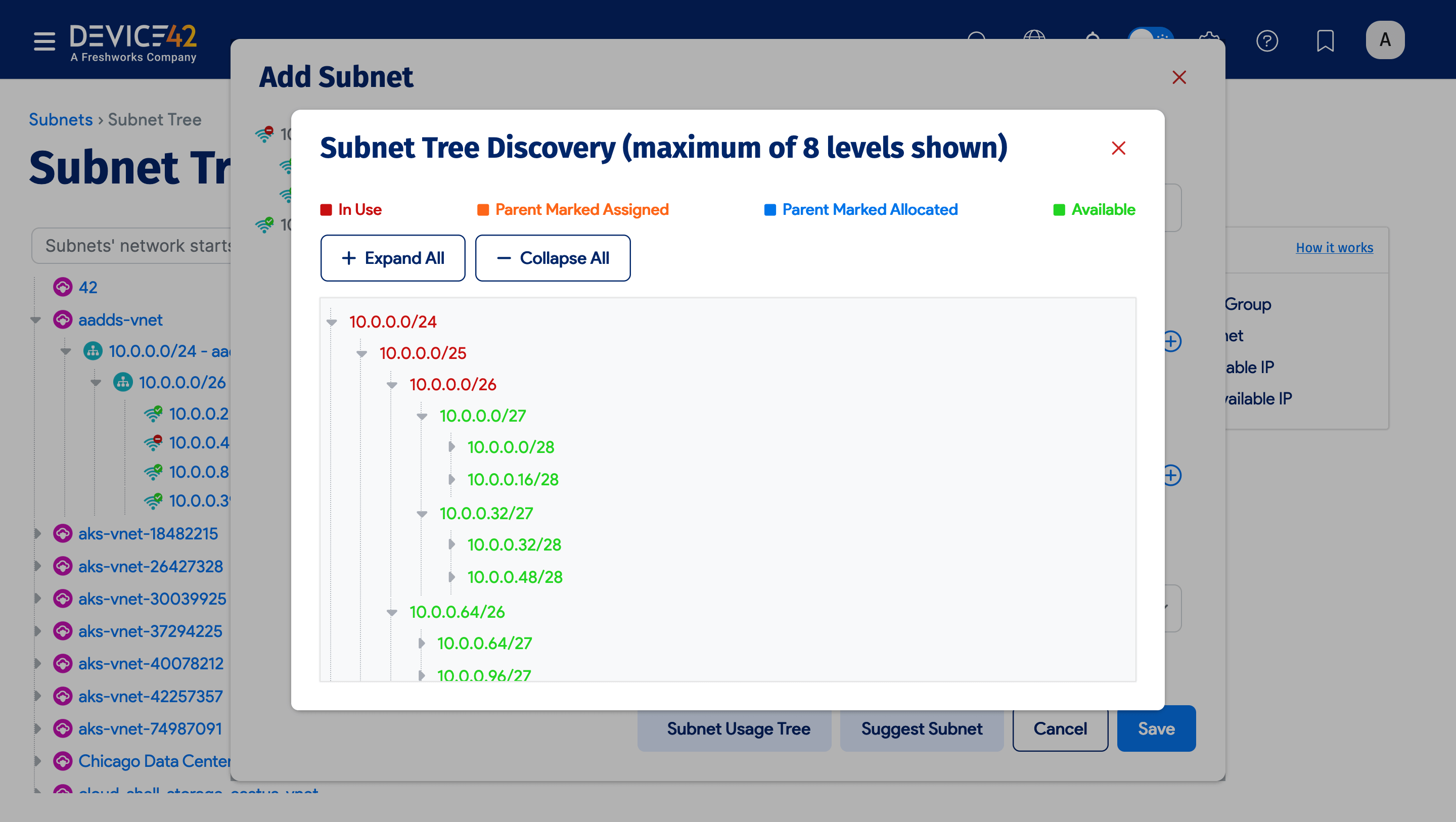
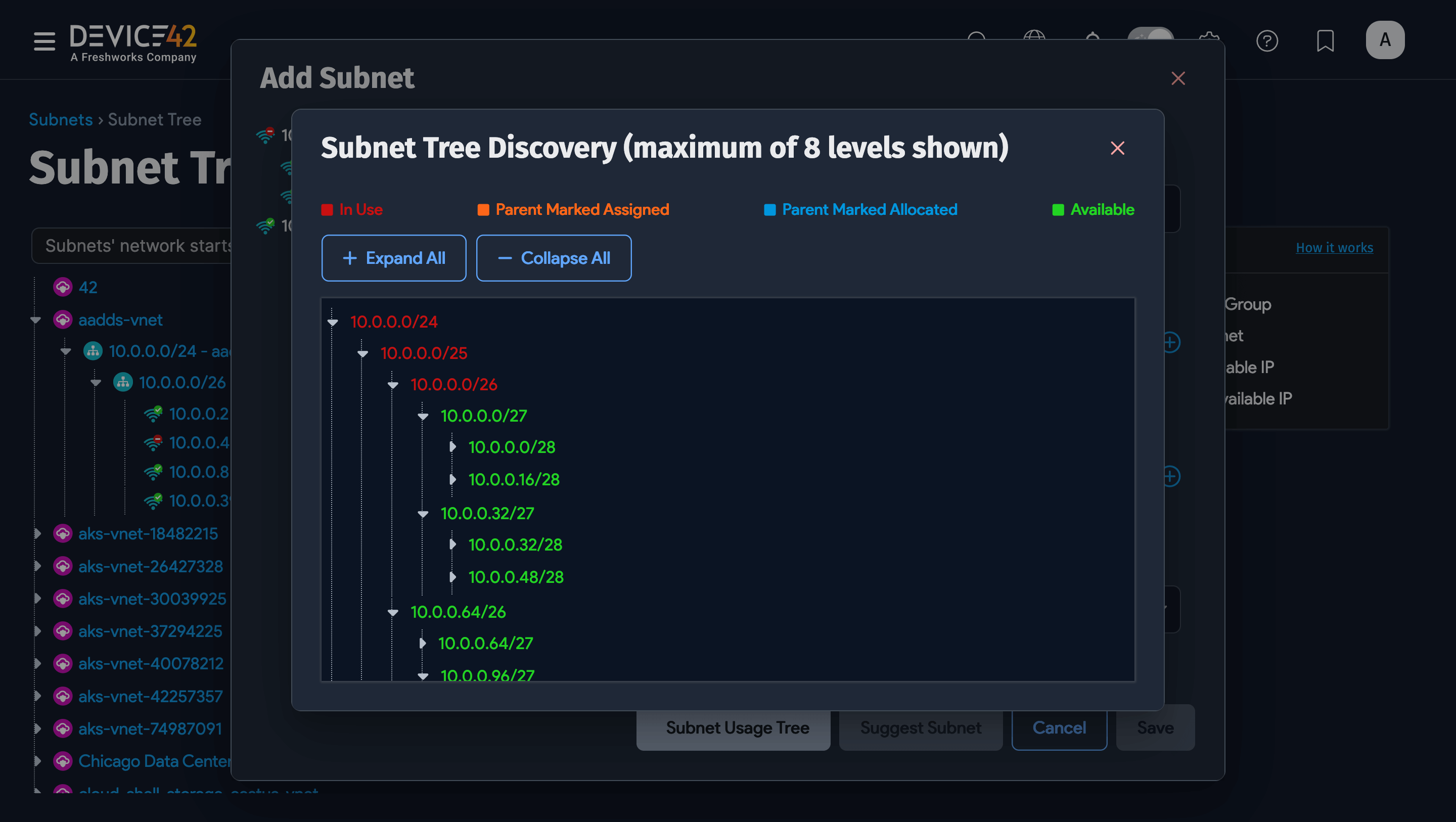
Available subnets are shown in green and used (or partially used) subnets are shown in red. Click Expand All to drill further into the subnet tree.
Suggest a Subnet
Choosing the right subnet size and position matters. A subnet that is much bigger than needed wastes address space. A subnet that is near but not adjacent to another can leave unusable gaps. The goal is to maximize future flexibility in subnet selection and assignment.
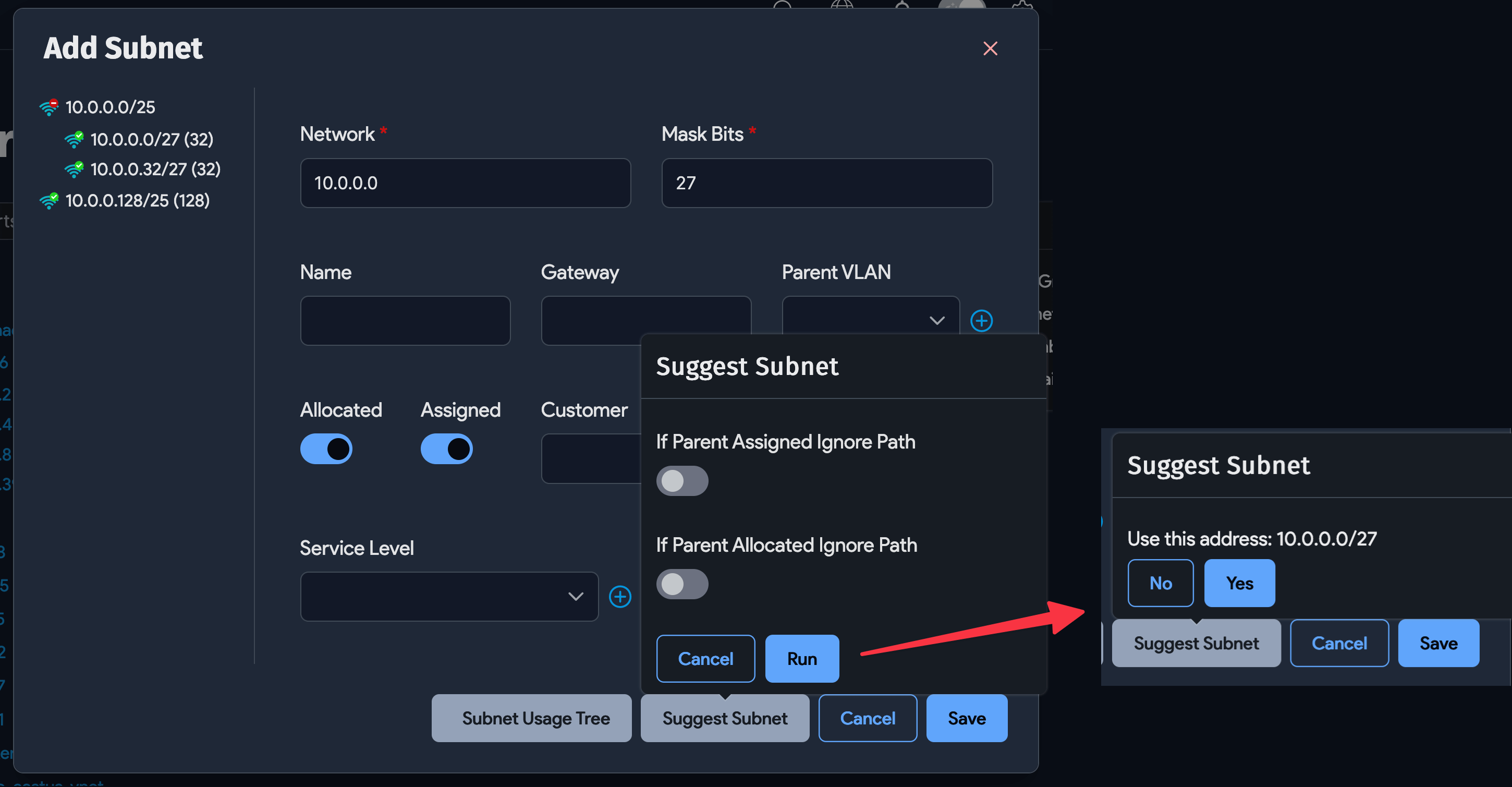
Device42 offers a recommendation engine for choosing subnets. Enter the desired Mask Bits and click the Suggest Subnet button. You can optionally ignore parent subnets marked as Assigned or Allocated even if they are still empty. Click Run and Device42 will present its suggestion for you to accept or decline.