Switch Ports
Switch ports can be discovered automatically using SNMP network discovery. You can also bulk add switch ports via switch templates, or use the Device42 RESTful APIs to programmatically add or edit switch ports.
Ports List Page
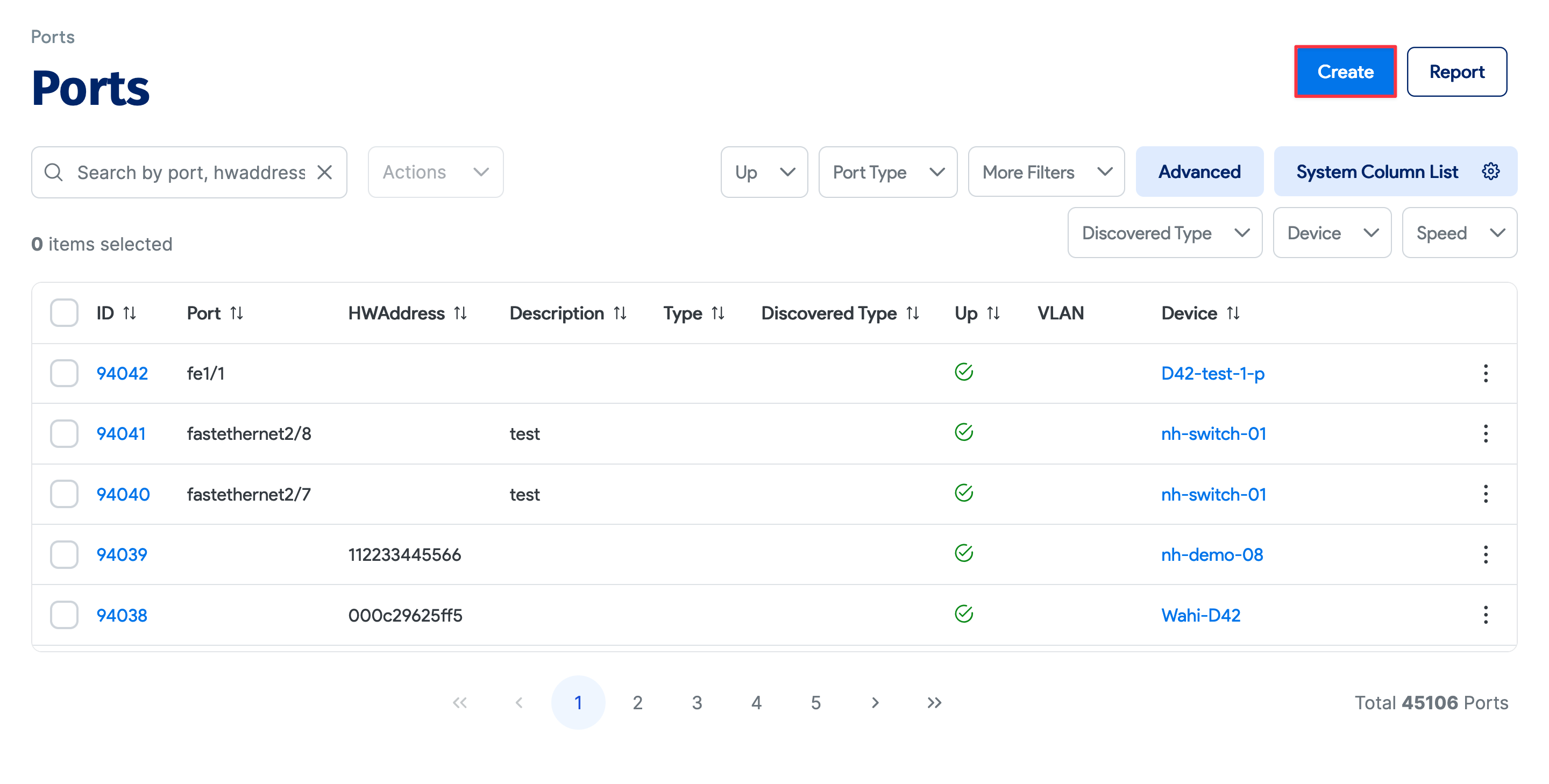
Navigate to Resources > Network Devices > Ports to view the ports list page.
Click on any port ID to view and edit an existing switch port, or click + Create to add a new port.
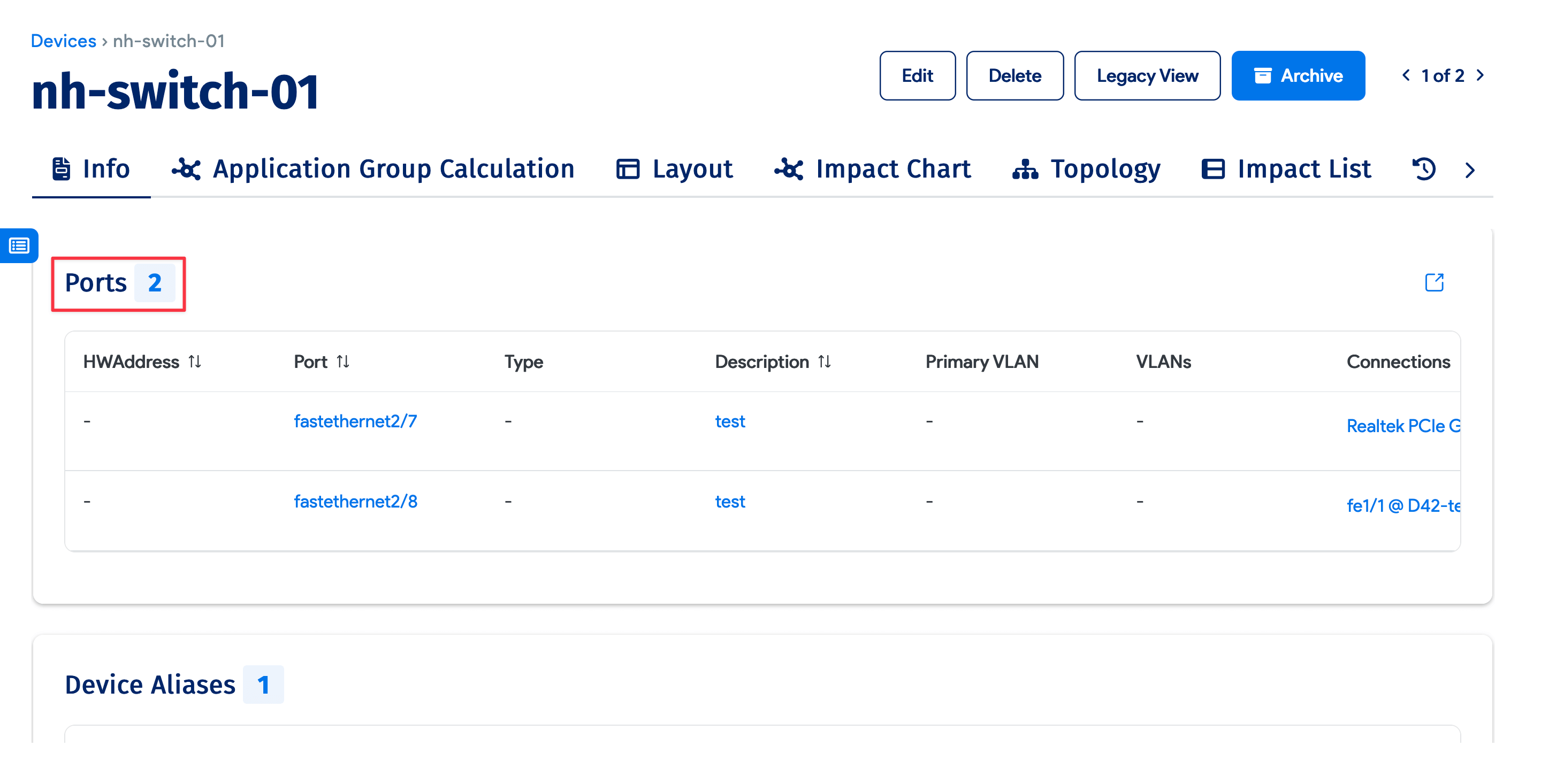
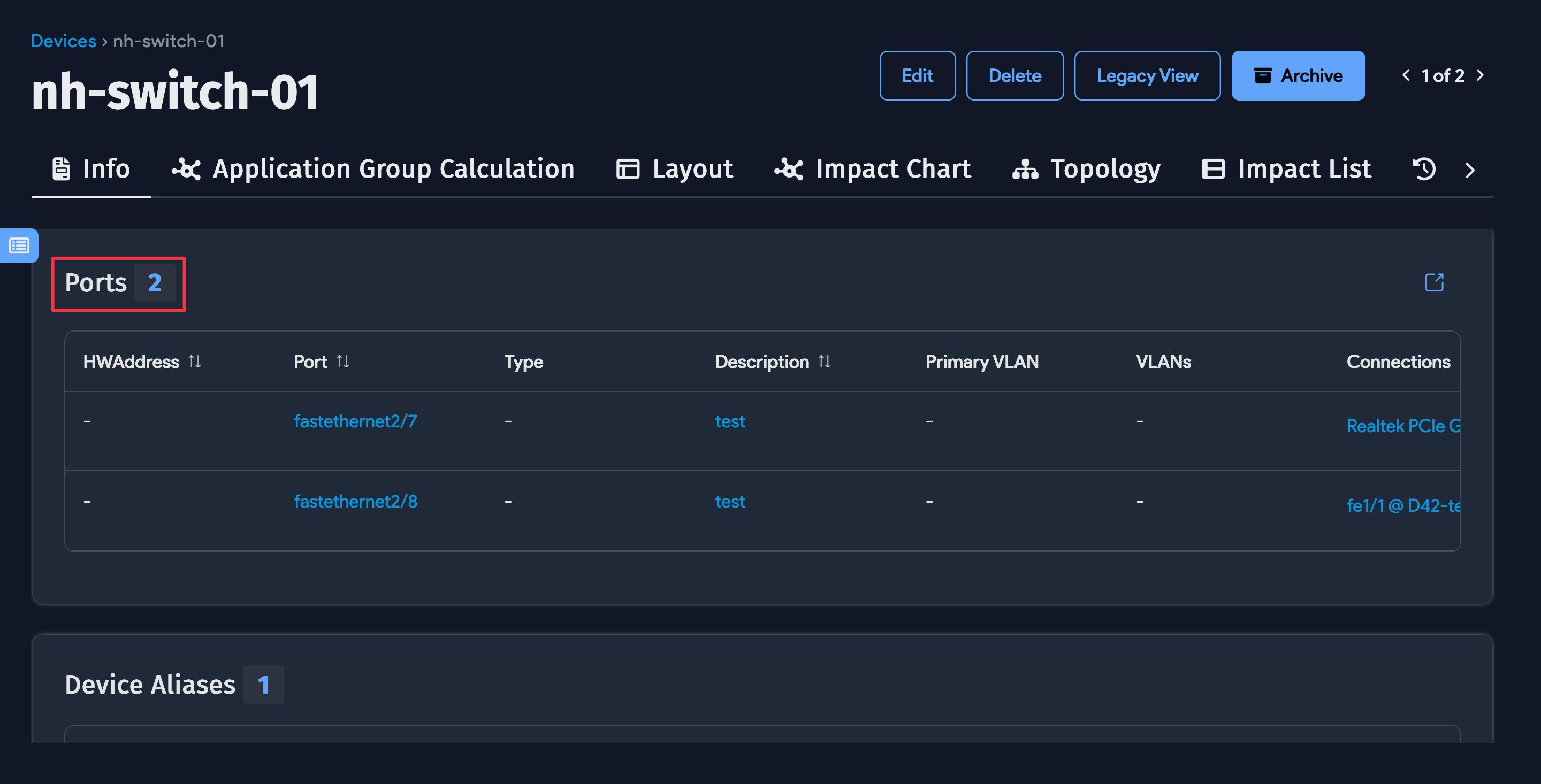
You can also see associated ports via the Ports section on a device page.
Switch Port Properties
Discovered ports use the Is Default property to indicate whether a port is the primary interface or IP address.
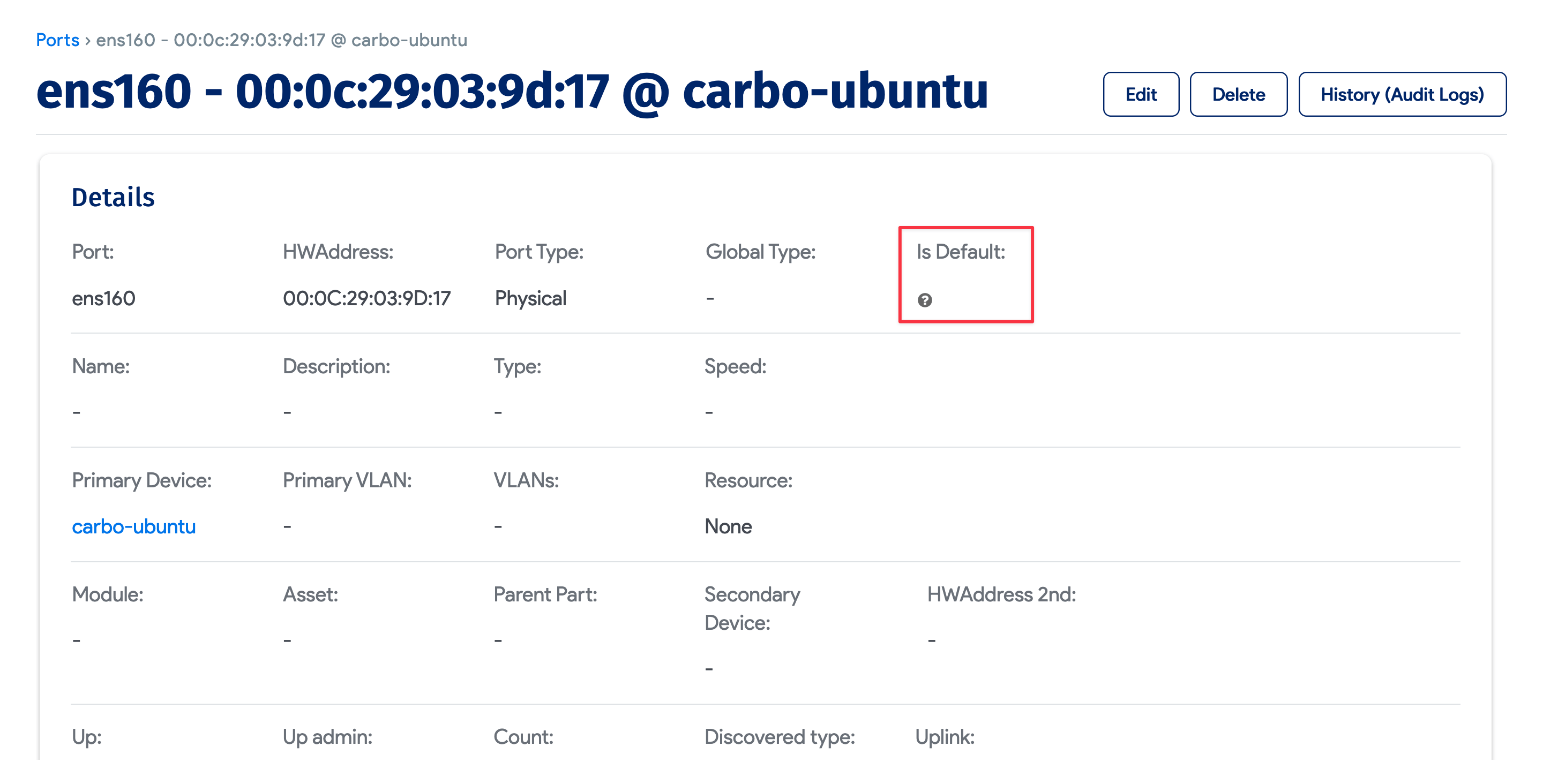
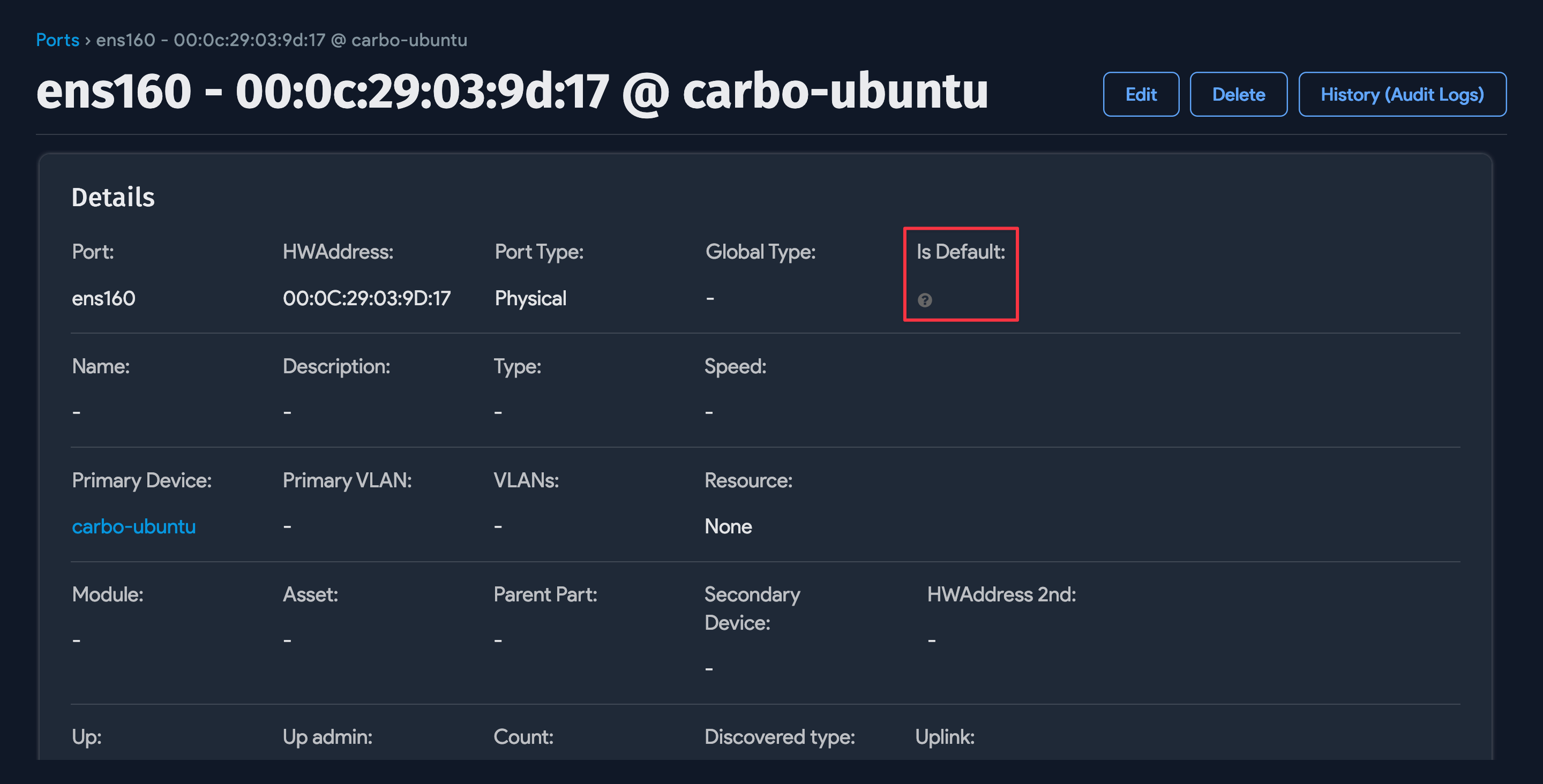
Switch ports include the following properties:
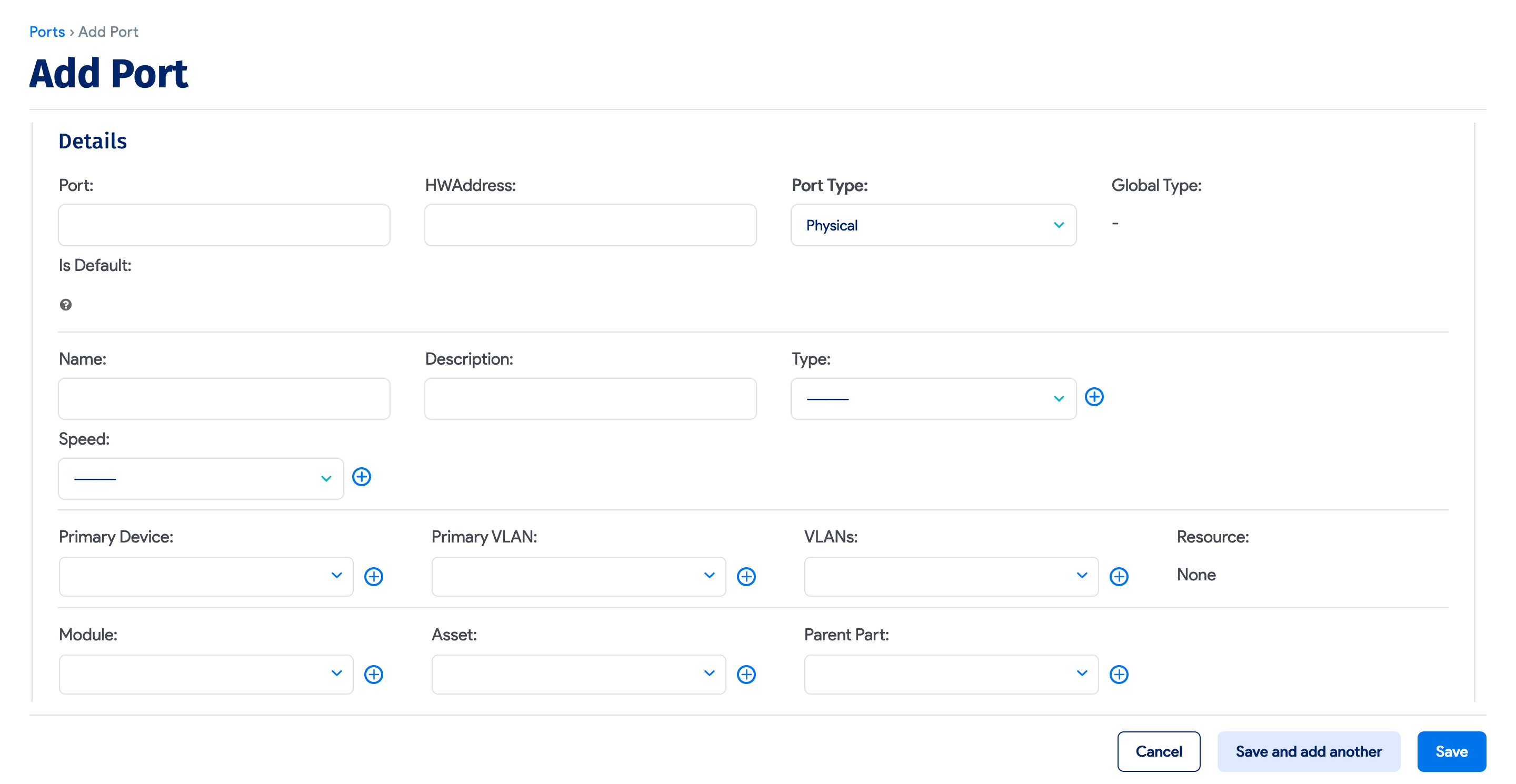
- Port: Name of the switch port as found during discovery, or user-generated.
- Name: As found during discovery or user-generated.
- Description: As found during discovery or user-generated.
- Type: The type of port. Use the + button to add a new type.
- Network Device: A device with the network switch value checked.
- VLANs: All the VLANs this port belongs to.
- Module: If this port is part of a module in a chassis-based switch, the module association can be made here.
- Asset: If the port is part of a FEX or similar asset connected to the switch, that association can be made here. You can assign a port to either a module or an asset.
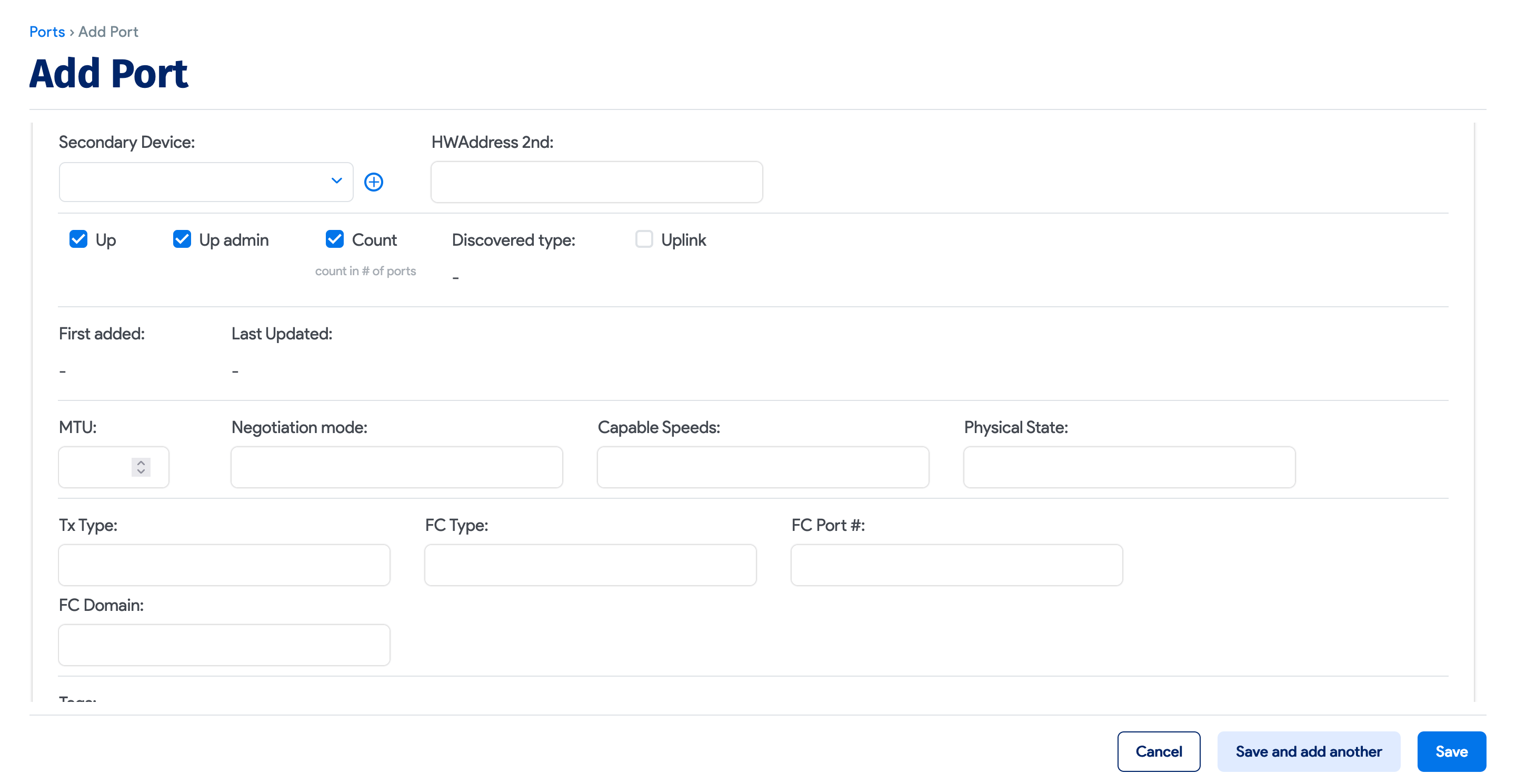
- Network Switch 2nd: For stacked switches, this is the clustered switch. For paired switches, this is the second switch through which the port can be managed.
The Module, Asset, and Network Switch 2nd associations can be configured efficiently using switch templates.
- Up: Whether the port is up.
- Up Admin: Whether the port is administratively up.
- Count: Whether to count this port in the total.
- Discovered Type: The port type as found during discovery. This field is read-only. The discovered type value can be used to mark certain ports as uncounted, delete ports, or ignore certain port types during discovery.
- Remote Port: If the port is connected to another switch port, that association can be made here. This can also be discovered automatically.
- Don't Change Via API: Check this if you override remote port connectivity manually, to prevent discovery or API calls from overwriting the change.
- Tags: A comma-separated list of tags for the switch port.
- HW Address: MAC addresses and devices connected to the switch port, and the VLAN associated with each MAC address.
Add a New Switch Port
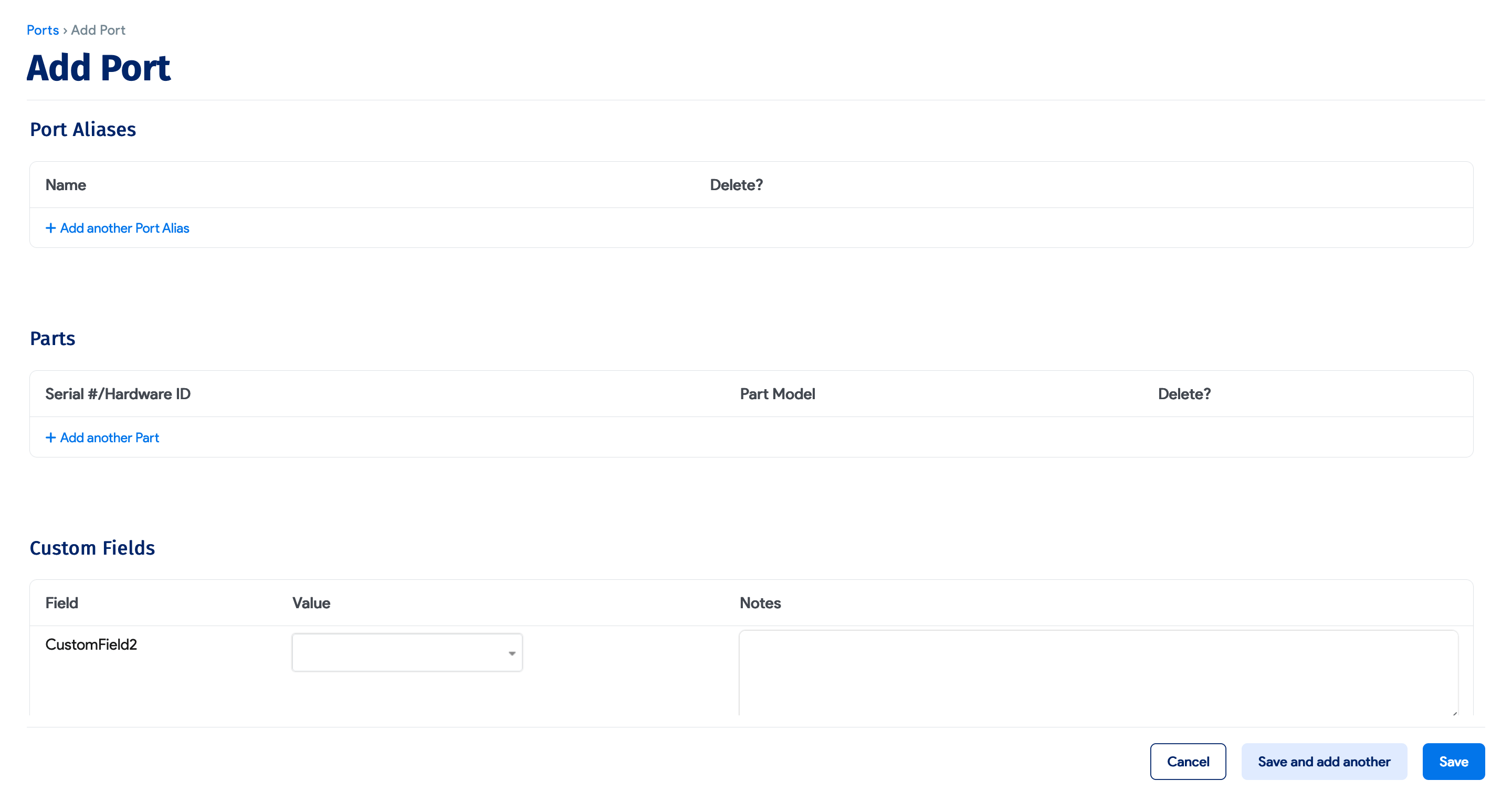
Click + Add Port on the ports list page and fill in the port details.
Scroll down to add Port Aliases, Parts, and view Custom Fields.
Switch Port Bulk Operations
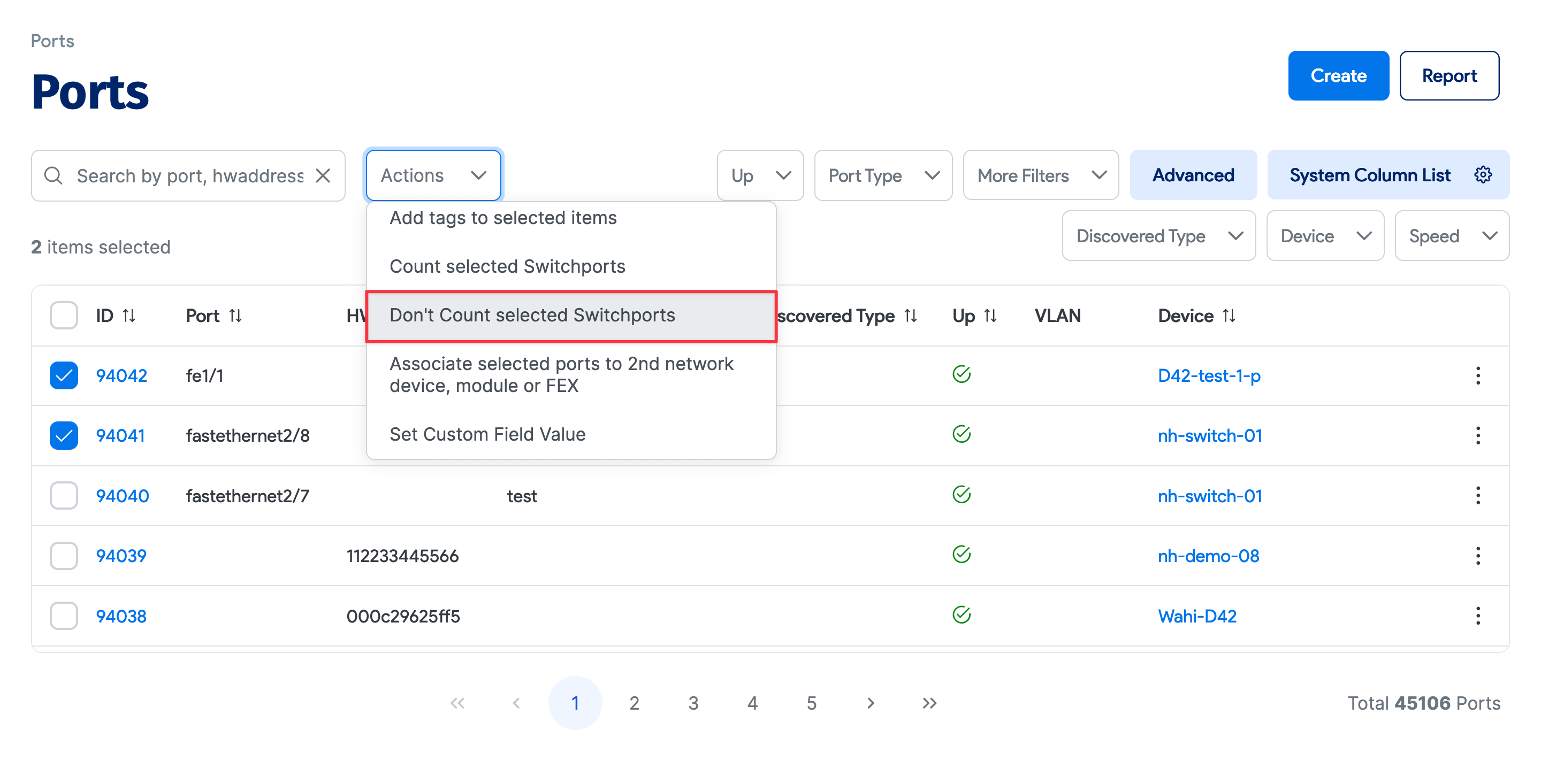
Select ports from the table, choose an action from the dropdown menu, and click the hammer icon to execute it.
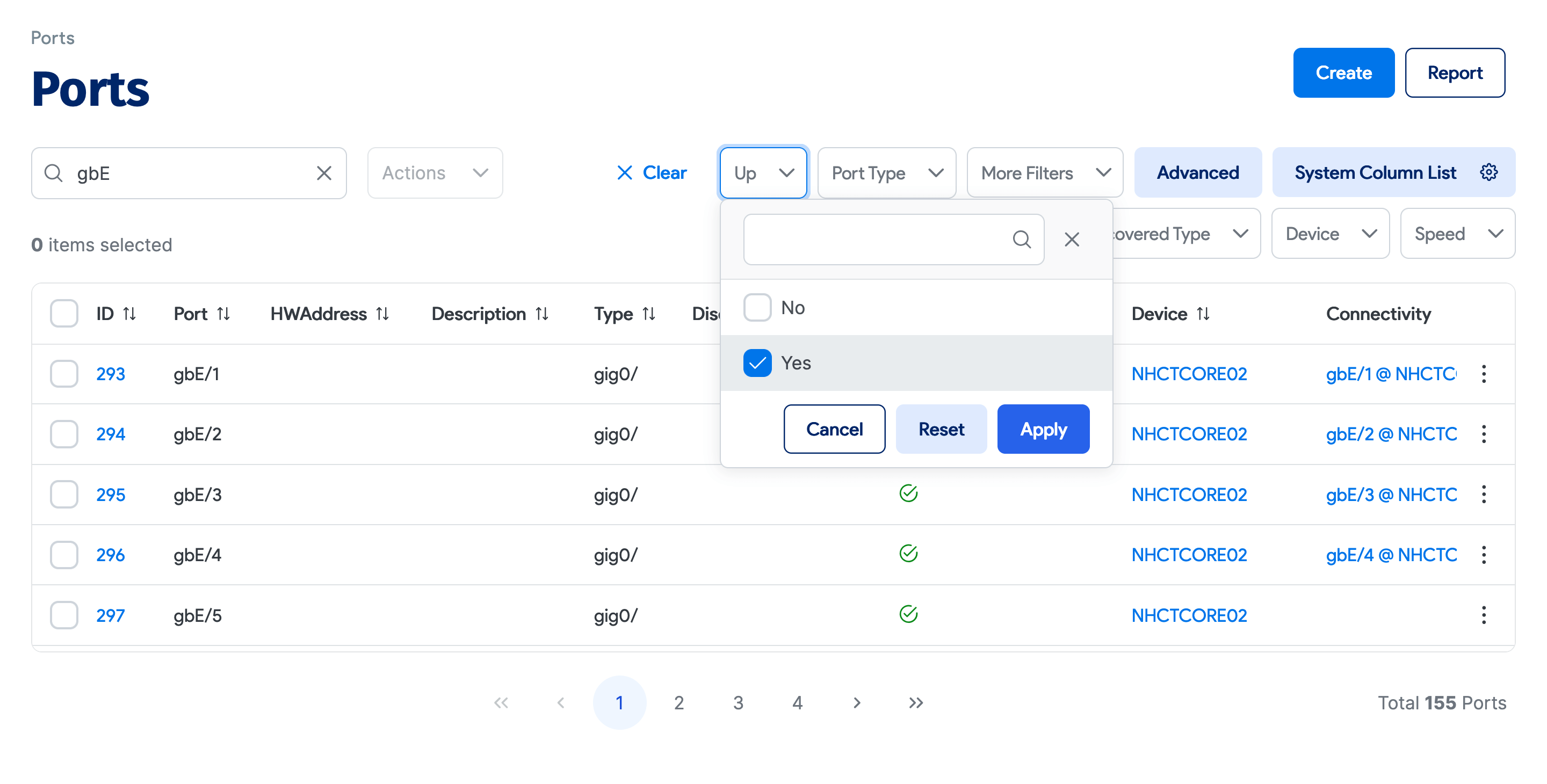
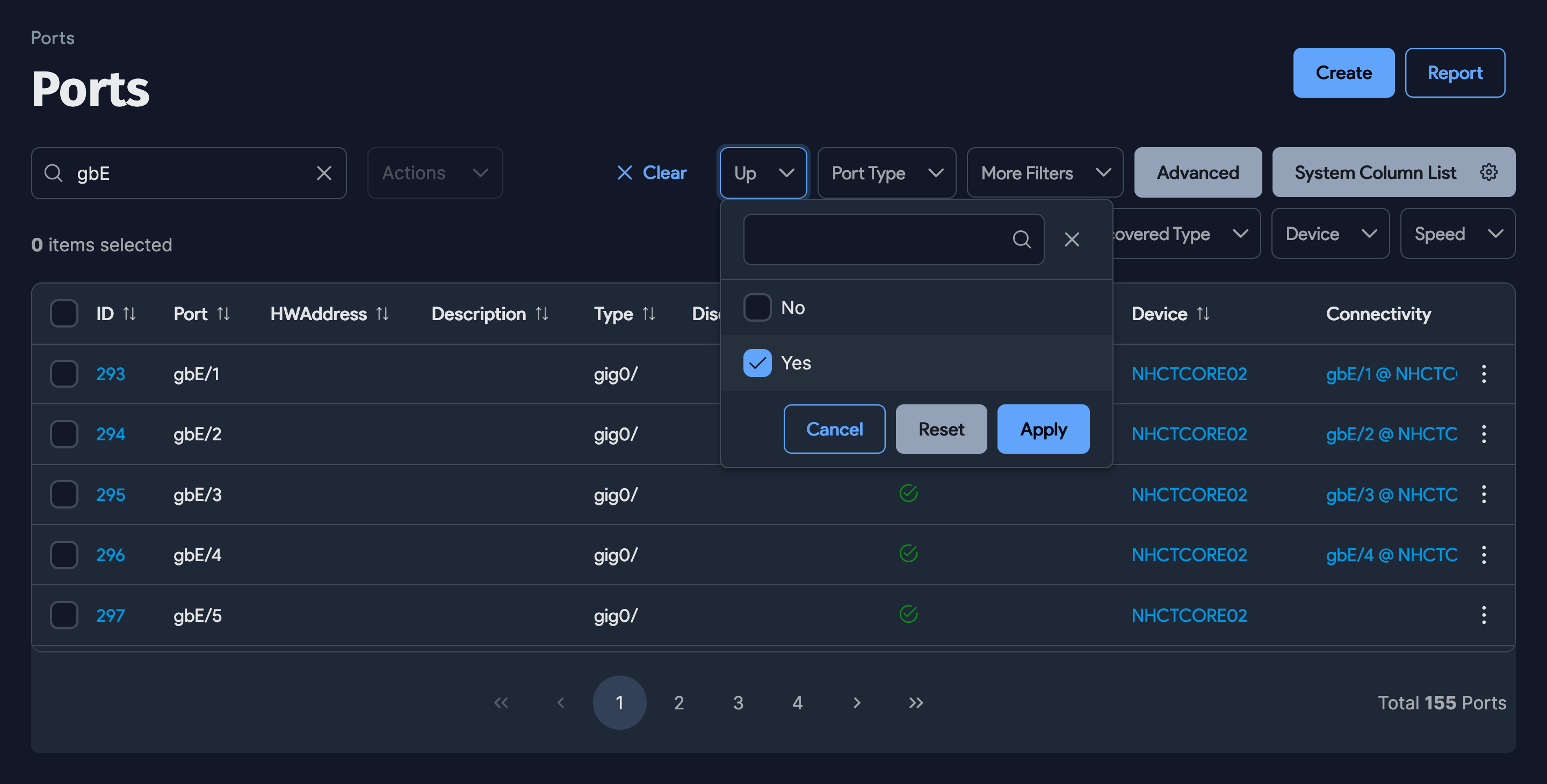
For example, you can filter ports by up/down status, network switch, or discovered type, then select the ports to exclude from the count.
Switch Port Count
In the rack layout view, the hover-over popup shows the total counted ports and up ports for that switch.
From the switch port list page, you can filter by switch and up/down status to show the count of filtered ports.
Switch Port Visualization
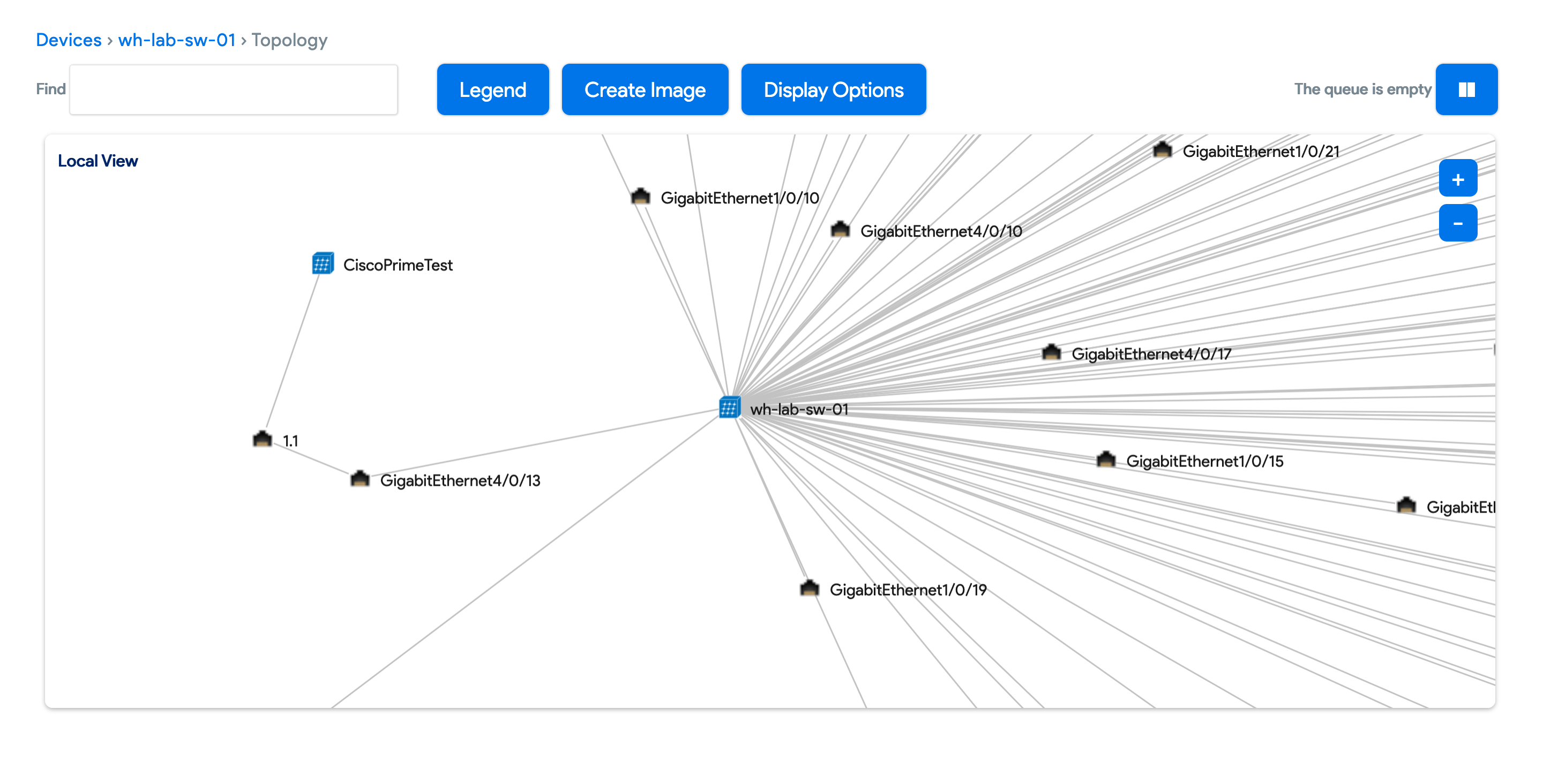
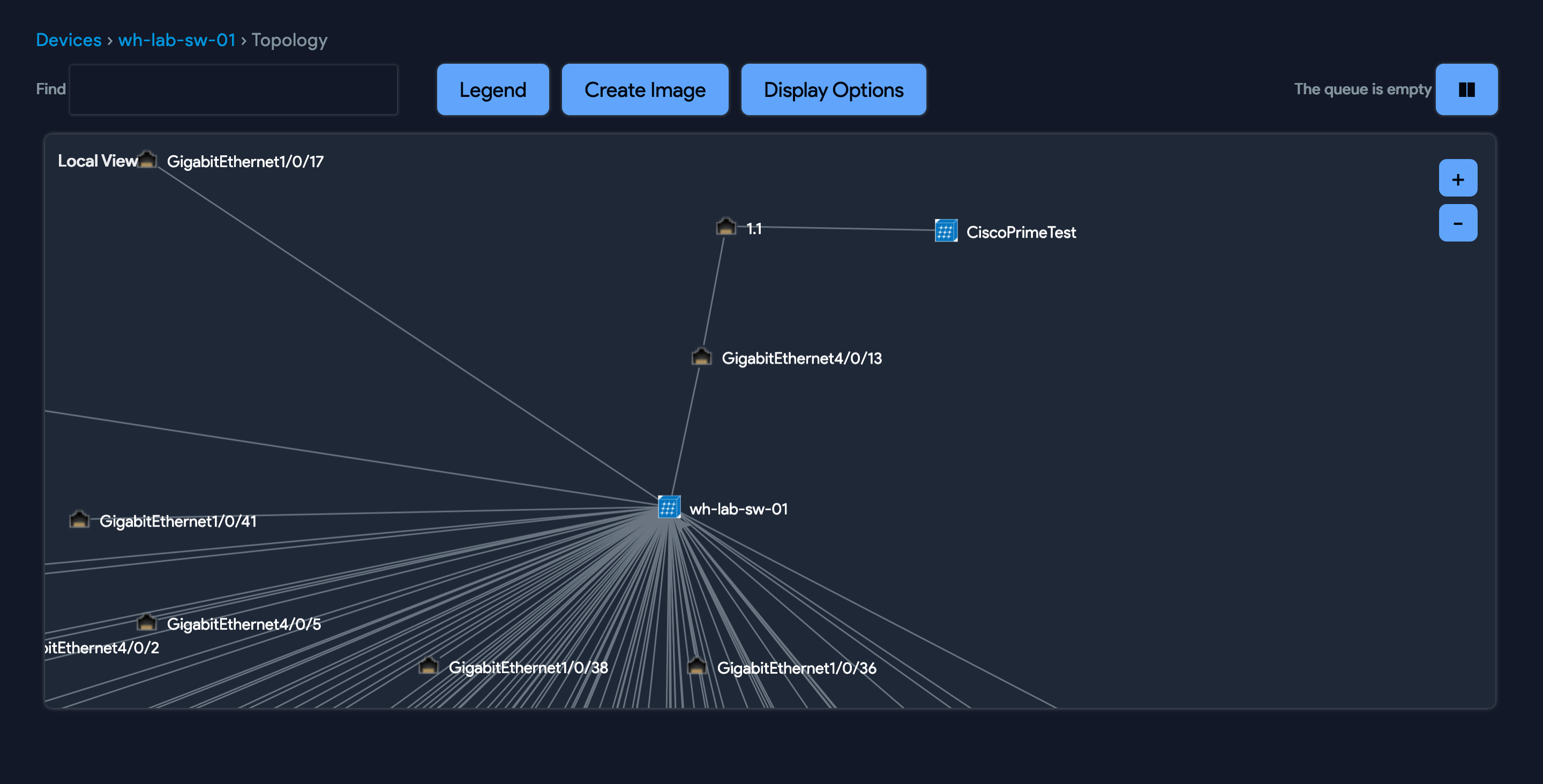
For physical switches, click Impact Chart to see all ports with connectivity, including each MAC-to-device relationship. Virtual devices are shown as second-layer devices connected to their vHost, or marked with ? if the vHost is unknown.
Represent a Stacked Switch
All switches, stacked or not, are represented according to their underlying hardware model. To add an instance of a stacked switch, select the hardware model that you created previously.
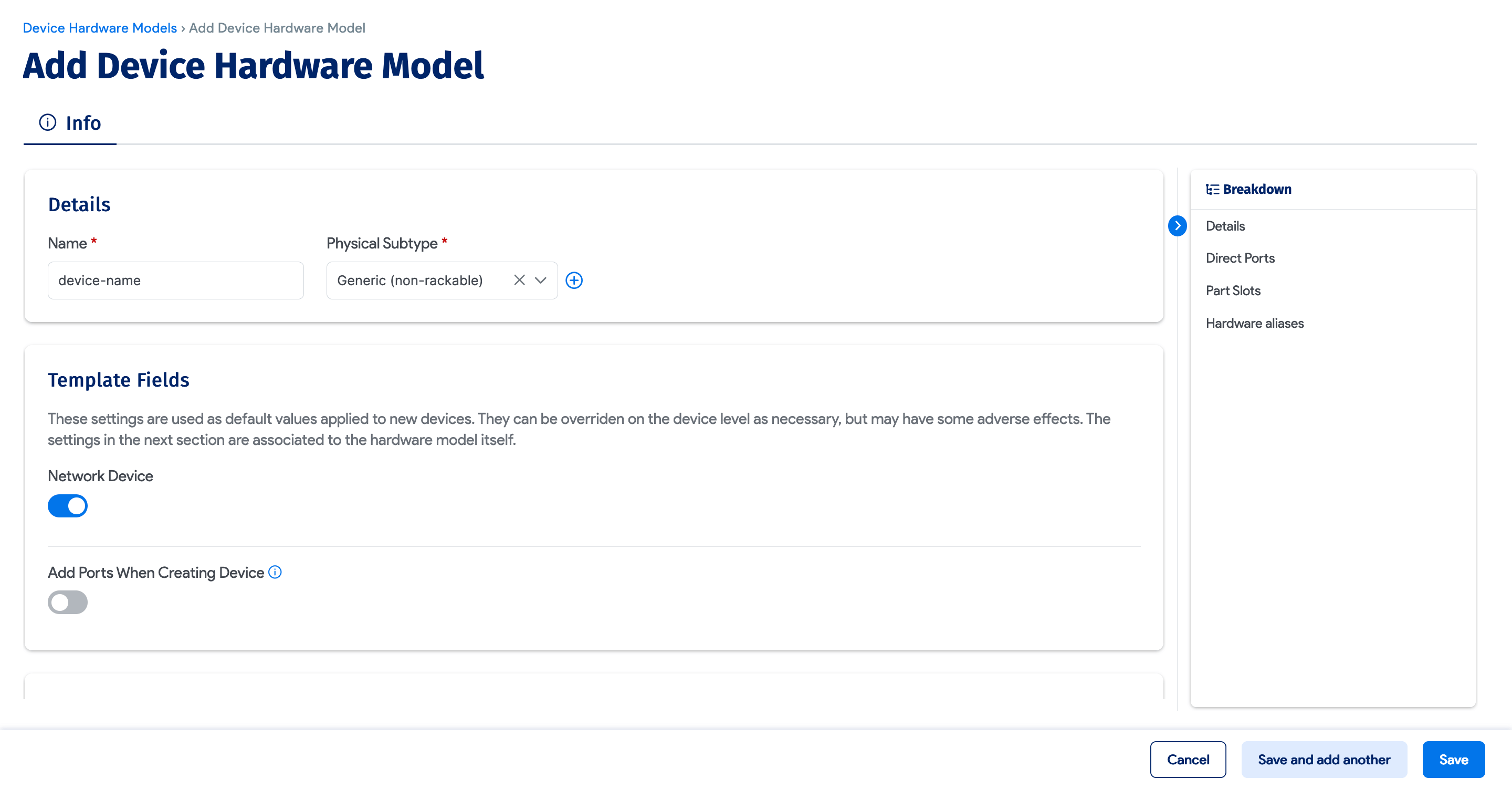
To add a new stacked switch hardware model, navigate to Infrastructure > Hardware Models and click + Create. Enter a Name, Physical Subtype, and other basic information, and check the Network Device checkbox.
Represent FEX Modules
FEX modules can be added as an asset and then associated with a switch using asset device relations. This is easier to configure using switch templates.
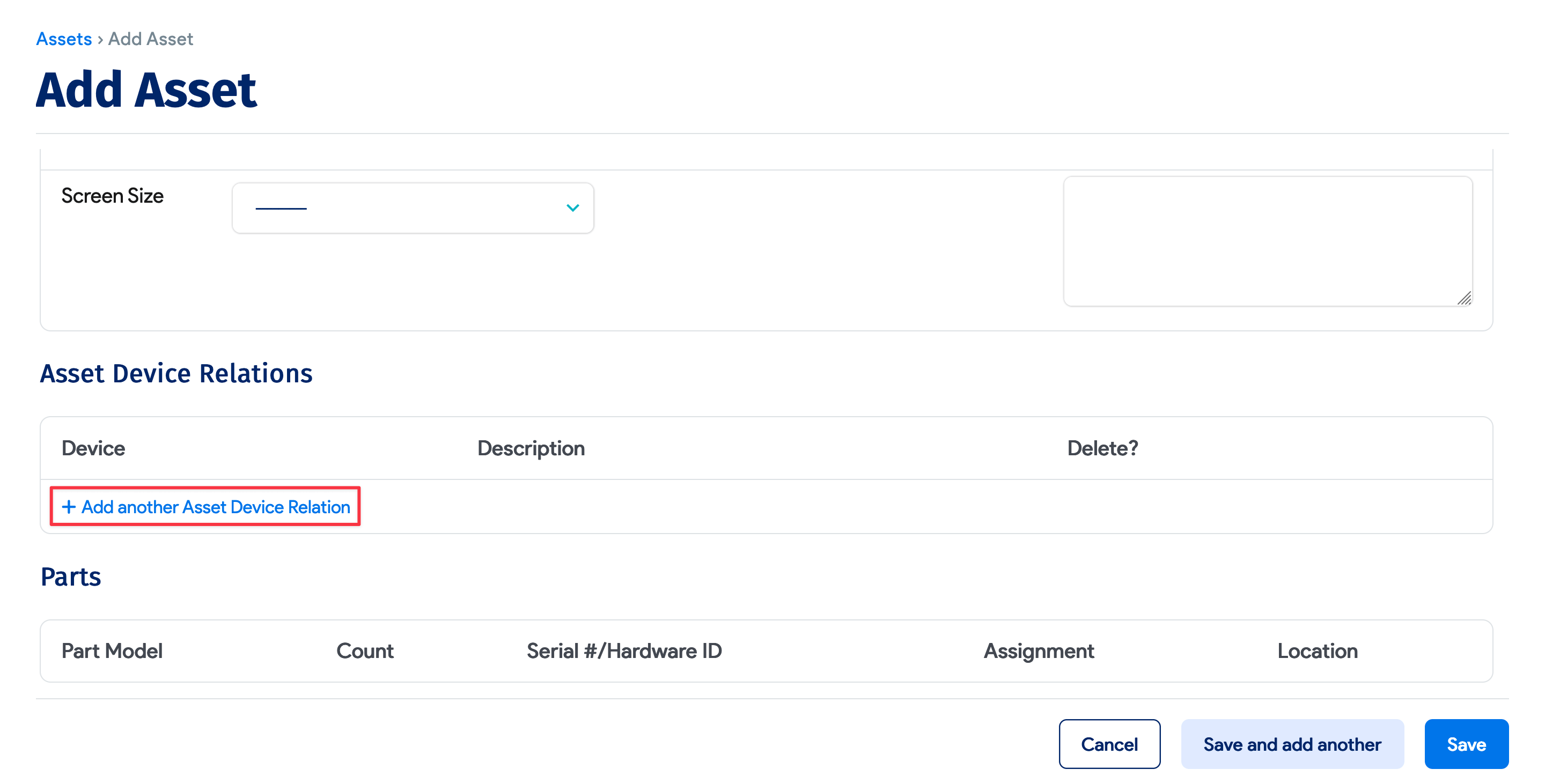
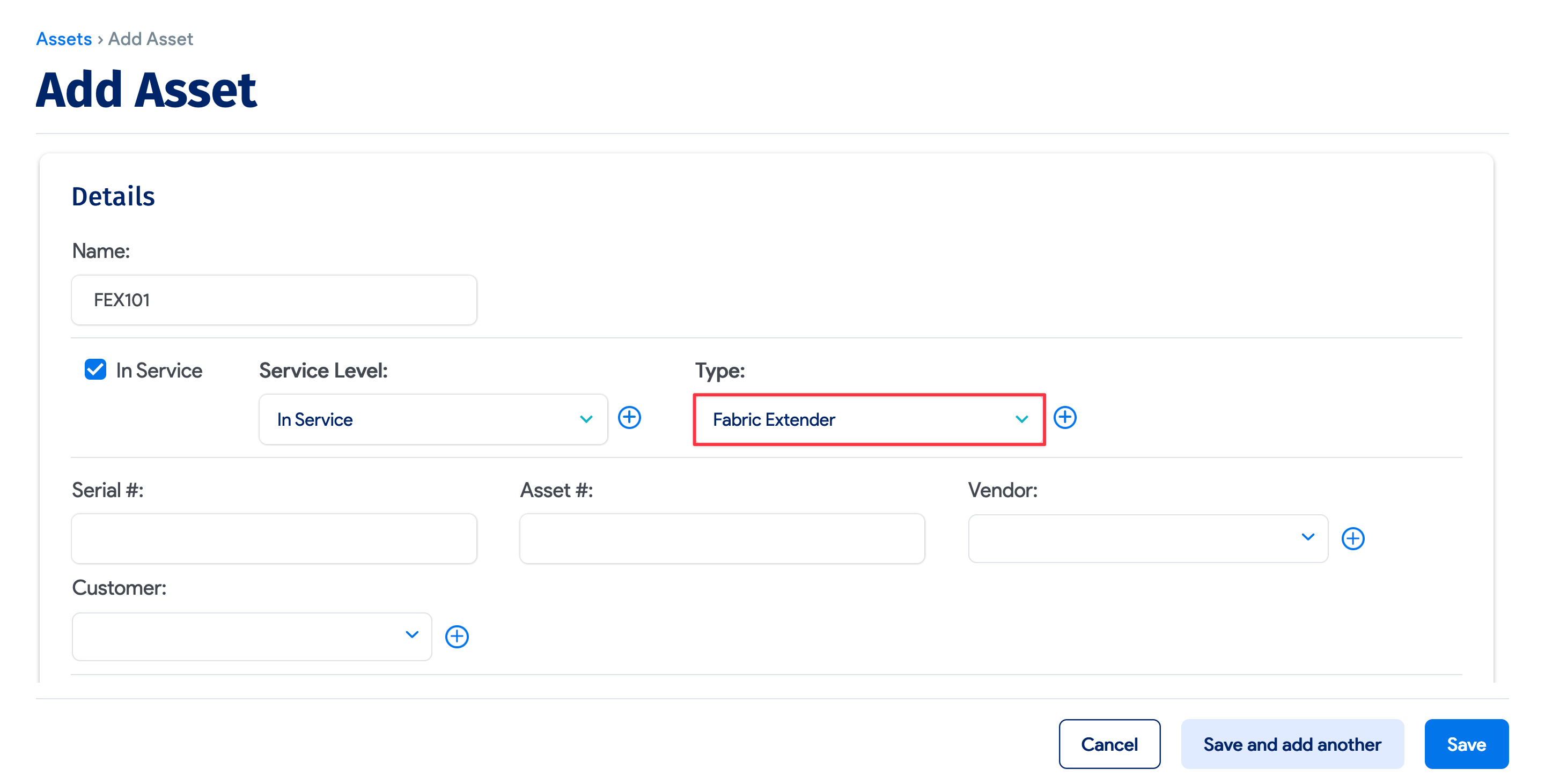
To add a new asset, navigate to Resources > All Assets and click + Create. Name the asset and set Type to Fabric Extender.
Scroll down the Add Asset page, click Add another Asset Device Relation, and use the dropdown to associate the switch with the new asset.