Subnets
A subnet can be any Layer 3 network (IPv4 or IPv6) in your organization, and it can optionally be part of a VLAN. All IP addresses in Device42 must belong to a subnet.
You can create nested subnets automatically and relocate manually created subnets as nested subnets. The subnet must be part of a VRF group to create nested subnets. When you add an overlapping subnet within a VRF group, it is automatically positioned with the correct parent-child relationship.
Subnet List Page
Navigate to Resources > Networks > All Subnets to view all defined and discovered subnets. You can sort by multiple fields.
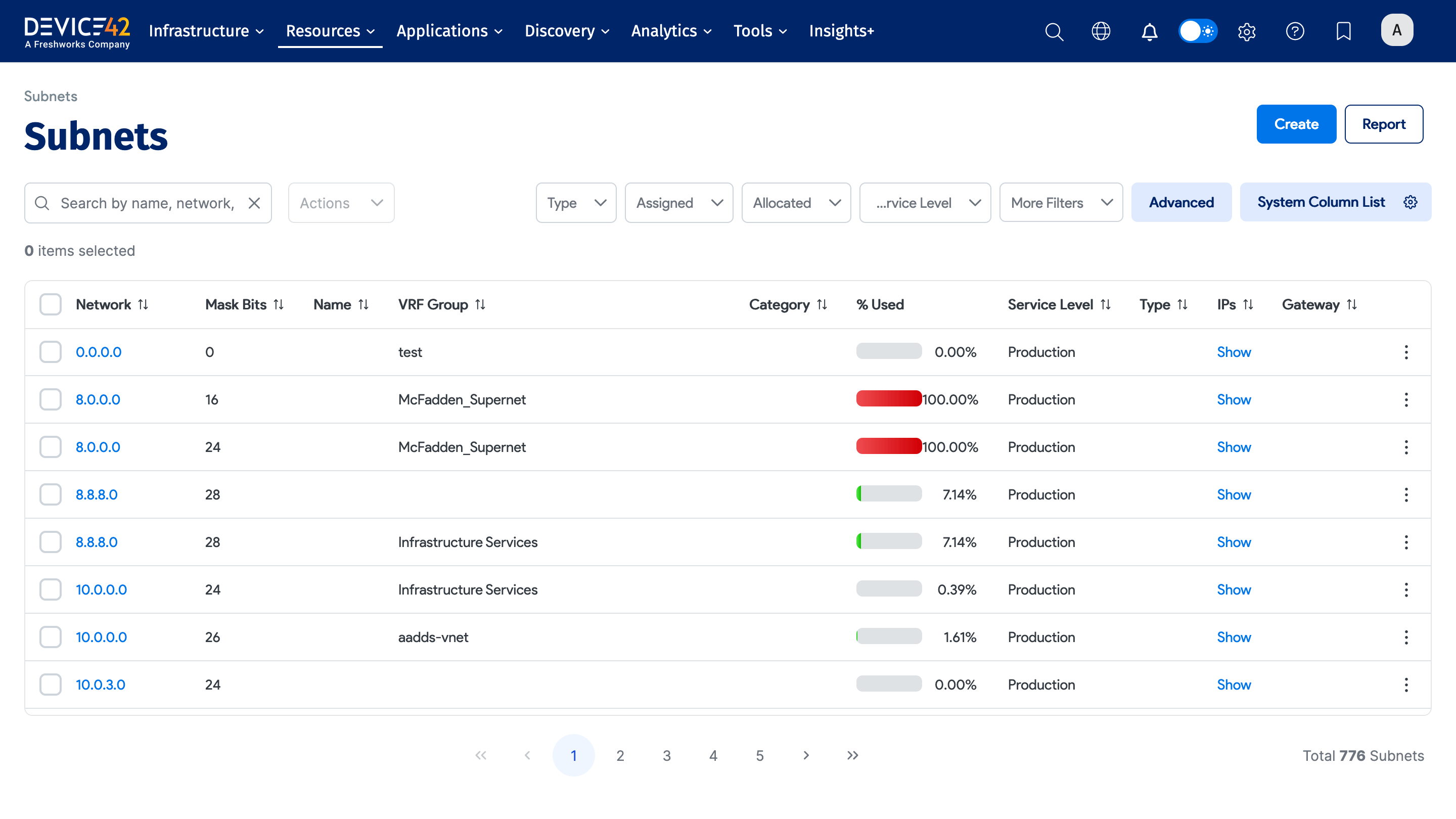
- % Used: Shows how much of the subnet space is in use, giving you an idea of whether available IPs are being exhausted. This applies to IPv4 subnets only.
- Show IPs: Takes you to the IP address page filtered to show all IP addresses in that subnet.
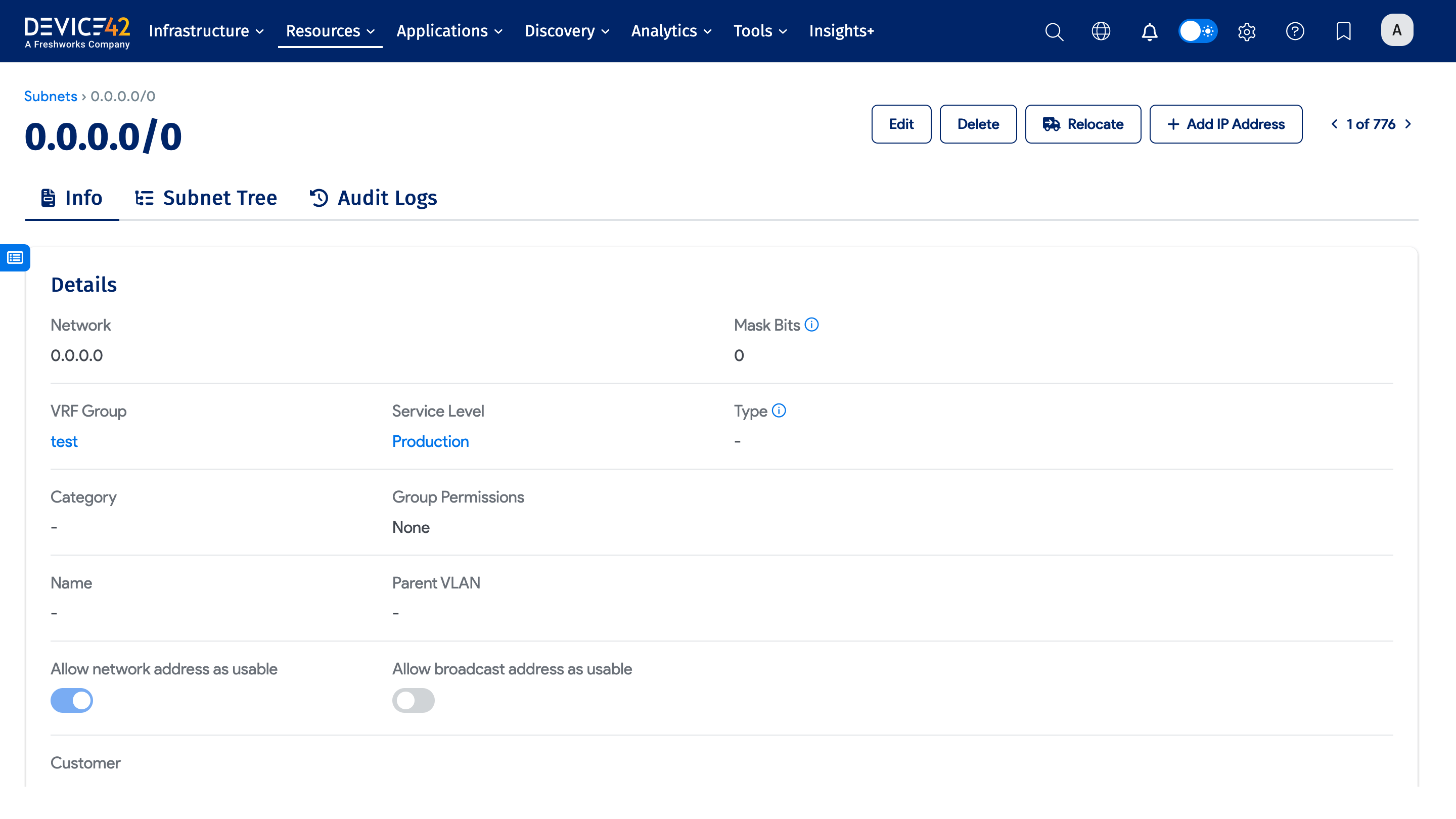
Click on a subnet to view its details and edit page.
Subnet Actions
The Actions menu on the subnet list page includes several bulk operations.
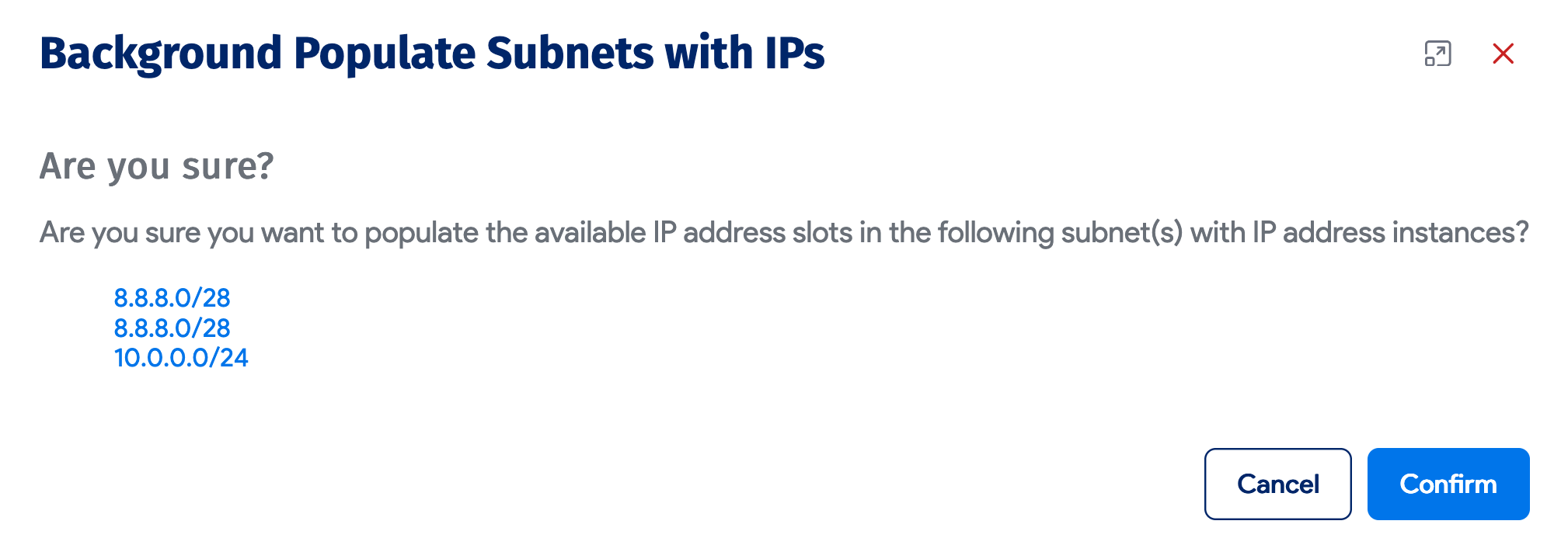
You can add IPs to an existing subnet using the Background Populate Subnets with IPs command.
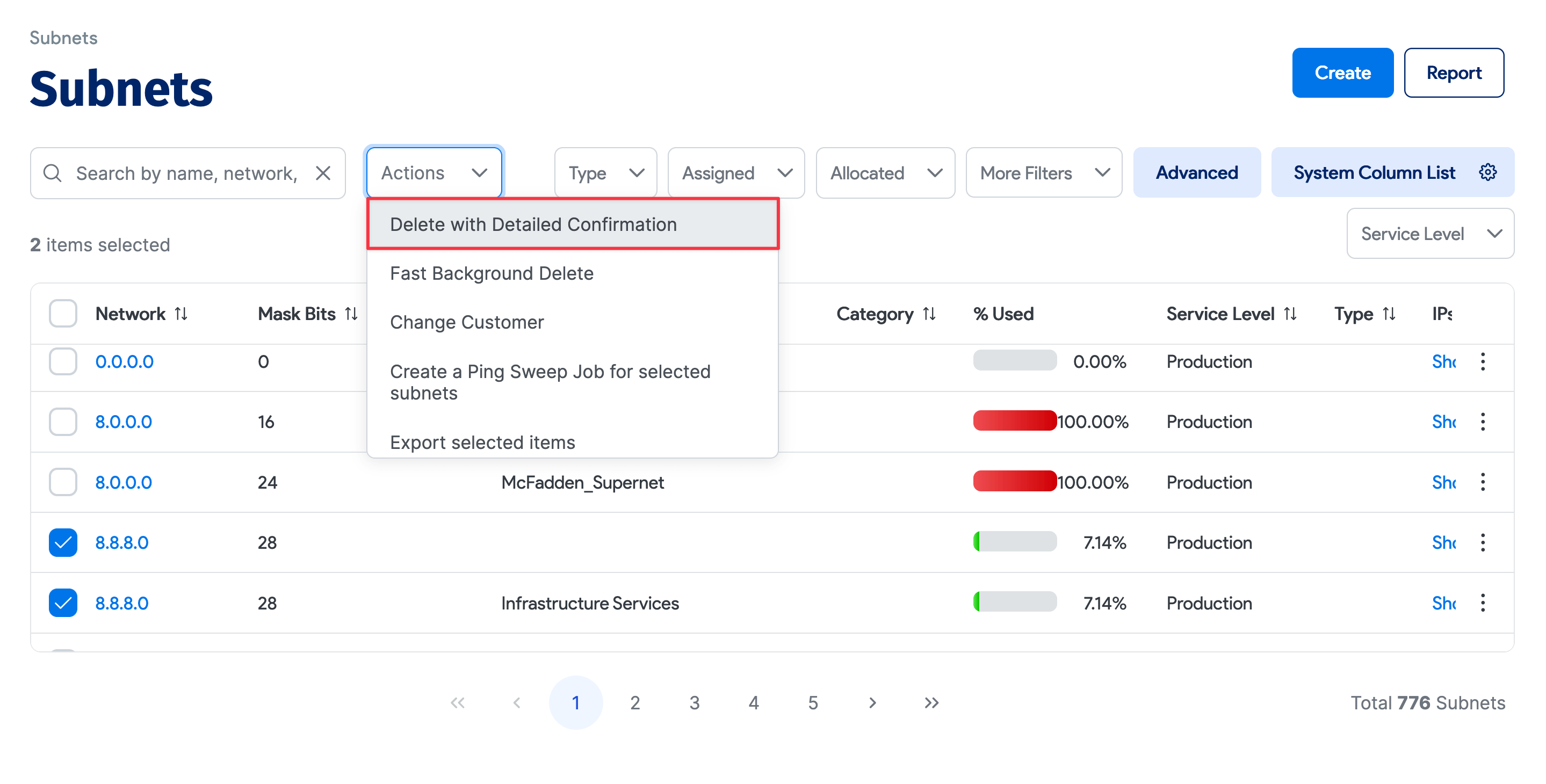
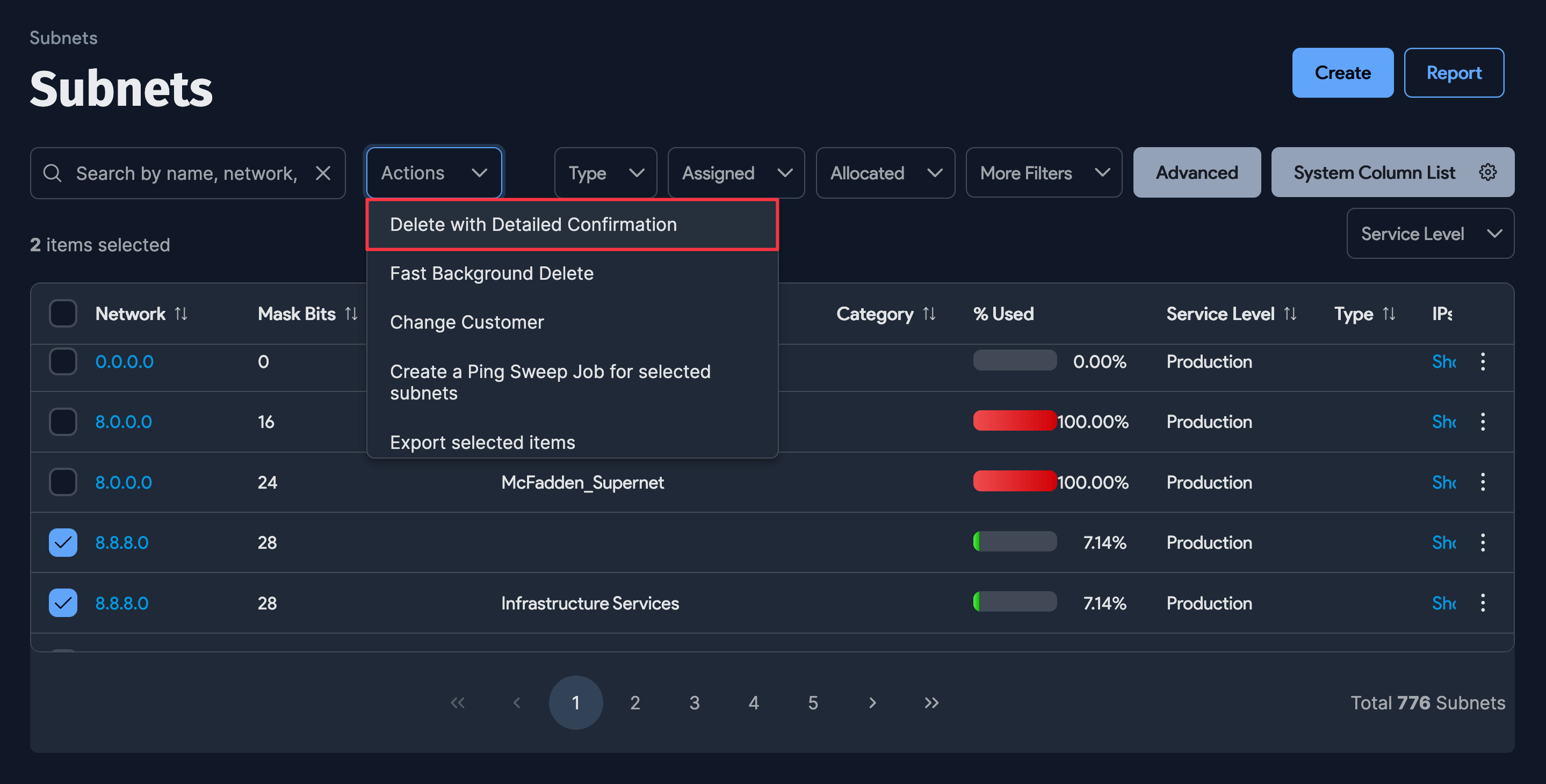
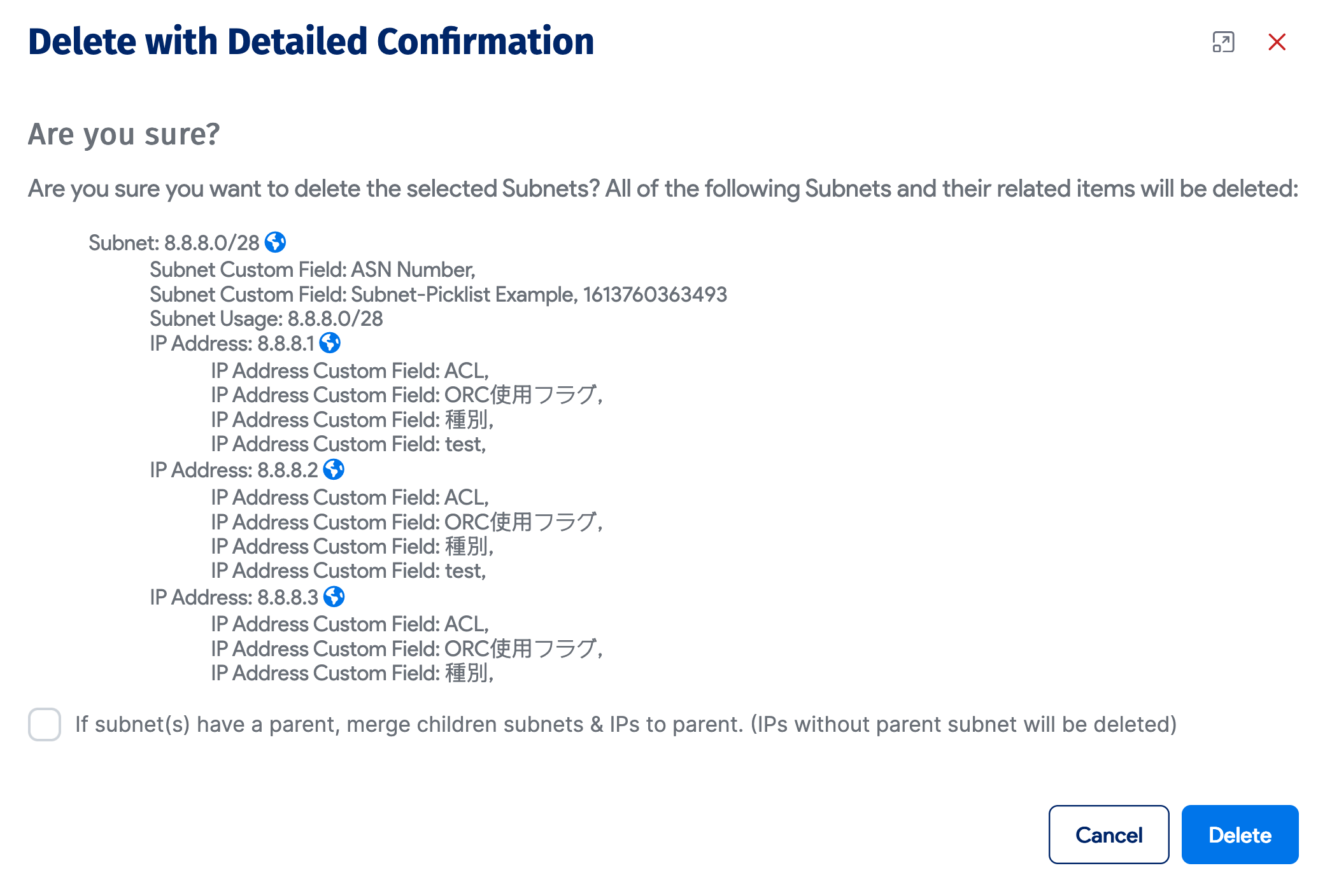
When deleting a subnet with Delete with Detailed Confirmation, you can choose to move the associated IPs to the parent subnet (if one exists). This is useful when consolidating from a smaller subnet to a larger one without removing or recreating IP addresses.
Create a Ping Sweep Job
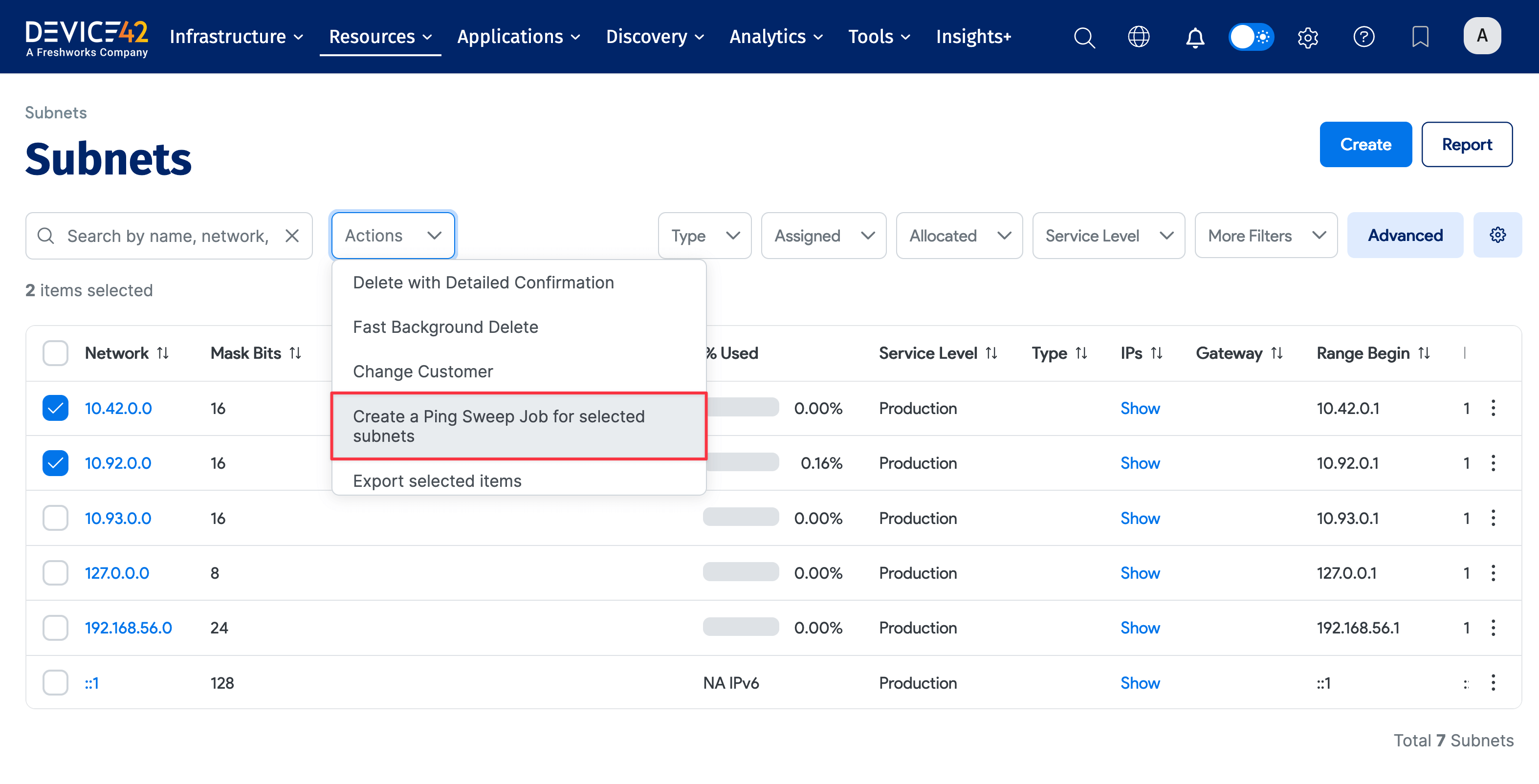
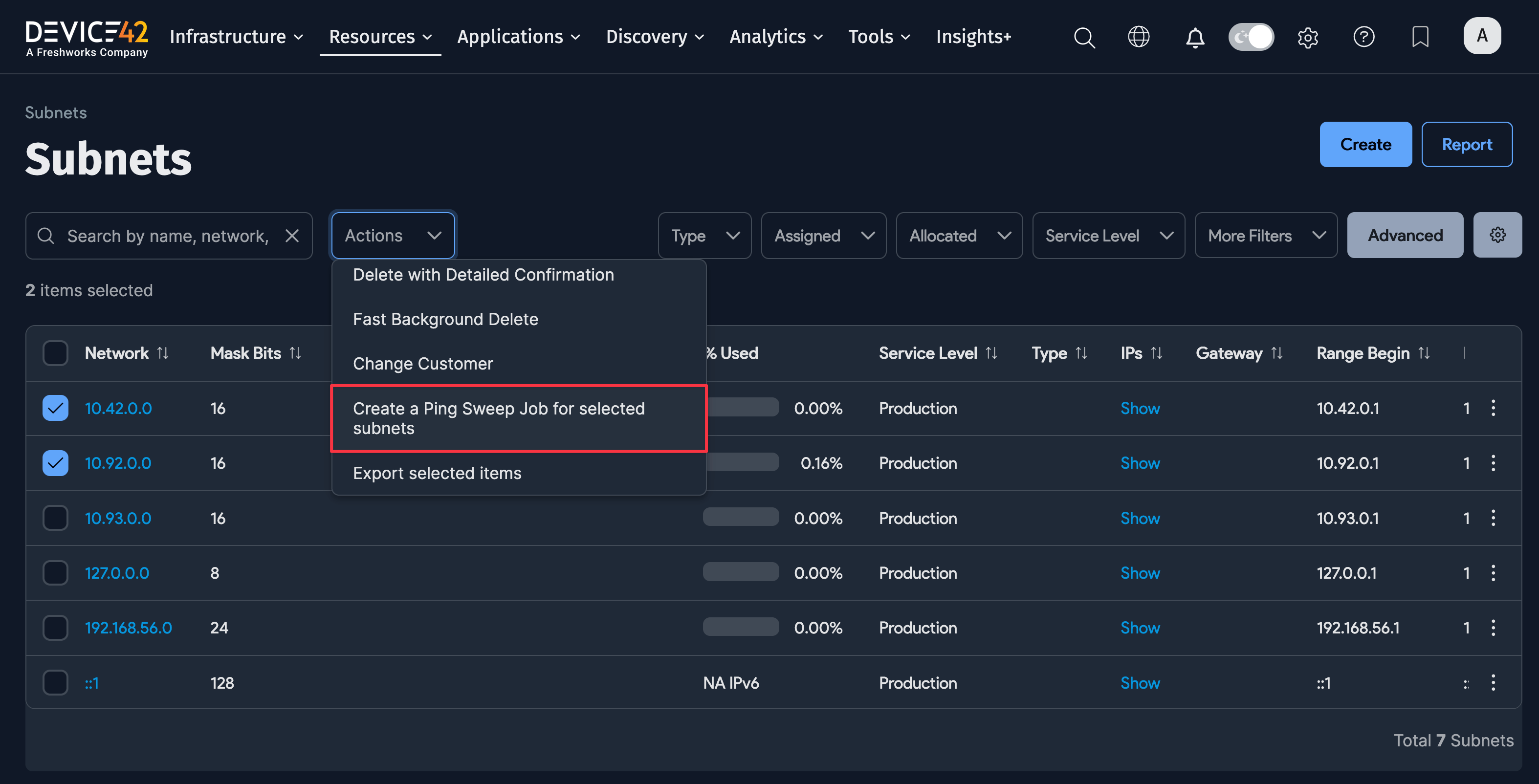
The Actions menu also includes an option for creating a ping sweep job for selected subnets.
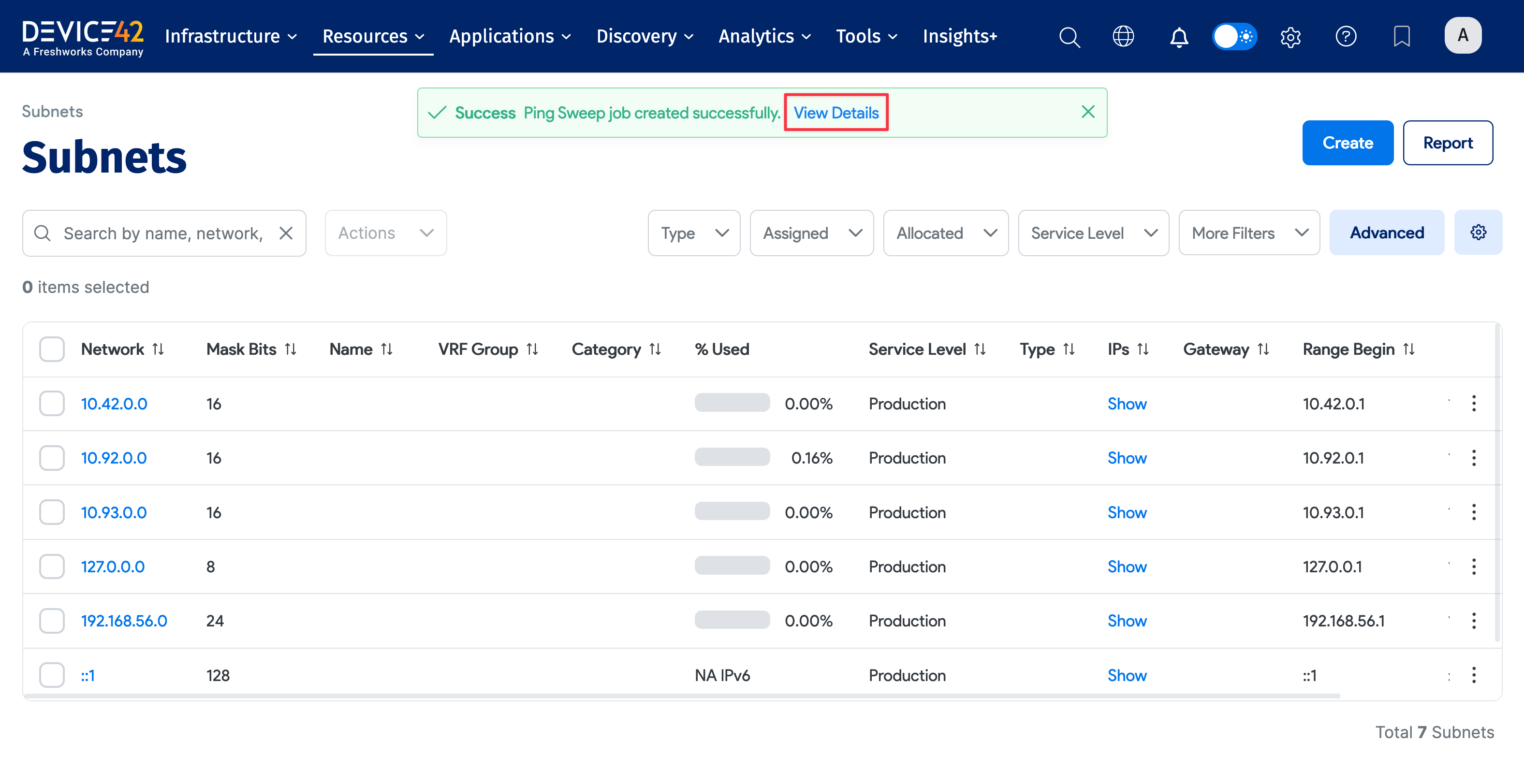
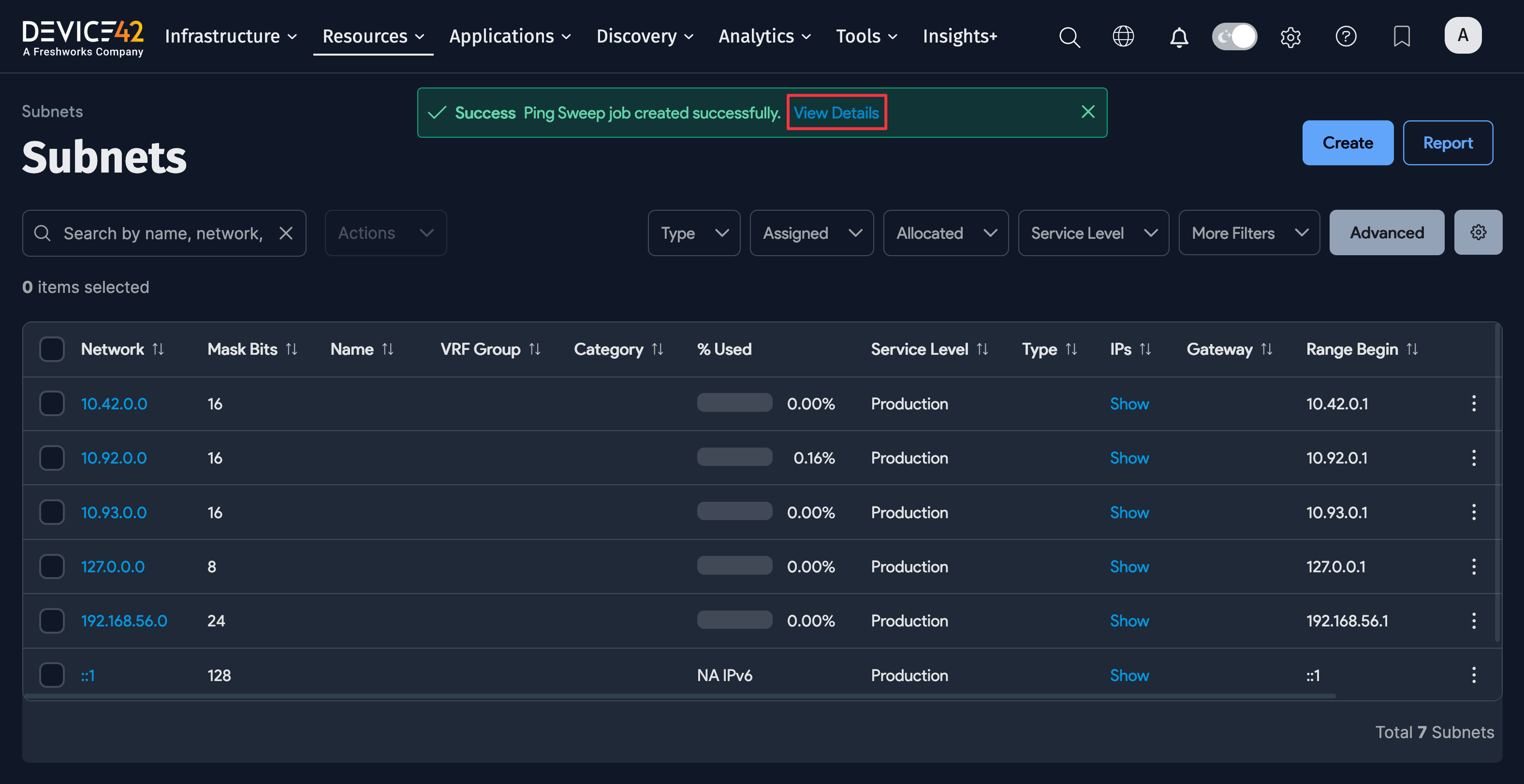
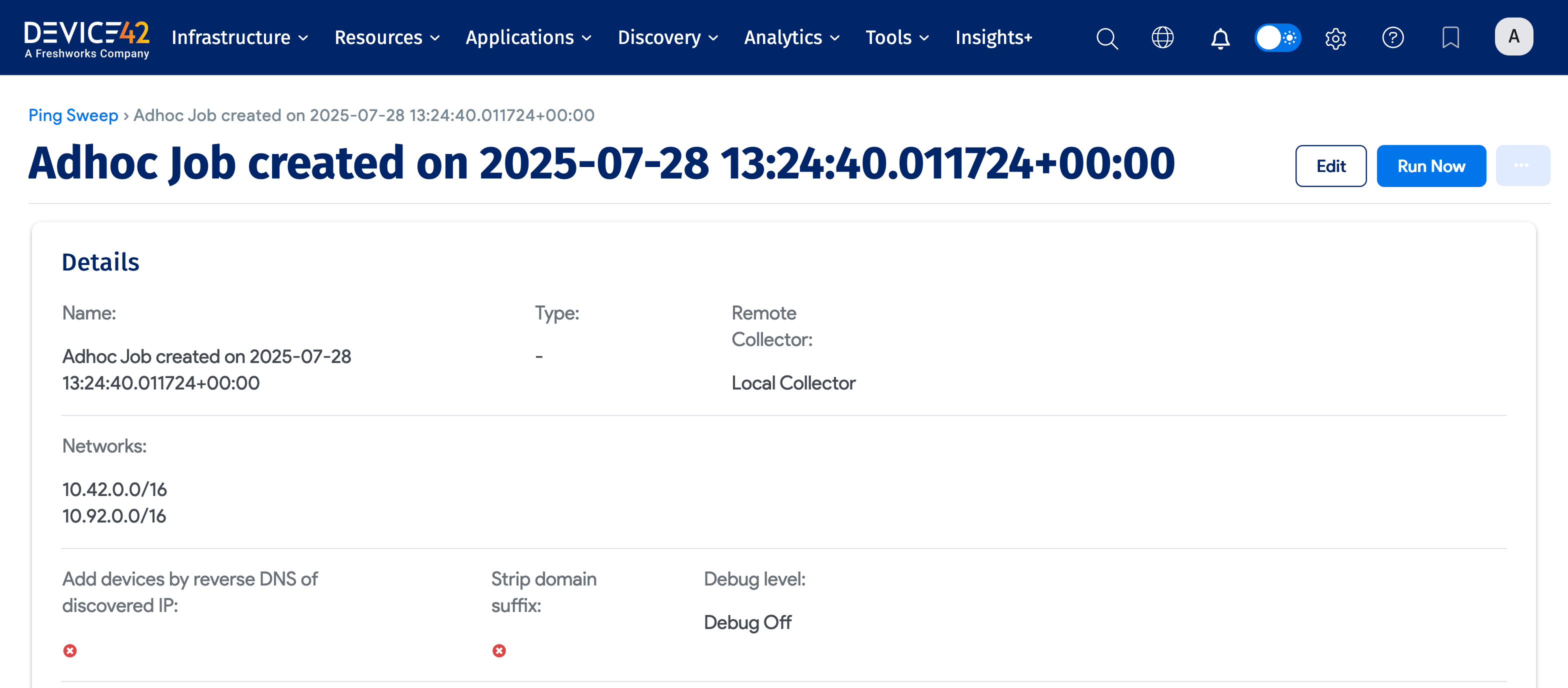
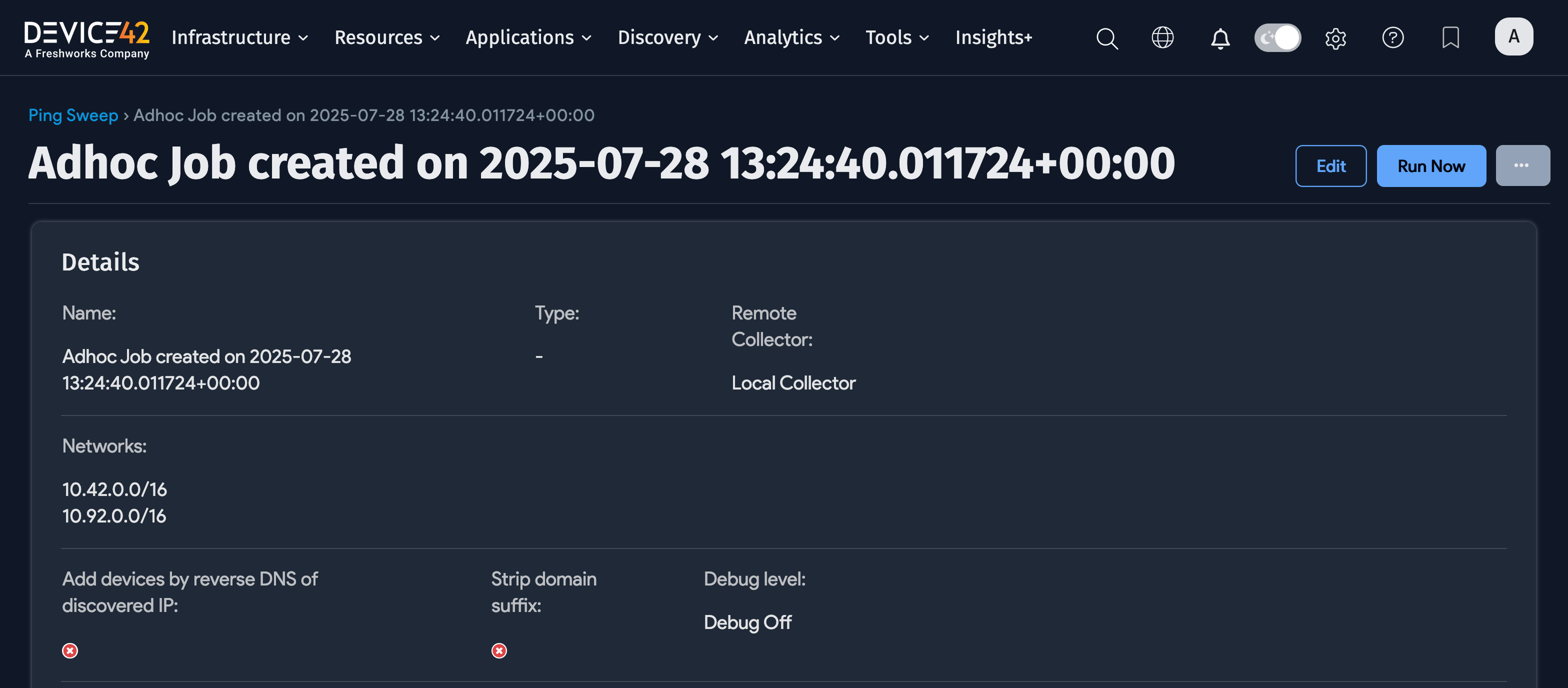
Click the View details link on the green success message to see the details of the newly created ping sweep job. You can also view the job under Discovery > Ping Sweep.
Run the ad hoc ping sweep job immediately using the Run Now button on the details page.
Add or Edit a Subnet
Click Create to add a new subnet, or click an existing subnet name and then Edit to modify it.
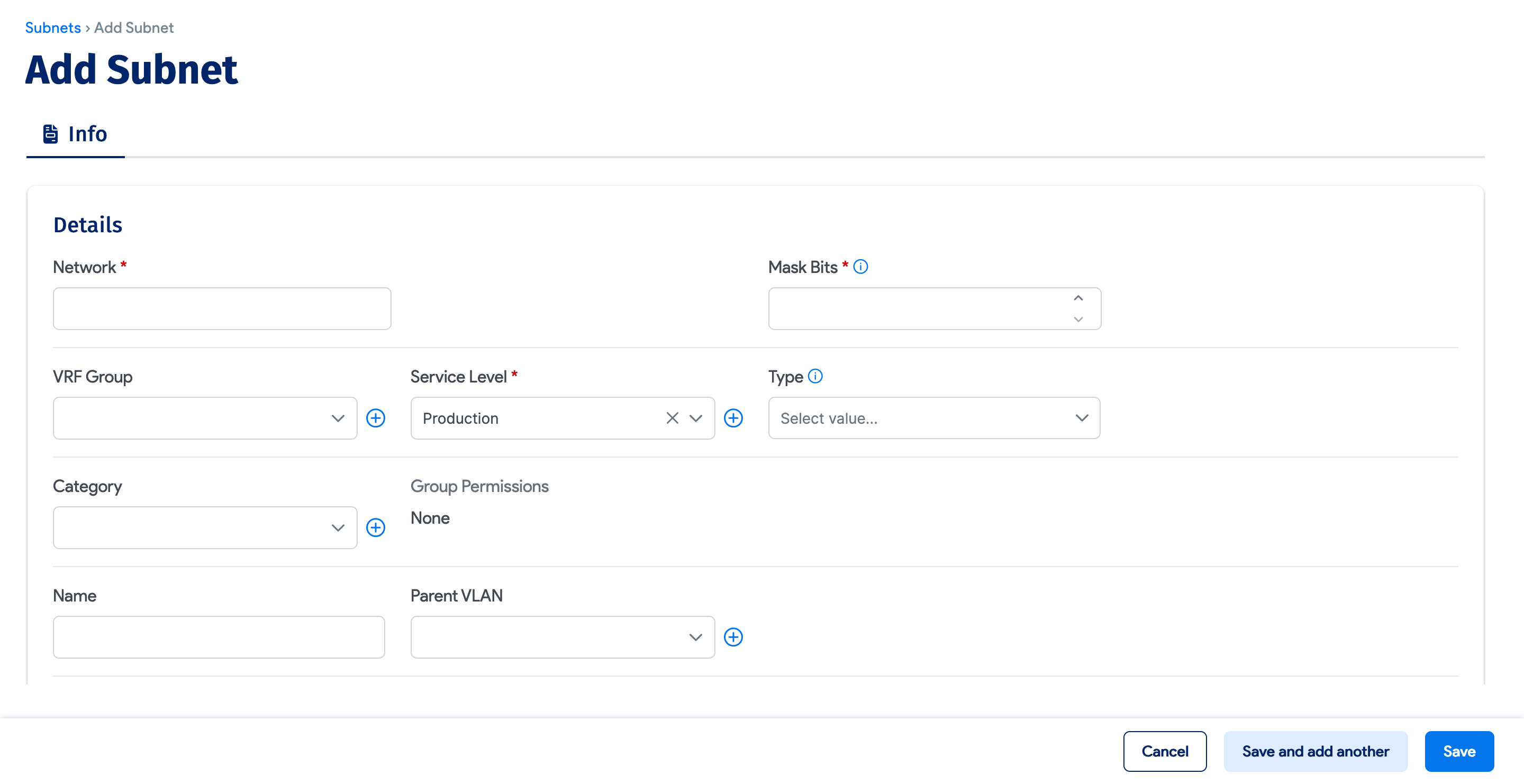
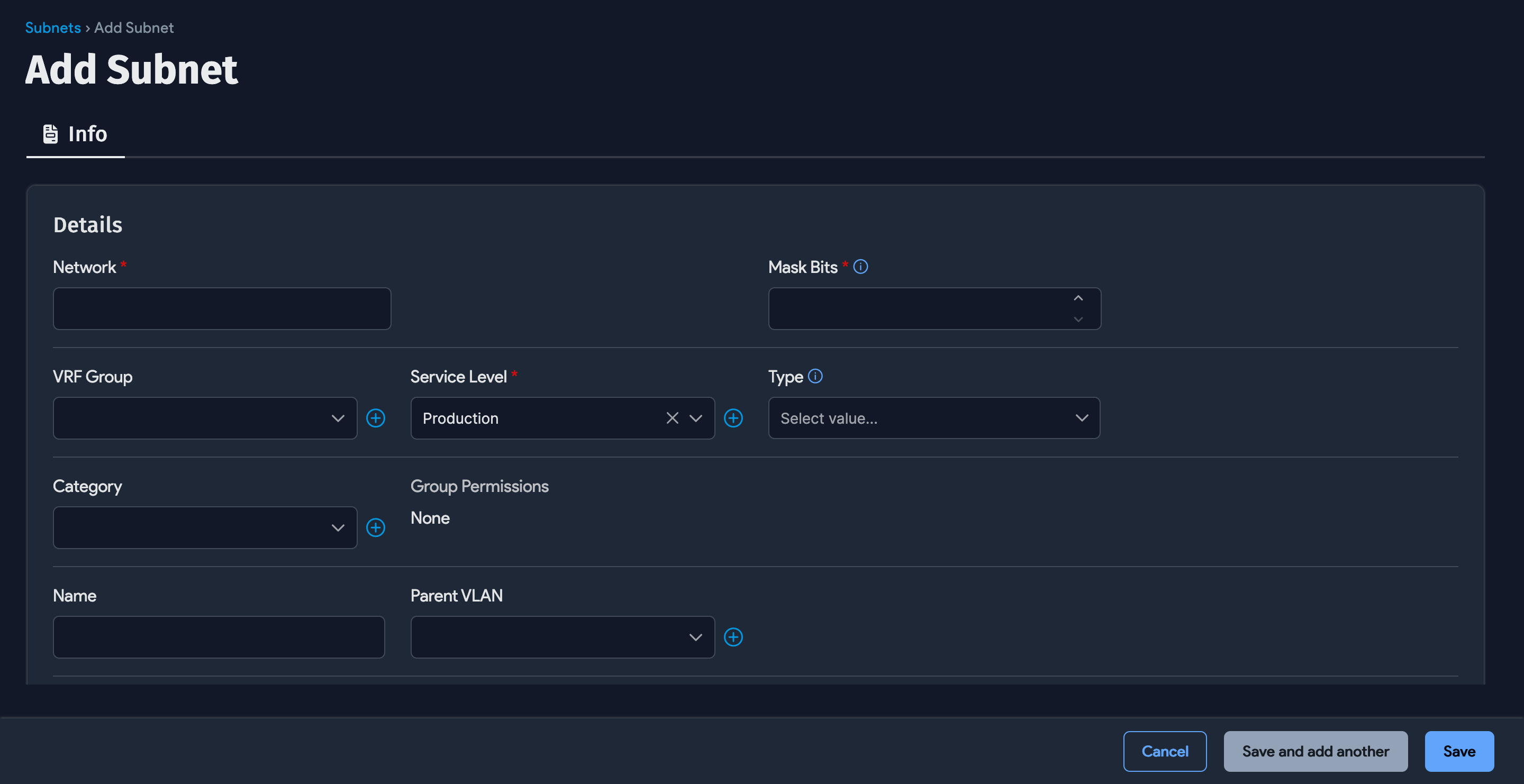
Network and Mask Bits are required fields; all others are optional. The range beginning and end are calculated automatically based on the network and mask bits if not entered.
A VRF group is required if you want to further subnet this subnet.
The Subnet Category field can be used to categorize your subnets. If you use the Multitenancy feature, you can restrict subnet permissions based on these categories.
If you mark the network or broadcast addresses as usable for a subnet, these IPs will appear as usable on the IP address list page.
Add Nested Subnets
Once you assign a VRF group to a subnet and save, a Subnets tab appears in the lower part of the page.
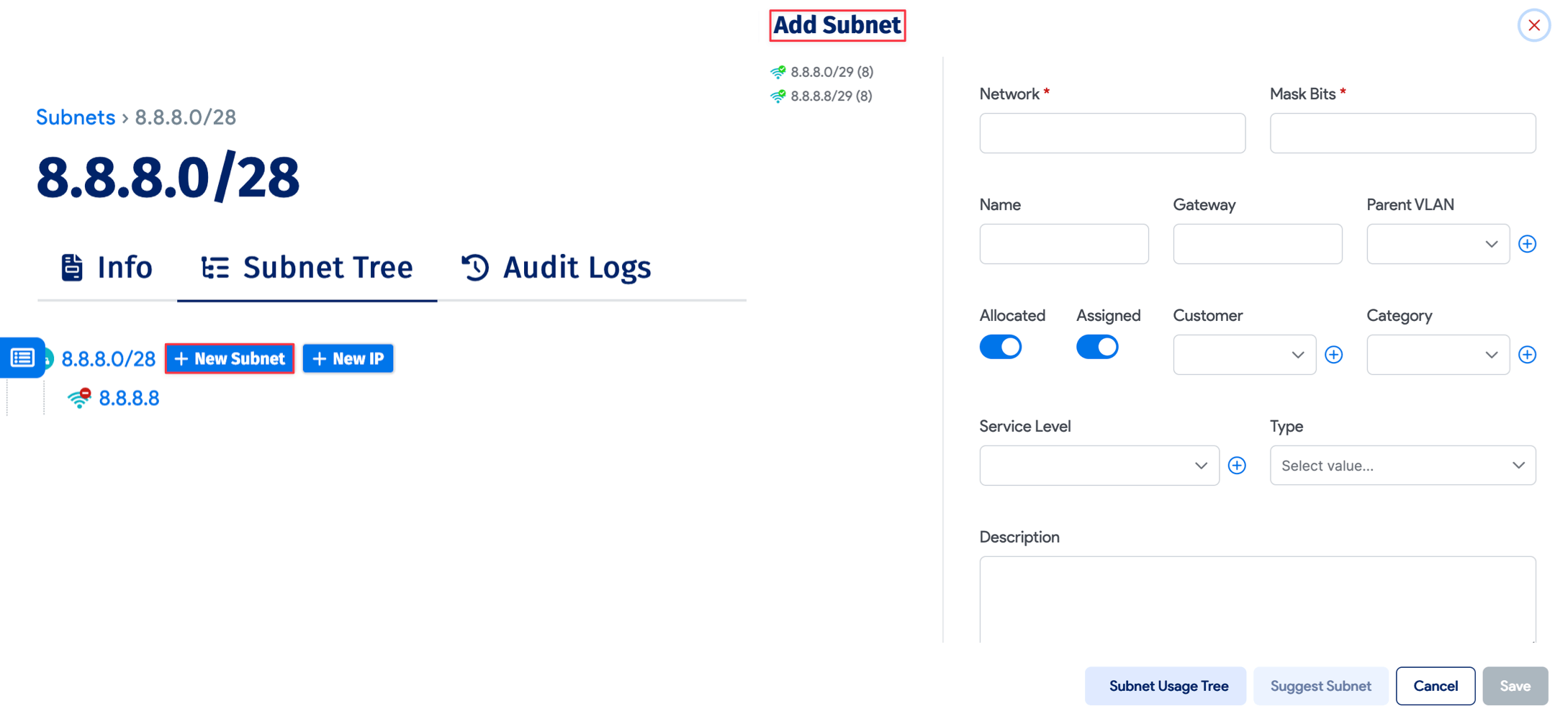
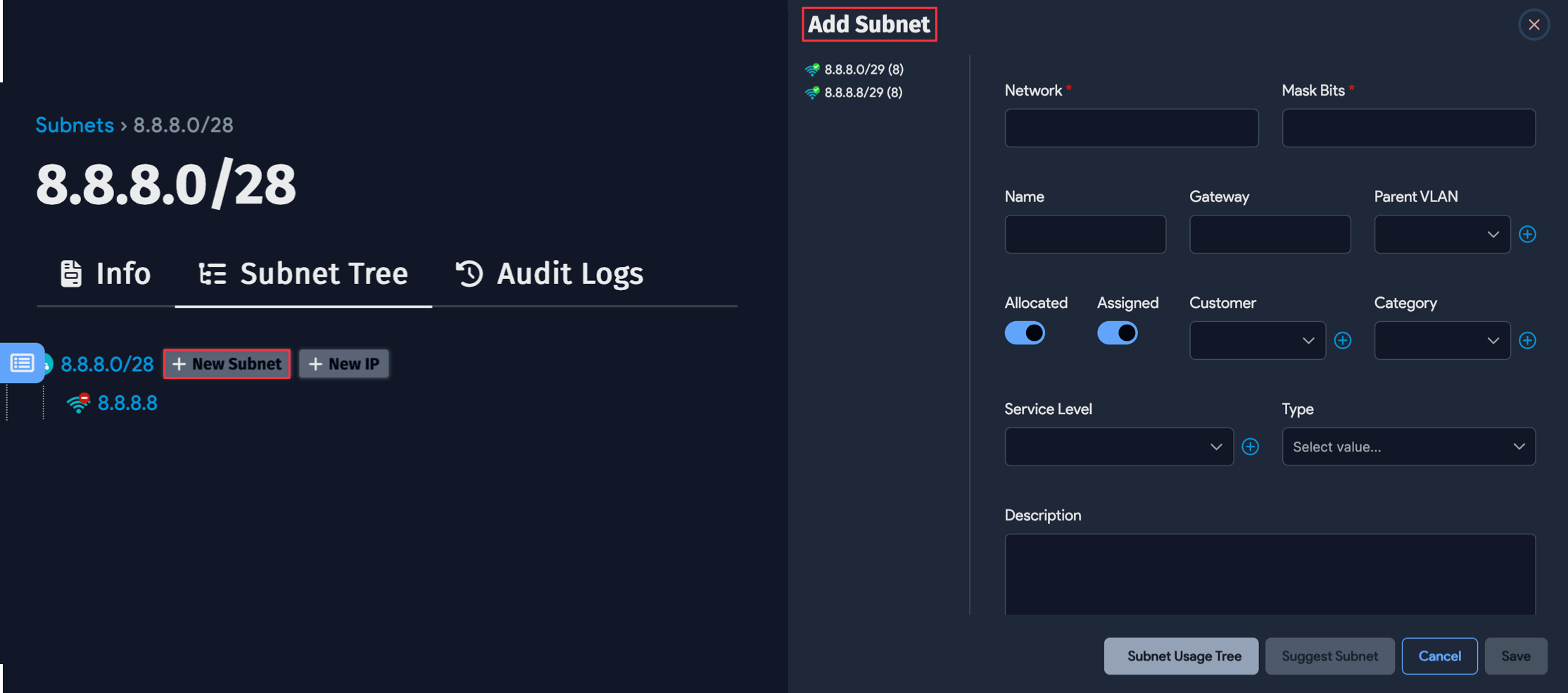
Enter the mask bits and click Add to automatically create a subnet underneath the current one. Error messages are displayed inline if there are any issues. Clicking on a nested subnet takes you to its edit page.
Relocate a Subnet
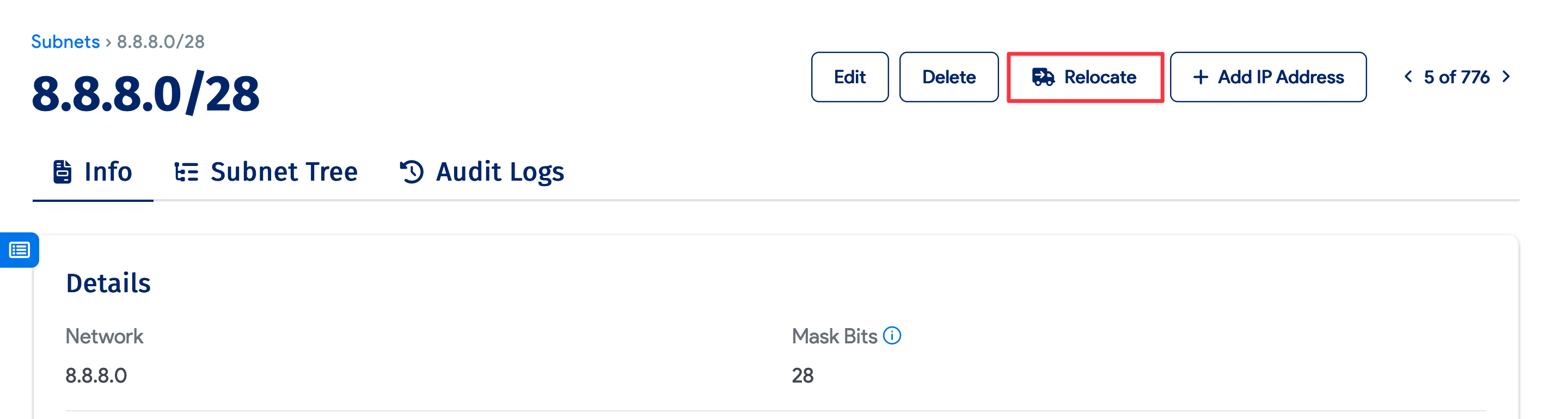
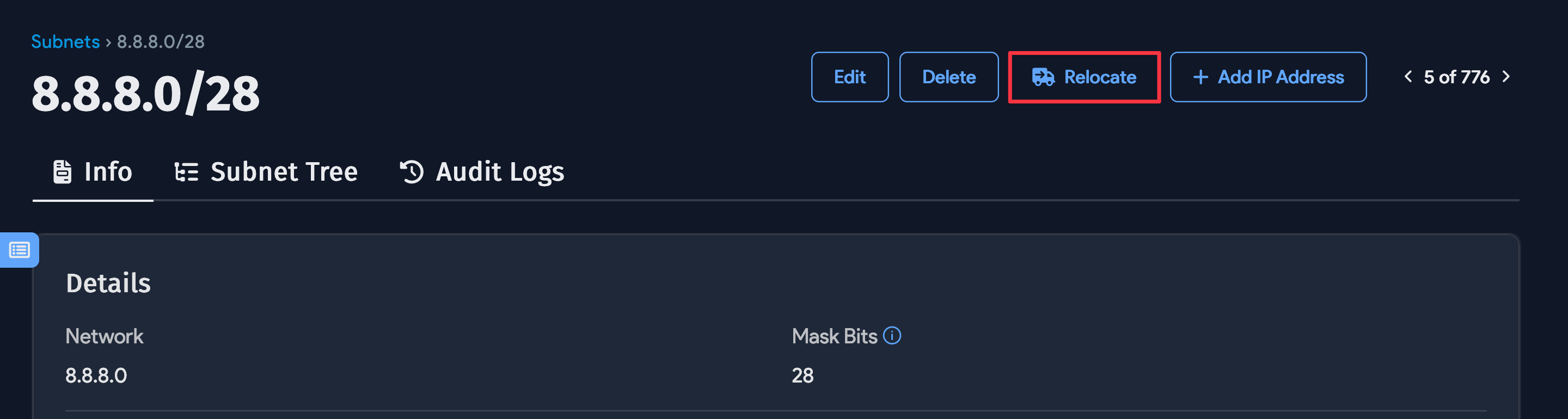
Click Relocate on the subnet edit page to check whether the subnet can be moved into another subnet. If a valid parent is found and there are no IP conflicts, the subnet is relocated.
Delete a Subnet or Merge Into Parent
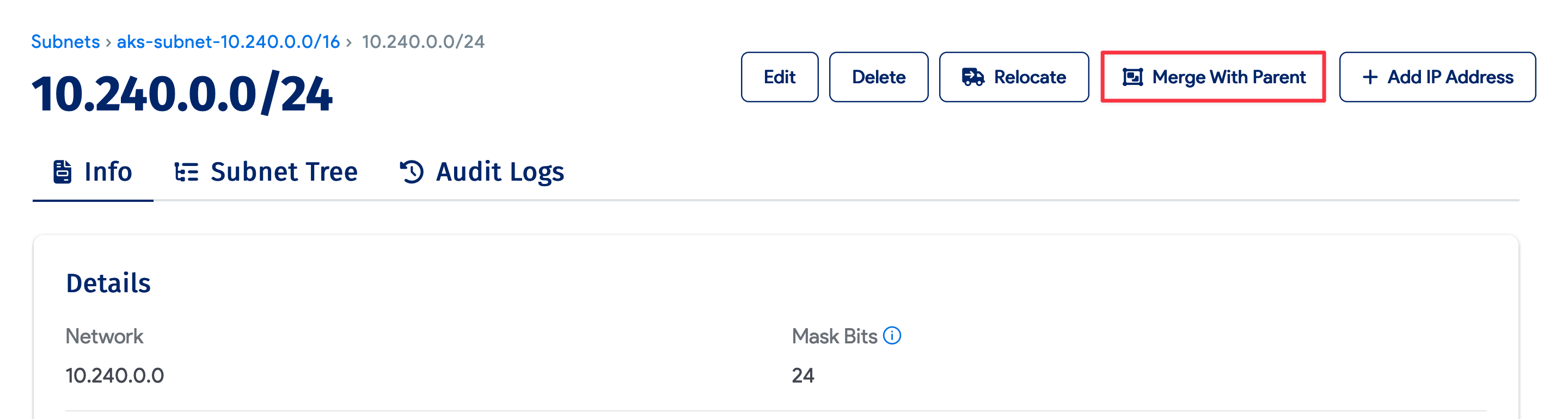
The merge-to-parent function associates all child subnets and IPs with the parent subnet, then deletes the selected subnet.