PDU Rack Display
This page explains how to set PDU mount location in Device42 and how PDUs appear in the rack display depending on where they are mounted. PDUs above and below the rack are shown using icons, while other locations use images.
PDU Location
When editing a rack and selecting a PDU, you can configure the following location fields:
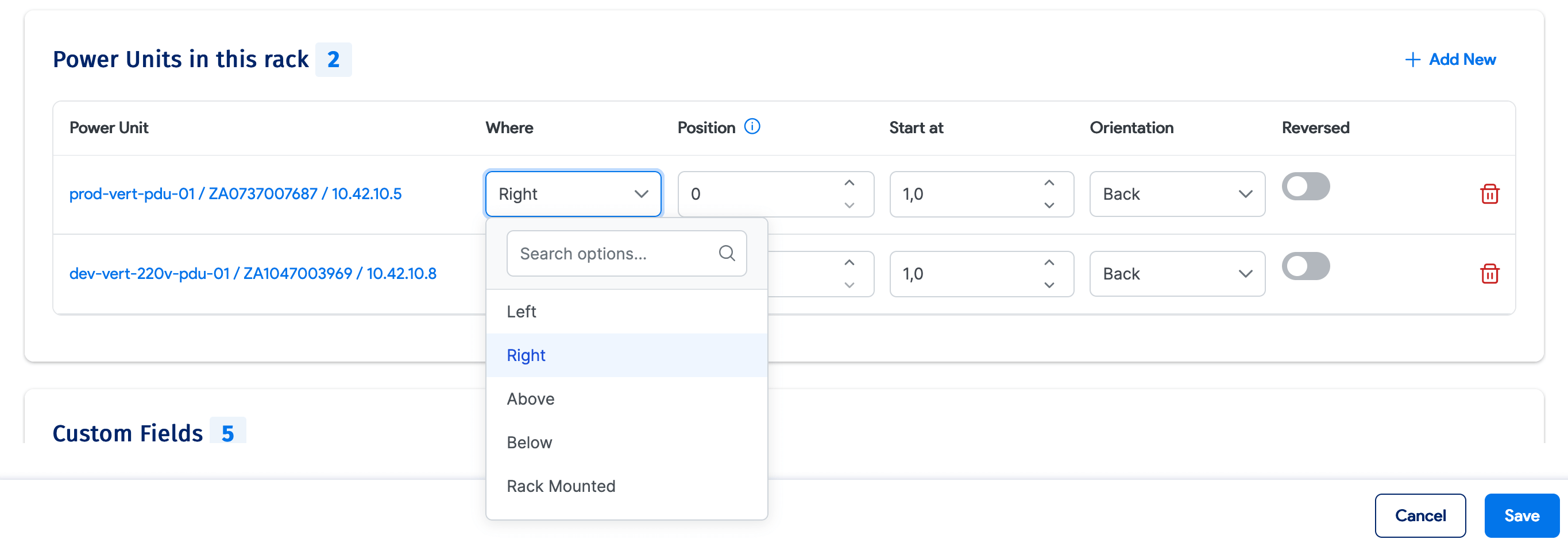
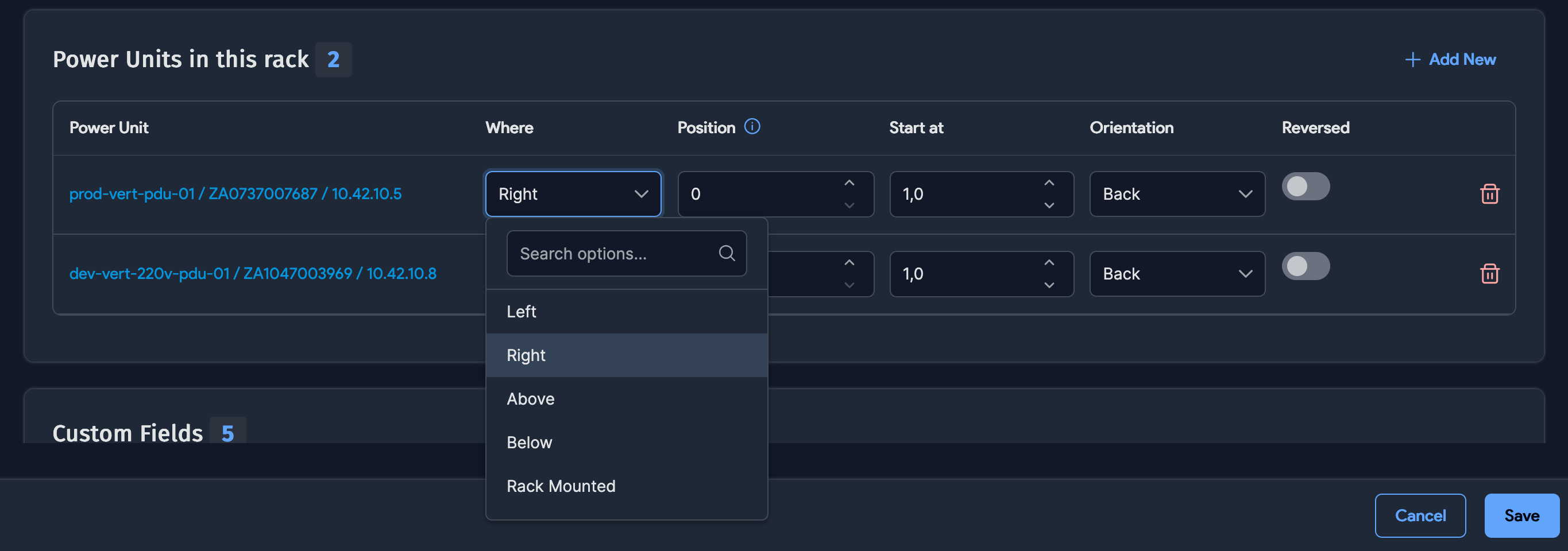
- Where: The mount location of the PDU. Choose from Left, Right, Above, Below, or Rack Mounted.
- Start at: Required for rack-mounted PDUs. Optional for left or right PDUs — if set, Device42 uses it as the starting position unless the PDU's size would overshoot the rack. Not used for PDUs mounted above or below the rack.
- Orientation: PDUs are displayed only for their set orientation. For example, a PDU with Front orientation appears only in the front rack view, not the back.
Rack-Mounted PDUs
Rack-mounted PDUs display like any other device in the rack. Half-depth PDUs are greyed out on the other side of the rack unless another device is mounted there, in which case the PDU is not visible.


PDUs on the Left or Right Side of the Rack
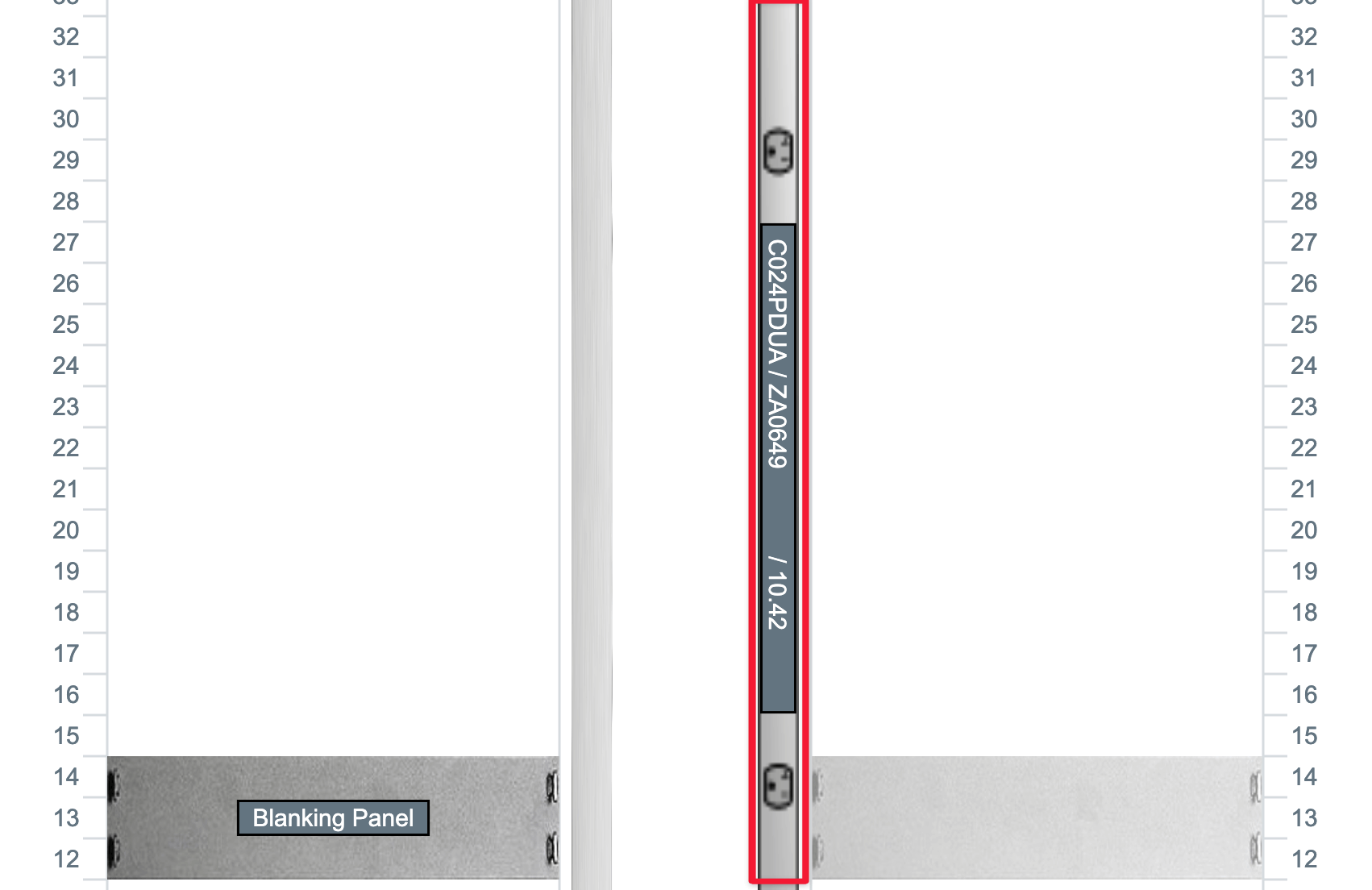
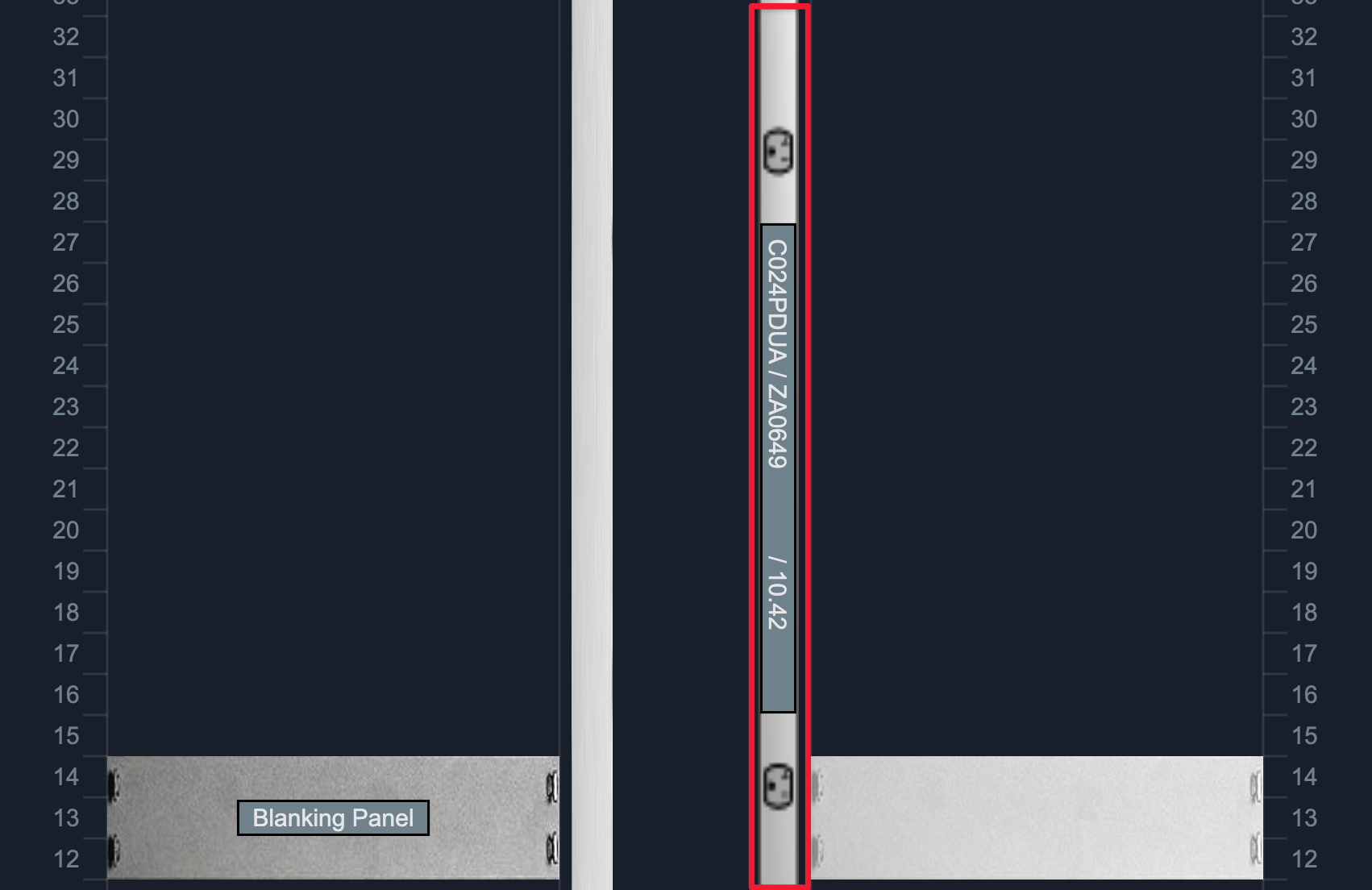
Left or right PDUs are displayed only for their set orientation. Click the PDU to open its details page.
PDUs Above or Below the Rack
PDUs above or below the rack are shown using power point icons. Each icon represents a single PDU. Click an icon to open the PDU's details page.


PDU Display in Multi-Rack Views
In multi-rack views, only rack-mounted PDUs are shown.
Add PDUs to the Rack From the Rack Layout Screen
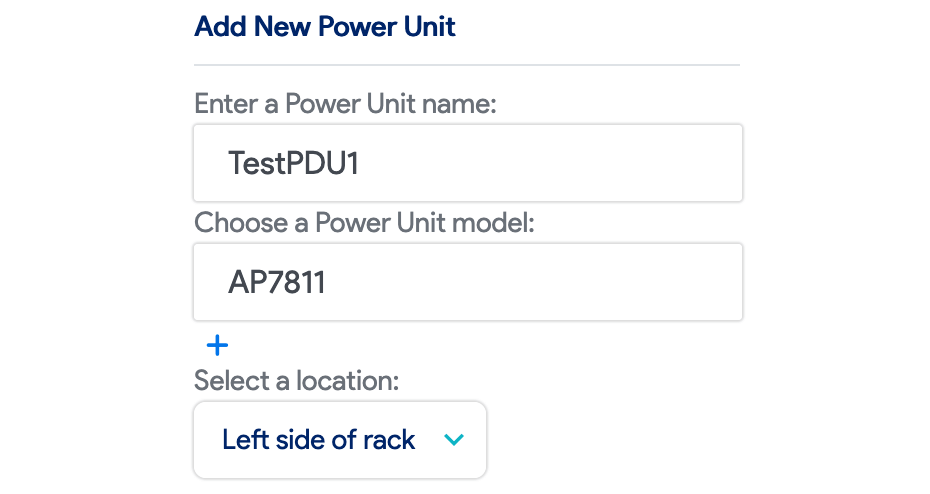
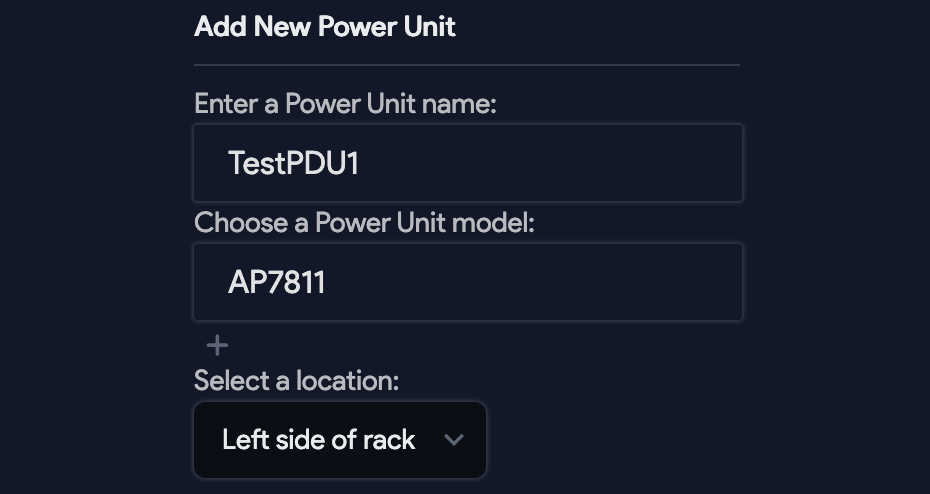
From the rack layout screen, you can add a PDU directly. Choose a name and a PDU model — a template object appears. Drag the template object to a rack slot to place the PDU.