Add ATSs
Device42 automatically discovers intelligent ATSs through power autodiscovery. You can view incoming PDU connections to ATSs and visualize your full power chain, from UPS to PDU to ATS to device.
This page explains how to create ATSs manually, connect them to PDUs, view power connection maps, and map ATSs to a device for detailed asset tracking.
Create an ATS
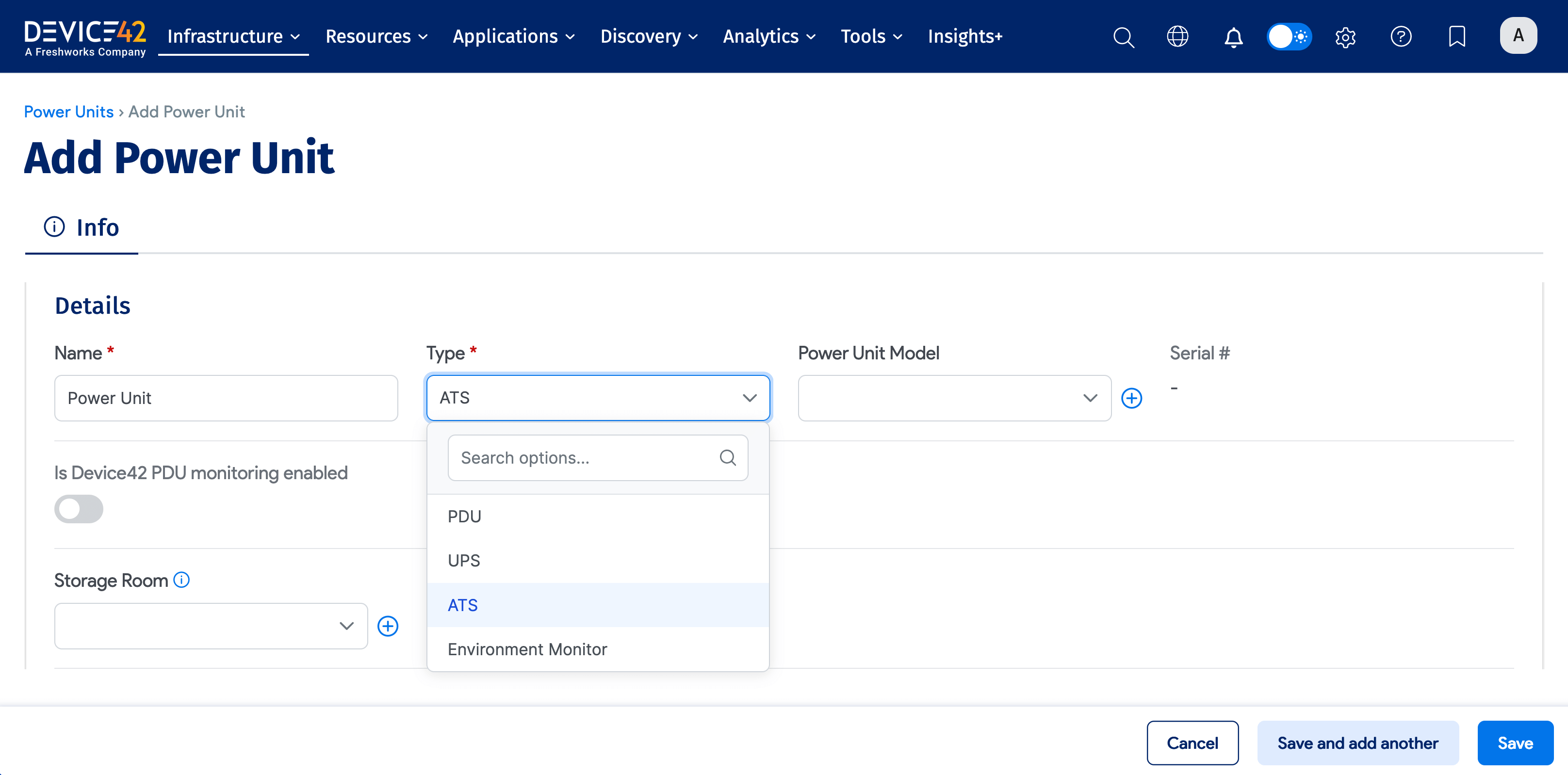
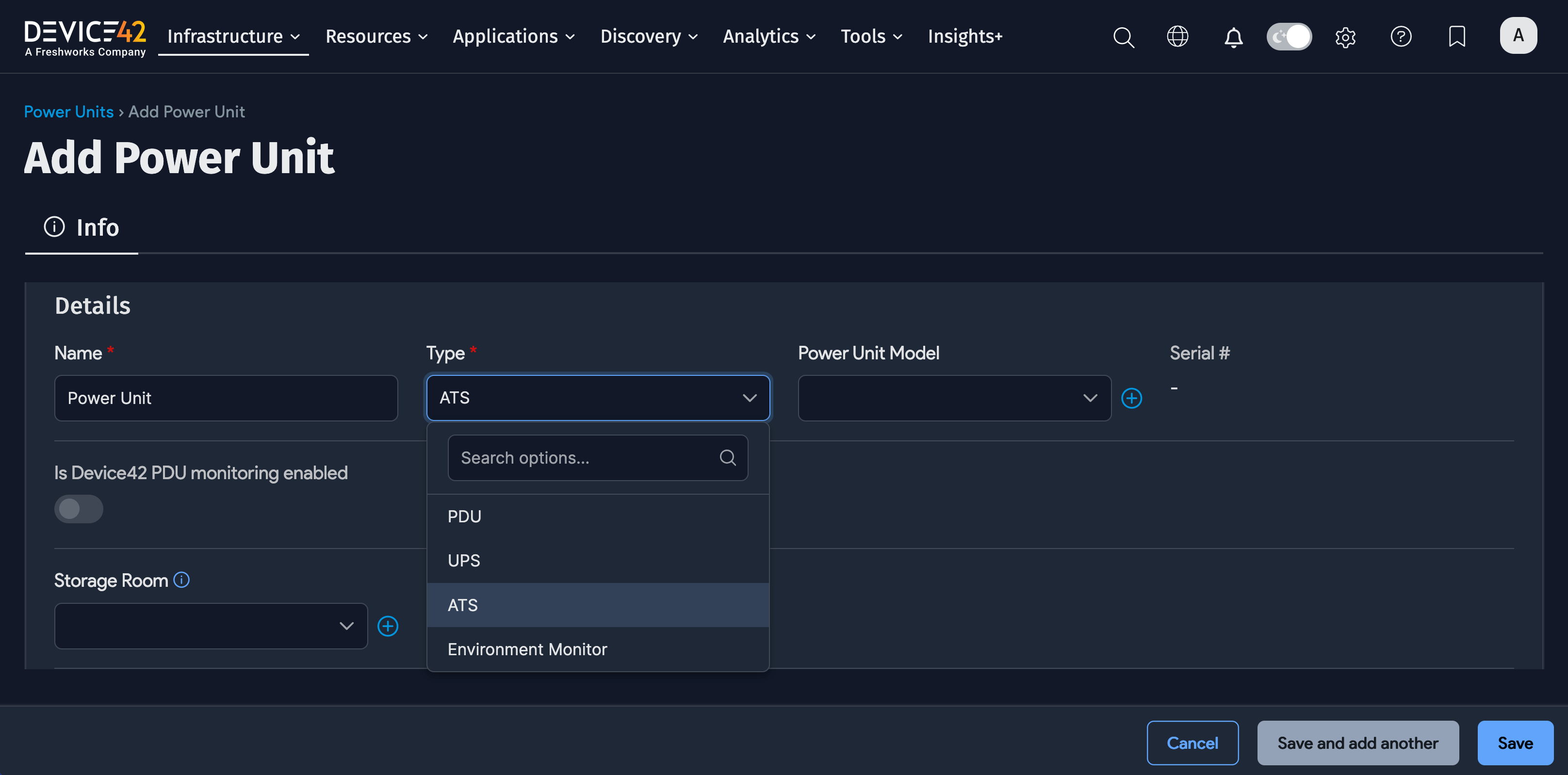
Navigate to Infrastructure > Power Units > Power Units and click Create at the top right of the list page. Name your ATS and select ATS as the power unit type.
Connect ATSs to PDUs
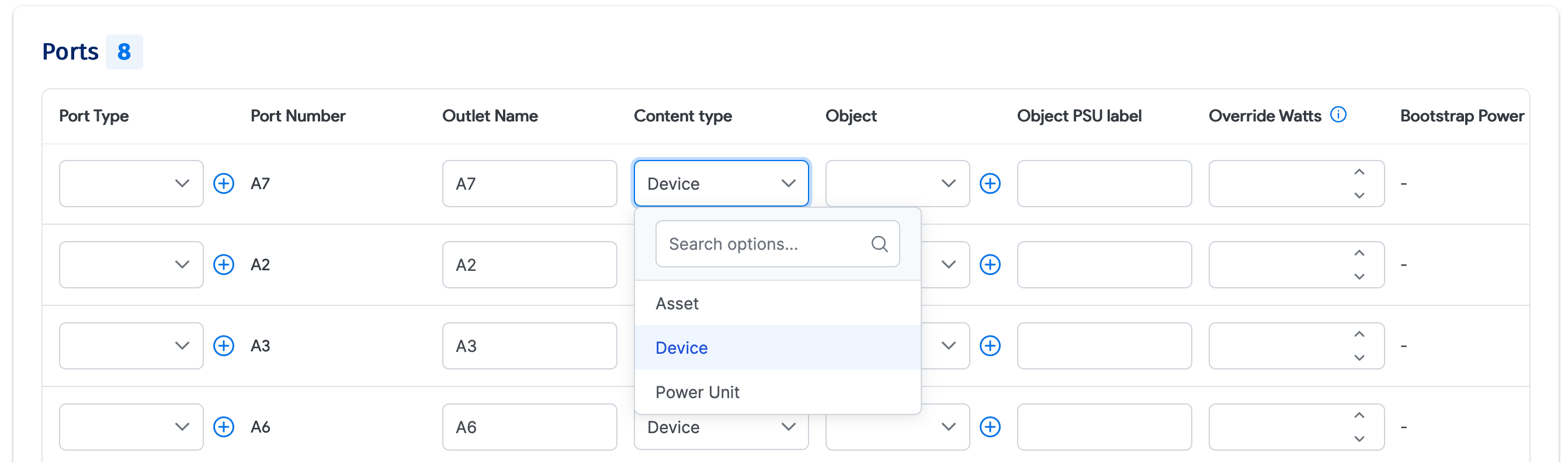
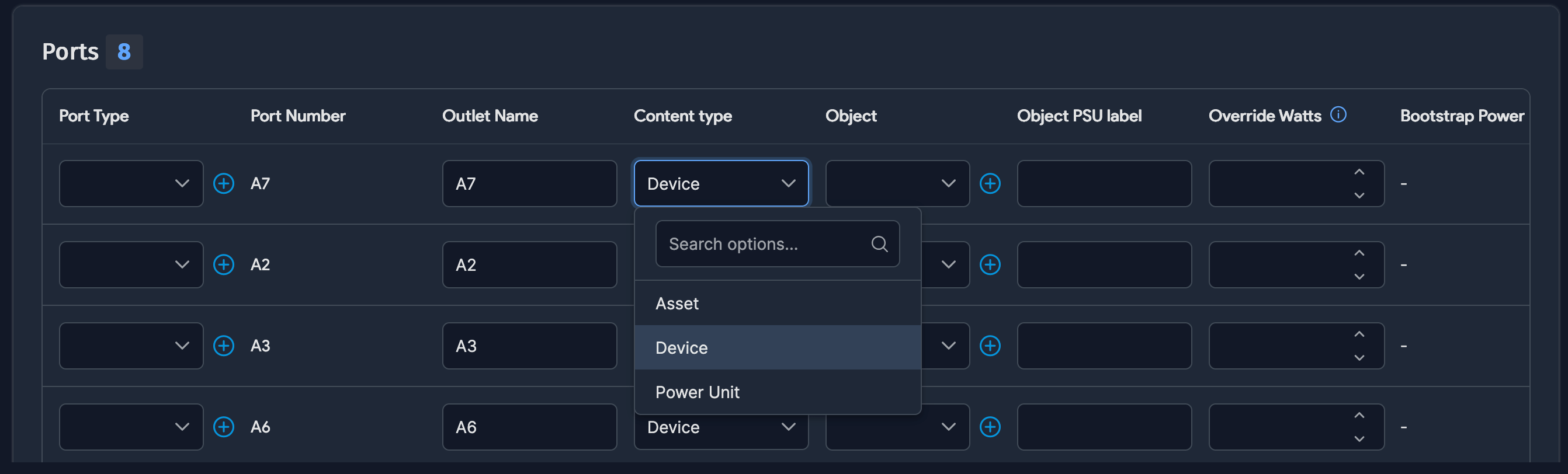
To connect an ATS to a PDU, open the PDU in edit mode and change the Content Type of the connecting port to Power Unit. Then use the plus icon next to the Object ID field to select the ATS.
Once you click Save, the connection is displayed as shown below.
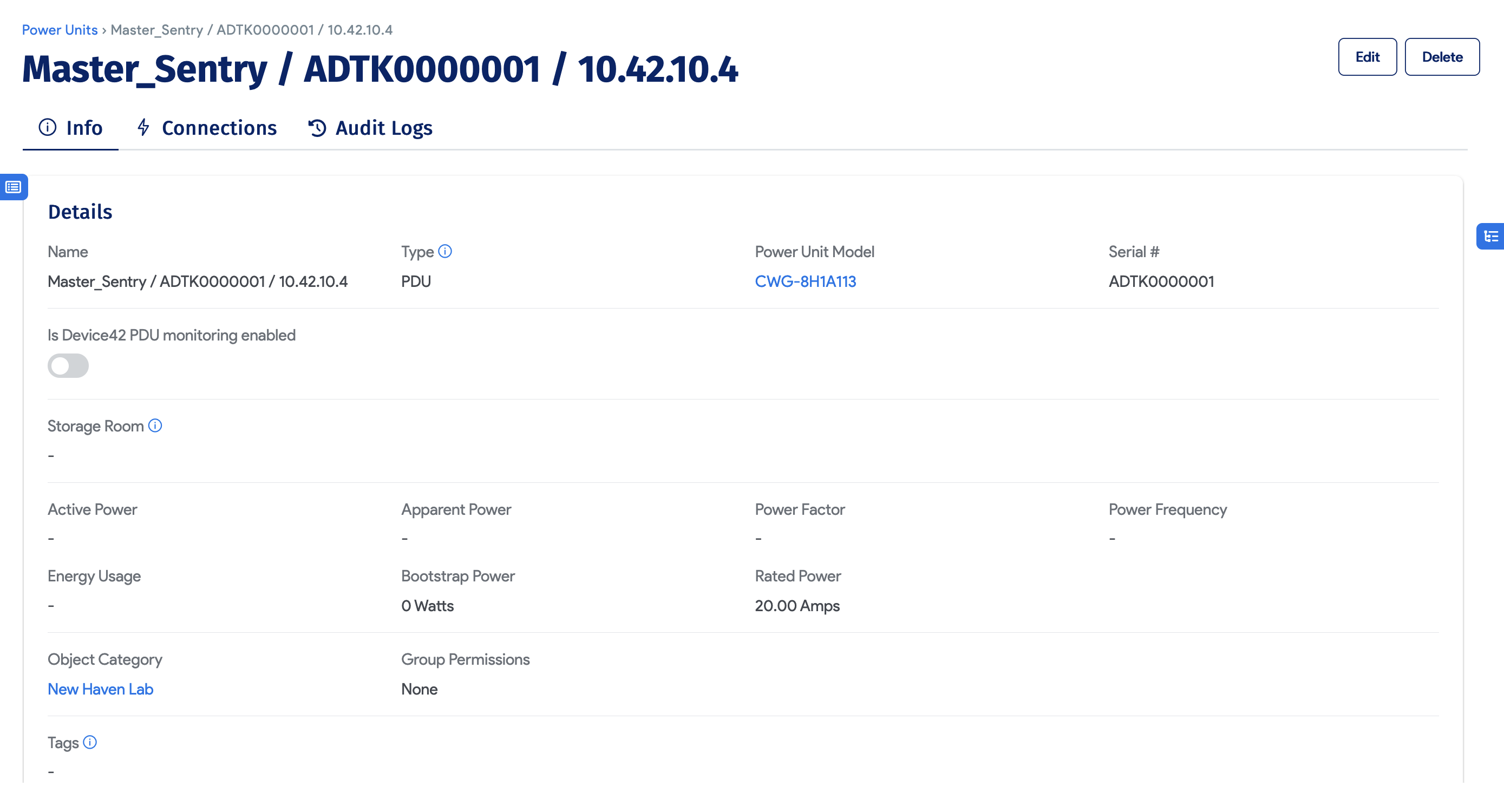
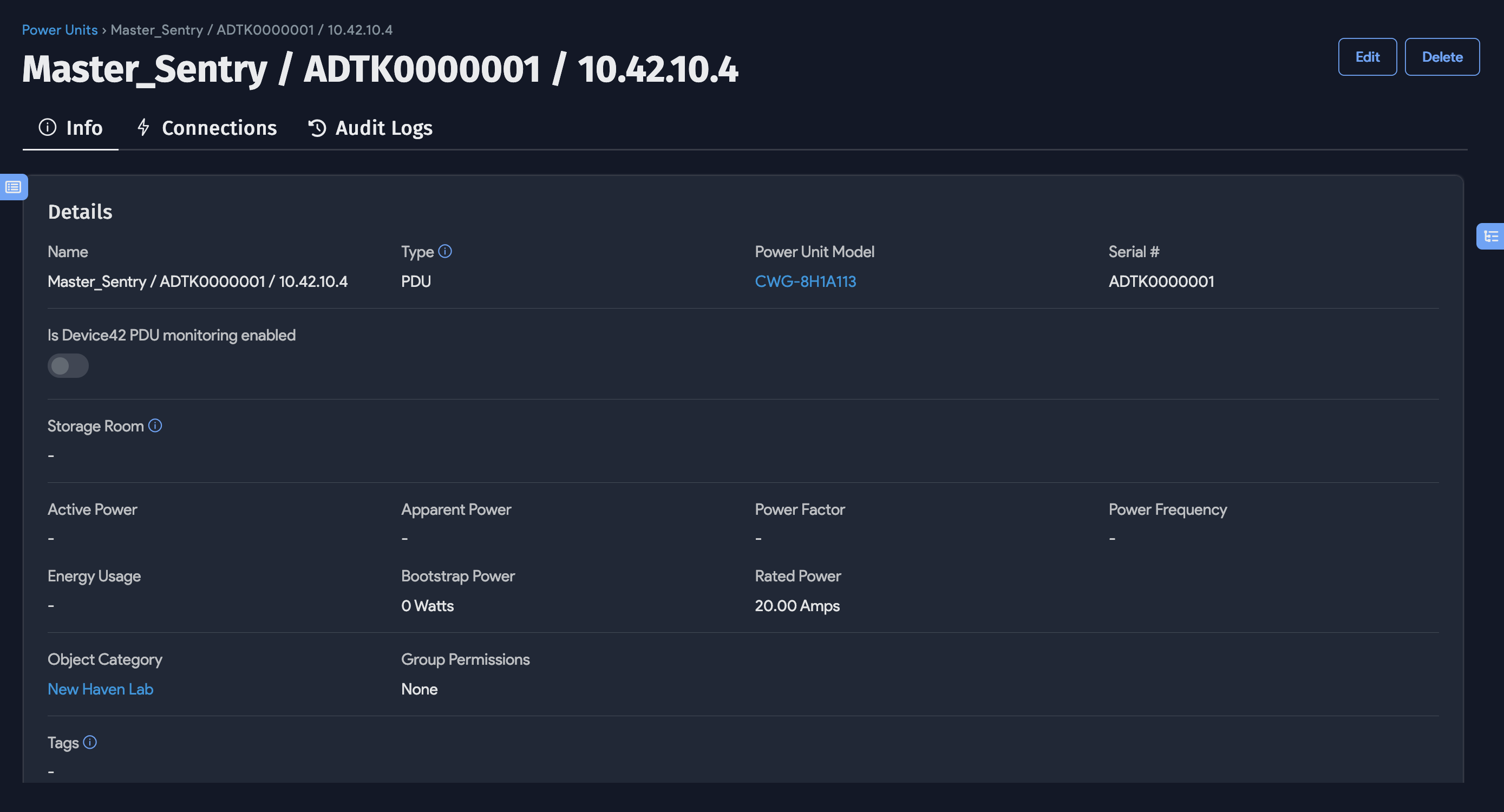
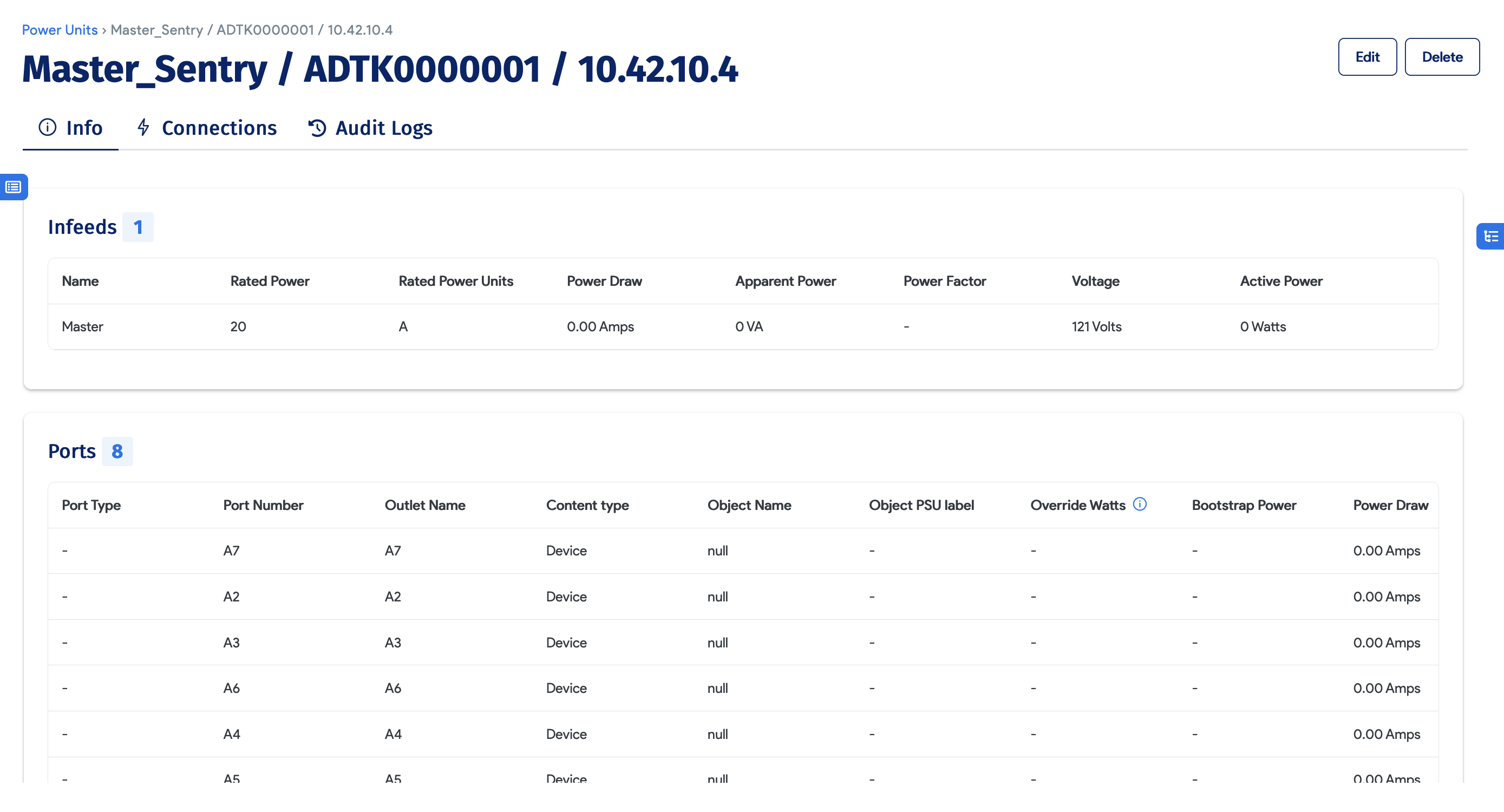
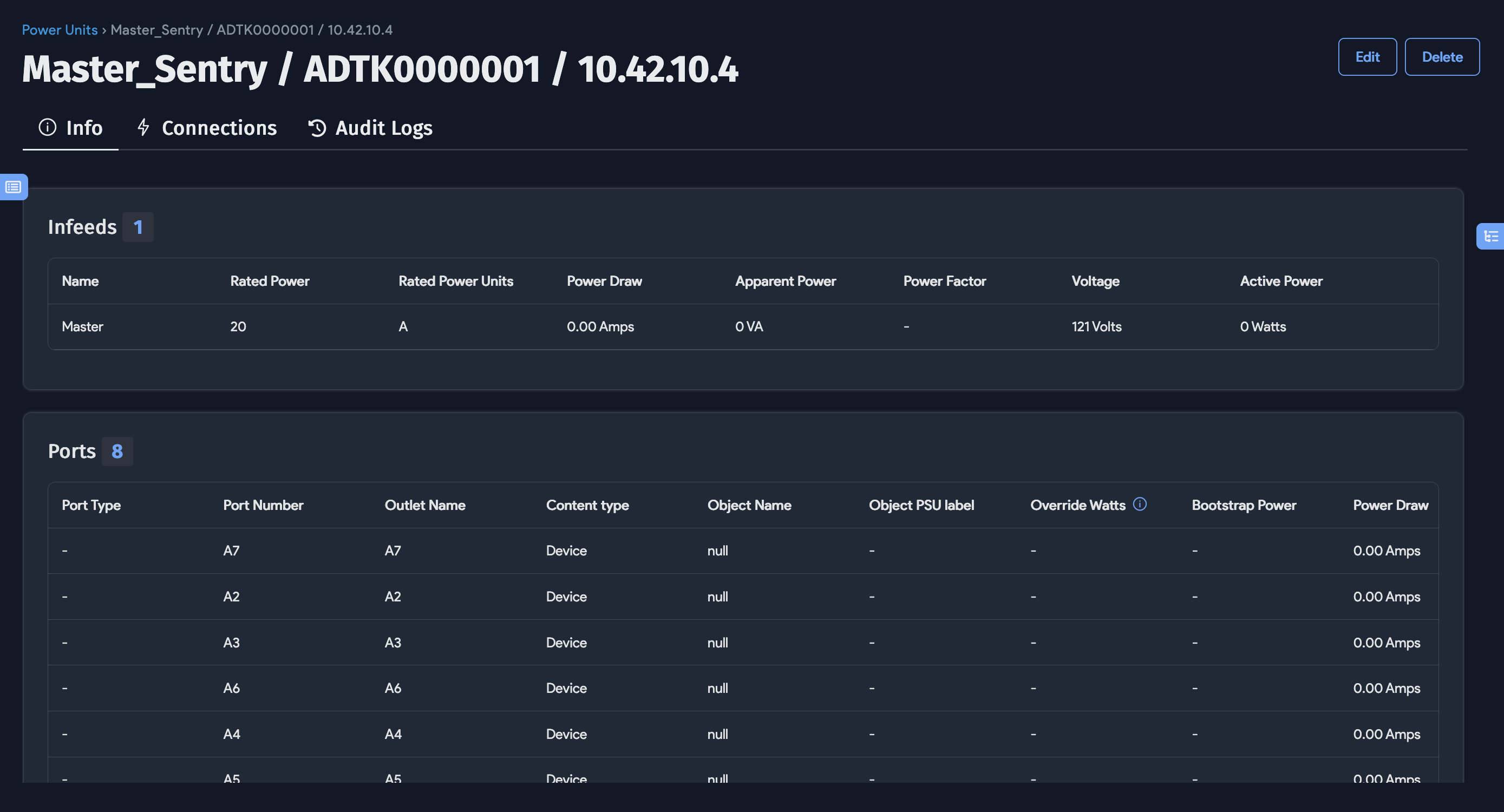
The PDU detail view also shows the connected ATS in the port listing.
View Power Connections
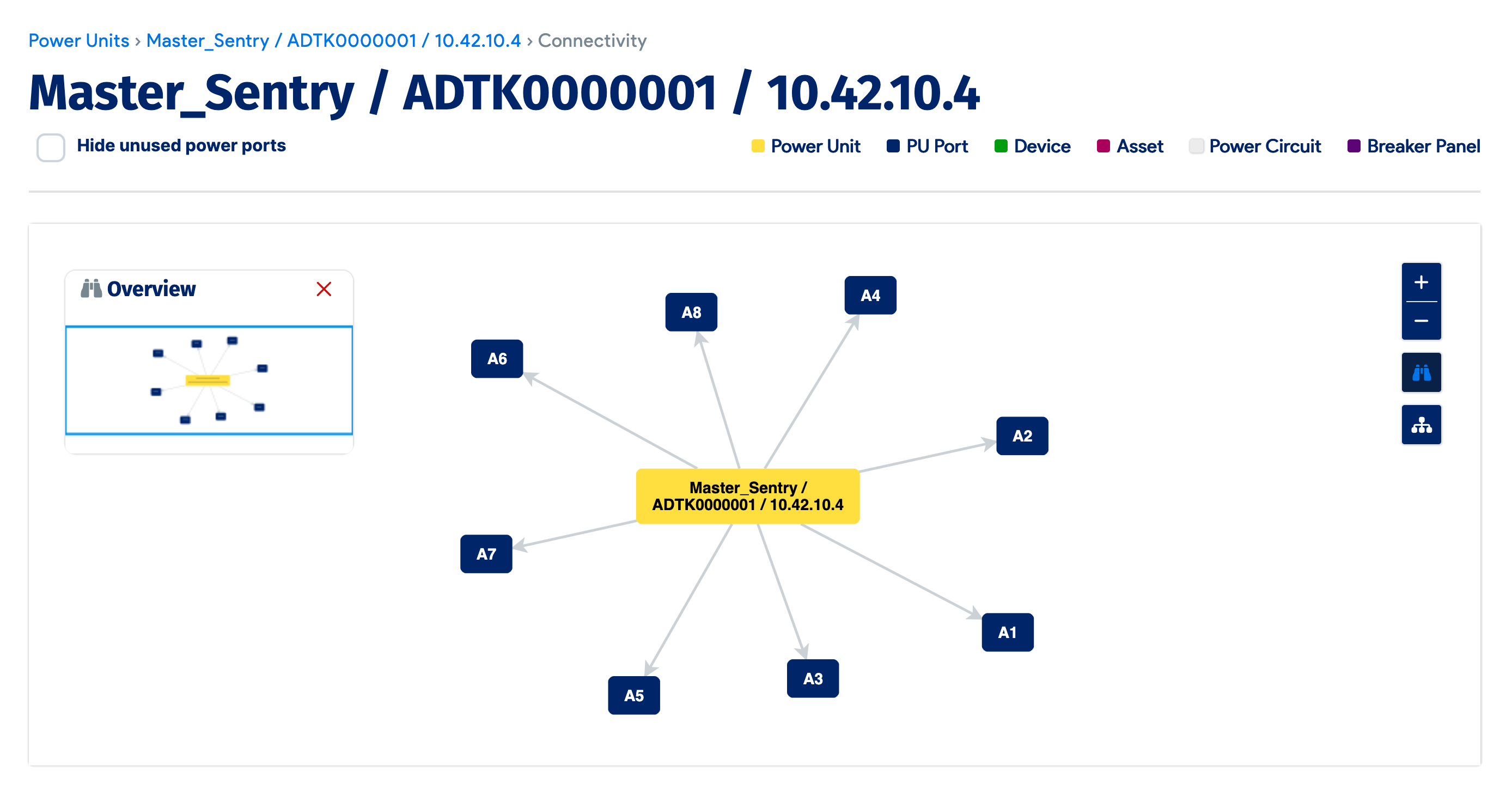
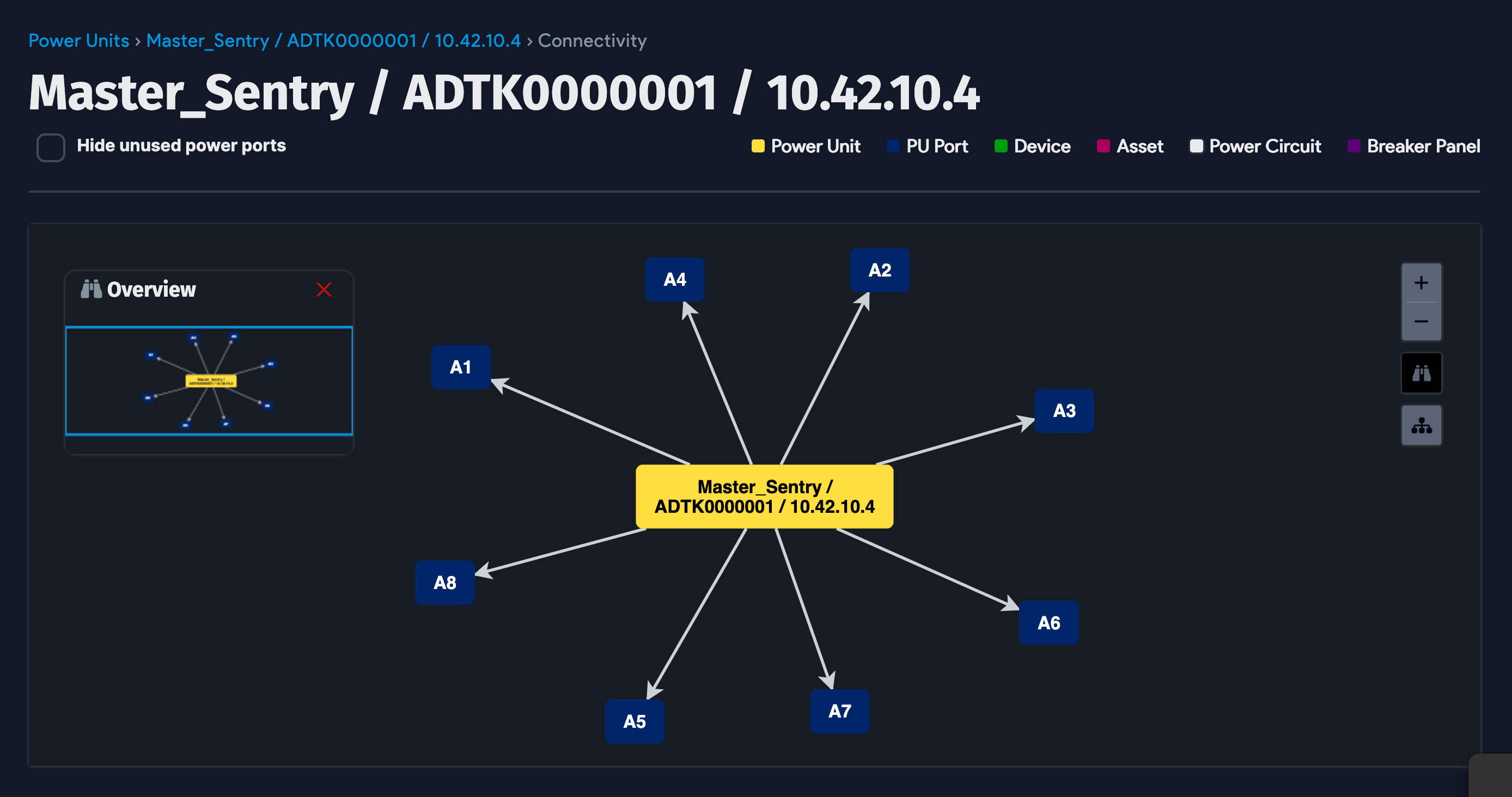
Once connections are made from devices to the ATS and from PDUs to the ATS, you can view power connectivity maps that visualize the full chain.
- Navigate to Infrastructure > Power Units.
- Select the PDU whose connections you want to view.
- Click the Connections link in the ellipsis menu in the top-right corner.
Map ATSs to a Device
If you want to track more details about an ATS (for example, serial number, asset number, IP address, purchase information, or lifecycle management), you can map an ATS to a device as follows:
- Create a device with Type set to Physical. Optionally, give the device the same name as the ATS it will be mapped to.
- Set Physical Subtype to ATS. Hardware is not needed, and all other fields are optional.
- Save the new device.
- Edit the ATS and use the Device Mapping option to select the device you just created.
- Save the changes to the ATS.