Add PDUs
Use this page to add a new PDU in Device42 and understand the fields available during setup.
The sections below explain the main PDU fields, show how automatic port creation works, and outline how to map a PDU to a device when you want to track asset and lifecycle details. PDUs (like almost all Device42 CIs) can also be added and managed via the API.
To add a PDU from the UI, go to DataCenter > Power Units > Power Units.
PDU Field Descriptions
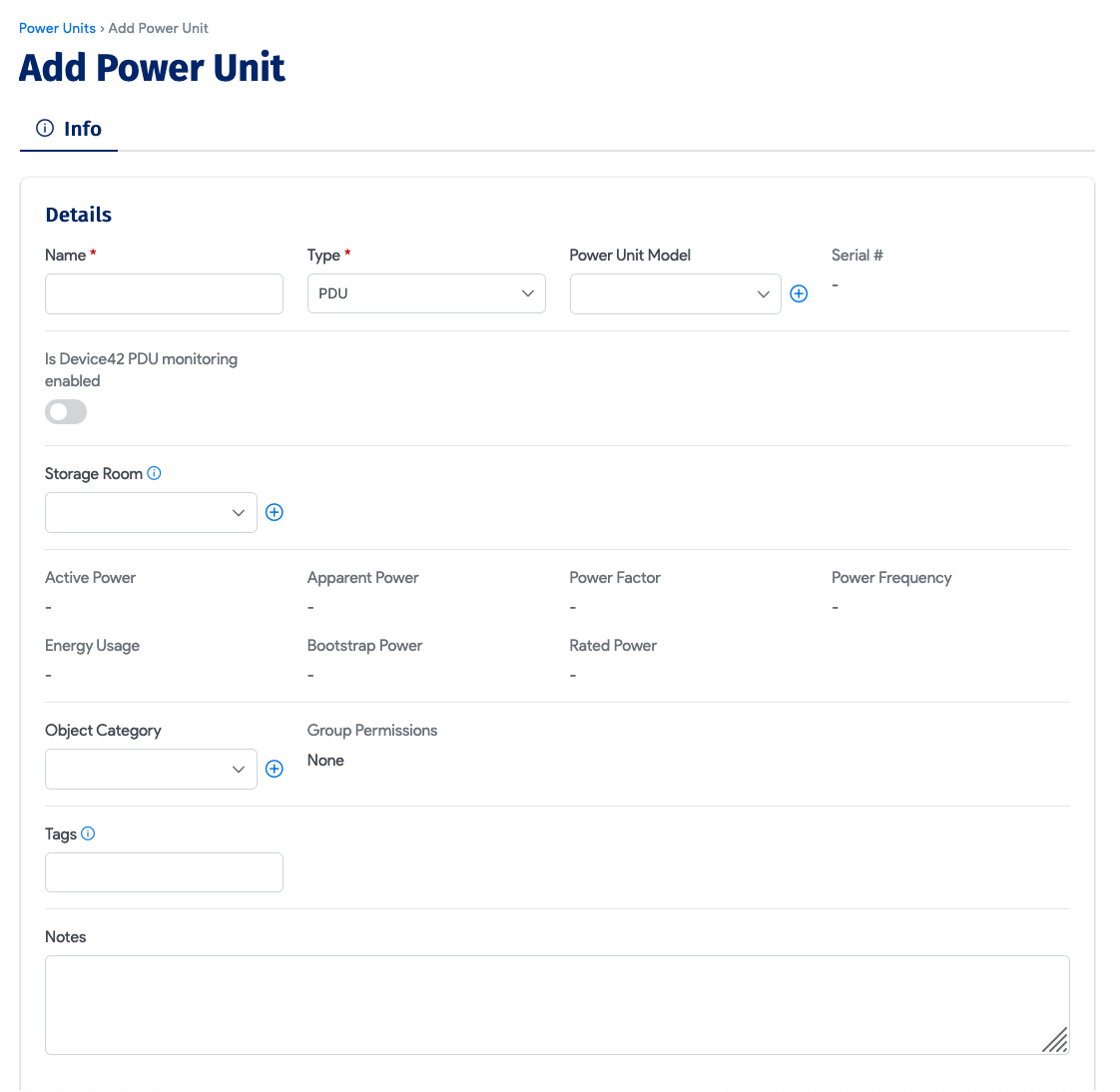
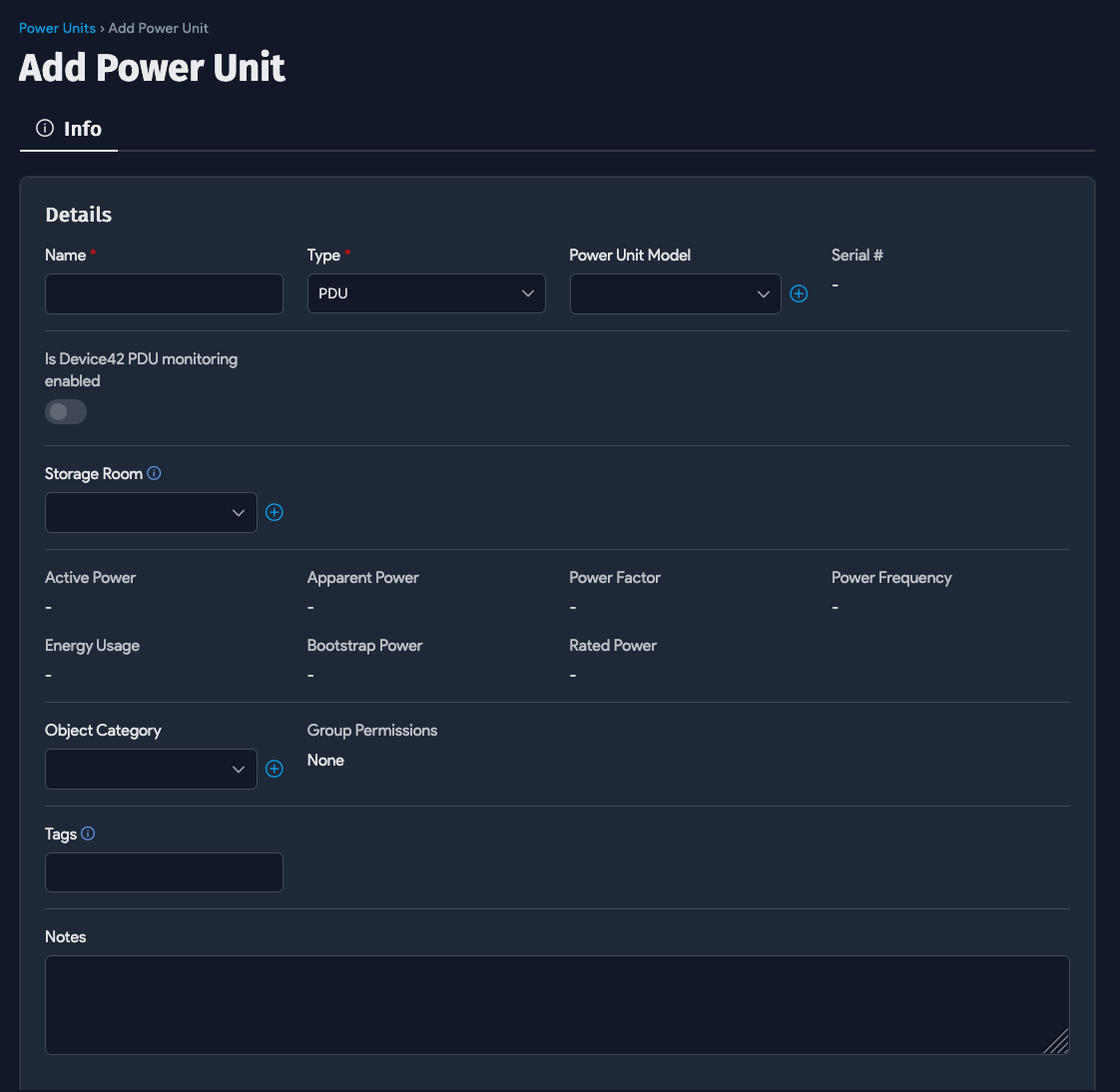
Use these fields to define the new power unit:
- Name: Enter a name for the PDU (required).
- Type: Choose between PDU, UPS, ATS, and Environmental Monitor (required).
- Power Unit Model: Select the PDU model. This field is required if the PDU is rack-mounted or if you want to track individual PDU ports.
- Is Device42 PDU Monitoring Enabled: Enable this option to have Device42 monitor the PDU.
- Storage Room: If the power unit is not stored in a rack or server room, specify the storage room where it is located. Selecting a storage room removes any existing rack and server room information.
- Object Category: Select the object category for this PDU. This field is visible only if Role-Based Access Control (RBAC) is enabled under Tools > Settings > Global Settings.
note
The Set Object Category option on the Actions menu of the Power Units list page is only visible if RBAC is enabled.
- Tags: Include a comma-separated list of tags to categorize this power unit.
- Notes: Optionally add notes about this power unit.
Configure Device Mapping
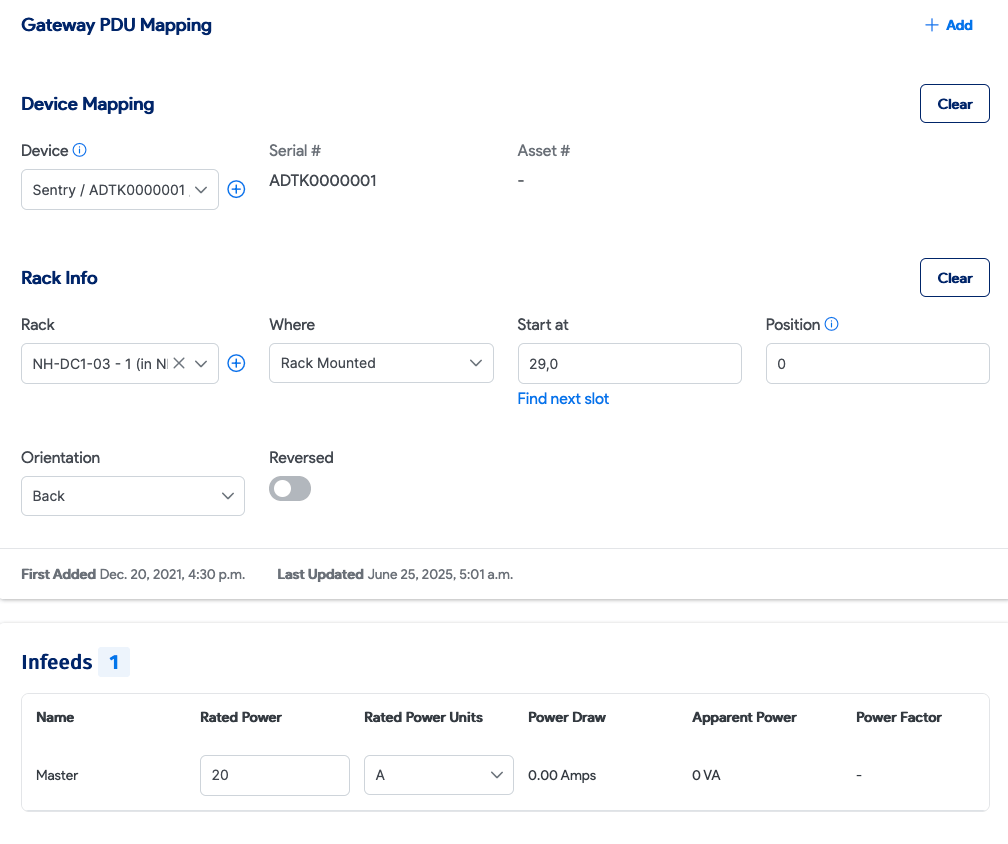
Use the Device Mapping section when you want to track IP address, lifecycle, or other asset details for the PDU through an associated device.
- Device: Associate the PDU with a device. This is optional unless you want to track IP address, lifecycle, or other asset information for the PDU.
- Serial #: If the PDU is mapped to a device, the mapped device's serial number appears here.
- Asset #: If the PDU is mapped to a device, the mapped device's asset number appears here.
Configure Gateway PDU and Other Fields
These additional fields appear in the lower part of the form:
- Gateway PDU: If this PDU is plugged into another PDU, identify the gateway PDU it is connected to. Use this field for daisy-chained PDUs.
- Infeeds: Power infeed information displays here (n/a; auto-discovered).
- Custom Fields: Any custom fields you created for PDUs appear here.
When you save the new PDU, Device42 automatically adds ports based on the selected PDU model.
Ports can be added only during PDU creation and cannot be changed later.
Automatically Created Ports
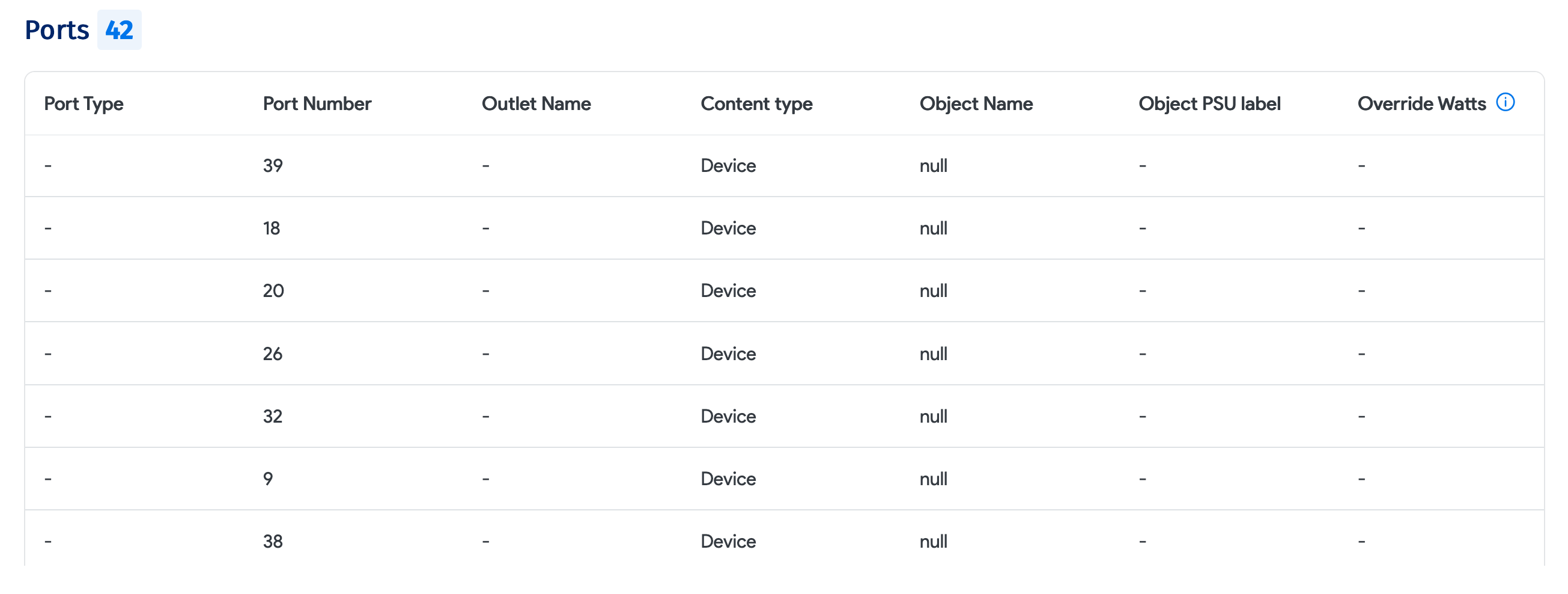
When you click Save, Device42 creates the new PDU and automatically generates ports based on the layout defined by the selected PDU model. For information about defining PDU models, see Defining PDU Models.
Map a PDU to a Device
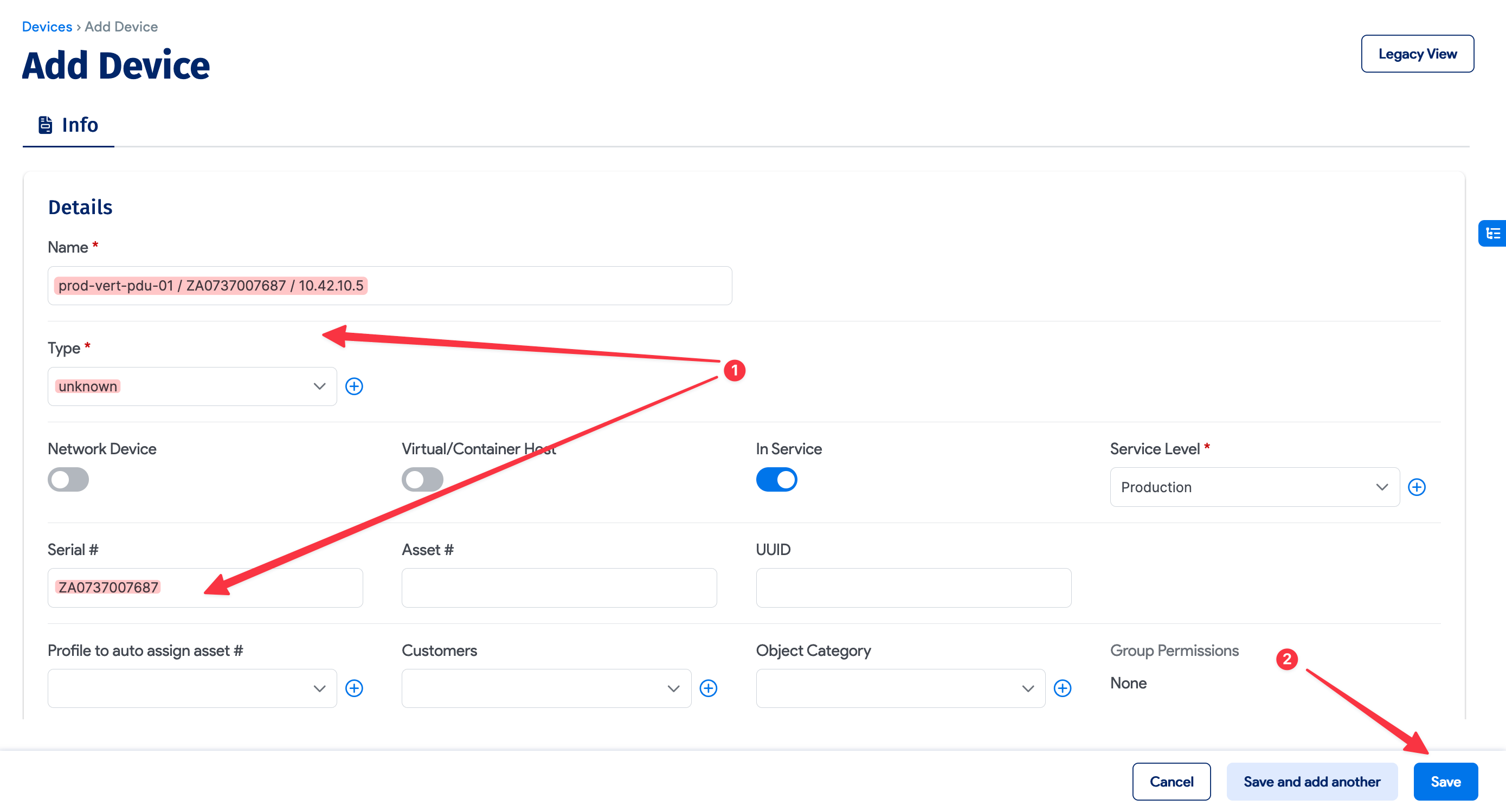
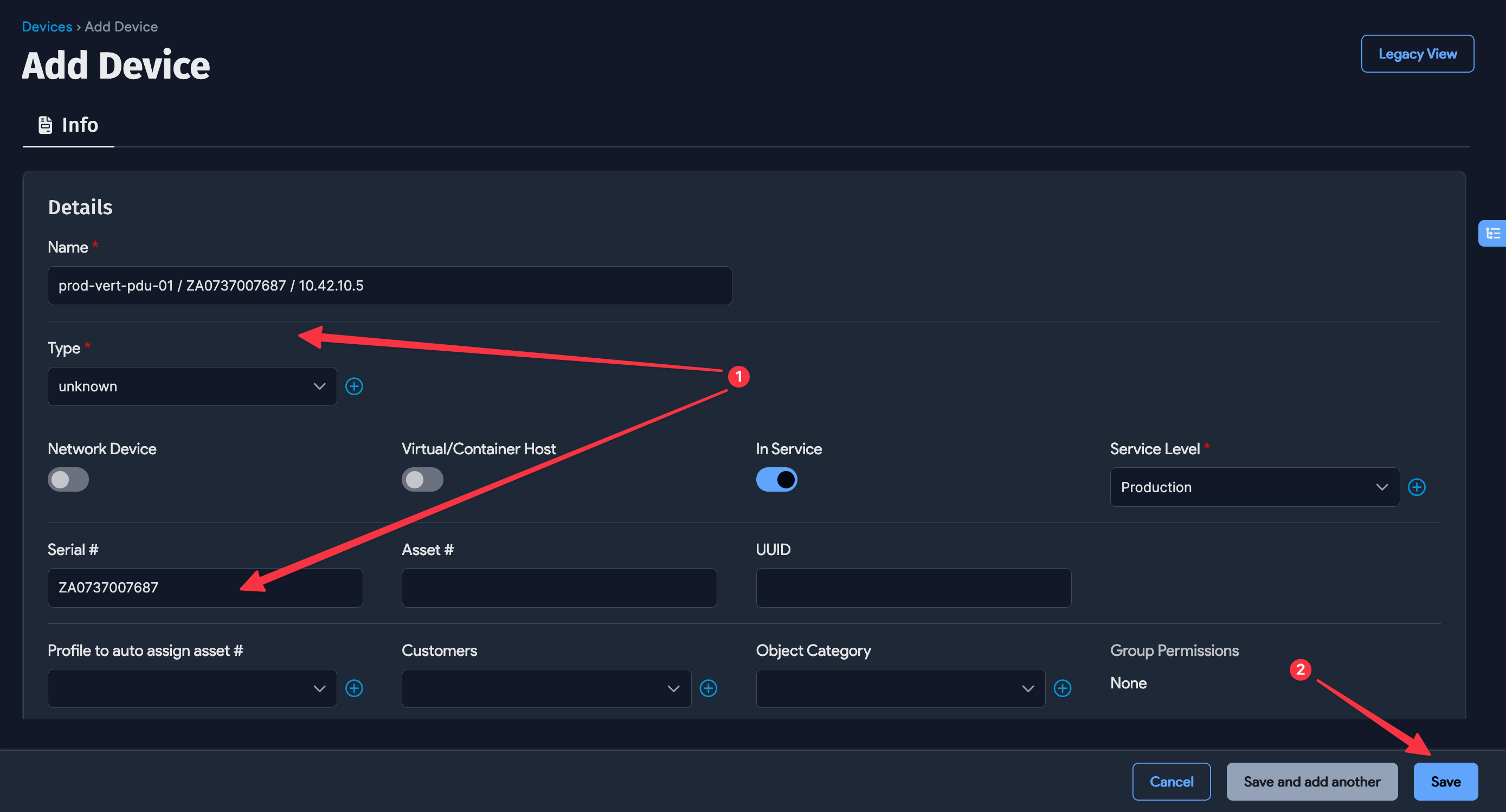
To track details such as the PDU's serial number, asset number, IP address, purchase information, and lifecycle information, map the PDU to a device. Create a device for PDU mapping as follows:
- Create a new device and set its Type to unknown (see the image above). For easier organization, you can give the device the same name as the PDU you plan to map.
- Set the new device's subtype to PDU (see the image above). You do not need to define hardware, and all other fields are optional.
- Save the new device.
- Return to the PDU CI that will be linked to the device you just created. Edit the PDU, then click the magnifying glass next to Device in the Device Mapping section (see the image below). In the Select Device window, click the device you created in steps 1 through 3.
- Save the changes to the PDU.
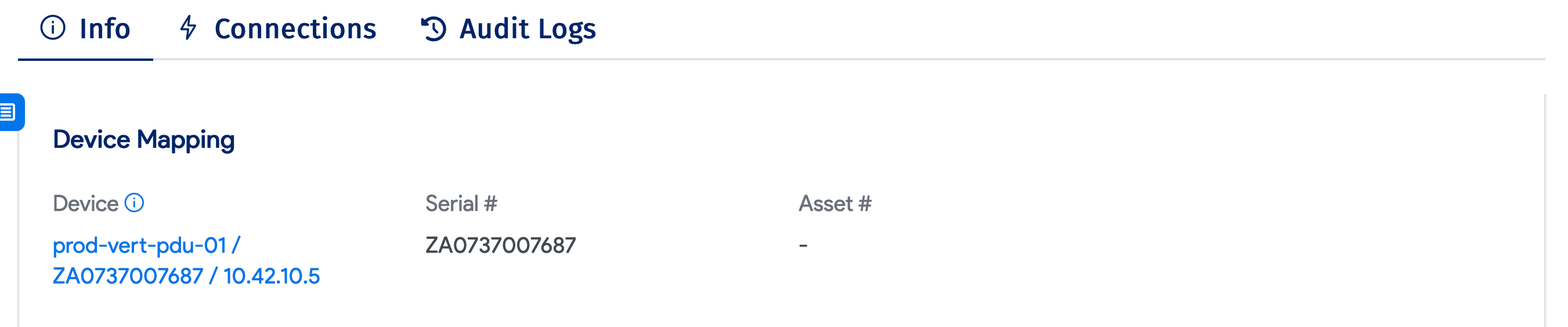
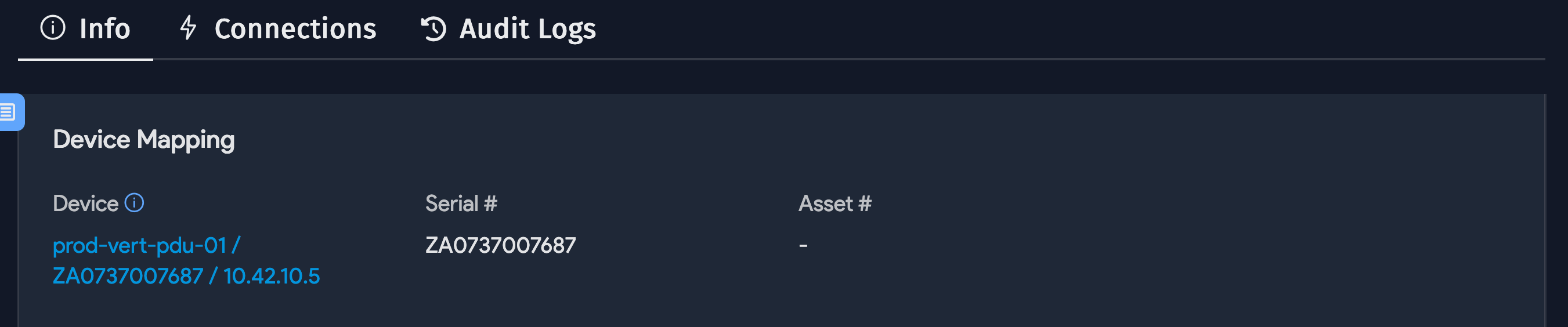
View and Navigate Between a Mapped PDU and Device
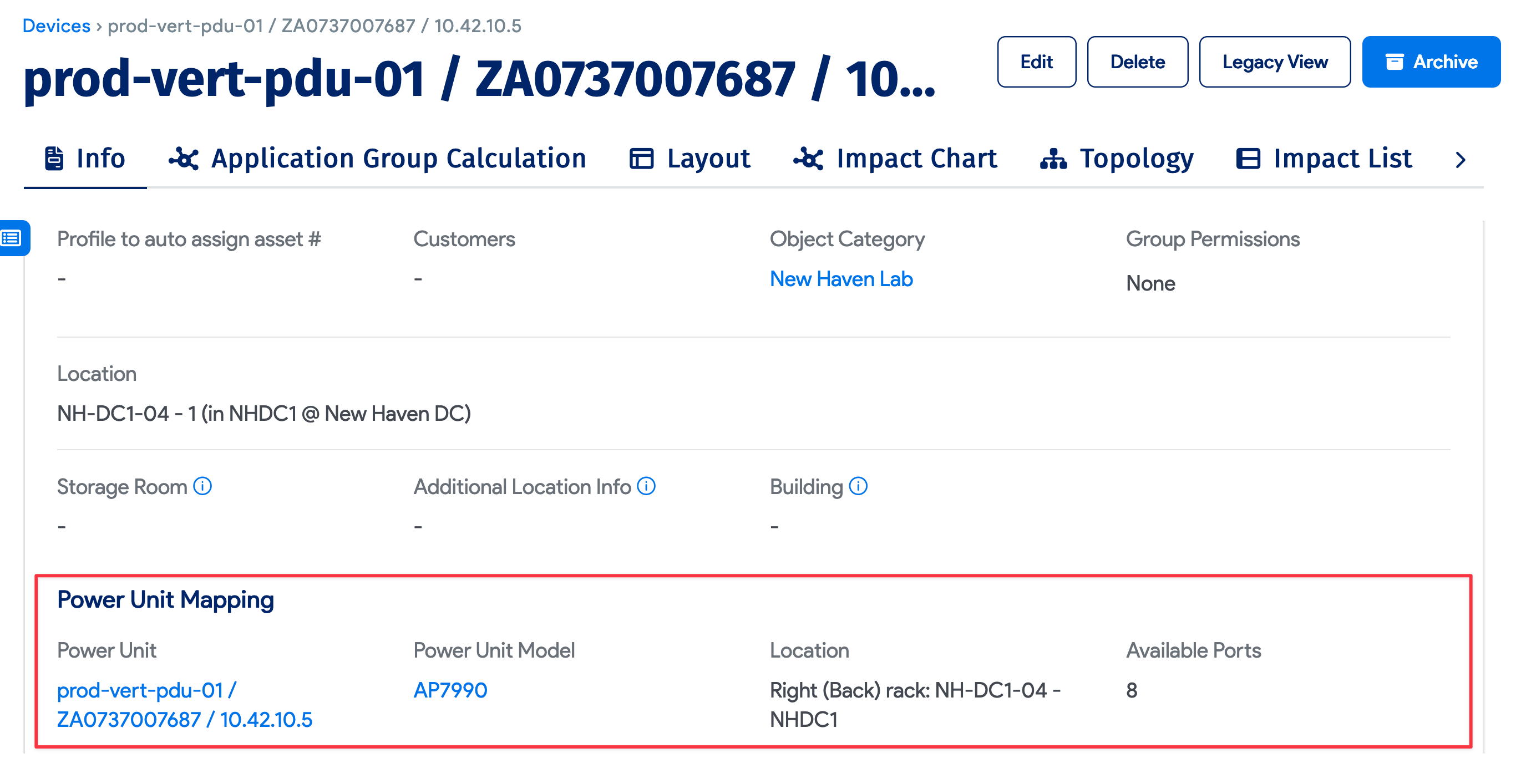
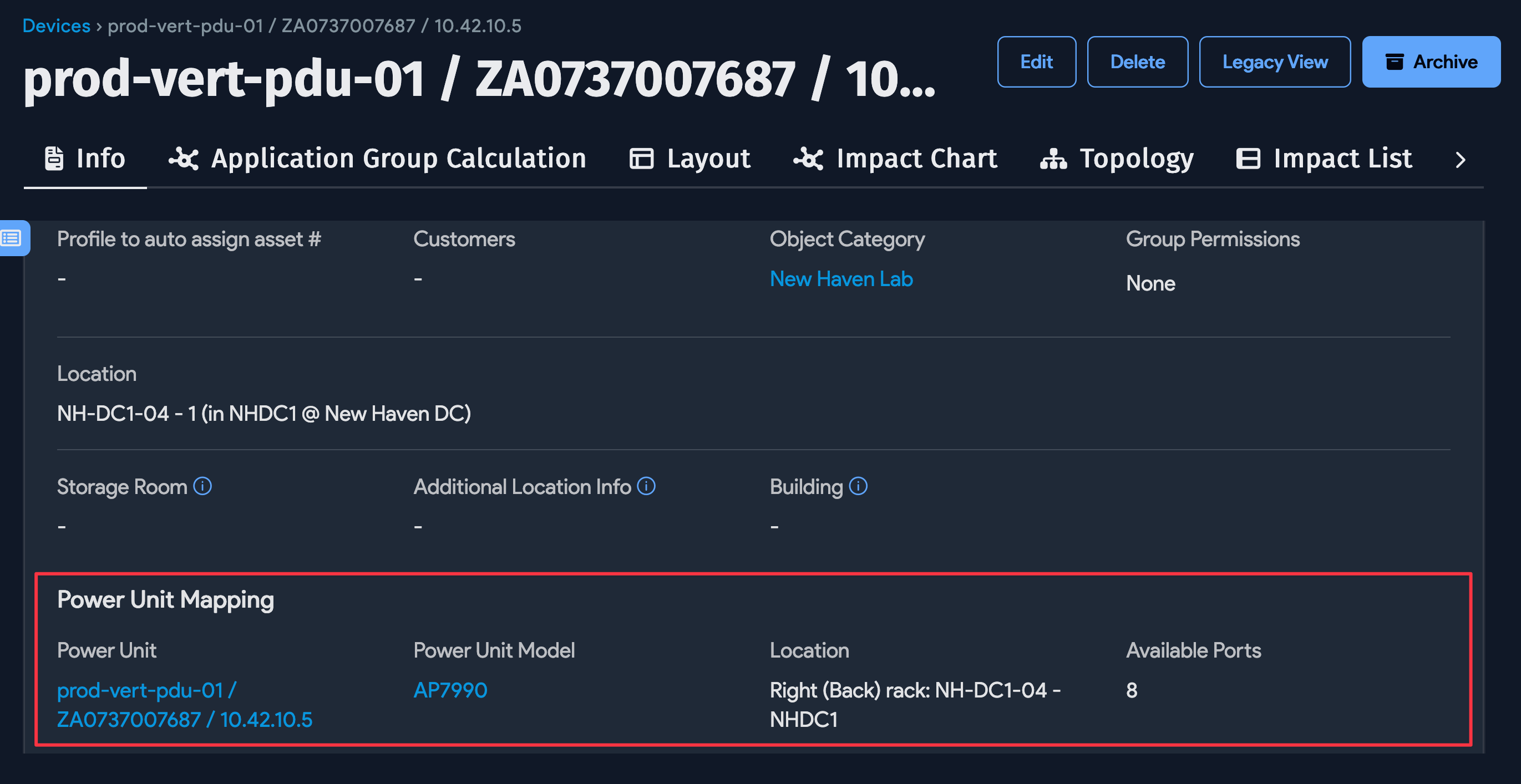
After mapping is complete, you can navigate between the PDU and the related device. The PDU page links to the device details page (see the image above), and the device page links back to the PDU details page (see the image below).