PDU Ports
This page describes PDU port connectivity, where PDU port and power information appears in Device42, and how Override Watts affects power estimates.
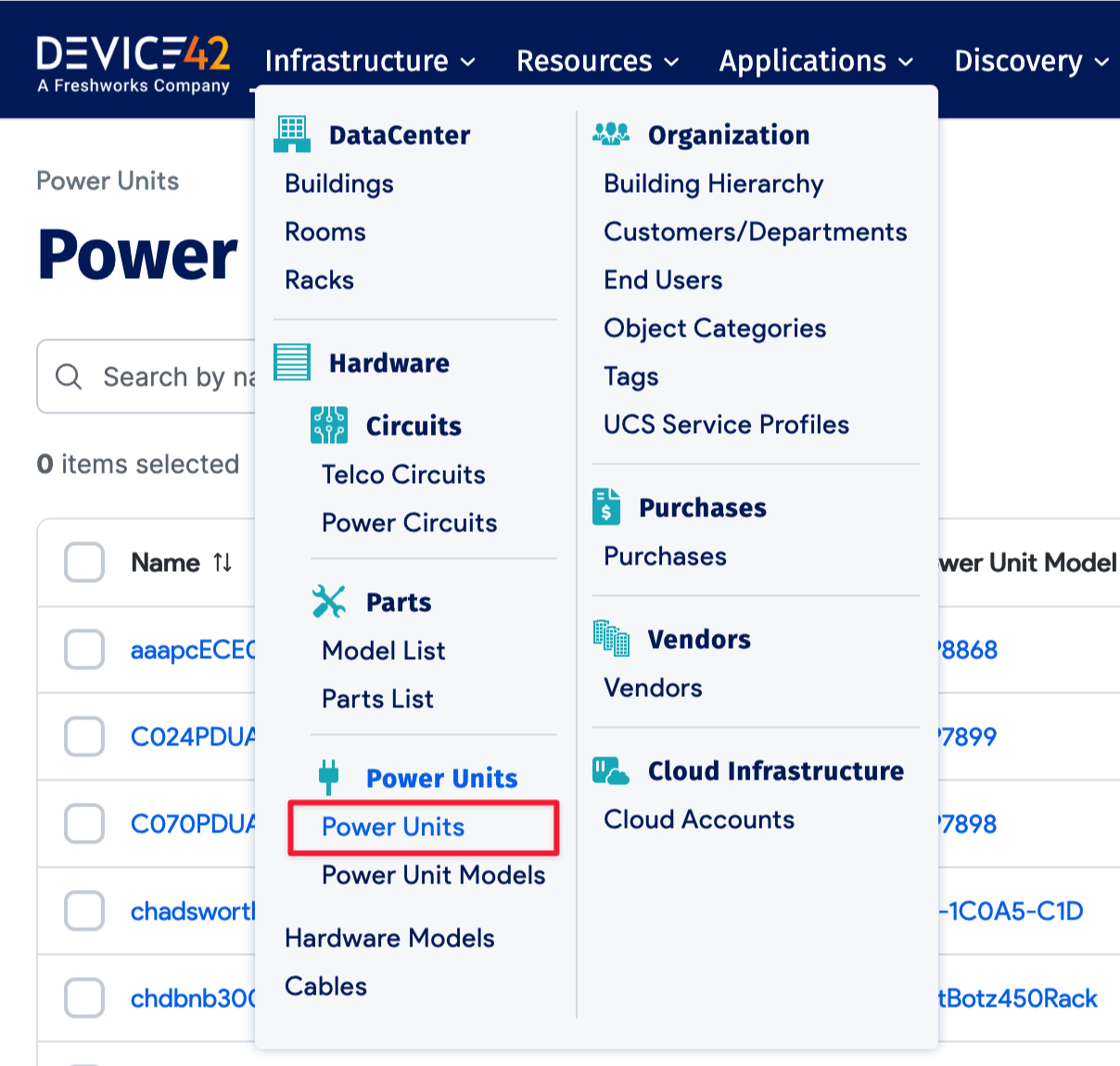
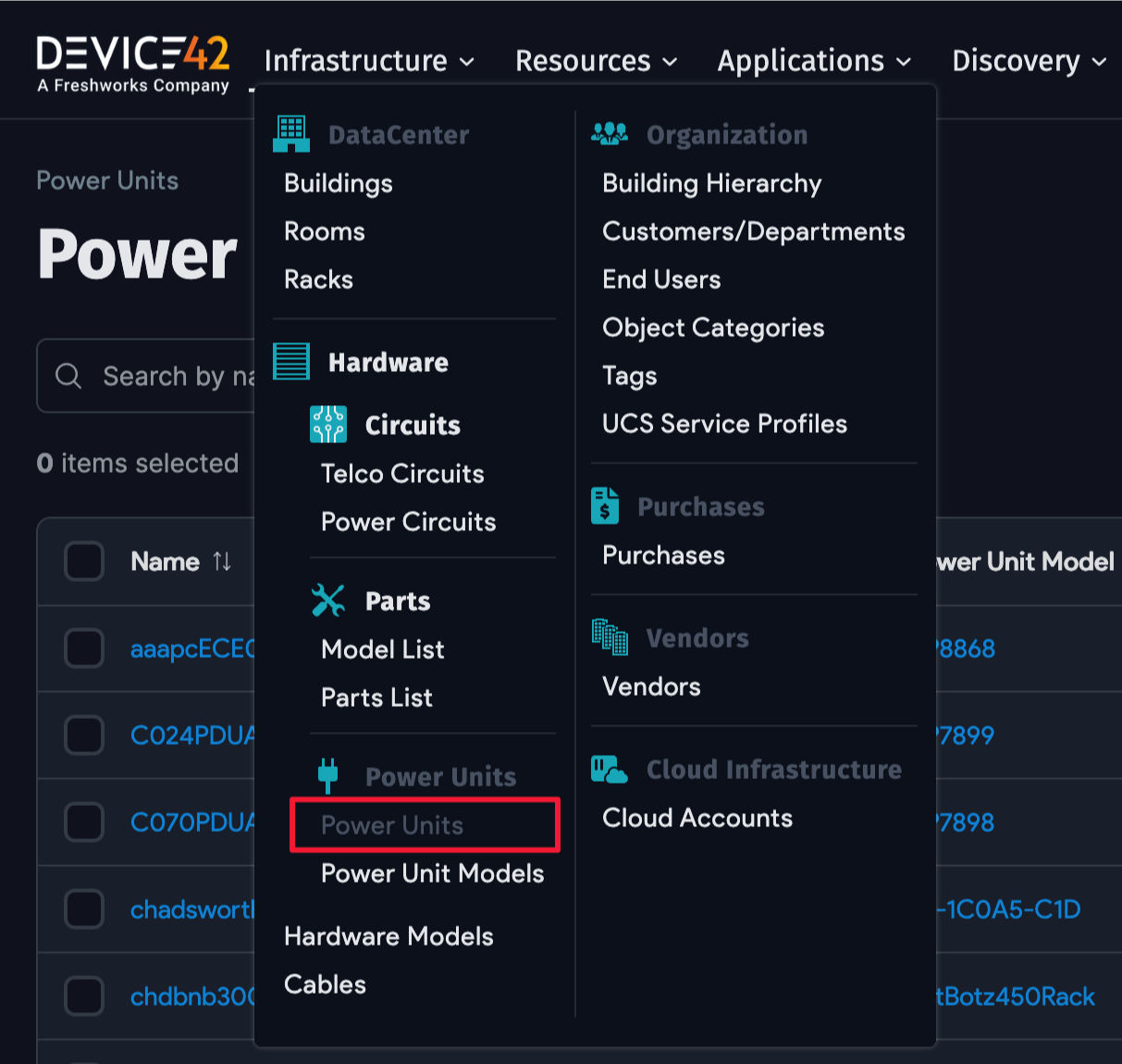
To edit PDU ports, open a PDU CI and enter Edit mode from Infrastructure > Power Units > Power Units.
Configure PDU Port Connectivity
PDU ports can be connected to a device, an asset such as a modem, or another PDU. Set the connection by using the Content Type list.
The Object ID identifies the selected Content Type object. Enter the ID or use the lookup icon to find and select the device, asset, or PDU connected to the port.
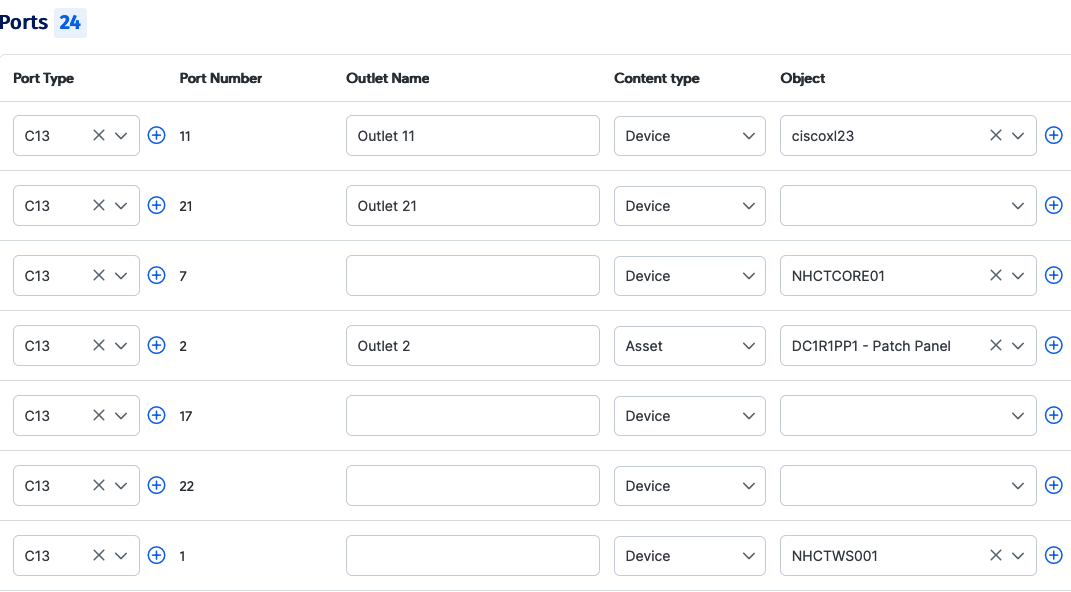
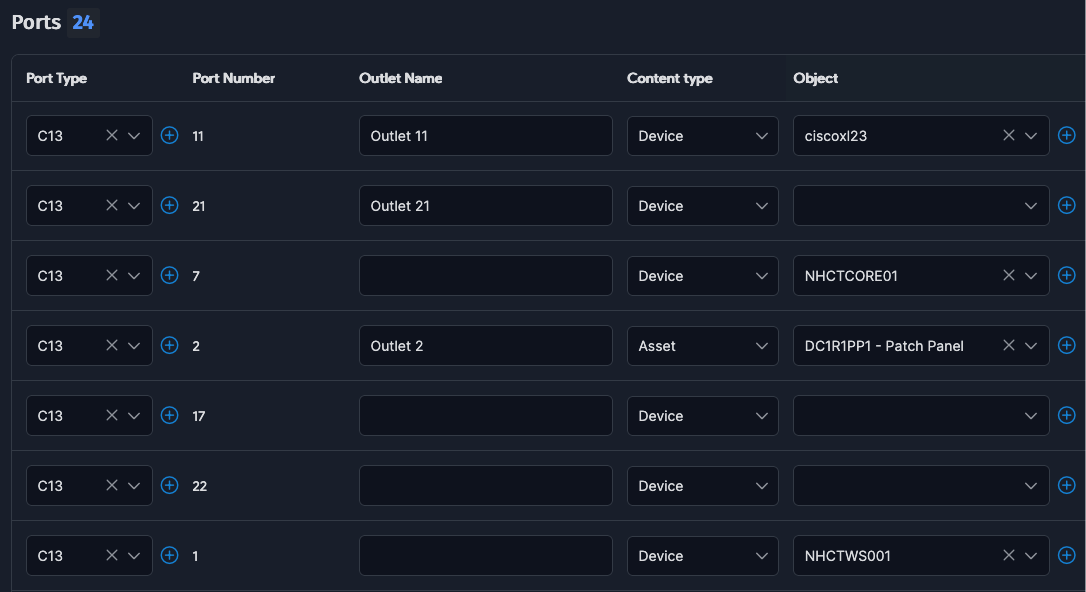
Use these fields when reviewing or editing a port connection:
- Outlet Name: The outlet name or number on the PDU.
- Port Number: The outlet or port number, as labeled on the PDU.
- Object Name: This value is auto-generated after saving, based on the selected Content Type and Object ID. It links to the connected device, asset, or PDU.
- Object PSU Label: The label of the power supply on the device or asset side.
- Override Watts: Enter a value, in Watts, to override the wattage detected from hardware (optional).
- Bootstrap Power: Shows the peak power draw from this outlet at device boot time. This field is empty if no device is connected.
- Power Draw: This field shows the actual power, also called true power, drawn from this outlet the last time it was polled. It is empty if no device is connected.
- Active Power: This field shows the active power drawn from this outlet, also described here as reactive power, meaning power absorbed and then returned by the load. It is empty if no device is connected.
- Apparent Power: This field shows the apparent power draw, described here as a combination of active power and true power measurements. It is empty if no device is connected.
- Power Factor: This field shows the calculated power factor, where
PF = true power / apparent power. It is empty if no device is connected.
View PDU Ports from the Device
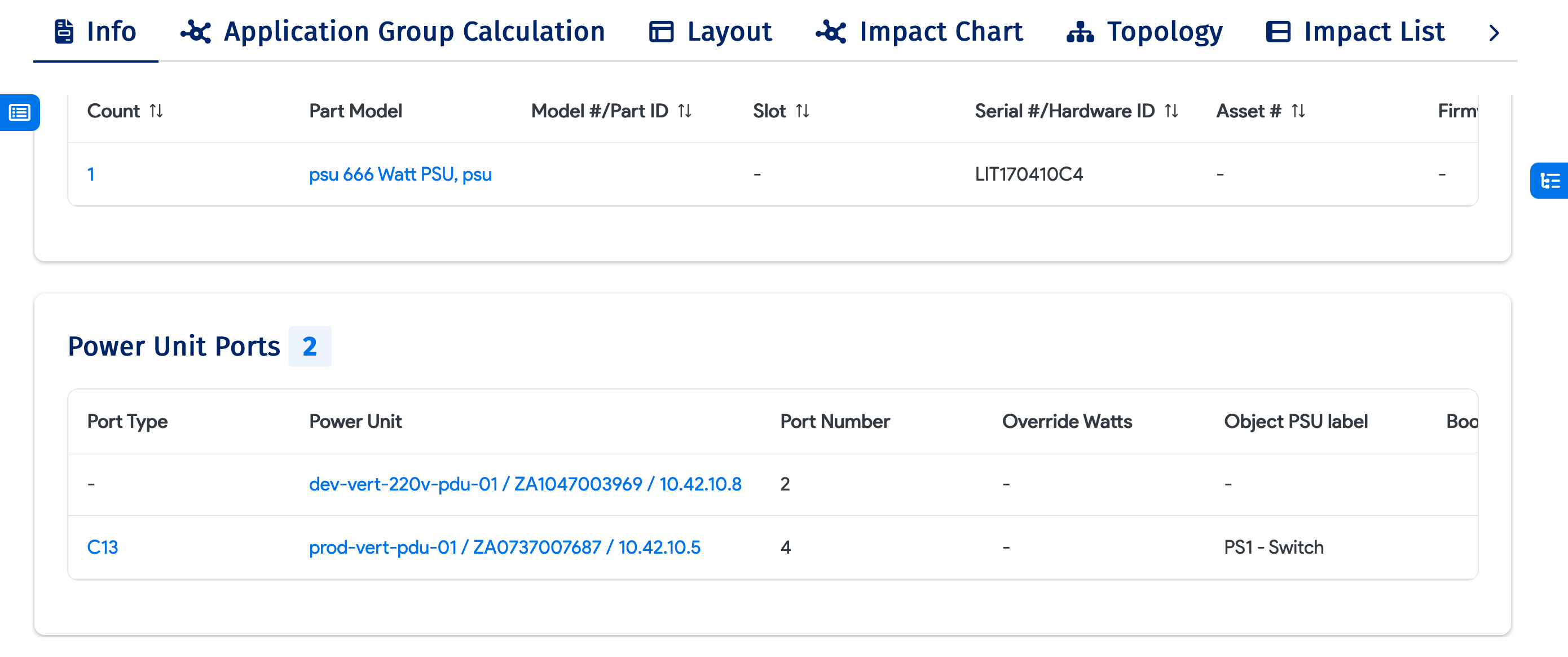
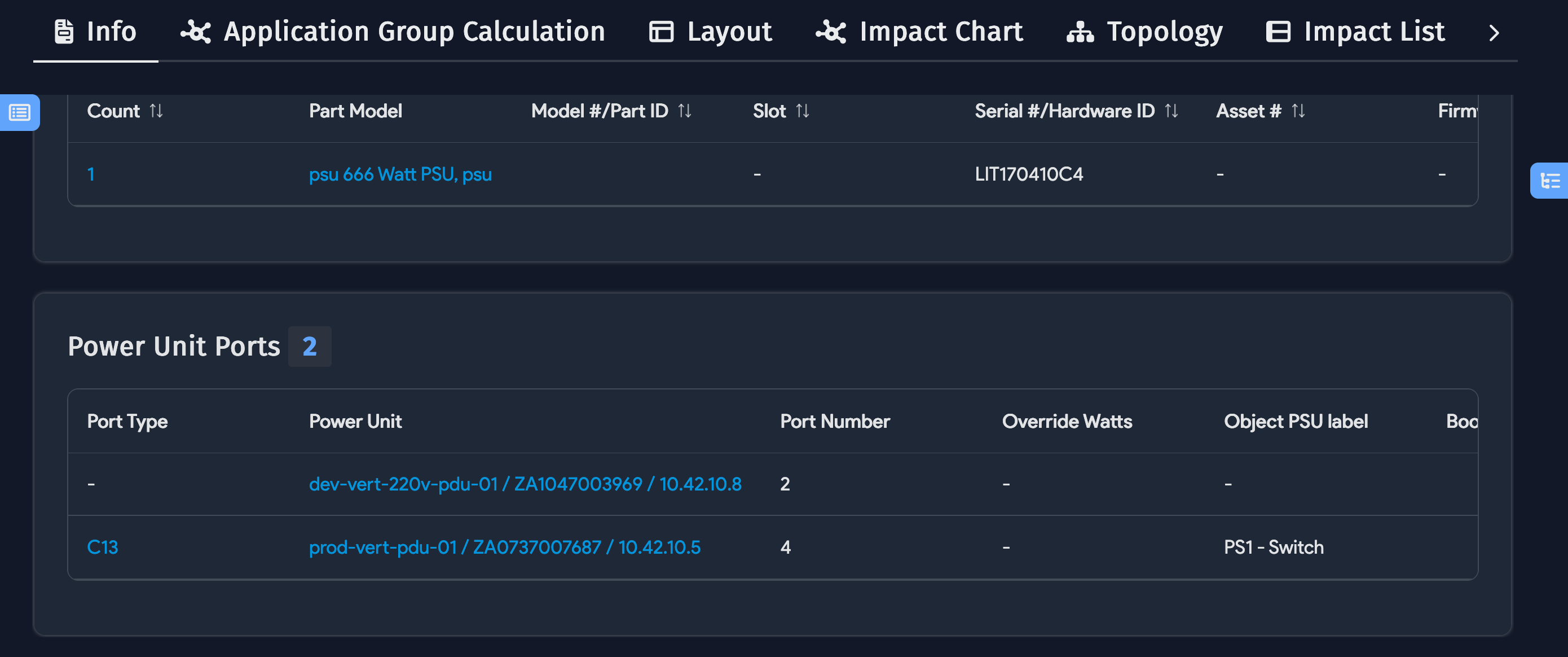
When you view a device connected to a PDU, the Info tab shows its PDU port connections and power information if the device has a Power Monitoring license.
Only the PSU Object Label can be edited from the device edit screen. All other PDU-related changes must be made on the PDU edit page.
View the PDU List
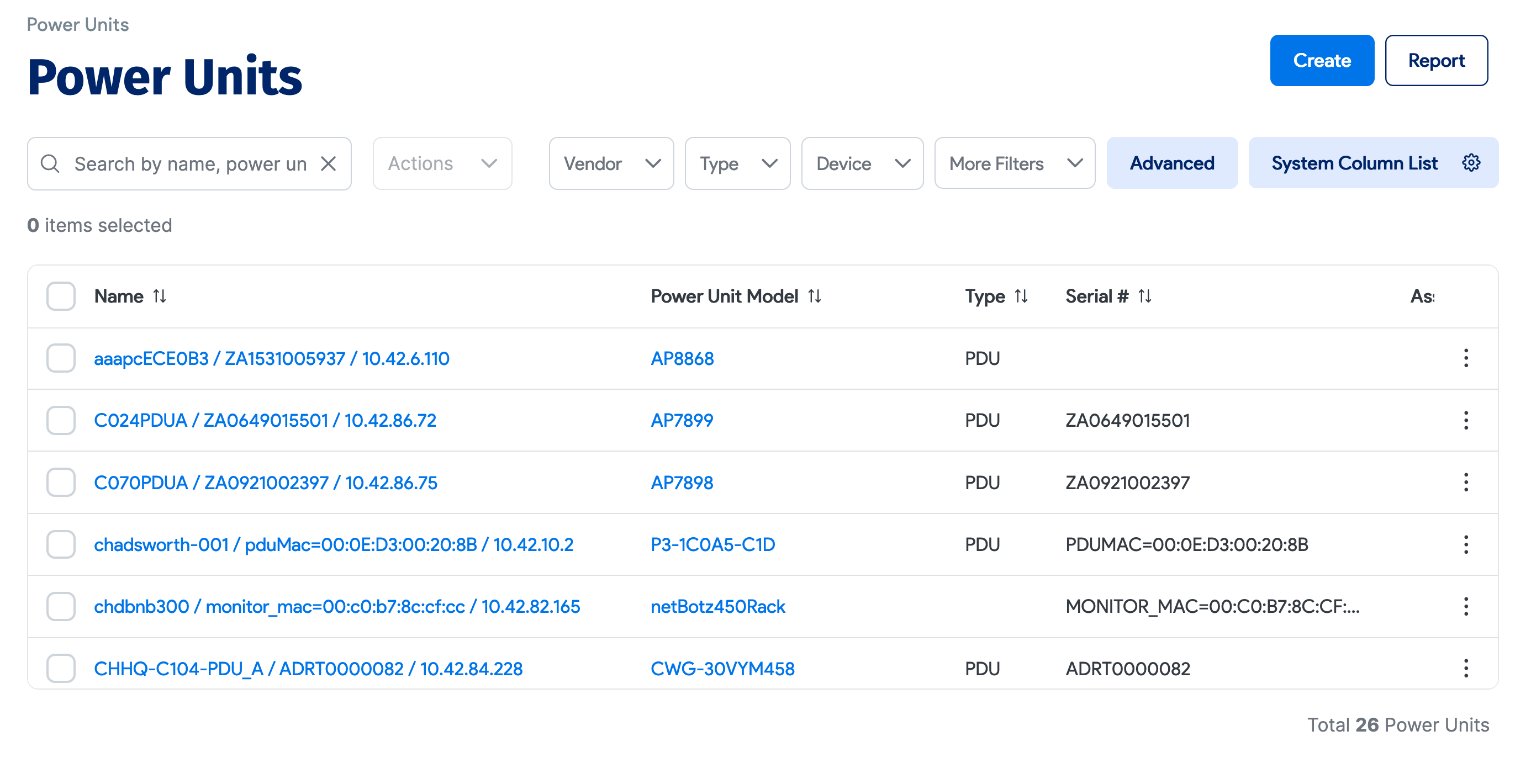
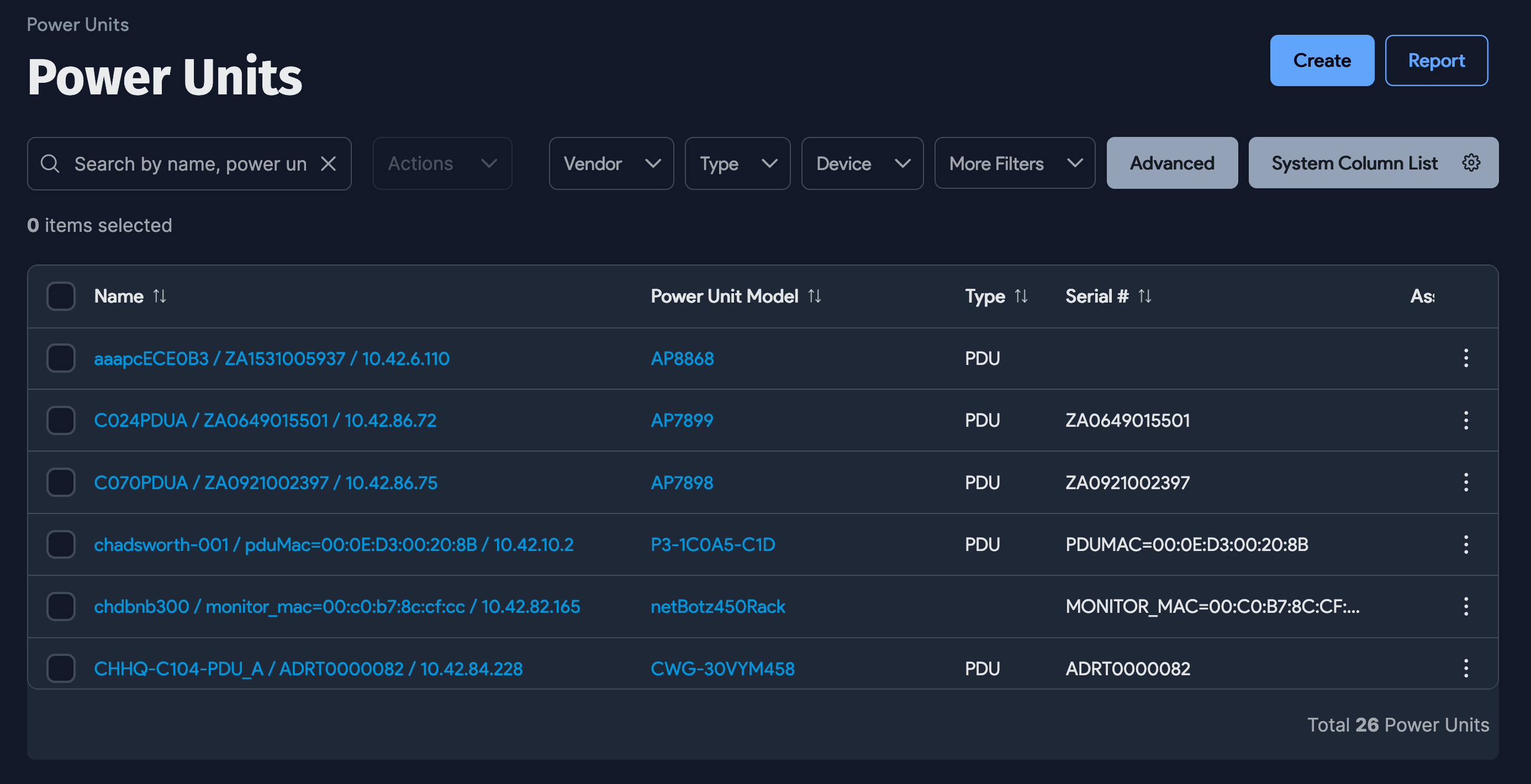
To view the PDU list and a high-level overview of your PDUs, go to Infrastructure > Power Units > Power Units.
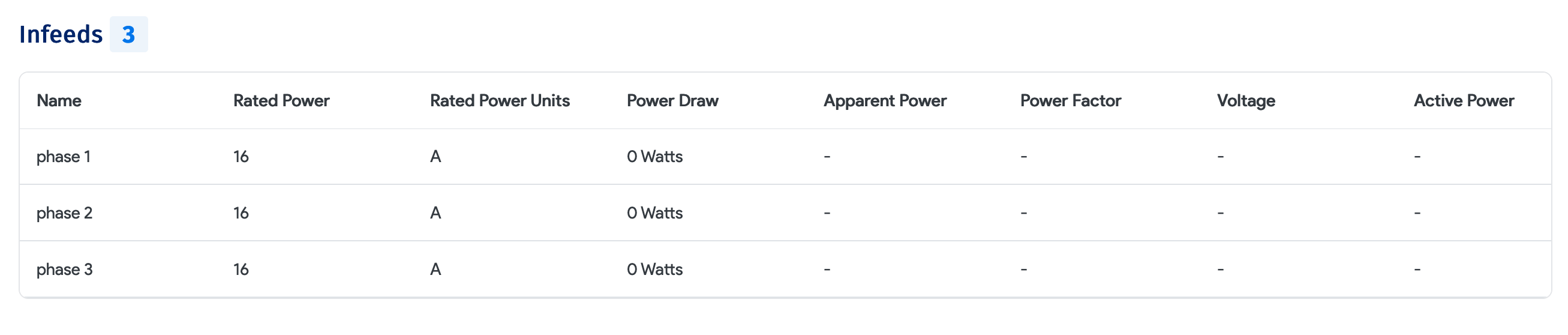
View Infeed Power
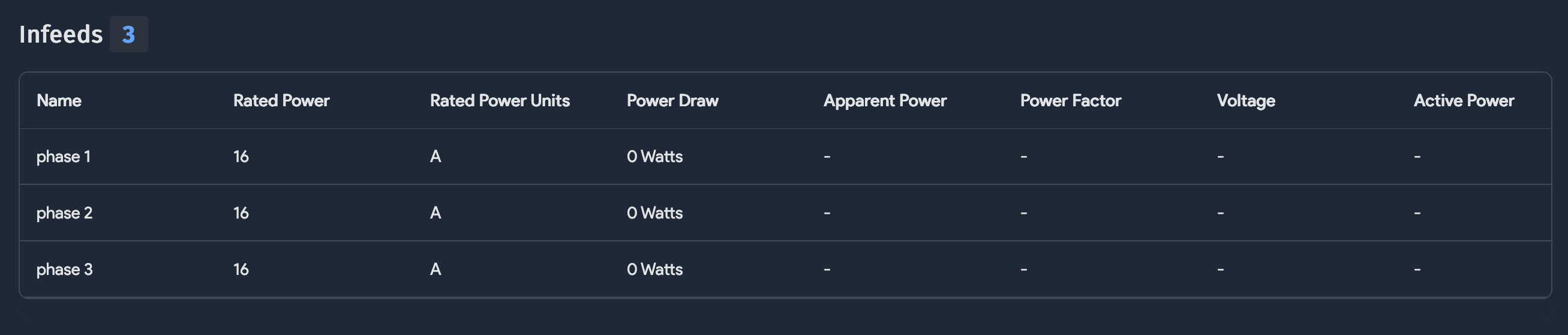
The Infeeds section shows Power Draw Per Phase, including Rated Power and Actual Power Draw. If the PDU supports these values, Device42 also displays Apparent Power, Power Factor, Voltage, and Active Power:
View PDUs and Ports in the Rack View
Power units also appear in the Rack View. To open it, go to Infrastructure > Racks:


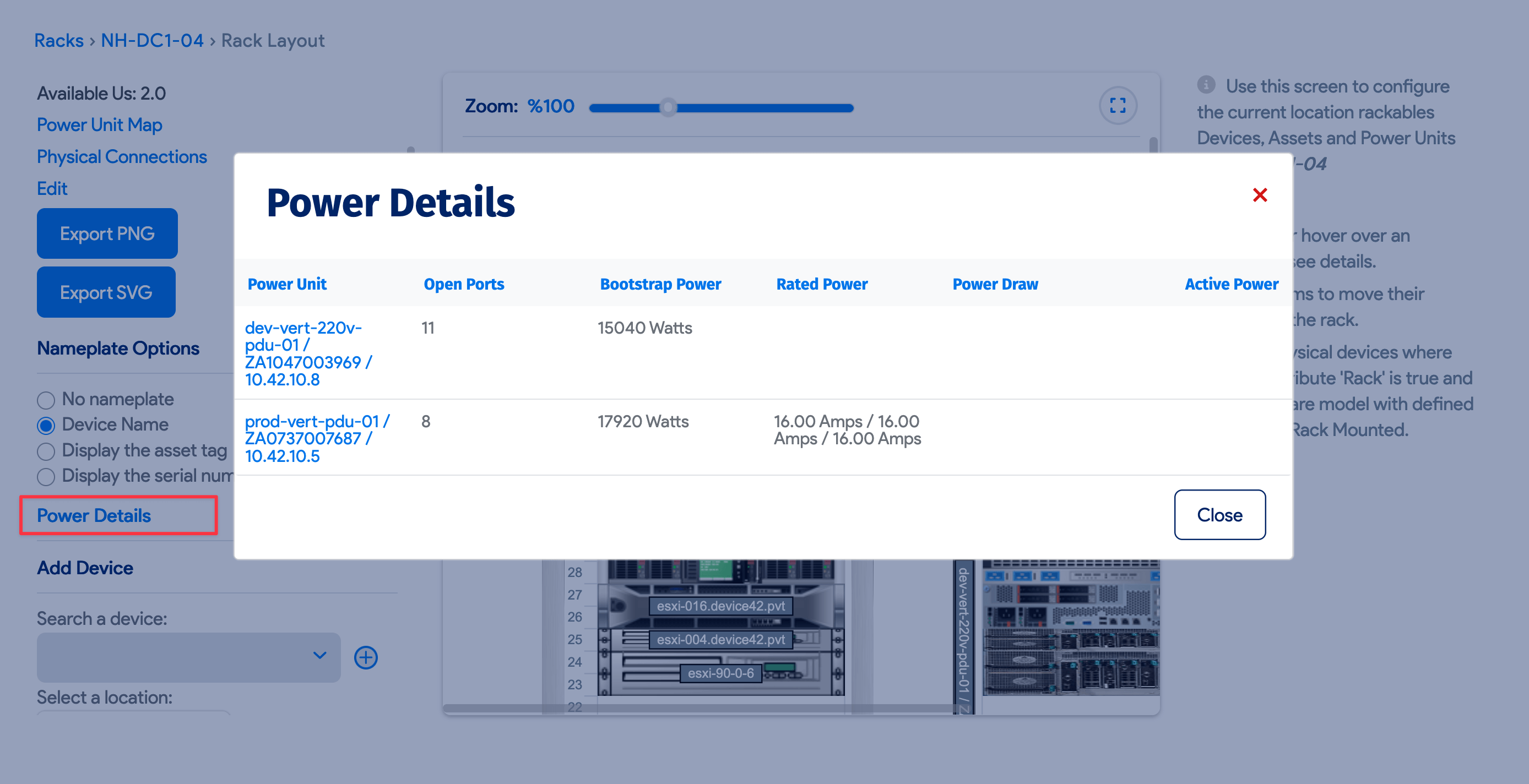
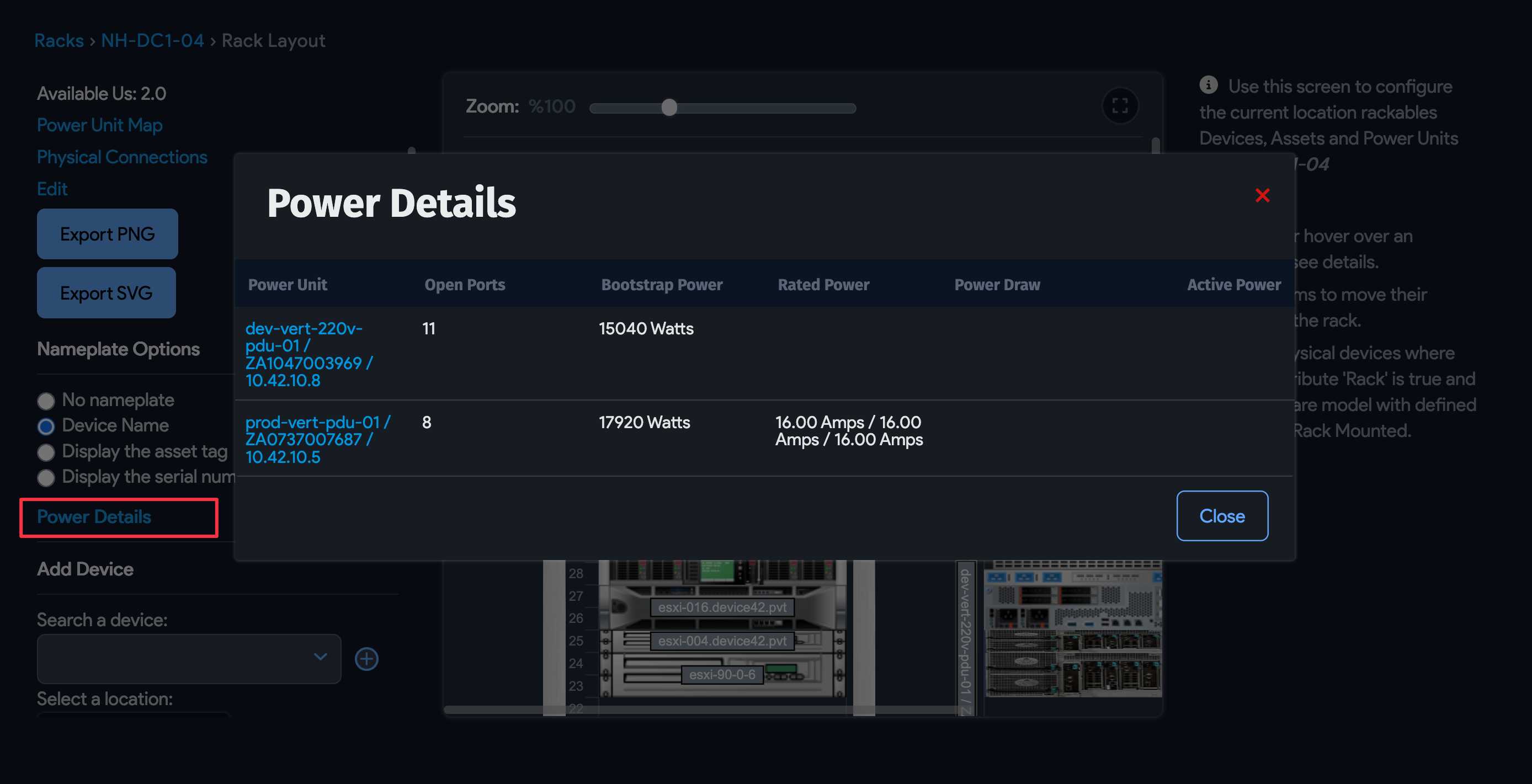
The total PDU wattage also appears on the rack layout page, as shown below. Click Power Details in the left pane to view the PDU power details.
Understand Override Watts


Use Override Watts to estimate power at the PDU port level. By default, Device42 uses the measured hardware value when a device is connected to the port, but you can enter a different value to override it.
If there is no default value, such as when an asset is connected to a PDU port, you can enter the value manually. Device42 uses both default and overridden values to estimate total power for the PDU. That total appears on the PDU list, view, and edit pages.