Understanding QR and Barcodes in Device42
QR codes printed by Device42 contain a mobile-friendly URL linking to the object in question. You can also choose to print text with the QR code for easier inventory.
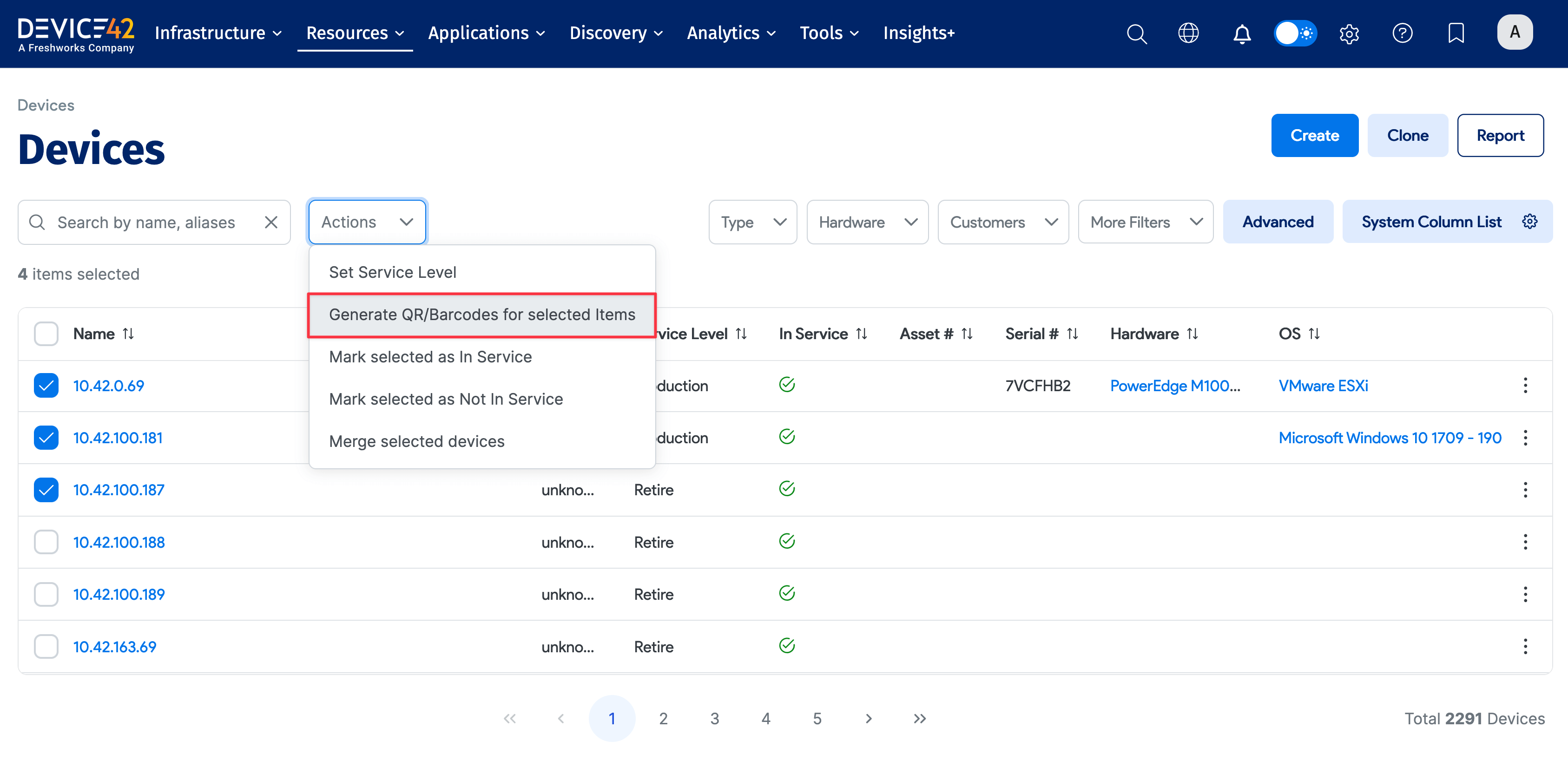
You can create multiple QR code and barcode profiles. You can then either assign one profile per device or asset, or you can assign QR profiles in bulk from the device and asset list pages under the Resources menu.
Create a QR Code Profile
To create or modify a QR or barcode profile, navigate to Tools > Templates & Bulk Operations > QR Profiles.
The following options are available when adding or editing a profile:
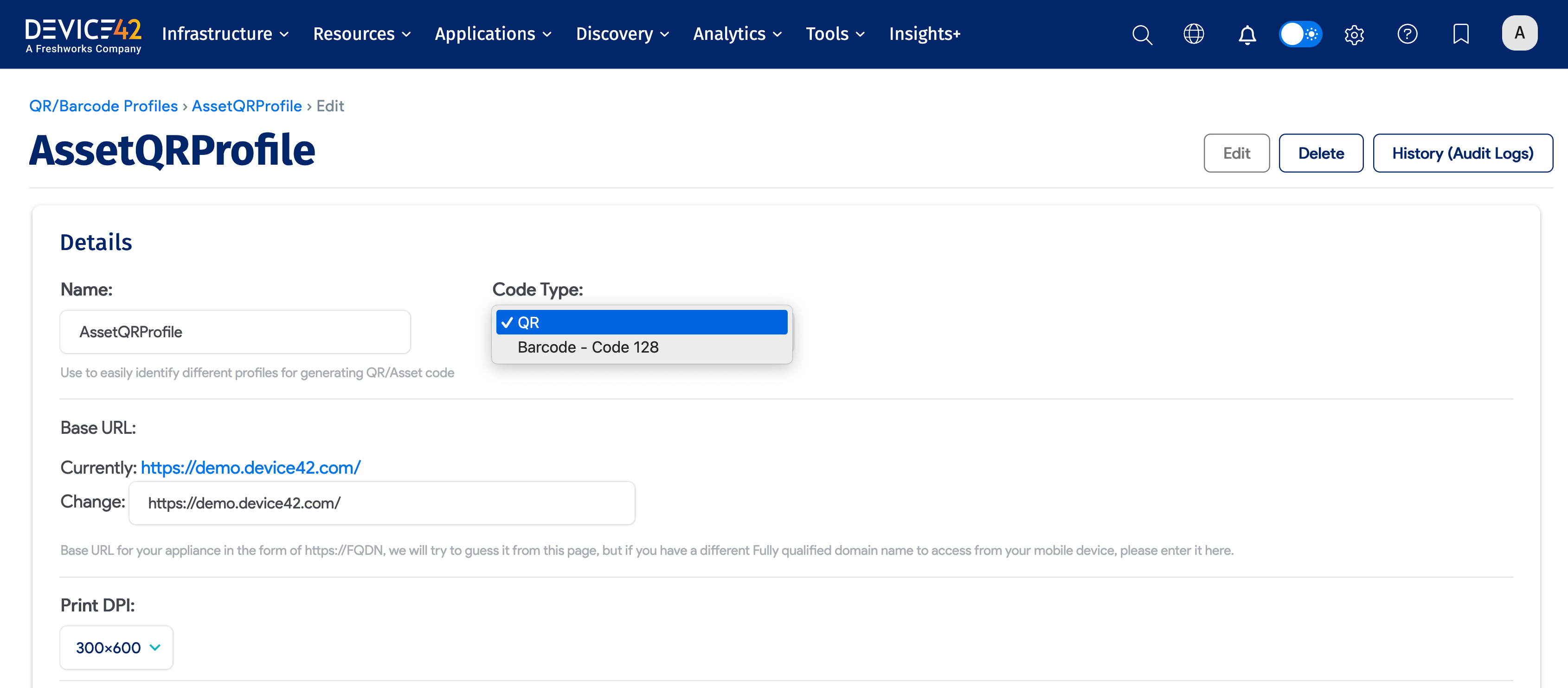
- Name: Use a descriptive name for easily identifying the specific device or asset.
- Base URL: This is the base URL embedded in the QR code to manage the inventory from mobile devices. The program will initially try to guess it from the current page URL, and you can modify it.
- Print DPI: Should match the print DPI in your label printer settings. See Printing QR Codes from IE for a known DPI workaround.
- Include Text: Text will only print if this is checked.
- Include Name in Text: Include the name of the device or asset in print.
- Include Device Model in Text: Include the hardware model name for the device in print.
- Include Serial # in Text: Include the serial number for the device or asset in print.
- Include Hostname in Text: Include the hostname for the device or asset in print.


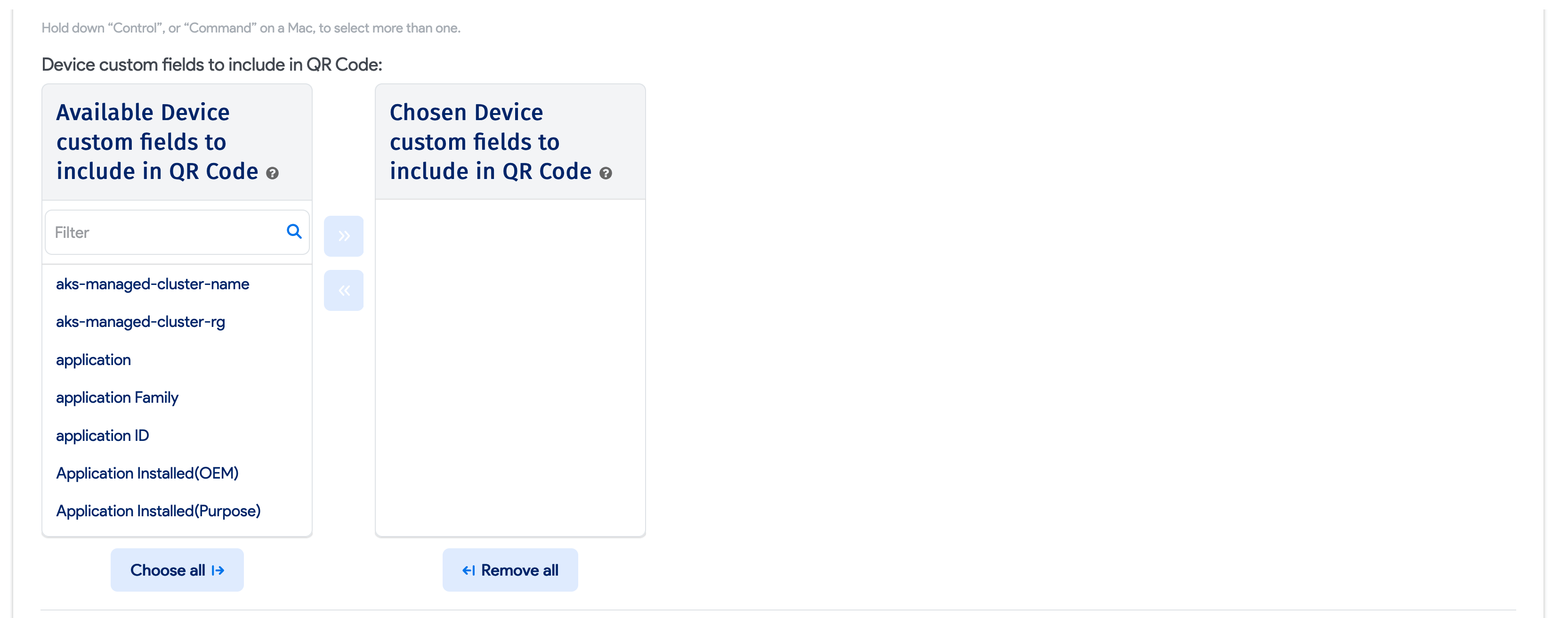
- Custom Fields: Add the field names and values of any custom fields defined for the device or asset.
-
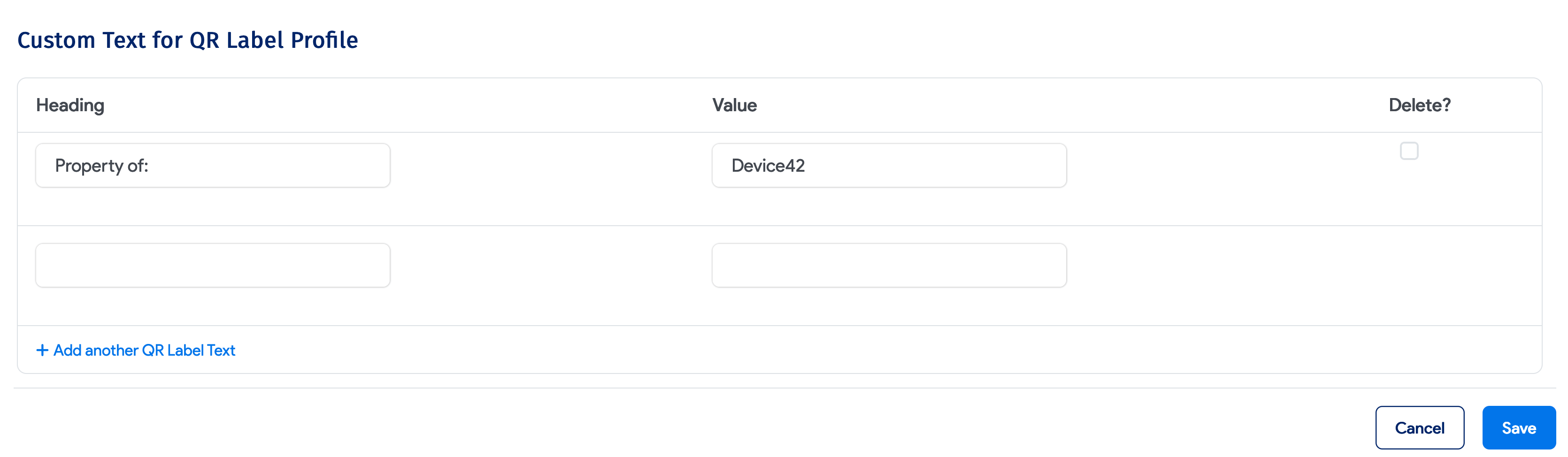
Custom Text for QR Label Profile: Add multiple custom text values to print with the QR code label. If the text overflows the label area, the overflow is cut off and not printed.
Assign QR Profiles to Devices and Assets
For devices, under the Details information section, you can select a QR Profile to generate the QR code or barcode.
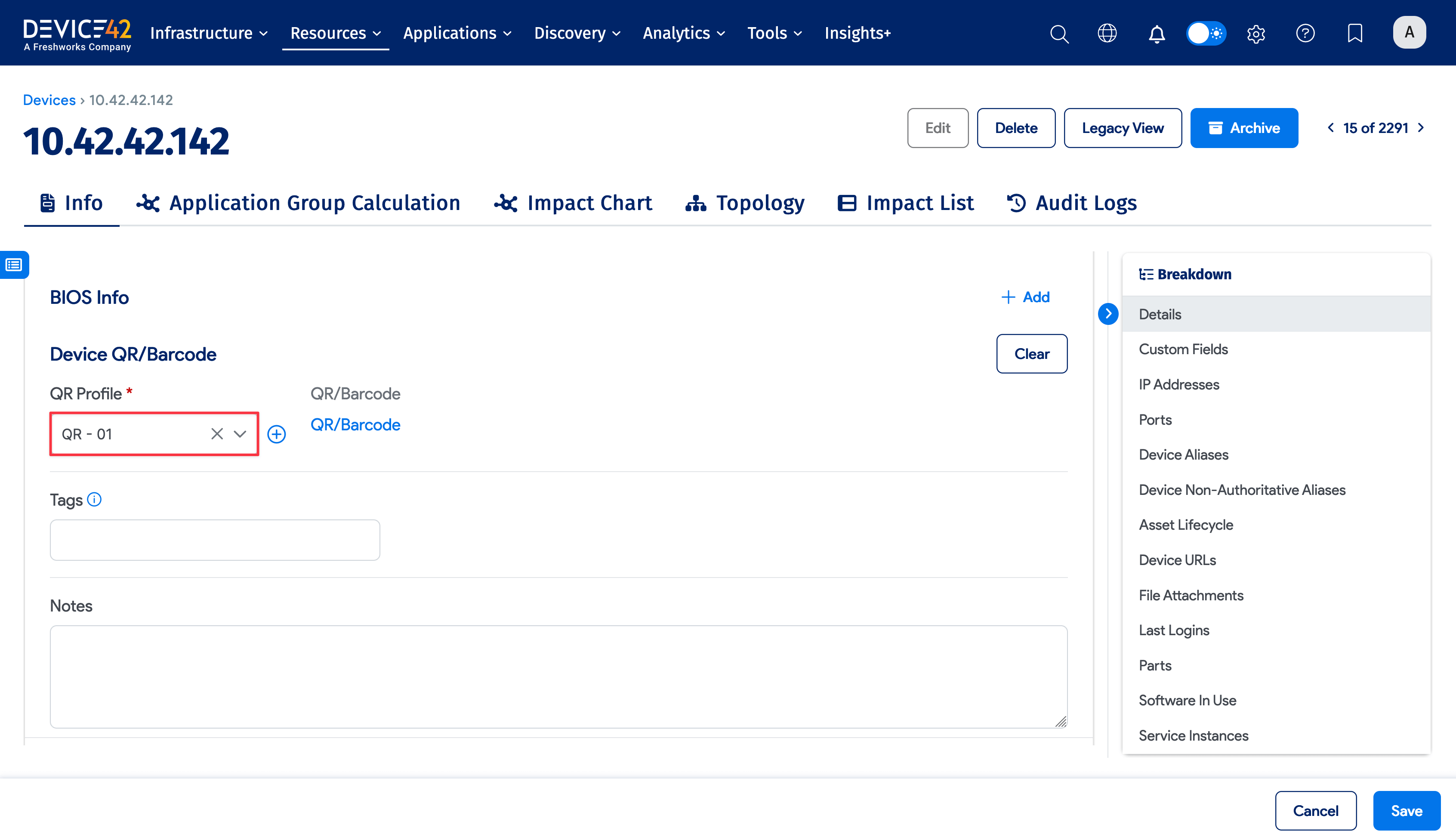
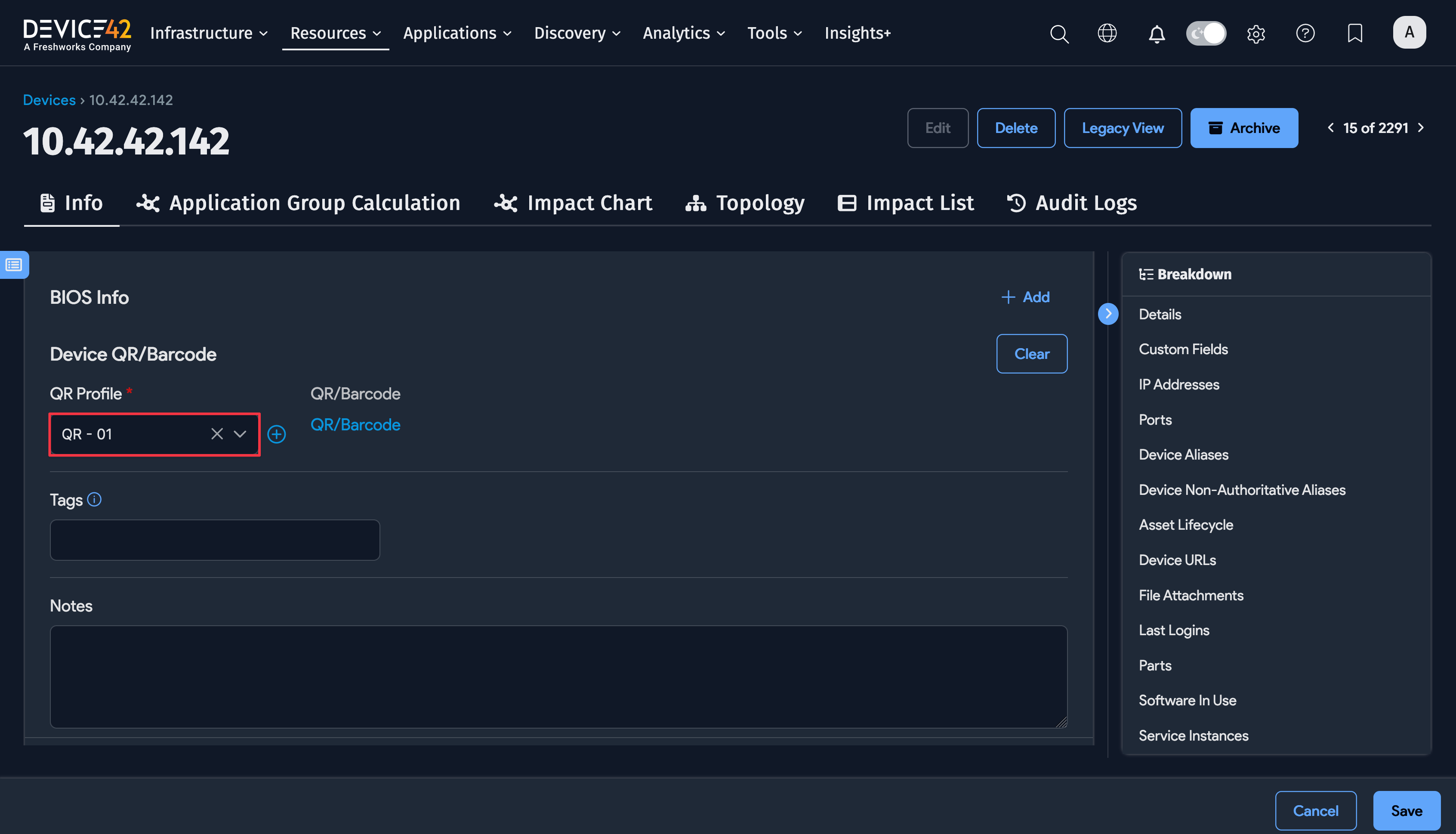
For assets, you can select a QR Profile under the dedicated Asset QR/Barcode section.
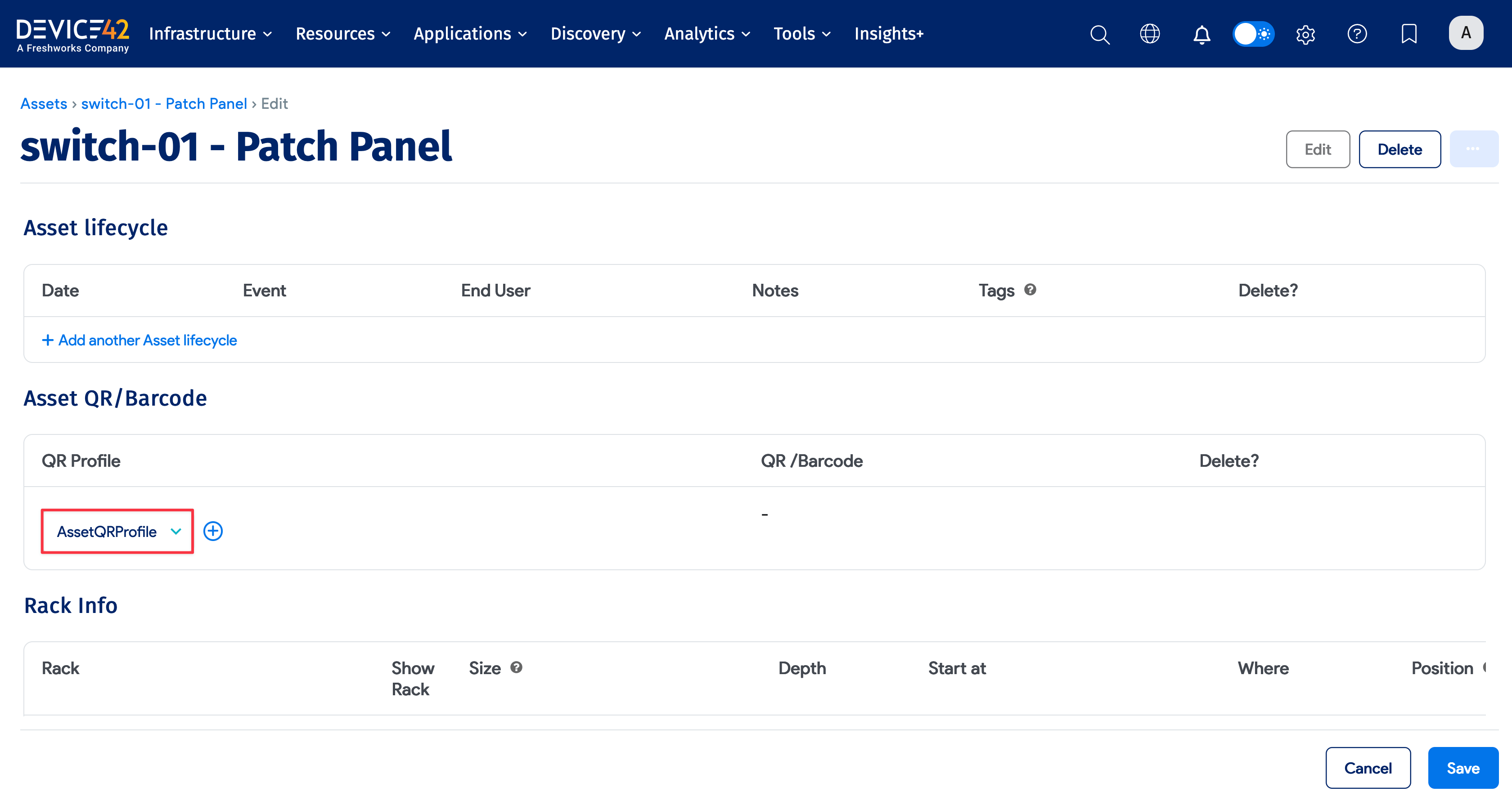
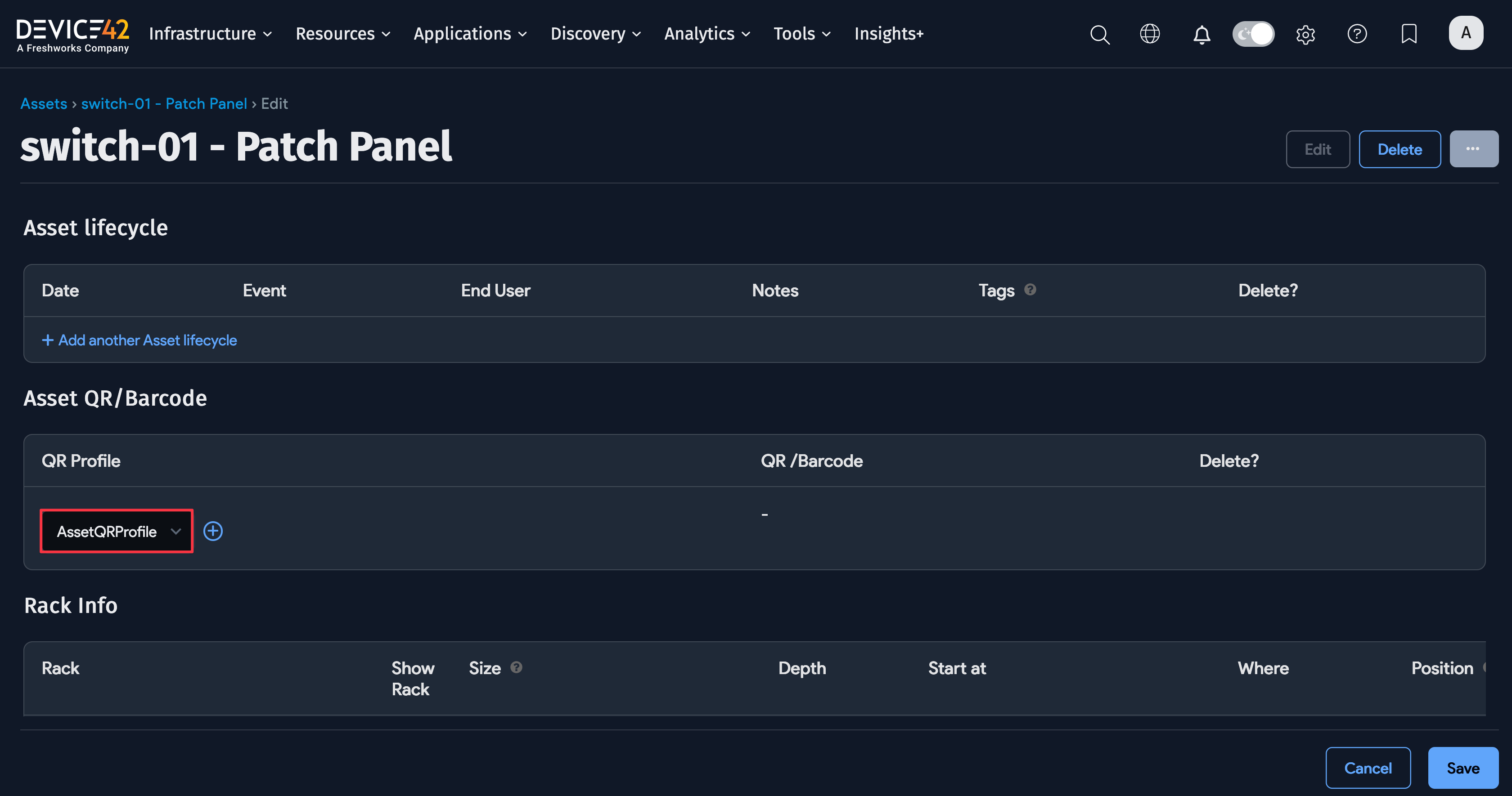
When you save the device or asset, click the associated profile link to preview and print the QR code or barcode.

Bulk Assign QR Codes
You can assign QR codes or barcodes in bulk from the device or asset list page. See Bulk QR and Barcode Printing for details.