Bulk QR and Barcode Printing
Instead of printing labels one at a time, you can bulk print QR codes or barcodes for multiple devices or assets at once from the list views.
Create a QR or Barcode Profile
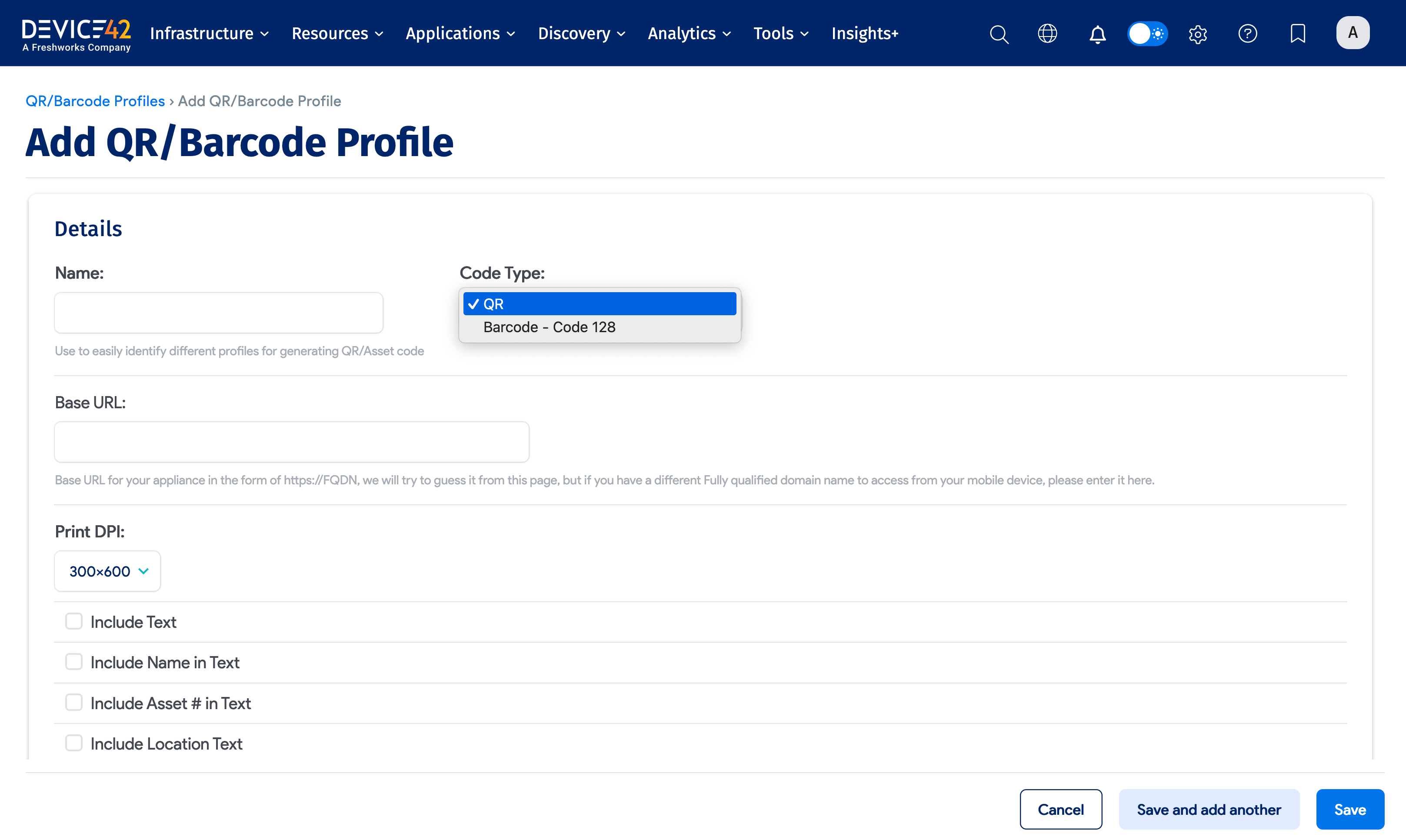
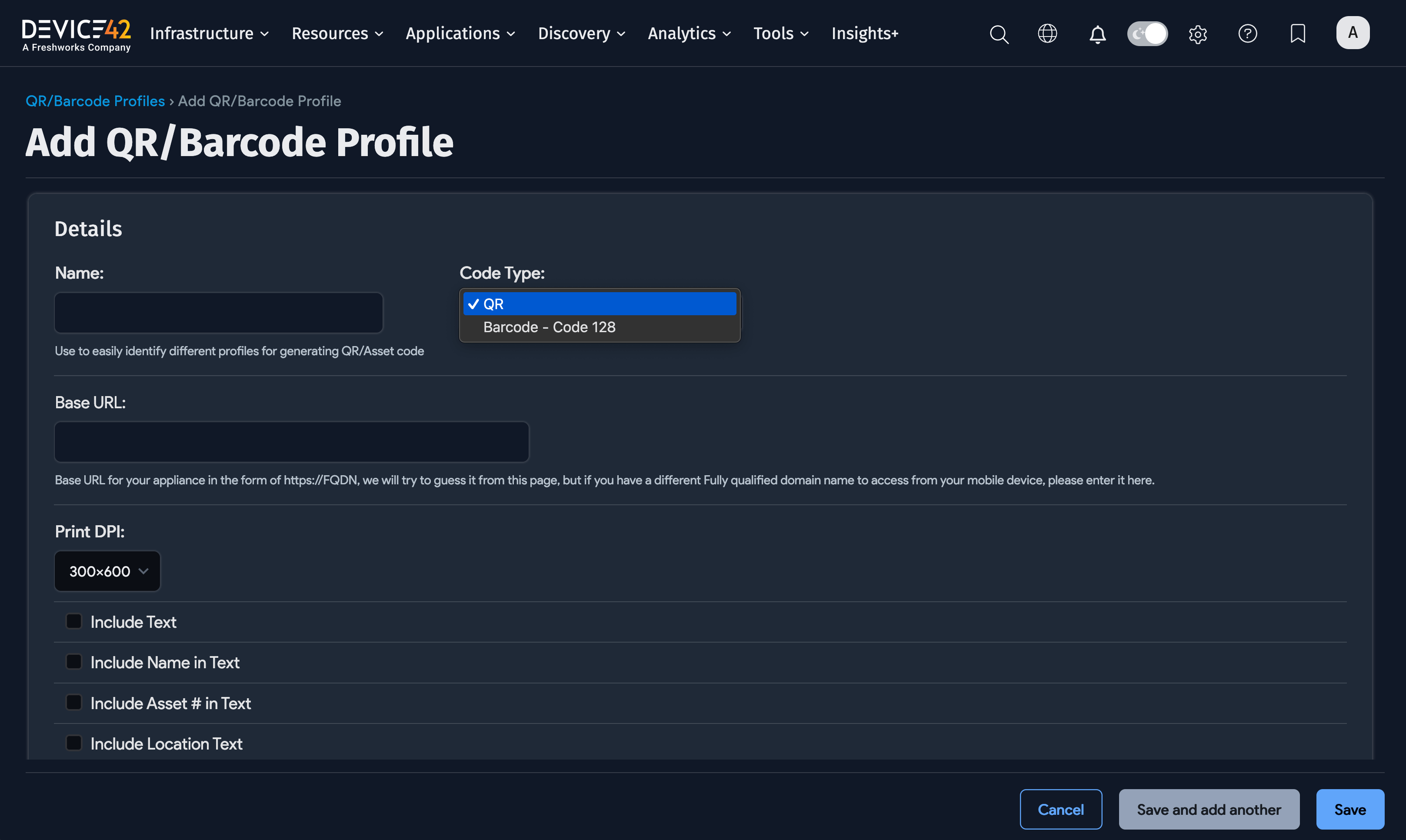
First, create a QR/Barcode profile.
Navigate to Tools > Templates & Bulk Operations > QR Profiles and choose between QR and Barcode for the Code Type.
Bulk Print QR Codes or Barcodes
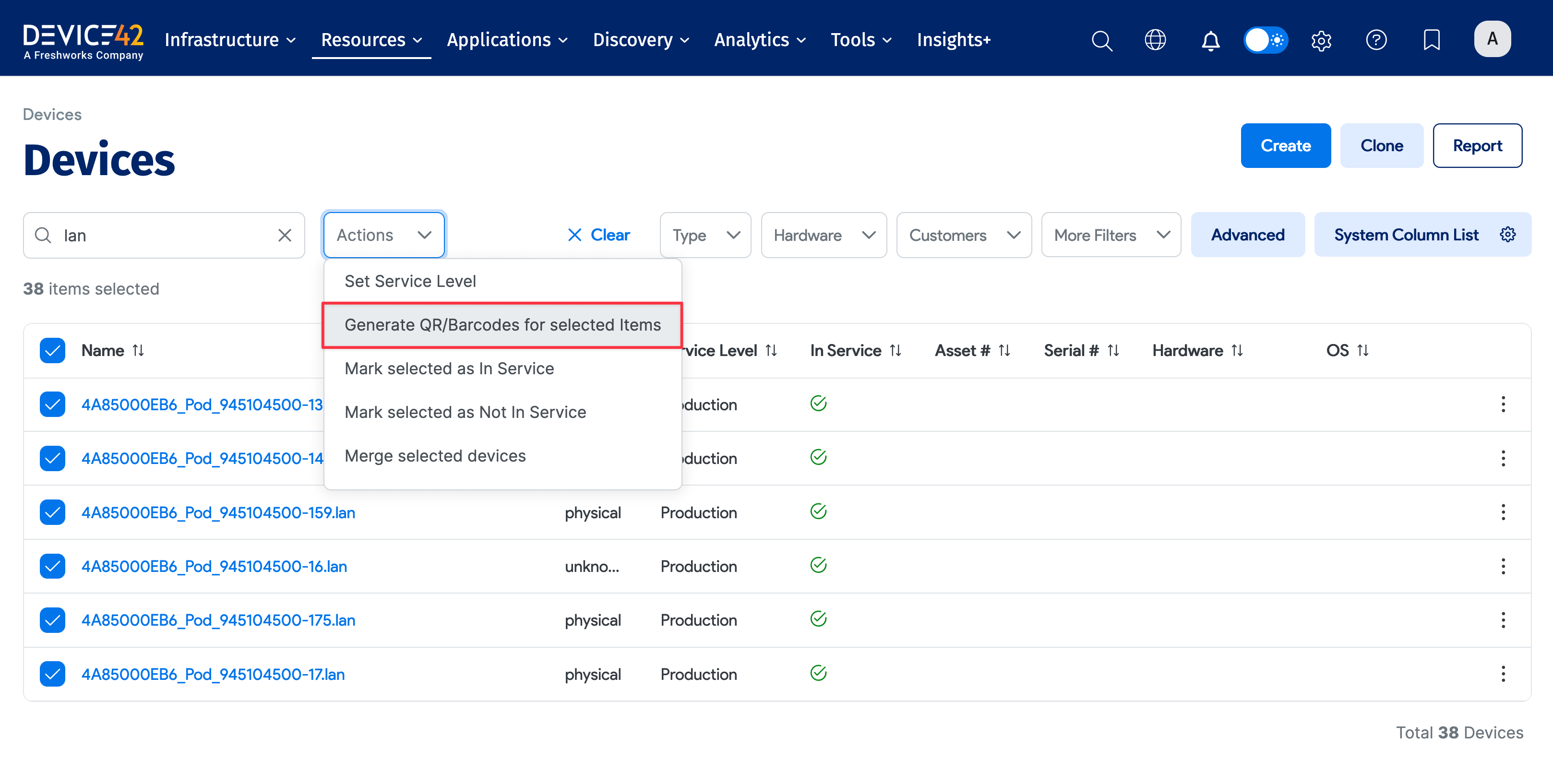
Navigate to the All Devices or All Assets list page under the Resources menu.
- Search or filter for the devices or assets you would like to print QR codes or barcodes for, then select the items.
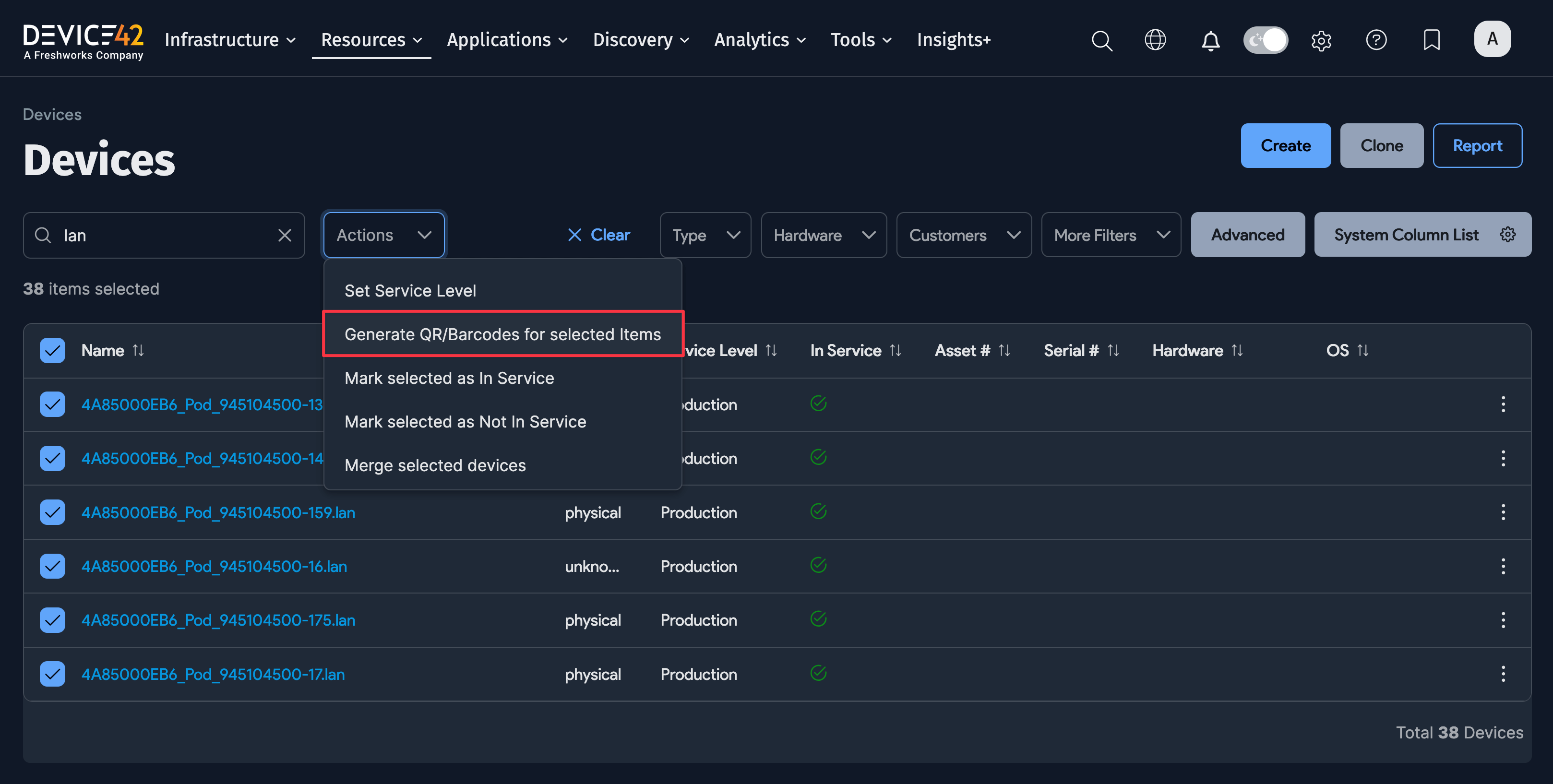
- From the Actions menu, choose Generate QR/Barcodes for selected items.
-
In the Choose QR profile for selected items field, select the QR code (or barcode) profile you prefer.


-
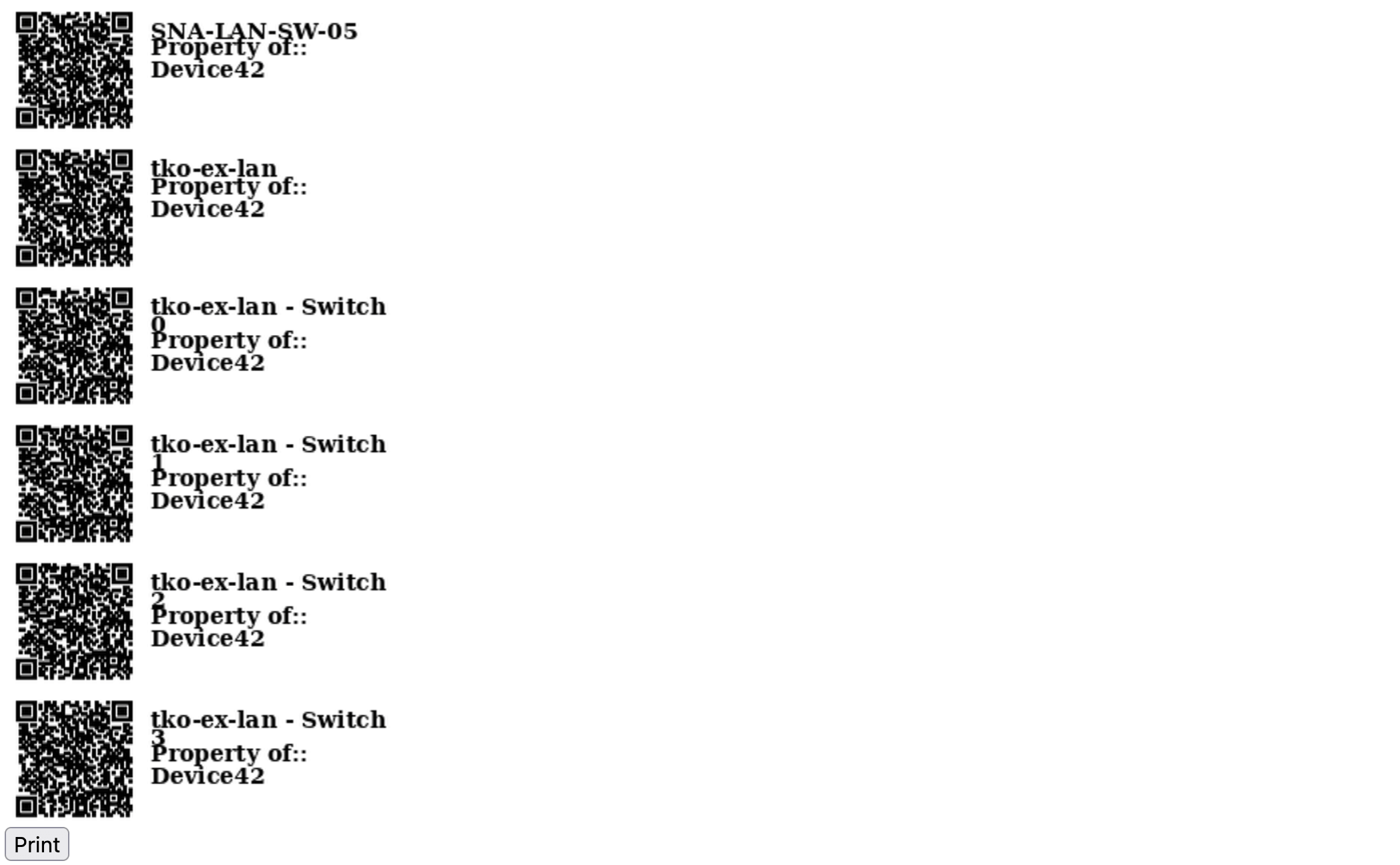
The next page will preview the codes according to your chosen profile settings, followed by the Print button.
Tips
- Select the Cut at the end option in the printer preferences.
- Bulk print the QR codes or barcodes in batches of up to 100 at a time for better performance.