Power Monitoring
This page describes Device42's power monitoring capabilities, including power heatmaps, rack-level charts, and PDU-level power data. The visualizations on this page are only populated after PDUs have been discovered and monitoring has been enabled. See Getting Started with Power and Environmental Monitoring if you haven't set this up yet.
Power Heatmaps
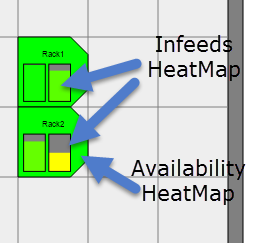
When you navigate to a room layout view by going to Rooms, selecting a room, and clicking Show, the racks are color-coded to show both space and power availability. Each power-enabled rack displays a bar graph representing each infeed of each PDU in the rack. The bars are color-coded to show the amount of power in use on the infeed relative to its capacity.
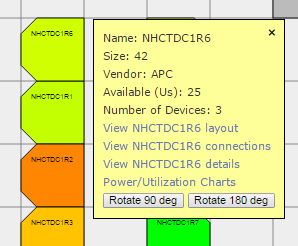
If you hover over a rack, a popup appears. The Power/Utilization Charts link shows the power history for each infeed and outlet.
Rack-Level Power Visualization
View power visualizations under the Power Charts tab from any rack with a power unit that has discovered data.
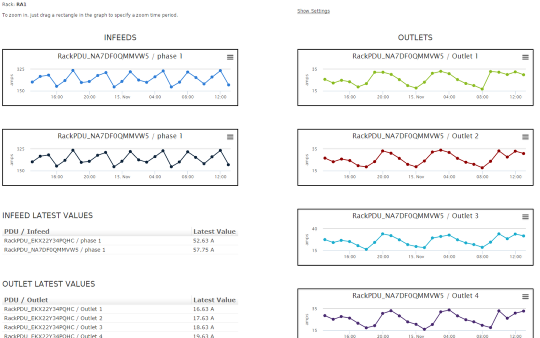
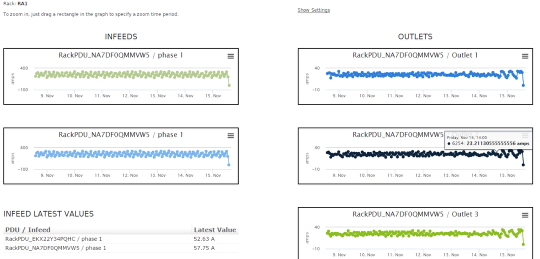
The chart shows the last 24 hours of power data for each infeed and outlet for each PDU in the rack. To view a different time range (for example, the last week, month, or year), click Show Settings.
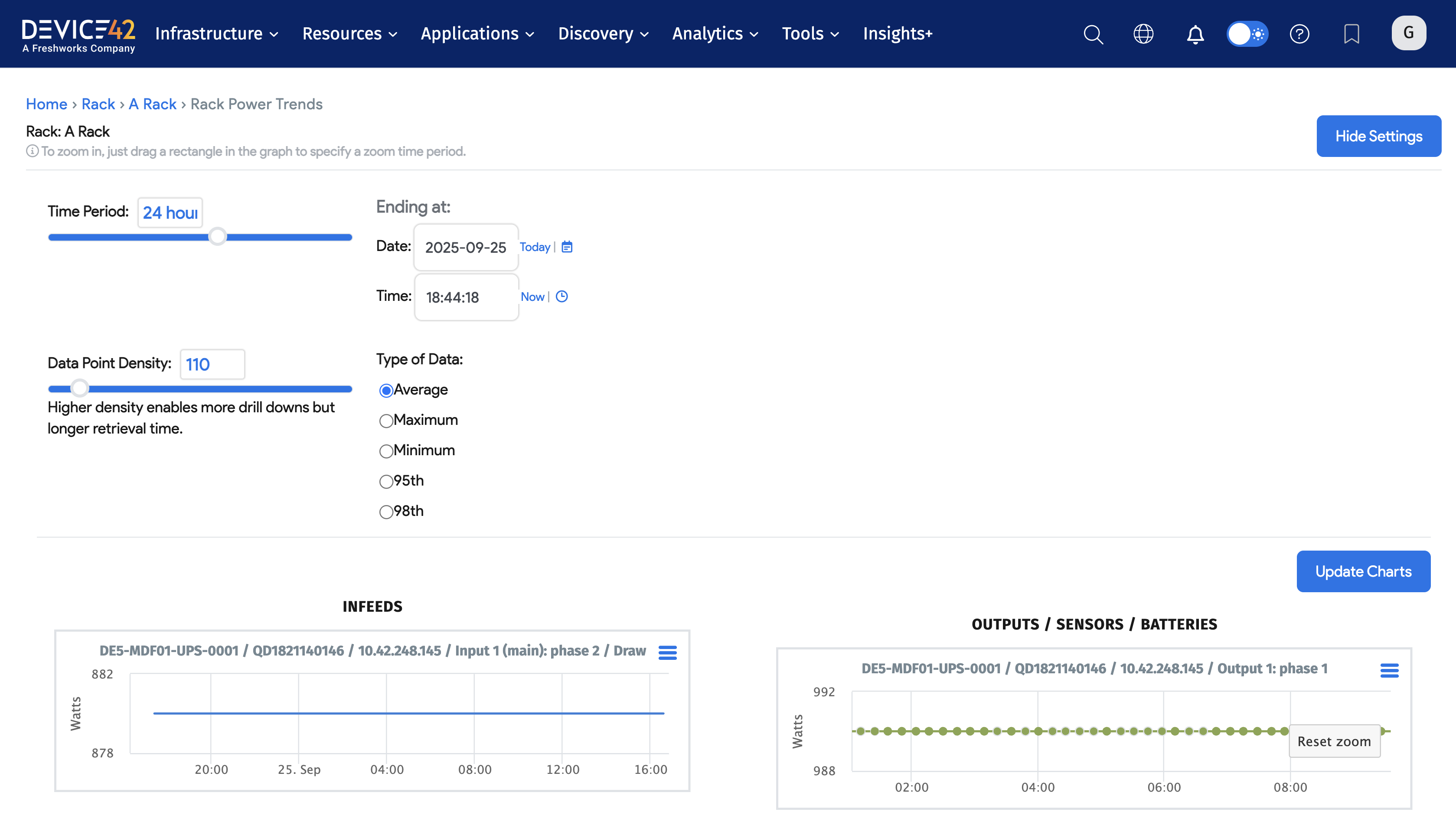
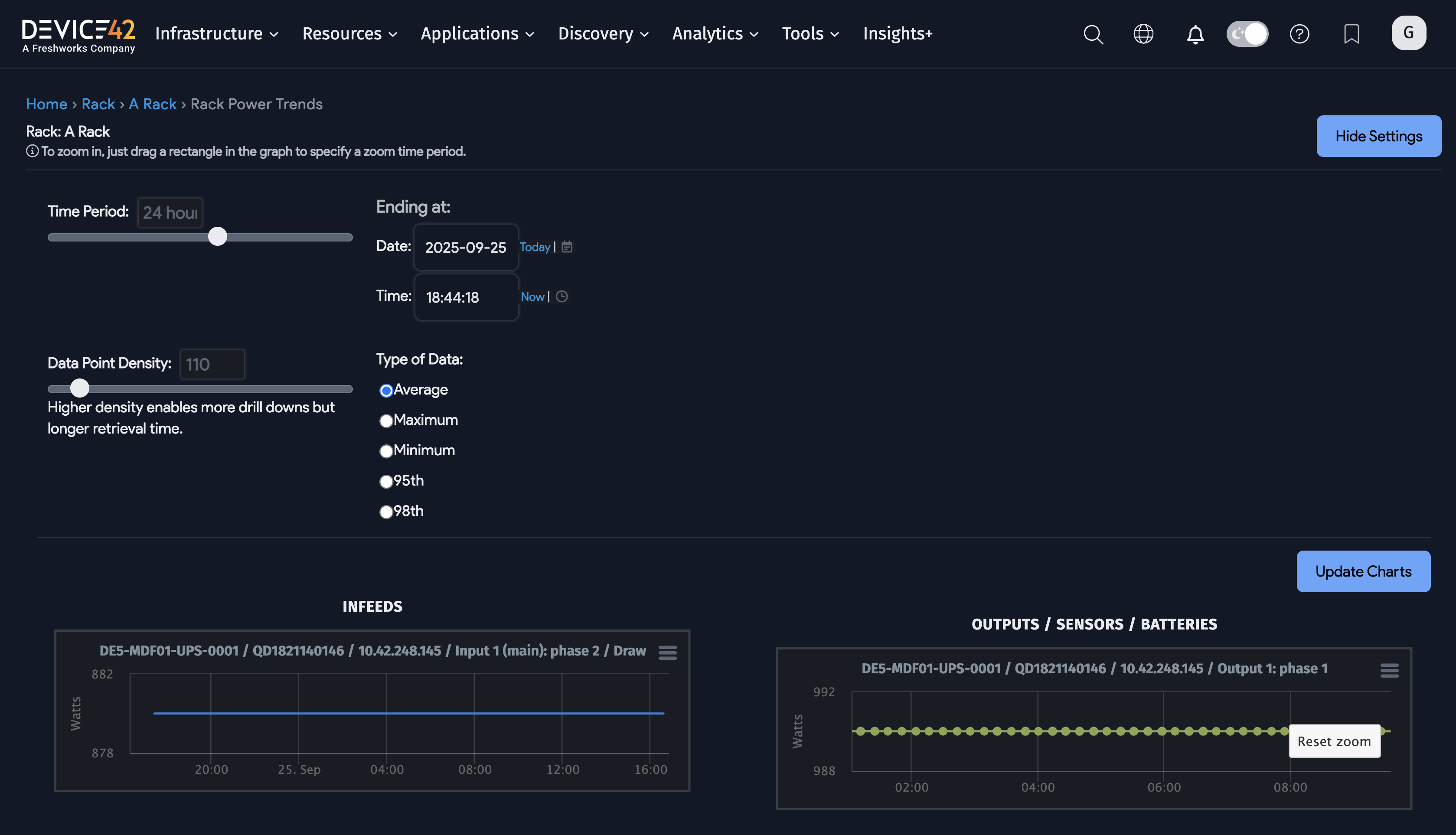
Use the sliders to set the time period and data density. A higher data density returns more data points but may take longer to load.
You can also specify the data type. When you configure a discovery job for a set of PDUs, one option is the polling interval. For example, if polling is set to every minute, the database stores minute-by-minute data. When you request a week's worth of data, Device42 aggregates the data points based on the selected type:
- Average: Returns the average value for each set of data points.
- Maximum: Returns the maximum value observed for each set of data points.
- Minimum: Returns the minimum value observed for each set of data points.
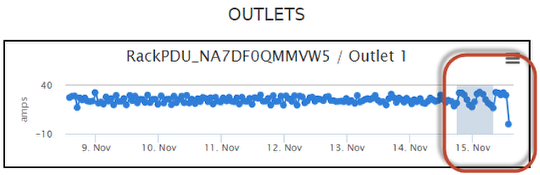
To inspect a specific period in more detail, click and drag to highlight the time range you want to investigate.
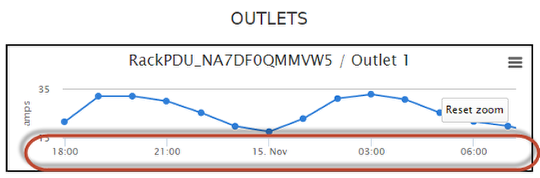
After releasing the mouse button, the view expands to the highlighted period.
Rack-level power charts are also available from the Rack View page by clicking the Power button in the top right.
PDU-Level Power Data
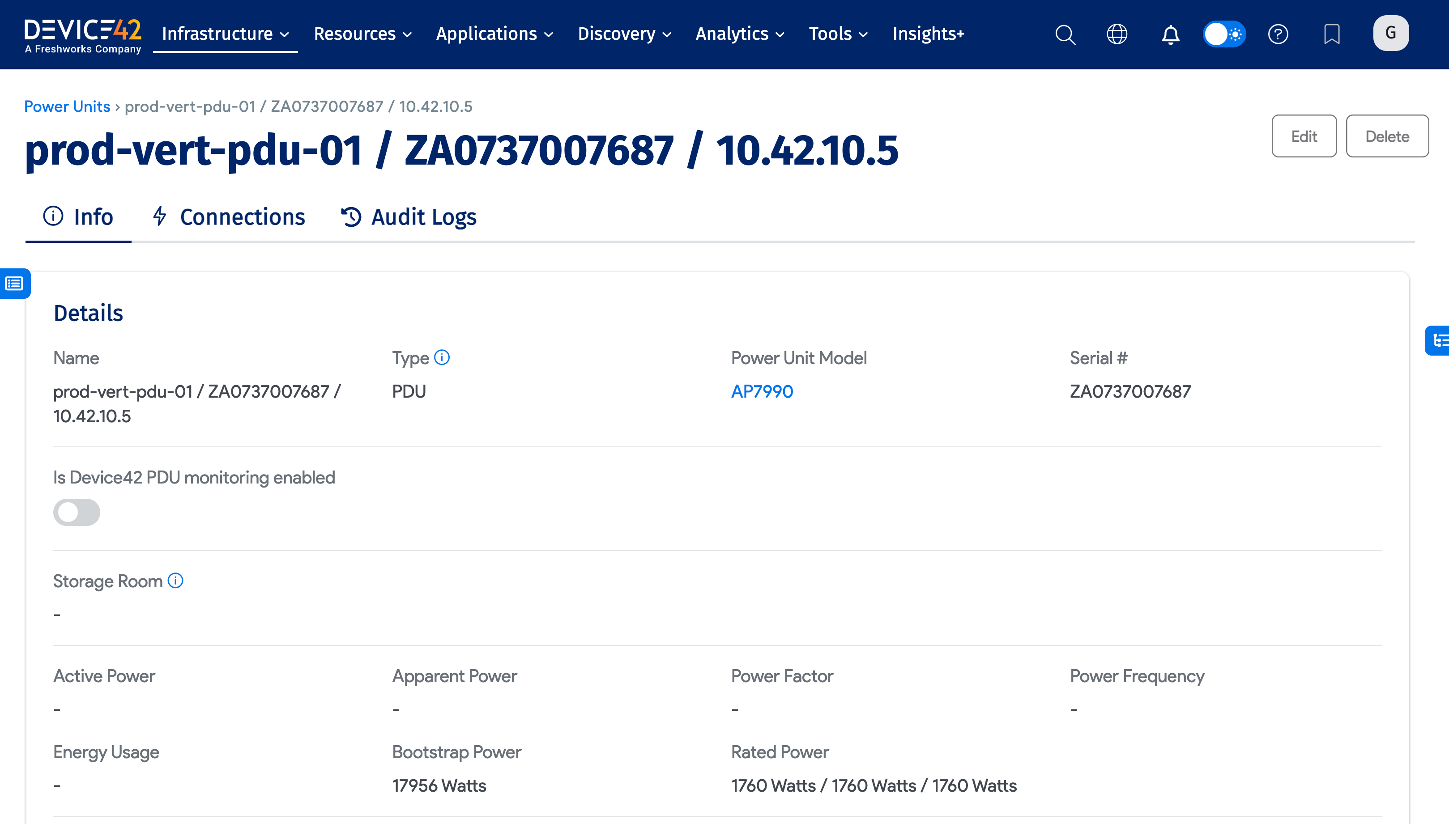
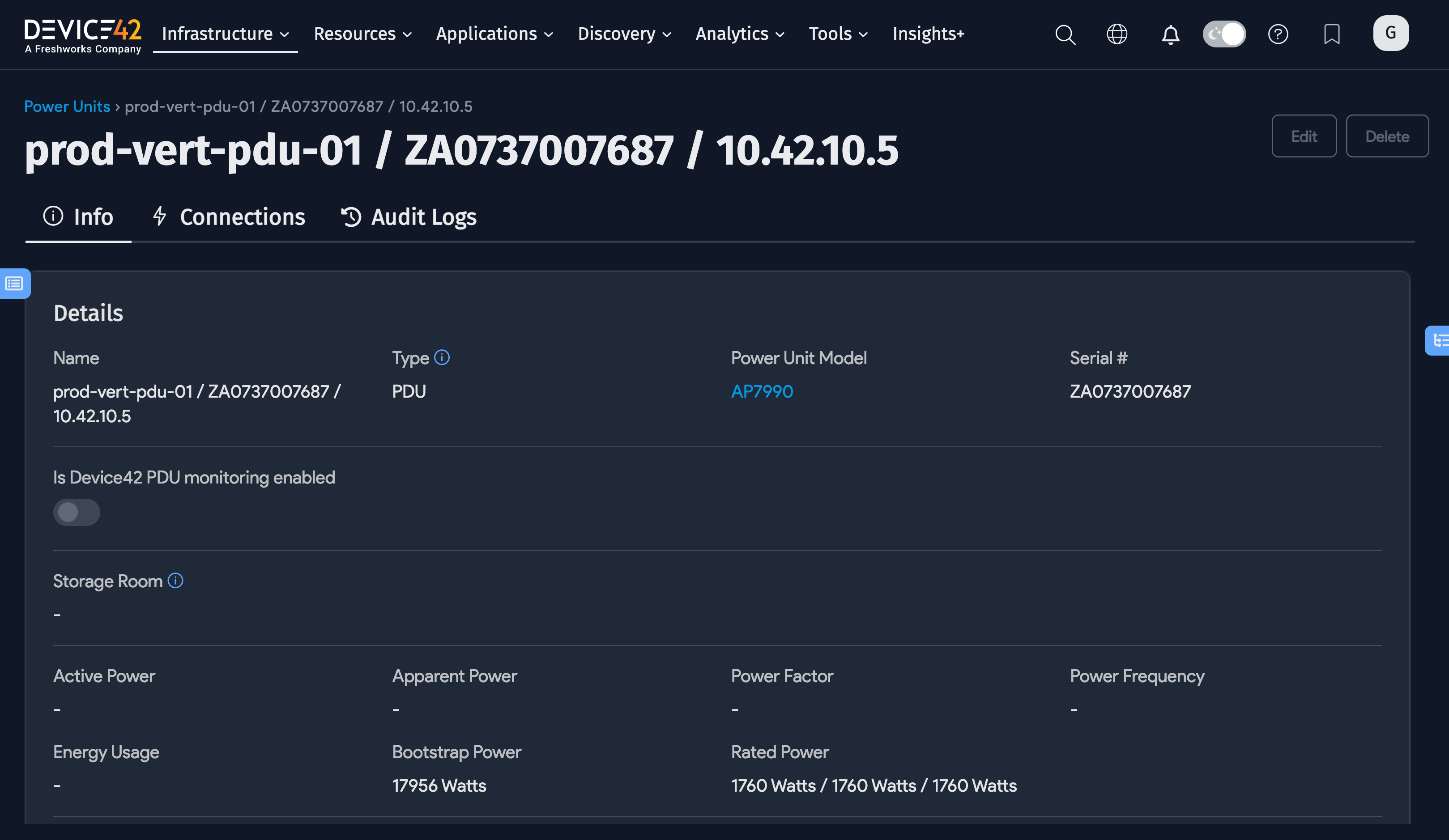
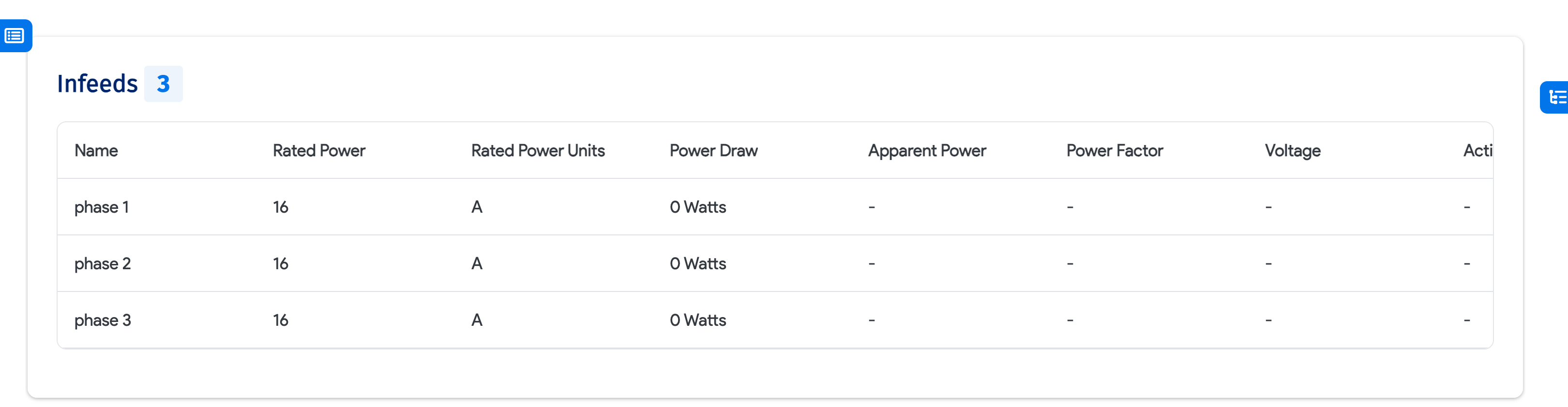
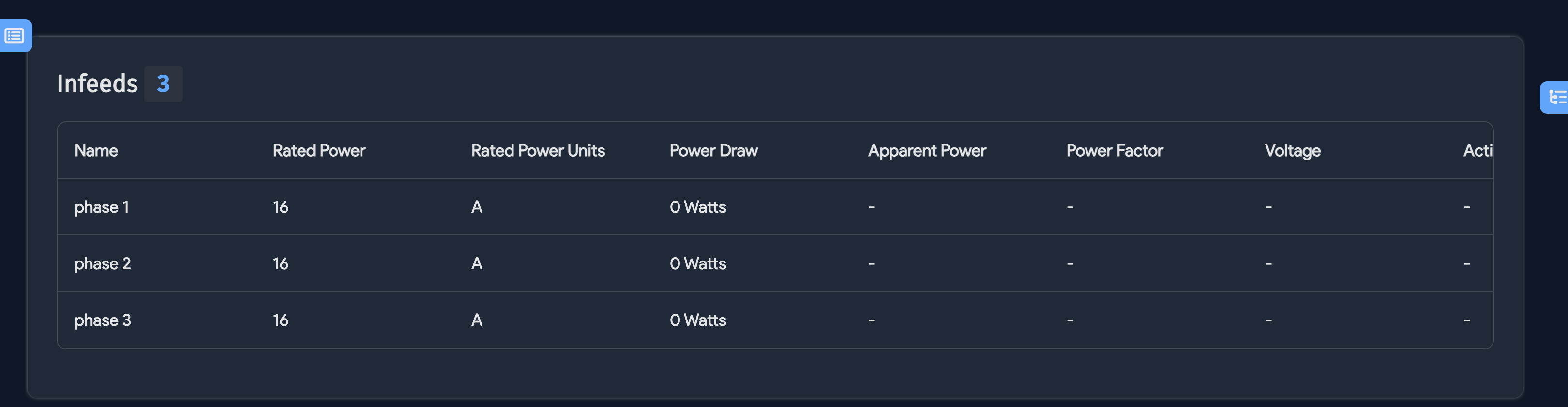
When you open a PDU, you can see power details for both Infeeds and Ports (outlets), shown under the Connectivity tab.
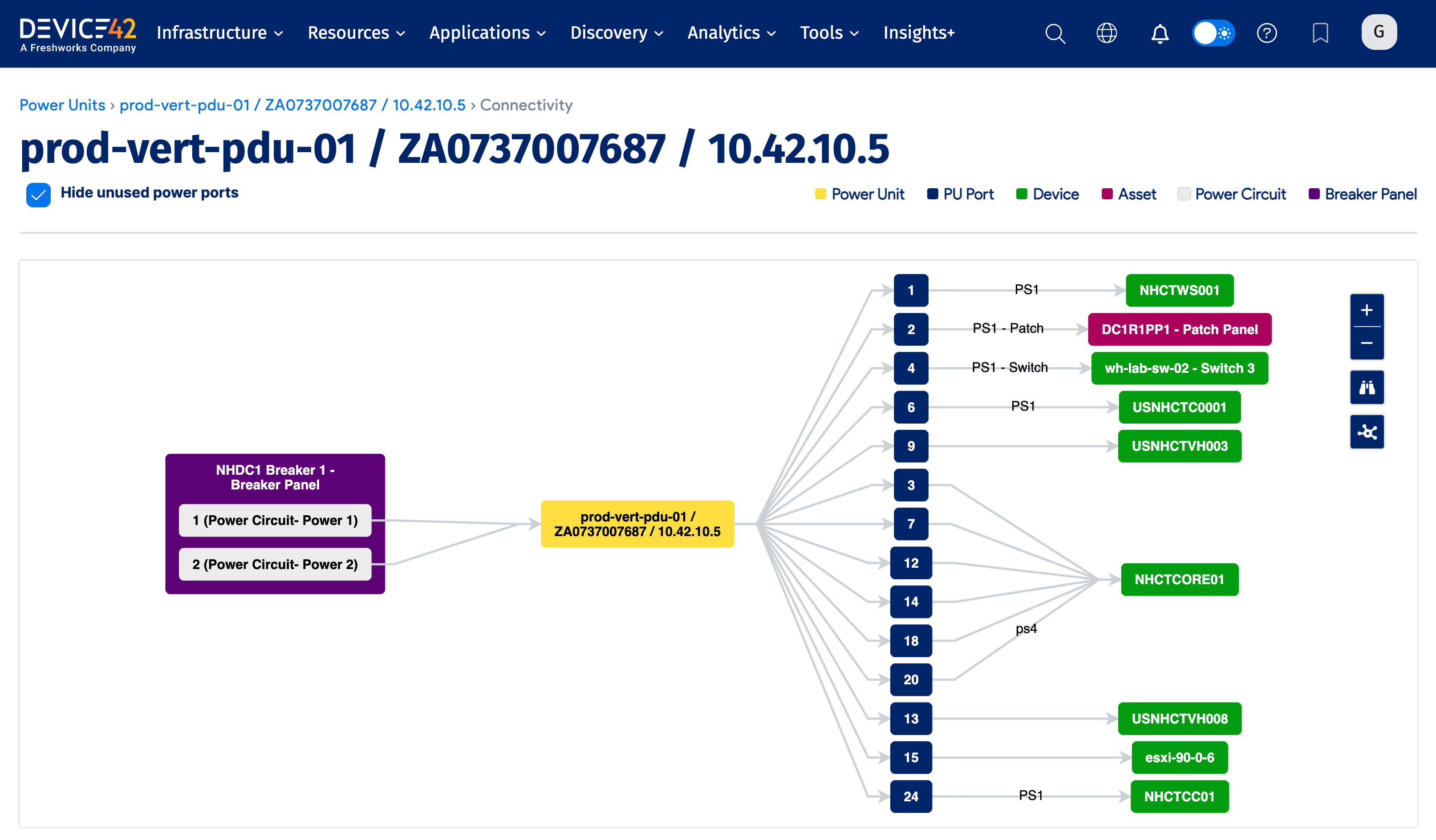
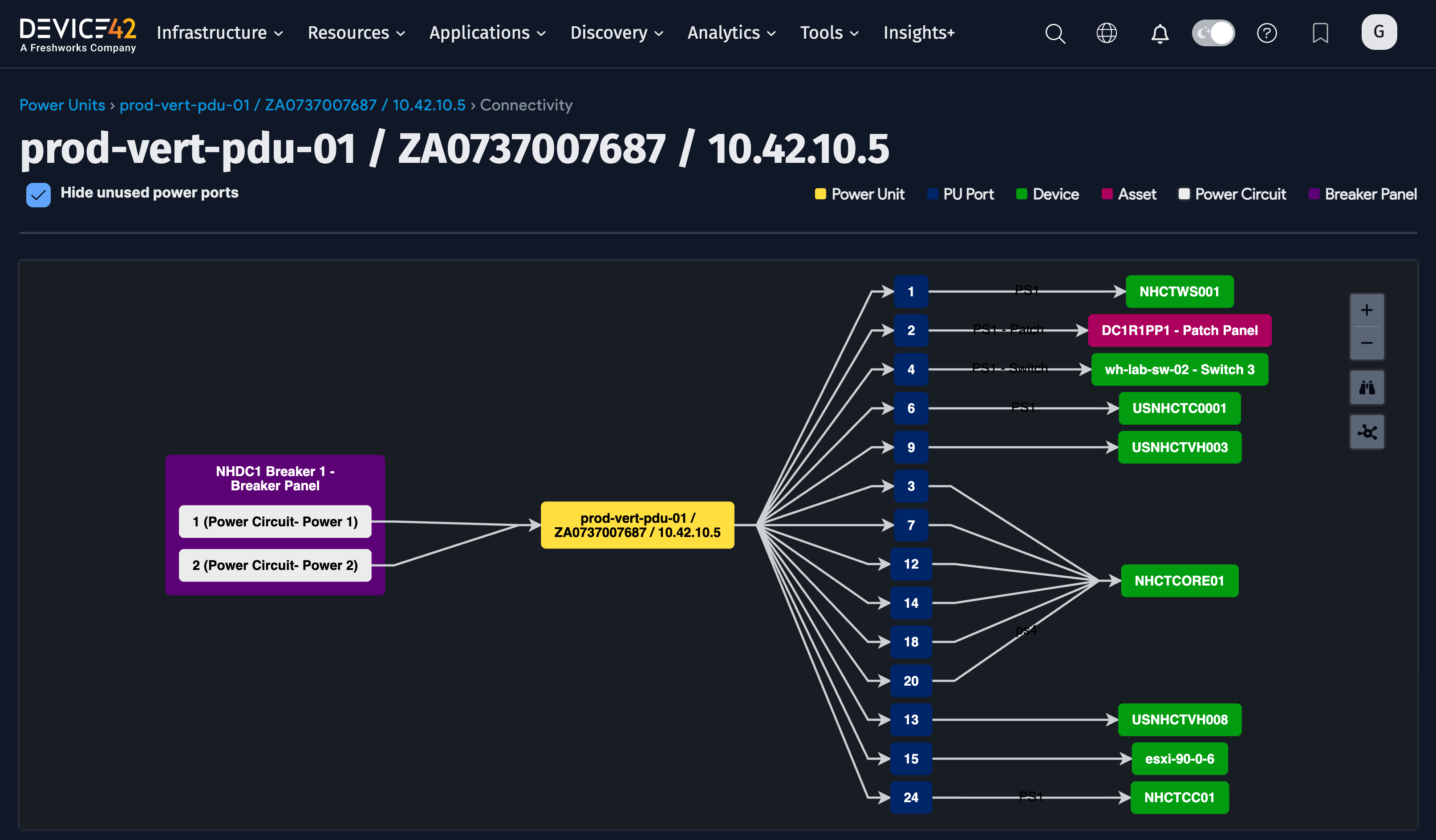
For each infeed and outlet, Power Draw shows the amount of power drawn the last time the PDU was polled via SNMP. You can set the polling interval under Discovery > SNMP. For infeeds, Rated Power is discovered automatically.
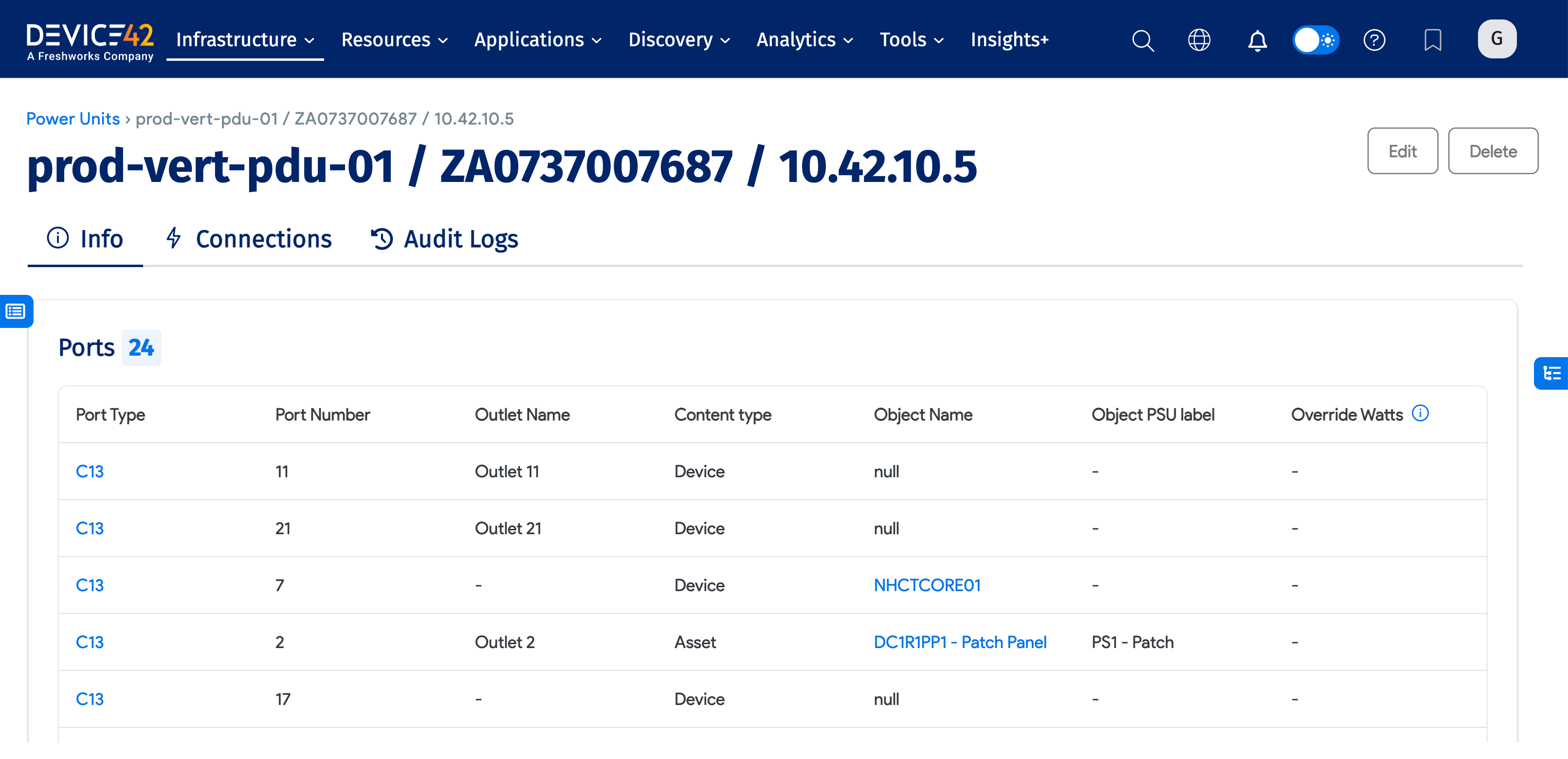
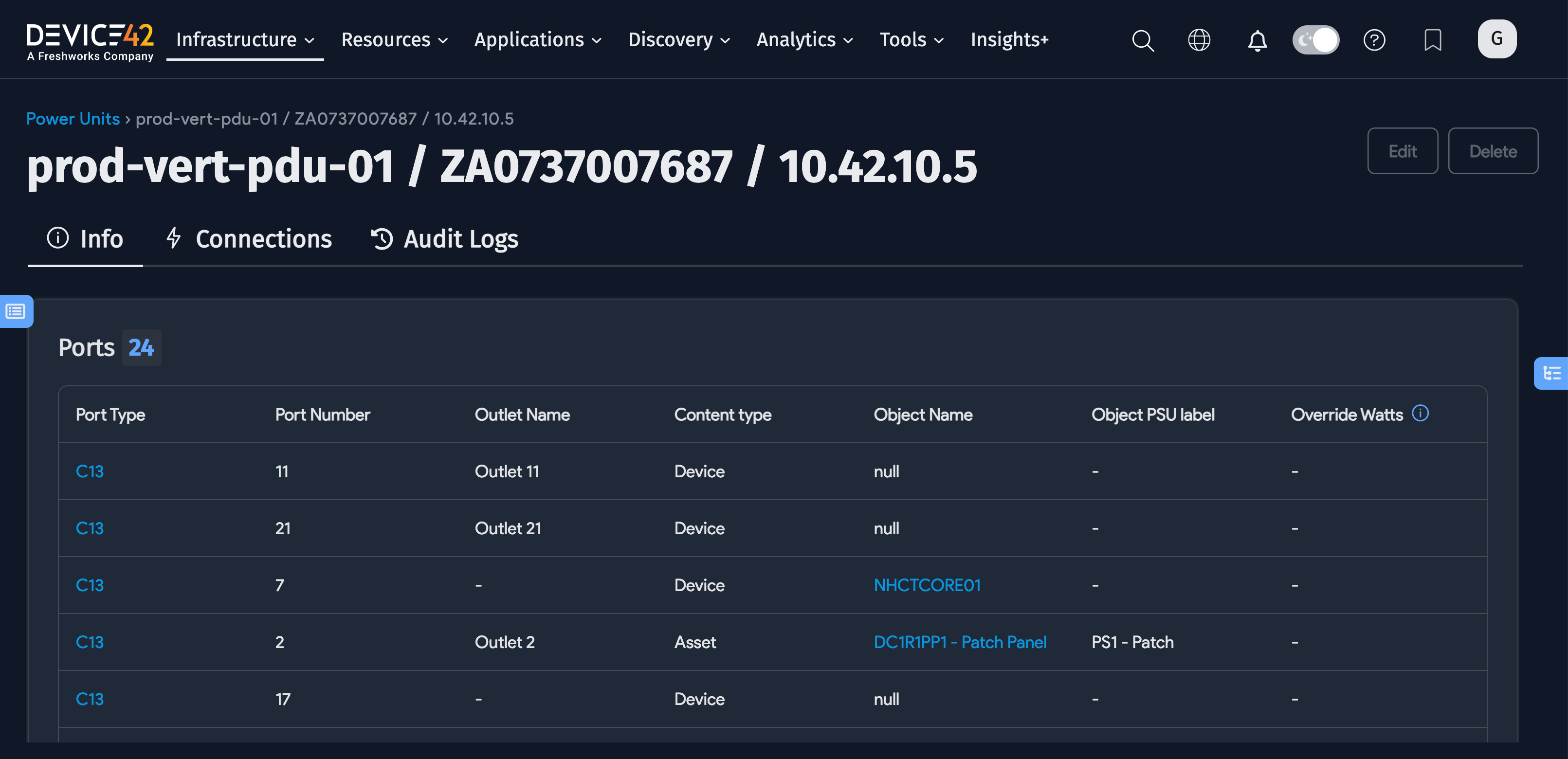
For each outlet, you can also see Override Watts and Bootstrap Power. Bootstrap Power is the power required for the outlet at boot time. The PDU's total Bootstrap Power is the sum of all outlet Bootstrap Power values.
By default, Bootstrap Power is empty if no device is connected. If a device is connected, Bootstrap Power defaults to the nameplate watts of the device's hardware model. To use a different value, enter it in the Override Watts field — this overrides the hardware model value even if a device is connected. You can have a mix of outlets, where some use the hardware model value and some use an Override Watts value.
Clicking the Power tab on a PDU shows tables and graphs of historical power data for infeeds and outlets.
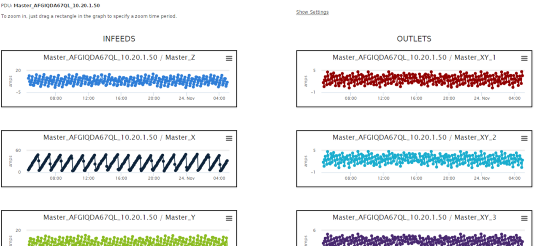
From the rack detail power page, click Show Settings to view historical charts and minimum, maximum, and average calculations.