Part Model Templates
Part model templates define the structure of a hardware component type and optionally include port layouts and port templates. This page focuses on the port-related aspects of part model templates — how to enable port support, configure port templates, and auto-create ports on new devices.
For the general workflow of creating part models and adding parts to inventory, see Manage Parts. For information on adding parts slots or blade slots to devices, see Device - Parts Slots.
Create a Part Model Template
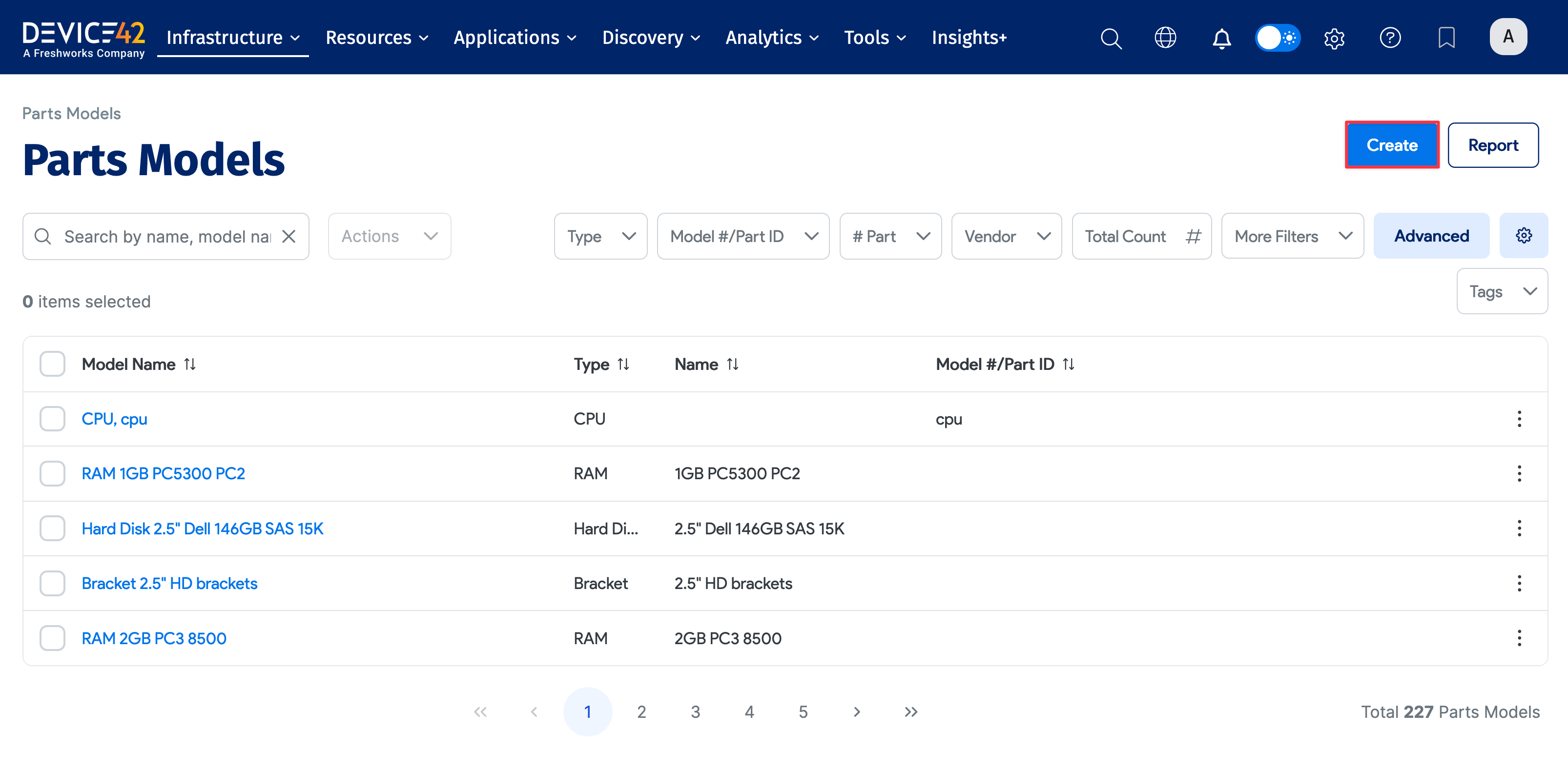
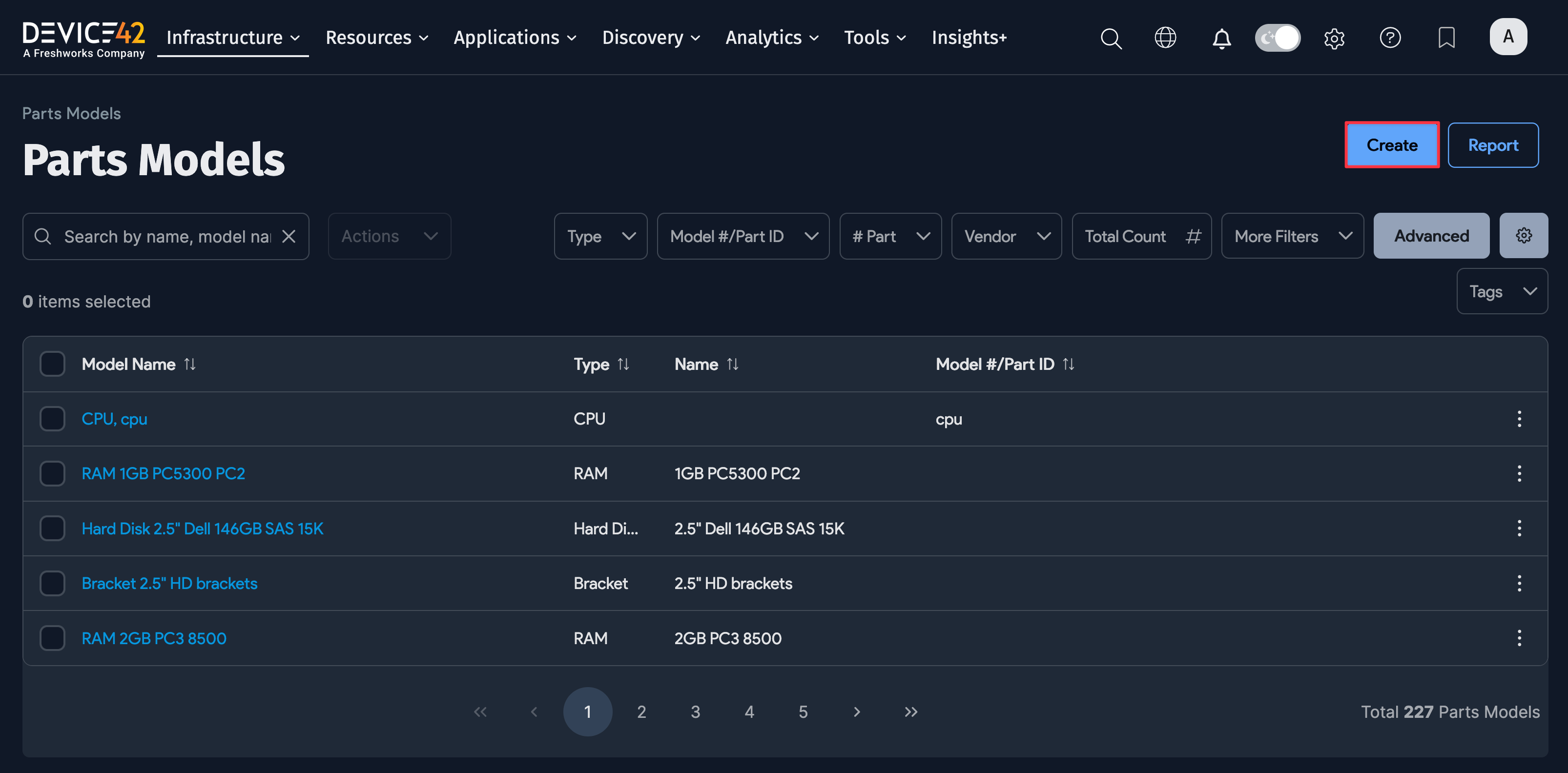
Navigate to Infrastructure > Hardware > Parts > Model List and click Create in the top right.
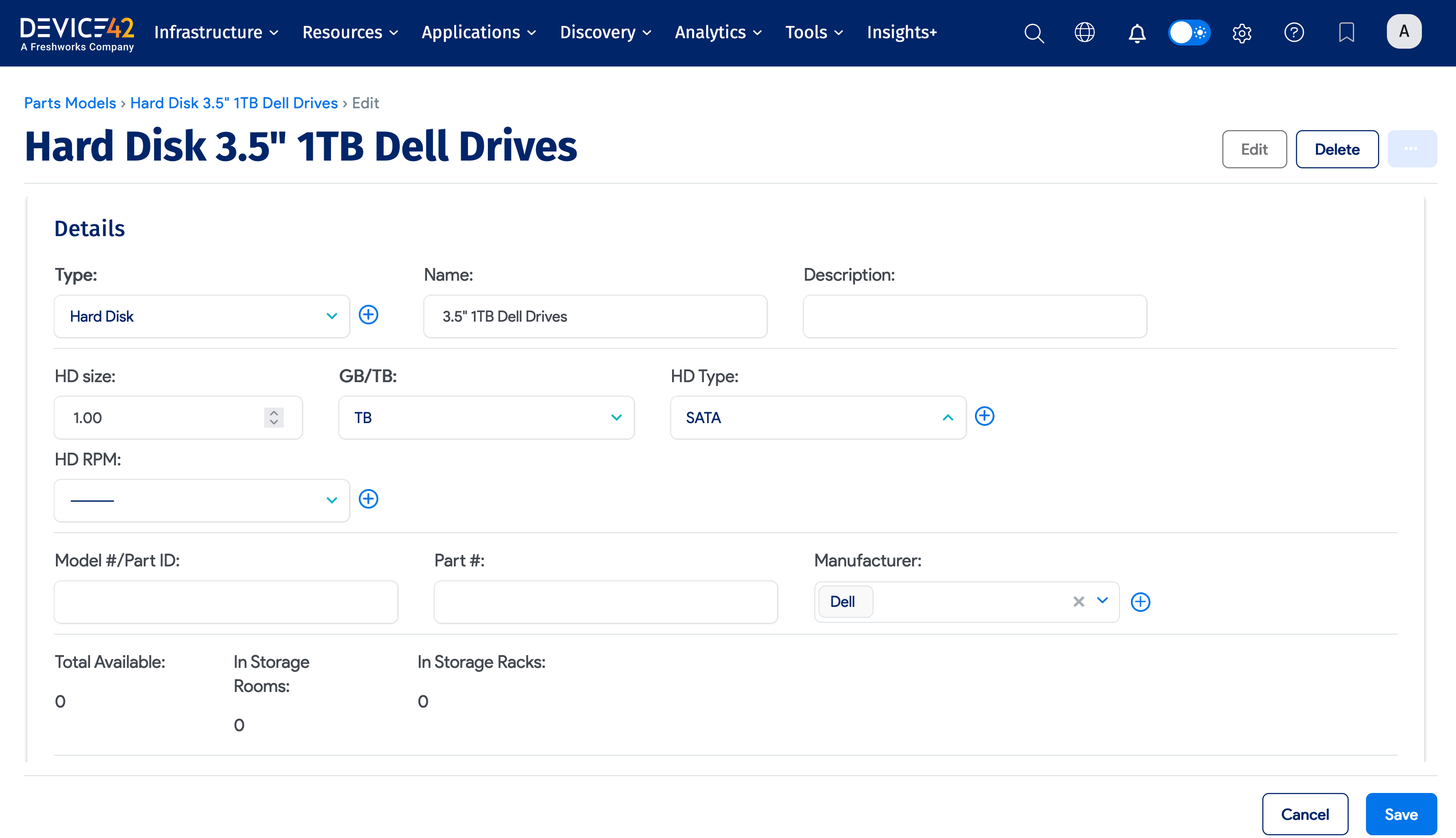
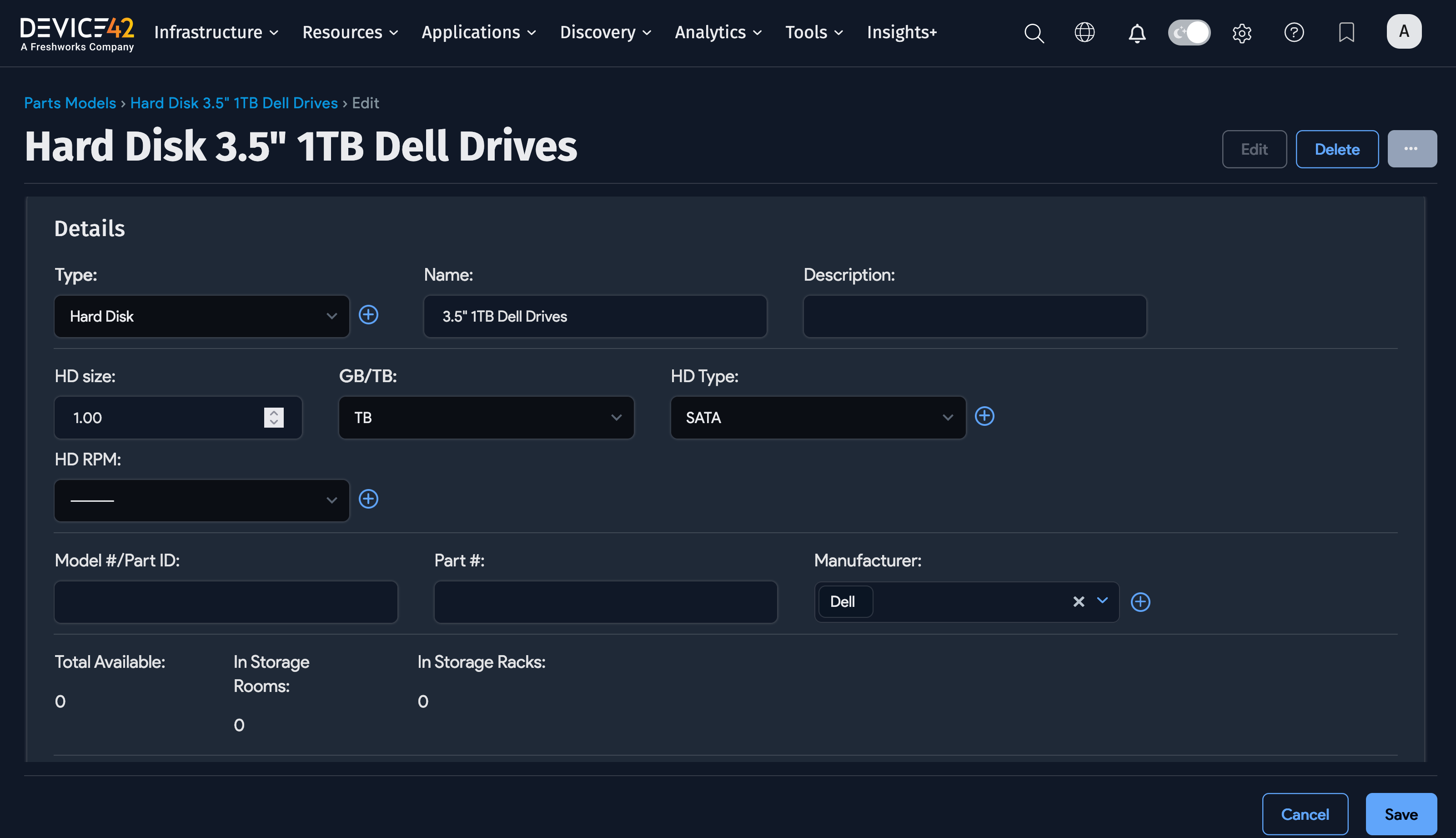
Fill in the part model details on the creation screen.
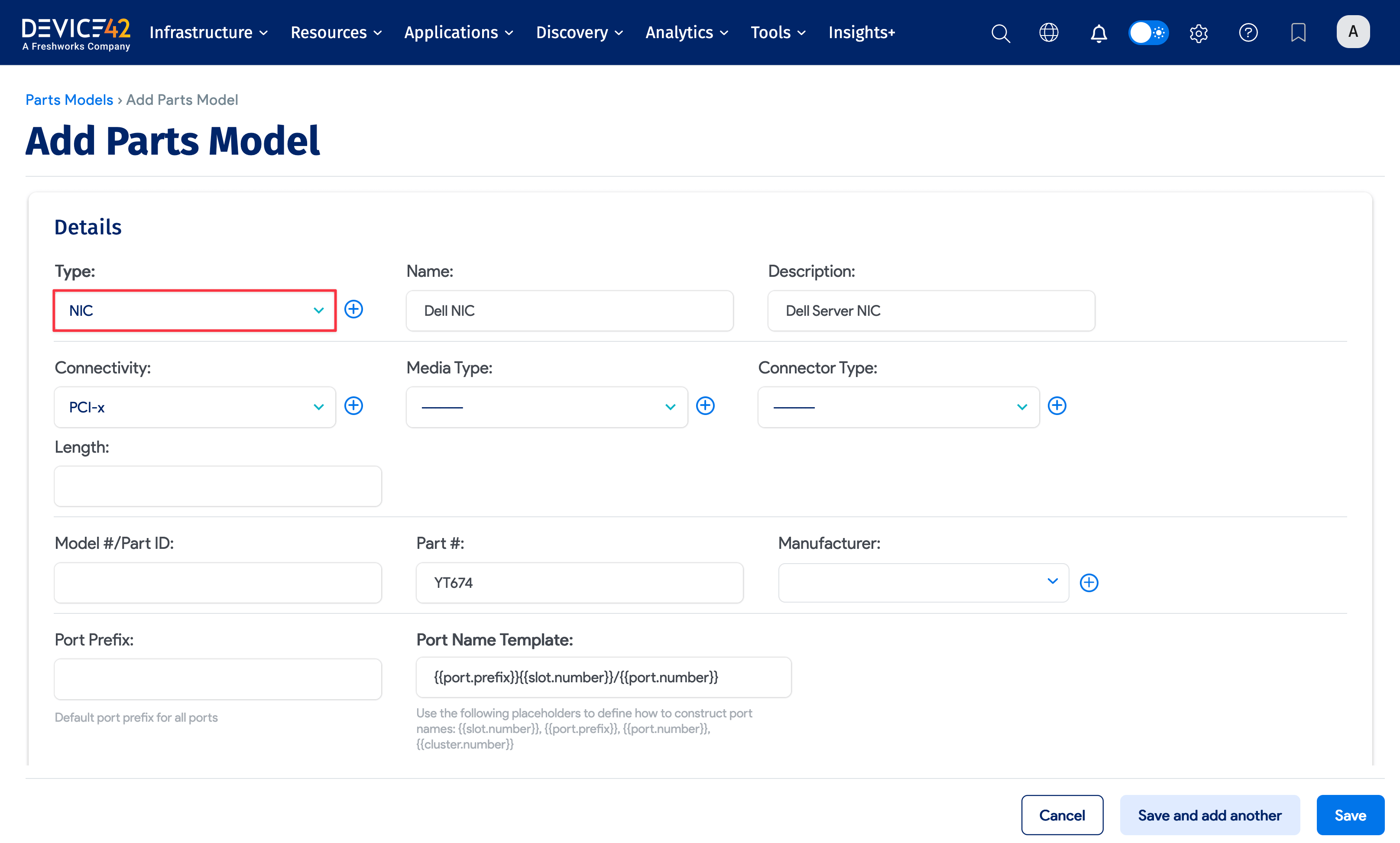
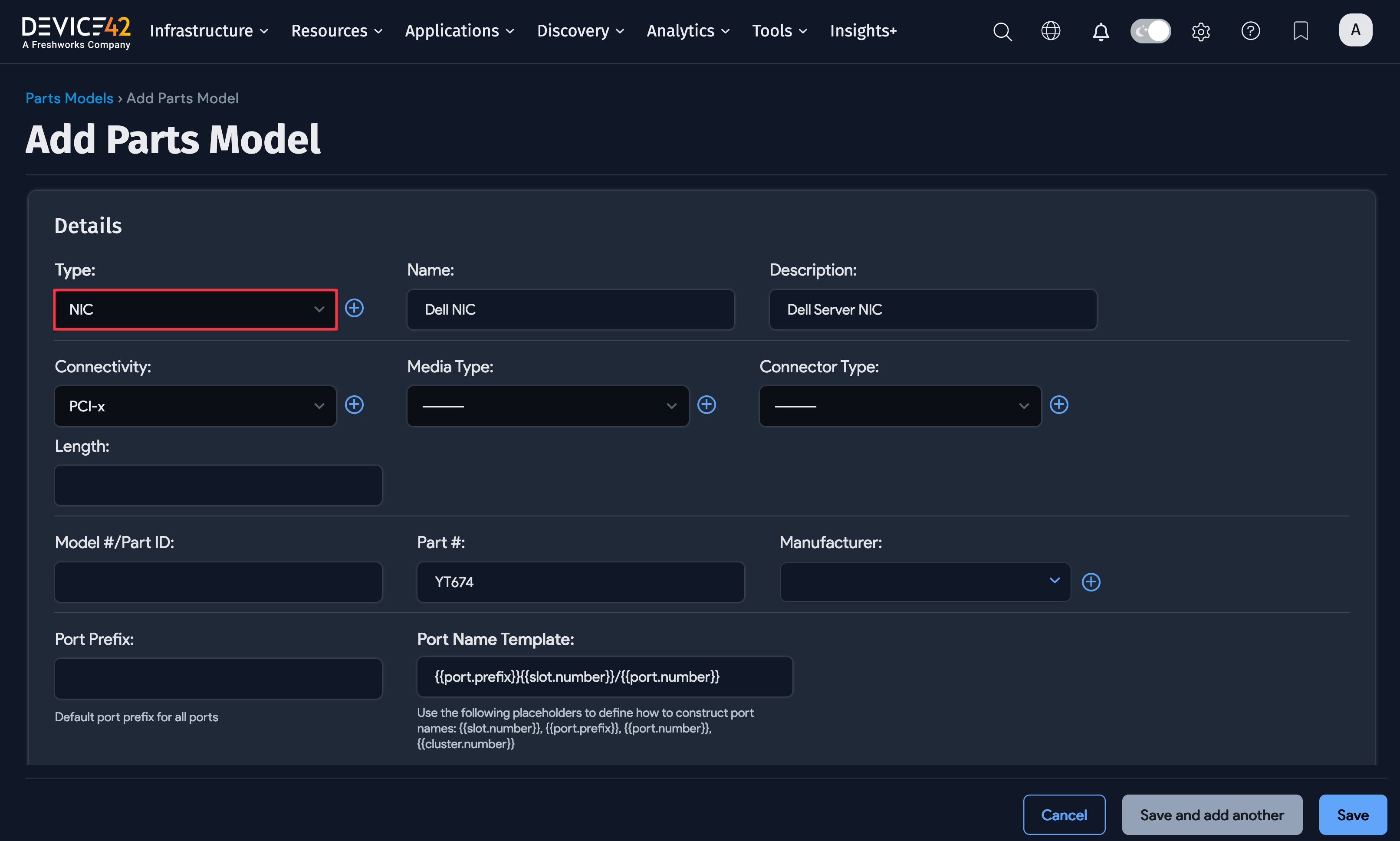
If the part type you need doesn't exist, add a new type by clicking the plus sign icon next to Type.
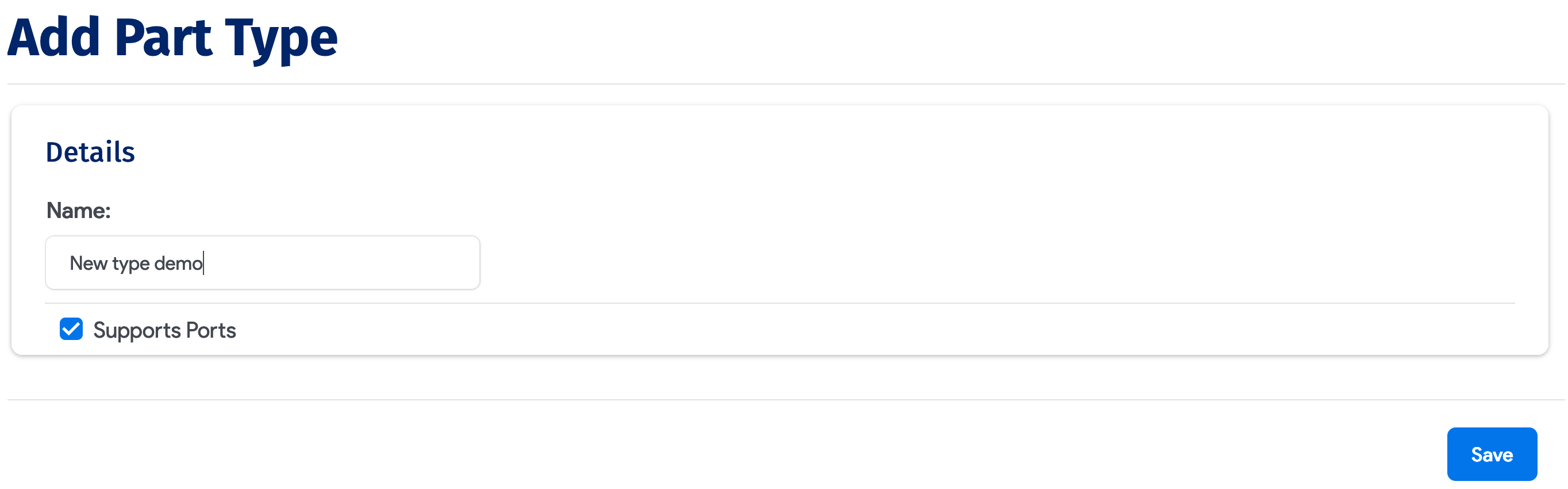
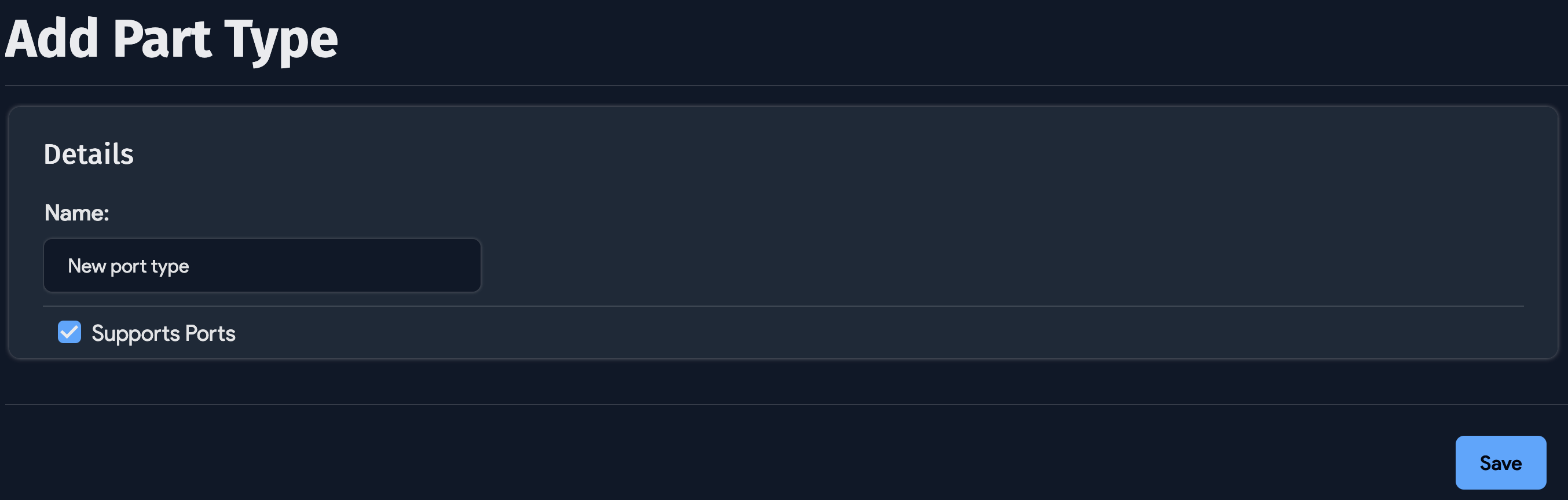
Supports Ports
While creating a part type, select the Supports Ports checkbox to define ports and a port layout. You can set the Supports Ports flag when creating or editing a part.
The Supports Ports option is not available for parts designated as disk drives or physical memory.
Parts (with or without ports), once defined, may optionally be placed into parts slots, or a parts slot may be left empty.
Port Templates
A port template may include a name prefix, a naming scheme, and a port type. Ports may also be added in bulk and automatically named based on the template configuration.
You can auto-create ports when creating a new device. If the Add Ports When Creating Device checkbox is selected on the hardware model template, the new device is created with all its model-defined ports. Following a discovery run, Device42 automatically adds discovered connections to these ports.
Edit a Part Model Template
To edit an existing part model, open it and click the Edit button in the upper-right corner.