Import Parts
This page explains how to import parts using the spreadsheet import tool under Tools > Imports/Exports (xls). It builds on the part models imported in Import Part Models and shows how to add parts with serial numbers and room assignments.
Import Options
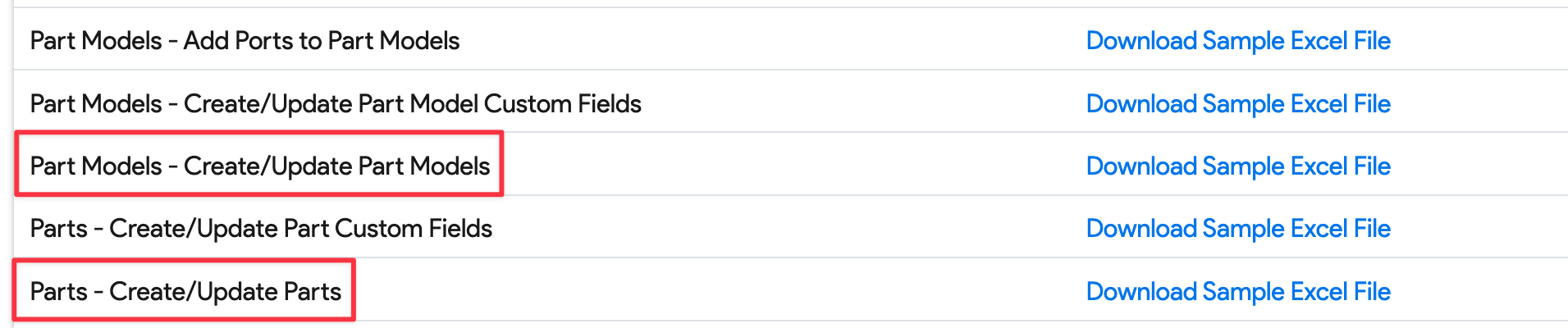
Both parts and part models can be created using the Parts - Create/Update Parts import, whereas the Part Models - Create/Update Part Models import only creates models.
Download Current Data
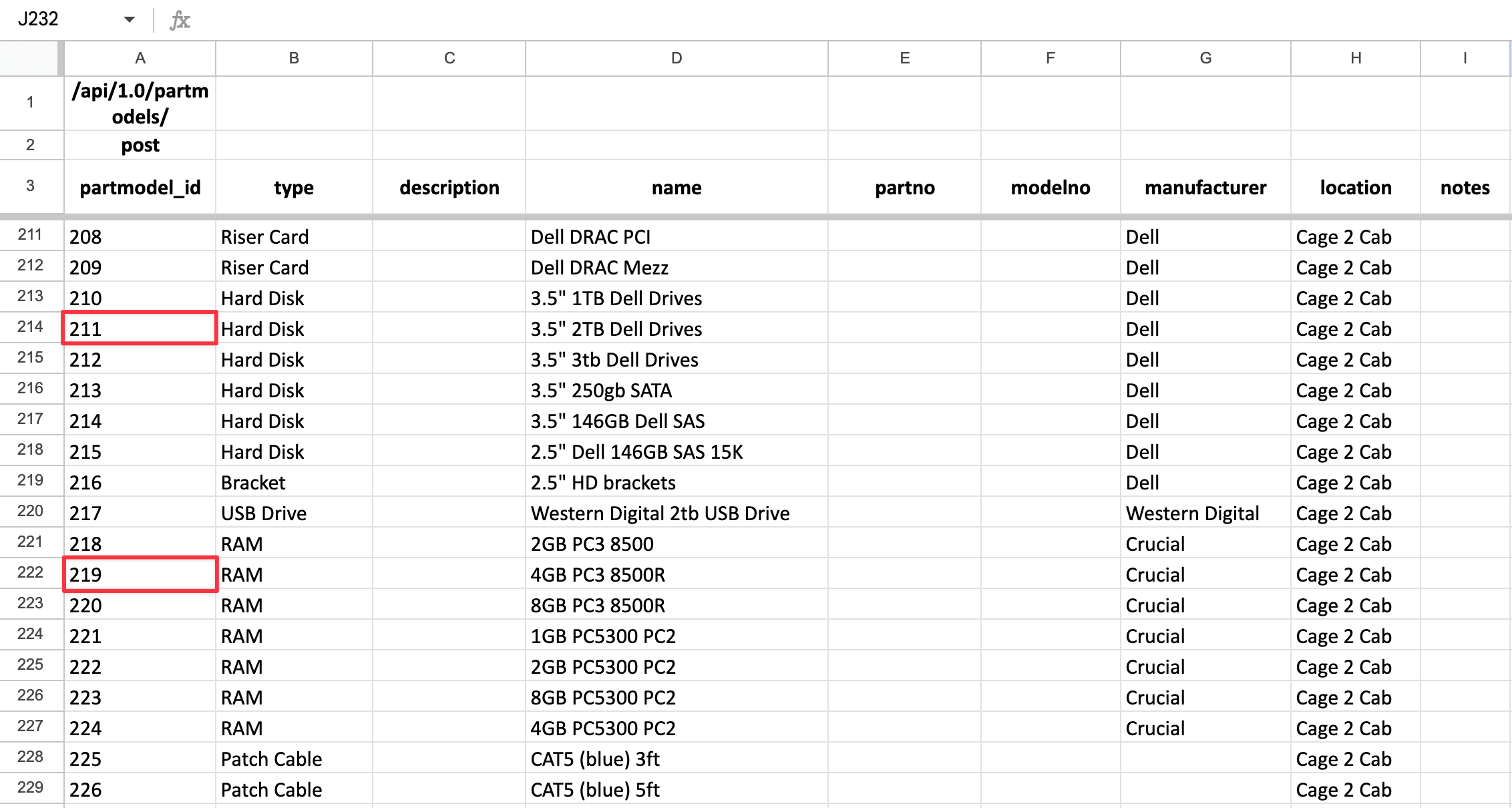
Go to Tools > Imports/Exports (xls) and download the current data for spare part models. The export includes the part model IDs you need when creating parts — keep this sheet open to reference them when populating the import file.


Download Sample File
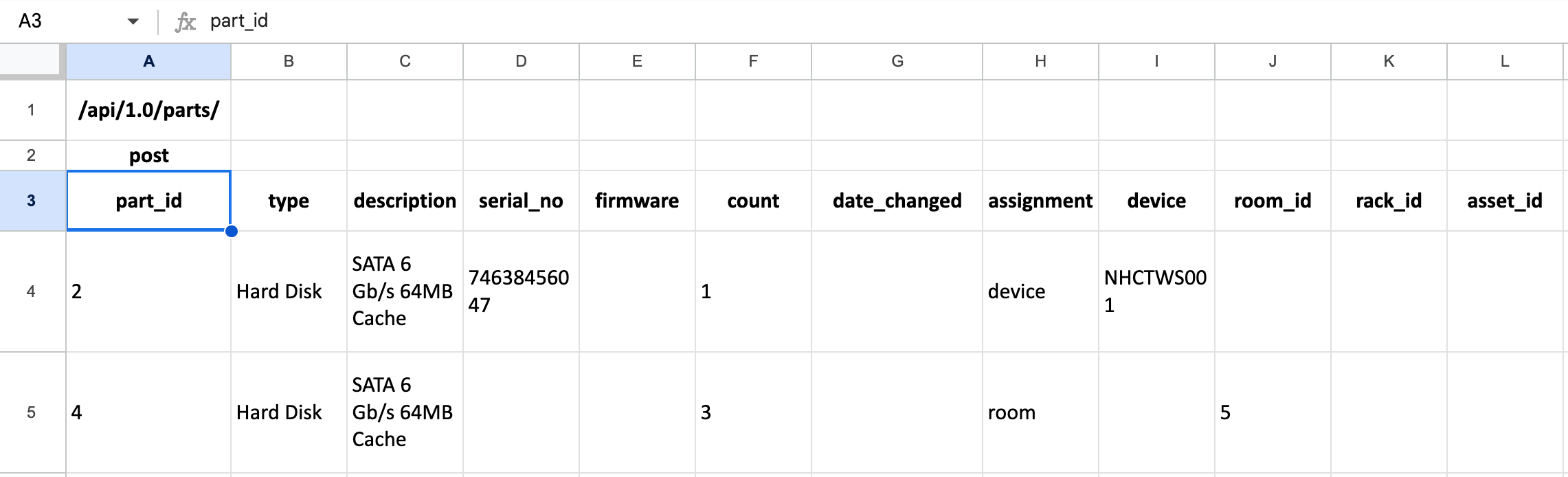
Next, download the Create or update spare parts sample sheet by going to Tools > Imports/Exports (xls).


Use the data from the current data export to help populate the parts import.
Populate the Sample Sheet
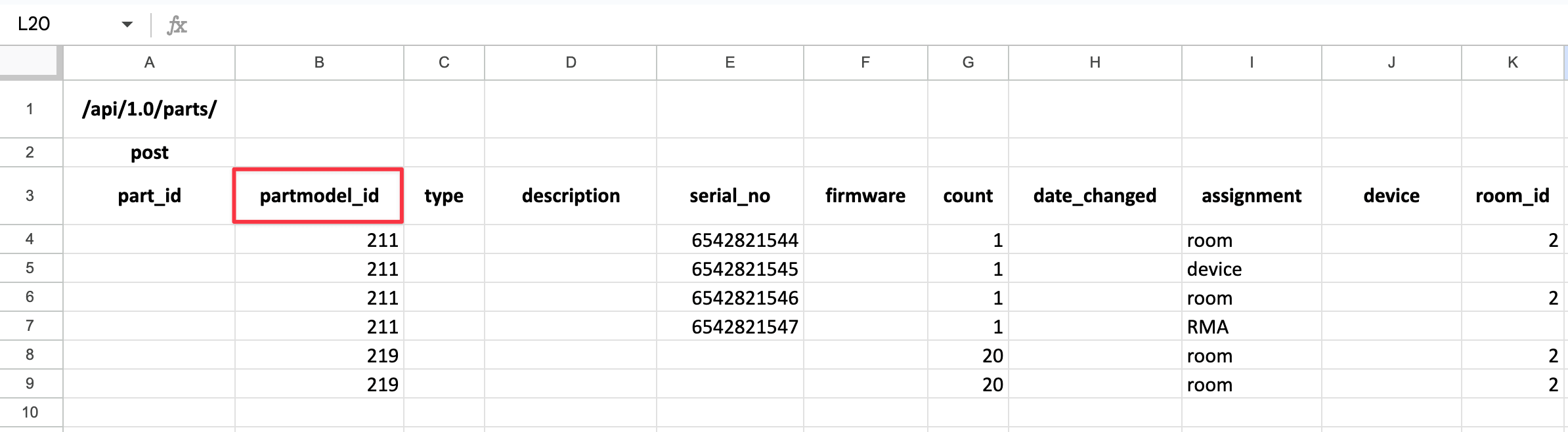
Add a column for partmodel_id and populate the sample spreadsheet to add new parts to existing part models. Add the serial numbers manually or using a handheld scanner (see the Handheld Scanner section).
For example, this import creates the following:
-
For
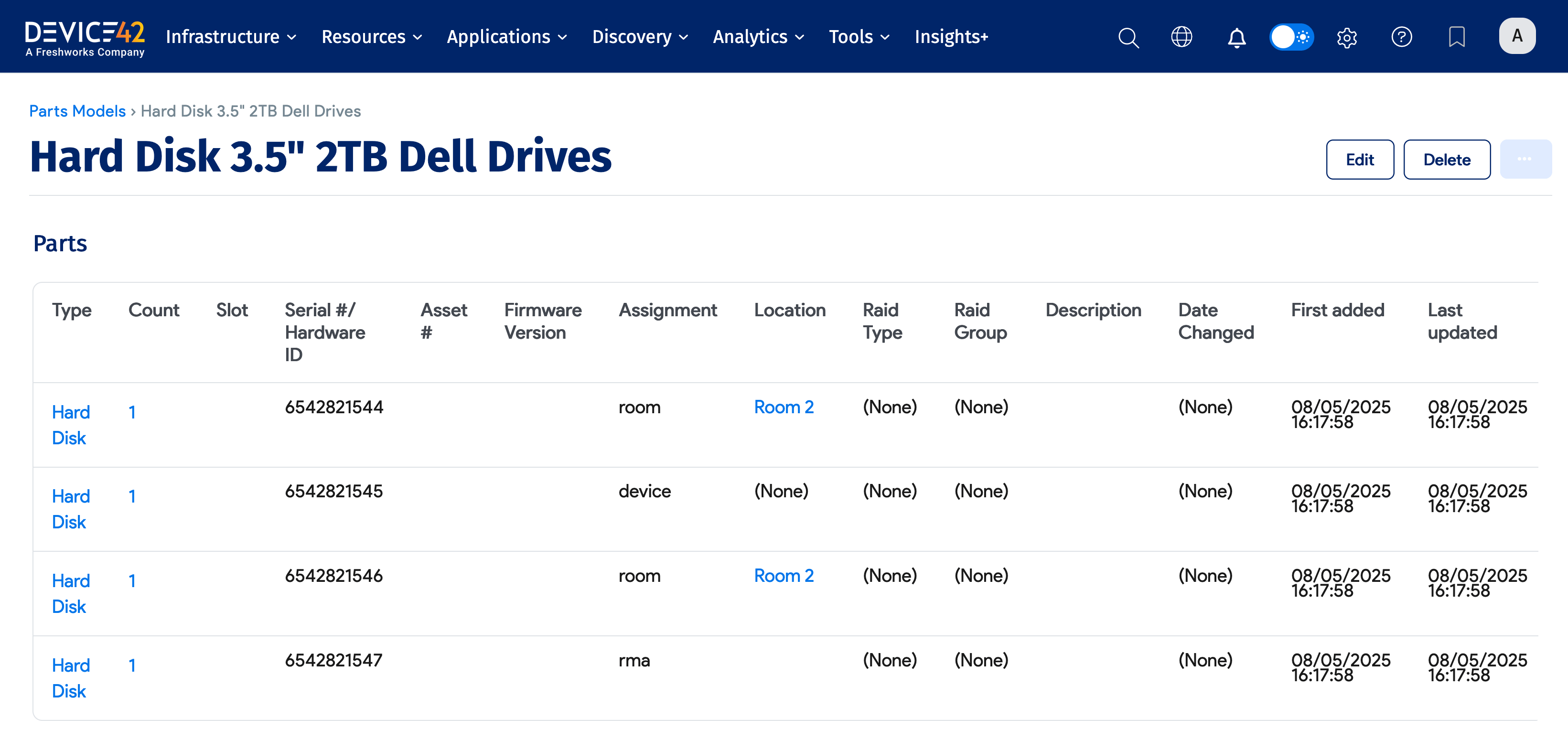
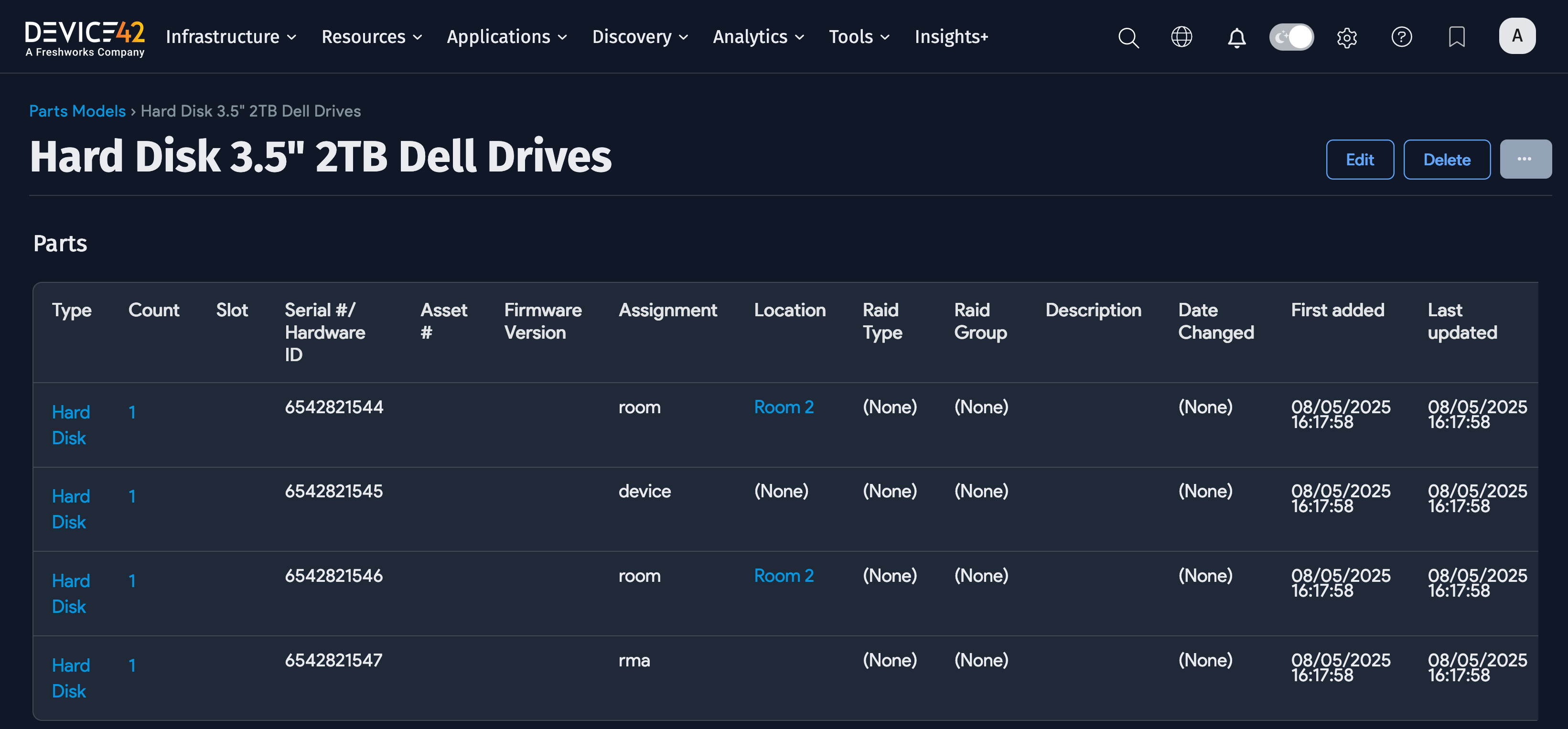
partmodel_id211(name3.5" 2TB Dell Drives): Four line items with assignments and serial numbers (unique line items are required to track serial numbers) -
For
partmodel_id219(name4GB PC3 8500R): Two line items with assignments (serial numbers are not tracked for these items — only room assignment and count)
Save the file and import it.
Handheld Scanner
You can use a barcode scanner with a USB receiver (like a DBPOWER scanner from Amazon) to capture serial numbers directly into the spreadsheet. The scanner can be programmed to automatically advance to the next row in Excel after each scan, making it quick to capture serial numbers or other barcodes.
Import Results
Go to Tools > Imports/Exports (xls), choose your file, and click Import.
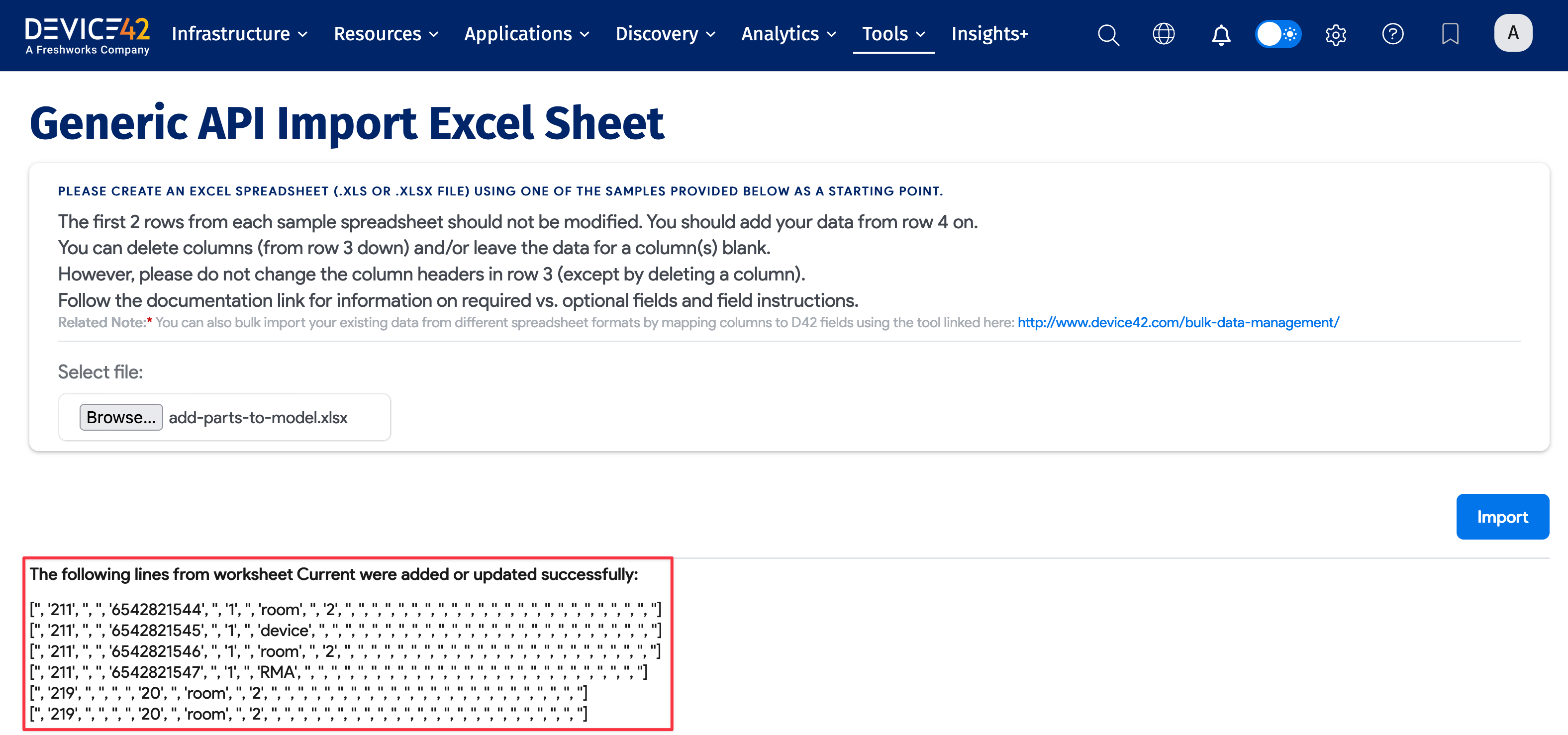
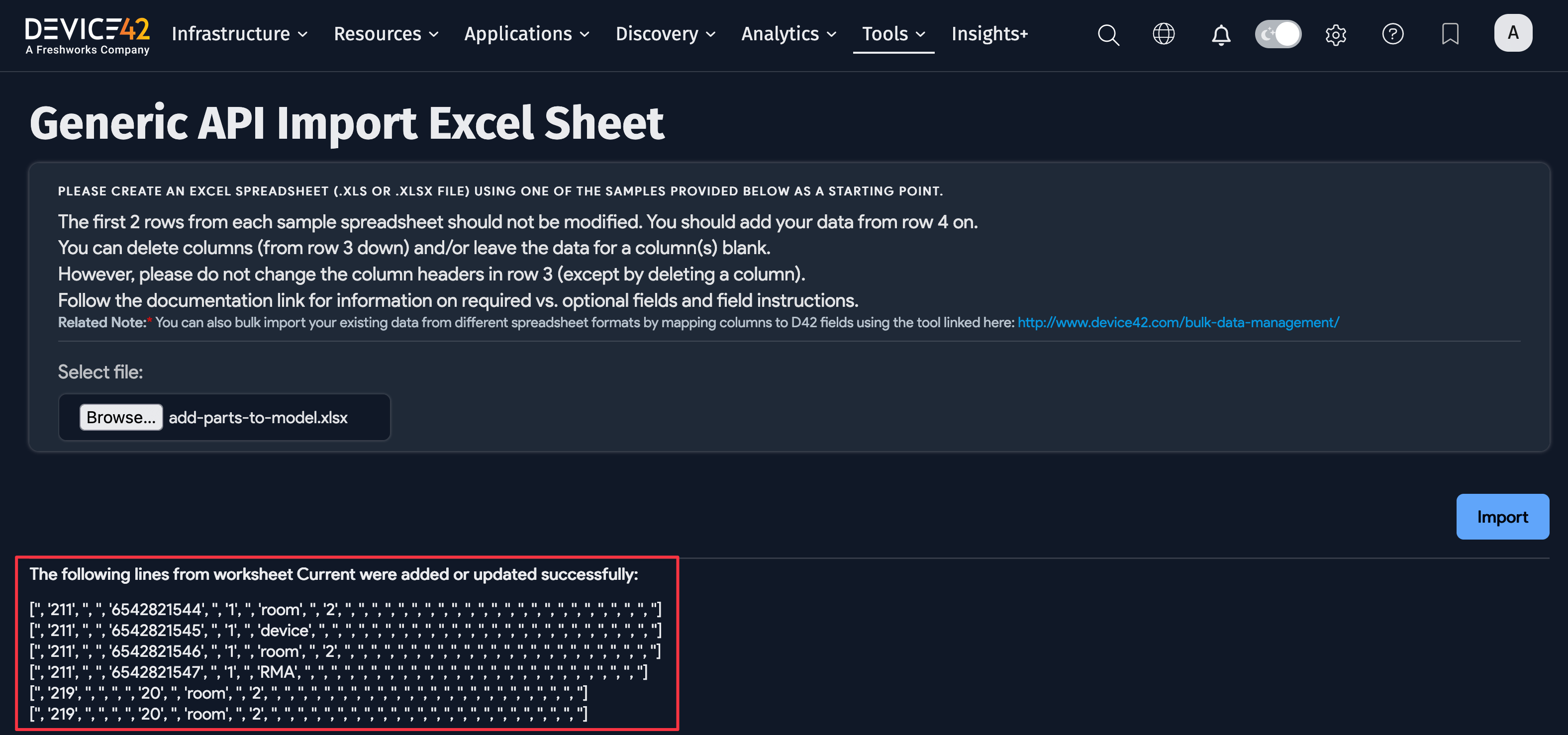
The new parts for partmodel_id 211 appear on separate line items, as unique line items are required to track serial numbers.
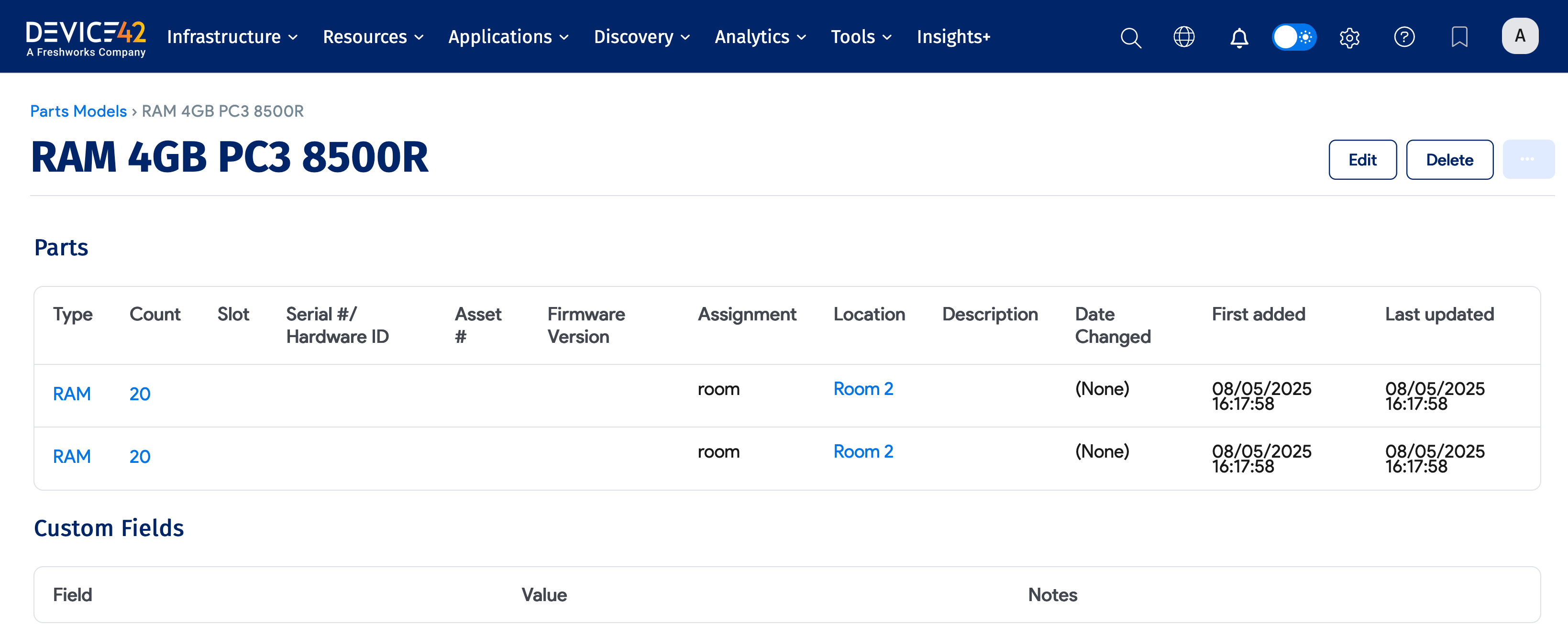
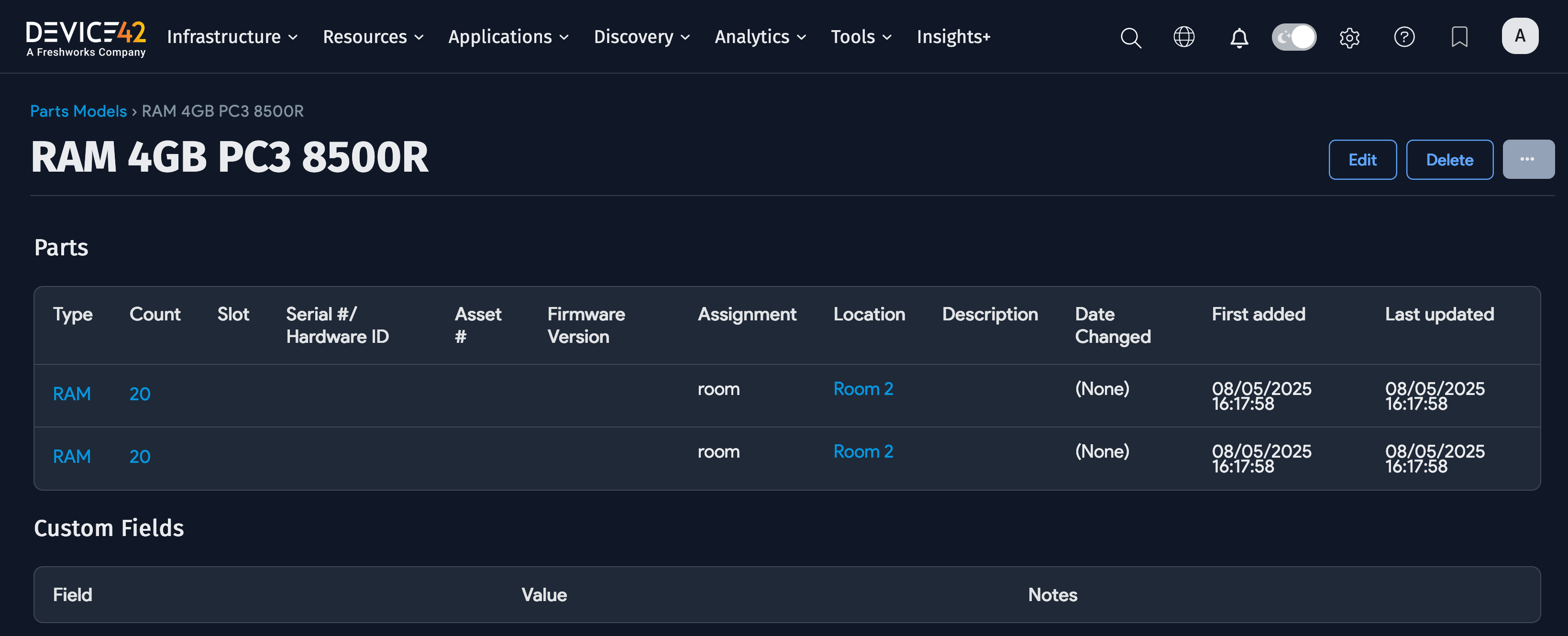
The new parts for partmodel_id 219 appear on two lines. Since serial numbers are not being tracked, two lines are sufficient to record the room assignments for these RAM modules.