Import Part Models
This page explains how to import part models using the spreadsheet import tool under Tools > Imports/Exports (xls). The process involves downloading a sample template, populating it with your data, and uploading it back to Device42.
For information on port layouts and port templates for part models, see Part Model Templates.
Sample Data
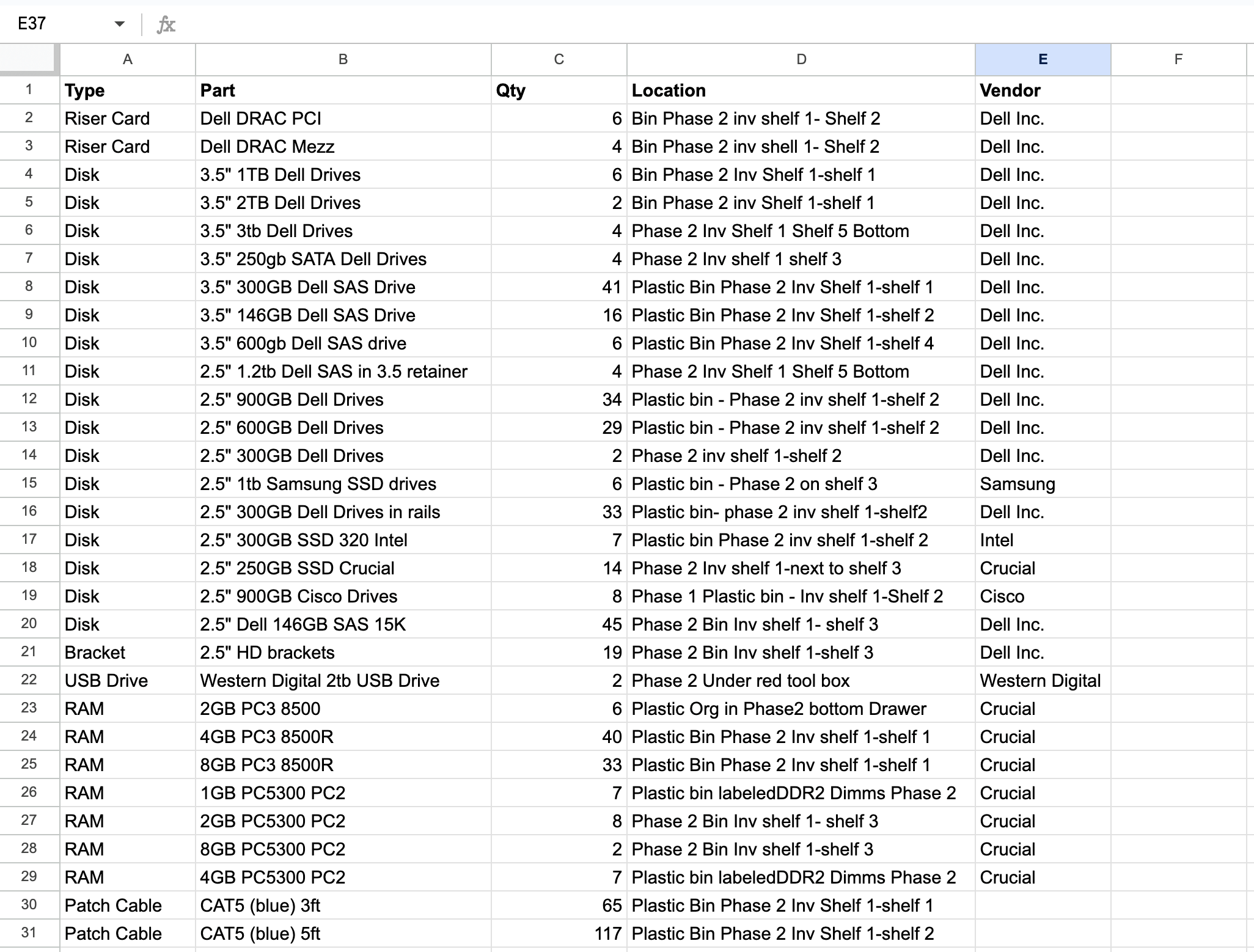
The example below shows a spare parts inventory exported from a legacy system into CSV format, including columns for type, part name, quantity, location, and vendor. This is the source data you will map to the Device42 import template.
Download Sample Spreadsheet
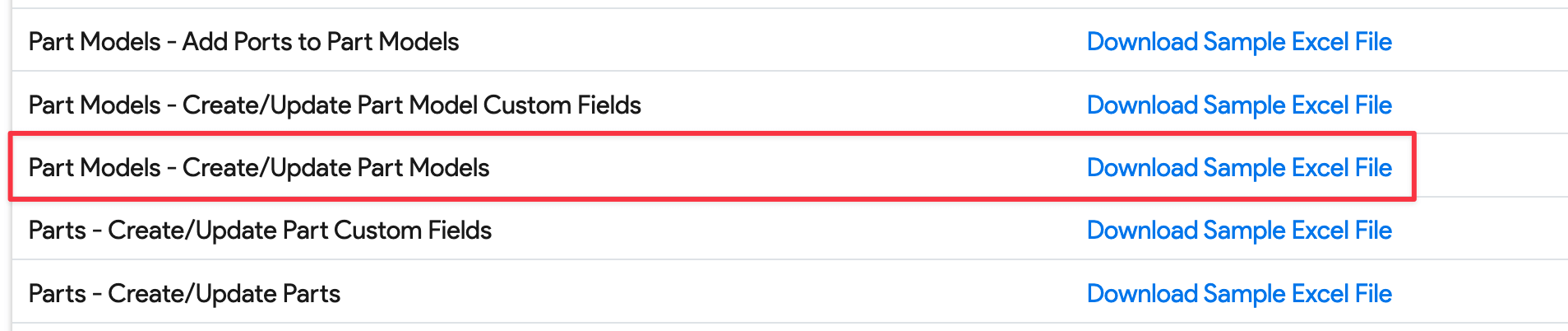
Navigate to Tools > Imports/Exports (xls), find Part Models - Create/Update Part Models, and click Download Sample Excel File. Open the sample file to begin the import process.
Column Comments
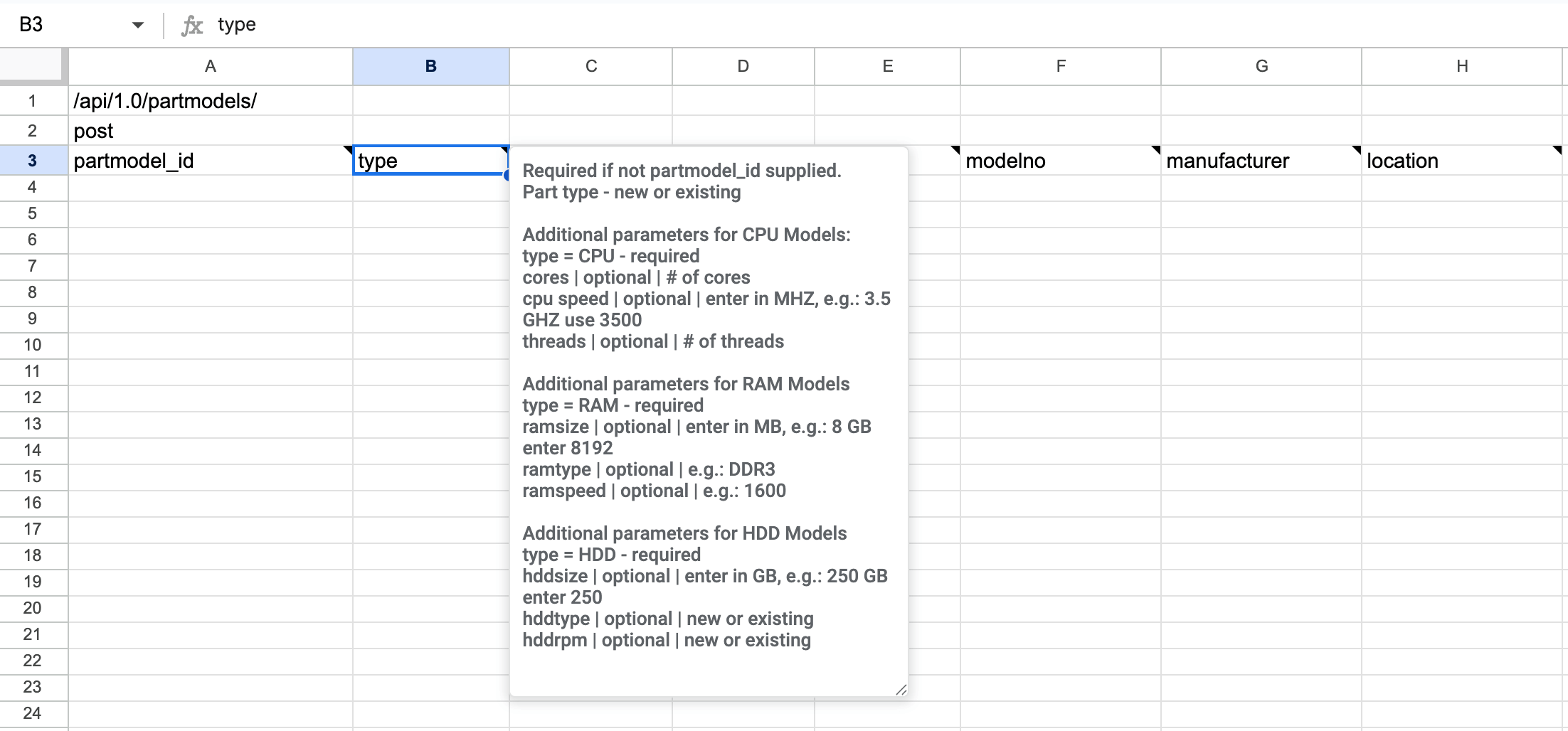
Hover over the upper-right corner of the heading cell in each column to see details about the field. These tooltips indicate whether fields are required, optional, or provide additional context.

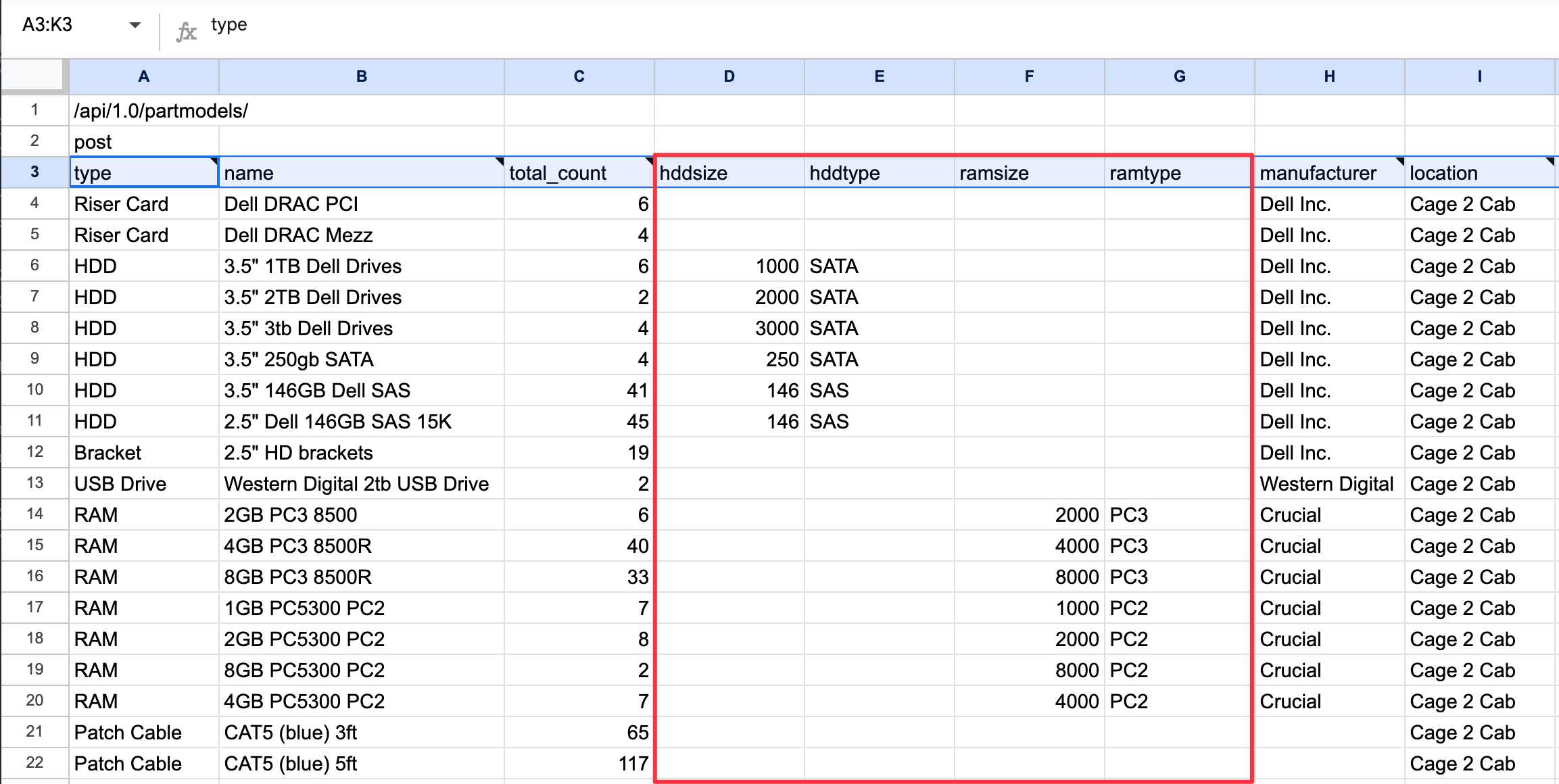
The spreadsheet includes additional part model type parameters specific to CPU, RAM, and hard disk components. The type field is required for all part models.
Populating the Sample Sheet
Update the sample spreadsheet with your part model data from the CSV export. Since these are new part models, only the type field is required. You can delete unused parameters from the sheet or leave them blank.
Note the additional parameters added for CPU and RAM models.
Choose File and Import
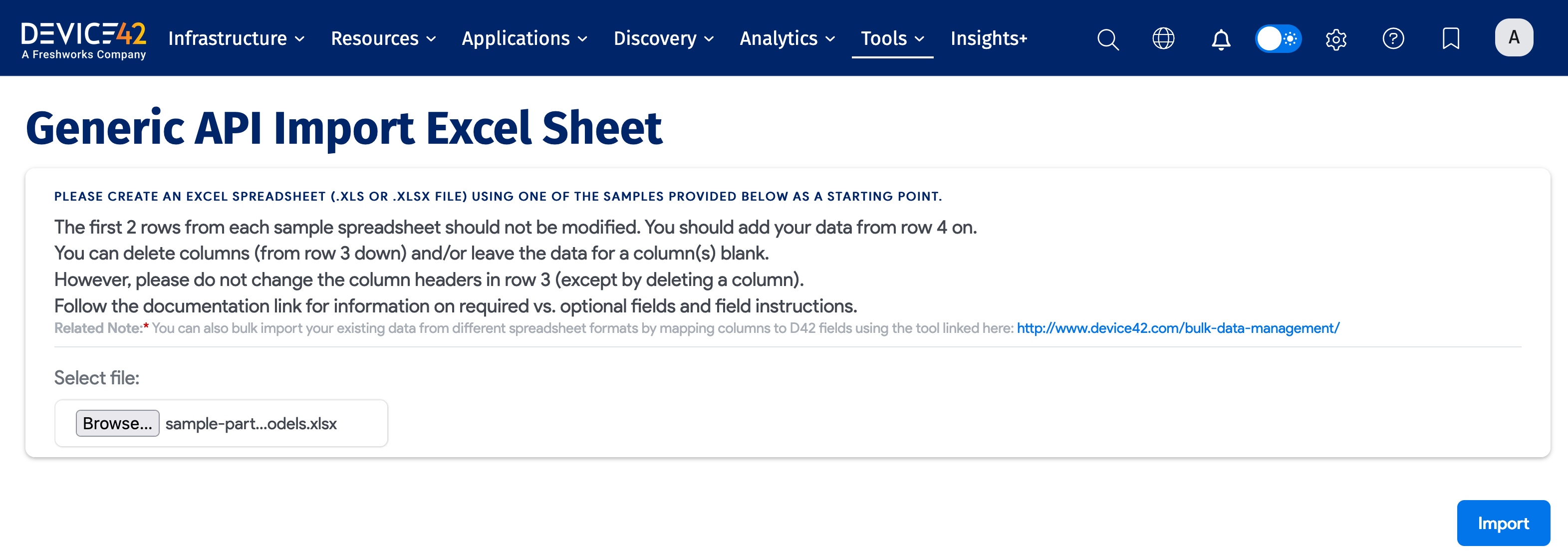
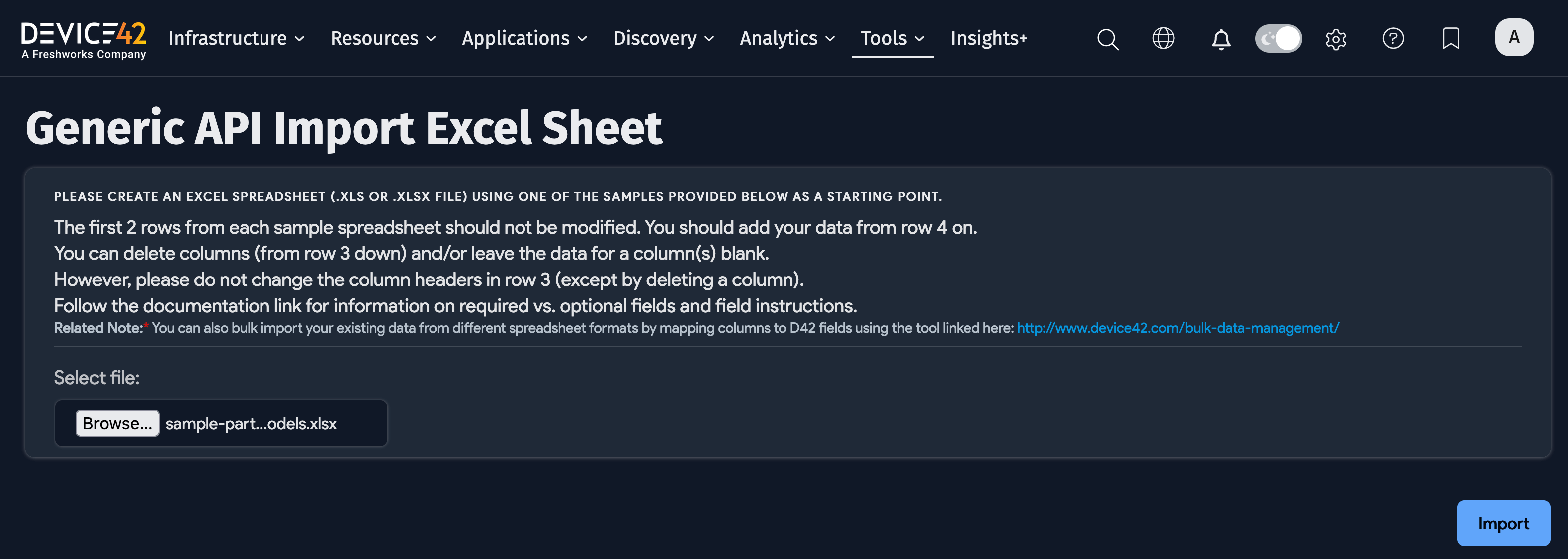
Navigate to Tools > Imports/Exports (xls), browse to your populated file, and select Import to begin the import process.
Import Results
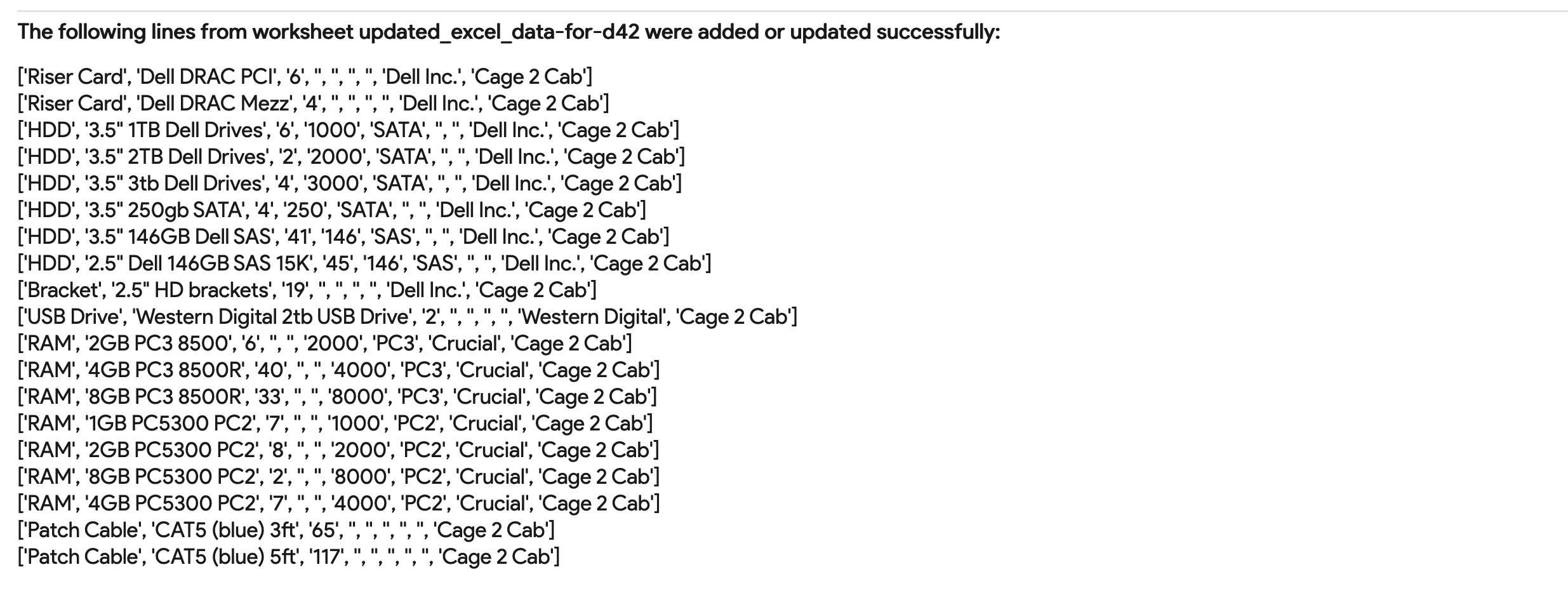
Device42 displays the status of the import. If there are any issues, the results will show The following were not added... with specific error details. Review the results carefully, as any problems such as missing required parameters are usually clearly stated.
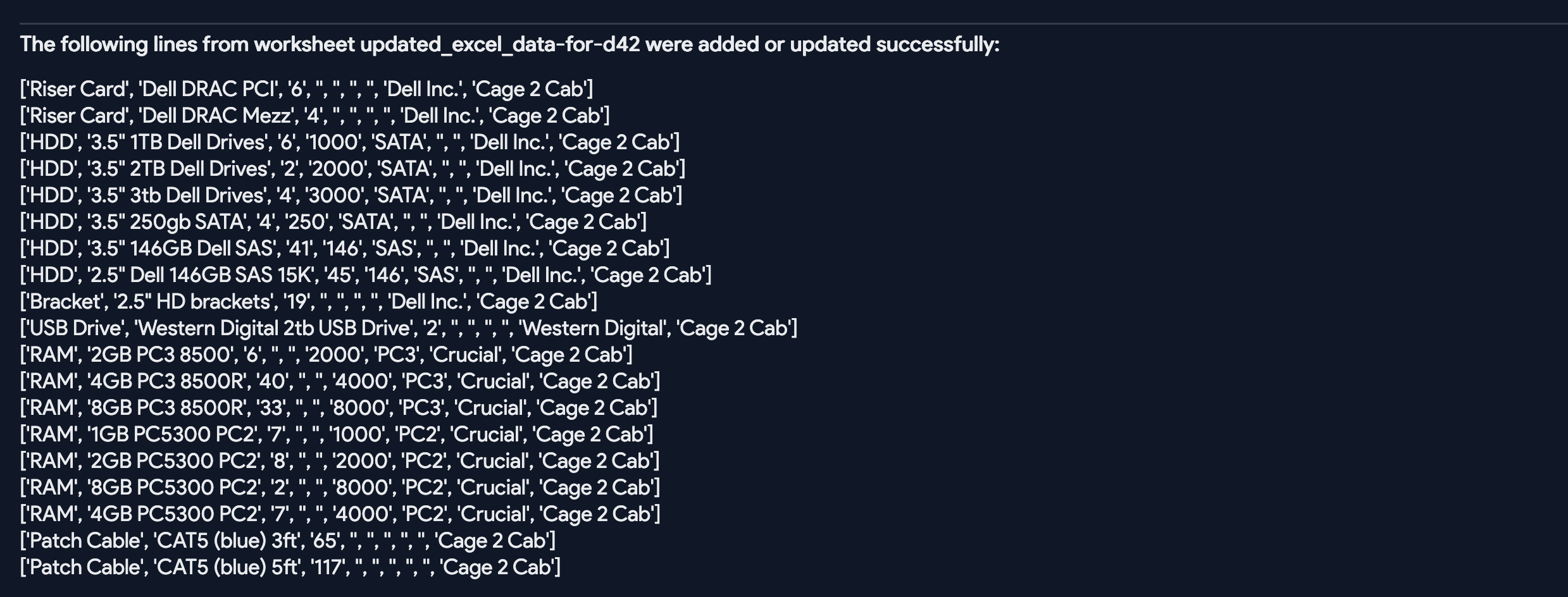
Verify Imported Part Models
Navigate to Infrastructure > Parts > Model List to view all the part models that were imported.
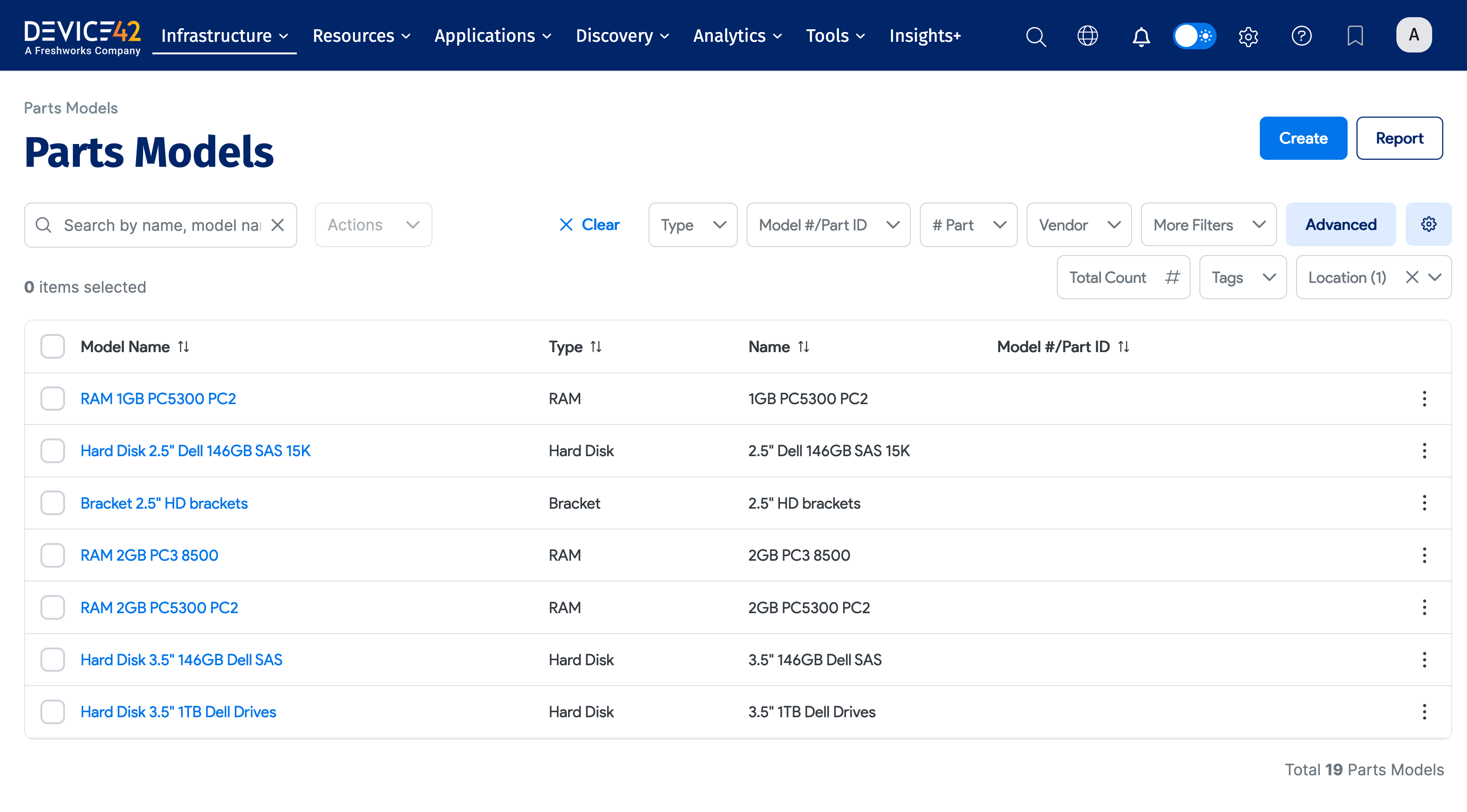
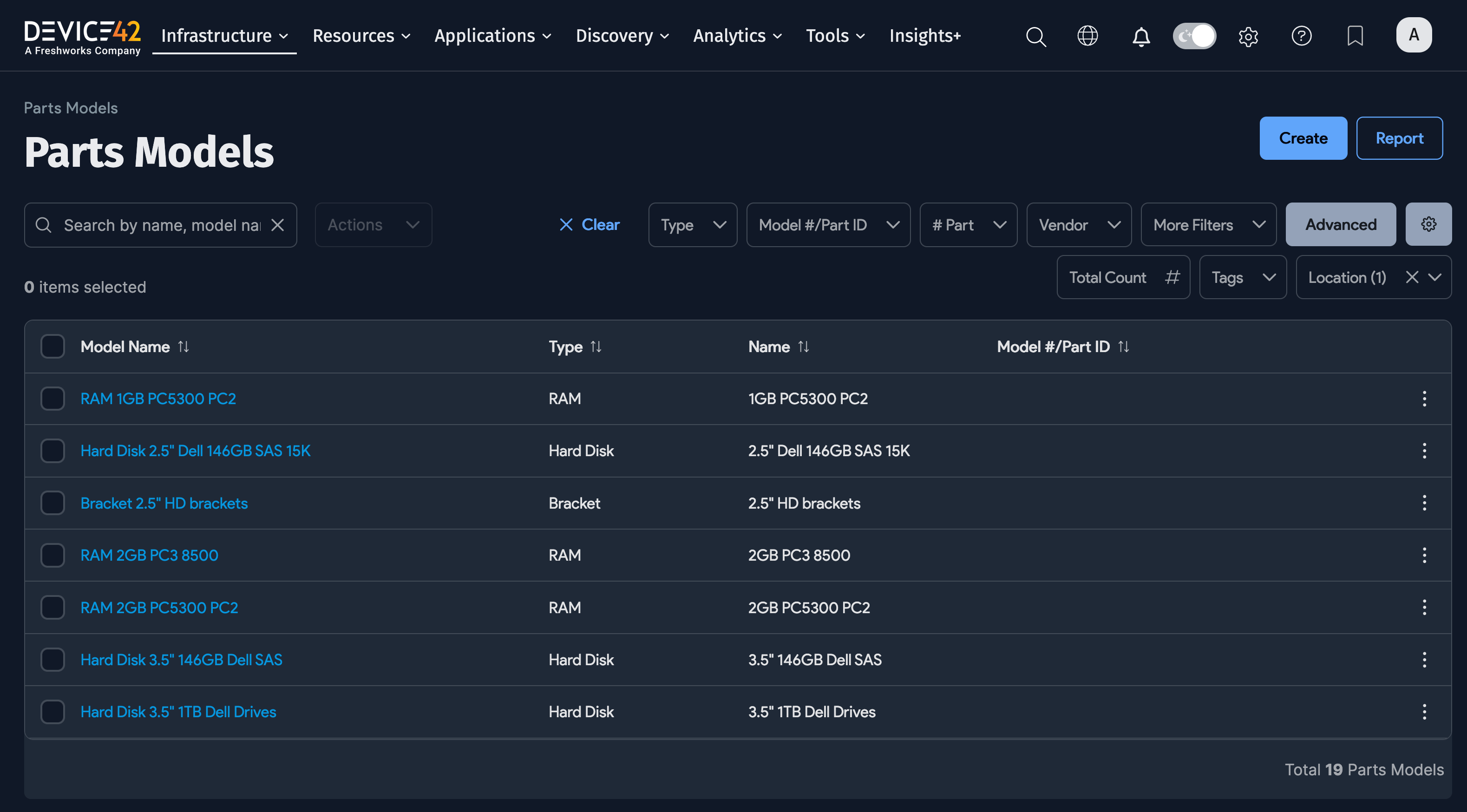
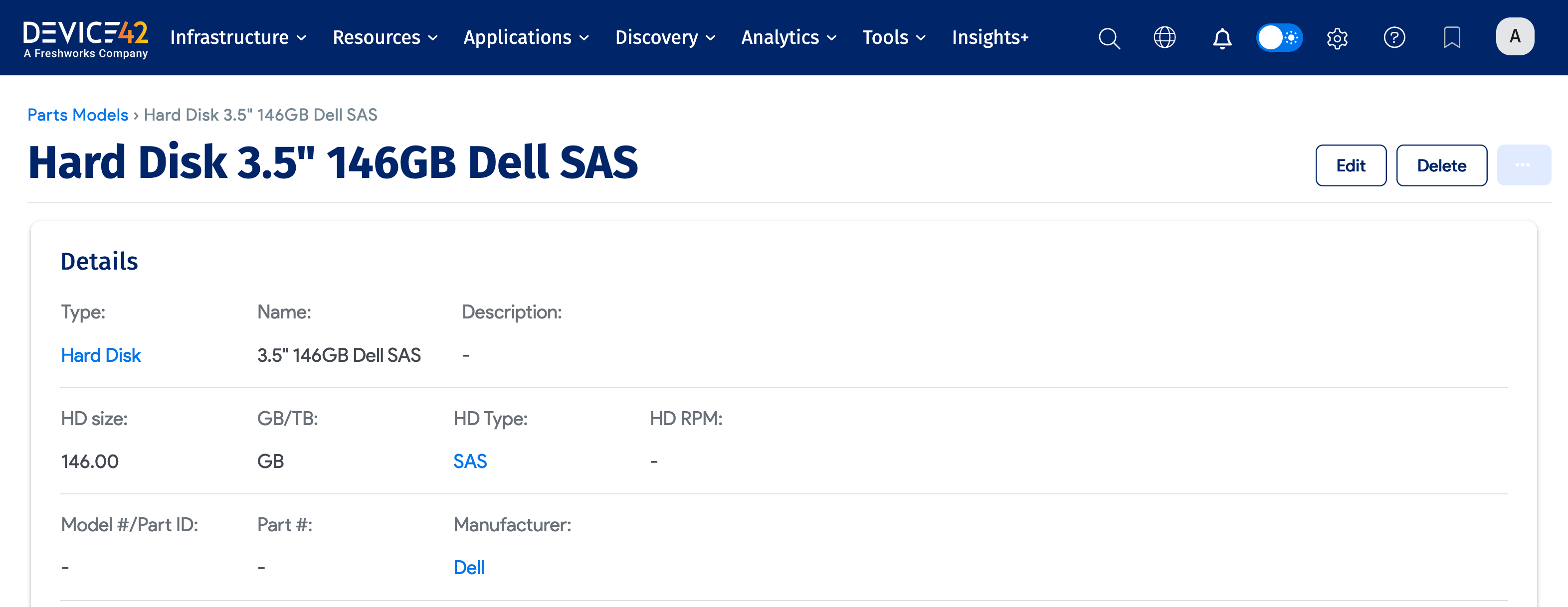
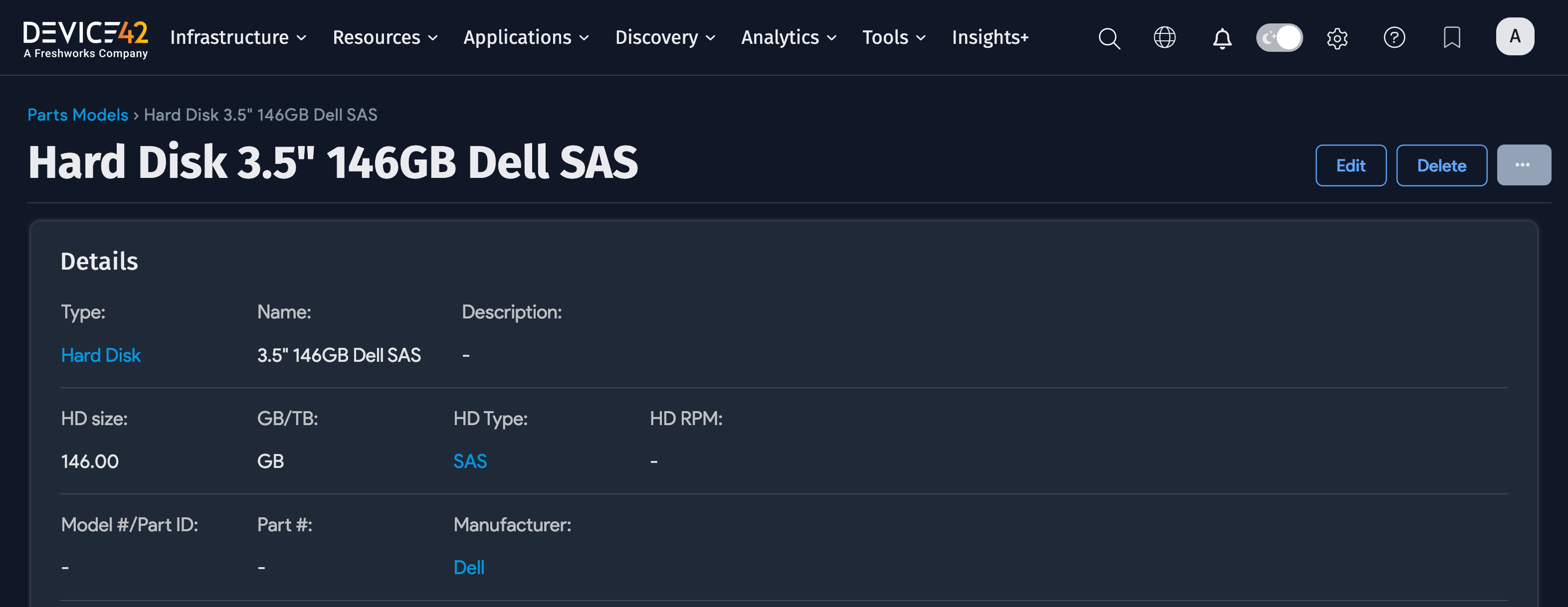
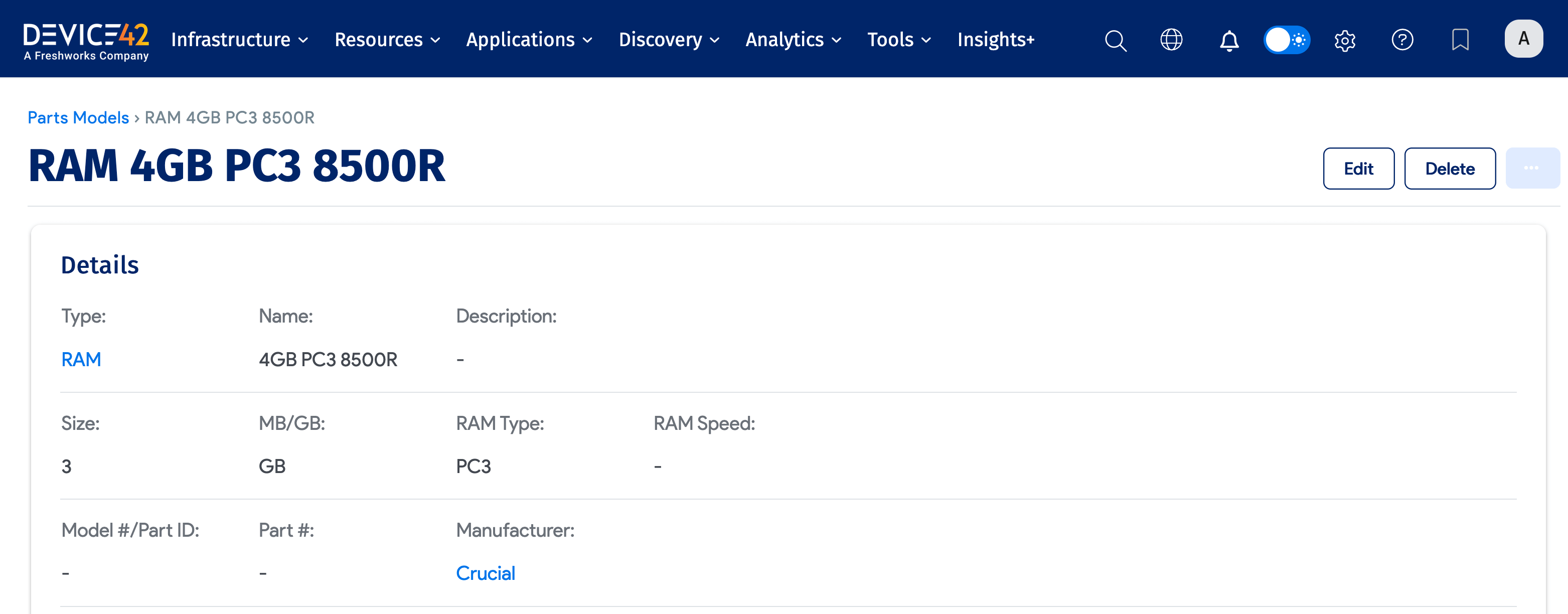
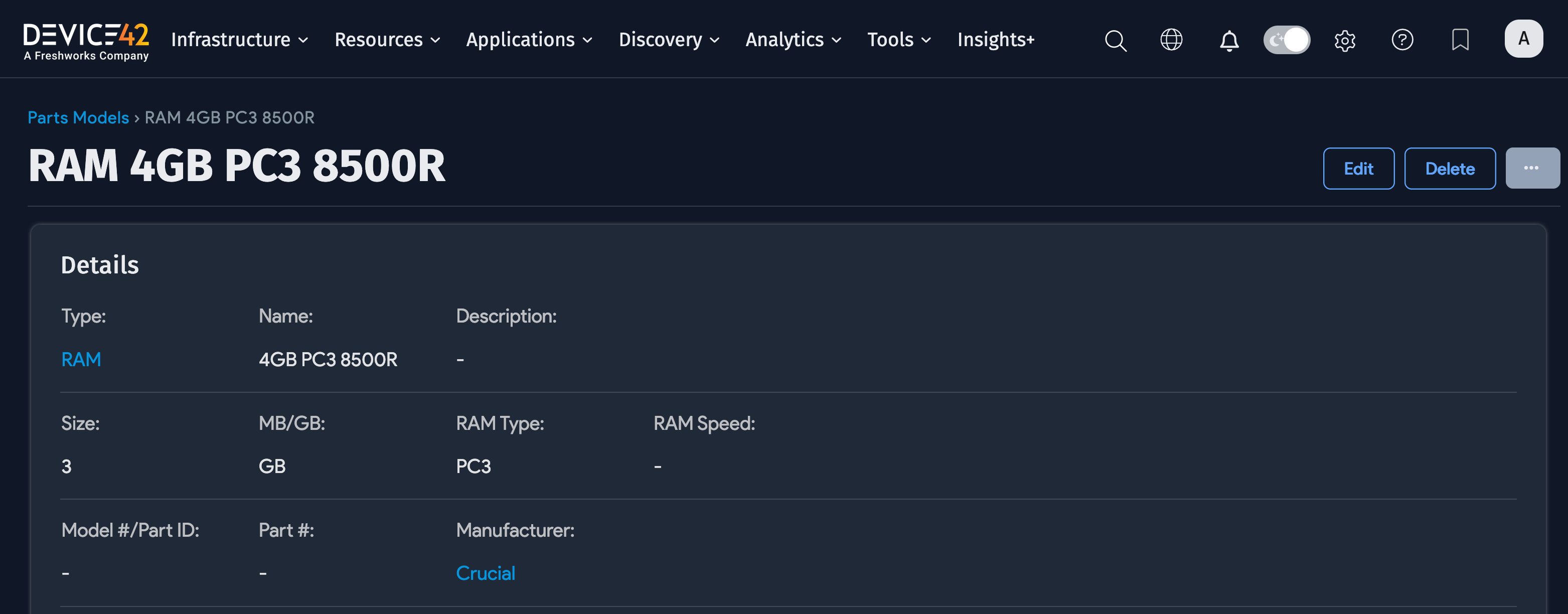
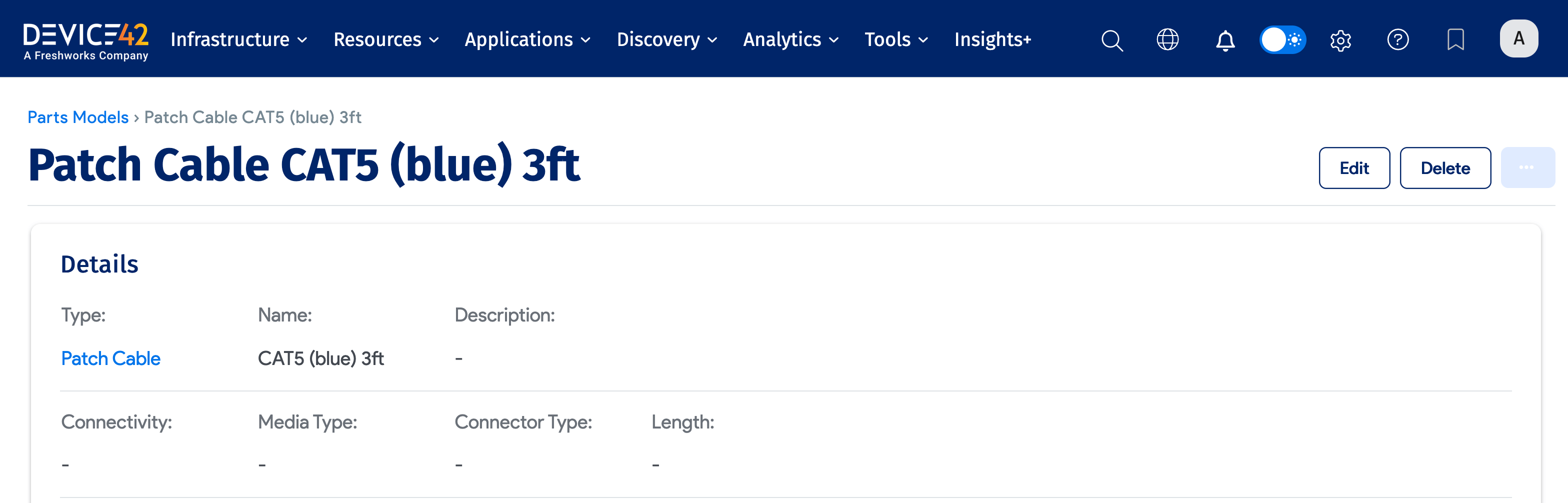
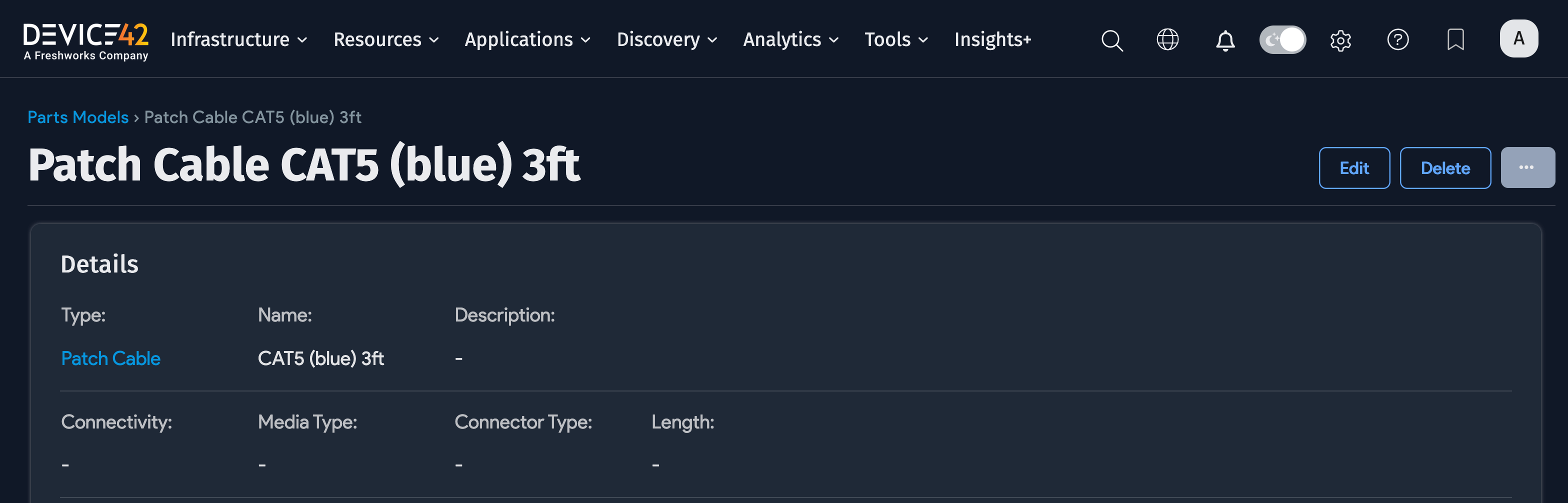
You can click into individual models to validate the imported data:
Hard Disk Drive (HDD) Model:
RAM Module Model:
Patch Cable Model:
To add actual parts to the inventory for these models, see Import Parts.