Patch Panels and Cable Management
This page covers setting up patch panels, configuring connectivity, visualization options, and drag-and-drop connections.
Patch panels can be added as assets from Resources > Assets > All Assets.
Set Up Patch Panels
Create patch panel models and add patch panels to your assets.
Add a Patch Panel
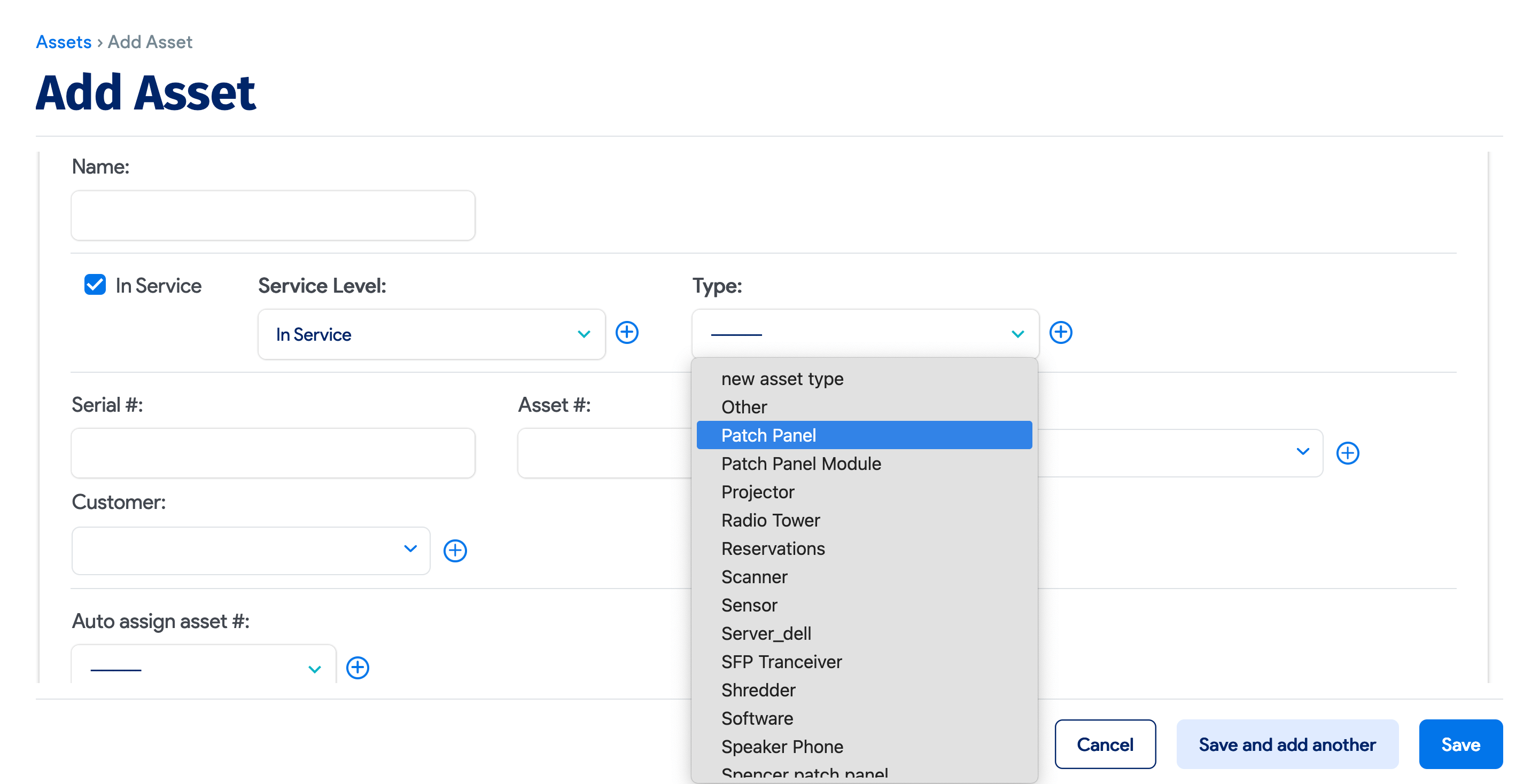
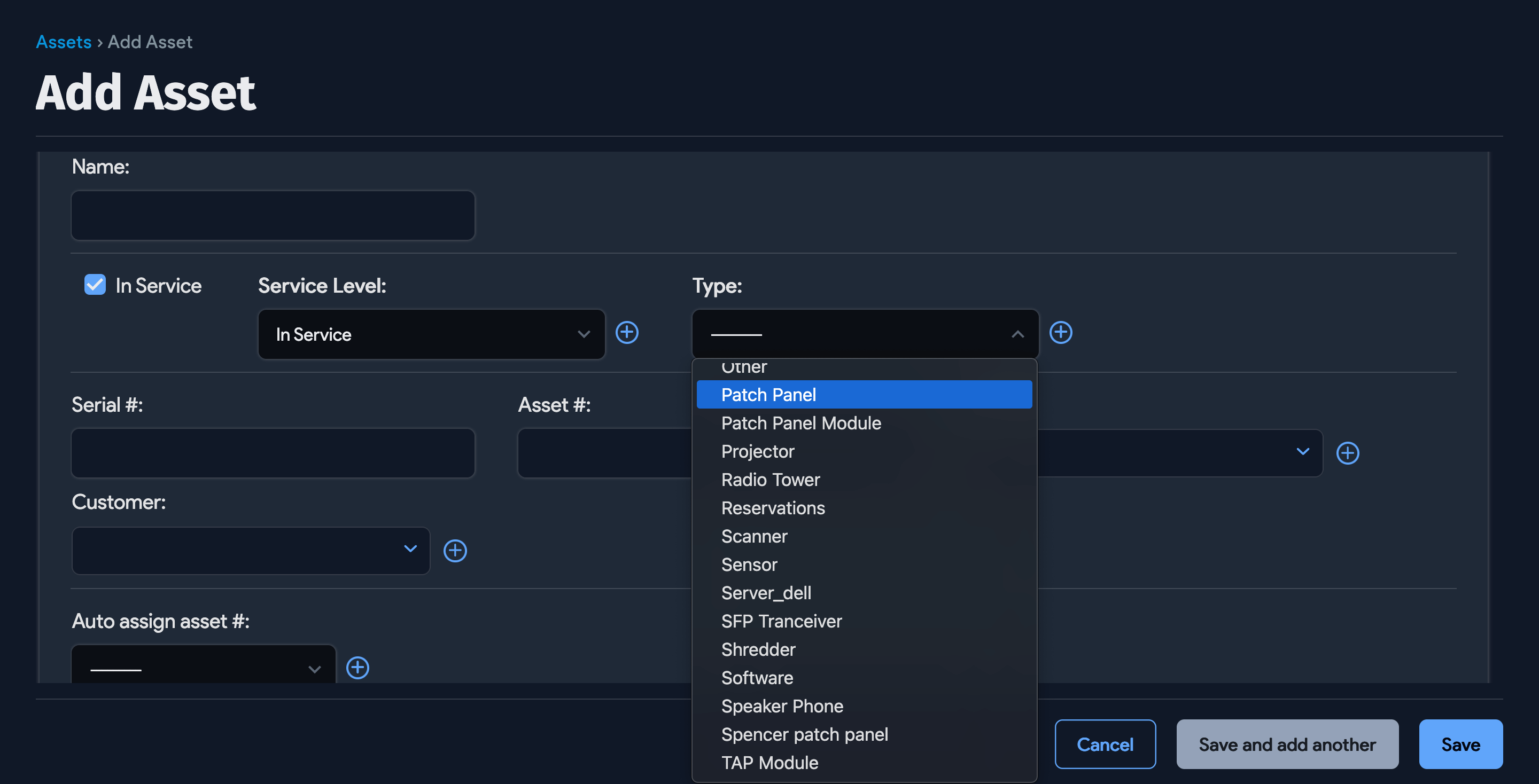
The system-defined asset type, Patch Panel, gives you the option to assign a patch panel model.
Ports and Properties Based on the Patch Panel Model
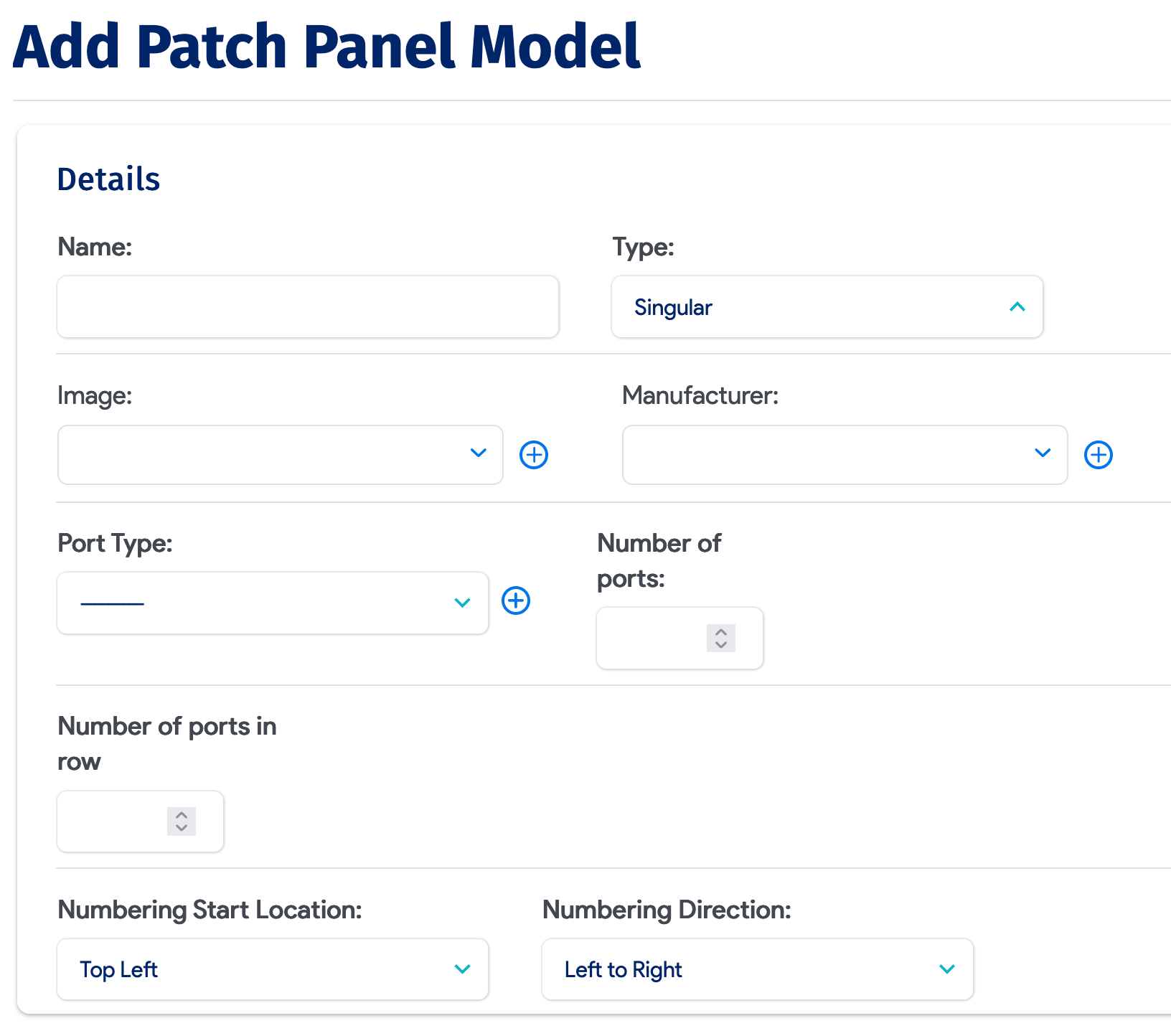
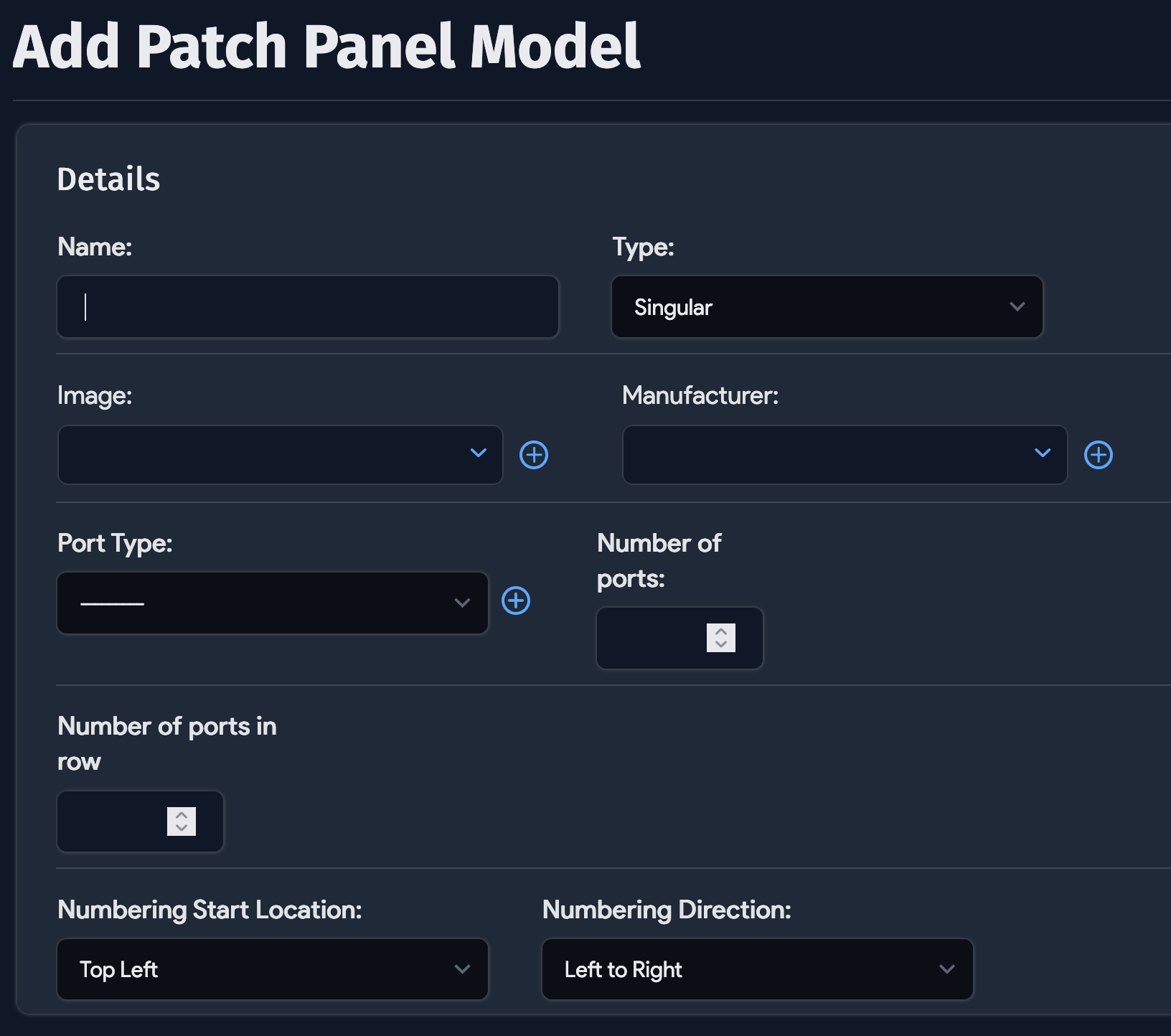
When creating a new patch panel model, you can enter:
- The Number of ports in the patch panel
- The Numbering Start Direction
- The Numbering Direction
- The Port Type
The first time a patch panel model is assigned to a patch panel, it takes the Number of ports entry shown above and creates and associates that number of ports with the patch panel. The image and vendor info from the model are also passed along to the patch panel if they are not already there.
If you have different cable types in the same patch panel, you should use Modular as the Type.
Modular Patch Panels
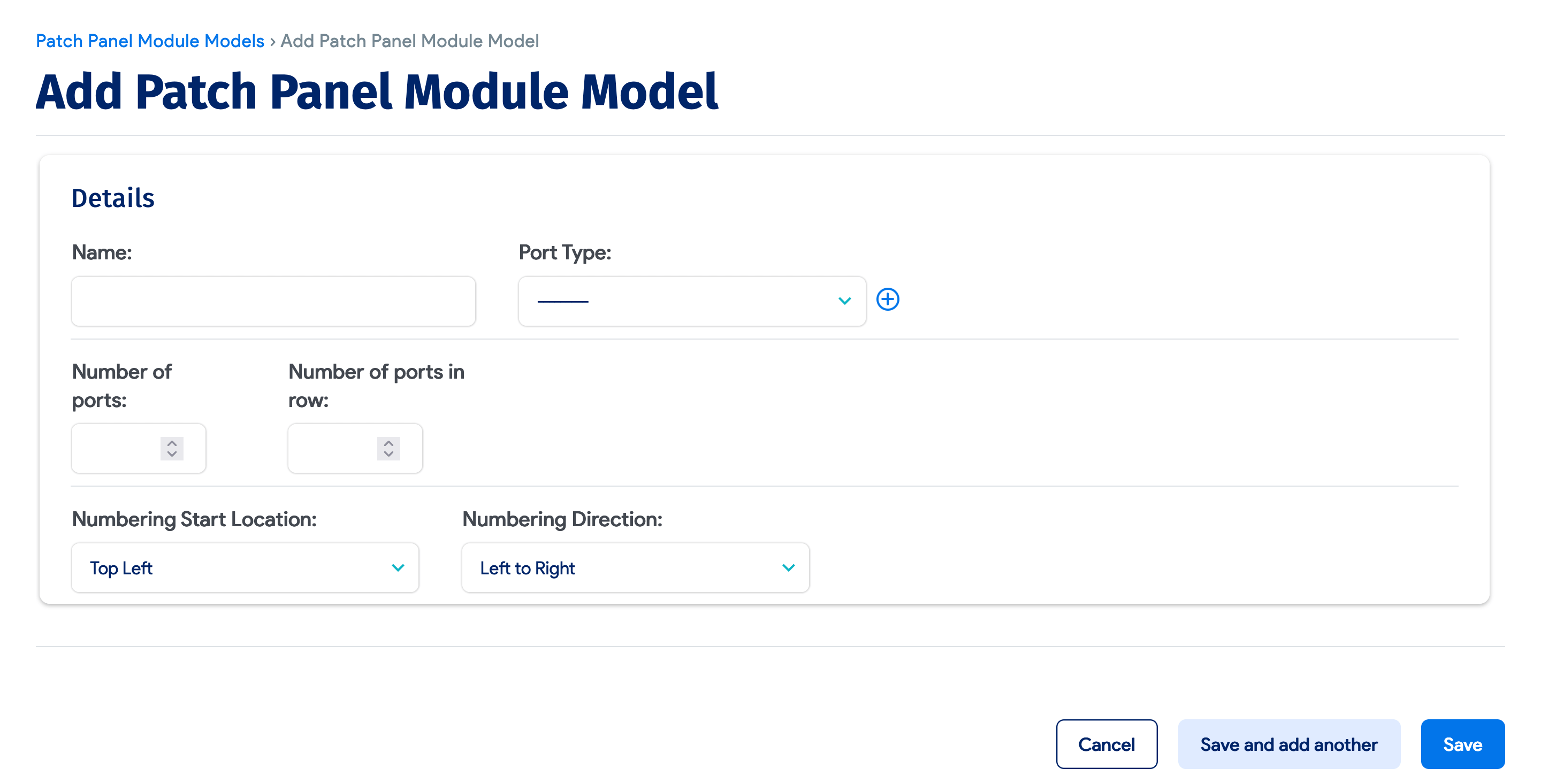
For a modular patch panel, you can add modules and configure different port types, or just add modules. Ports for each module are created based on patch panel module models and appear in the original patch panel view.


Once you have chosen a modular patch panel, you can add patch panel models as shown above the ports section.
Configure Connectivity
Connect patch panel ports to switches, devices, and other patch panels.
Patch Panel Connectivity
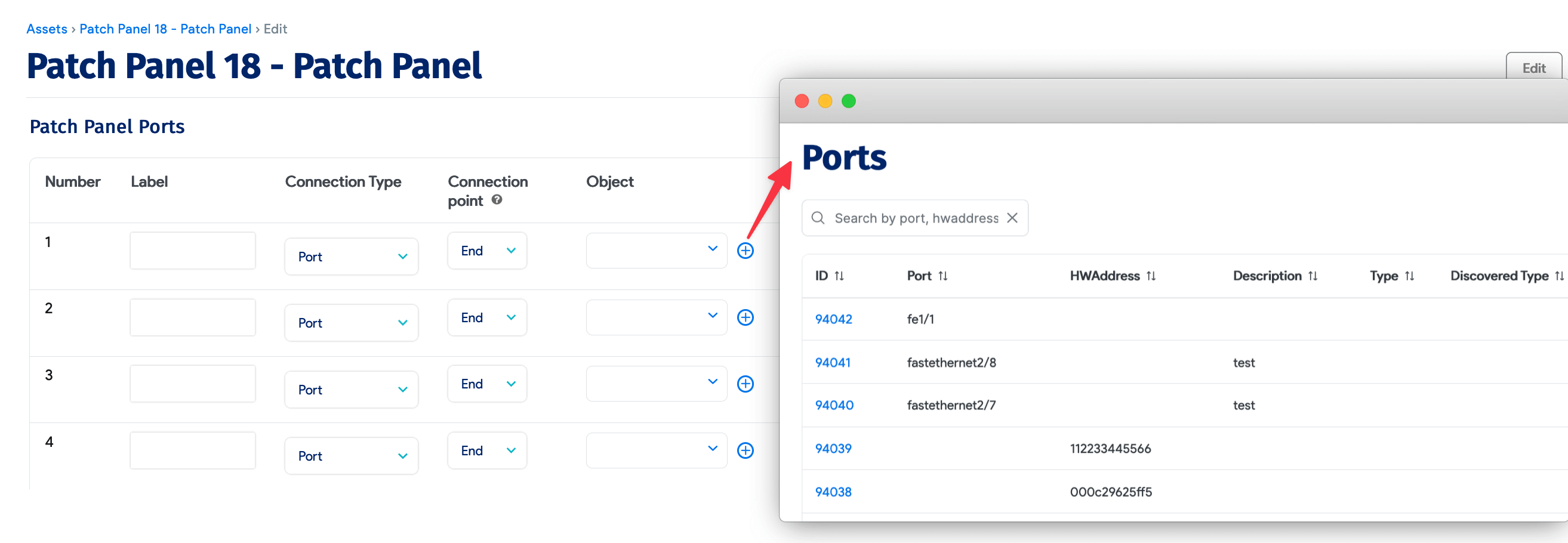
Once you have chosen a model and clicked the Save and continue editing button, you will see all the ports created.
Each port can be connected to one of the following:
- A switch port
- A device
- A patch panel port
If a patch panel is racked, by default, only the devices in that rack are shown. You can choose other devices as well. If a device is connected, you can also choose which MAC address on the device is connected using the Mac of device lookup button.
Individual Back Connectivity Per Port
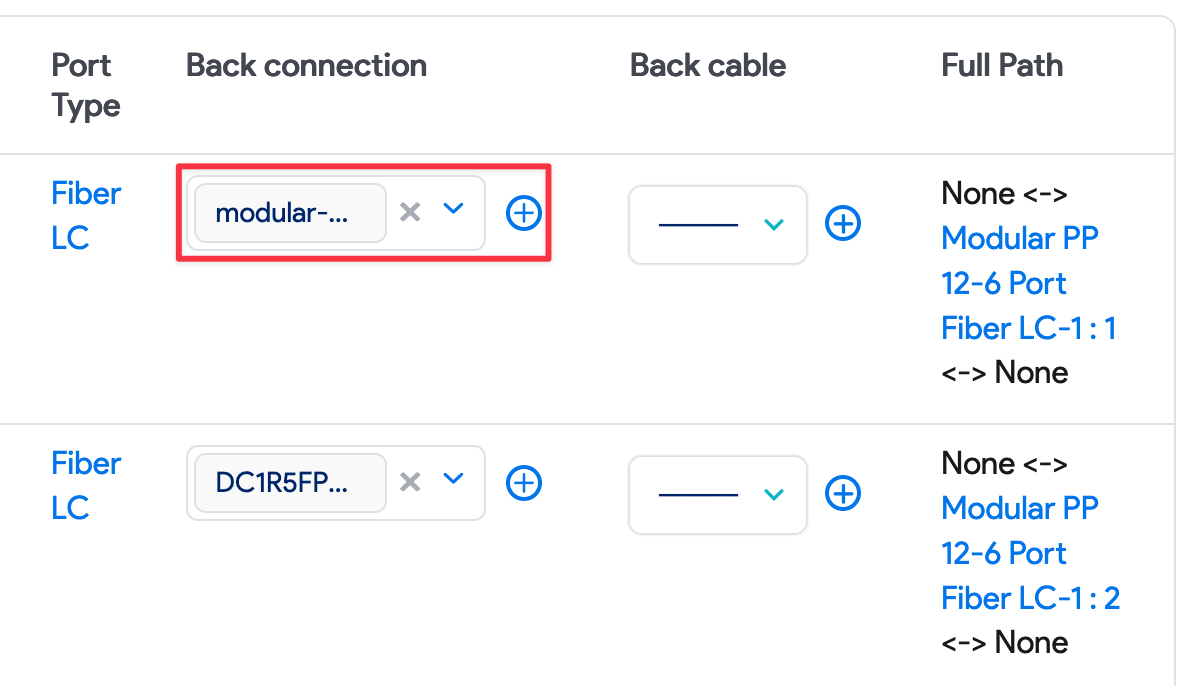
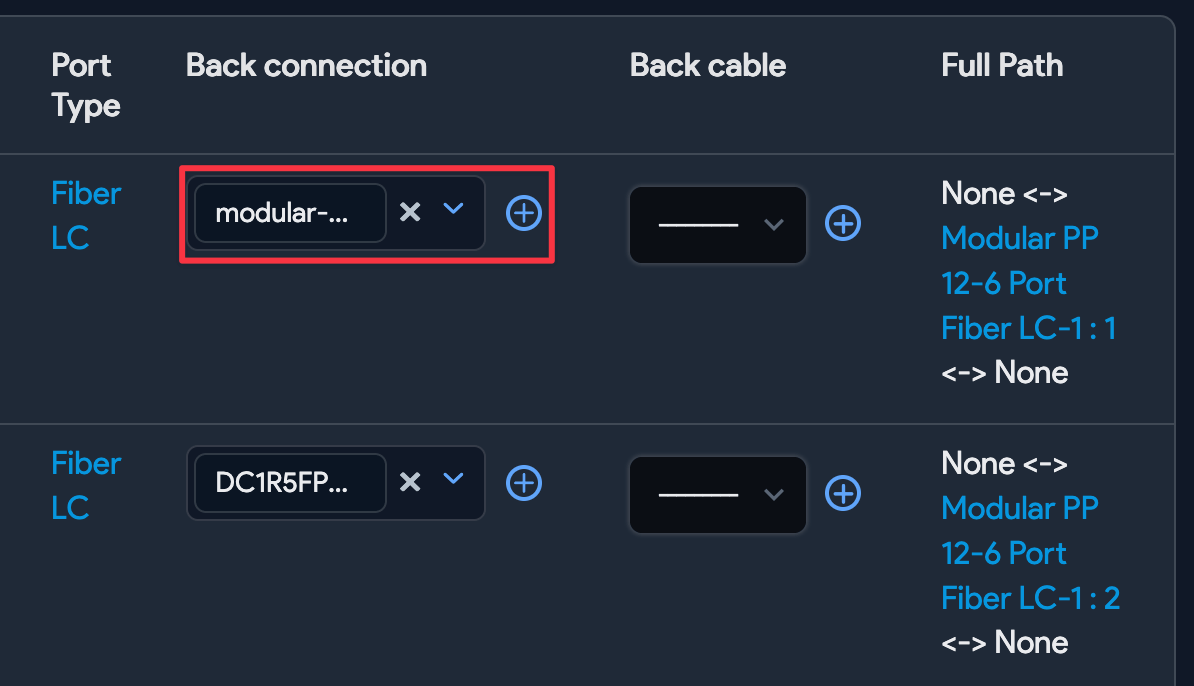
You can set the Back connection and Back cable type individually for each port, including cable speed and other attributes. RESTful APIs and spreadsheet imports are also available for bulk updates. A bulk operations option for provisioning back connectivity is discussed below.
Bulk Back Ports Connectivity
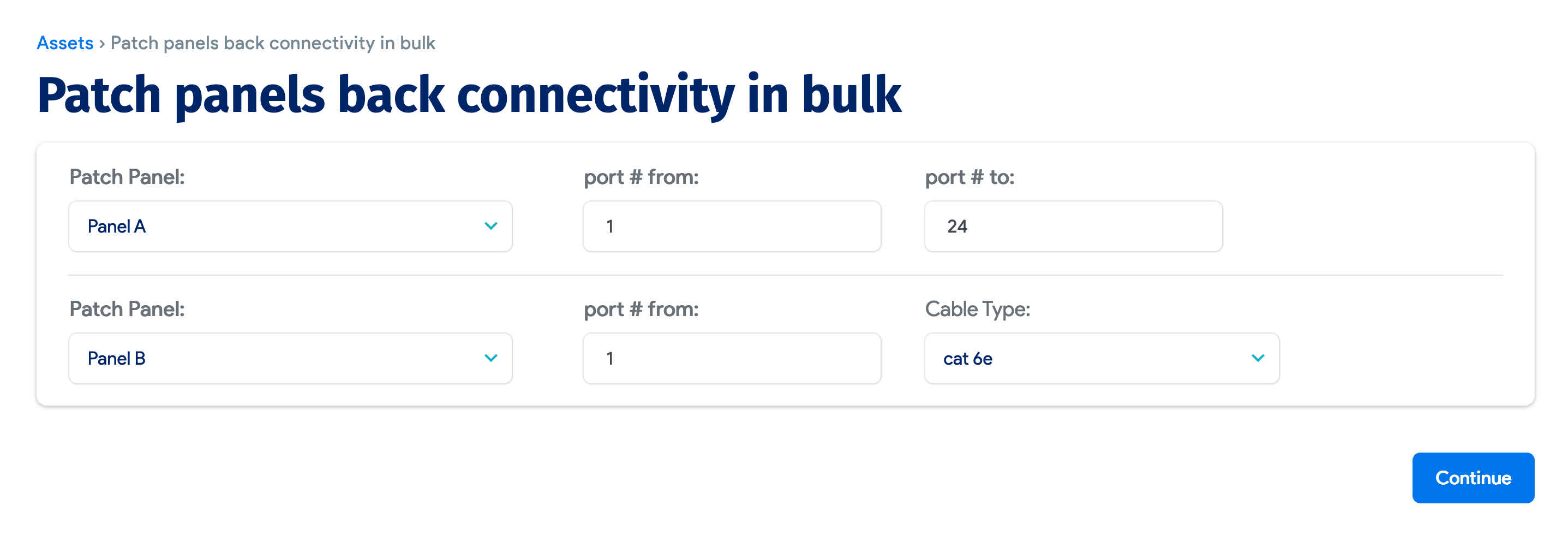
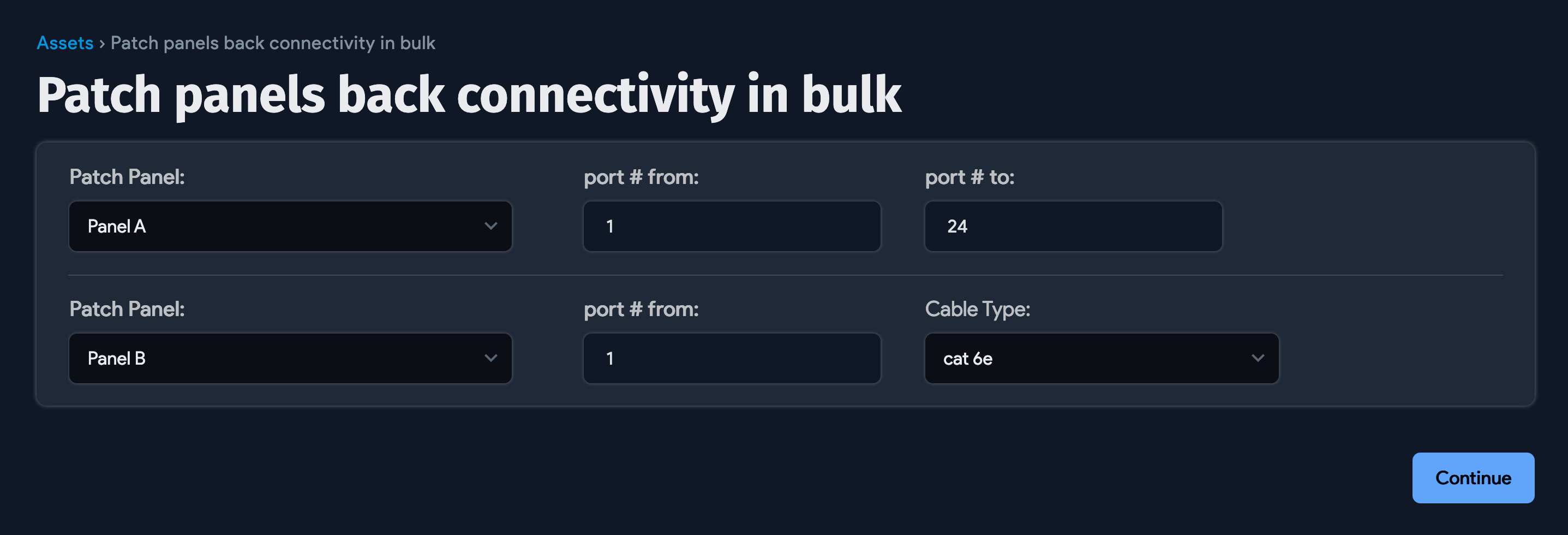
From Tools > Templates & Bulk Operations > Panel back connectivity, you can choose the patch panel, its modules (if any), starting port #, ending port #, patch panel and module, starting port #, and cable type. You can also provision back connectivity in bulk.
Visualization
View full connection paths and patch panel layouts.
Full Path Visualized
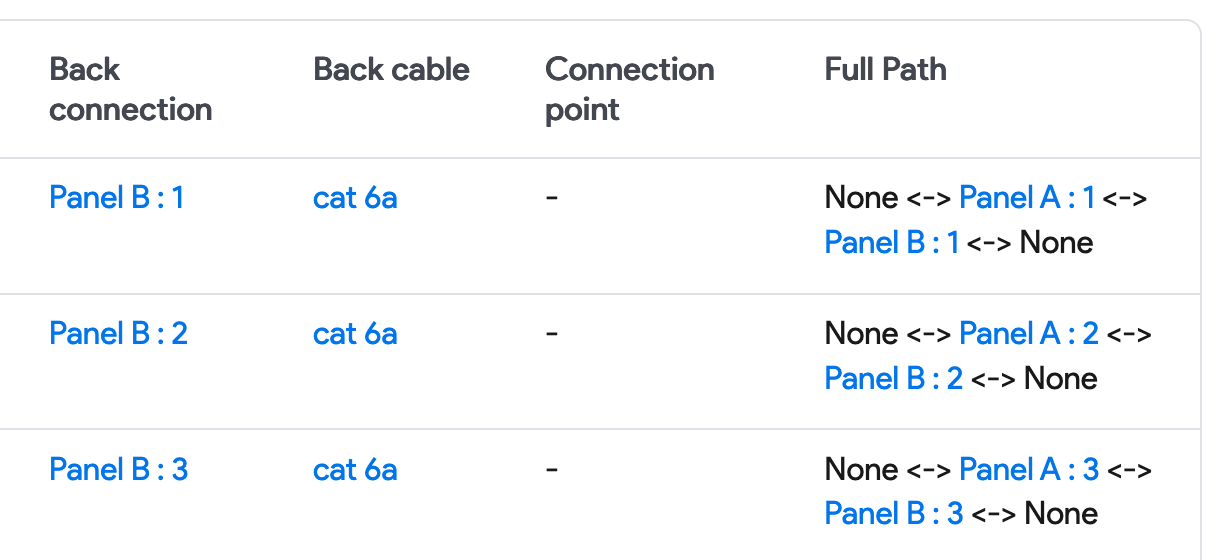
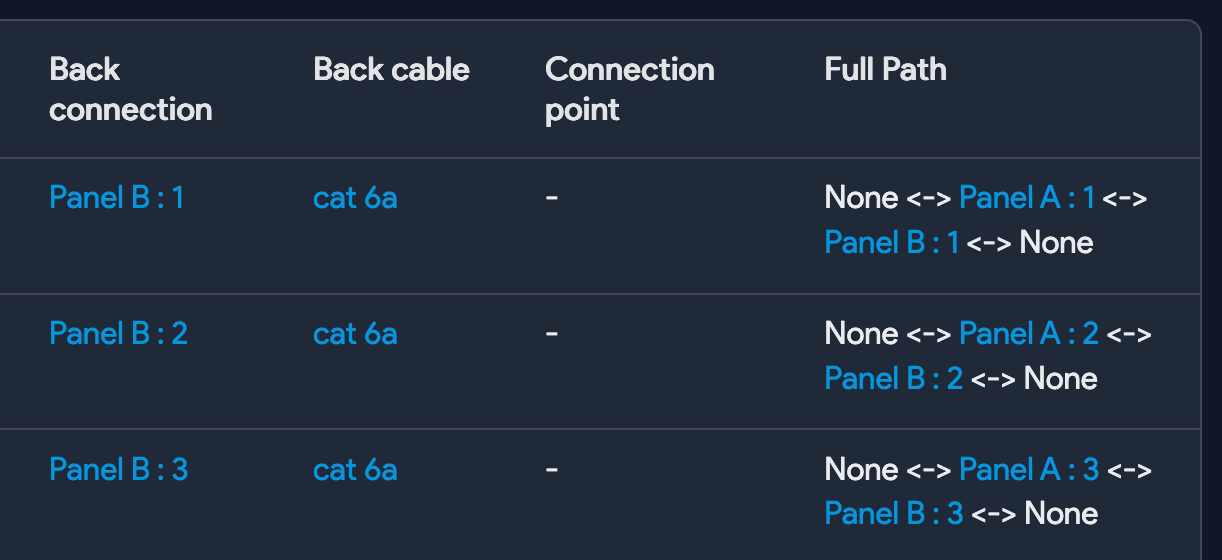
The table displays full path details for each connection.
Patch Panel Layout
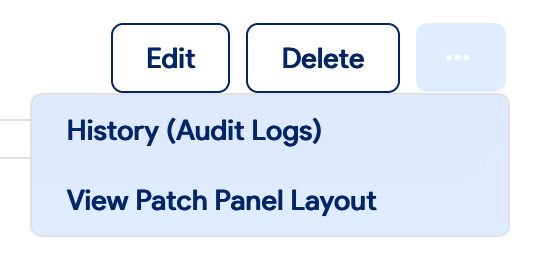
The patch panel's view or edit page includes a View Patch Panel Layout button.
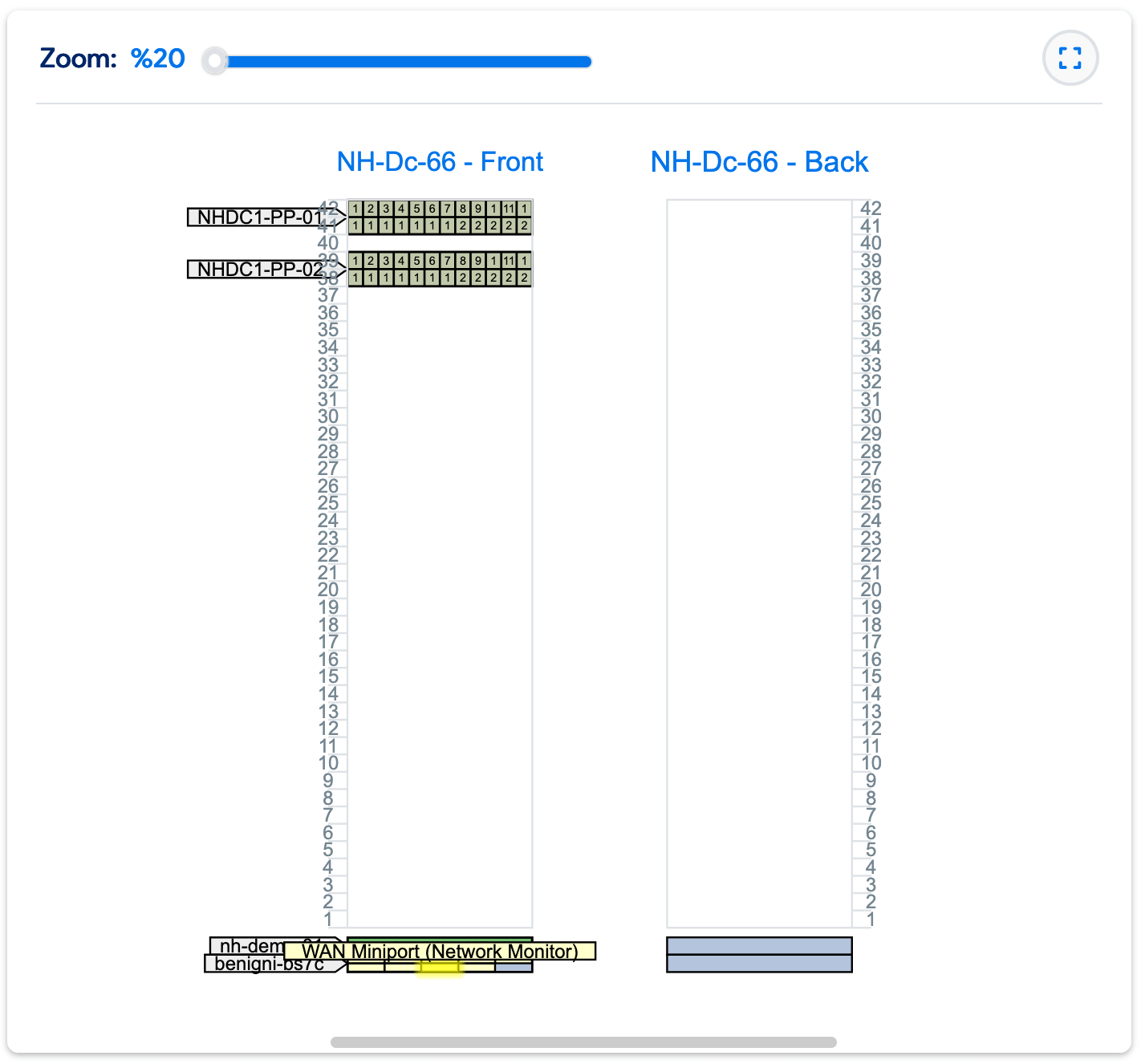
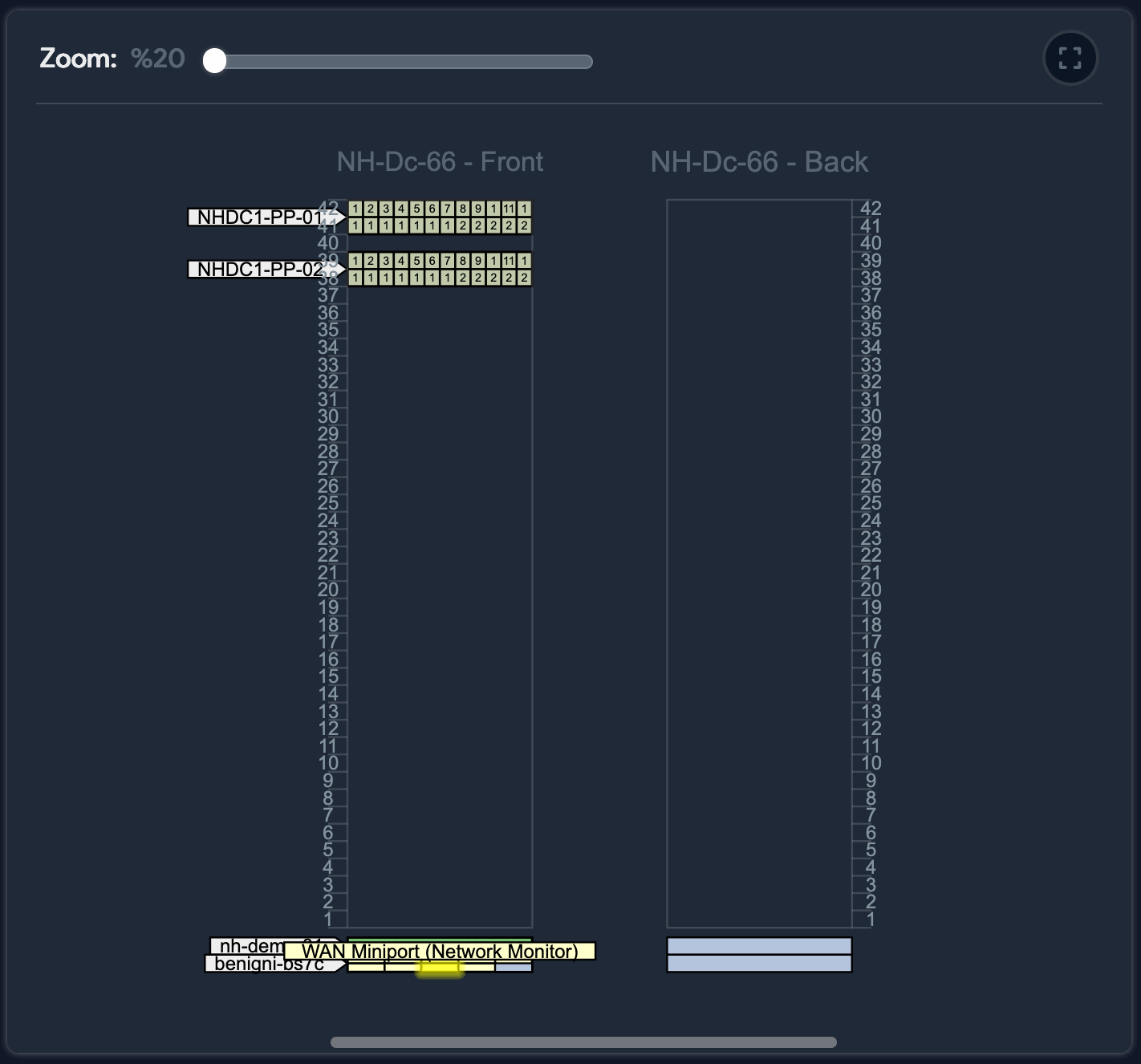
If the patch panel is connected to another patch panel, both panels are displayed side by side. Hovering over any port (or device) highlights the path and displays the text for that port and its connections. Each port is color-coded in the same way as in the port display.
Drag-and-Drop Connections
Use drag-and-drop to create and manage patch panel connections.
Create Connections With Drag-and-Drop
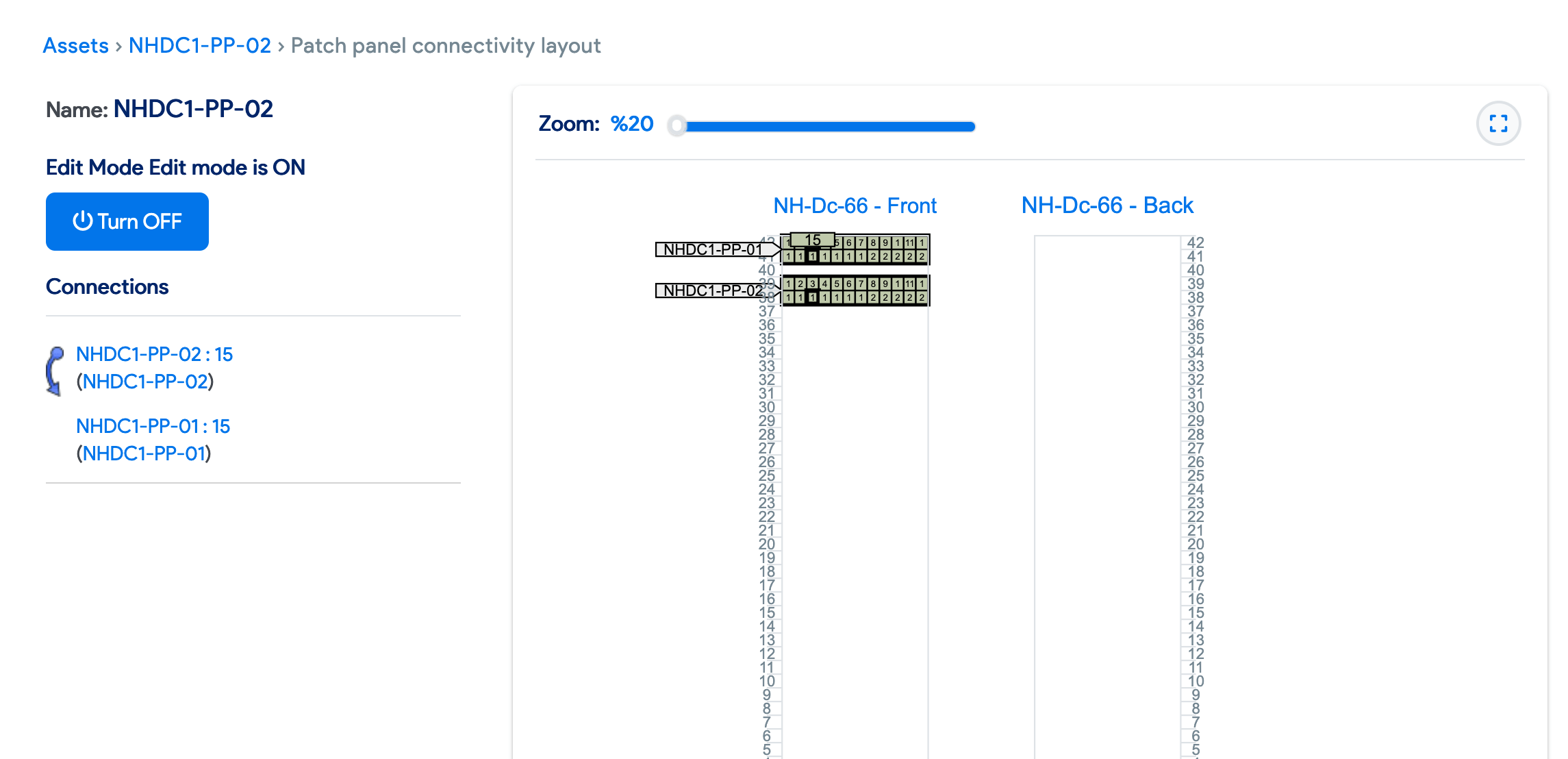
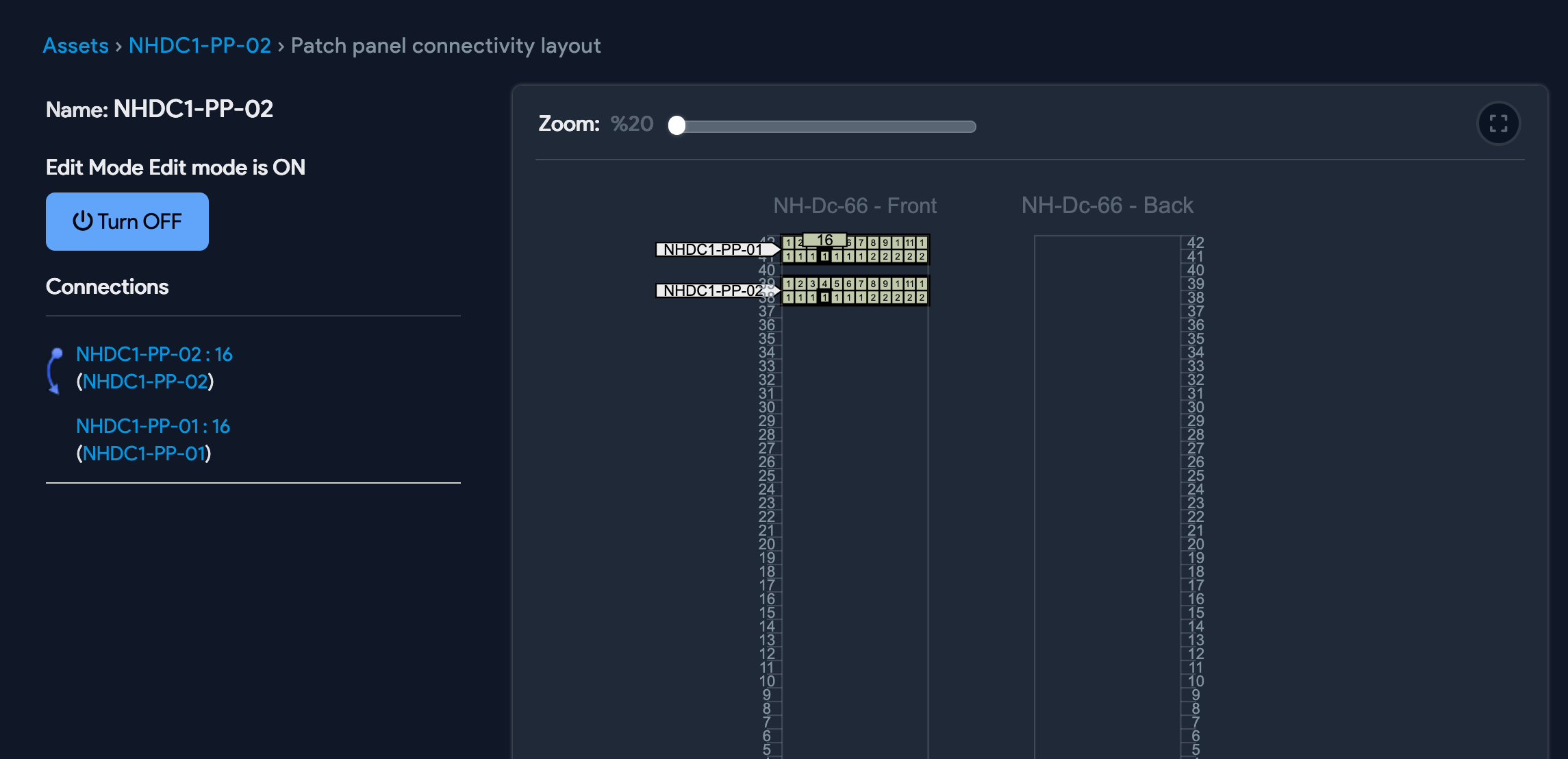
From the Patch Panel Layout page, enable edit mode and connect patch panel ports to devices or switch ports by dragging a port to its destination.
Drag-and-Drop for Switch Port
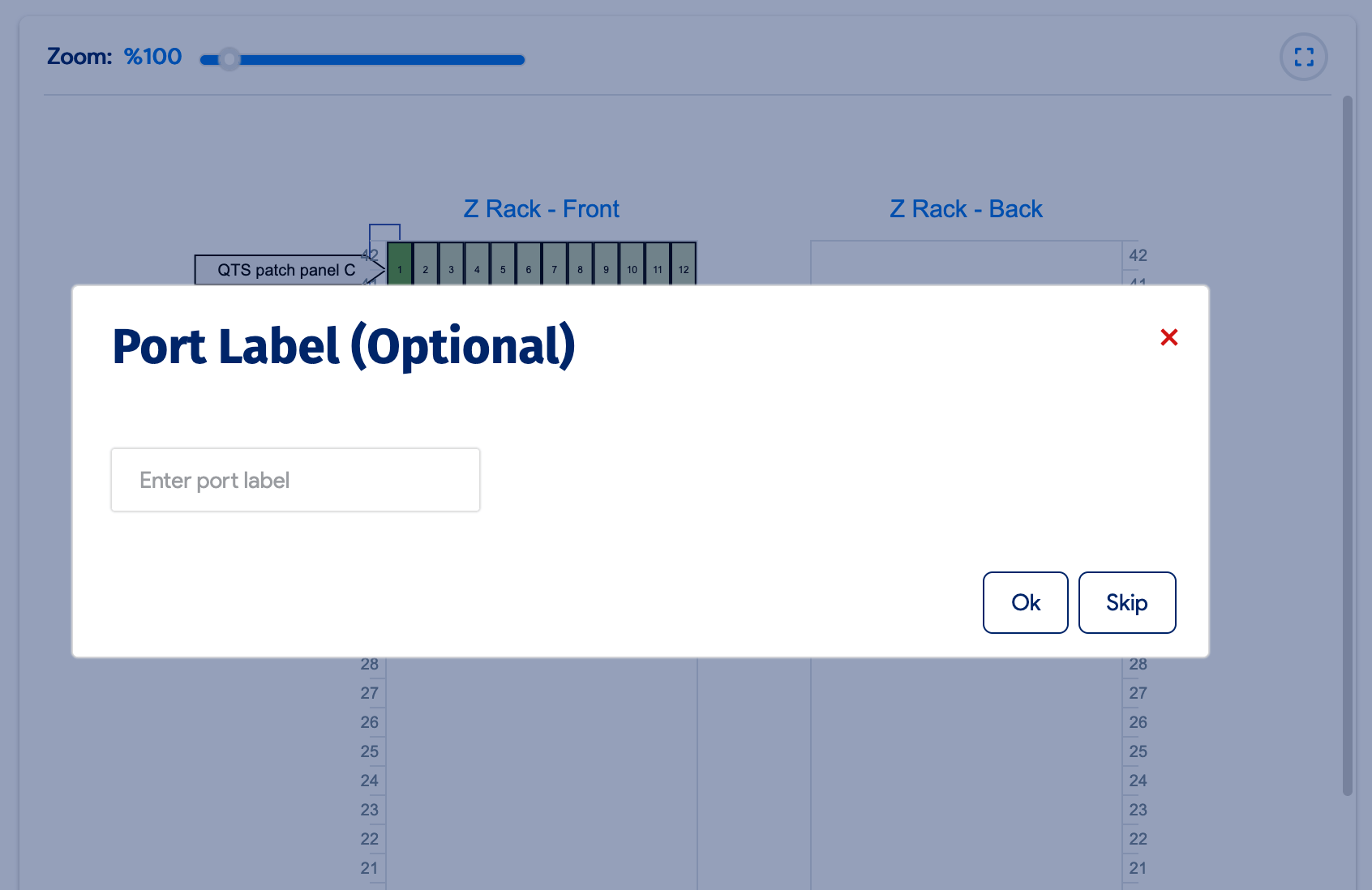
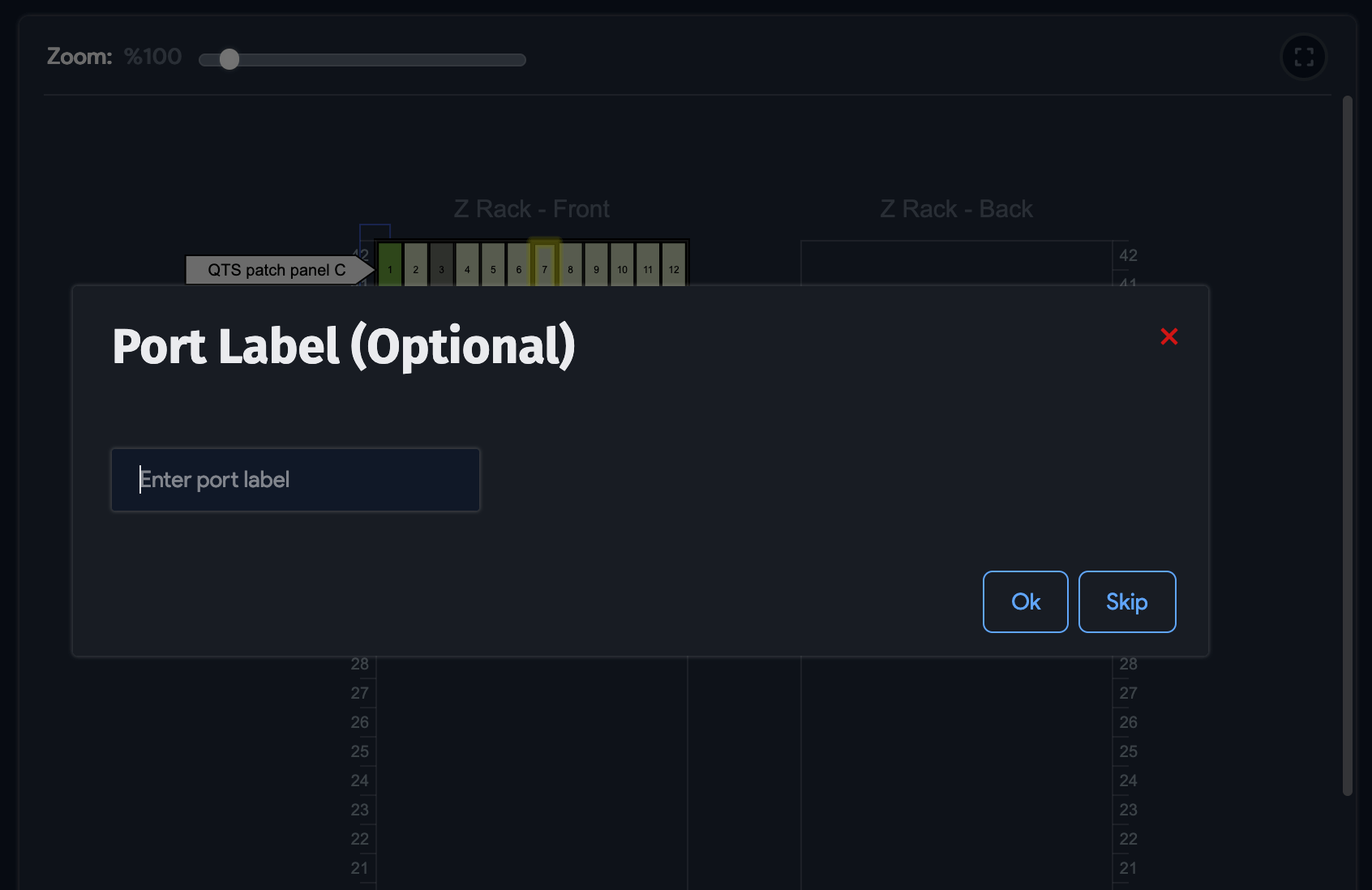
From the Patch Panel Layout page, you can also drag switch ports to devices or patch panel ports. A popup appears where you can enter a port label.
Direct Patch Panel Port to Patch Panel Ports Connections
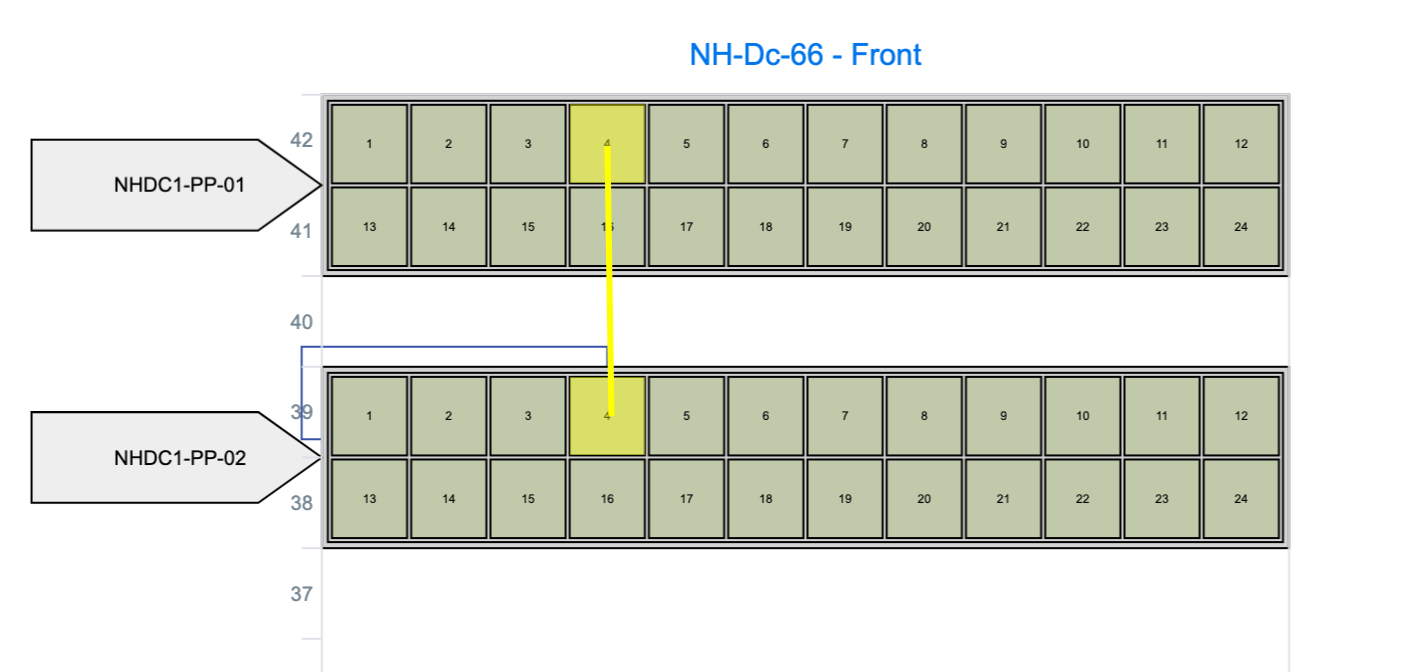
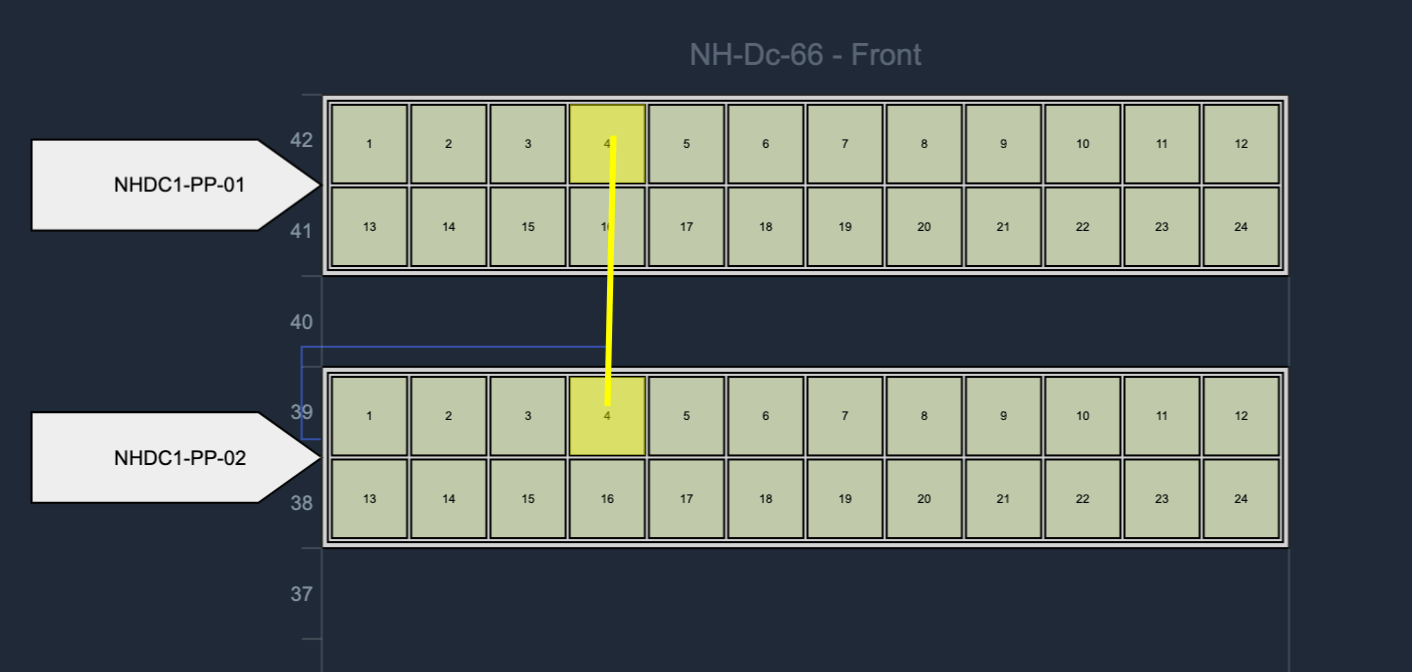
You can add front patch panel connections to the ports of another patch panel via drag-and-drop.
Special Cases
Handle devices outside the rack, half-depth devices, and multi-hop connections.
Devices Outside the Rack
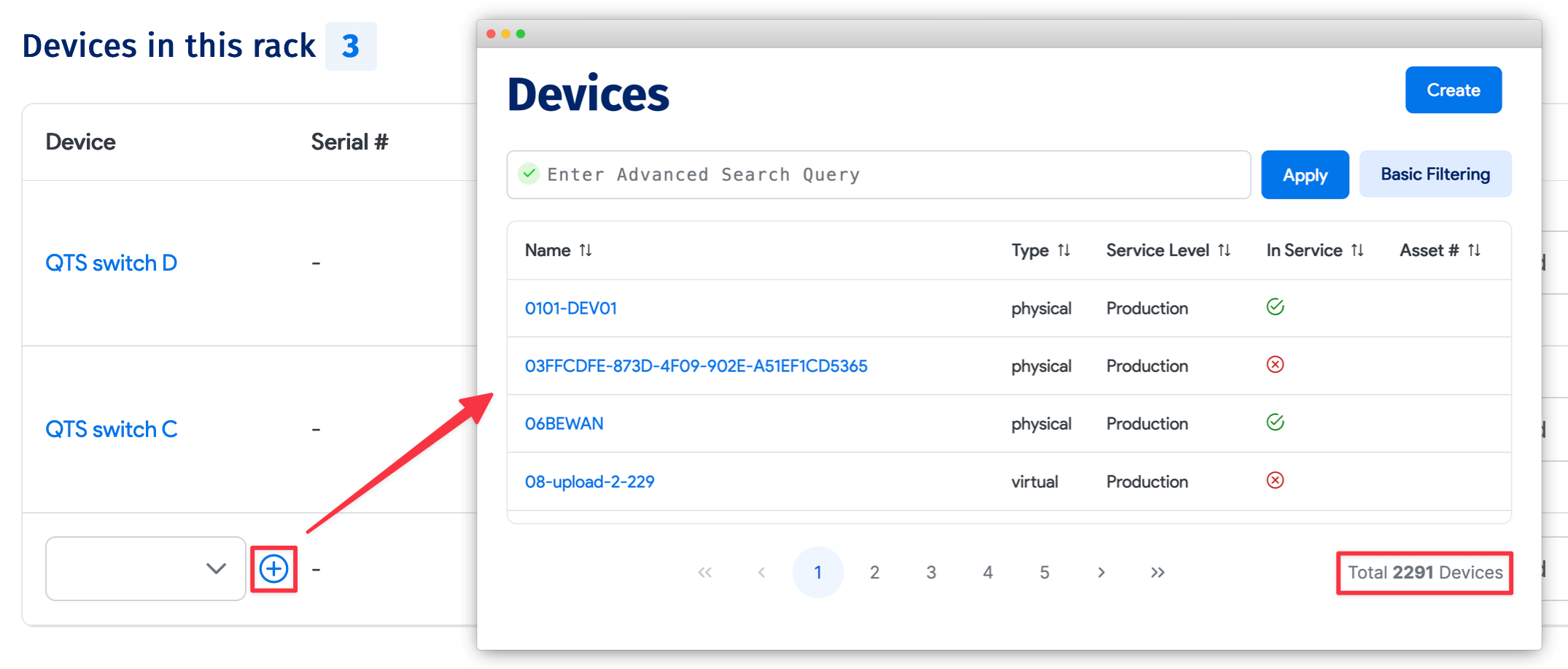
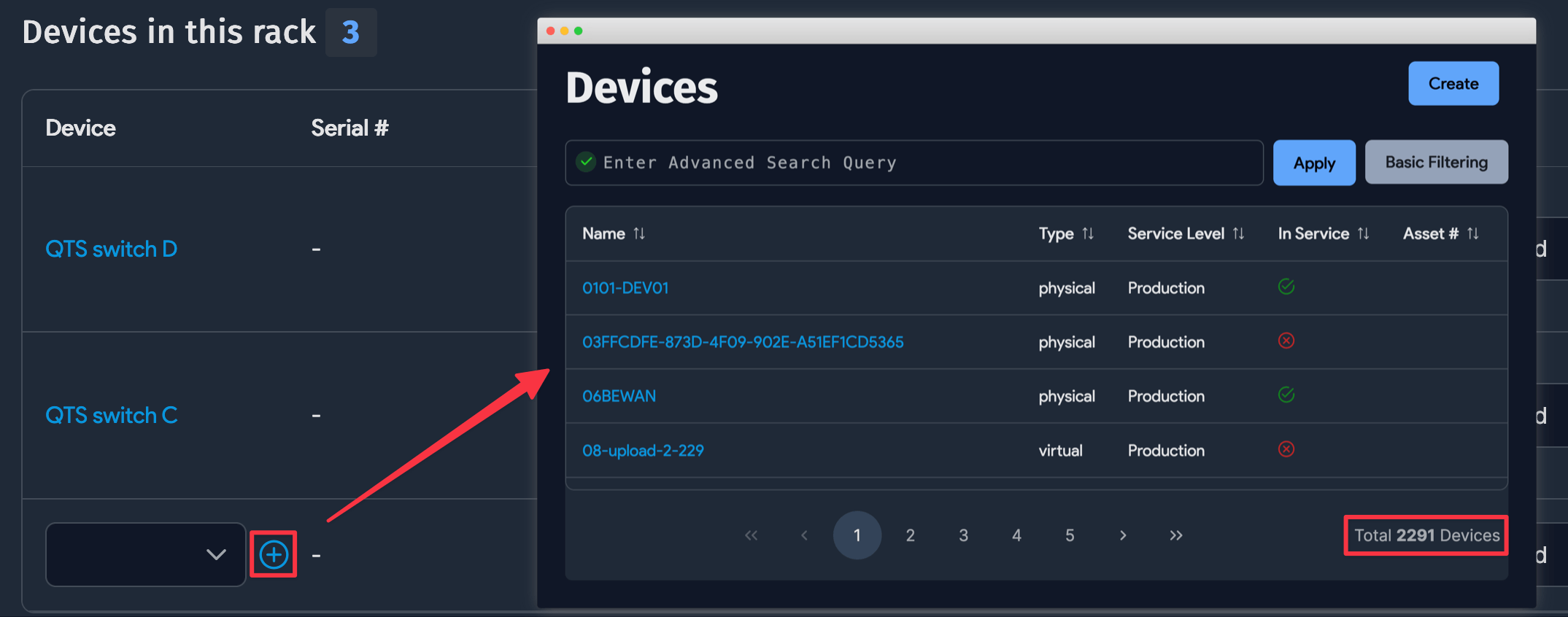
By default, only devices in the same rack as the patch panel are shown. You can reset the filter by clicking on total devices, as shown above, to select a device outside the rack. These are displayed on the left side of the patch panel, as shown below.

Half-Depth Devices
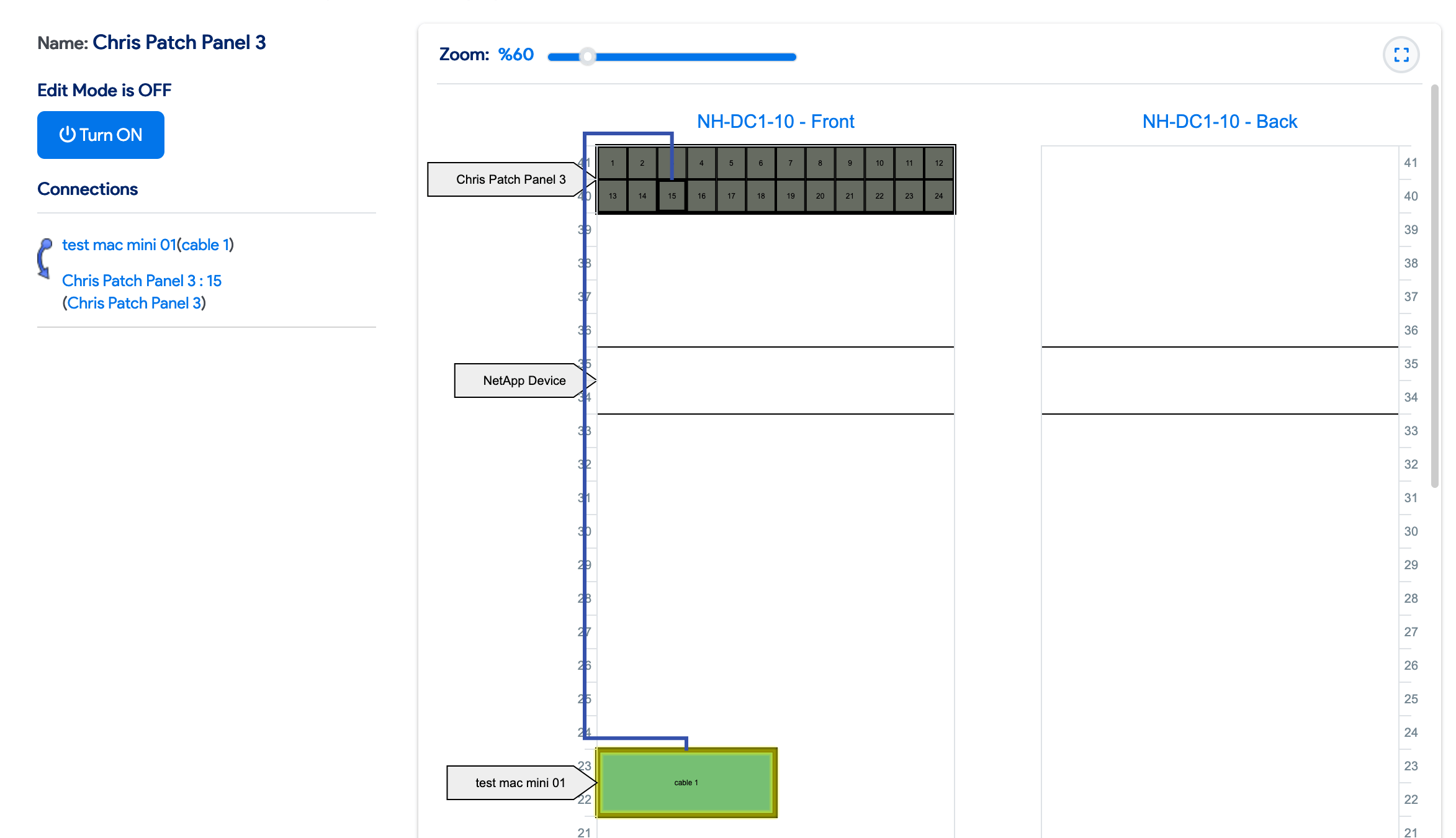
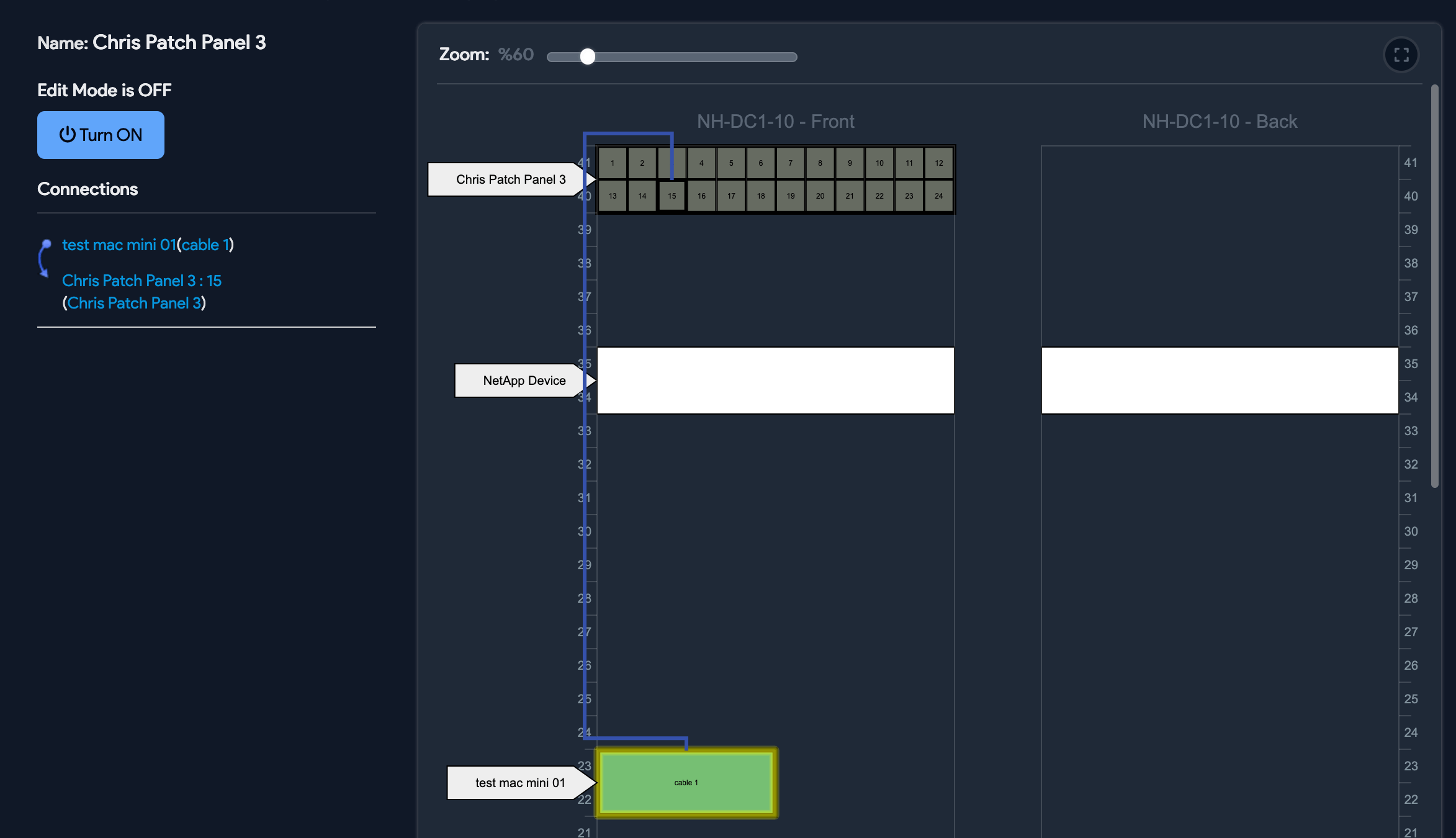
Half-depth devices are displayed side by side to show the cabling.
Multiple Hops or Patch Panels
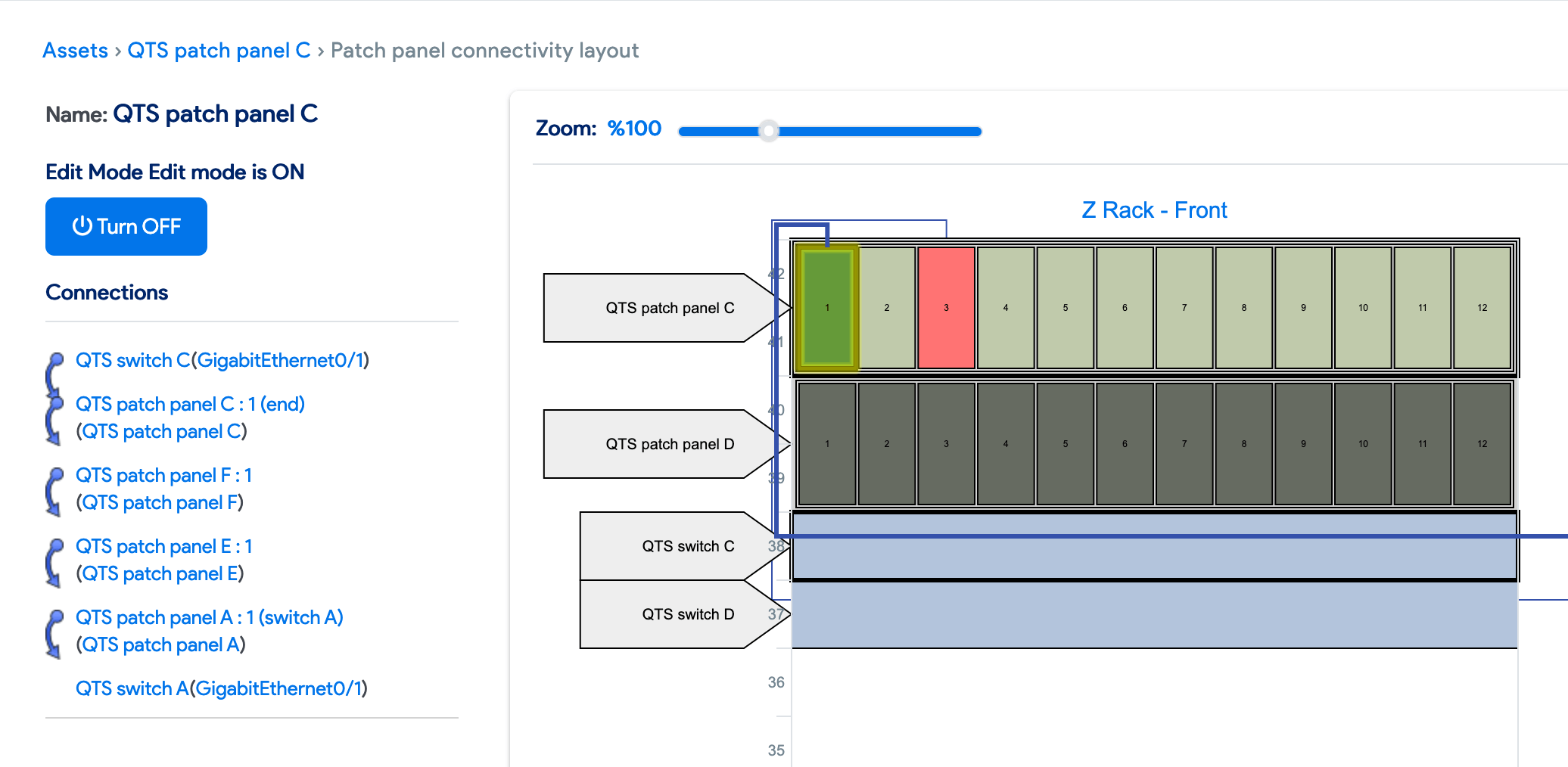
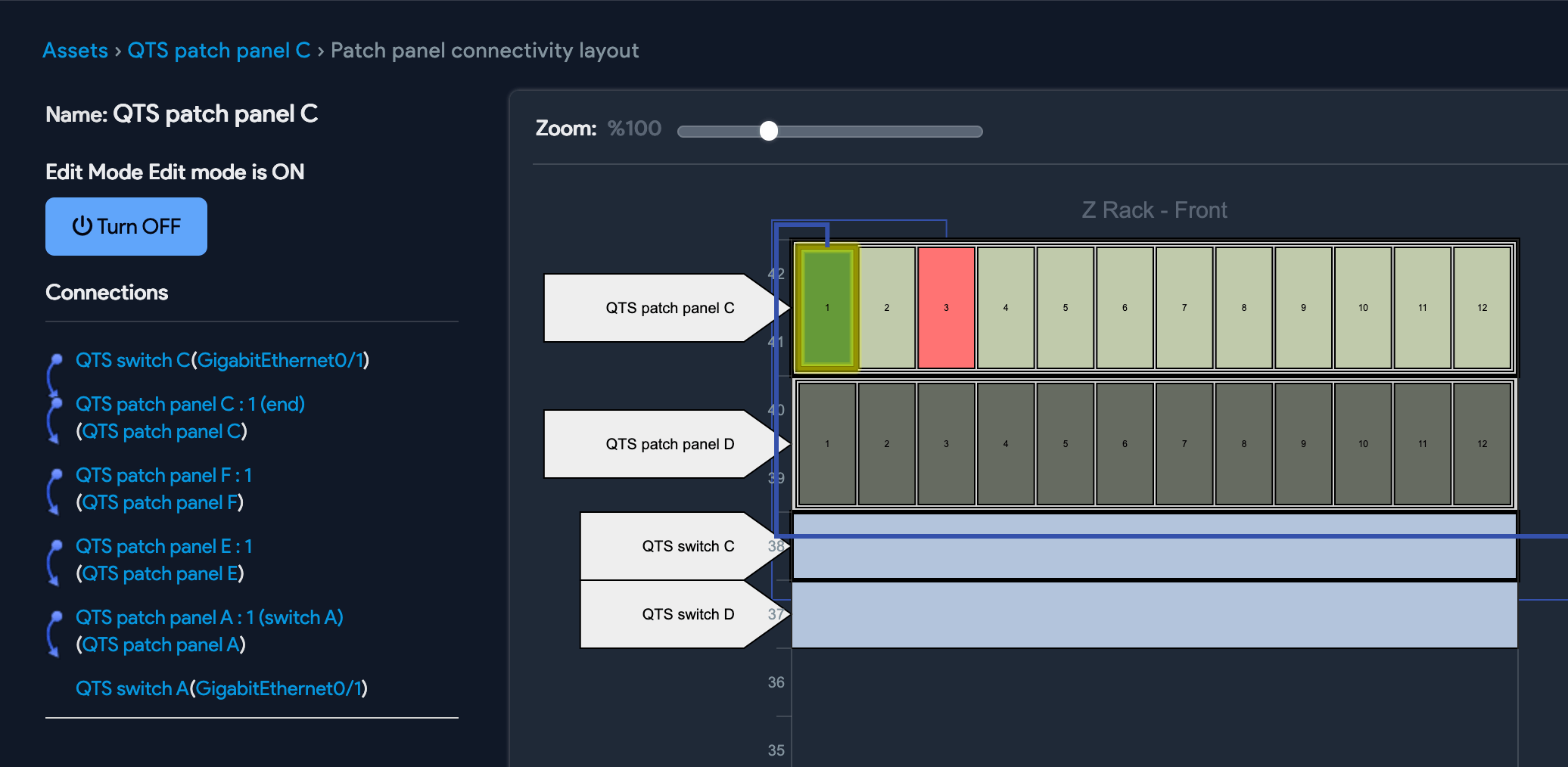
If a connection spans multiple patch panels, it is displayed when you hover your cursor over that port (or connected device, switch port, etc.). It is displayed on the left side of the panel.