Create Wall Jacks
One method for documenting the connection path from a patch panel to a wall jack to a switch and its devices is to create a patch panel model for the wall jack.
Create the Wall Jack Model and Asset
Navigate to Resources > Assets > Patch Panel Models and create a model with the appropriate Port Type and desired Number of ports on the panel of the wall jack.
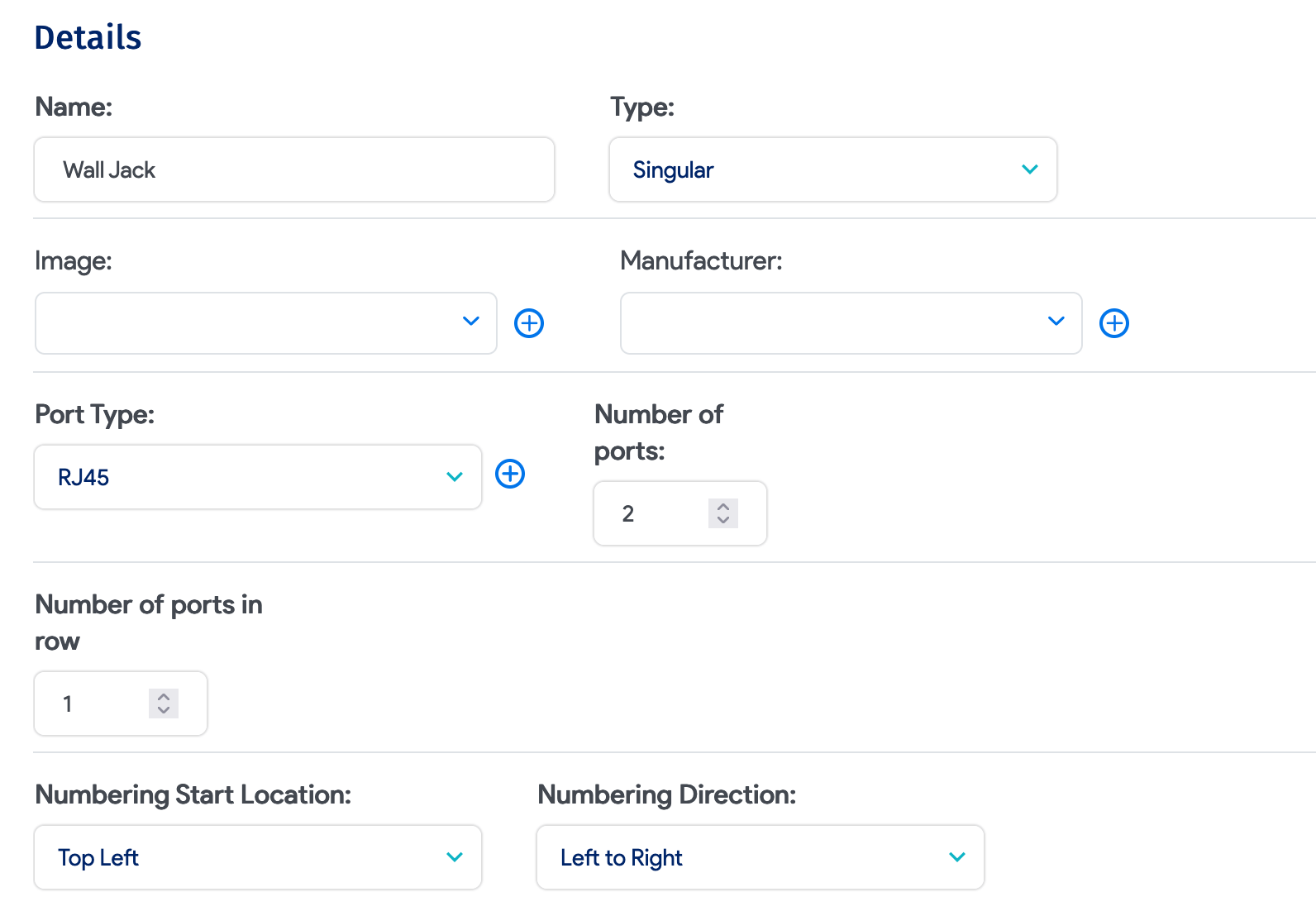
Once you've created the model, create assets for the wall jacks via Resources > All Assets > Create. When creating the asset, select the type Patch Panel, then select the wall jack model as the patch panel model. Set the Back connection type to either Patch Panel or Switch, depending on whether it connects to the patch panel or the unmanaged switch you are documenting.
Create an Unmanaged Switch
Next, create an unmanaged switch:
-
Navigate to Tools > Templates & Bulk Operations > Switch Templates and create a template that reflects your switches. Select a switch type and add a ports switch template with the desired ports prefix, type, and number of ports.
-
Once you've created the switch template, select the template and click the Create/Edit option under the Ellipsis menu in the top right corner of the template's details page. Here, you can add the desired amount of unmanaged switches needed.
Create the Connections
Once you've created assets for the wall jacks and created switches from the template, you can start creating the connections:
- Open the wall jack asset and go to its edit details page. The page includes a patch panel ports section with a line for each port on the wall jack panel, as defined by the patch panel model you created earlier.
- First, define the front connection as either the patch panel or the switch, whichever is desired.
- Define the Connection Type, then enter the Object ID or search for and select the switch port or the patch panel port for the connection.
- You can also enter a Label for the connection that corresponds with the wall jack label in the room (if it is labeled). Then, define the Back connection, which can also be the patch panel port or the switch port (whichever you did not use for the front connection).


This should complete the connection path from the patch panel to the wall jack to the switch. Next, you can locate the unmanaged switch by searching for it by its given name. Select the switch port in the top right corner of the switch's details page. You can select each switch port and edit or add the connections of any relevant devices.