Troubleshoot the Freshservice Integration
The Device42 Freshservice integration sends Device42 data to Freshservice through the Device42 Cloud Connector. This page is for Device42 and Freshservice administrators. It helps you identify a problem, test the likely causes, and apply the correct fix.
Integration problems are in two groups, and each group has a different diagnostic path. To find your group, look at the sync:
- If the sync runs but reports errors for individual items, you have a sync job error. The connection works, but some data does not transfer. Start at Collect the Sync Error Details.
- If the sync does not start, or if Freshservice cannot connect to Device42, you have a Cloud Connector connection error. The Main Appliance cannot connect to the Cloud Connector. Start at Cloud Connector Connection Errors.
Use the following pages for tasks outside troubleshooting:
- For initial setup and installation, see Set Up the Freshservice Integration.
- For daily usage and operations, see Use the Freshservice Integration.
- For advanced data mapping customization, see Customize the Freshservice Integration.
Collect the Sync Error Details
Each sync section on this page needs three details from the log: the task name, the exact error text, and the sync time. If the sync log is open, record these three details. Then go to Sync Job Errors.
To get the log:
- In Freshservice, go to Admin.
- Search for
appsand click Manage Apps. - Find the Device42 for Freshservice app.
- Open the Settings dropdown and select Edit settings.
- Click Sync History.
- Select a row to see the errors for that sync run.
- Click Download Full Log to get the complete log.
For more information, see View Sync History Logs.
Tasks and the Mapping File
Most diagnostic steps on this page use these three terms.
Task. A task is one named unit of sync work, for example Devices or AWS VM to AWS Network. Each task has one DOQL query that reads data from Device42. Each task also has field mappings that write the data to Freshservice. Each error in the sync log gives the name of the task that caused it. This is why you record the task name first.
Mapping file. The mapping file is an XML file that defines all the tasks. In this file, each task is a <task> element that contains its query and its field mappings. The integration includes a default mapping file, and you can upload a custom file. To get the file that the failed sync used, see Find the Right Mapping File.
DOQL. DOQL is the Device42 query language in the task queries. It is SQL that runs against Device42 database views. To run a DOQL query, use Standard Reports at Analytics > Standard Reports in Device42.
Sync Job Errors
Most sync errors are item-level errors. One item-level error does not stop the sync. The integration records the failed item in the log and continues with the next item. Therefore, many item-level errors in the log show that individual records failed. They do not show that the sync stopped.
Only three events stop a sync:
- You cancel the sync.
- The stuck-sync detector stops the sync after two hours.
- Device42 deploys a new version of the Cloud Connector while the sync runs.
In these three cases, the cancelled sync is correct behavior. It is not a connection failure.
Use the task name and the error text from the log to find your symptom in the table below. Some sections also need the task's DOQL query. Those sections link to Work With DOQL Queries From the Mapping File at the correct step.
If the log has more than one type of error, correct each type separately.
If your sync errors started after a change to the mapping file, look at the field mapping reference in Customize the Freshservice Integration. These three topics are the most frequent causes:
| Symptom or log message | Go to |
|---|---|
there is no dependent asset, there is no dependency asset, or there is no asset | Missing Asset Errors |
connection aborted or gateway timeout during a sync | Connection Aborted or Gateway Timeout Errors |
Freshservice API status 400, 404, 409, 429, or 500 when writing data | Freshservice API Errors |
%d format: a real number is required, not NoneType | None Asset Type Errors |
Status 500 with syntax error at or near "where" | DOQL PostgreSQL Syntax Errors |
| The asset syncs, but its components do not | Components Not Syncing for Custom Asset Types |
| Another sync error | Other Sync Errors |
Missing Asset Errors
The sync log can show one of these errors, where the value in parentheses is the identifier of the missing asset:
there is no dependent asset (...) in FSthere is no asset (...) in FSthere is no dependency asset (...) in FS
What it means: The asset is not in Freshservice. Therefore, the integration cannot create relationships, components, software installations, or contract associations for that asset. These errors come from relationship, component, software installation, and contract asset tasks. They do not come from the asset creation task.
The most frequent cause is that a different asset replaced this asset. This occurs when both assets have the same value in a matching criteria field, for example the same serial number or the same UUID.
Matching criteria are the fields that the integration compares to decide that a Device42 asset and a Freshservice asset are the same object. If two Device42 assets hold the same value in one of these fields, both assets match the same Freshservice asset, and one overwrites the other. By default, the integration uses these matching criteria for devices:
- Device42 ID
- Item ID, which is the Freshservice asset identifier
- Serial Number
- UUID
- IMEI Number
- MAC Address, for SNMP devices only
- Hostname, but only if the matched asset has no Item ID
Check the cause. One duplicated value can cause an error in every task that refers to the affected asset, so a few duplicates can produce many log entries. Start with one missing asset, then look for other assets that share its matching criteria values.
-
Find the asset type of the missing asset. You need this asset type in step 2. Use the name of the task that reported the error, and the error text itself. The type of task tells you which asset is missing:
Task type The missing asset is Component or software installation The device that holds the component or the software. Contract asset The asset for the contract. Relationship One of the two assets in the relationship. See the note below. For a relationship task, the error text gives the side that is missing:
there is no dependency asset(eni-05b21e16f18910416) in FS: the dependency is missing. This is the right side.there is no dependent asset(eni-003bbe9db34bf7c27) in FS: the dependent is missing. This is the left side.
The task name gives the asset type on each side. In the task
AWS VM to AWS Network, the left side is the AWS VM. The right side is the AWS Network. Therefore, athere is no dependent asseterror from this task means that an AWS VM is missing. -
Download the mapping file that the sync used. In it, find the asset creation task for that asset type. This task is a
<task>element withtype="asset"and a name that matches the asset type, for example<task name="Devices" type="asset">. If the same task name occurs more than once, see Find the Right Task Version. -
Extract and prepare the DOQL query from that task.
-
Run the query at Analytics > Standard Reports.
-
Look for the missing asset in the output. If the asset is not in the output, it is not in Device42, or the query removes it.
-
If the asset is in the output, look at its matching criteria fields. Find other assets that have the same value in one of those fields.
Fix the issue. In Device42, make the duplicated value unique, so that only one asset has it. Then run the sync again. This is the recommended method.
The correct change depends on why the duplicate exists. For example, one device can hold the serial number of a different device because of a data entry error, or two records can exist for the same physical device. Make the change in Device42, which is the source of the synced data.
One correction can remove many errors, because a missing asset causes an error in each task that refers to it. If the log has a large number of these errors, contact support for help with finding and correcting the duplicates.
You can also change the matching criteria in a custom mapping file, but do this last. If you later use the Freshservice Discovery Probe or a different data source, the new criteria can create duplicate assets. Contact support before you change the matching criteria.
Connection Aborted or Gateway Timeout Errors
What it means: The Cloud Connector could not read data from Device42. The most frequent cause is a slow task query.
Check the cause.
- In the sync log, find the task that caused the error.
- Download the mapping file that the sync used, then extract and prepare the DOQL query from that task.
- Run the query at Analytics > Standard Reports to confirm that it is slow, or that it times out.
Fix the issue. Change the query to make it faster. Test the new query at Analytics > Standard Reports before you upload the changed mapping file.
If you cannot find the cause of the slow query, contact support. Give them the task name and the query. Support can analyze the query directly on the appliance to find which part of it is slow.
Freshservice API Errors (400, 404, 409, 429, and 500)
These errors occur when the integration reads the data from Device42 correctly, but the Freshservice API returns an error. The integration gets these errors when it tries to create or to update an item. Each status code has a different meaning and a different retry behavior.
500 errorThe 500 errors in this section come from the Freshservice API when the integration writes data. A 500 error that contains syntax error at or near "where" in the response body is a different problem. That error comes from Device42 when the integration reads data. For that error, go to DOQL PostgreSQL Syntax Errors.
| Status | What it means | Integration behavior |
|---|---|---|
400 | Freshservice rejected the data during validation. | The integration records the item in the log and skips it. There is no retry, but see the special case below. |
404 | The item to update is no longer in Freshservice. | The integration records the item in the log and skips it. There is no retry. |
409 | There is a validation conflict or an infrastructure error. | The response format controls the retry behavior. See below. |
429 | Freshservice limits the request rate. | The integration retries continuously. It uses the Retry-After header, or 10 seconds if that header is absent. |
500 | There is a problem in Freshservice when the integration writes data. | The integration retries a maximum of six times, after 2, 4, 8, 16, 32, and 64 seconds. If all retries fail, it records the item in the log and skips it. |
Statuses 400, 404, and 409 need more information. See the topics below. For 429 and 500, the table above is the full behavior, because the integration retries both automatically.
If 429 or 500 errors continue in more than one sync, the retries are not correcting the problem. Contact support and give them the task name and the sync times.
HTTP 400: Validation error.
What it means: Freshservice rejected the data because the data failed validation. These are the frequent causes:
- The field value is not valid. For example, the value is not one of the permitted options for a dropdown field.
- The field type is not correct. For example, the integration sent text to an integer field.
- The value is outside the field limits. For example, the integration sent zero to a field that permits only positive numbers.
Check the cause. Look in the sync log for the field or the value that failed validation.
There is one special case. If the 400 error says that the serial number or the item ID must be unique, or says asset already exists, the integration makes one more attempt. Before this attempt, it removes the fields that have the error-skip attribute in the mapping file. In the default mapping, the serial_number field has this attribute. If the attempt also fails, the integration discards the item and does not record it in the log.
HTTP 404: Item not found.
What it means: The item that the integration tried to update is not in Freshservice. These are the frequent causes:
- A user deleted the asset in Freshservice. The deletion occurred after the sync read its cache, but before the sync updated the item.
- The task is an asynchronous job, such as a relationship or a software installation. The job took more than one hour, and Freshservice discarded it.
HTTP 409: Conflict.
What it means: A 409 error has two possible causes. Look at the format of the response:
- The response is JSON and contains
Validation failed. This is a Freshservice validation error, similar to a400error. The integration skips the item and does not retry. - The response is HTML, not JSON. This is usually a Cloudflare infrastructure error. The integration retries the item in the same way as a
500error.
None Asset Type Errors
The sync log can show this error when the integration updates an asset:
%d format: a real number is required, not NoneType
What it means: A user renamed or deleted a default Freshservice asset type. For example, a user renamed Server to Physical Server. The integration cannot find the asset type, so it tries to create the asset with a None type.
Check the cause.
-
In the sync log, find the task that caused the error.
-
Download the mapping file that the sync used, then extract and prepare the DOQL query from that task.
-
Run the query at Analytics > Standard Reports.
-
Look at the
asset_typecolumn in the output. -
Get the list of asset types in Freshservice with this API request:
GET {{freshservice_url}}/api/v2/asset_types?page=1&per_page=1000For the authentication method, see Useful Freshservice API Endpoints.
-
Compare the two lists. Find the values in the query output that are not asset types in Freshservice.
Fix the issue. Use one of these three methods:
- In Freshservice, change the asset type name back to the original name.
- In Freshservice, create the asset type that is absent.
- In the mapping file, change the asset type to the new name.
The integration does not create asset types automatically.
DOQL PostgreSQL Syntax Errors (Status 500)
A task fails to read data from Device42, and the HTTP 500 response contains this PostgreSQL error:
syntax error at or near "where"
This error usually occurs two times in the sync log, one time for each variant of the task. The Devices task has this problem most frequently, because two of its variants use the same doql-suffix: the variant for Device42 19.04.00 and later, and the variant for earlier versions.
This 500 error comes from Device42 when the integration reads data. If your 500 response does not contain a PostgreSQL error, the error comes from the Freshservice API. Go to Freshservice API Errors.
What it means: The task query already ends with a WHERE clause. The doql-suffix attribute on the <mapping> element also starts with WHERE. In an incremental sync, the integration adds the suffix to the end of the query. The result has two WHERE clauses, and PostgreSQL rejects it.
For example, the query in a custom mapping ends with a filter on last_discovered:
where view_device_v2.last_discovered >= NOW() - INTERVAL '3 days'
And the doql-suffix attribute starts with where:
where view_device_v2.last_edited>'2024-01-01 12:00:00'
Combined, these produce two WHERE clauses and invalid SQL.
Fix the issue. In the custom mapping XML file, change where to AND in the doql-suffix attribute of each affected <mapping> element:
Click to expand the corrected mapping example
<!-- Before -->
<mapping key="name" source="Devices" doql-suffix=" where view_device_v2.last_edited>'%s' ">

<!-- After -->
<mapping key="name" source="Devices" doql-suffix=" AND view_device_v2.last_edited>'%s' ">
Apply the change to every affected variant. Then reupload the custom mapping file from Configuration > Data Mapping > Upload Custom Mapping.
Components Not Syncing for Custom Asset Types
After a sync, the asset is in Freshservice, but it has no component records. The asset has no CPU, RAM, hard disk, network adapter, or other components.
What it means: By default, the integration syncs components only to assets that have the Freshservice type Computer, or a sub-type of Computer. If you create a top-level asset type outside the Computer hierarchy, for example POS Terminal, the integration skips the components for all assets of that type. It does not record these errors in the log.
Check the cause. In Freshservice, go to Admin and search for Asset Types & Fields. Find your custom asset type. Make sure that it is below Computer in the hierarchy, and not a separate top-level type.
Fix the issue. Use one of these two methods.
Method 1 is the recommended method. In Freshservice, create the custom asset type again as a sub-type of Computer. This method needs no changes to the mapping file.
For method 2, add the custom type name after Computer in the asset-type attribute. This attribute is on the <target> element of each component task. Change the CPU, RAM, Hard Disk, Network Adapter, Logical Drive, and Datastore tasks:
<target asset-type="Computer, POS Terminal"/>
The components then sync to Computer assets and also to the custom type. Reupload the mapping file.
Other Sync Errors
If this page does not include your sync error, use these steps:
- In the sync log, find the task that caused the error.
- Find that task in the mapping file.
- Look at the query and the field mappings for that task.
- Find the field or the value that the error gives.
- Extract and test the query to look at the source data. Before you run the query, always replace the escaped XML characters. If you do not, the query fails.
If the problem continues, contact support.
Work With DOQL Queries From the Mapping File
This is a reference procedure for the sync job errors above. Those sections link to this procedure when you need the mapping file, or when you must find a task in it, then prepare and run that task's query. Work through the four topics below in sequence, starting at Find the Right Mapping File. Cloud Connector connection errors do not need this procedure.
Find the Right Mapping File
Always use the mapping file that the integration used for the failed sync. If you use the default file when the sync used a custom file, the queries and field mappings you examine are not the ones that failed.
Keep an unedited copy of the file that you download. If a change causes new errors, you can upload the original file again.
-
In the Freshservice integration app, go to Configuration > Data Mapping.
-
Look at the top of the tab for the message A custom mapping is being used.
-
Download the correct file:
If the tab shows Then click A custom mapping is being used Download Custom Mapping No message about a custom mapping Download Default Mapping
Find the Right Task Version
Some tasks occur more than once with the same name. These are the same task, but each variant has a different DOQL query for a specific range of Device42 versions. The integration selects the correct variant automatically. But when you look at a task, or when you edit one to correct a sync error, you must find the correct variant yourself. If you edit the wrong variant, the error continues.
Each task can have a d42_min_version attribute and a d42_max_version attribute. These attributes give the Device42 versions that the task applies to:
Click to expand the version-gating example
<!-- Active for Device42 19.04.00 and above -->
<task name="Devices" type="asset" d42_min_version="19.04.00">

<!-- Active for Device42 16.19.00 through 19.03.99 -->
<task name="Devices" type="asset" d42_min_version="16.19.00" d42_max_version="19.03.99">

<!-- Active for Device42 16.18.02 and below -->
<task name="Devices" type="asset" d42_max_version="16.18.02">
Use only the variant whose version range includes your current Device42 version.
Extract and Prepare the Query
In the mapping file, each task has a <resource> element. The doql attribute on that element holds the SQL query:
Click to expand the mapping task example
<task enable="true" name="Devices" type="asset" ...>
    <api>
        <target/>
        <resource doql="SELECT view_device_v2.name, ... FROM view_device_v2 ..."/>
    </api>
    ...
</task>
These queries are frequently very long. A query can have hundreds of lines, and it can contain CTEs, JOINs, and subqueries.
To prepare a query for a test:
-
Copy the query from the
doqlattribute of the<resource>element for that task. -
Replace each XML-escaped character with the actual character:
Escaped character Actual character <<>>&&''"" -
Do not include the value of the
doql-suffixattribute, if present. This attribute is on the<mapping>element, not on the<resource>element. The integration adds this value to the end of the query in incremental syncs only, so test the query without it.For example, this task has a query on the
<resource>element and a suffix on the<mapping>element:<resource doql="SELECT view_device_v2.name FROM view_device_v2"/>
...
<mapping key="name" source="Devices" doql-suffix=" where view_device_v2.last_edited>'%s' ">Copy only the
doqlvalue. The query you test is then:SELECT view_device_v2.name FROM view_device_v2
Test the Query
To run a prepared query in Device42:
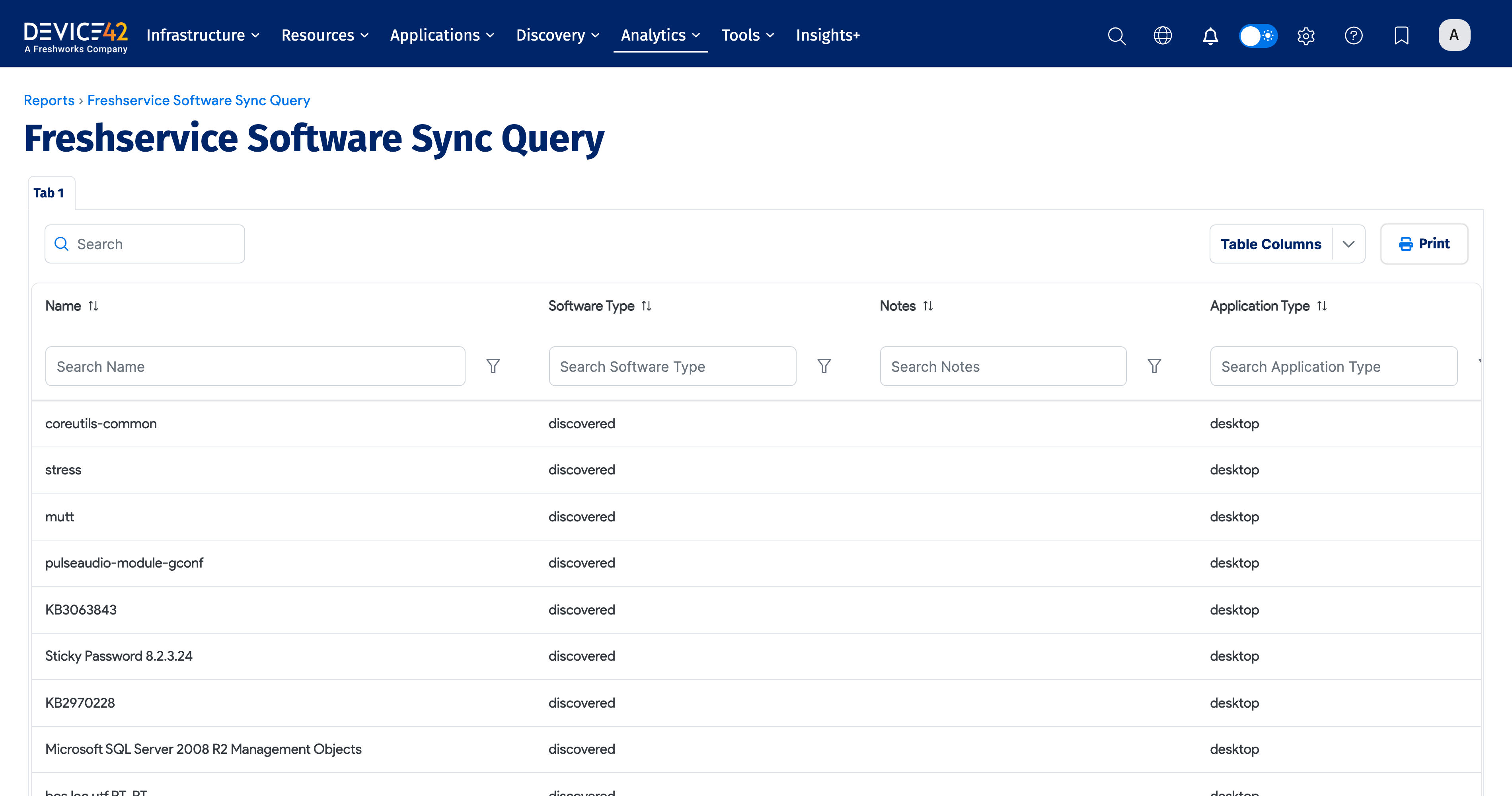
- Go to Analytics > Standard Reports and click Create.
- Name the report.
- From the report-type dropdown, select DOQL Query.
- Replace the sample statement in the text box with your query, then run the report.
If the query has a syntax error, or if it uses a table or field that does not exist, an error message appears below the text box. For more information, see Create a Report Using DOQL.
Look at the output. For a large result set, export the results to an XLSX file to examine them. If you contact support about the error, attach this file.
Cloud Connector Connection Errors
These errors occur when the Main Appliance cannot connect to the Cloud Connector. If the syncs do not start, or if the integration cannot connect to your Device42 instance, the cause is usually this connection and not the data. To find these errors, use the connection log on the appliance. Do not use the sync log.
The Cloud Connector uses a continuous outbound WebSocket Secure (WSS) connection on port 443. The endpoint has this format:
wss://connect-<region>.device42.io:443/ws
For example, the endpoint for the Australia region is wss://connect-au.device42.io:443/ws. Instances that do not use a regional endpoint connect to wss://connect.device42.io:443/ws.
The connection is a bidirectional tunnel. After the client makes the connection, requests from the cloud also use this same connection. The cloud server sends HTTP requests through the tunnel. The client runs these requests against the local Device42 appliance, then returns the responses through the same tunnel.
The connection is outbound only. Therefore, your firewall must permit this traffic:
- Destination:
*.device42.io, or the endpoint for your region - Port:
443. To a firewall, WSS traffic is the same as normal HTTPS traffic.
Most connection failures have one of two causes: the firewall blocks the destination or the port, or the DNS server cannot resolve the endpoint. Use this table to find your symptom:
| Symptom or log message | Go to |
|---|---|
| The sync does not start, or Freshservice cannot connect to Device42 | Identify Connection Issues |
websocket: close 1006, connection reset by peer, or i/o timeout in the connection log | Identify Connection Issues |
| You confirmed that the connection is not available, and you need the corrective steps | Resolve Connection Issues |
secure tunnel already established with same instance ID | Duplicate Instance Errors |
Identify Connection Issues
Look at the connection log file on the Main Appliance. This procedure and the next one need terminal access to the appliance. If you do not have terminal access, contact support.
/var/log/rc/http-ws-proxy-client.log
If there is a connection problem, this file contains errors similar to these:
Click to expand the example log output
Connection read error (was connection just closed?) for trackingID: Not Available, error: websocket: close 1006 (abnormal closure): unexpected EOF
Websocket Connection for trackingID: Not Available has been closed
Status checker ping error for trackingID: Not Available, error: write tcp 10.201.18.250:46804->104.20.27.167:443: write: connection reset by peer
[INFO] main.go:308: Connection attempt url: wss://connect.device42.io/ws
[ERROR] main.go:327: Connection error, error: dial tcp: lookup connect.device42.io: i/o timeout, response:
[INFO] main.go:491: Attempting to connect
These errors confirm that the appliance cannot keep the tunnel open. Usually, a firewall blocks the outbound traffic, or a DNS server cannot resolve connect.device42.io to an IP address. Continue to Resolve Connection Issues.
If the log shows secure tunnel already established with same instance ID, the cause is different. The Cloud Connector refuses the connection, and no firewall or DNS problem is necessary. Go to Duplicate Instance Errors.
Resolve Connection Issues
Do these three procedures in this sequence.
1. Test the network connection.
Run these commands on the Main Appliance. Replace connect.device42.io with the endpoint for your region if you use one, for example connect-au.device42.io:
curl -I https://connect.device42.io
curl -kv https://connect.device42.io
nc -v connect.device42.io 443
2. Regenerate the Instance GUID.
If the network connection is correct, regenerate the Instance GUID:
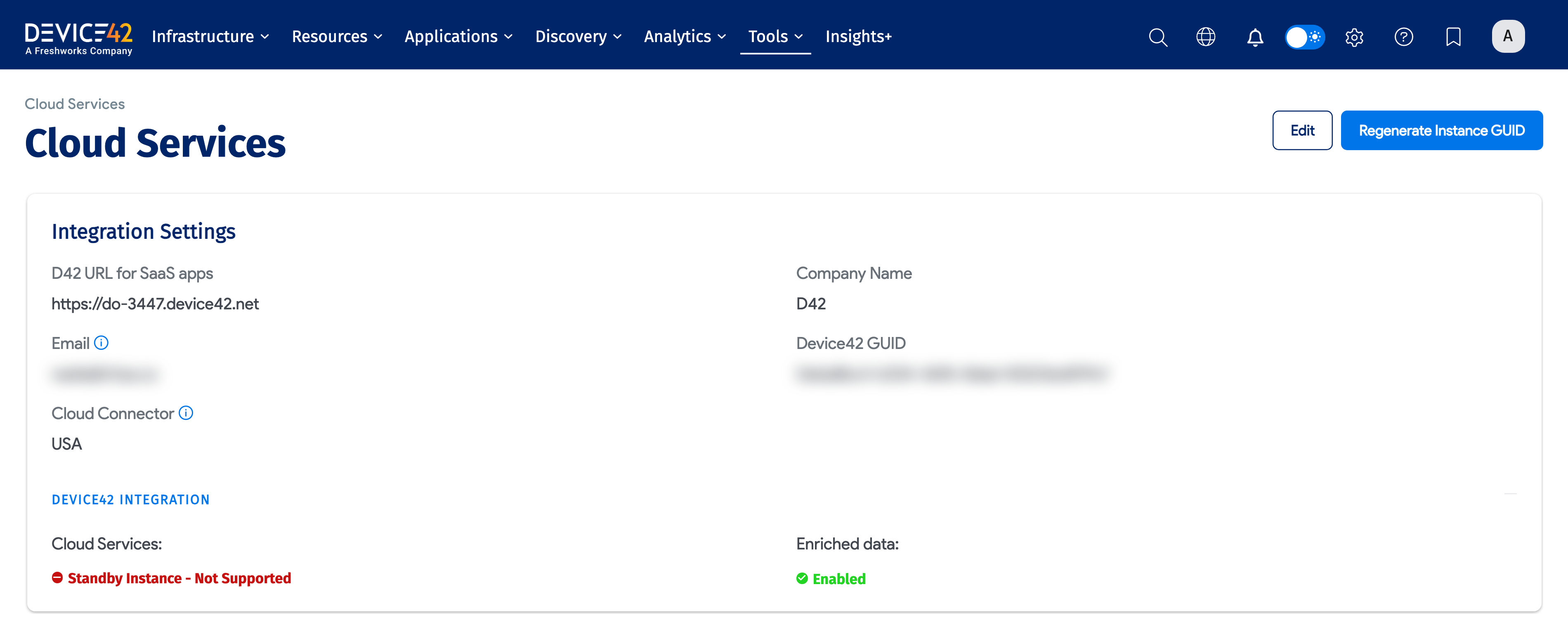
-
In Device42, go to Tools > Integrations > Cloud Services.
-
Click Regenerate Instance GUID.
-
Restart the Cloud Connector client so that it uses the new GUID. This is the
connect_d42_clientservice on the Main Appliance. If you do not have terminal access to the appliance, contact support to restart the service.
3. Create the integration again.
If the new Instance GUID does not correct the connection:
-
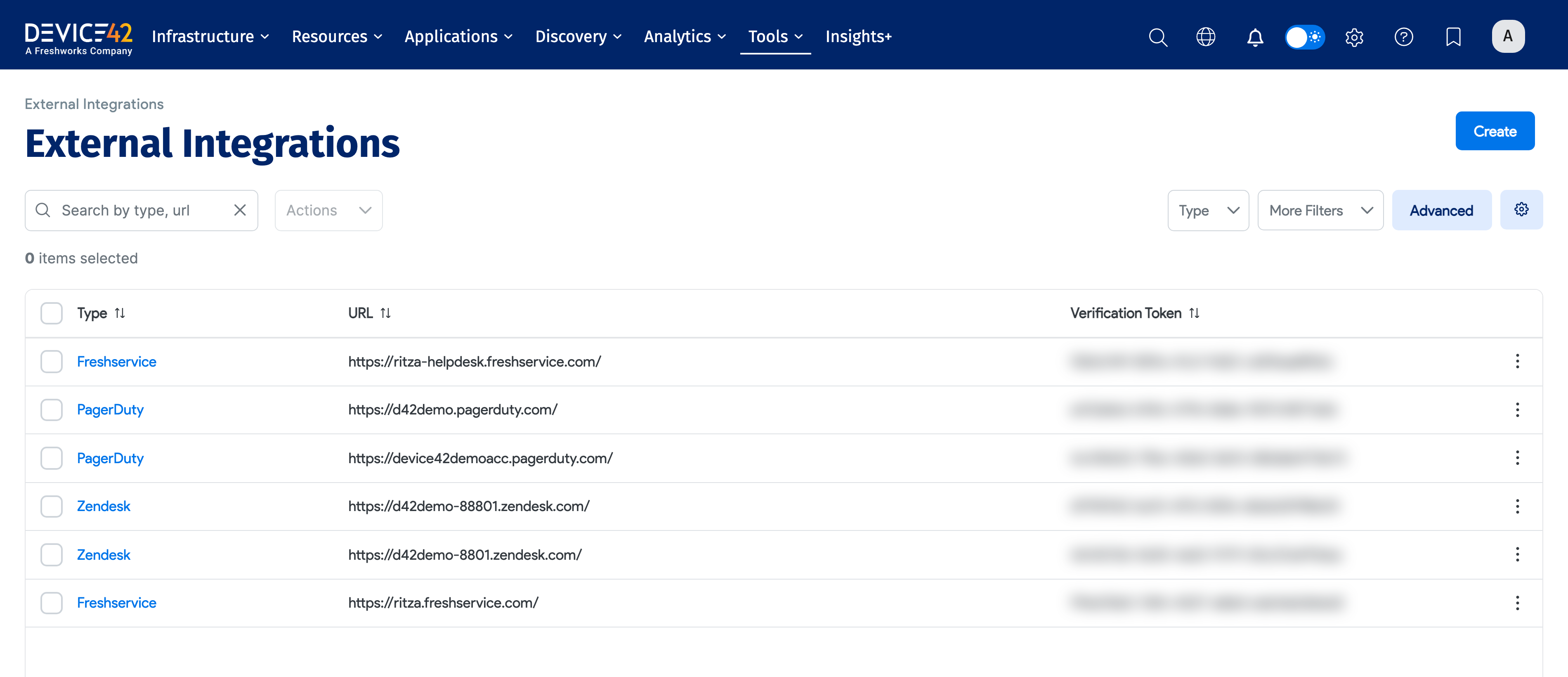
Create the Freshservice external integration again in Device42. For the steps, see Create a Freshservice External Integration in Device42.
-
In the Device42 app in Freshservice, update the verification token.
-
Restart the
connect_d42_clientservice on the Main Appliance, as in the previous procedure.
If the problem continues after these three procedures, contact support.
Duplicate Instance Errors
The file /var/log/rc/http-ws-proxy-client.log can contain this error:
Connection error, error: websocket: bad handshake, response: Error: secure tunnel already established with same instance ID. Is there another D42 instance running with same settings?
What it means: A different Device42 instance has a connection to the Cloud Connector with the same Instance GUID. Each Device42 instance must have a unique GUID. Usually, a user cloned a Device42 appliance, or restored it from a backup, and did not regenerate the GUID.
Fix the issue. Identify the Device42 instance that must own the connection. On that instance, go to Tools > Integrations > Cloud Services and click Regenerate Instance GUID. If the other instance must also connect, give it a unique Instance GUID.
Useful Freshservice API Endpoints
Use the Freshservice API to confirm asset types, field names, and IDs.
To get your API token, open Profile settings in Freshservice and find Your API Key. Use Basic Authentication: the token is the username, and X is the password.
| Purpose | Endpoint |
|---|---|
| Get all assets | GET {{freshservice_url}}/api/v2/assets |
| Get assets of a certain type | GET {{freshservice_url}}/api/v2/assets?filter="asset_type_id:{{asset_type_id}}" |
| Get assets by name | GET {{freshservice_url}}/api/v2/assets?include=type_fields&query="name:'test'" |
| Get asset types | GET {{freshservice_url}}/api/v2/asset_types?page=1&per_page=1000 |
| Get asset type fields | GET {{freshservice_url}}/api/v2/asset_types/{{asset_type_id}}/fields |
| Get locations | GET {{freshservice_url}}/api/v2/locations |
| Get contract type fields | GET {{freshservice_url}}/api/v2/contract_types/4/fields |
| Get asset relationships | GET {{freshservice_url}}/api/v2/relationships |
For other API requests, refer to the Freshservice API documentation.