Power BI Integration
This page is for report authors and administrators who want to build Microsoft Power BI reports on Device42 data. By the end, Power BI connects to Device42 through the ODBC driver and you can pull Device42 data into your reports.
Device42 integrates with Microsoft Power BI using the Device42 ODBC driver package, currently available for Microsoft Windows. With the Power BI and ODBC integration, you can connect to Device42 and pull data through an ODBC (Open Database Connectivity) data source presented by the driver.
The current ODBC driver installs on Microsoft Windows. The instructions below explain how to use the ODBC connection through Power BI.
You can also use the Device42 ODBC driver with an ODBC-compatible consumer other than Power BI. See the ODBC driver documentation page to obtain the driver and for more information.
Prerequisites
Before connecting Power BI to Device42, make sure you have:
- A machine running a currently supported Microsoft Windows release, as the ODBC driver installs on Windows only
- Microsoft Power BI installed on that machine
- The Device42 ODBC driver installed, and the requirements in the ODBC System Requirements section of the ODBC driver page met
- A current Device42 installation that is licensed, running, and reachable from the Windows machine
- The Device42 host name, the port the server uses, and a Device42 username and password
Download the Device42 Power BI ODBC Driver
Download the Device42 ODBC driver from https://www.device42.com/integrations/powerbi/.
Connect Power BI to the Device42 ODBC Data Source
To connect Power BI to the Device42 ODBC datasource, follow the instructions below. This section assumes you have installed the Device42 ODBC driver and meet the requirements listed in the ODBC System Requirements section of the ODBC driver page.
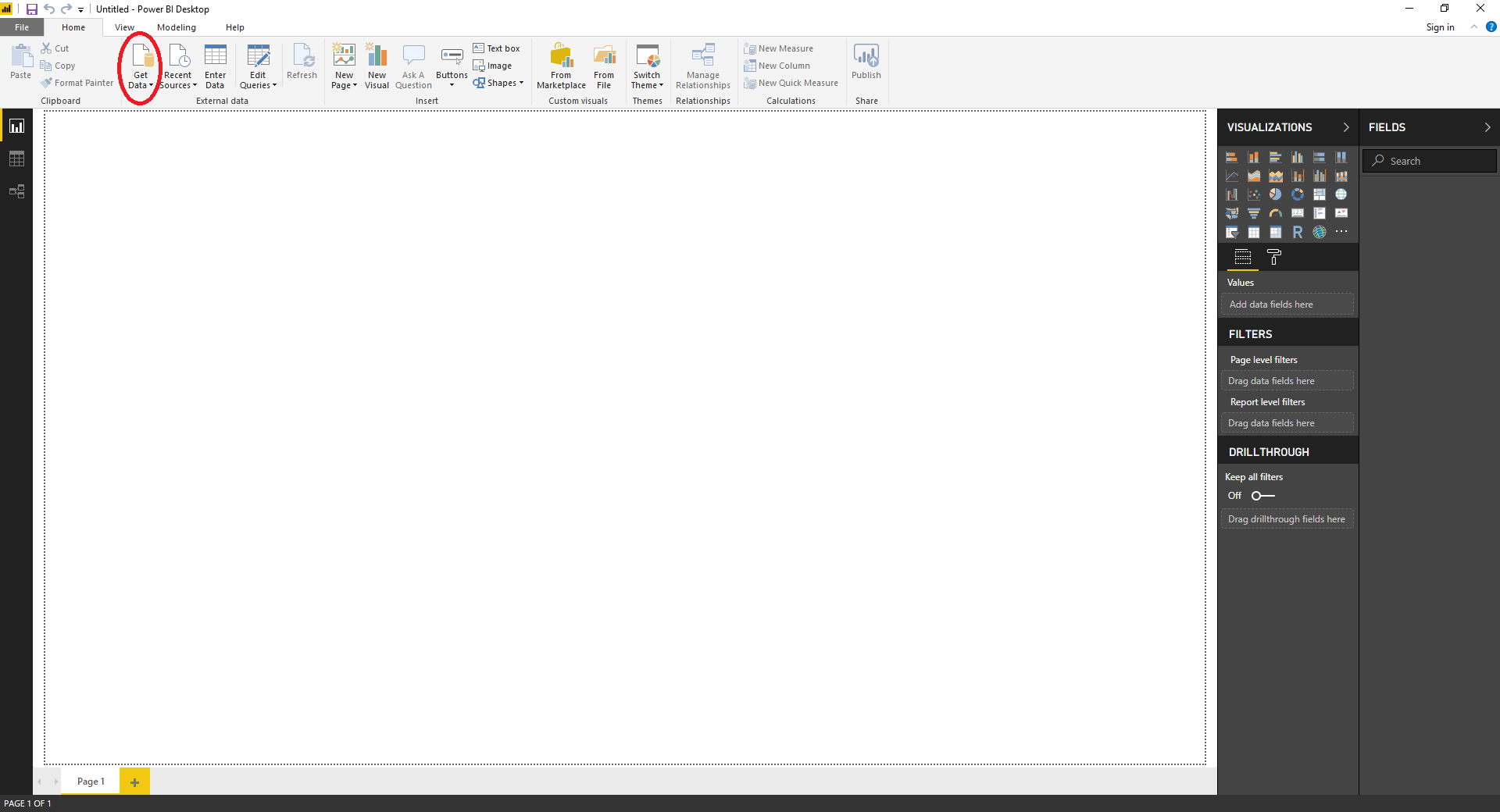
- Launch Power BI and click the Get Data icon in the upper left corner:
- In the Search field, enter
ODBCto narrow down the listed data source options (1). Highlight ODBC (2), and click Connect (3):

- To connect using a DSN, see the Create a DSN section below to learn how to create a DSN, which will then show in this list. Otherwise, supply a connection string manually by clicking to expand the Advanced Options section:
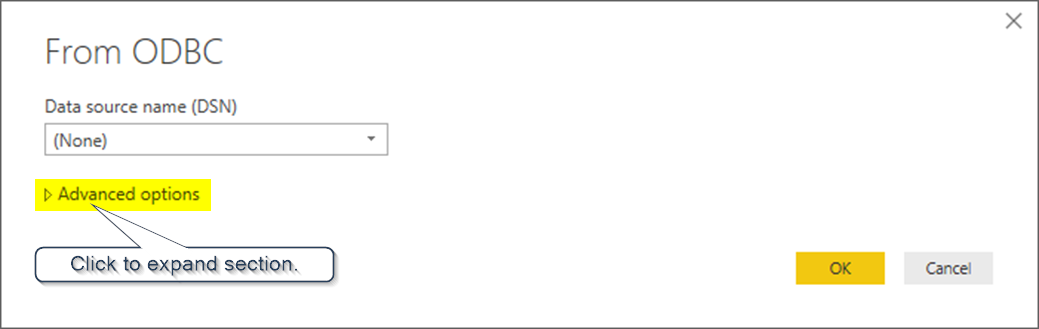
- In the connection string field, enter the following string:
DRIVER={Device42 ODBC Driver};SERVER=YOUR-D42-SERVER.COM;. Leave the SQL Statement (optional) section blank, and click OK:

- Enter the User Name and Password that were provided to you, then click Connect. Setup is complete.
Create a DSN
- To create or predefine a DSN (Data Source Name) on a currently supported Microsoft Windows release, open Start, search for ODBC Data Sources (64-bit), and select it. Use the 64-bit ODBC Data Source Administrator for the 64-bit Device42 driver and Power BI.
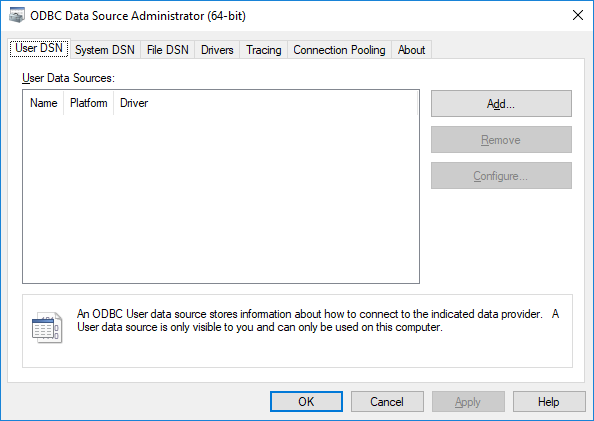
- Click Add to begin adding a new datasource. In the Create New Data Source window, choose Device42 ODBC Driver and click Finish:

- On the Device42 ODBC Driver DSN Configuration screen, enter values as explained below:

- DSN Name: The name to identify this DSN.
- Server Host: The host name of the Device42 server.
- Port: The port number that the Device42 server is servicing requests on. The default value is the standard SSL port of 443. If you leave this field blank, it will also default to 443.
- Username: The username you use to login to Device42.
- Password: The password you use to login to Device42.
- Click Test to try connecting using the information you specified. You will receive a message if the connection could or could not be made. If the connection could not be made, verify that the information you entered is correct.
- Click Save to save the changes you made to the DSN. Your changes will only be saved if the information entered results in a successful connection. If the connection could not be made, verify that the information you entered is correct.
The Device42 ODBC DSN is now configured and available for use in Power BI.
If you have questions about the Device42 ODBC driver that are not answered here, open a ticket at https://support.device42.com or email support@device42.com.