Software in Use
The Software In Use page shows individual instances of each software component across your devices. Unlike the All Software Components page — which lists each component once — this view shows one row per device-software combination, so the same software can appear multiple times if it is installed on multiple devices.
Navigate to Resources > Software Components > Software In Use to see these instances. You can search, filter, and sort the list to find specific software-in-use records.
Days Undetected
Software-in-use records can remain after software is upgraded or uninstalled. The Days Undetected column shows how many days an installation has gone without being discovered or updated relative to when its device was last discovered or updated. This comparison helps identify software that may no longer be installed without including software on devices that have not been discovered or updated recently.
Use the Days Undetected filter or sort the Days Undetected column to find software-in-use records that have gone undetected for a given period. For example, filter for values greater than 31 to find software installations that have gone undetected for more than 31 days.
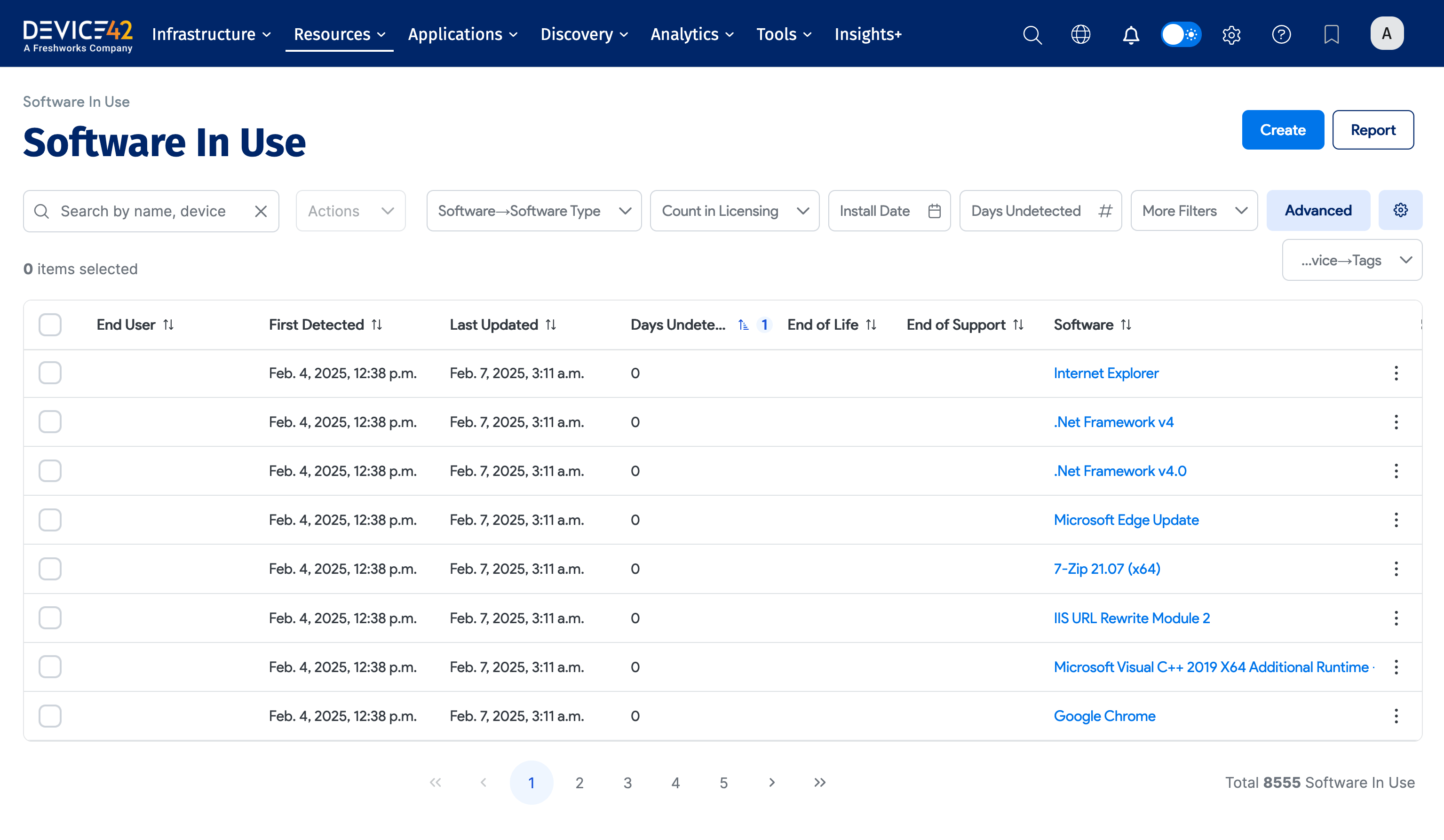
Device42 calculates Days Undetected by comparing the device's last-discovered timestamp with the software installation's last-updated timestamp. If the device has no last-discovered timestamp, Device42 uses the current date and time. If the calculation does not return a value, Device42 uses 0.
The value is also available as the days_undetected field in the view_softwareinuse_v1 DOQL view. See Database Viewer Schema for information about finding DOQL views and fields in the Data Dictionary.
To delete undetected software-in-use records automatically, see Remove Undetected Software Installations.
Click the software Name to view or edit the software-in-use entry.
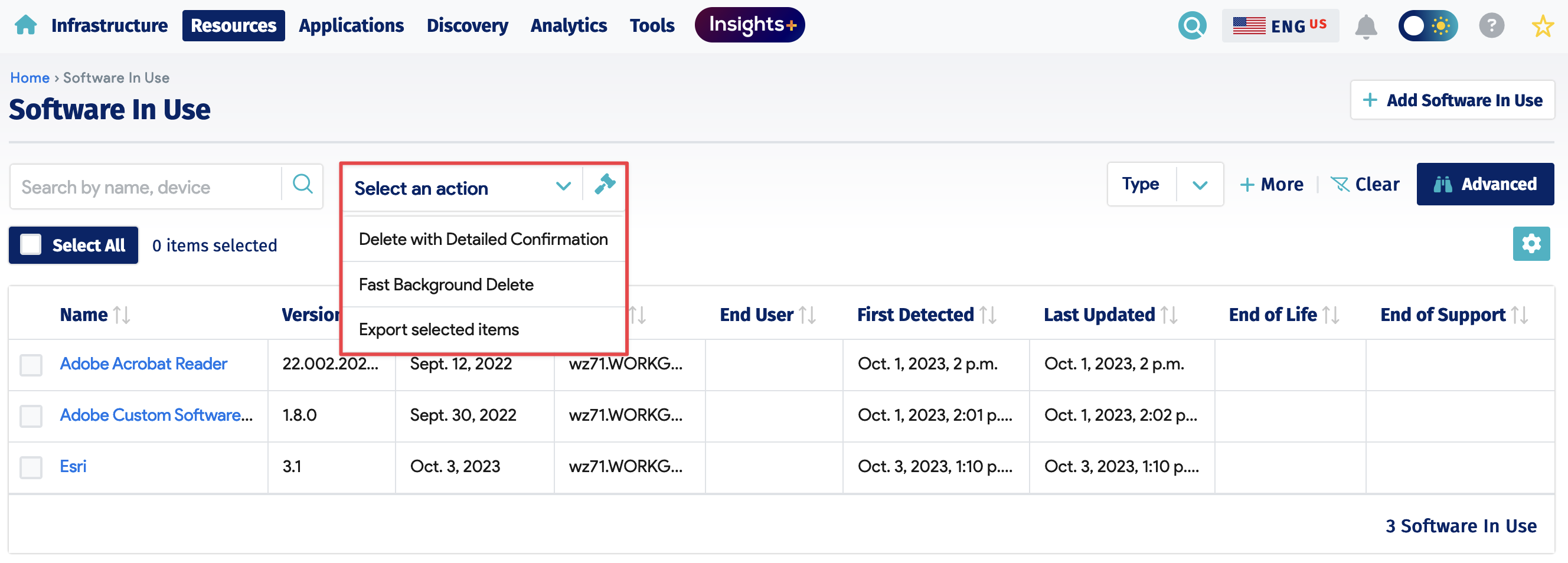
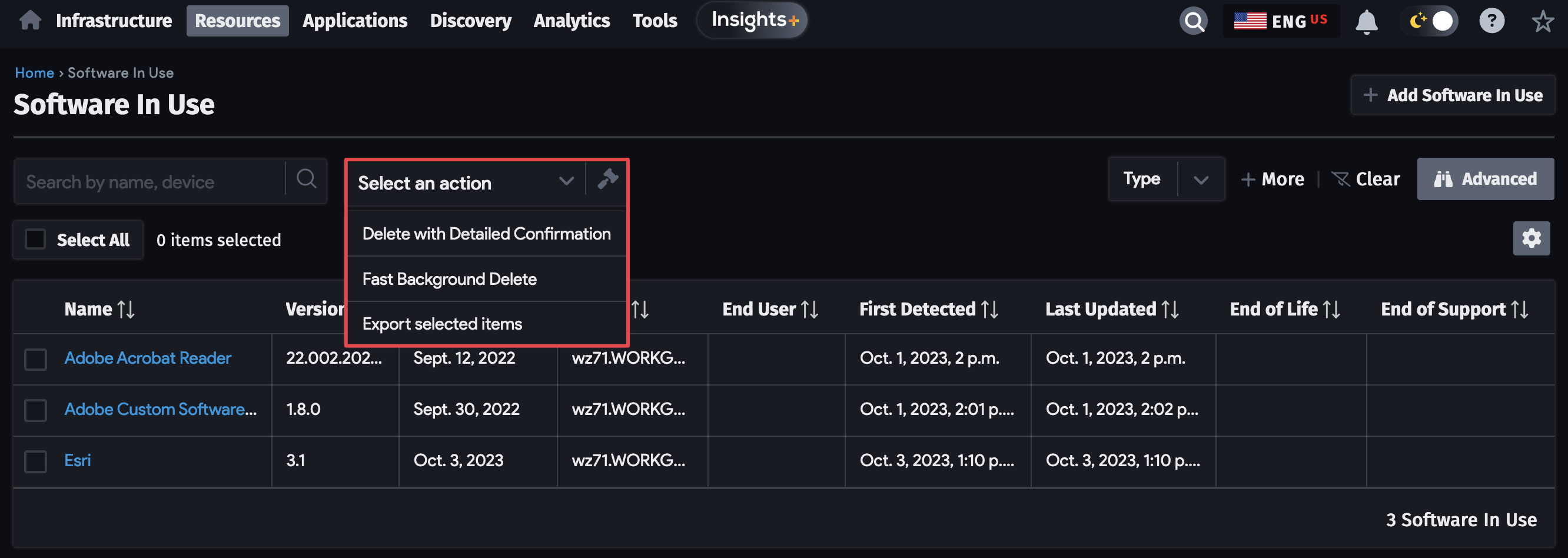
Software In Use Actions
Select one or more software-in-use entries, choose an action from the Actions dropdown, and confirm the dialog.
Add a Software In Use Entry
Click Create to add a new software-in-use entry.
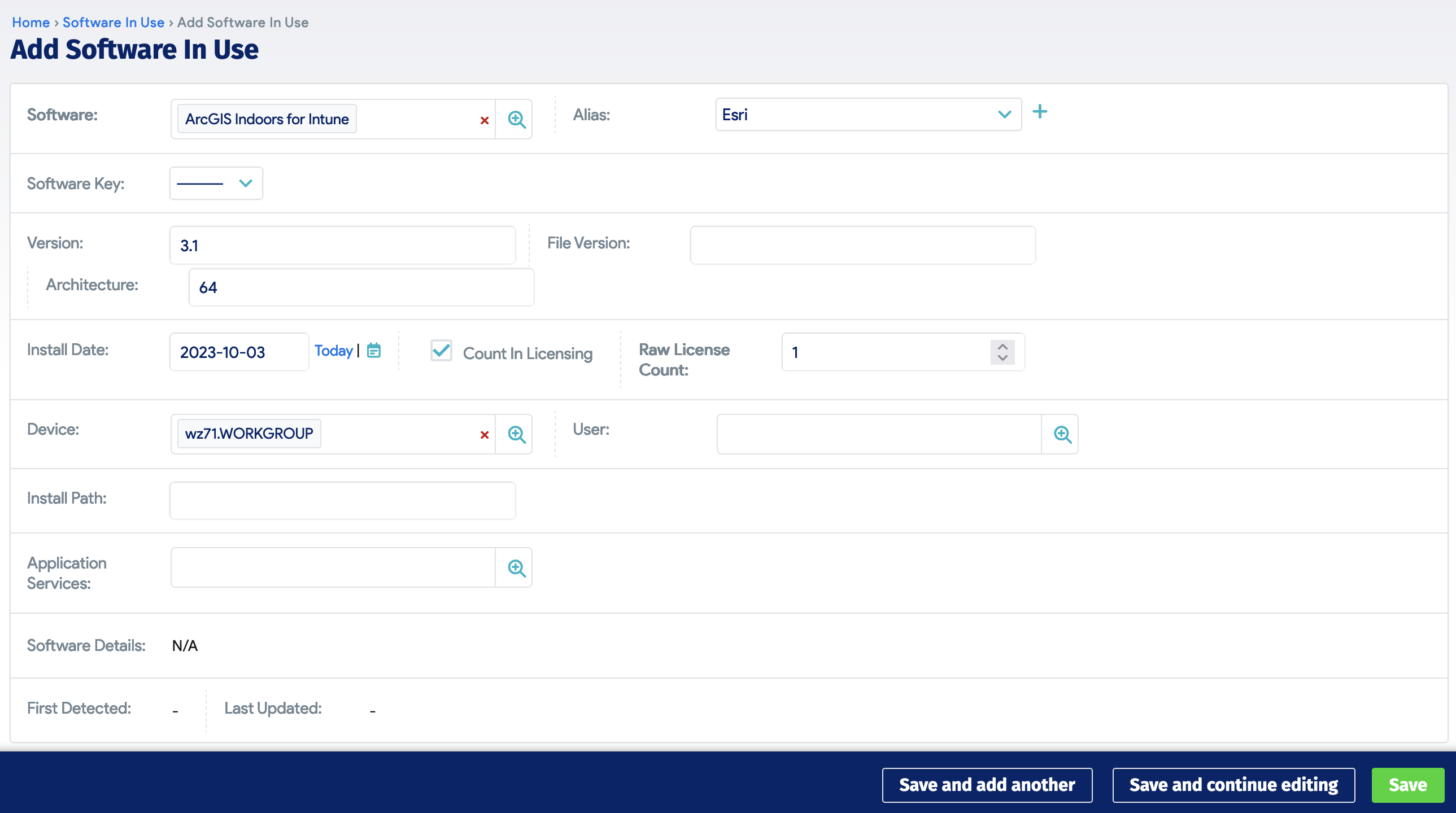
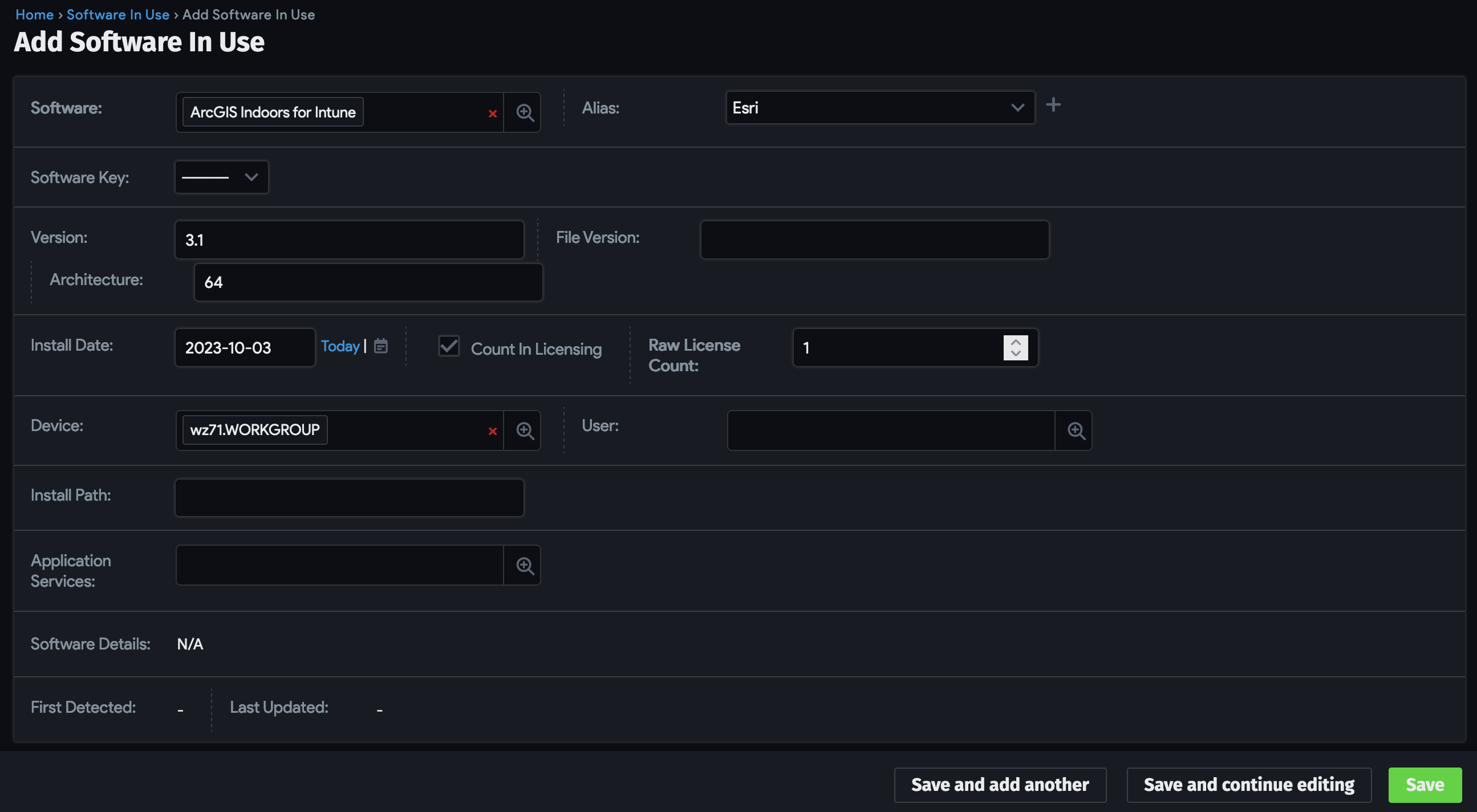
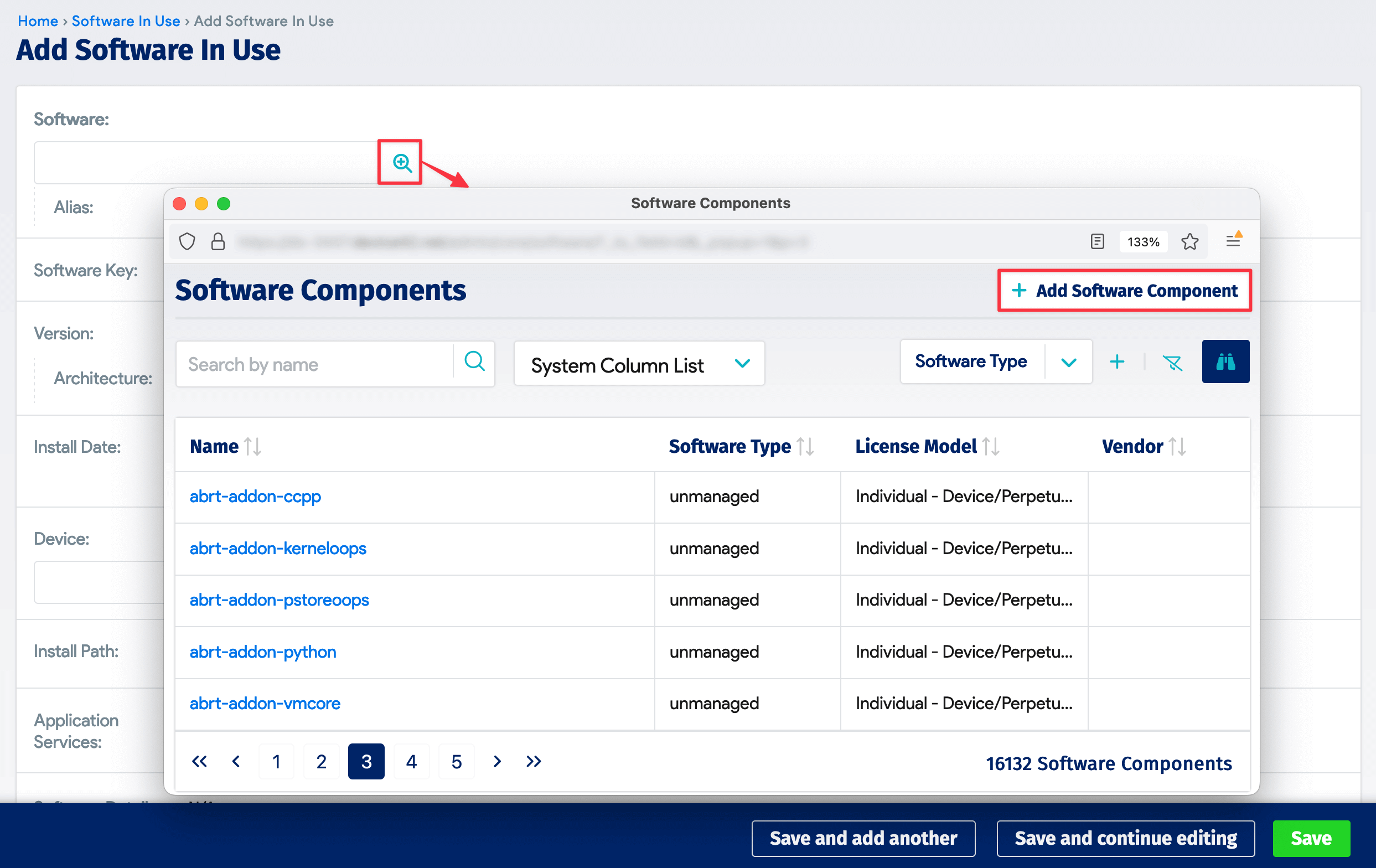
Click Software to search for and select a software component already in Device42. Click the plus icon to add a new component from this dialog. If necessary, enter or update the Raw License Count, then click Save to add the entry.