Purchases
Device42 can track purchases of devices and assets including service and warranty contracts.
Add a Purchase
To add a new purchase, navigate to Infrastructure > Purchases and click Create.
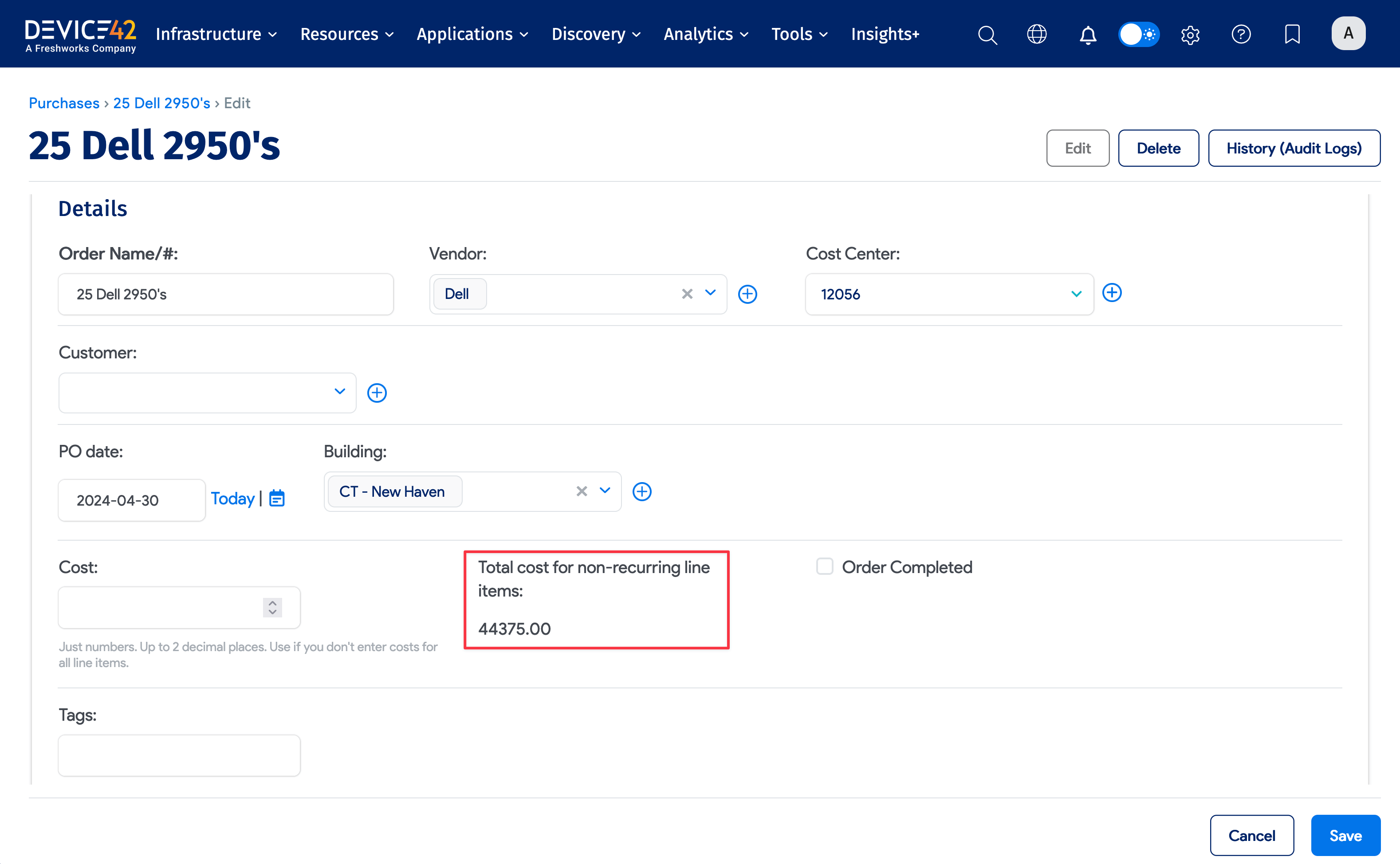
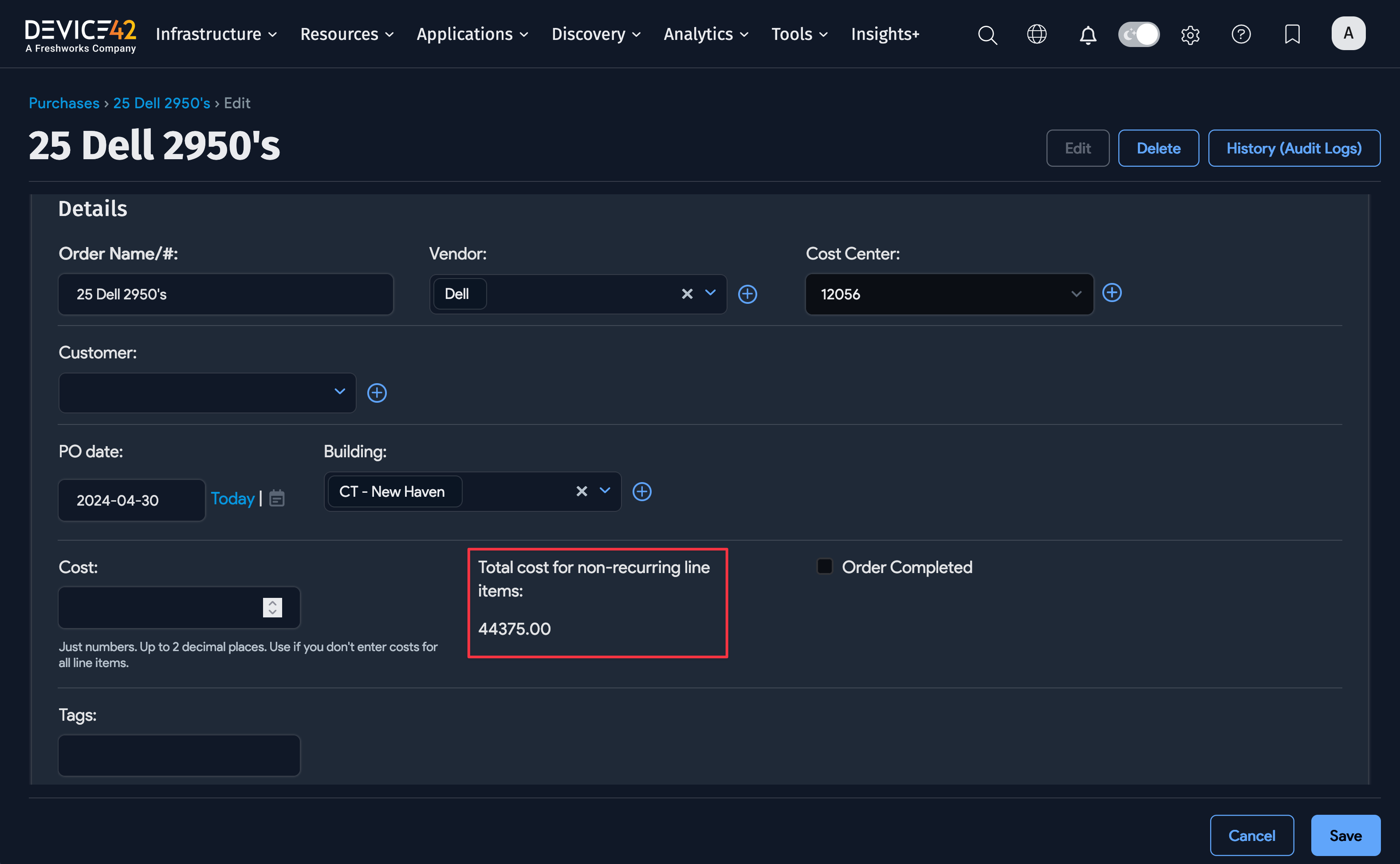
This example is for a hypothetical purchase of 25 Dell PE1950 servers for the R&D department charged to Cost Center 12056:
-
To populate the Total cost for non-recurring line items value, fill in the Quantity and Unit cost details for the first line item.
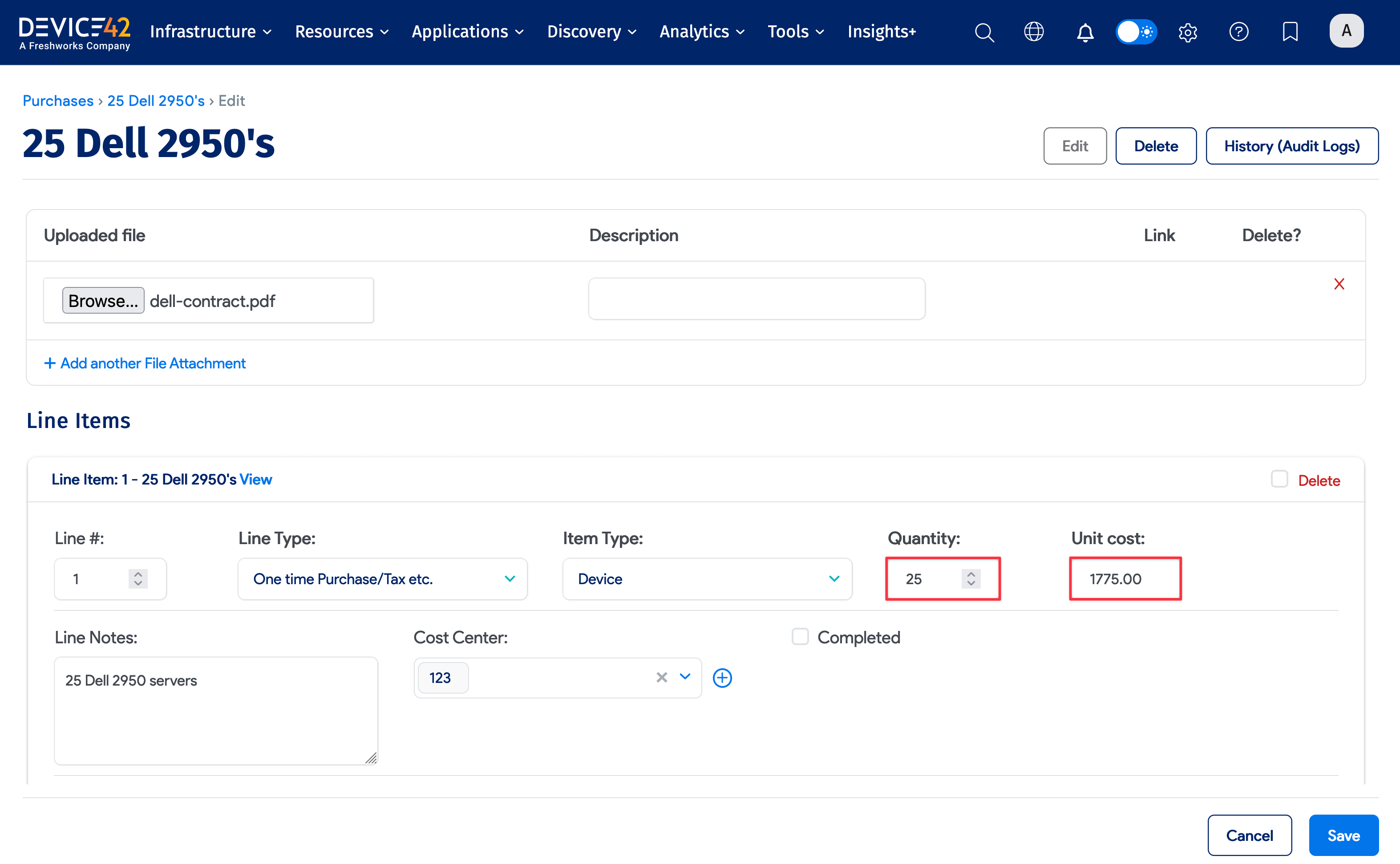
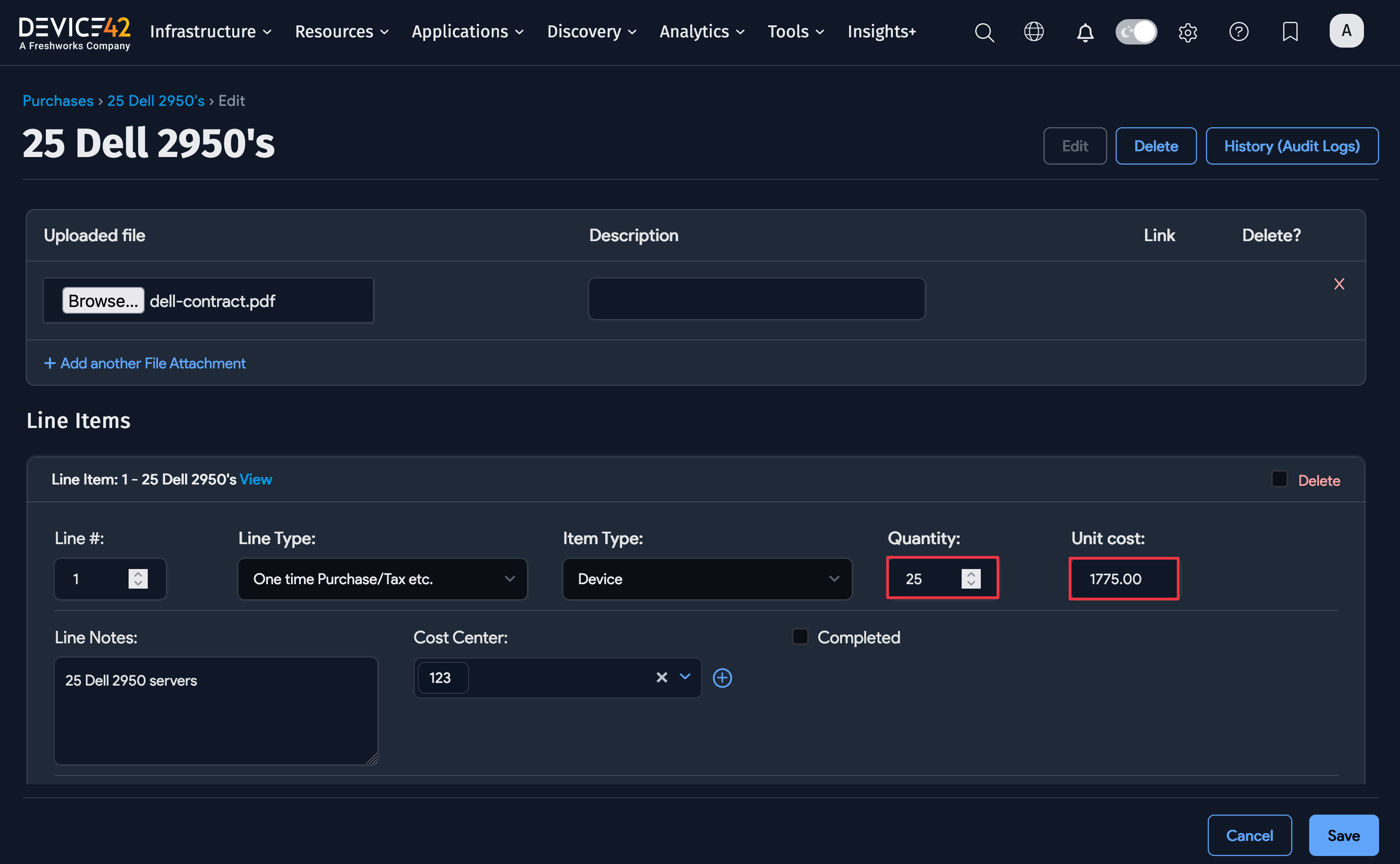
You can attach a PDF of the purchase contract by clicking + Add another File Attachment and browsing to the file.
Line Items
Each line item for the purchase will have a Line Type and an Item Type.
For Line Type choose Contract for service, warranty, and other contracts, and choose Device/Asset/Tax etc. for everything else.


The Item Type has a list of selections that can apply to either Line Type. For example, if the Line Type is Device/Asset/Tax etc., choosing Device for the Item Type means that this line represents one or more devices.
If a service contract is purchased for each device, you can include a second line item with a Line Type of Contract and Item Type of Device to represent the service contracts for the purchased devices.
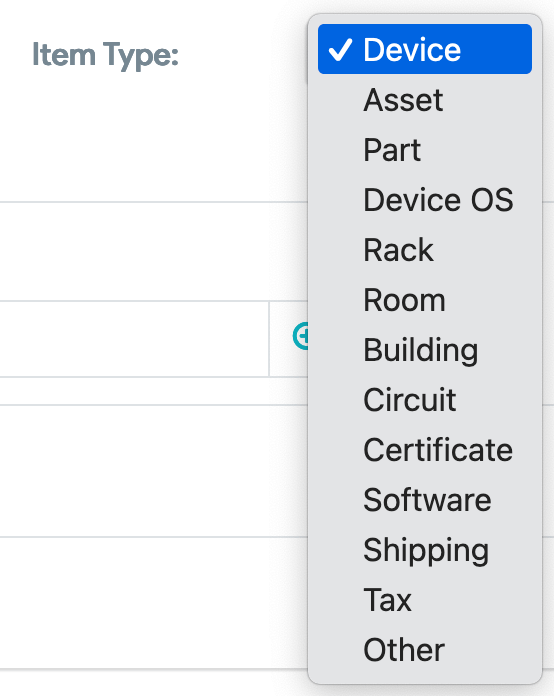
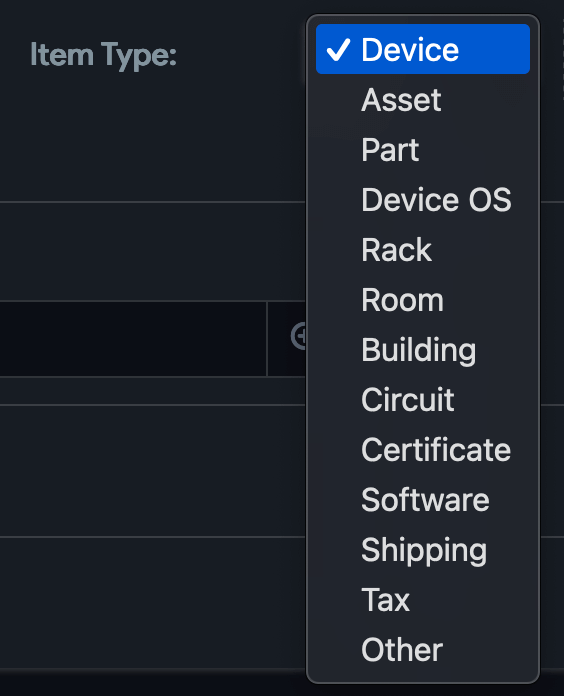
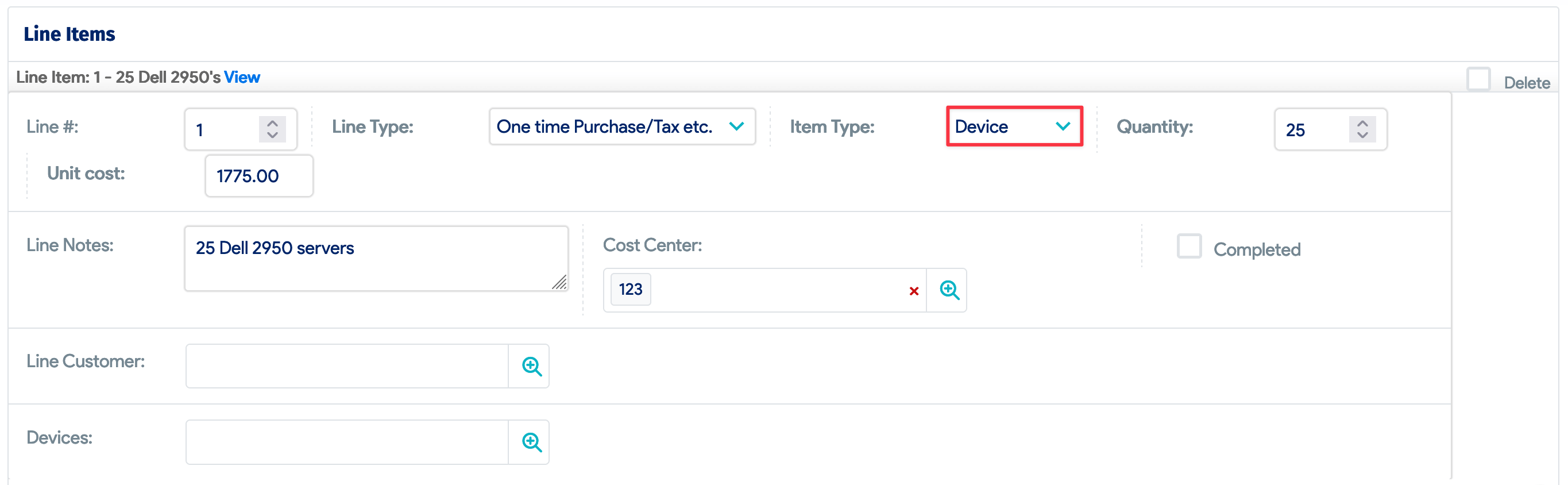
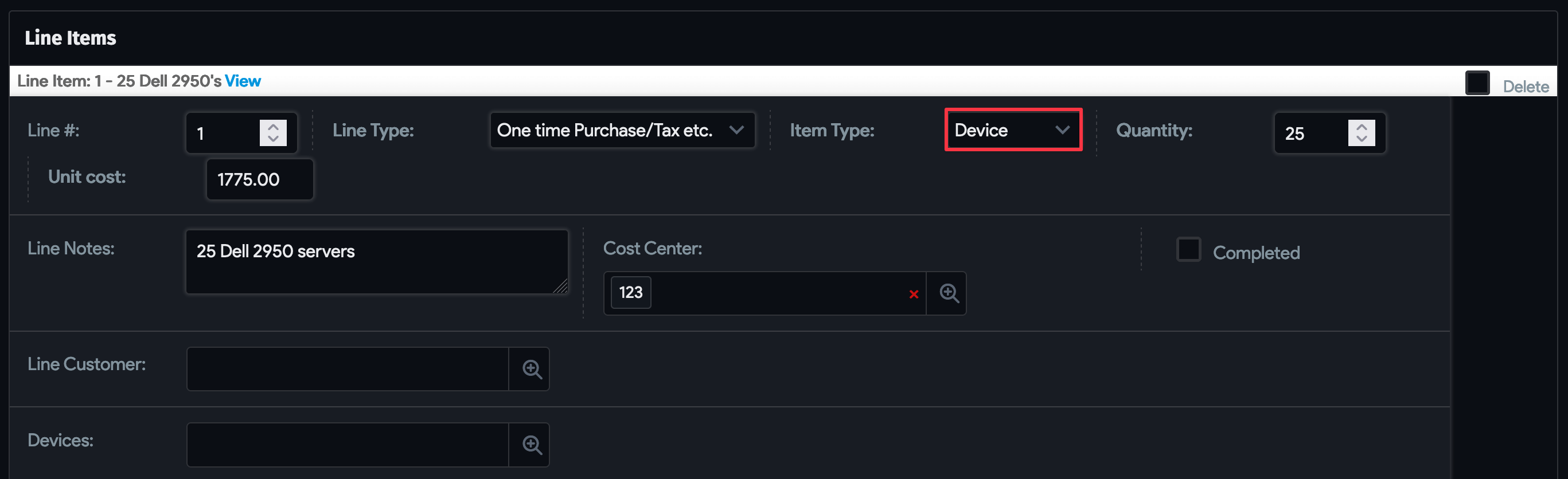
A few things to note:
- If the Line Type is Contract, a set of extra fields like Frequency will become available.
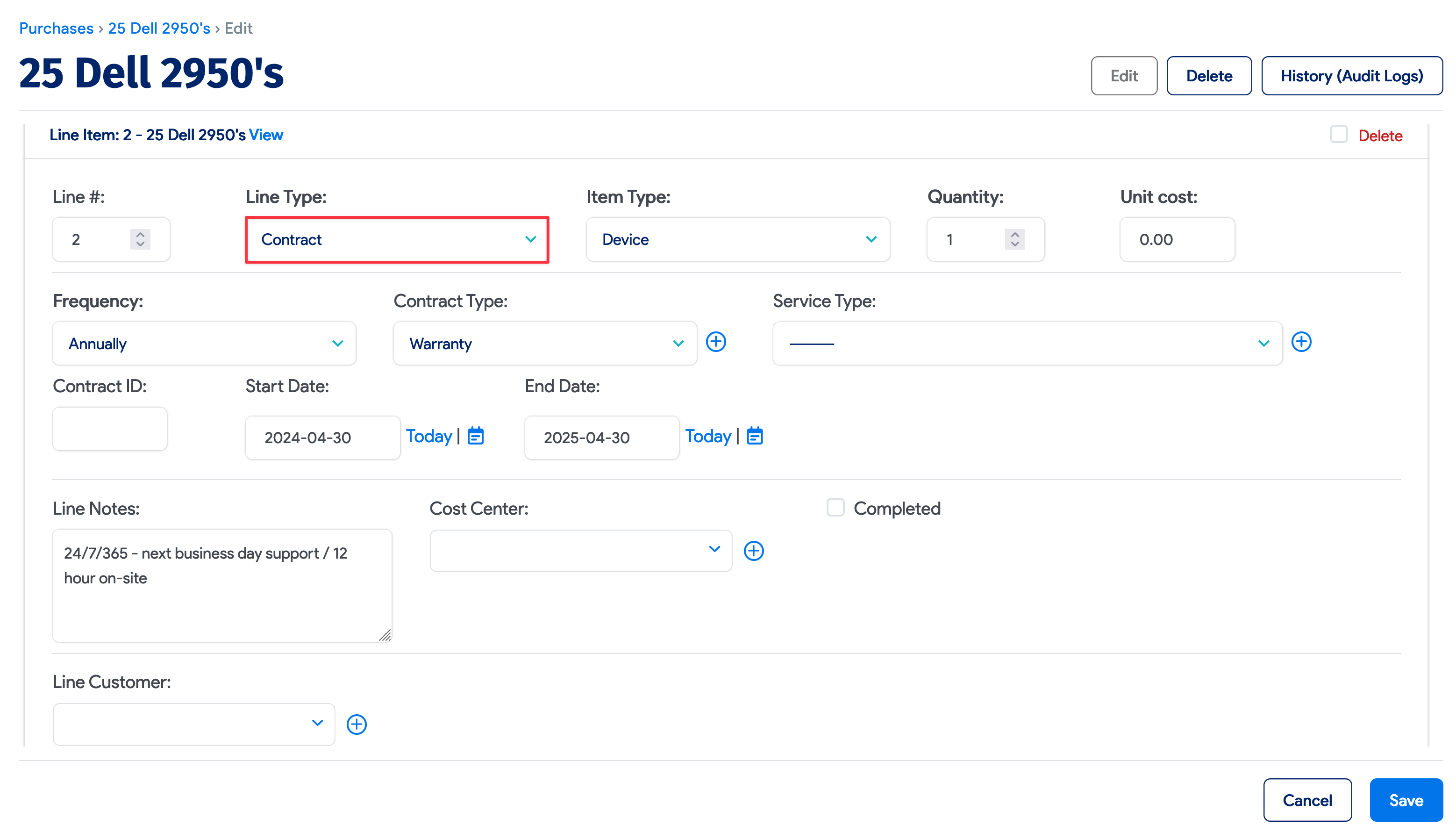
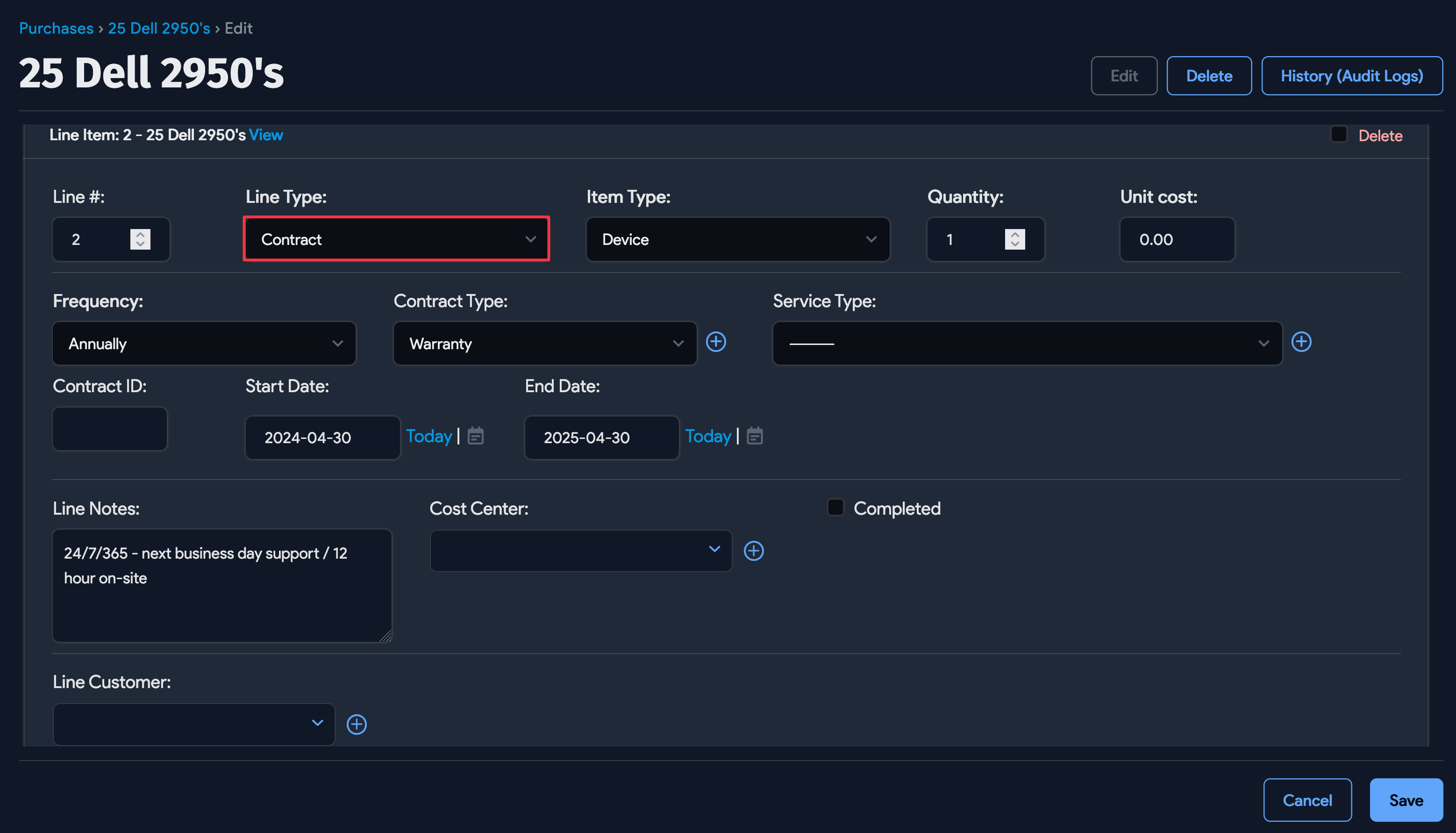
- You can assign a Cost Center and Customer at either the purchase header level (applies to all line items) or the individual line item level.
- You can associate the actual devices purchased with the line item. This can be done at the time of purchase or at a later date.
Reporting
Advanced Reporting will be removed from the product in a future release. Use Standard Reports or Insights+ when creating new reports. Administrators can hide the Advanced Reporting menu for all users.
Standard Reports display data in tabular format.
The Insights+ option, located on the menu bar, offers powerful features for interpreting your data. See the Insights+ documentation for more information.
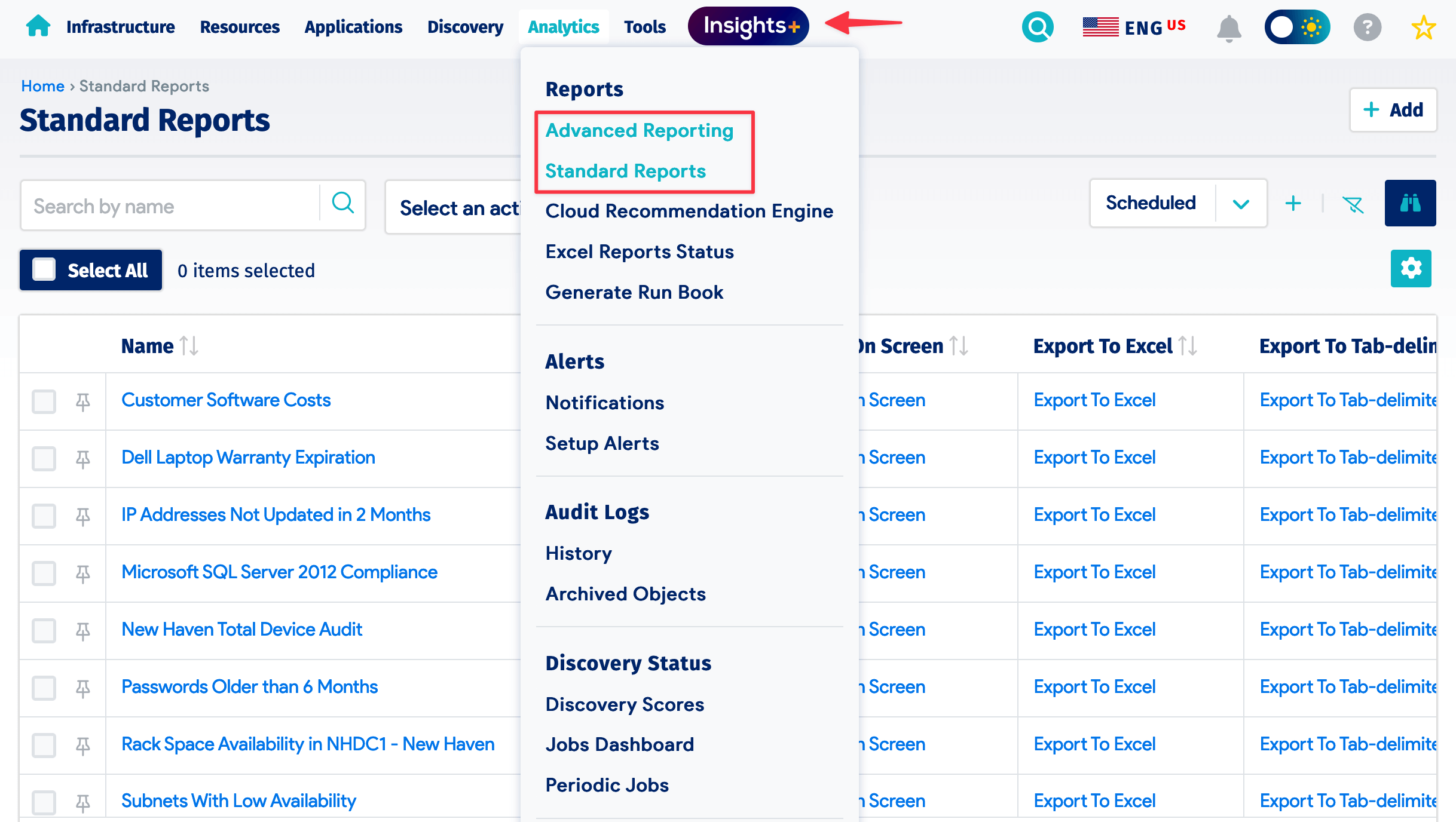
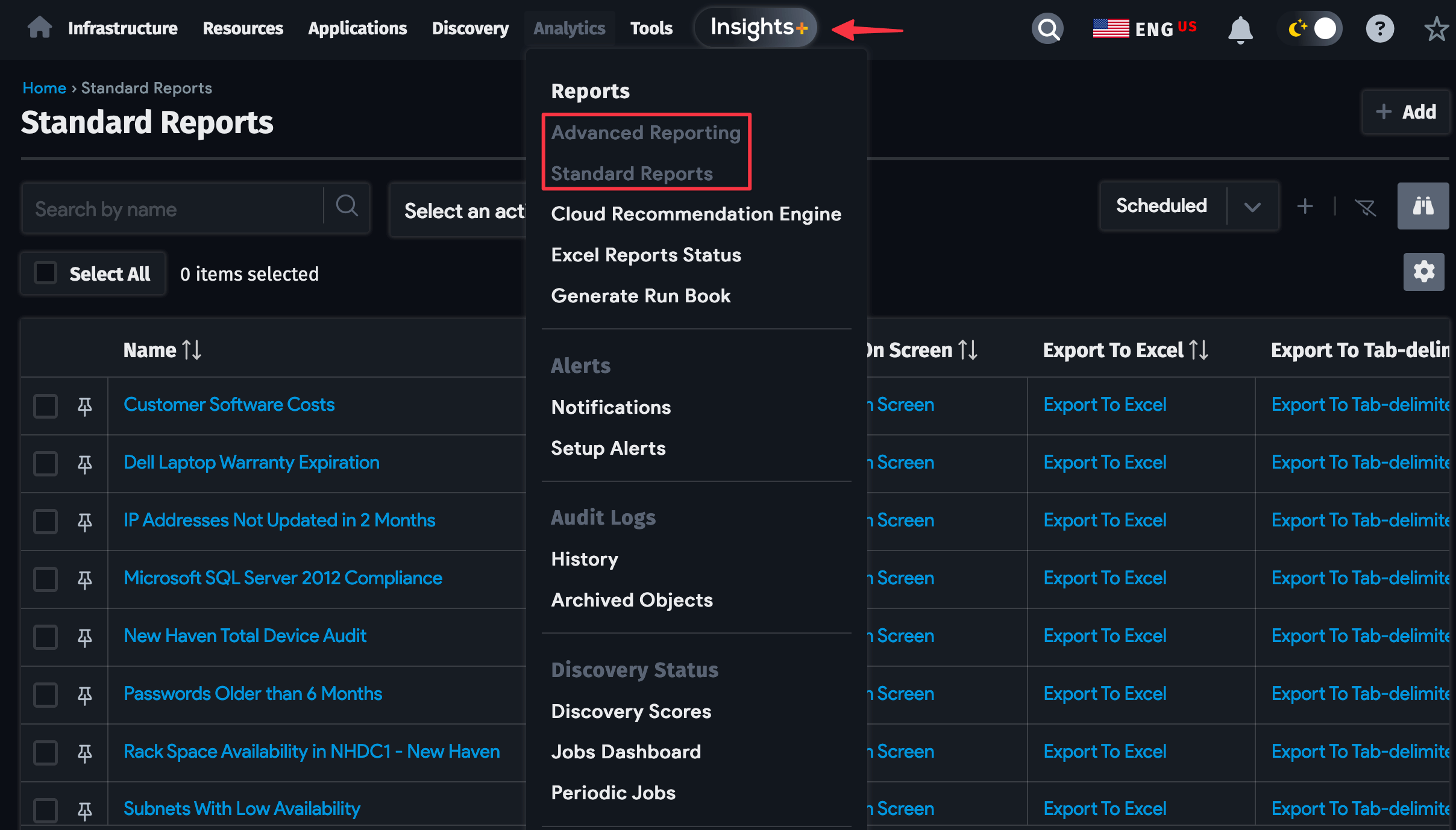
Standard Reports
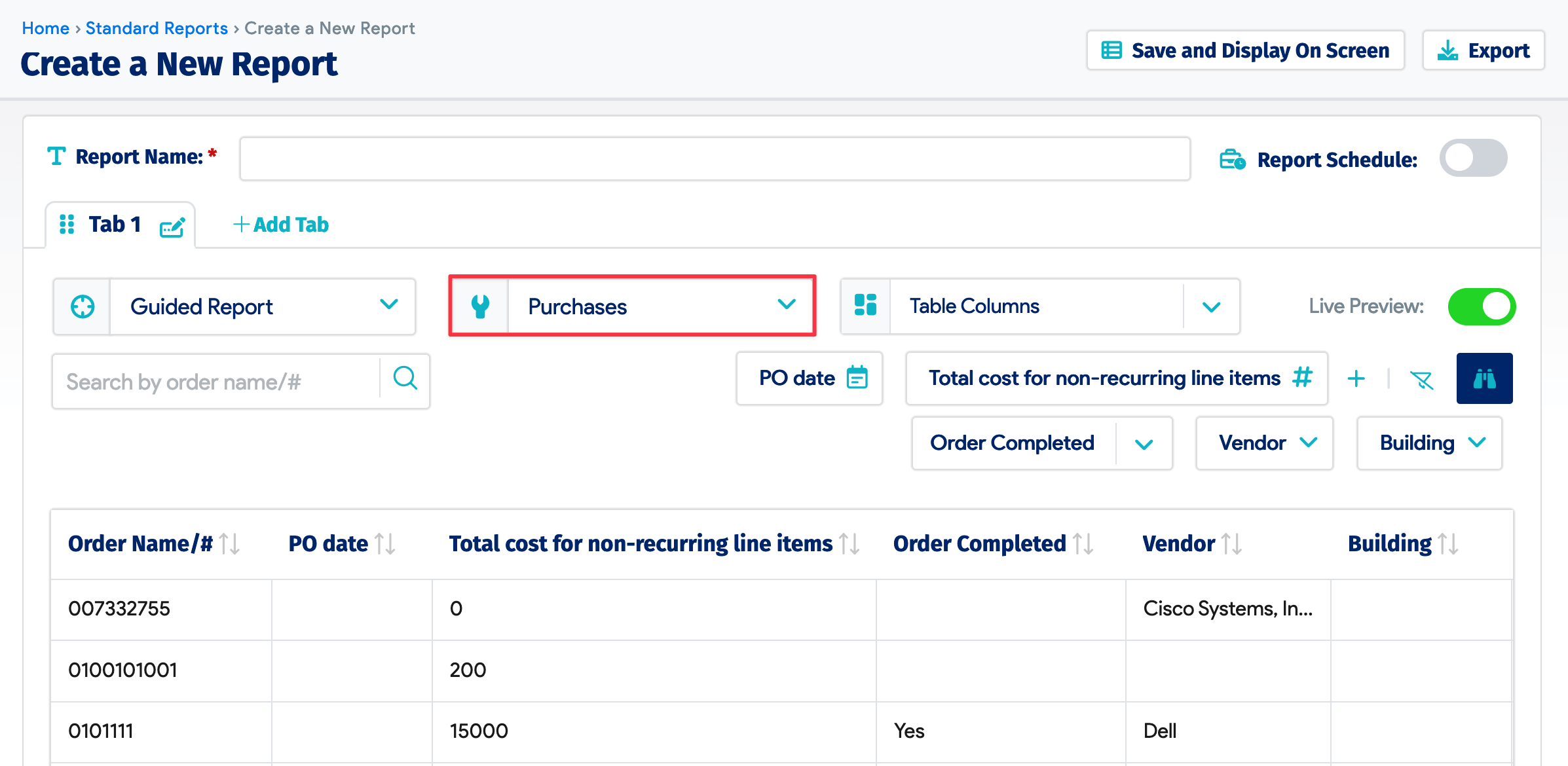
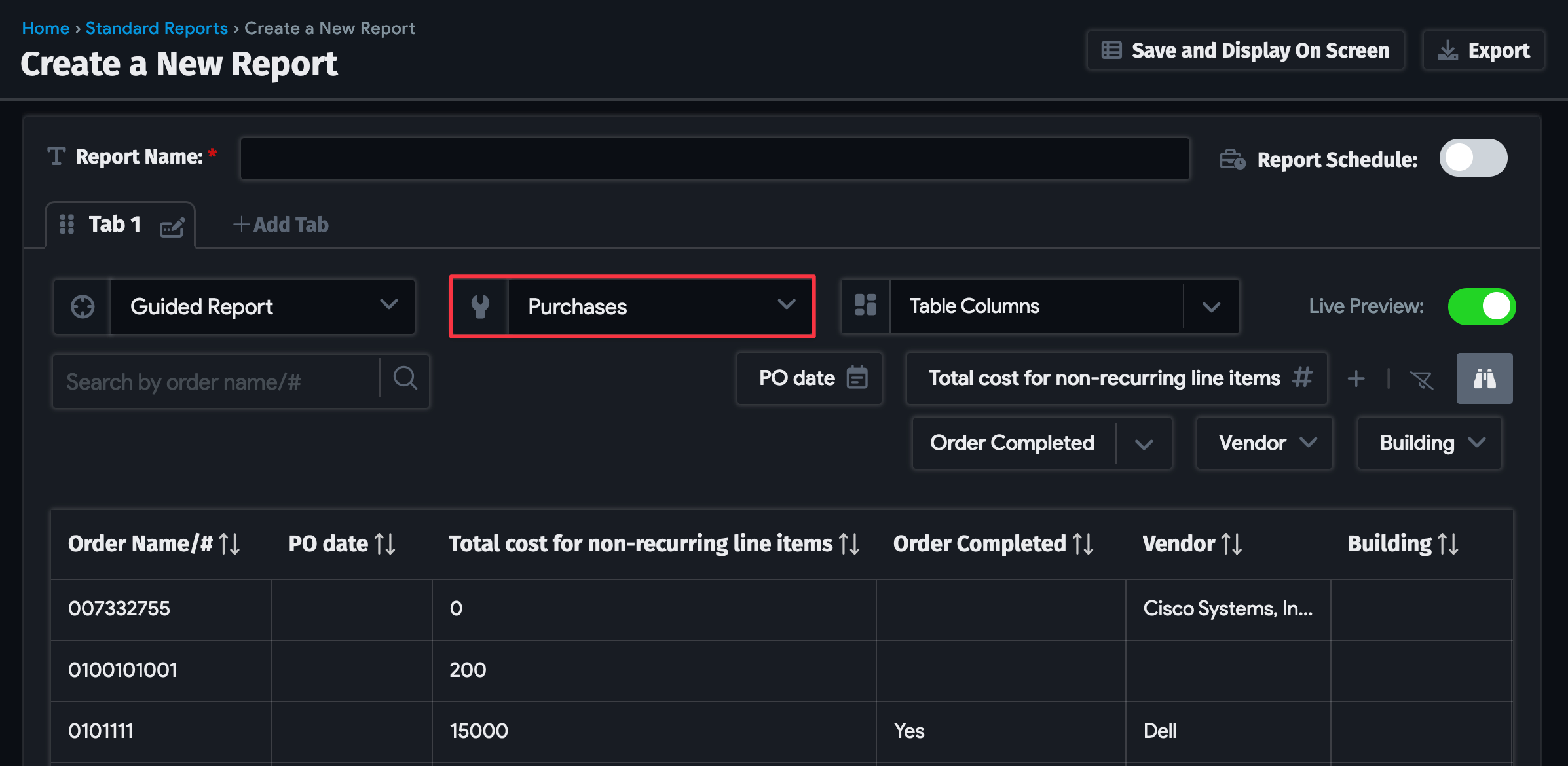
Navigate to Analytics > Standard Reports and click Create. Select Purchases or Purchase Line Items from the Select Object dropdown menu to reveal related options for configuring your purchases report. Like the other reports, you can schedule and email the report results.