Mail Server Settings
Device42 sends system email through your own mail server, including alerts, scheduled reports, and password reset messages. This page is for administrators who configure that mail server, and it covers both authentication methods Device42 supports.
Go to Tools > Settings > Mail Server Settings to configure the connection.
Authentication Types
Device42 supports legacy and modern mail server authentication:
- Basic Authentication (Legacy): Device42 authenticates with a username and password.
- OAuth2 (Modern Authentication): Device42 requests an access token from your identity provider and authenticates with that token. No mailbox password is stored.
Existing configurations continue to use basic password/username authentication after an upgrade, so your current mail settings keep working.
Microsoft has deprecated basic authentication for Exchange Online. If you relay mail through Microsoft 365, use OAuth2. Device42 cannot send mail through a Microsoft 365 relay once your tenant disables basic authentication. For details, see Microsoft's Deprecation of Basic authentication in Exchange Online.
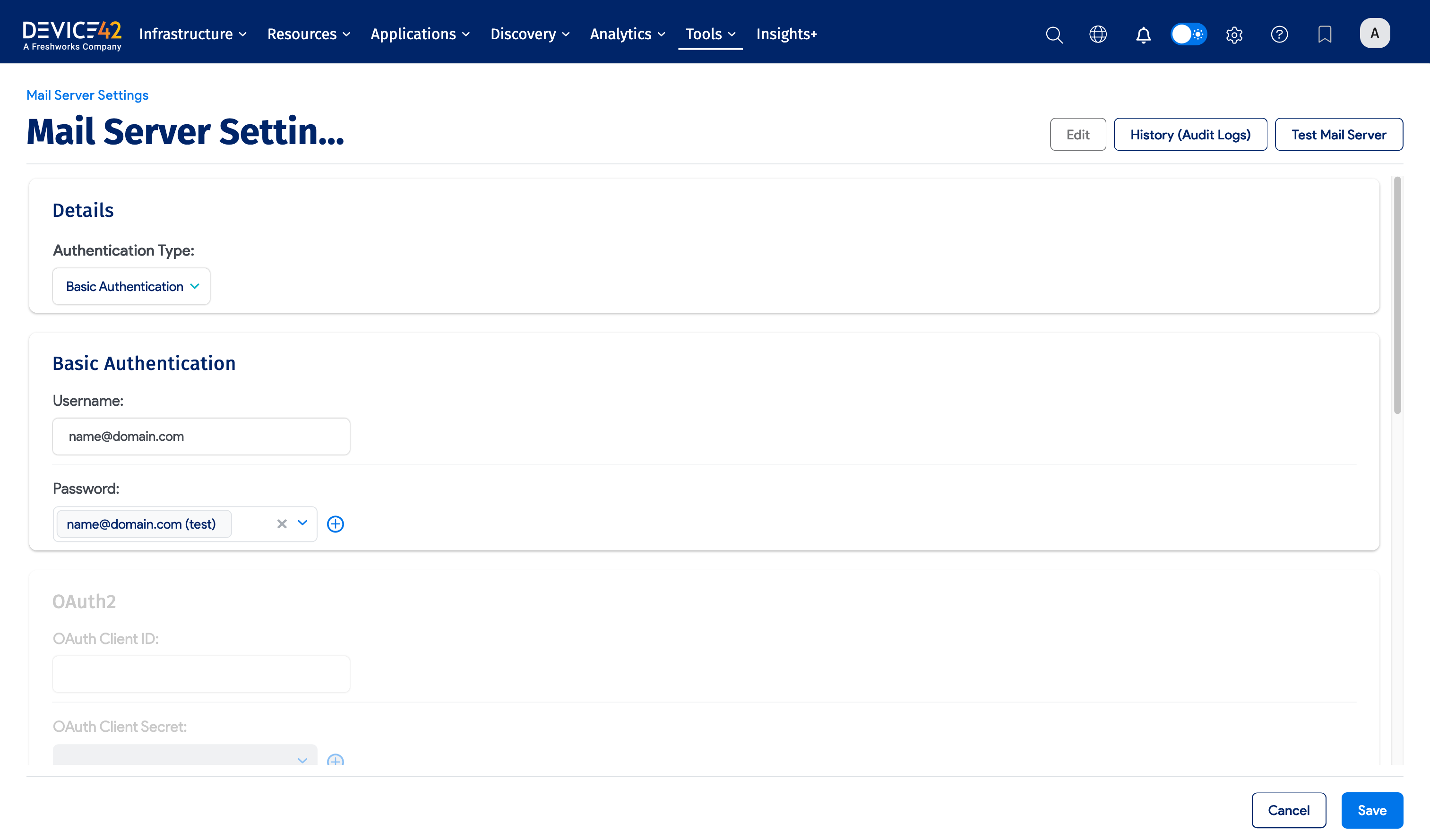
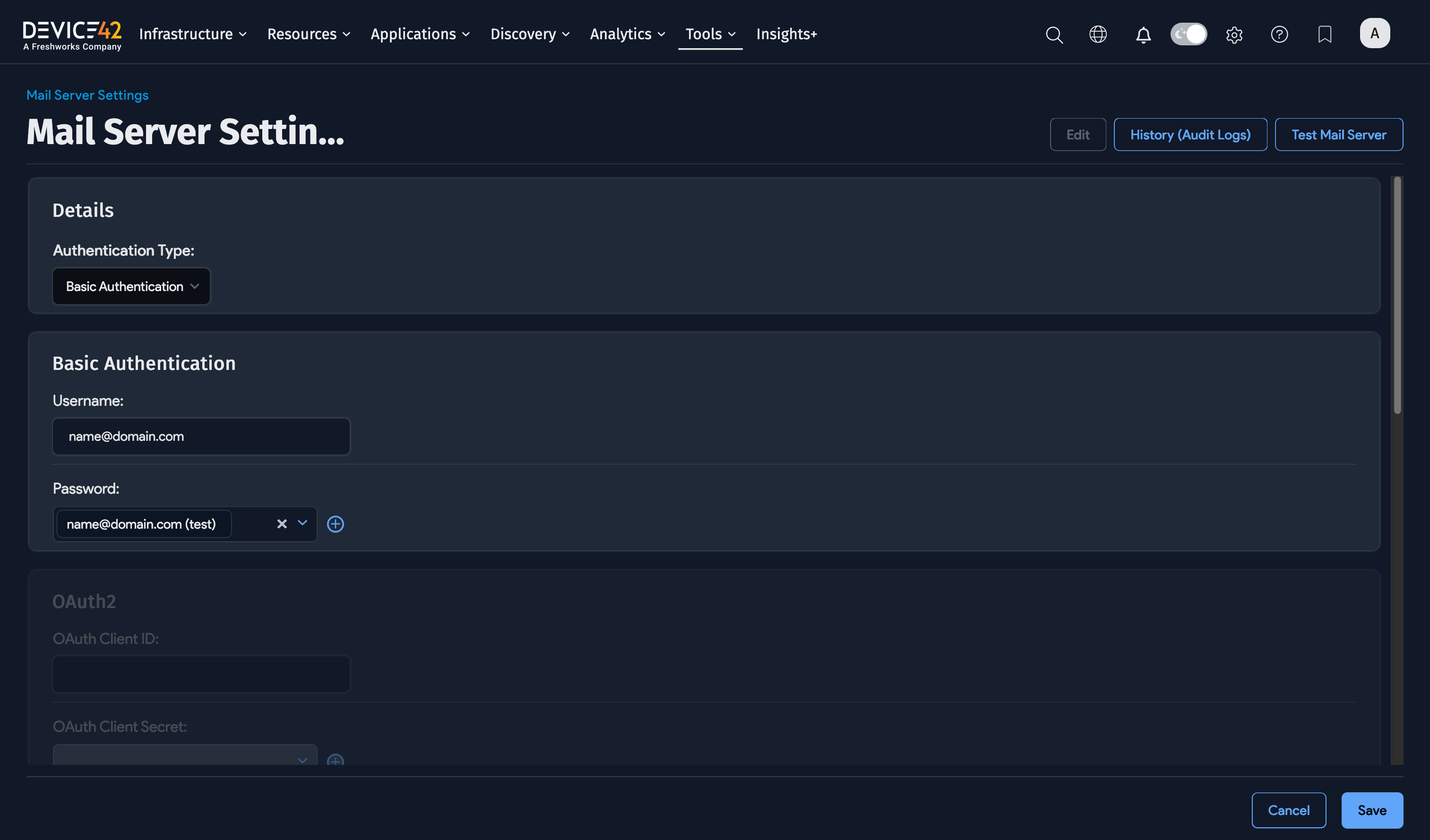
Configure Basic Authentication
Complete the following fields:
- Mail Server IP or FQDN: The address of your mail server, such as
smtp.gmail.com. - Use TLS: Select this option to encrypt the connection to the mail server.
- Port: The port your mail server listens on. TLS connections normally use port
587. - Username: The account Device42 authenticates with.
- Password: Select a stored password, or click the plus icon to add one.
- Mail Address From: The address that Device42 sends system email from.
- SSL Verification: Select this option to verify the mail server's certificate.
Click Save, then click Test Mail Server to confirm the settings.
Configure OAuth2 for Microsoft 365
Device42 sends mail through Microsoft 365 using client SMTP submission and the OAuth 2.0 authorization code flow. Register Device42 as an application in your Microsoft Entra ID tenant, then enter the registration values and Microsoft endpoints in Device42.
Confirm the following before you start:
- SMTP AUTH is enabled on the mailbox Device42 sends from. Microsoft disables SMTP AUTH by default for tenants created after January 2020. See Enable or disable authenticated client SMTP submission.
- The mailbox is licensed, and its address is the one Device42 sends from.
Register Device42 in Microsoft Entra ID
Create the app registration in the same tenant as the Microsoft 365 mailbox that Device42 sends from. Microsoft documents the process in Authenticate an IMAP, POP, or SMTP connection using OAuth.
-
In the Microsoft Entra admin center, register a new application for Device42. For most deployments, select Accounts in this organizational directory only. Record the Application (client) ID and Directory (tenant) ID from the application's overview page.
-
Go to Manage > Authentication, add the Web platform, and add this redirect URI, substituting your Device42 FQDN:
https://<device42-fqdn>/admin/reporting/mailserver/oauth/callback/ -
Go to Manage > API permissions and add the SMTP.Send delegated permission from the Office 365 Exchange Online API. Grant admin consent if your organization's consent policy requires it.
-
Go to Manage > Certificates and secrets and create a client secret. Copy its value immediately, as Microsoft shows it only once. Note the expiry date you set.
Device42 cannot send mail after the client secret expires. Create a new secret and update the mail server settings before that date.
Enter the OAuth2 Settings in Device42
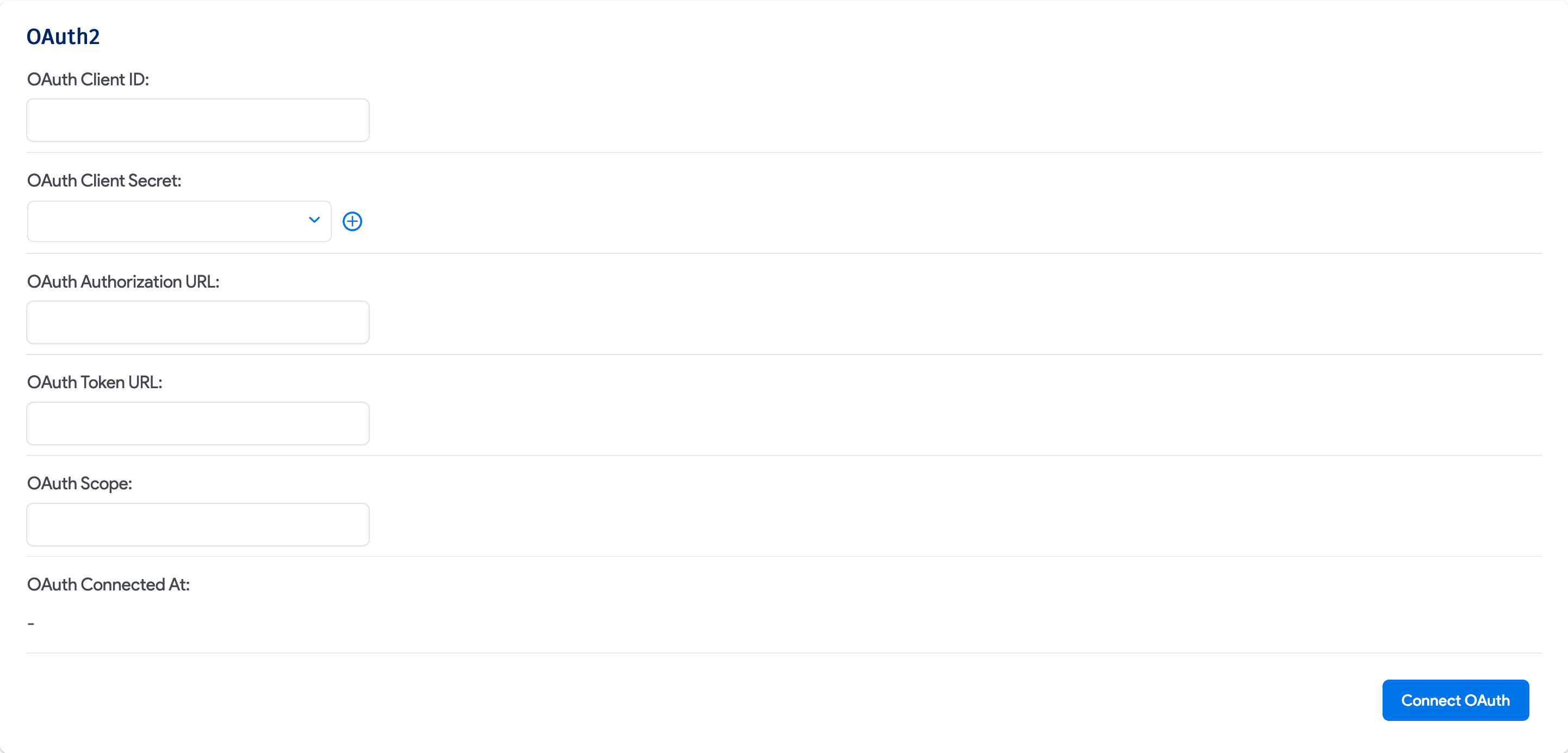
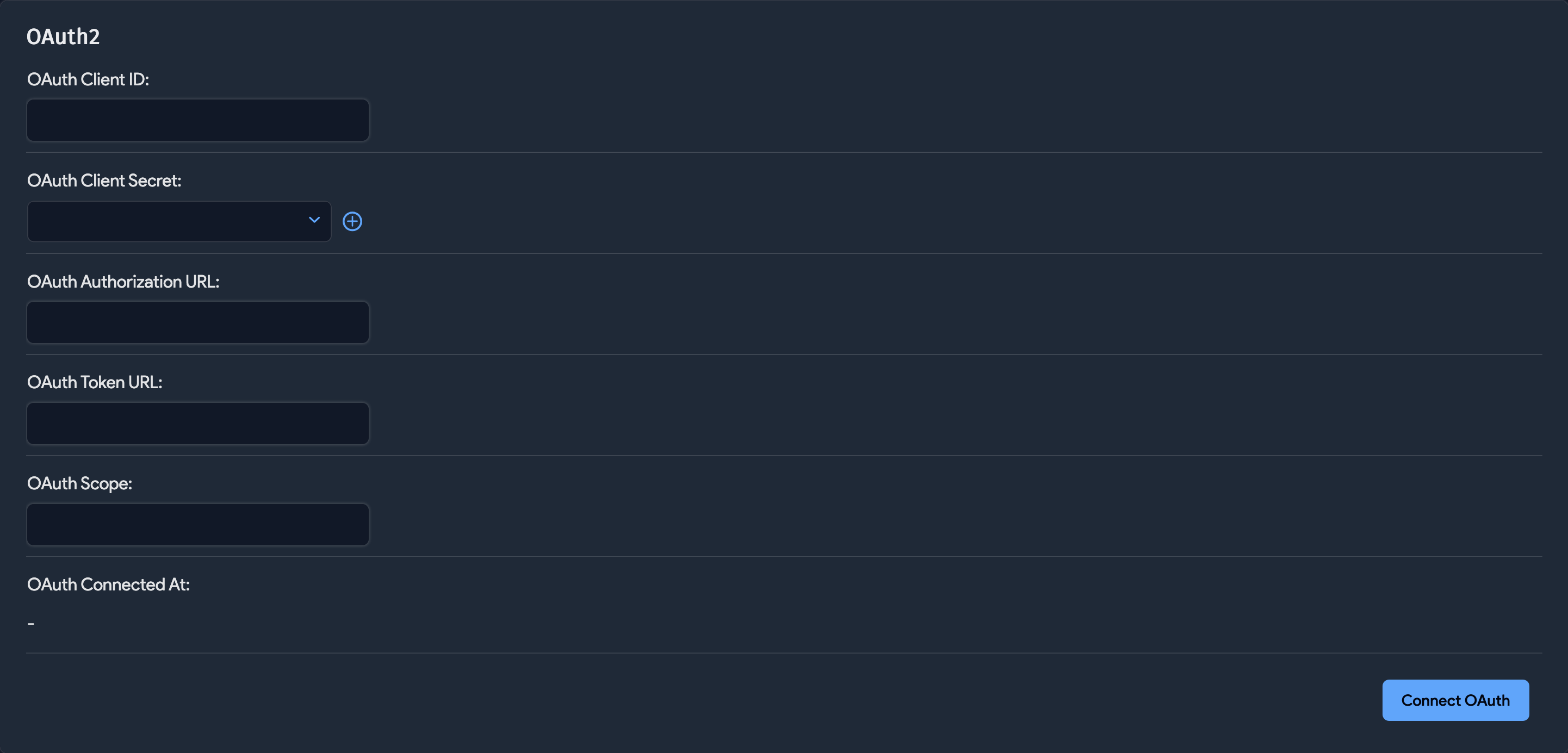
Select OAuth2 as the authentication type. The Basic Authentication fields remain visible but are disabled. Complete the following OAuth2 fields:
- OAuth Client ID: Enter the Application (client) ID from your app registration.
- OAuth Client Secret: Select a stored secret, or click the plus icon to store the client secret you created in Entra ID.
- OAuth Authorization URL: Enter
https://login.microsoftonline.com/<tenant-id>/oauth2/v2.0/authorize, substituting your Directory (tenant) ID. - OAuth Token URL: Enter
https://login.microsoftonline.com/<tenant-id>/oauth2/v2.0/token, substituting your Directory (tenant) ID. - OAuth Scope: Enter
https://outlook.office.com/SMTP.Send offline_access.
Set Mail Server IP or FQDN to smtp.office365.com and Port to 587, and select Use TLS. Microsoft requires TLS 1.2 or later for client SMTP submission. Set Mail Address From to the mailbox you will use to authorize Device42.
Click Save, edit the mail server settings again, and click Connect OAuth. Sign in to Microsoft with the sending mailbox and consent to the requested access. After Microsoft redirects you to Device42, confirm that OAuth Connected At shows the connection time.
Device42 uses the refresh token to request new access tokens when needed. You do not need to refresh tokens manually, but you must reconnect OAuth if Microsoft revokes or expires the authorization.
Test the Mail Server
Click Test Mail Server to confirm the configuration. This works with both authentication types.
If an OAuth2 test fails, check the following in your app registration:
- The OAuth Client Secret matches a current, unexpired secret in Entra ID.
- The tenant ID in both endpoint URLs and the OAuth Client ID match the values on the application's overview page.
- The application has the delegated SMTP.Send permission and any required admin consent.
- The Web redirect URI exactly matches your Device42 callback URL.
- OAuth Connected At shows a connection time. If it does not, click Connect OAuth and complete the Microsoft sign-in flow.
- SMTP AUTH is enabled on the sending mailbox.