Opsgenie Integration
Device42 integrates with Opsgenie to automatically route alerts to your incident management platform. This page explains how to configure the integration and set up alert forwarding.
Set Up an API Key in Opsgenie
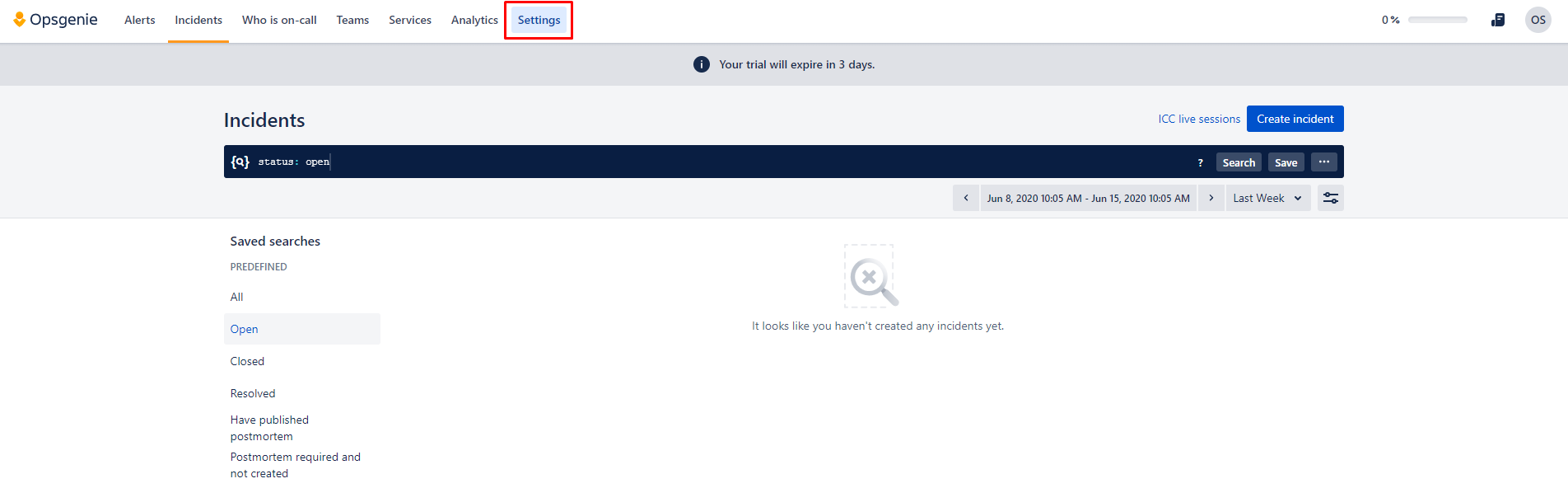
- Click Settings in the Opsgenie top navigation bar.
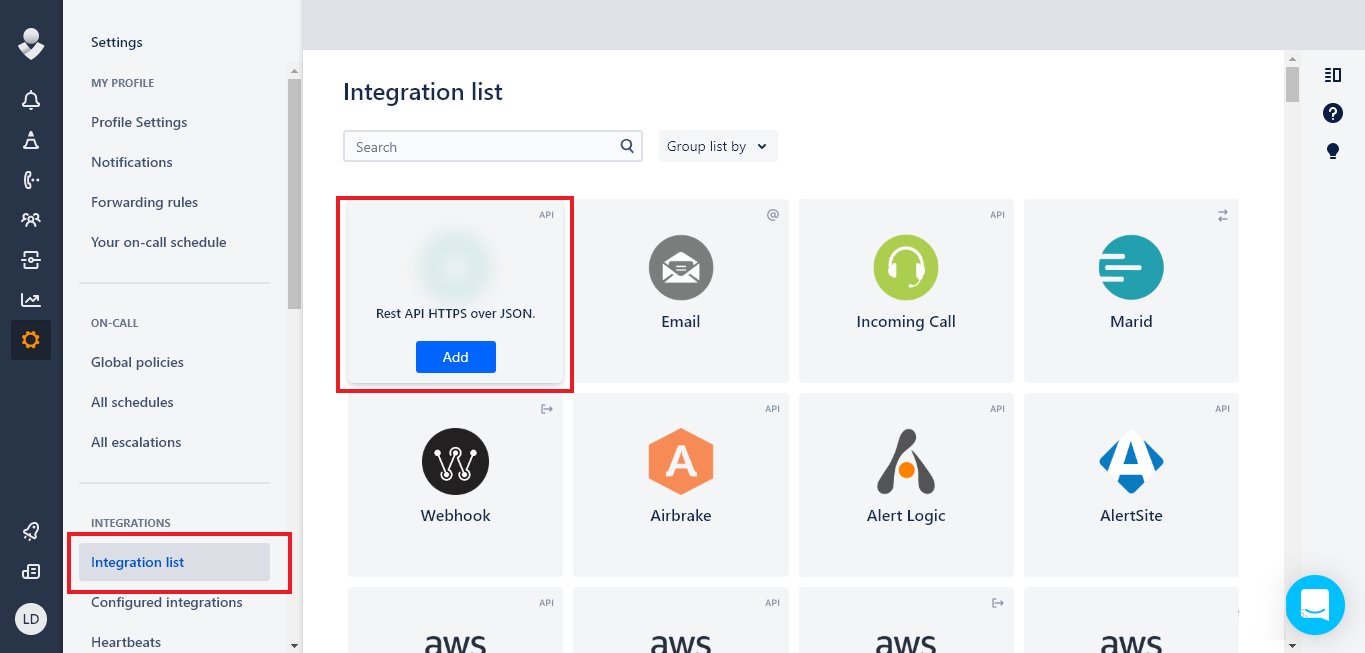
- Click Integrations list in the Integrations section on the left panel.
- Hover over the API tile and click Add.
Set Up The API
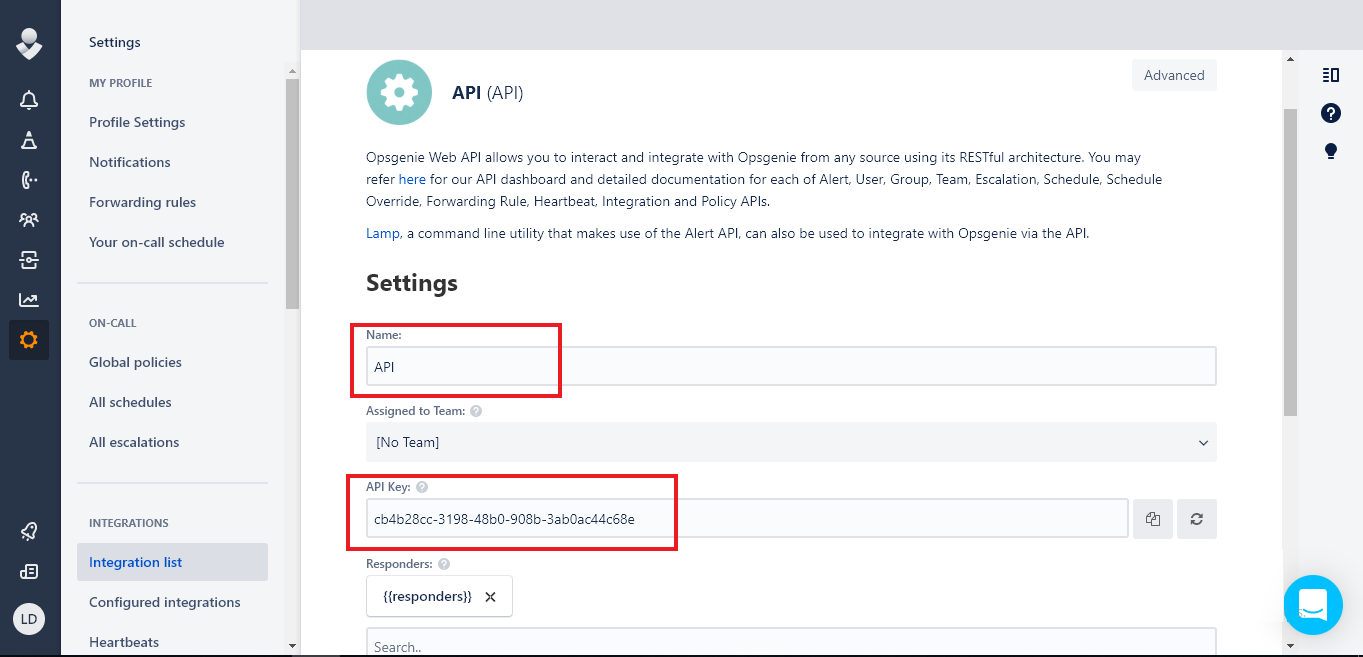
- Enter a Name for the API.
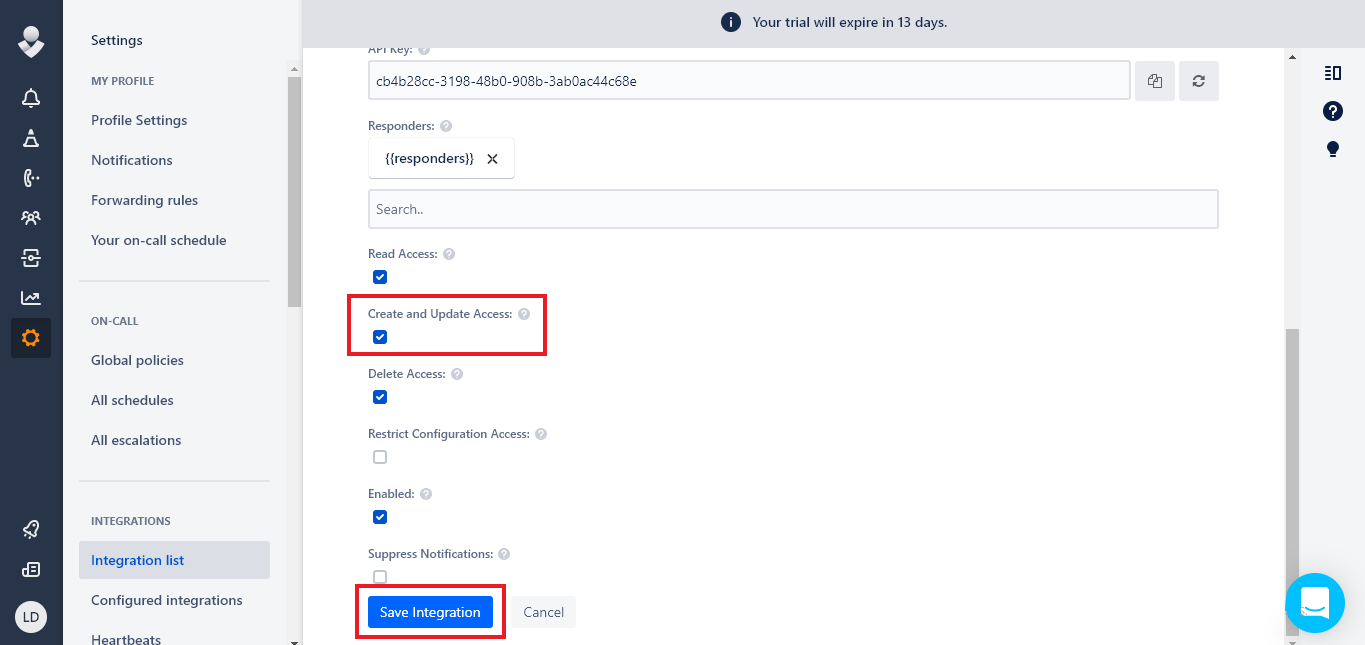
- Make note of and copy the API Key. You will need to enter this API key into Device42.
- Scroll down the page and ensure that the Create and Update Access option is enabled.
- Click Save Integration.
Set Up Opsgenie External Integration in Device42
- From the Device42 menu bar, select Tools > Integrations > External Integrations.
- Select Add External Integration on the top right of the page.
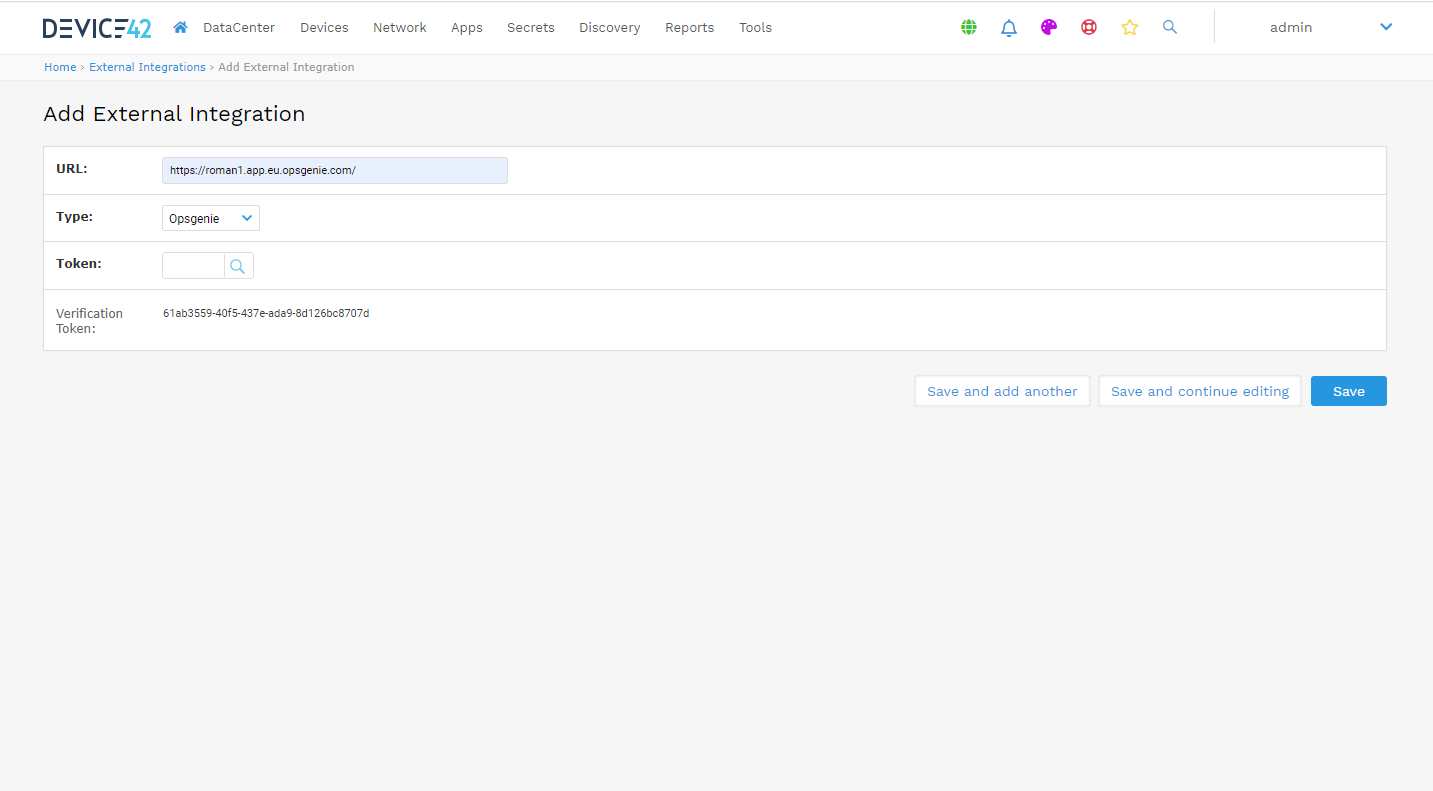
- Set the URL as user’s Opsgenie URL.
- Select Opsgenie from the Type drop-down menu.
- Click the Token magnifying glass to open the Select Password page.
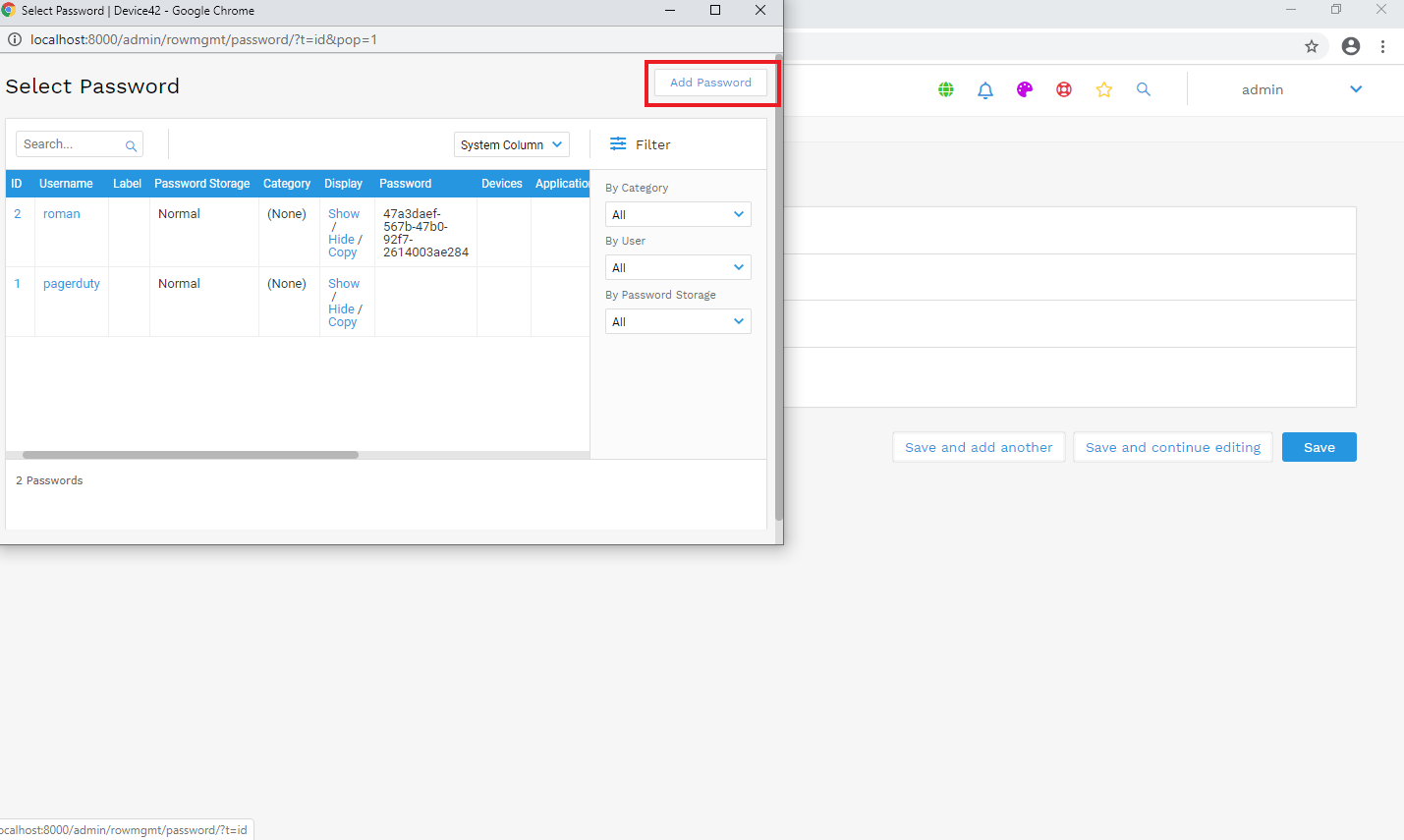
- Click Add Password and use the Opsgenie API Key to create a new Token.
- Click Save.
- The Opsgenie integration is now configured in Device42.

Set Up an Alert to Use Opsgenie
You need to configure a Device42 alert to use the Opsgenie external integration to route the alert message to Opsgenie. The following steps will configure a prohibited software alert, but any type of alert can be used with the Opsgenie external integration and would have similar steps.
- From the Device42 menu bar, select Reports > Setup Alerts.
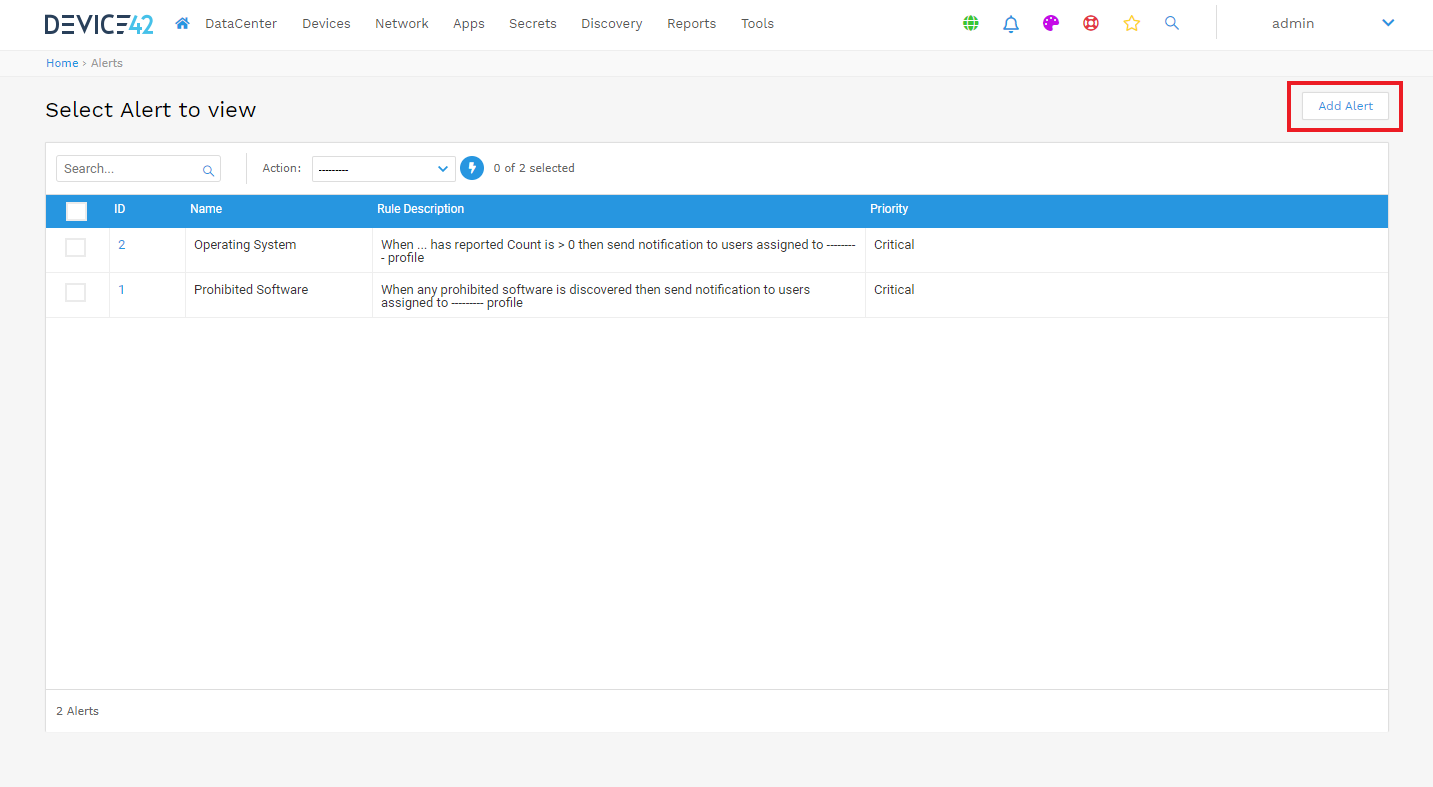
- Click Add Alert.
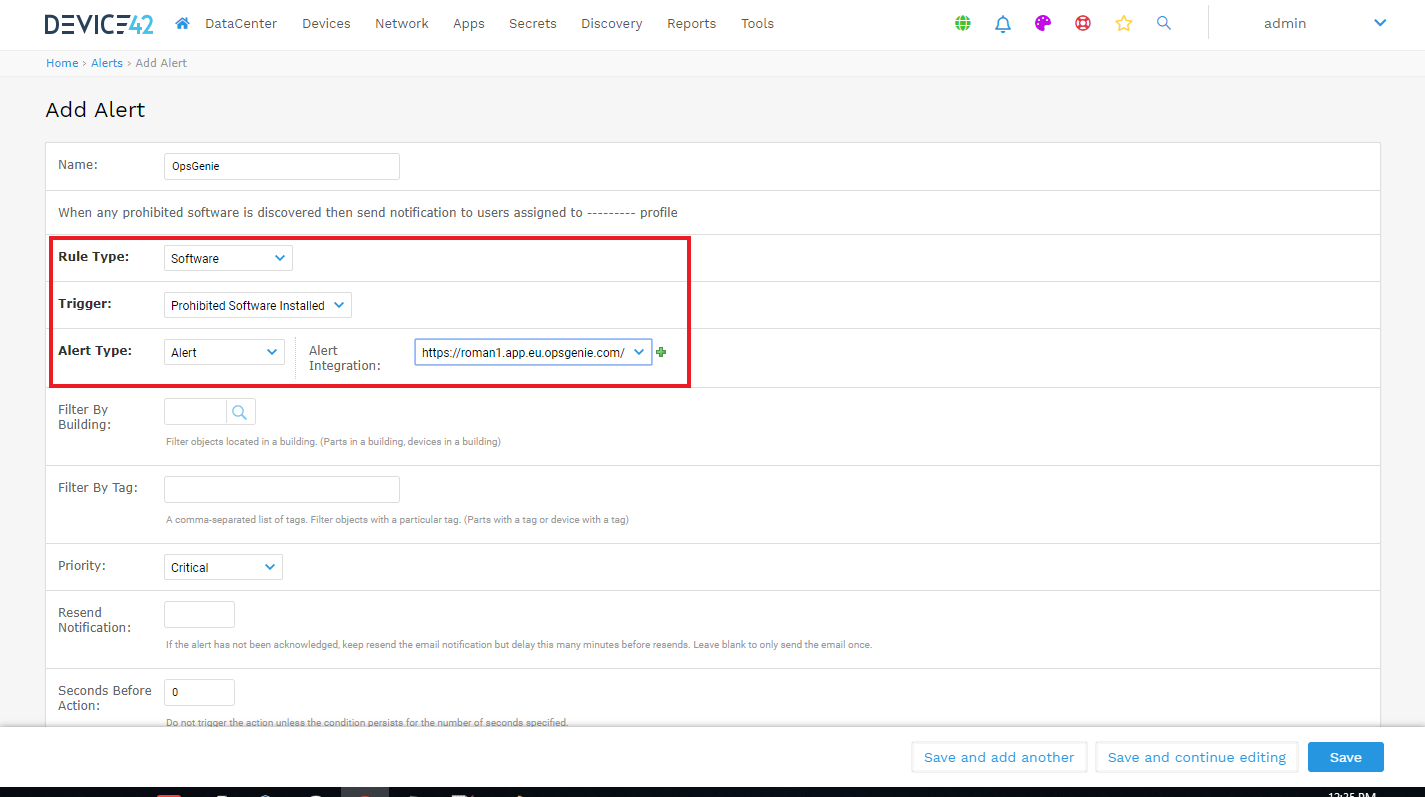
- Select Rule Type: Software.
- Select Trigger: Prohibited Software Installed.
- Select Alert Type: Alert.
- Select the Opsgenie URL from the Alert Integration drop-down list.
- Click Save.
Configure Software as Prohibited
- From the Device42 menu bar, select Apps > Software > Software Components.
- Select the software component you want to set as prohibited (this example uses 7 Zip).
- Select the Edit button on the top right.
- Select Software Type: Prohibited.
- Click Save button at the bottom right.
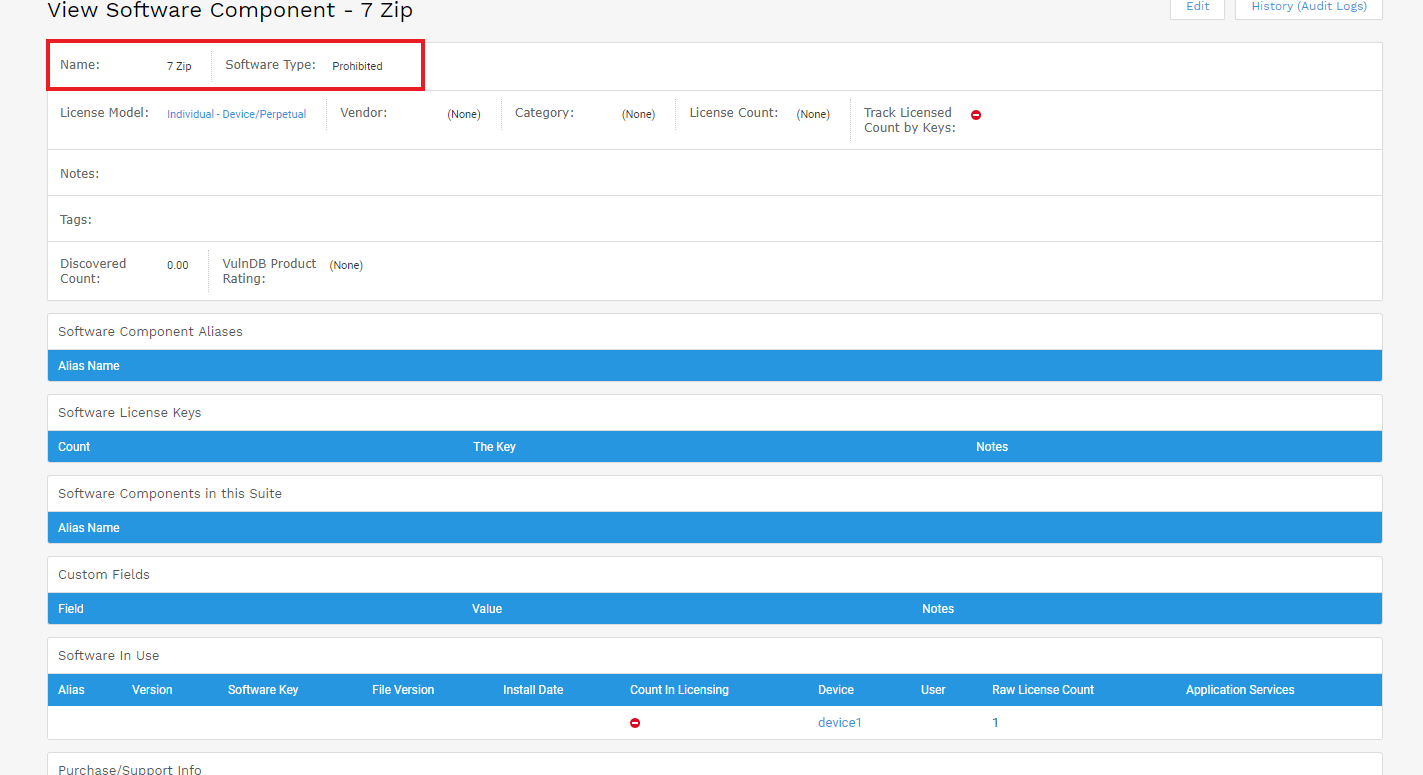
This marks the software as prohibited and will trigger the alert created in the section above.
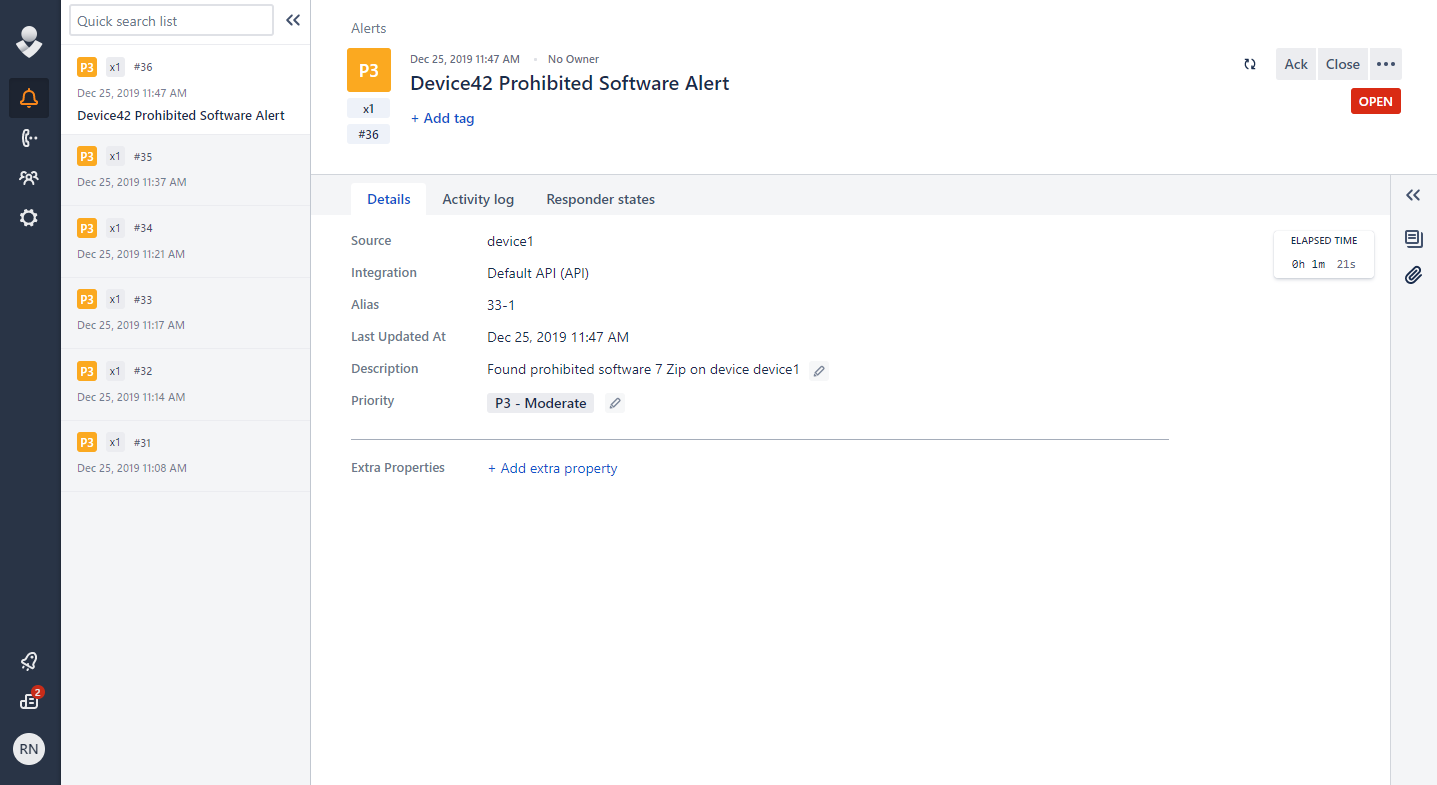
If the 7 Zip software is detected during discovery, an alert is generated in Opsgenie similar to the alert shown below.