ODBC Driver Integration
The Device42 ODBC driver allows users to connect to Device42 and pull data externally as an ODBC (Open Database Connectivity) data source. The current ODBC driver installs on Microsoft Windows, and Device42 provides instructions to leverage both generic ODBC connectivity, and to connect Microsoft PowerBI to your Device42 ODBC datasource below.
Download the Device42 ODBC driver (which should work with many ODBC-compatible consumers) directly from the Device42 Miscellaneous Tools Download page.
ODBC System Requirements
System requirements for connecting to Device42 via ODBC are as follows:
- Current Device42 installation, properly configured, licensed, running, and accessible.
- A host system for the D42 ODBC driver running Microsoft Windows.
- PowerBI software to follow the tutorial below to connect to the Device42 ODBC data source.
Install the Device42 ODBC Driver
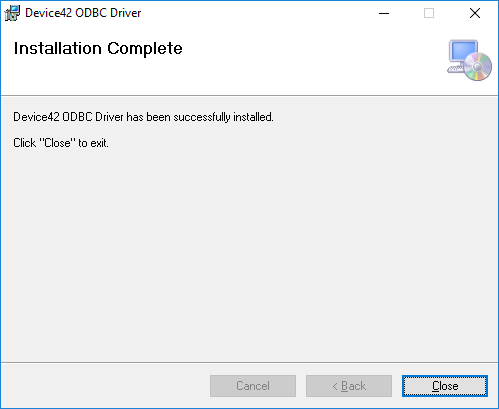
To install the Device42 ODBC driver, download the .exe installer from https://device42.com and double-click to install on a Microsoft Windows-based instance. Follow the instructions on the screen, clicking Next until you see Installation Complete, indicating you have finished installing the Device42 ODBC data source driver:
Connect PowerBI to the Device42 ODBC Datasource
Device42's ODBC driver works to connect Microsoft PowerBI directly to your Device42 CMDB. For details on using PowerBI with Device42's ODBC driver, see the Microsoft PowerBI Integration documentation.
Create a DSN
- To create or pre-define a DSN (Data Source Name), open the Windows ODBC Data Source Administrator via the Windows Start Menu. Windows 10: Click Start > Windows Administrative Tools > ODBC Data Sources (64-bit) (note there is also a 32-bit version, which you can ignore). Windows 7: Click Start > All Programs > Administrative Tools > Data Sources (ODBC):
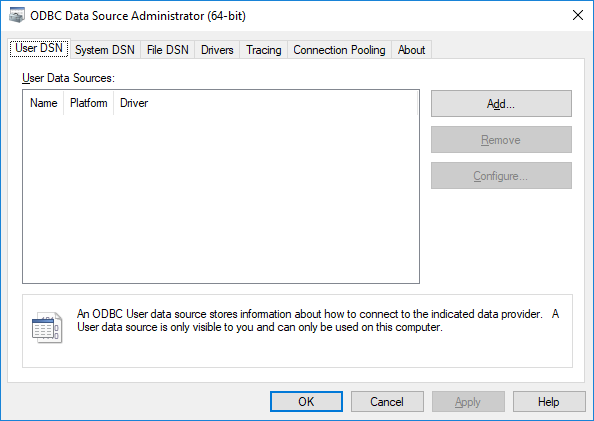
- Click the Add button to begin adding a new datasource. In the Create New Data Source window that is displayed, choose Device42 ODBC Driver and click Finish:

- On the Device42 ODBC Driver DSN Configuration screen that is displayed, enter values as explained below:

- DSN Name: The name to identify this DSN.
- Server Host: The host name of the Device42 server.
- Port: The port number that the Device42 server is servicing requests on. The default value is the standard SSL port of 443. If you leave this field blank, it will also default to 443.
- Username: The username you use to login to Device42.
- Password: The password you use to login to Device42.
The ODBC connection requires a valid SSL certificate on your Device42 instance, otherwise the connection will error out. If you're using Device42 for internal use only and don't have a valid certificate, you can upload a self-signed certificate to your Main Appliance and restart the service to get the ODBC connection working.
- Click the Test button to try connecting using the information you specified. You will receive a message if the connection could or could not be made. If the connection could not be made, verify that the information you entered is correct.
- Click the Save button to save the changes you made to the DSN. Your changes will only be saved if the information entered results in a successful connection. If the connection could not be made, verify that the information you entered is correct.
Setup of the Device42 ODBC DSN is complete. You should now be able to utilize the pre-configured DSN throughout PowerBI.
Import Data Into MS SQL Server
Using the Device42 ODBC driver, it is possible to import data directly into SQL Server. The following procedure will facilitate a data import. (The following instructions are for Windows 10 and may differ from other versions of Windows).
Import Prerequisites
- Begin by copying the Mapping files (The mapping files control how data types from the Device42 ODBC Driver map to Microsoft SQL Server data types).
- Start the SQL Server Import and Export Wizard.
- Start Task Manager.
- Browse to the location of the SQL Server Import and Export Wizard executable. Right-click on the app executable (it will be named similar to SQL Server Import and Export Wizard). Note that the name may end with "32 bit" or "64 bit" and the .exe file extension.
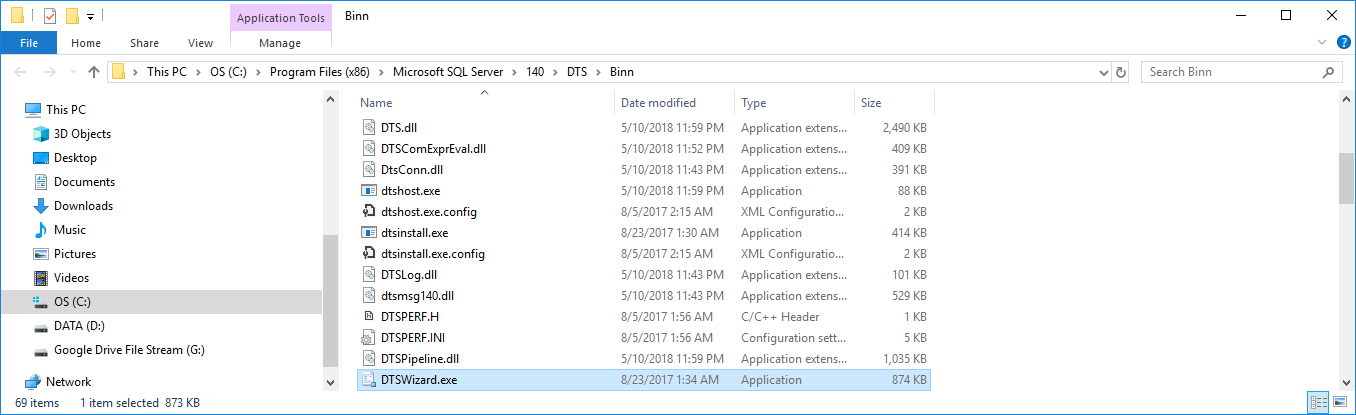
- Click Open file location and go up one level to the
DTSfolder. - Go into the
MappingFilesfolder. - Open another instance of Windows Explorer.
- Go to
C:\\Program Files\\Device42\\Device42 ODBC Driver\\MS SQL Server Mapping Files. - Copy files
D42ODBCToMSSql10.XMLandD42ODBCToSSIS10.XMLfromC:\\Program Files\\Device42\\Device42 ODBC Driver\\MS SQL Server Mapping Filesand paste them in theDTS\\MappingFilesfolder of the SQL Server Import and Export Wizard that you found earlier. - Close the SQL Server Import and Export Wizard. The mapping files that were just copied will not take effect until the SQL Server Import and Export Wizard is restarted.
SQL Server Data Import Procedure
Note: These instructions are for SQL Server Management Studio v17.9.1 and may differ from other versions of SQL Server Management Studio.
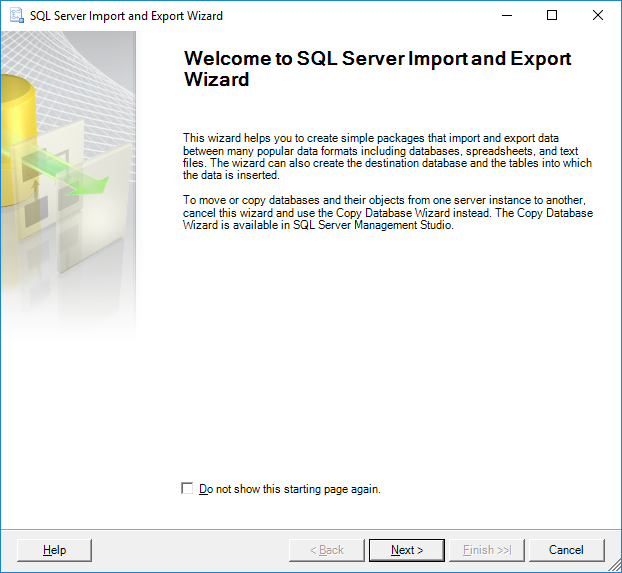
- Start the SQL Server Import and Export Wizard. You will see the following screen and can press Next:
- Select a data source of .Net Framework Data Provider for ODBC:

- Enter a connection string or DSN for the Device42 ODBC Driver and then click the Next button.
- Select a destination of SQL Server Native Client 11.0:
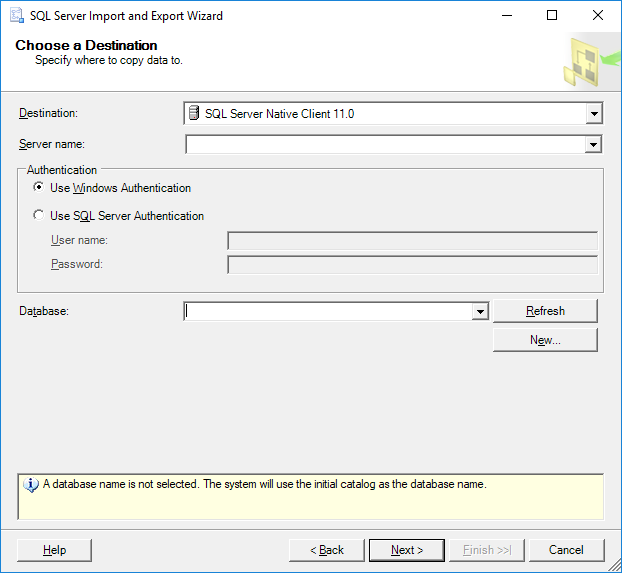
- Enter the server and database to import the data to, plus appropriate authentication details with proper permissions.
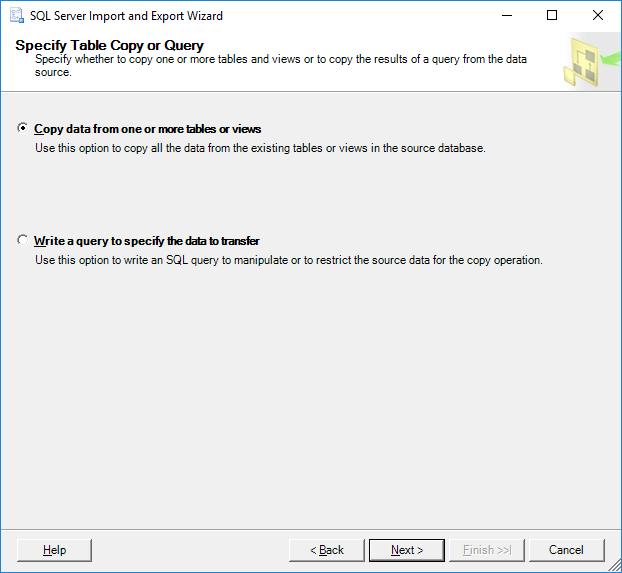
- Choose how you'd like to select Device42 data – from a table or view, or using a query, then click Next:
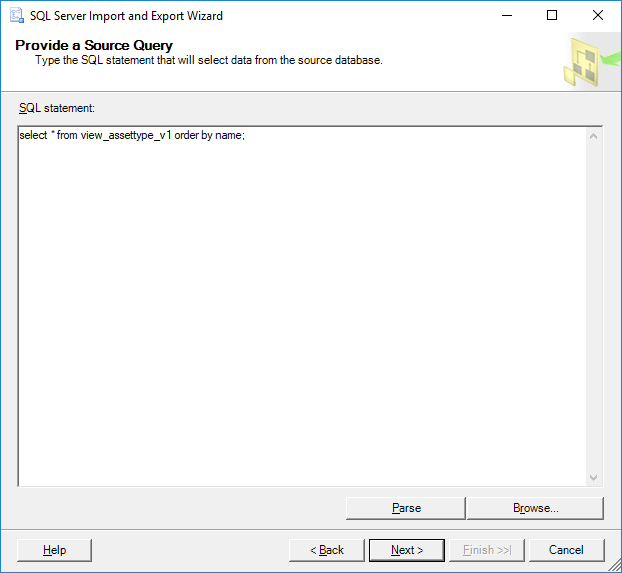
- If you selected “Write a query to specify the data to transfer”, then go ahead and enter your query (otherwise, skip this step):
- If you selected “Copy data from one or more tables or views”, select the views you'd like to copy:

- Click the Edit Mappings button to review or change which data will be copied (you can select a destination of "" if you do not want to copy a column) and attributes of the destination column such as data type.
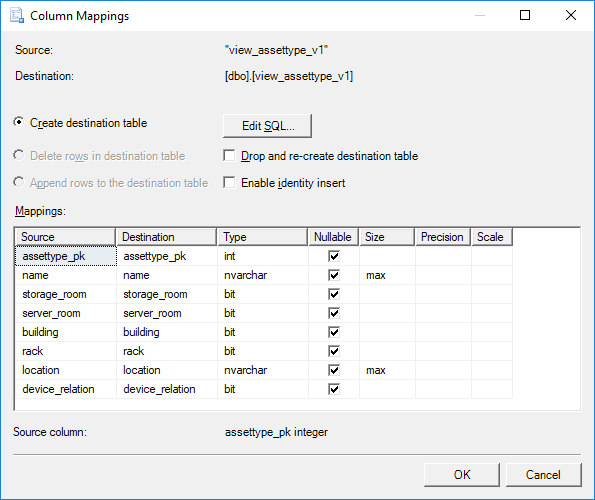
- Close the Column Mappings window, and then click the Preview button to see a sample of the data that will be copied:
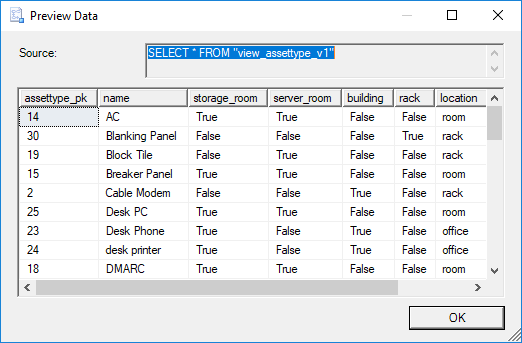
- Close the Preview Data window, and then click the Next button to continue.
- Review the selected data type mappings, and then click the Next button:
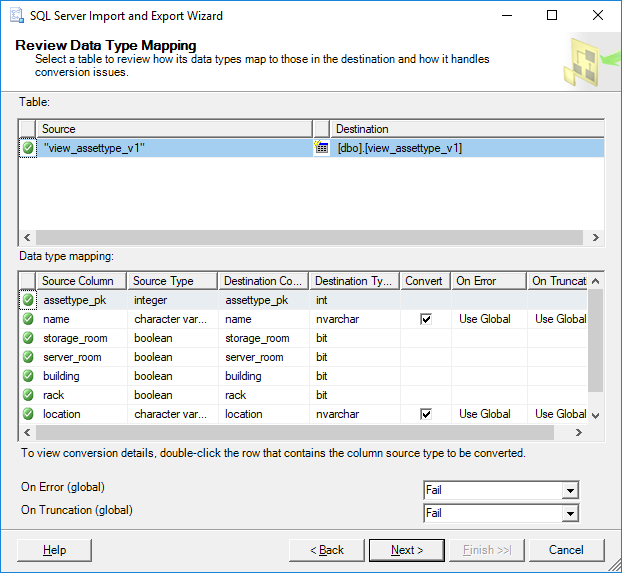
- Select if you want to run the data import immediately and or to save it as an SSIS package:
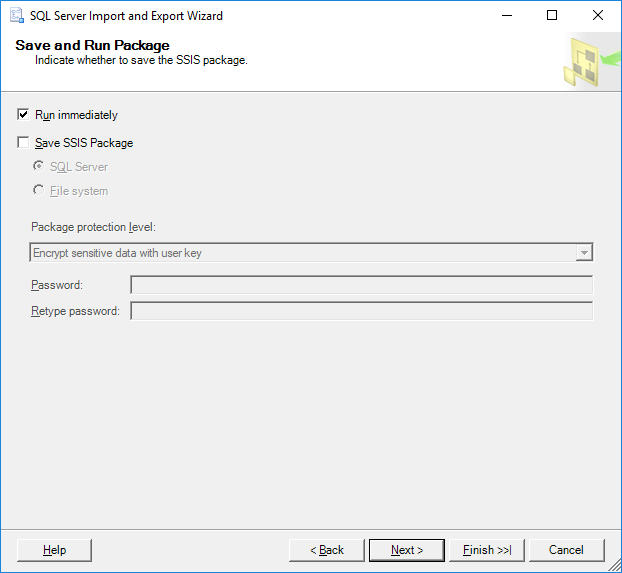
- Click the Next button, and review the selections made in the SQL Server Import and Export Wizard.
- Click the Finish button to complete the wizard. Your data import should be imported according to your chosen settings.
If you have any questions about the Device42 ODBC driver that aren't answered here, please open a ticket at https://support.device42.com or email support@device42.com.