Device List View
The device list view provides an overview of all your devices, with options for filtering, bulk actions, and custom views.
Select Resources > Compute > All Devices to display the device list page.

List View Features
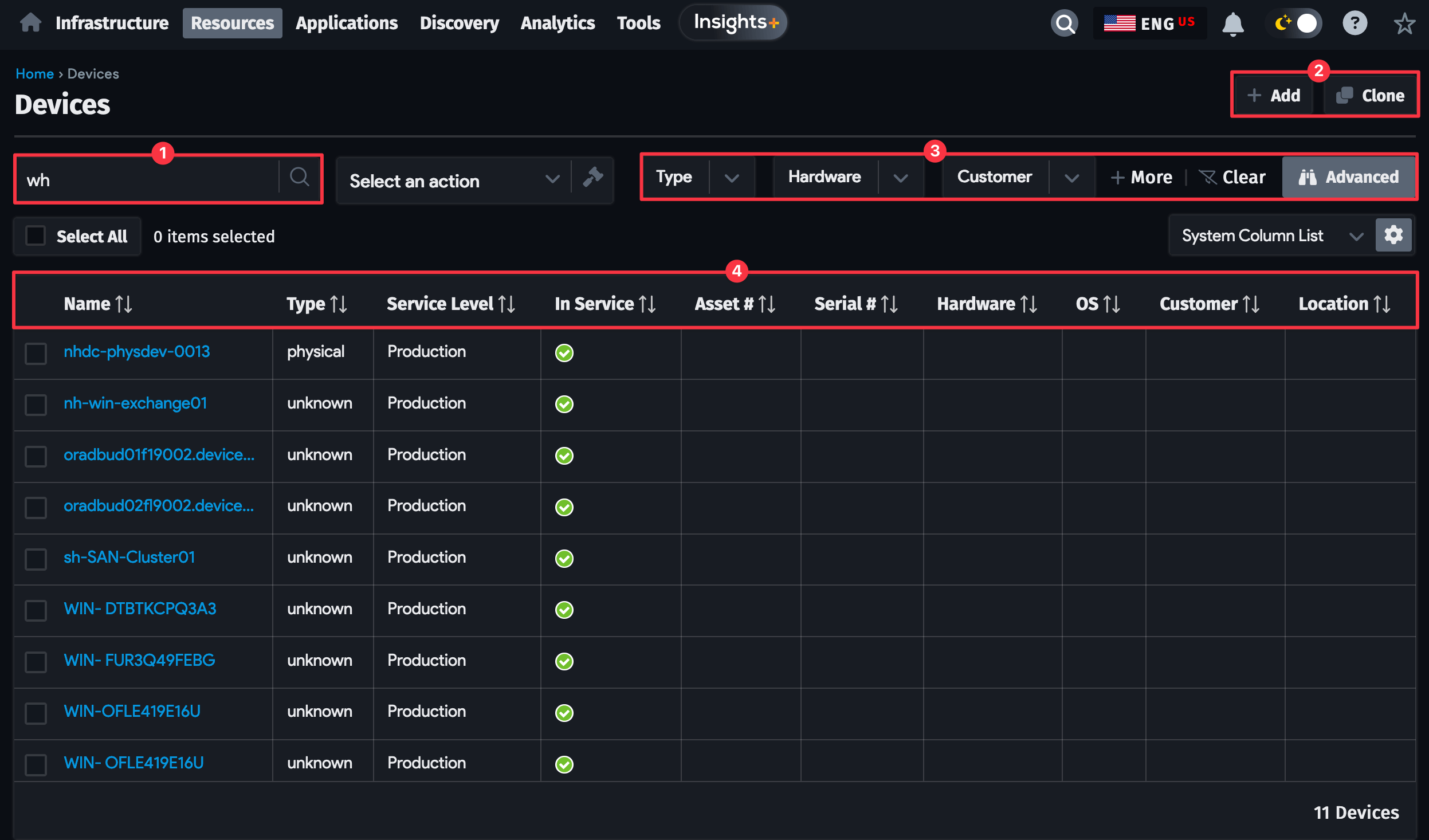
From the list page, you can:
- Create a new device, Clone an existing device, or configure a Report.
- Search for partial and exact matches to device names and aliases.
- Perform Actions to modify, delete, and manage your device data.
- Filter data using the dropdown menus or by adding More Filters.
- Open the Advanced search box to use SQL-like queries to find devices.
- Modify the default column layout or create a new view by clicking the gear icon.
- Reorder and resize columns by dragging the edge of a column header.
Custom Filters
The default list view has dropdown menus for filtering devices. Click + More to add additional filter dropdowns.
To save a custom set of filters, click the gear icon next to the System Column List dropdown menu. Select the Custom Filters checkbox before saving to preserve your filter configuration.
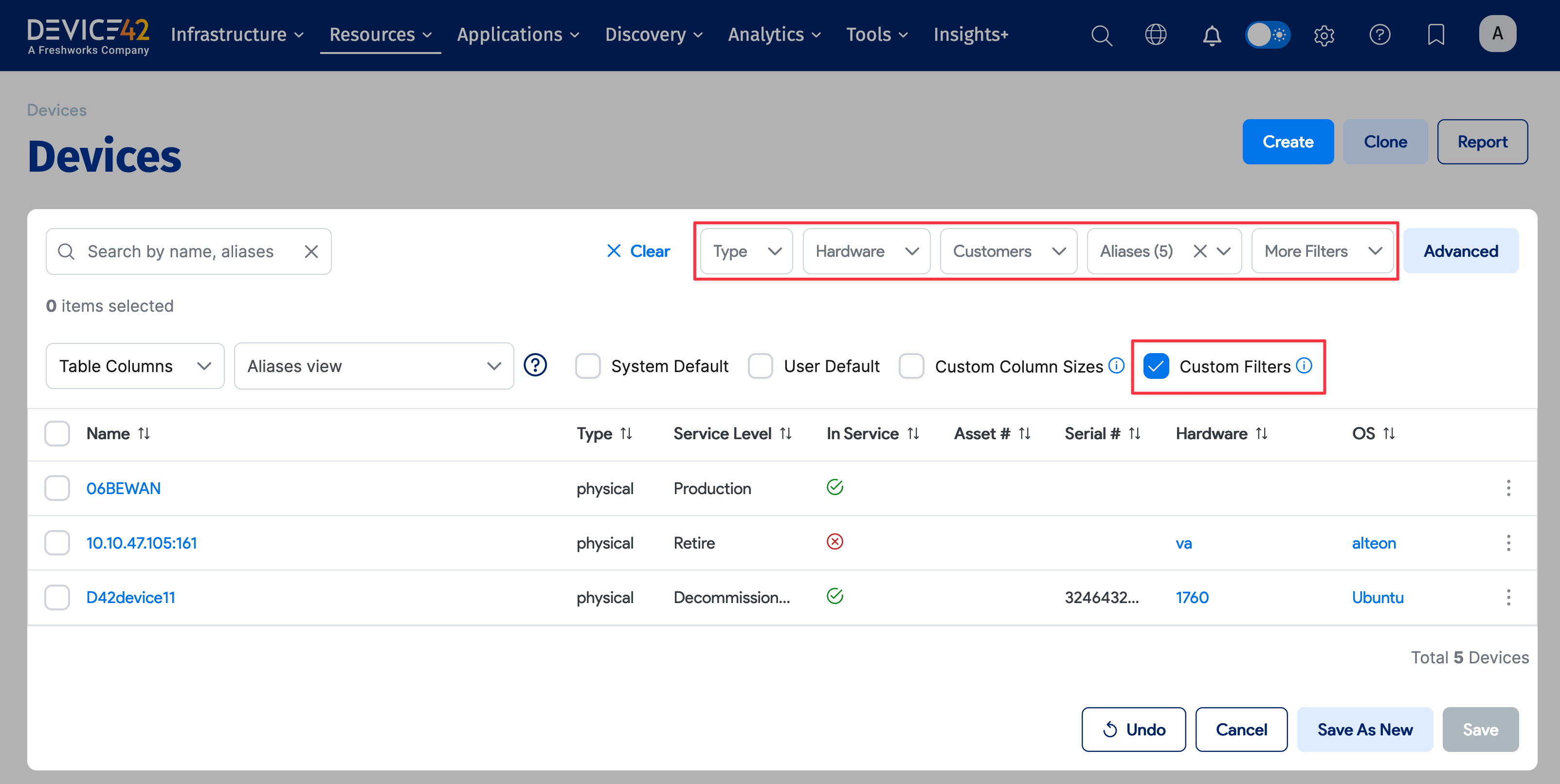
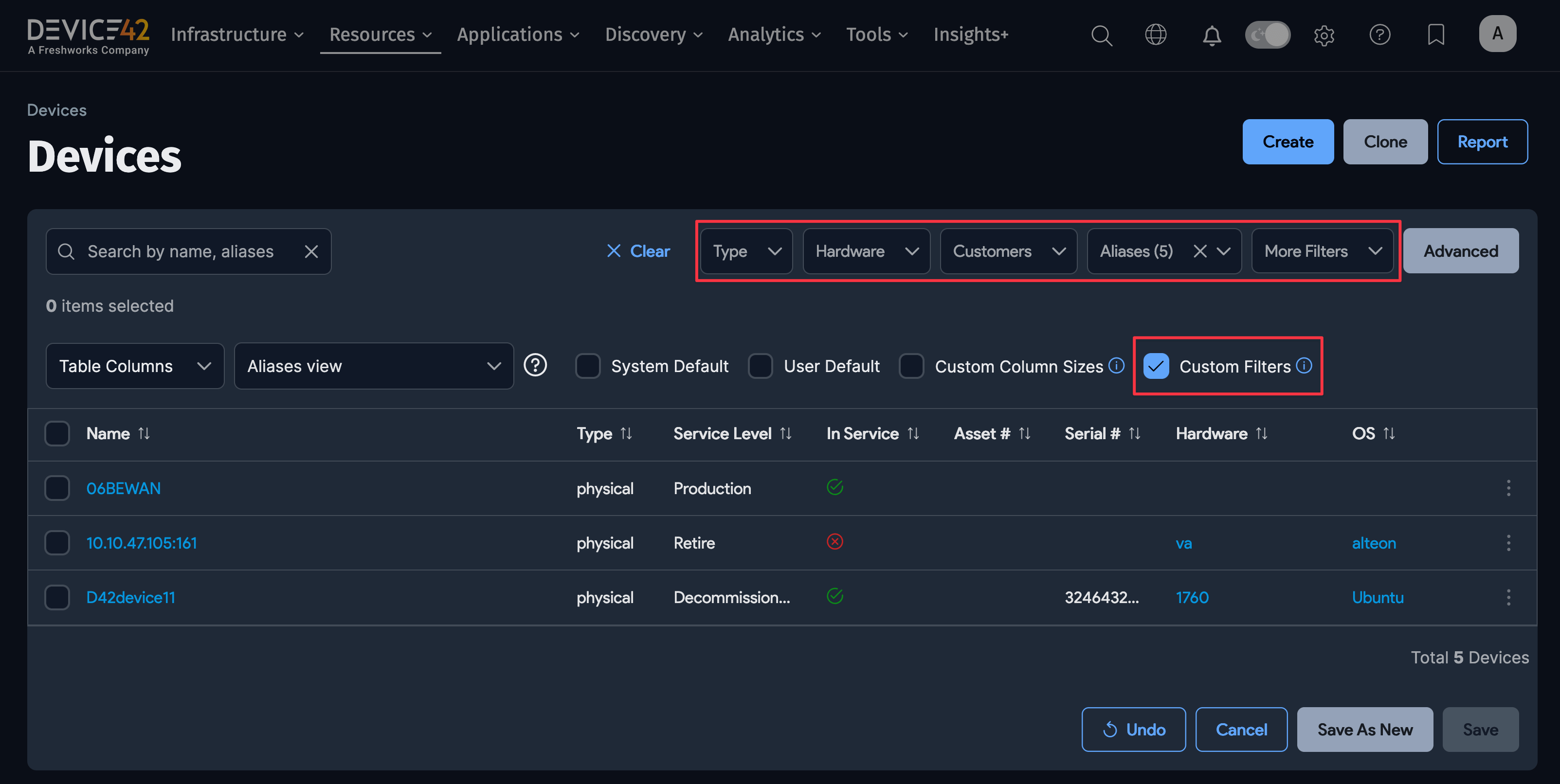
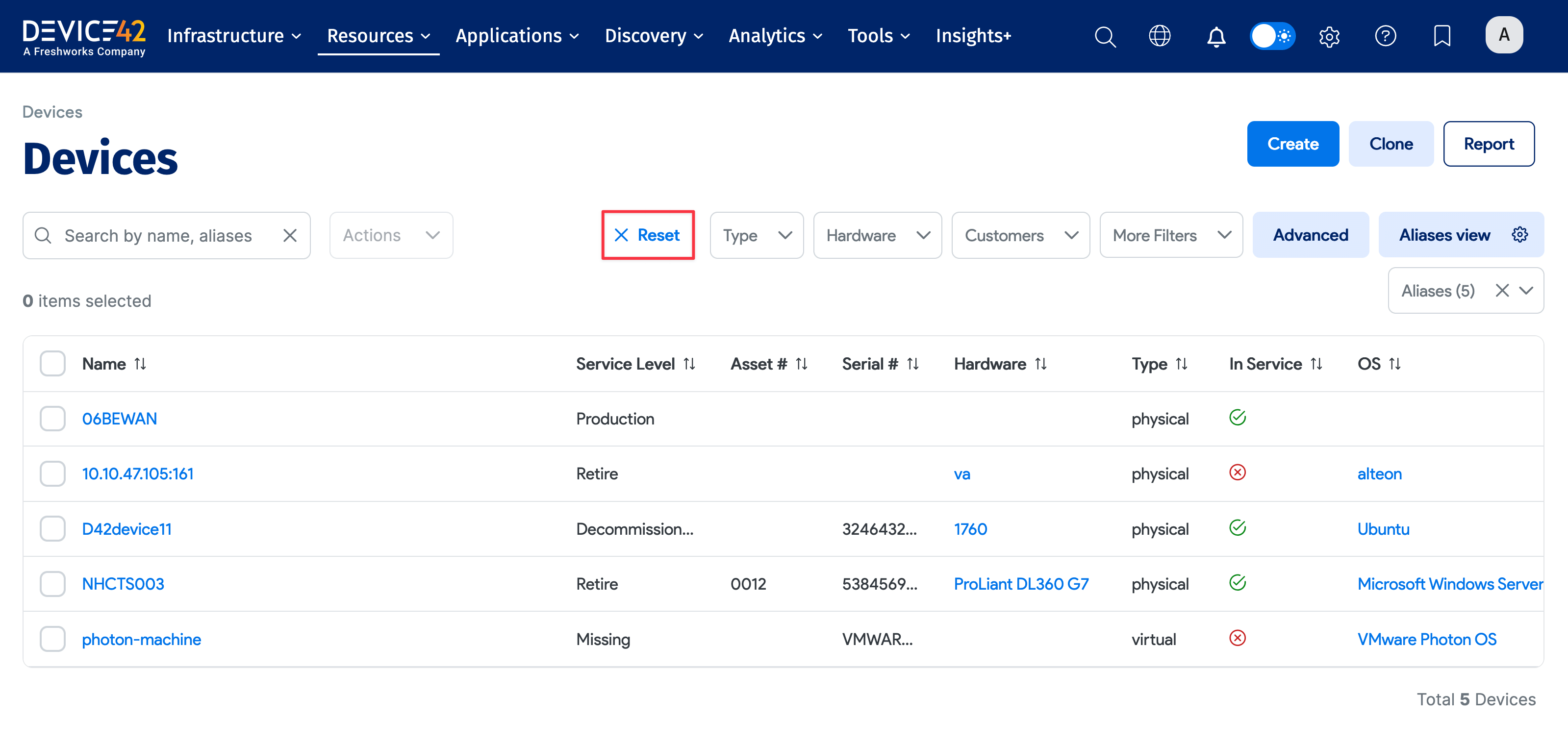
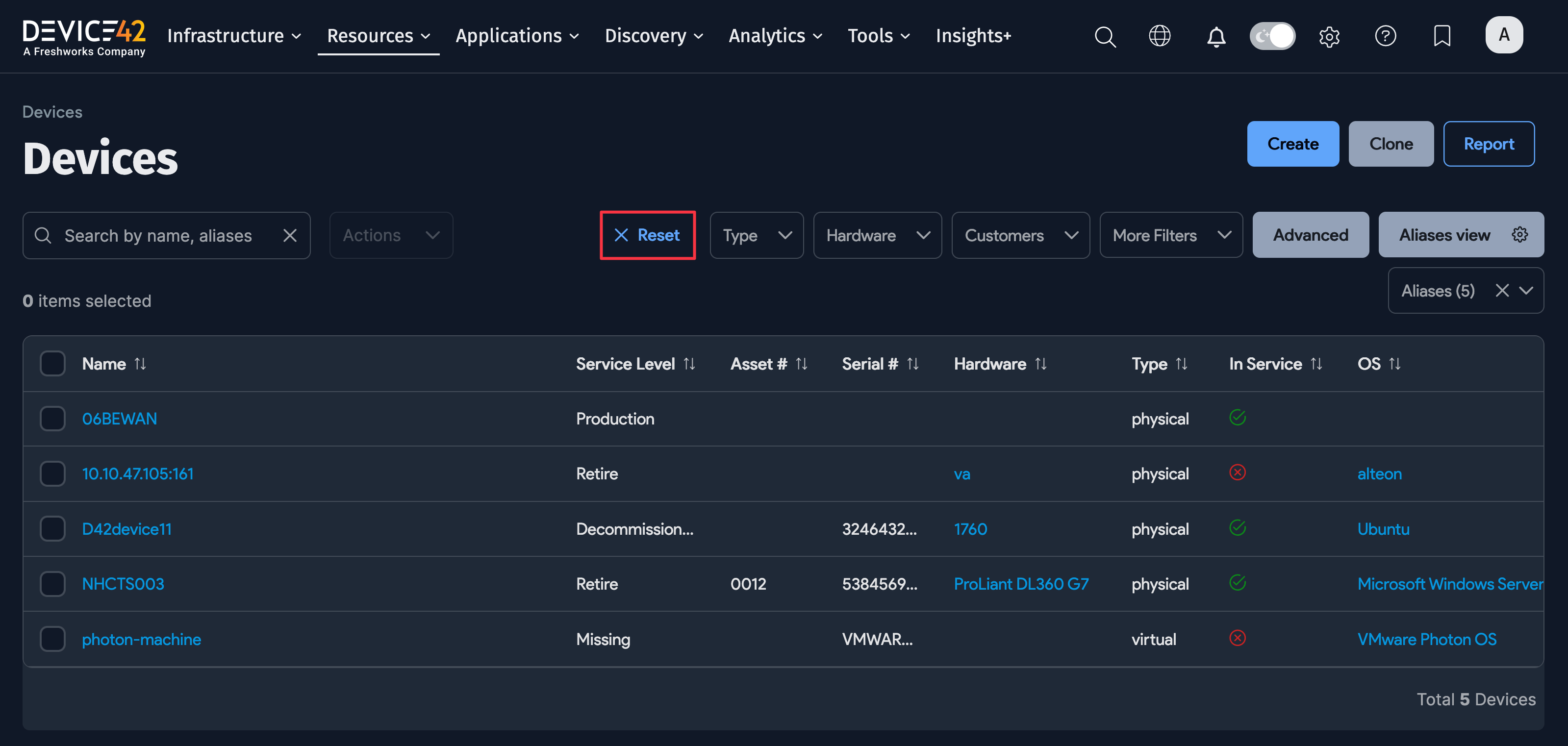
When you apply a saved custom filter, you'll see the "filters have been replaced in order to apply saved filters on the custom view" notification.
Click Reset to revert to the original saved filter.
List View Bulk Actions
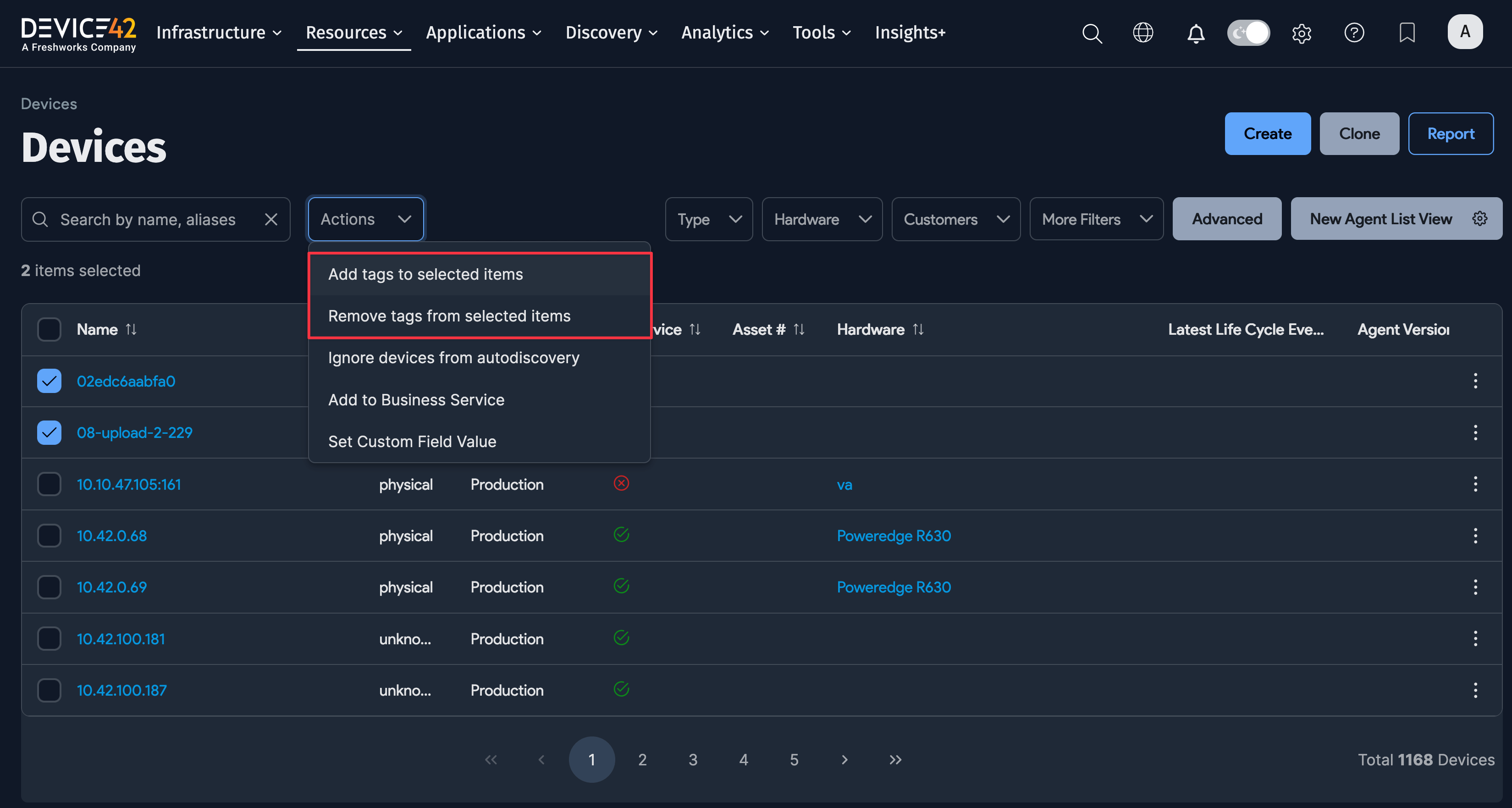
Select multiple devices from the list view and apply bulk actions using the Actions dropdown menu.
Add or Remove Tags
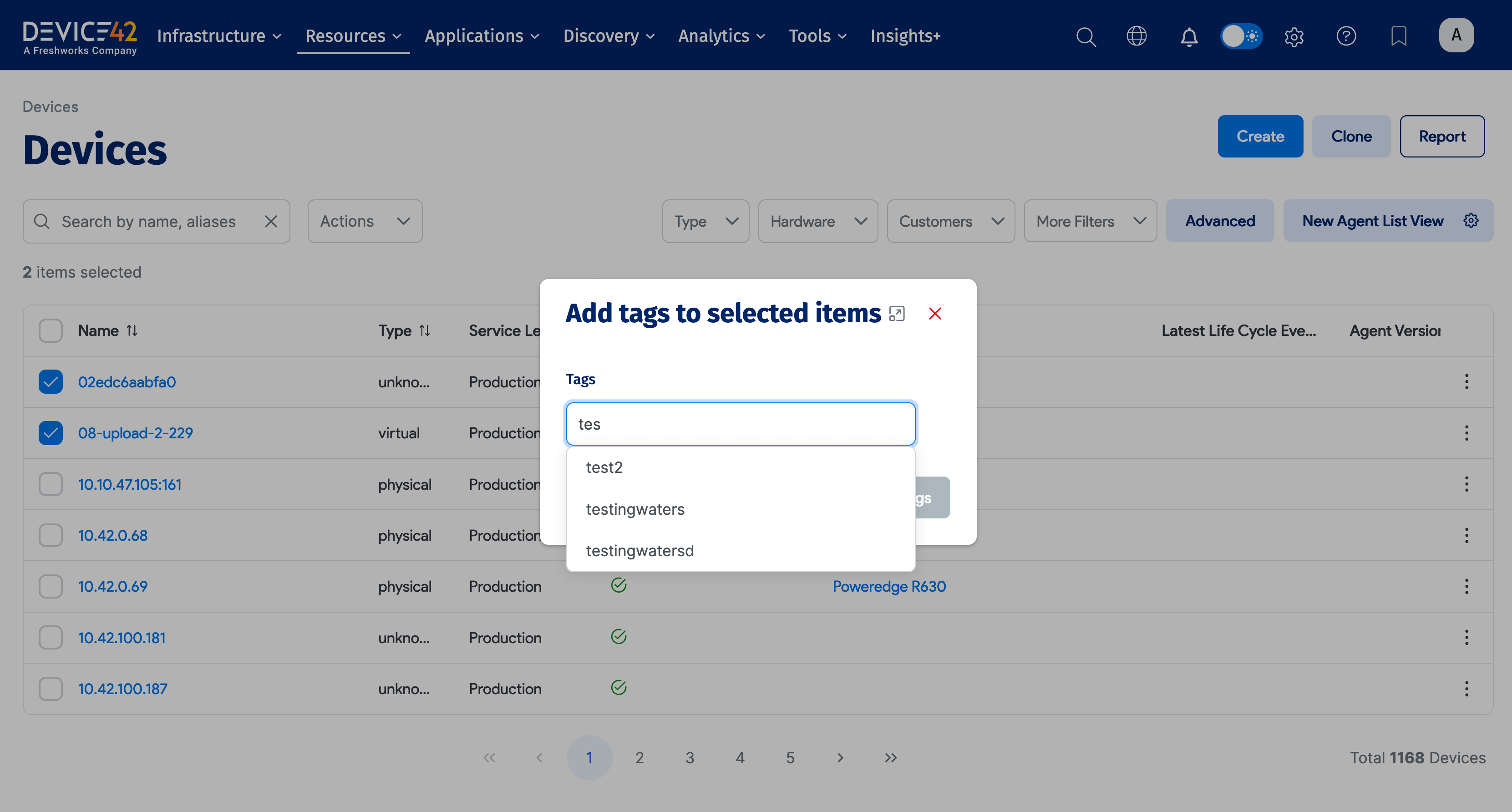
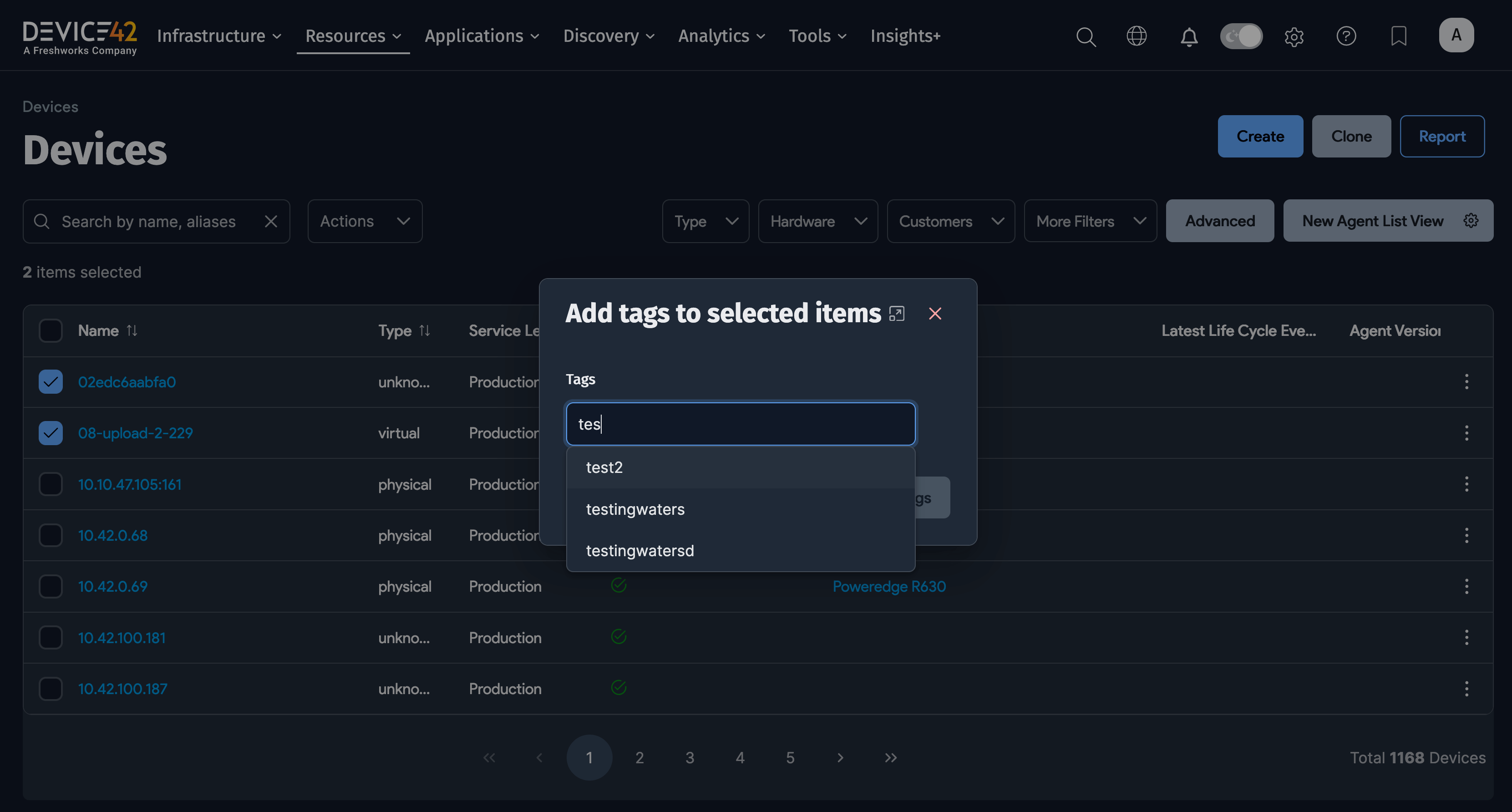
To add or remove tags, select one or more devices and choose Add tags to selected items or Remove tags from selected items.
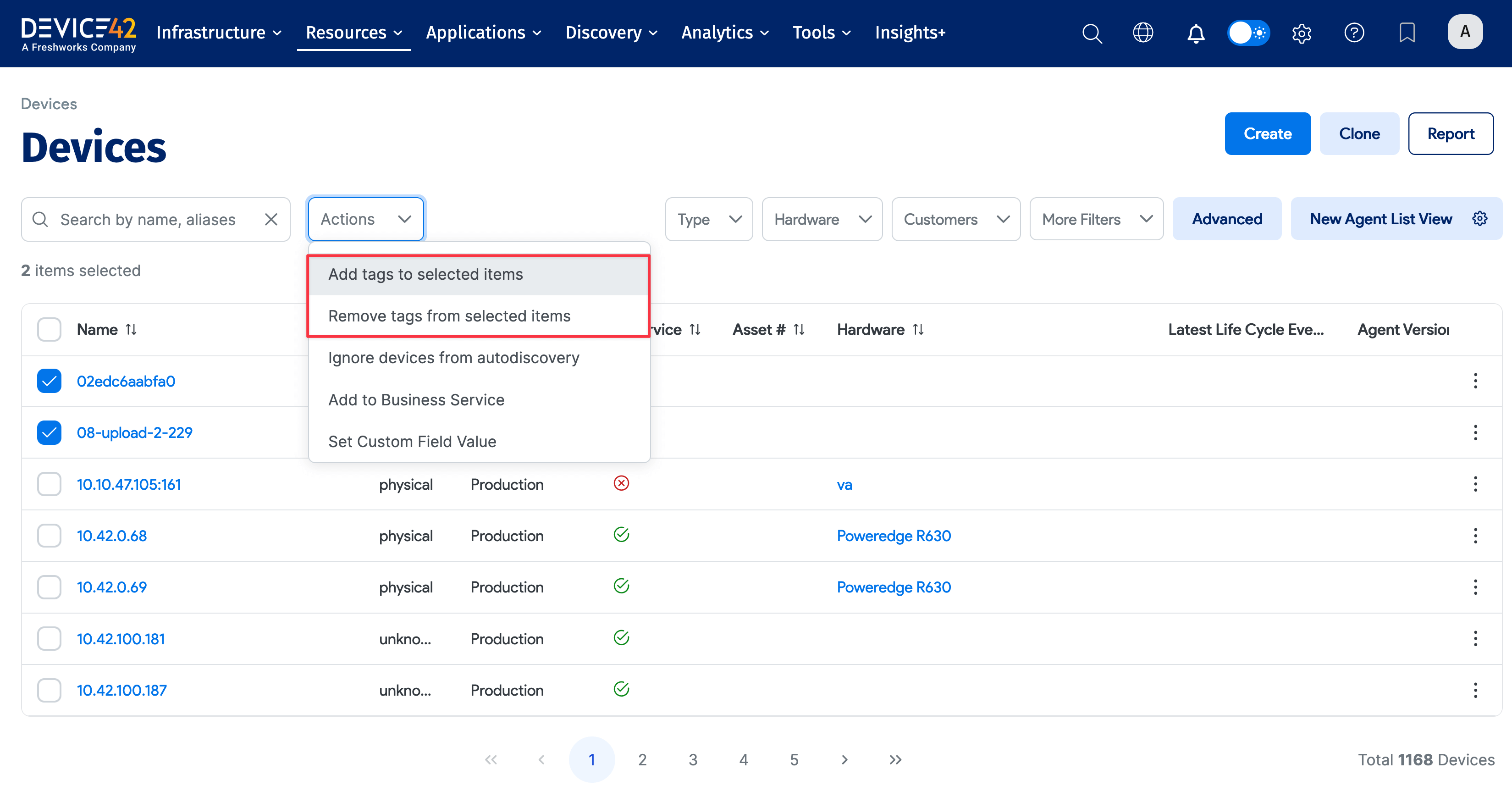
Start typing in the text box to search for specific tags.