Device - Blade Slots
A blade slot is a placeholder for a blade server in a blade chassis. You can add blade slots to a hardware model configured as a Blade Host/Chassis to match the number, type, and layout of slots in your physical hardware.
This page covers how to create chassis hardware models with blade slots and use the visual model editor to arrange their layout.
Create or Edit a Chassis Hardware Model
Navigate to Infrastructure > Hardware Models and select an existing hardware model or click Create to create a new one.
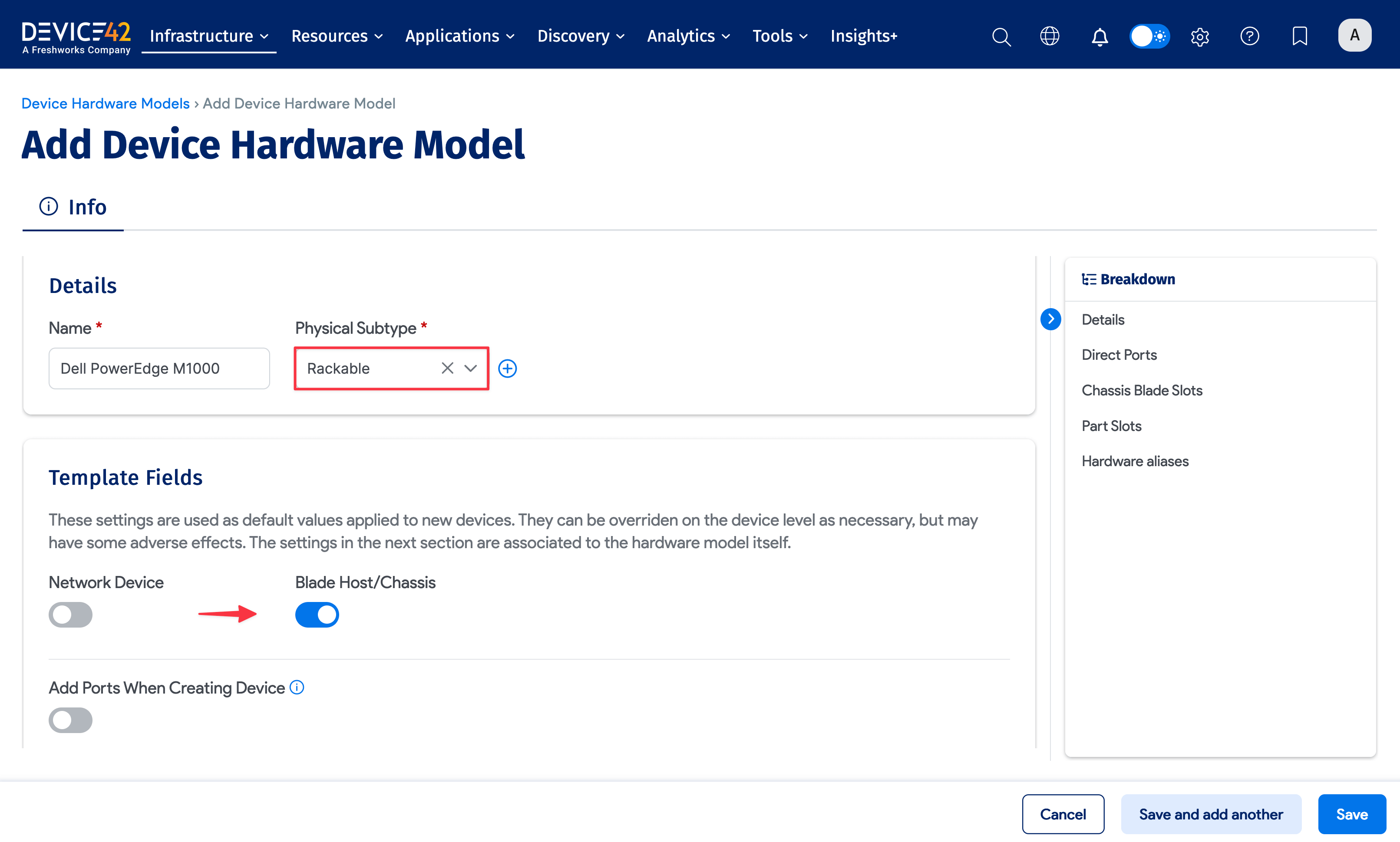
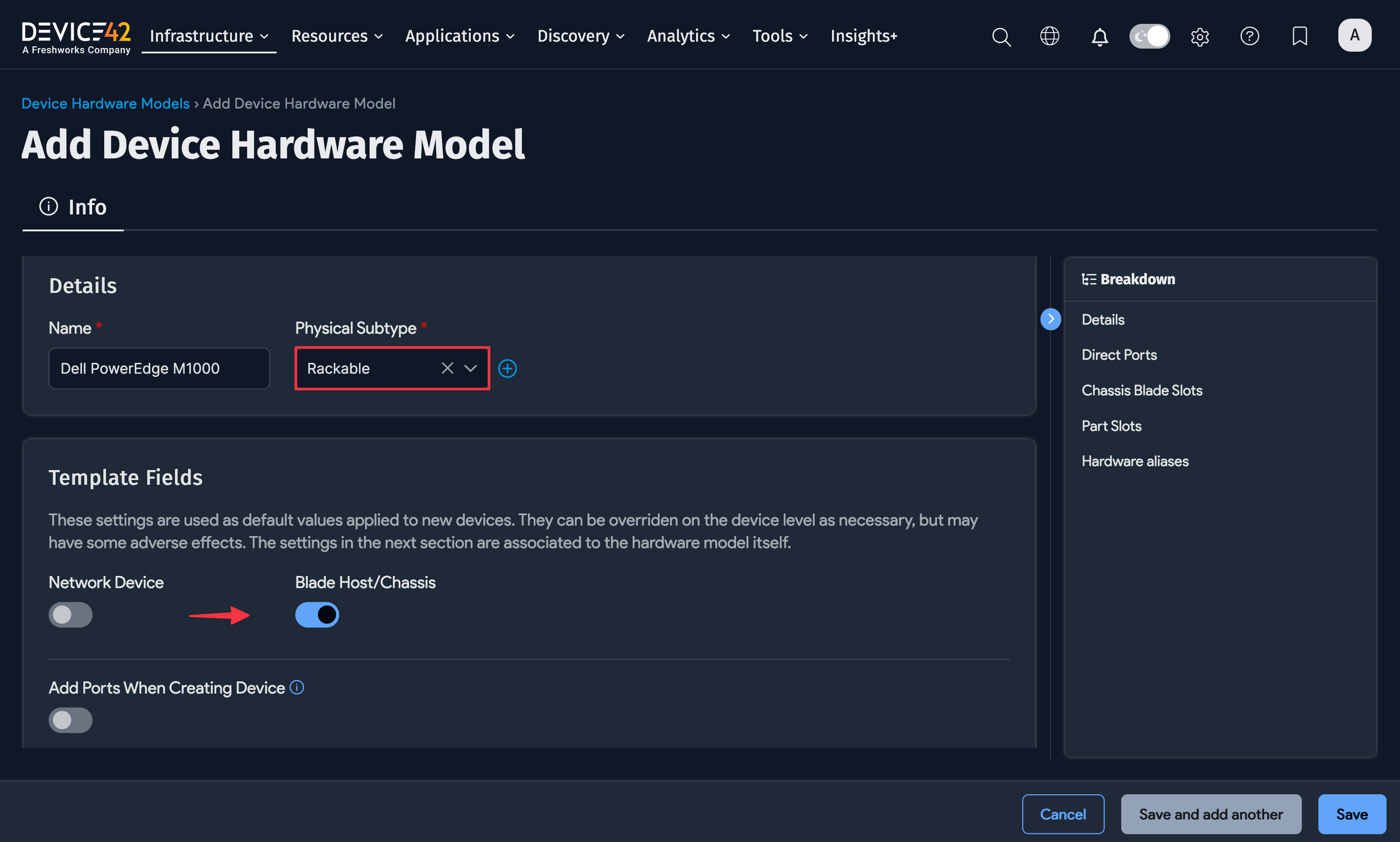
For Physical Subtype, choose Rackable or a similarly defined subtype to reveal the Blade Host/Chassis option and select it.
Add Blade Slots to the Chassis
Scroll down to Chassis Blade Slots and add as many blade slots as necessary to match your hardware layout.
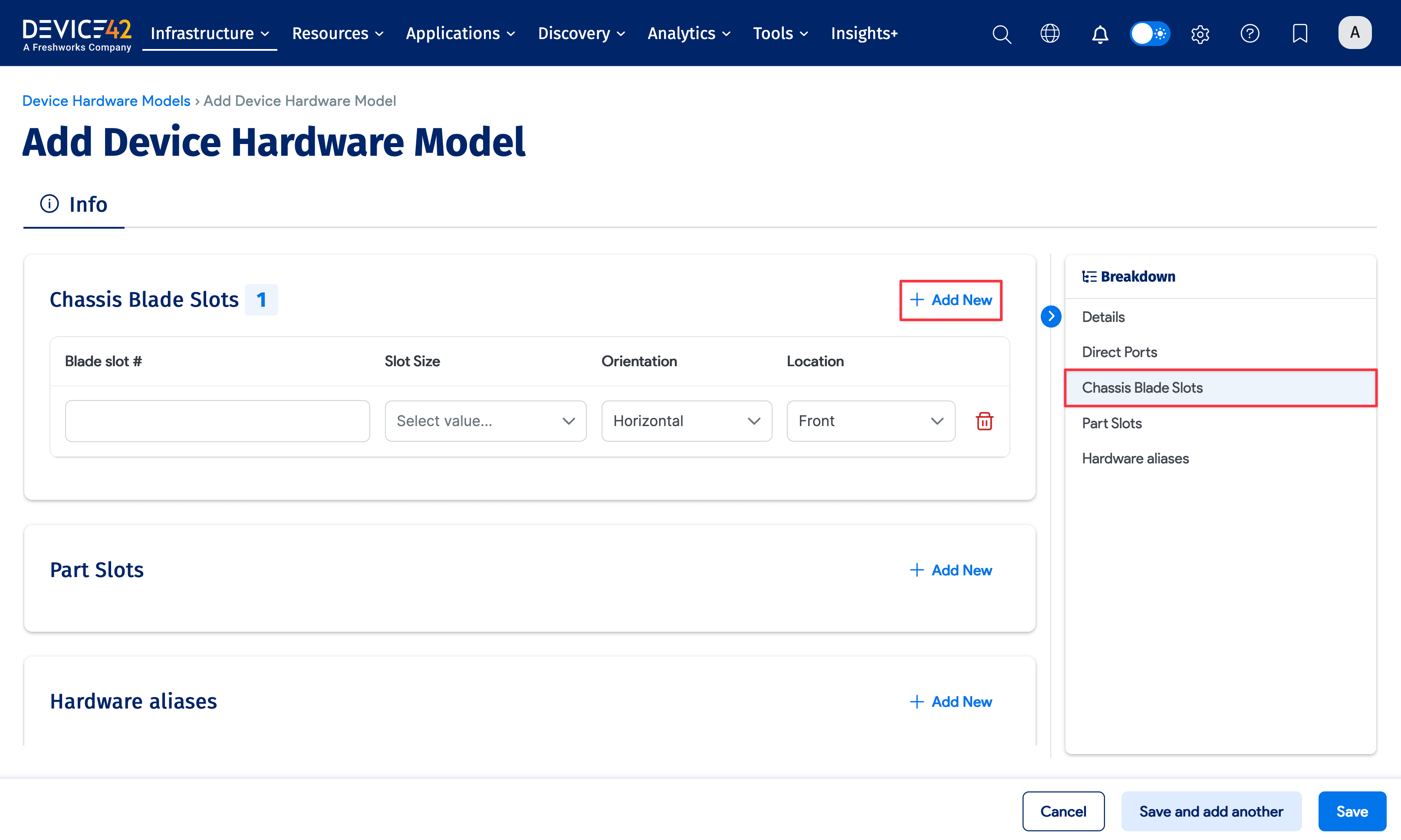
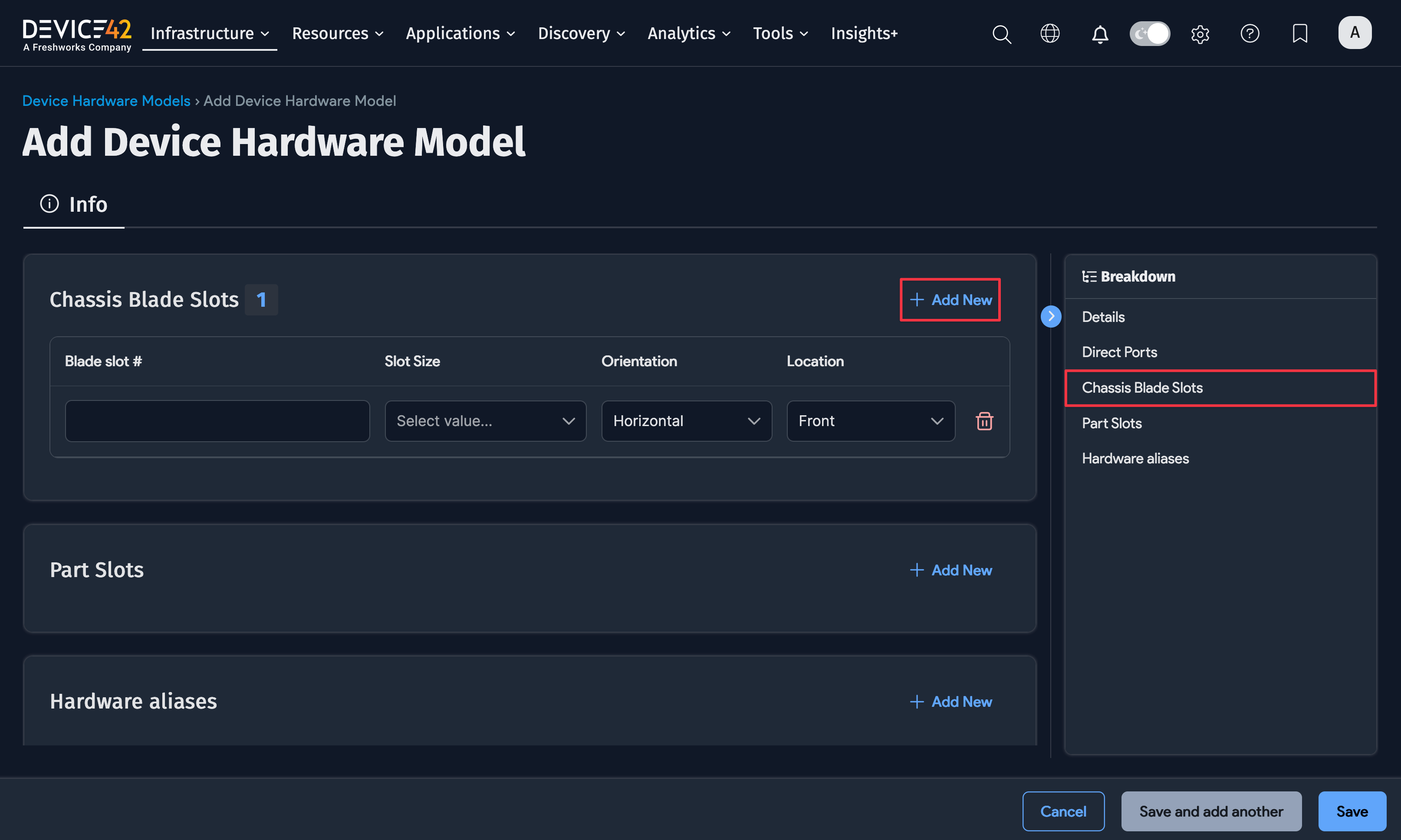
Click Save or Save and continue editing to save your progress.
Adjust the Layout on an Existing Hardware Model
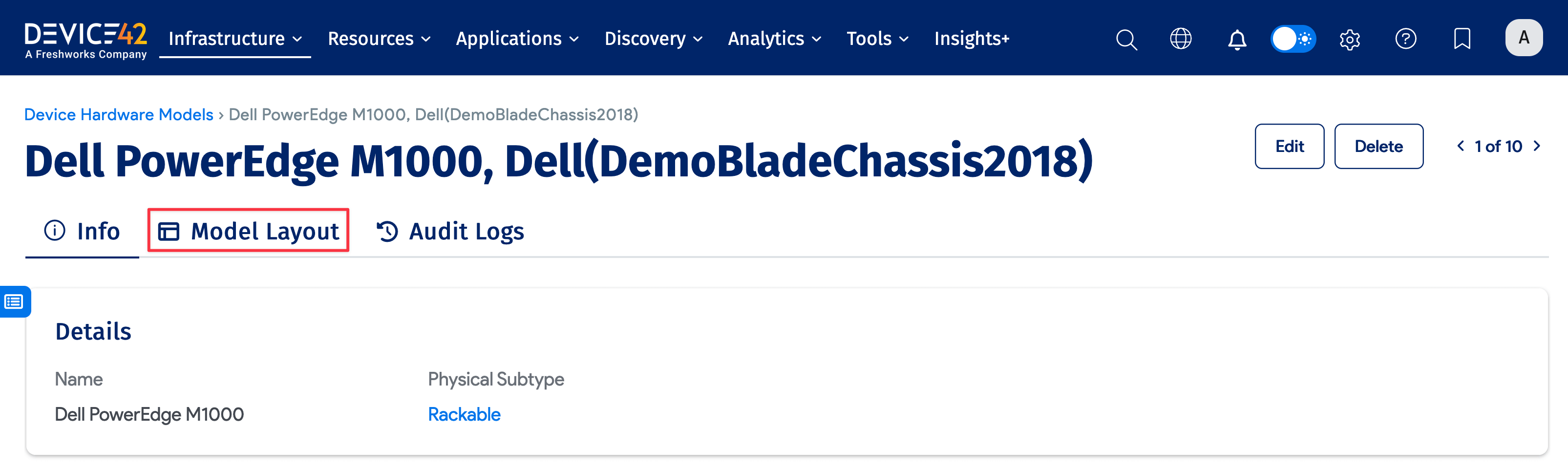
Search for the hardware model from the list page and click Model Layout to create or adjust the visual layout of the blade slots.
Use the Visual Model Editor
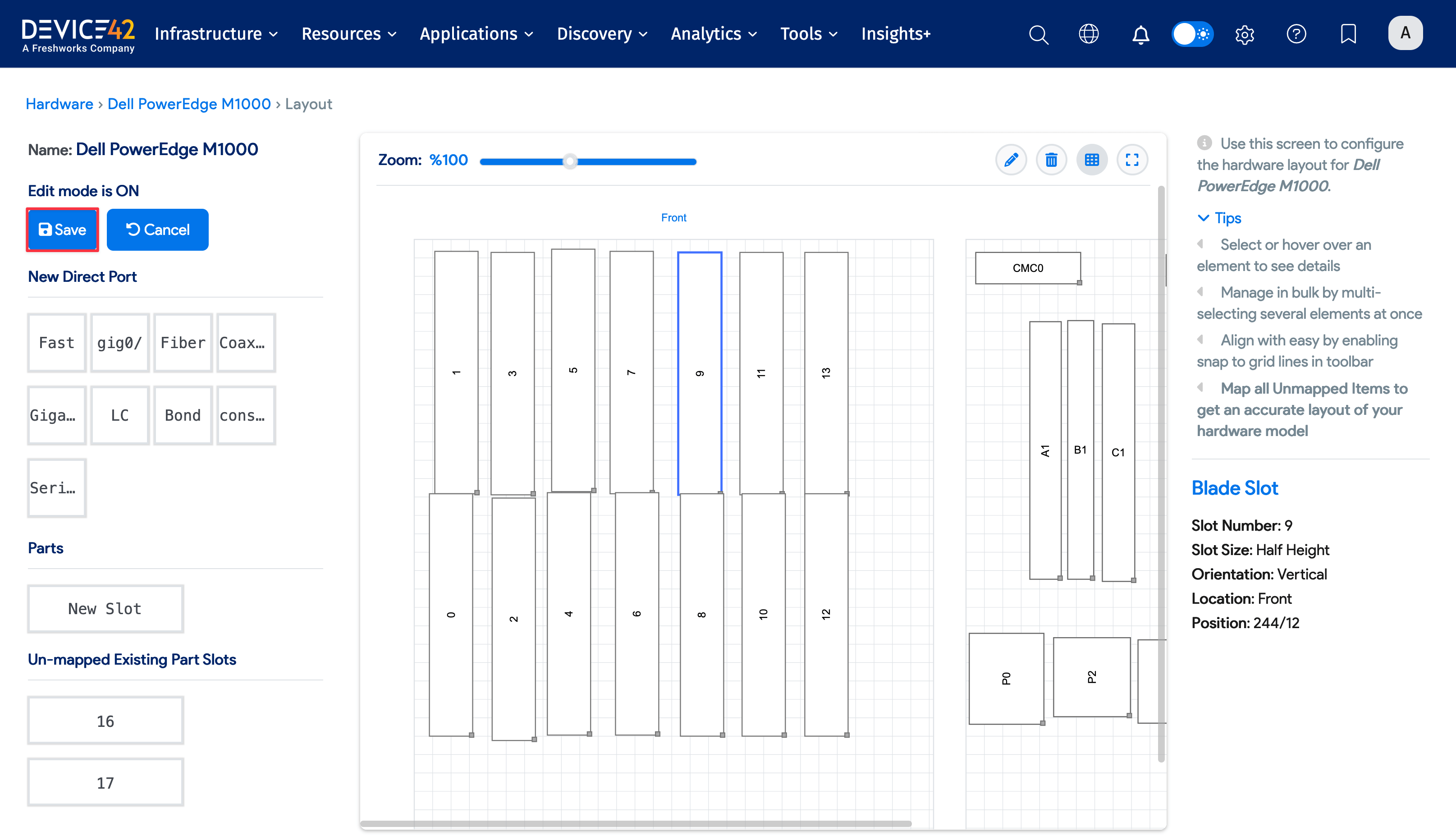
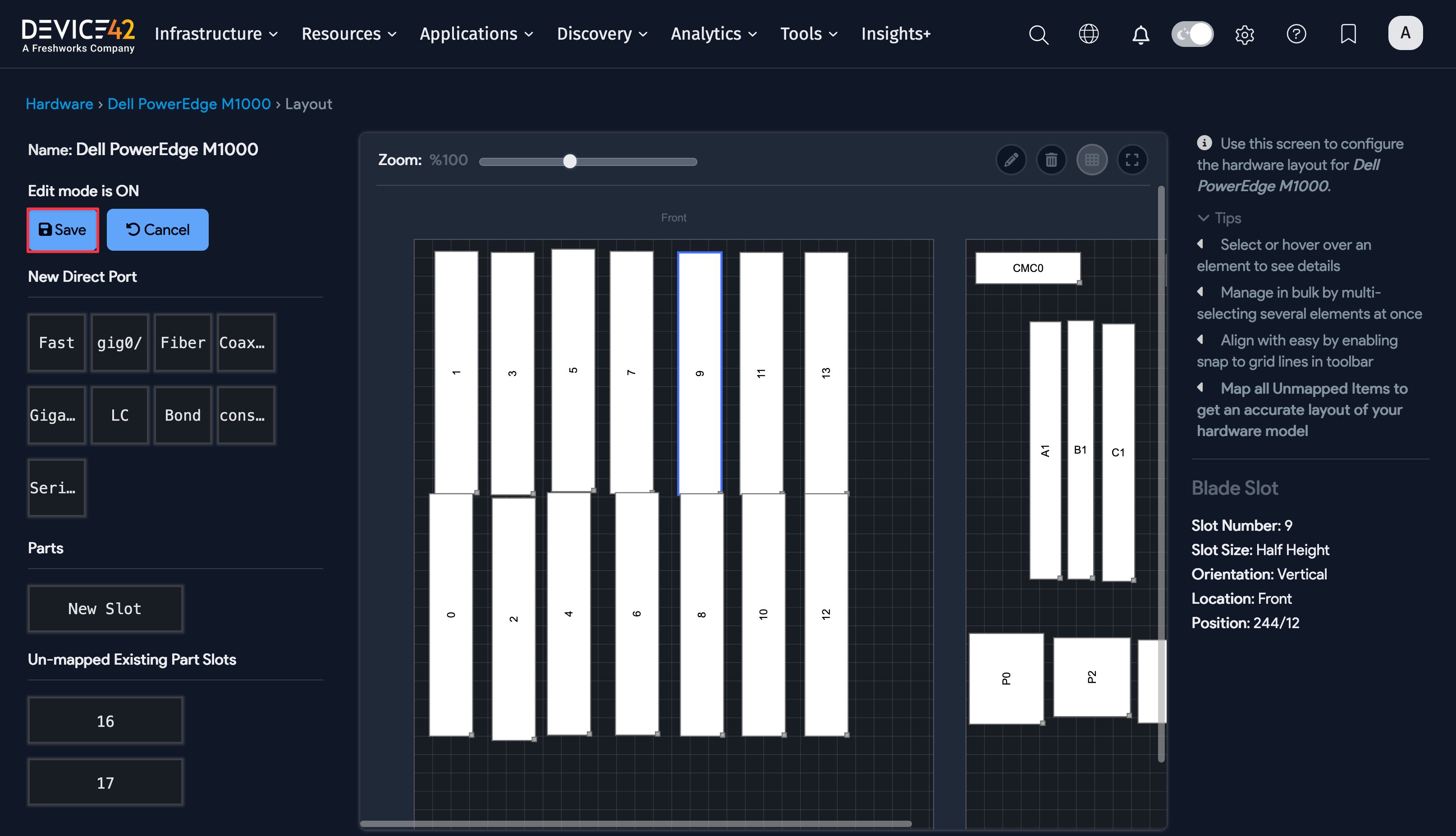
Click Turn ON to enable edit mode, then drag and drop blade slots as desired.
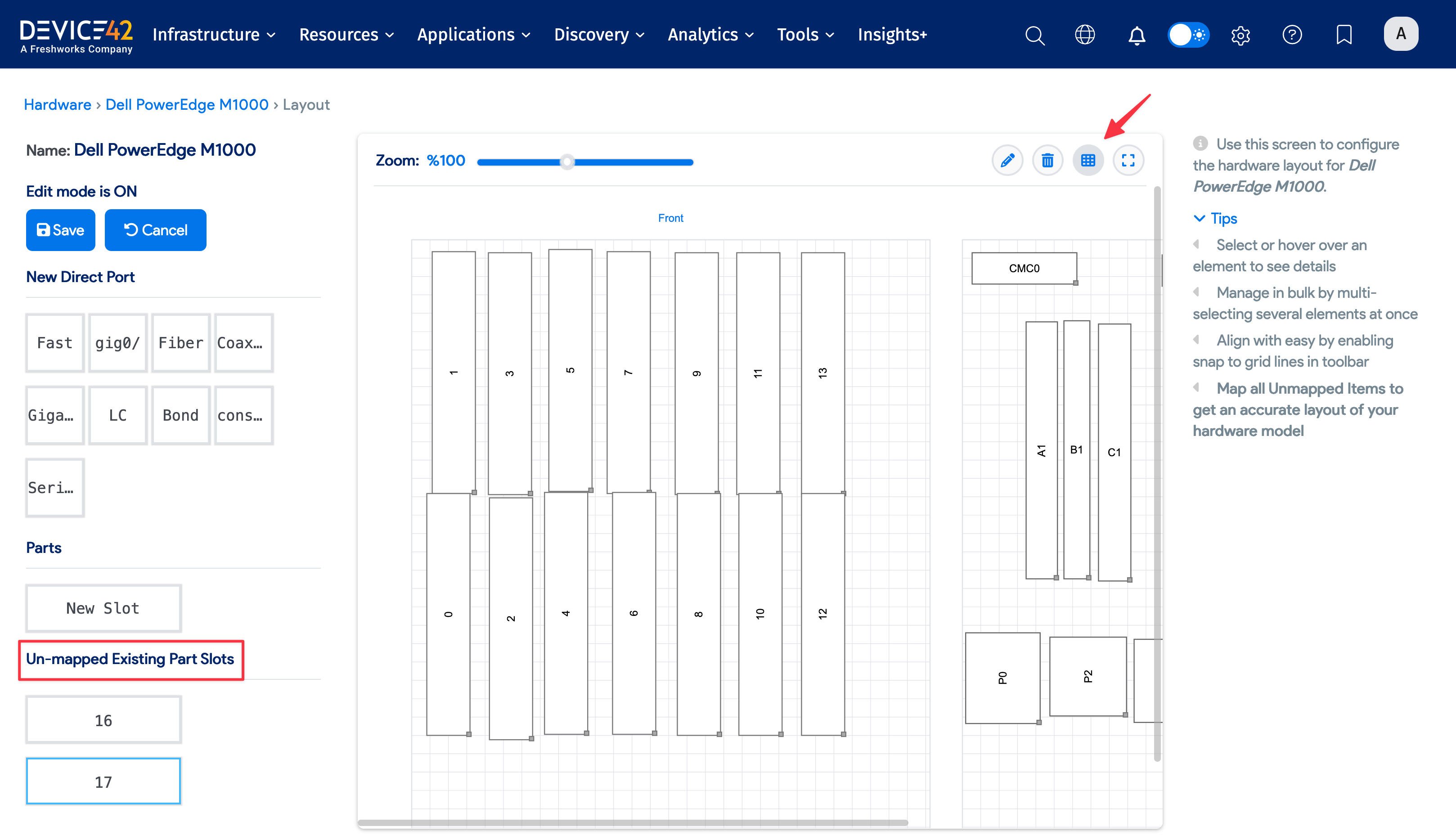
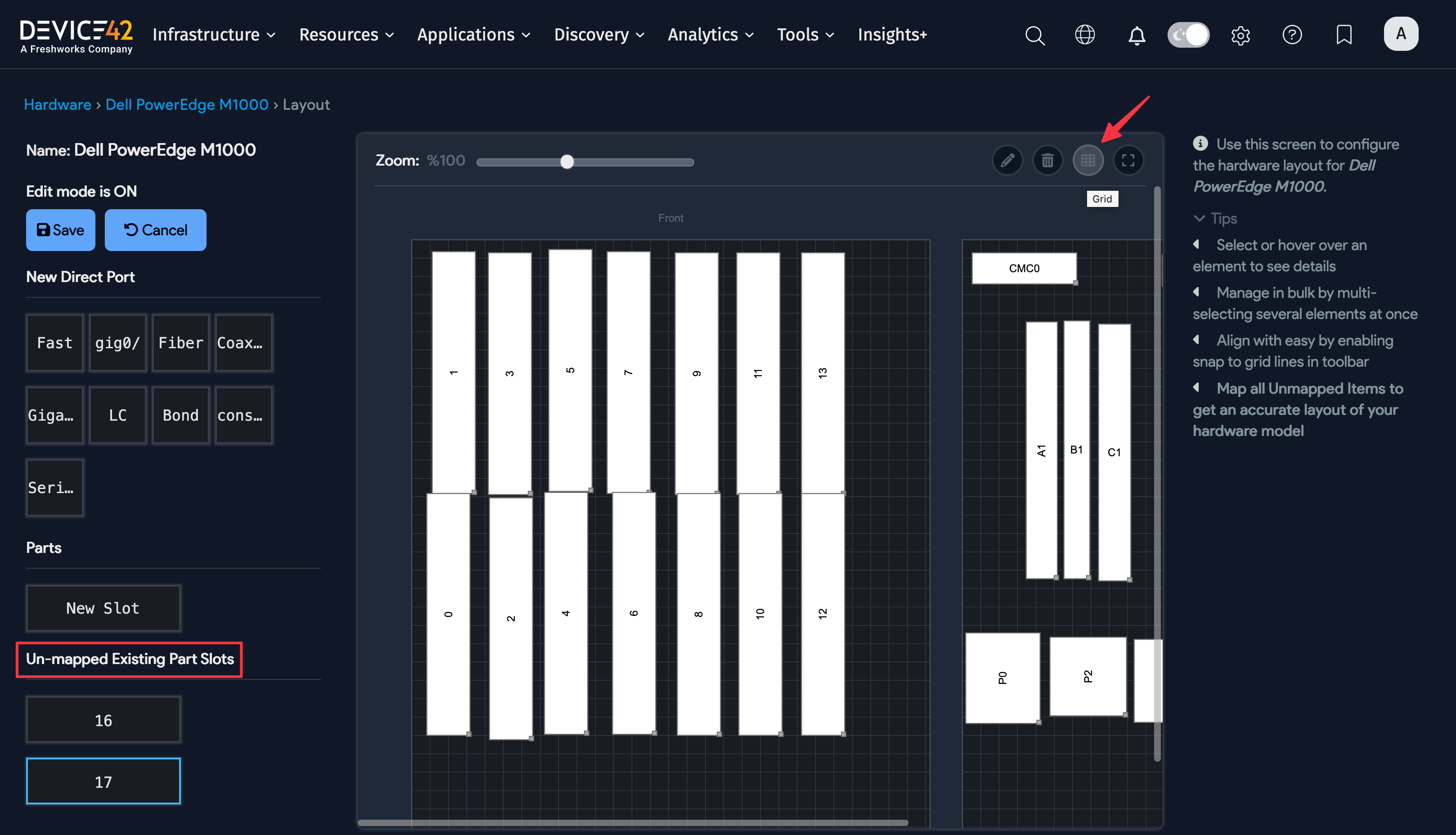
The slots you defined in the hardware model appear in the left column under Un-mapped Existing Blade Slots.
Toggle the grid background on or off using the grid icon to help align the slots.
Edit a Blade Slot
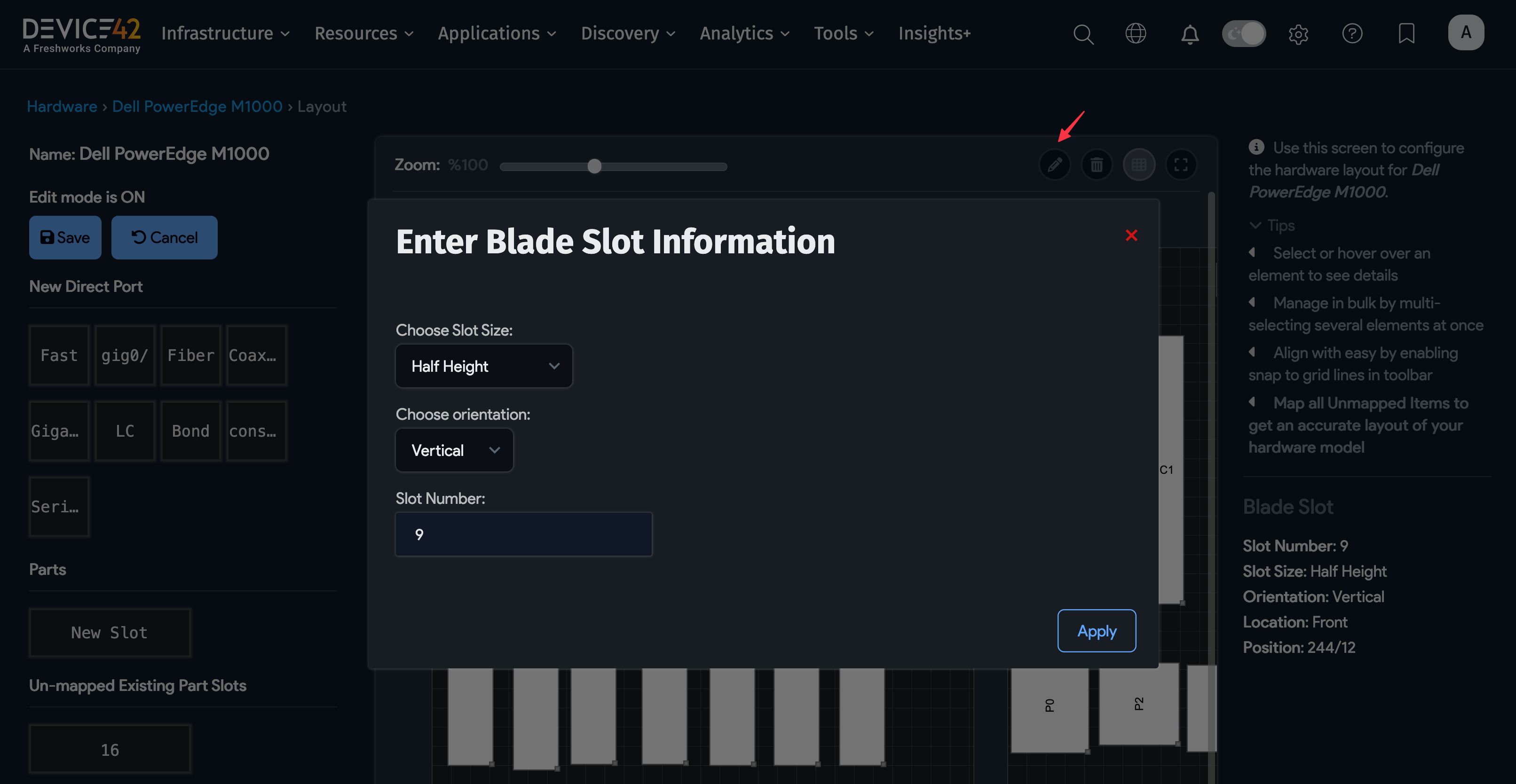
Double-click a blade slot or select it and click the pencil icon to change the slot size, orientation, or number.
Parts cannot be placed into a blade slot, but you can specify the height of the blade that occupies the slot.
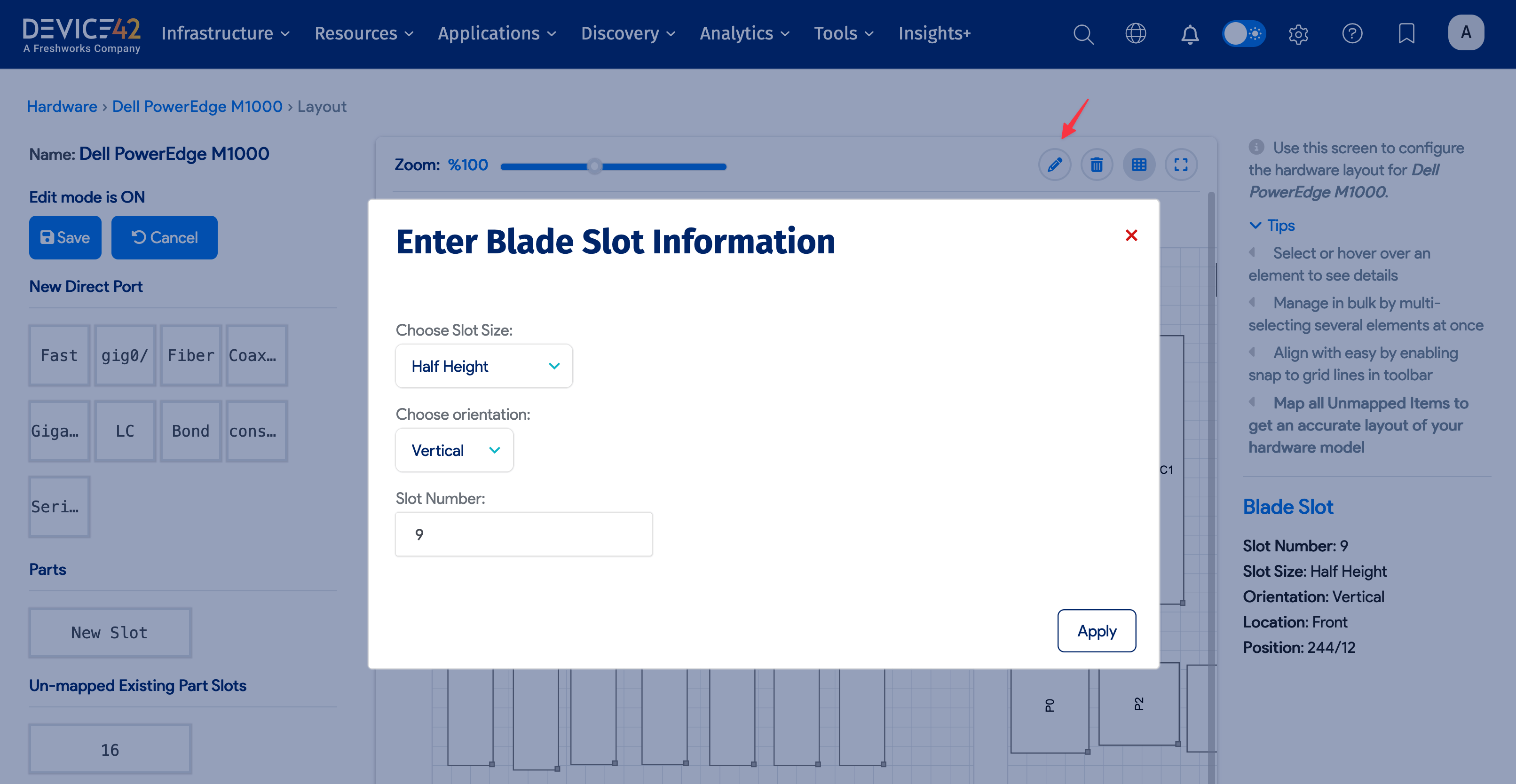
When you have finished editing your layout, click Save. A green confirmation notice appears at the top of the left panel.