Device - Blade Chassis
A blade chassis is a device that houses blade servers. In Device42, you can view the blades installed in a chassis, manage their slot positions, and visualize the layout.
View Blade Chassis Devices
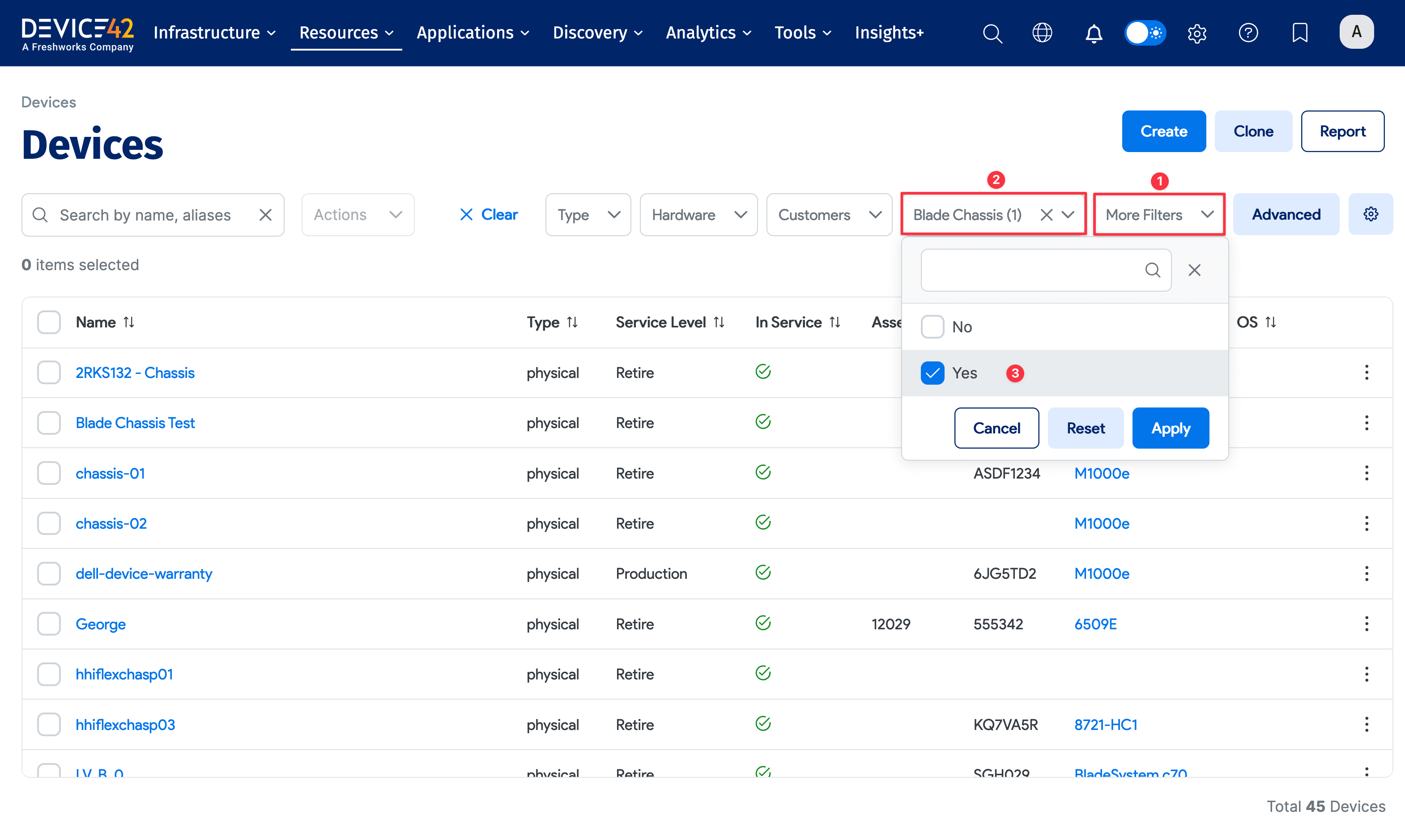
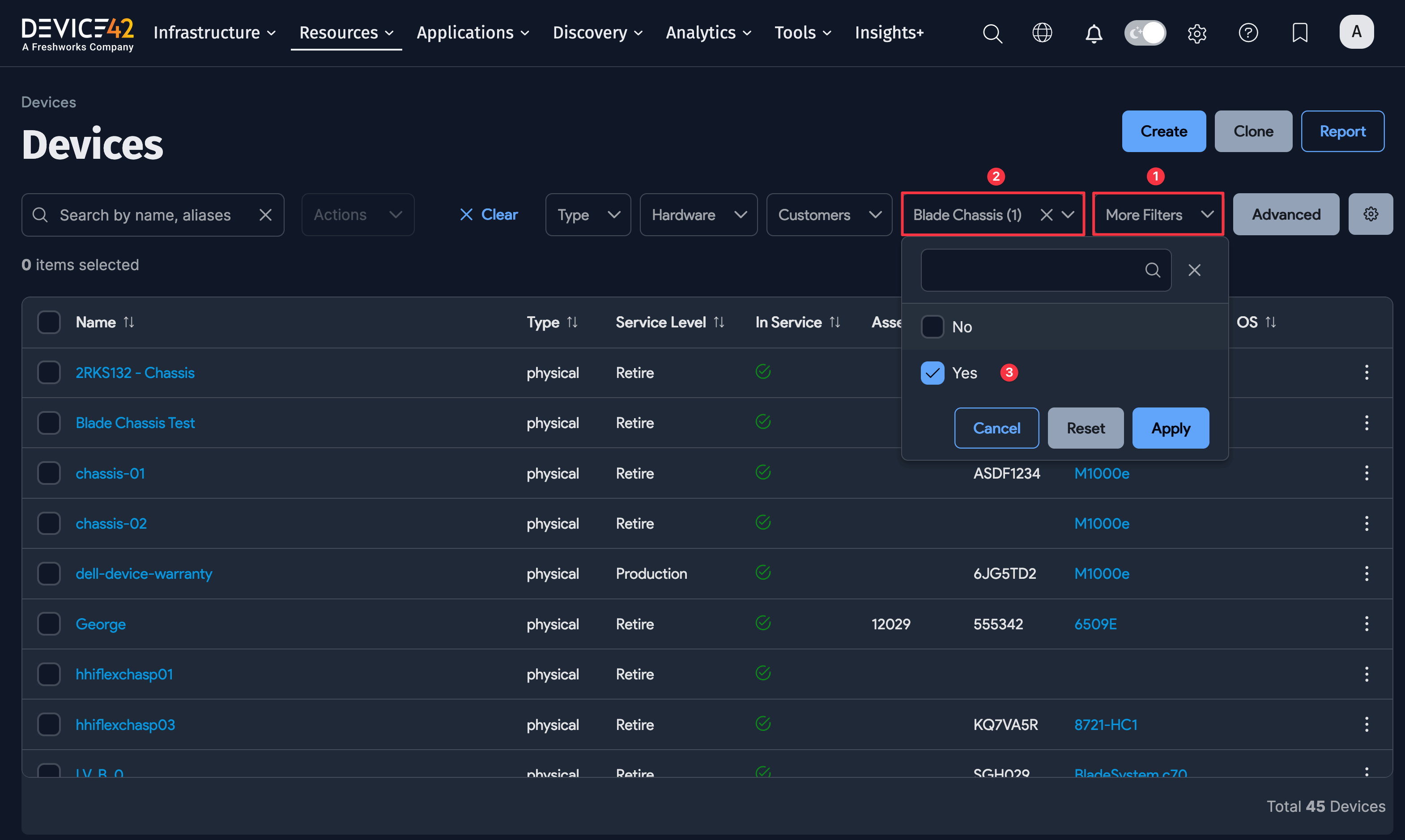
Navigate to Resources > Compute > All Devices and filter for blade chassis devices.
- Click More Filters and select the Blade Chassis checkbox to display its dropdown.
- Choose Yes from the dropdown.
Blades Tab
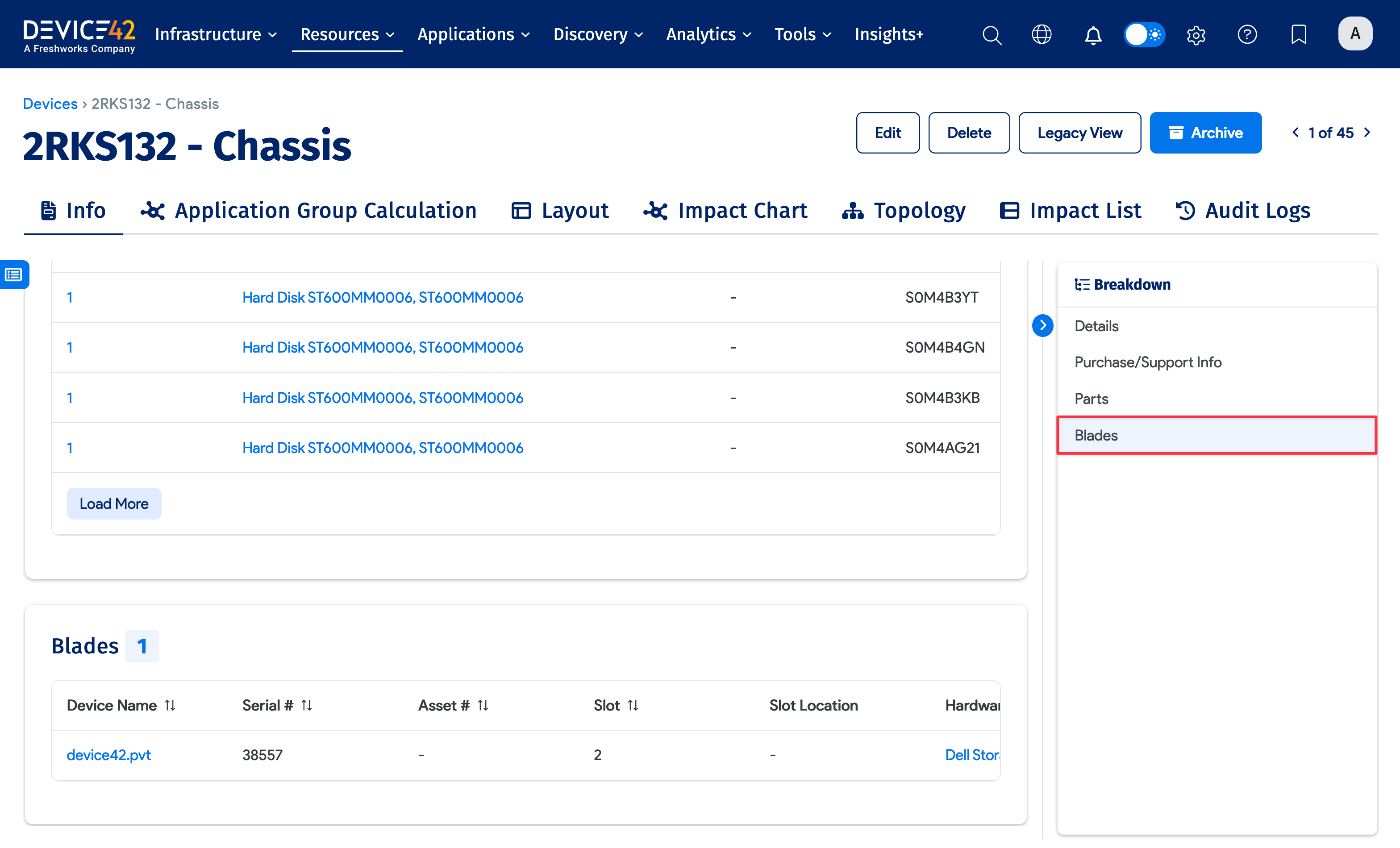
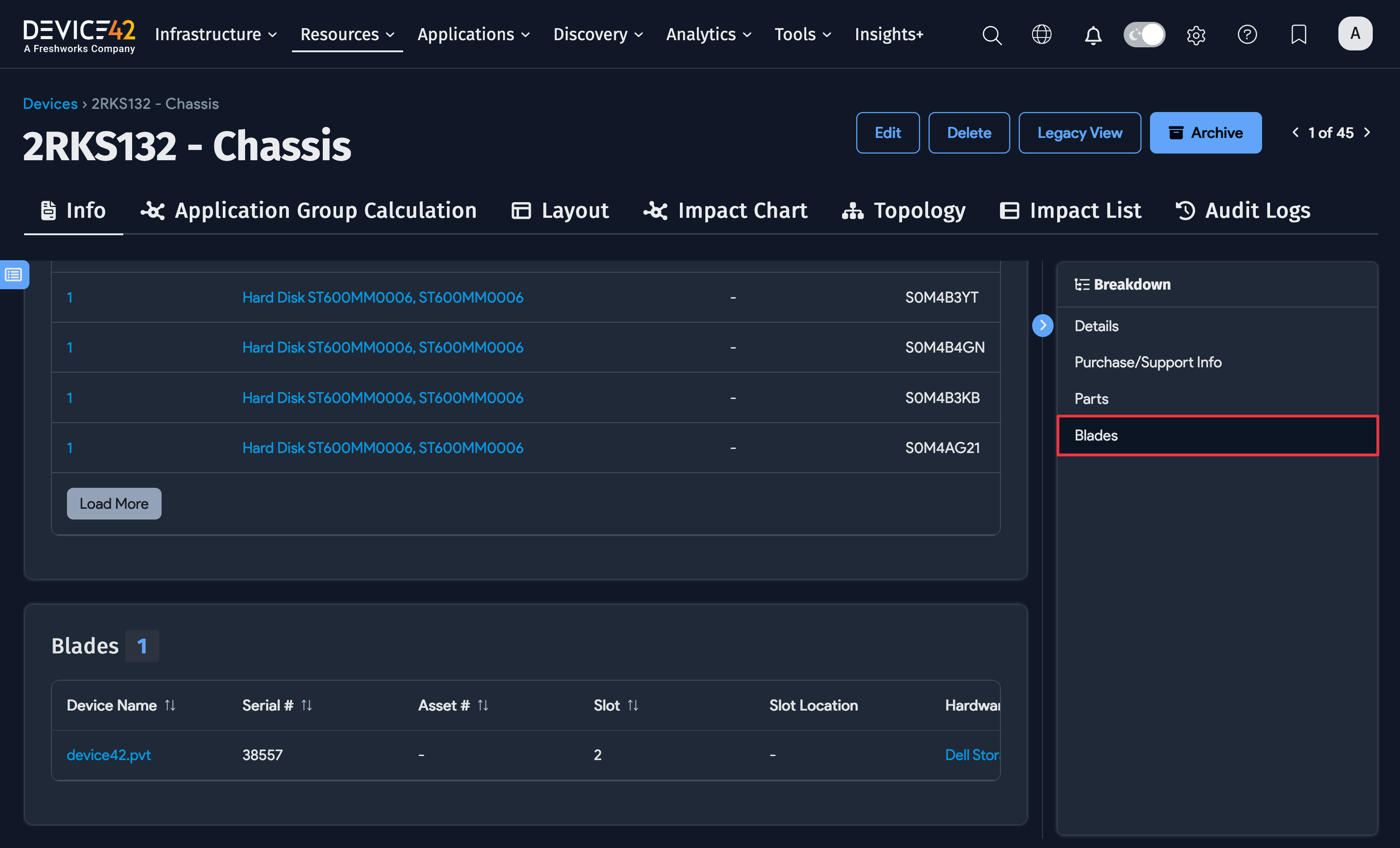
Select a blade chassis from the Devices list page and, from the Breakdown panel on the right, click Blades.
The Blades tab shows information about each device in the chassis. Blades are sorted by Slot number. Each blade has a link to its device page and displays its Serial #, Asset #, Slot Location, and Hardware Model.
Add a New Blade
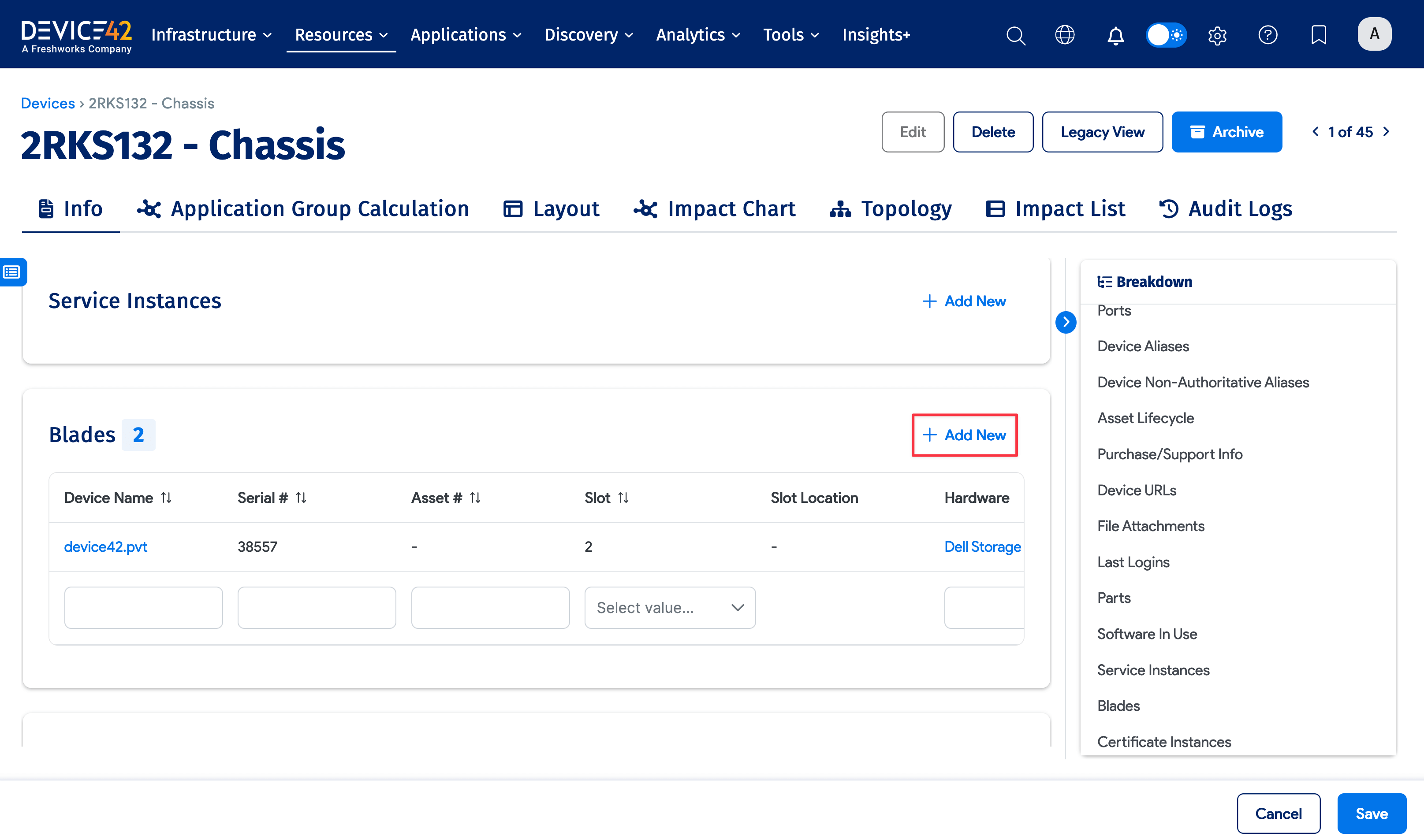
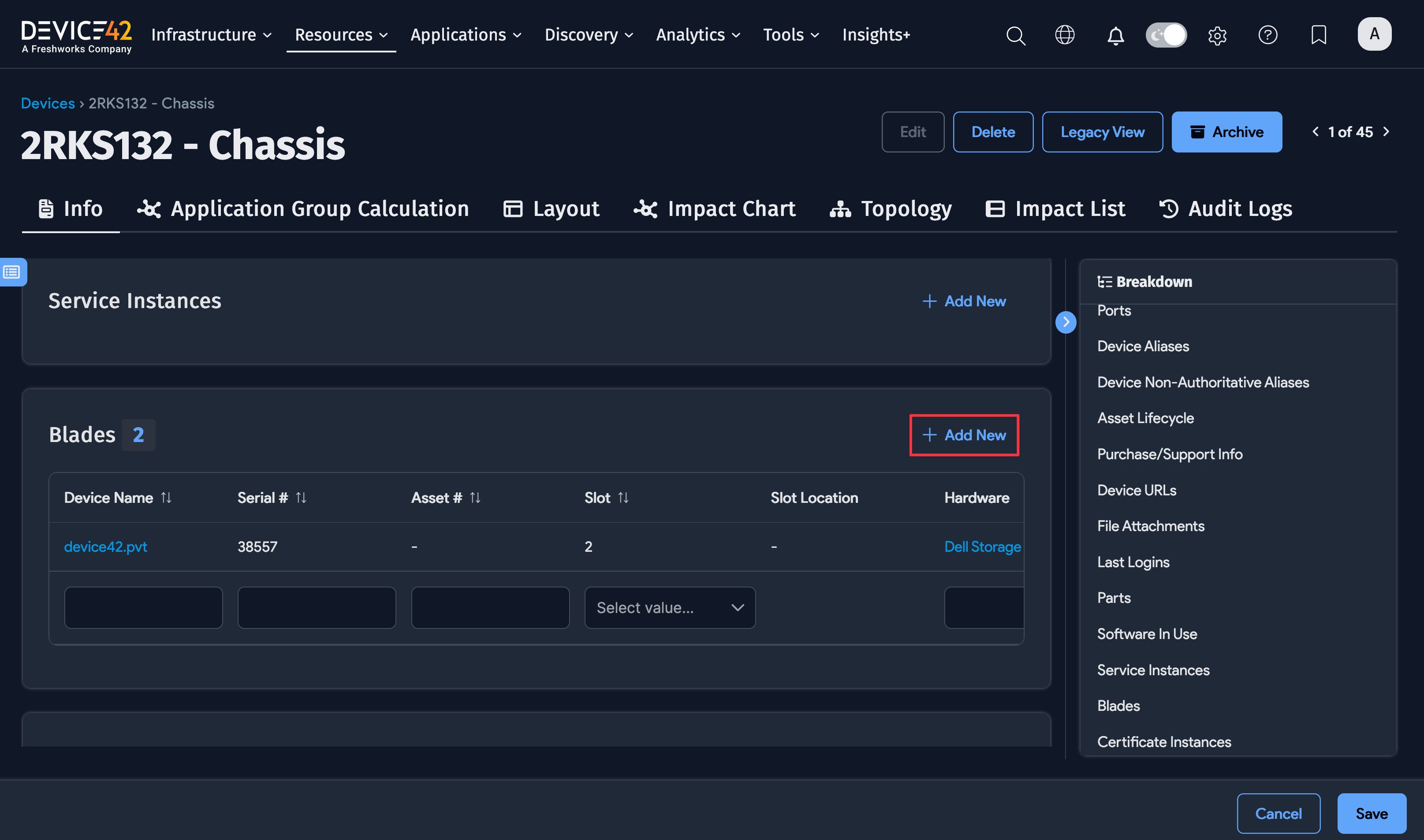
In device Edit mode, click + Add New from the Blade tab to add a blade to the chassis. The hardware model for the blade device must exist beforehand.
Blade Chassis Layout
The layout view lets you visualize blades within their chassis. The overall layout is defined by the chassis hardware model, which needs to be configured before you add and position specific blades.
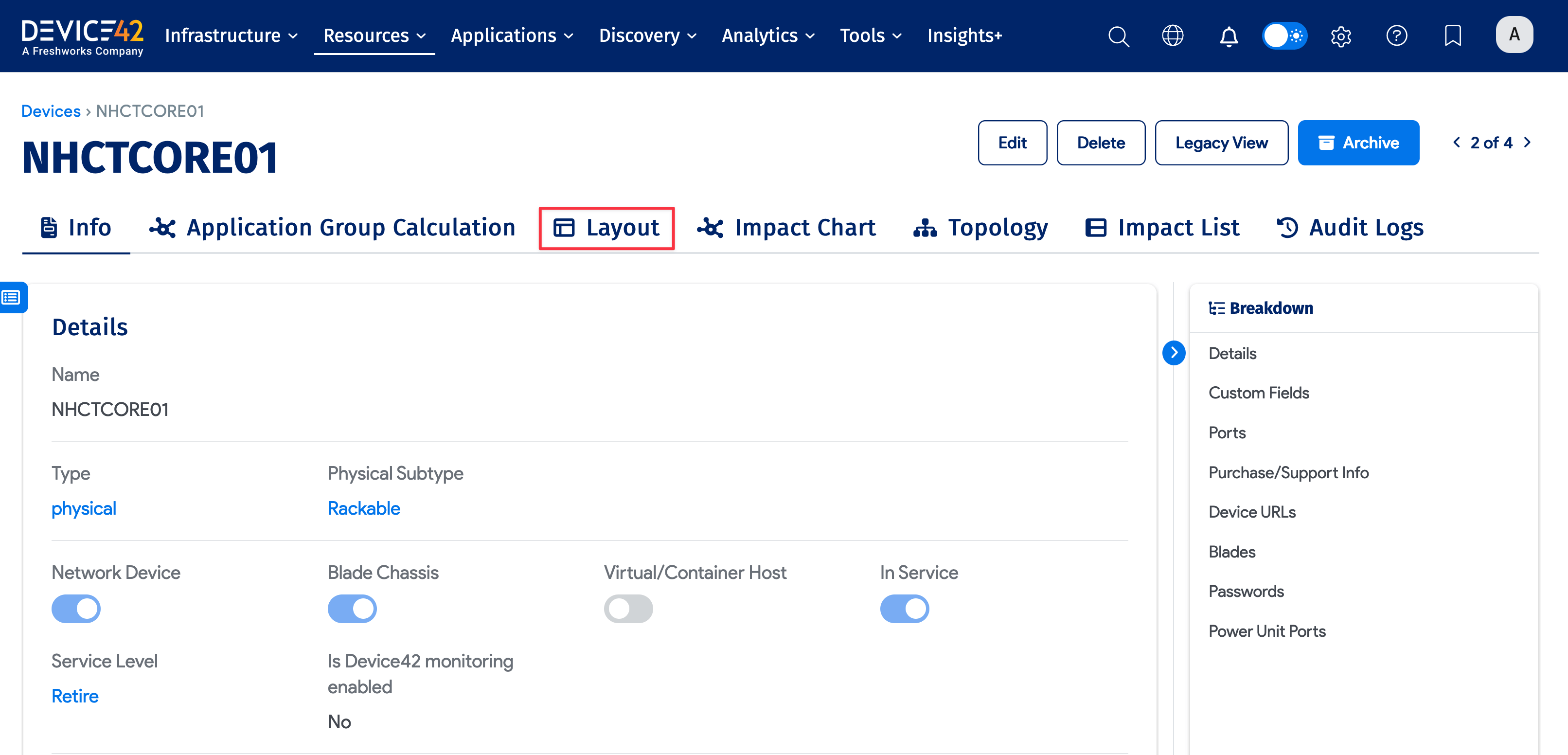
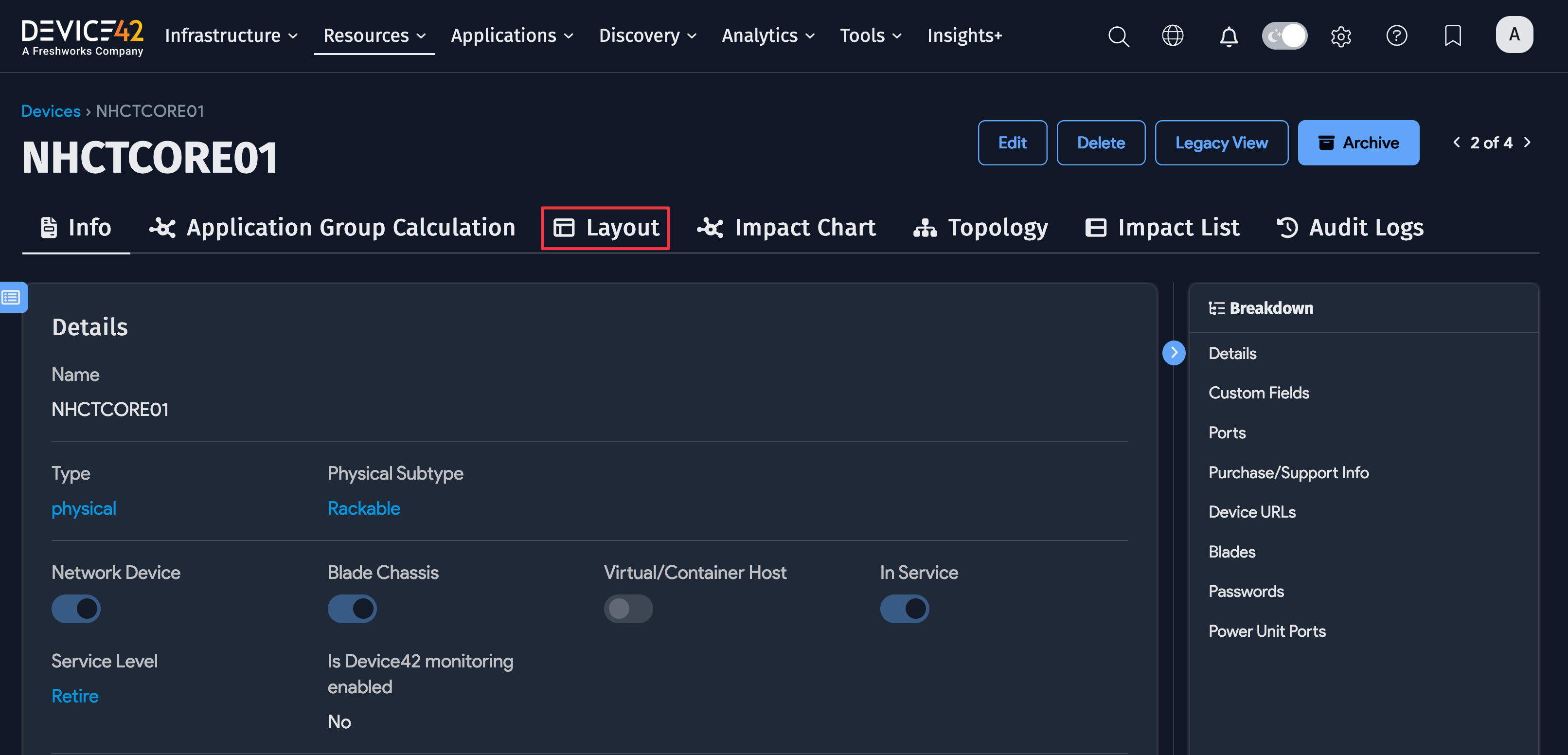
From the device details page, click Layout.
Click Turn ON to edit the layout. Drag and drop the blades to position them in the correct slots. Blade slot numbers must be numeric, not alphanumeric.
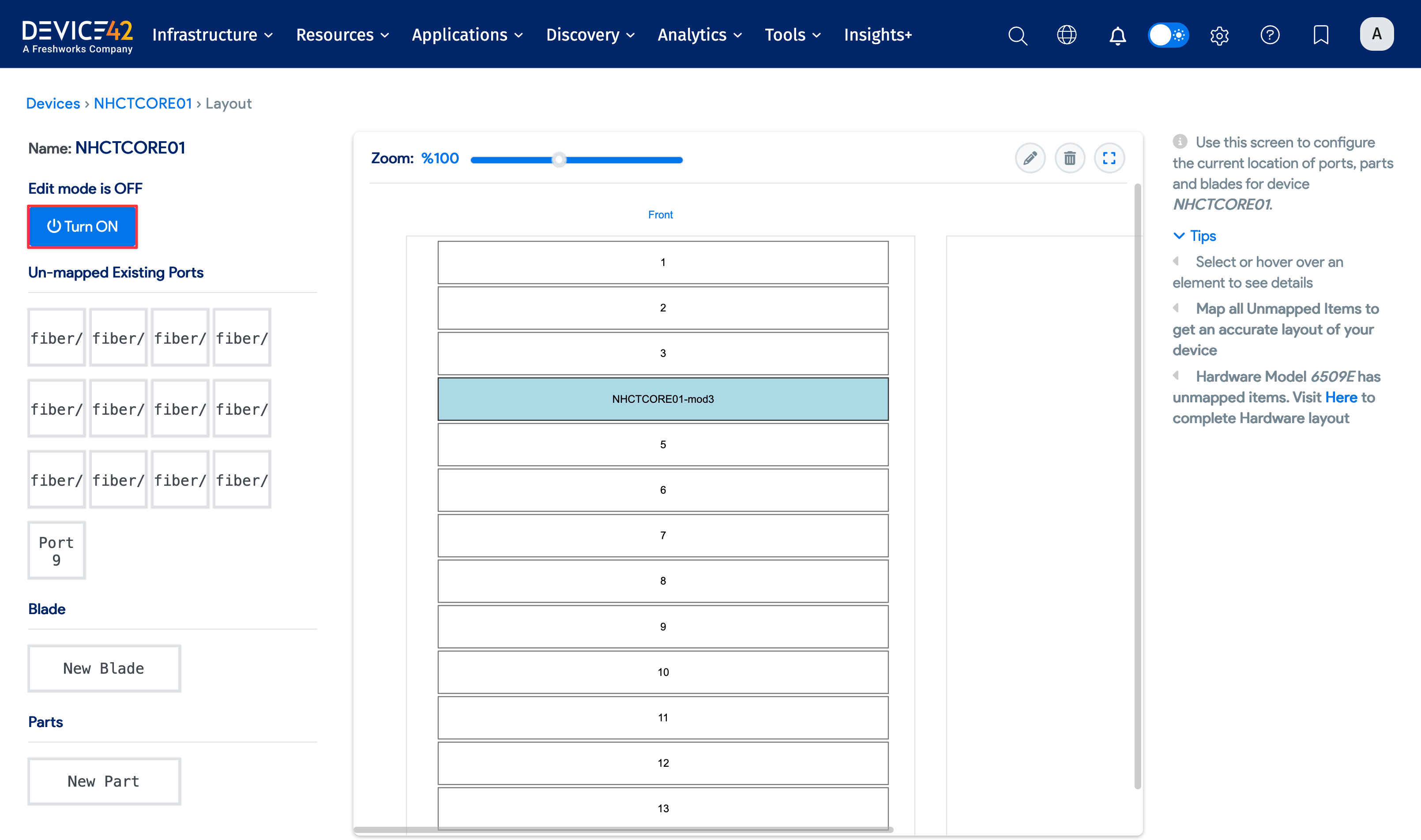
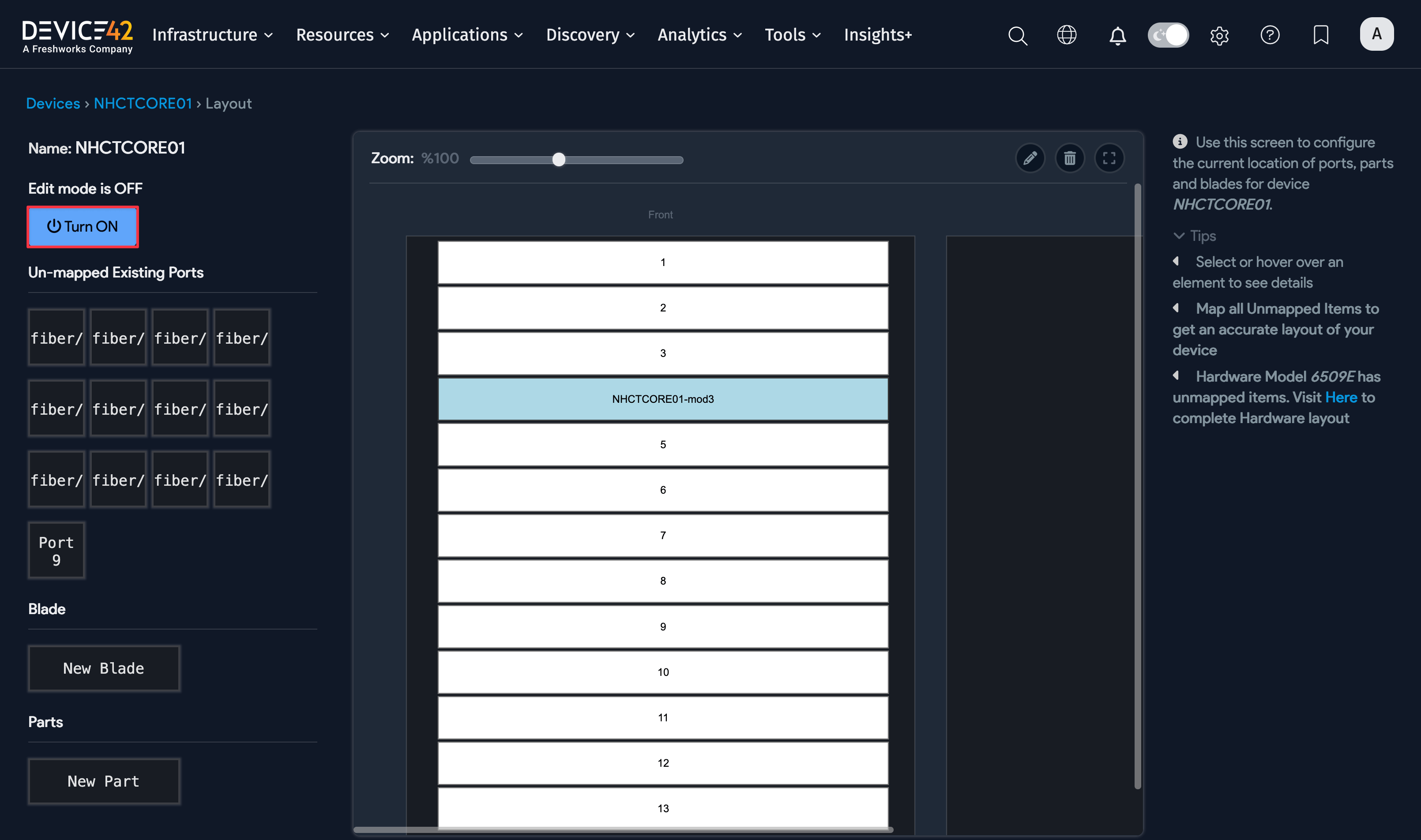
For blade-specific templating information, see the Blade Slots documentation.
Edit Hardware Models
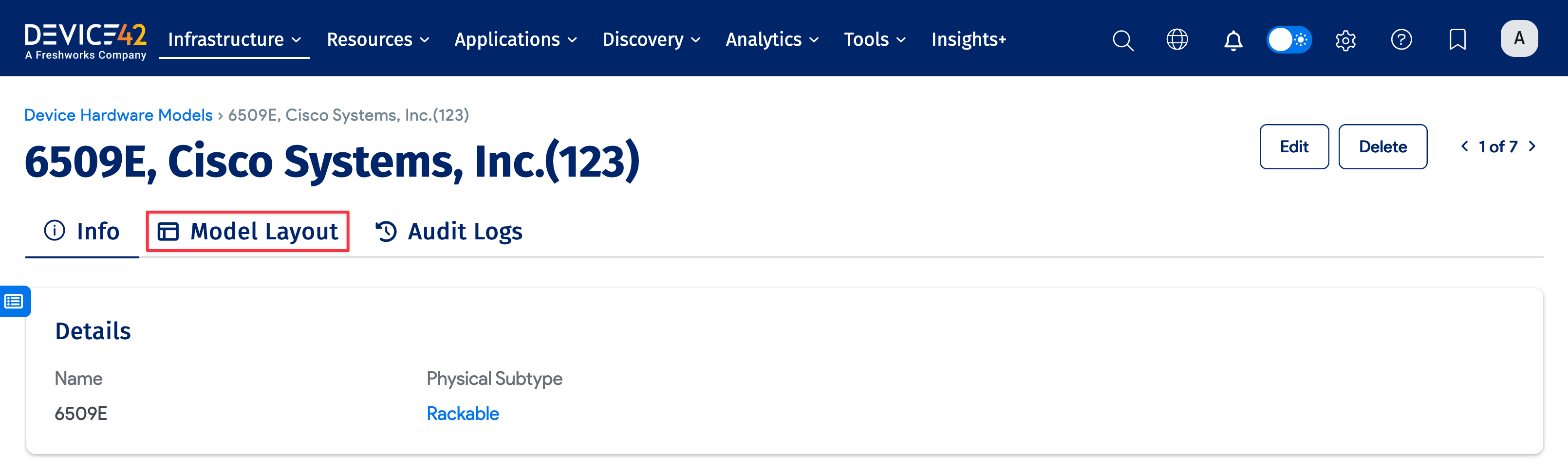
To edit the layout of a blade, select its hardware model from the list page under Infrastructure > Hardware Models and click the Model Layout tab.

Turn on edit mode and add a New Slot to an existing model by dragging the slot box to the layout and filling in the fields.
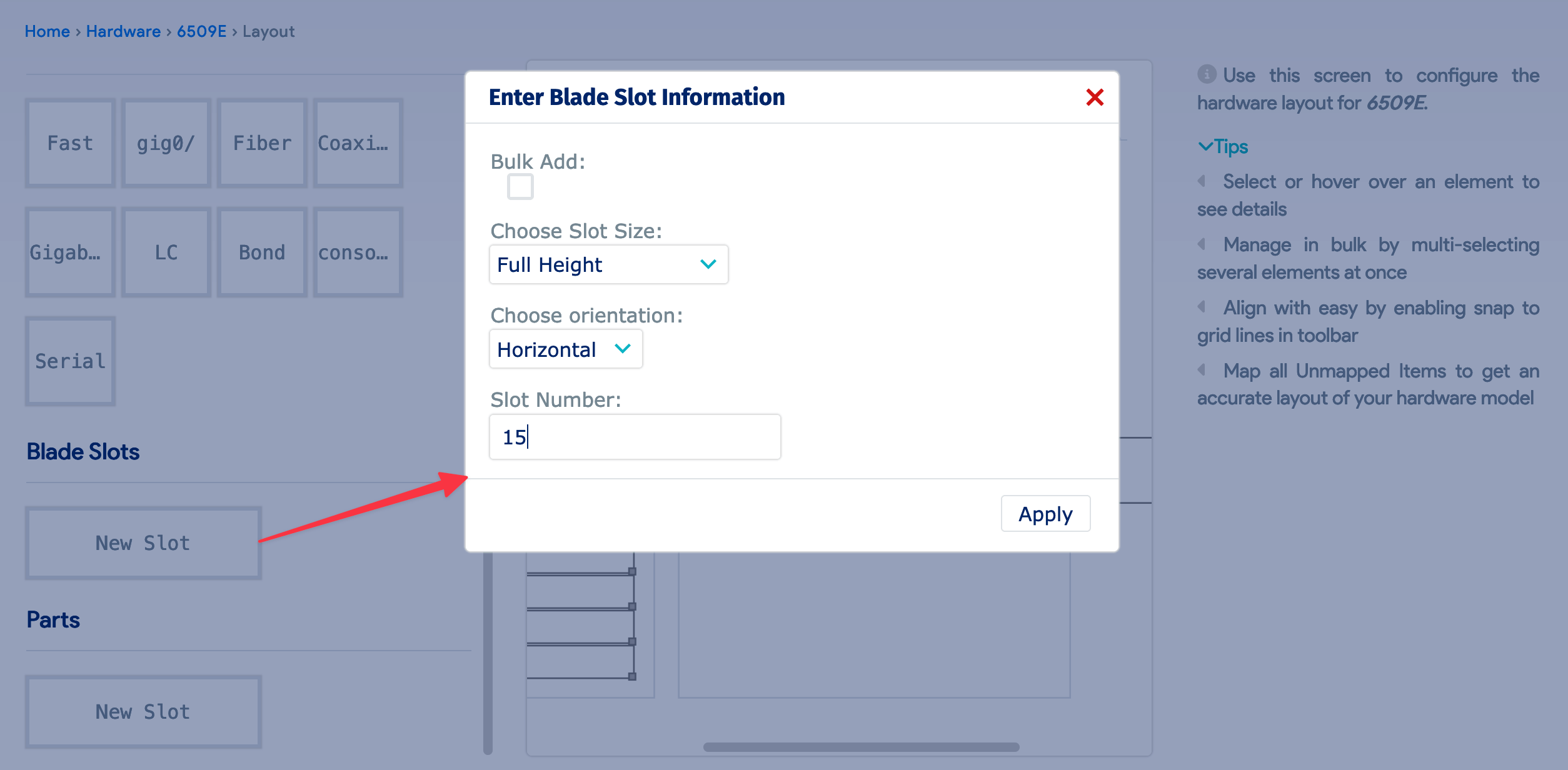
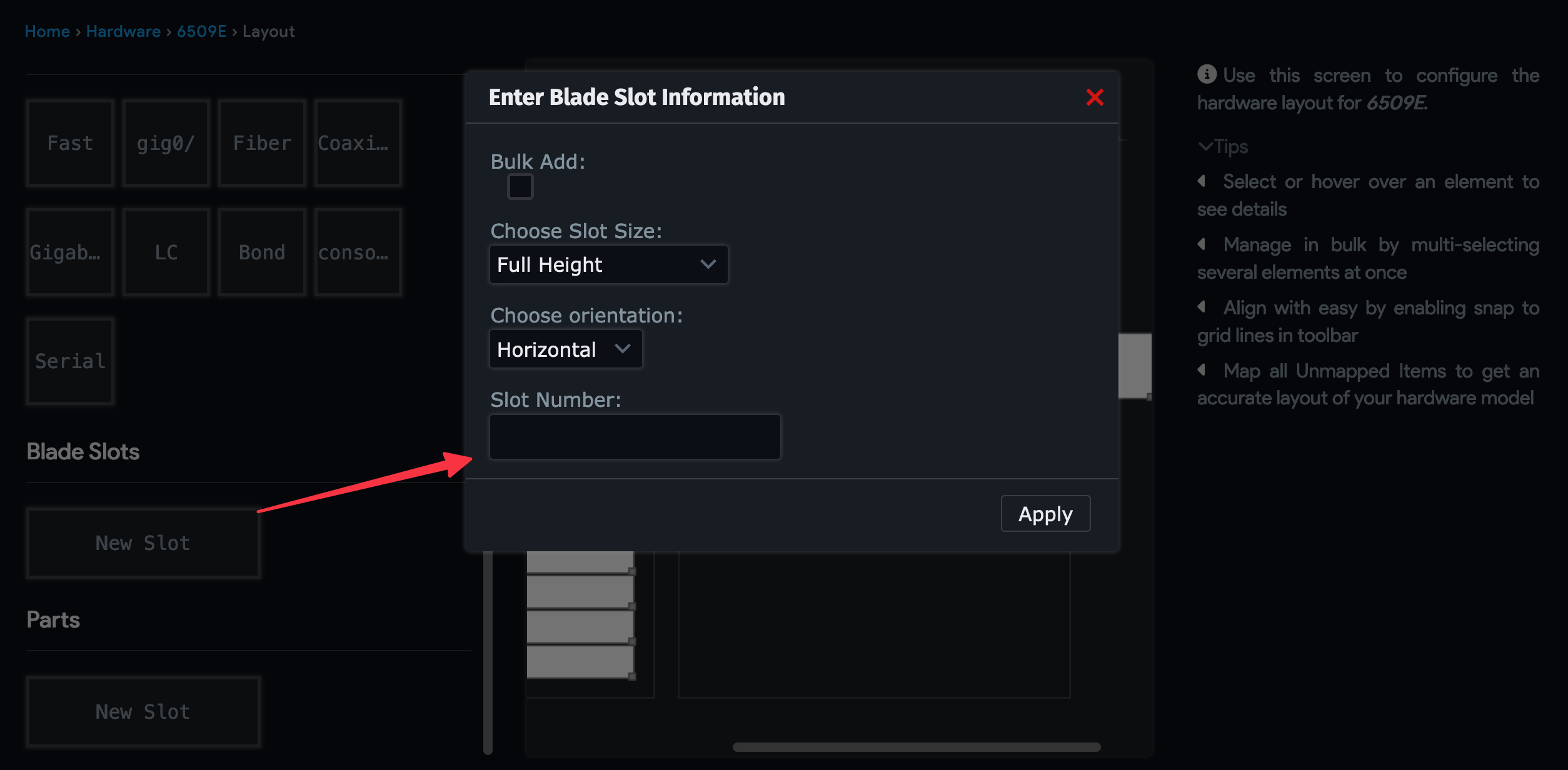
- Choose Slot Size: Full, half, double, or quarter heights.
- Choose Orientation: Vertical or Horizontal positioning.
- Slot Number: The next slot number in the sequence.
For hardware model settings that apply to all device types, see Hardware Models (Templates).