Data Validation
In the Data Validation phase you will verify the quality and reliability of the discovered data. You will compare discovered data against existing reliable data sources in order to confirm the discovered data is accurate, complete, and consistent. If you find data that is missing (for example, missing devices), blank (for example, missing Model Name), or incorrect (for example, incorrect hostname), we recommend you contact Device42 Support at https://support.device42.com/ for help.
This is the third phase (Data Validation) in the Device42 implementation process. See How is Device42 Implemented? for an overview of all four phases.
Data Validation Methods
There are three primary methods for reviewing discovered Device42 data, so that it can be compared against other data sources—viewing individual records, exporting data in bulk, and generating reports.
Viewing Individual Records
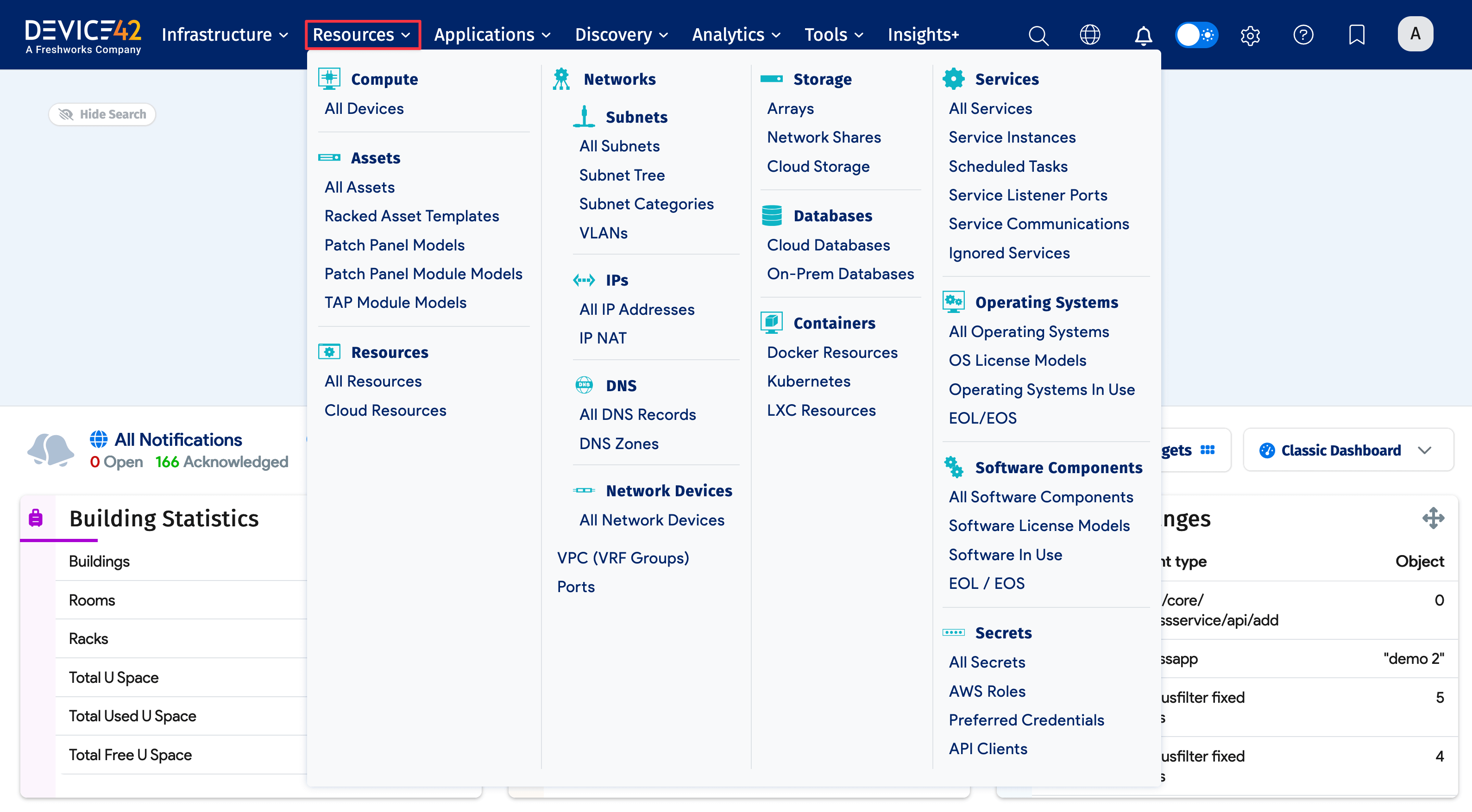
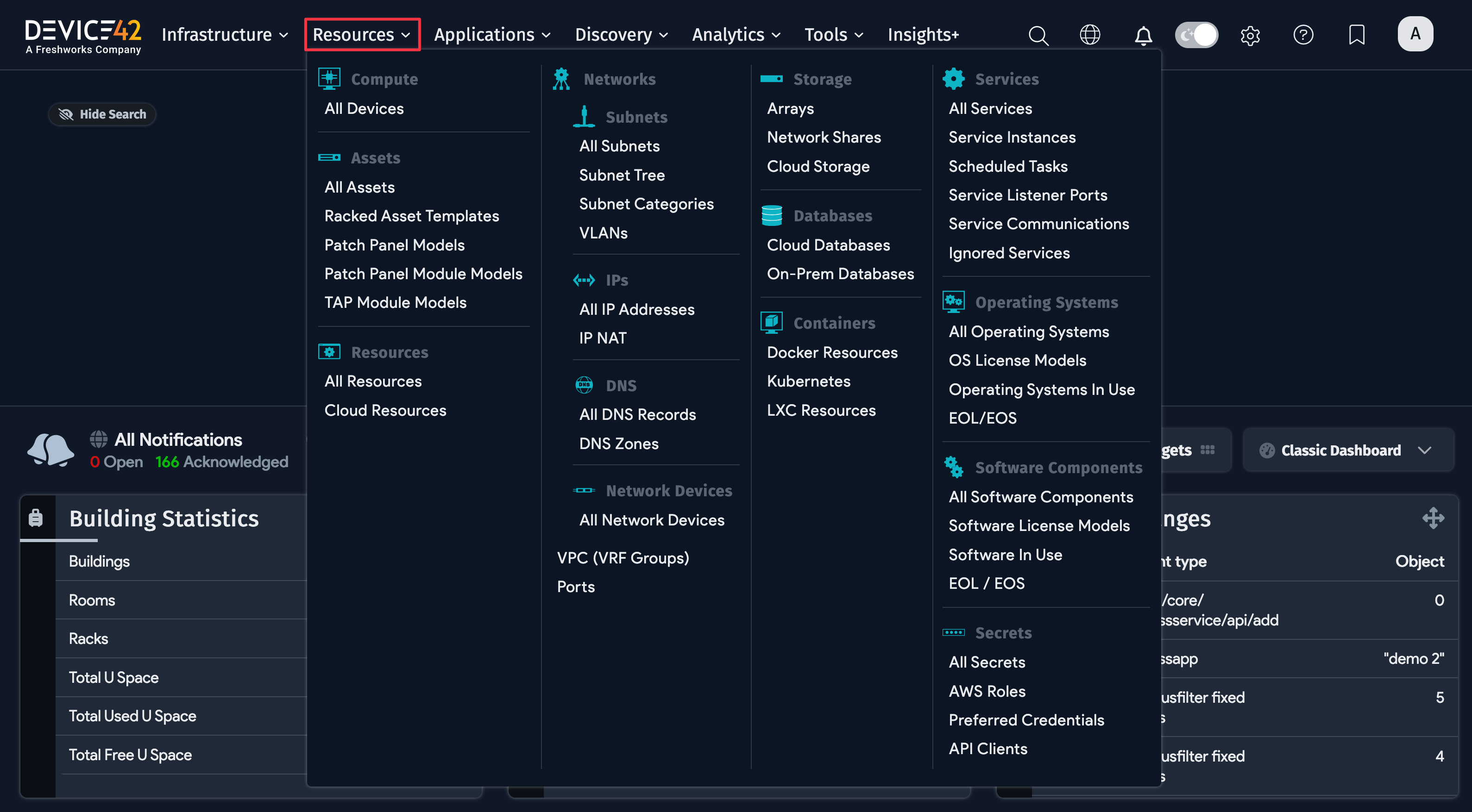
To view individual records, perform the following steps:
- Hover over Resources, then click the item you wish to view (for example, All Devices)
- Click on the name of the item whose data you wish to view
Exporting Data in Bulk
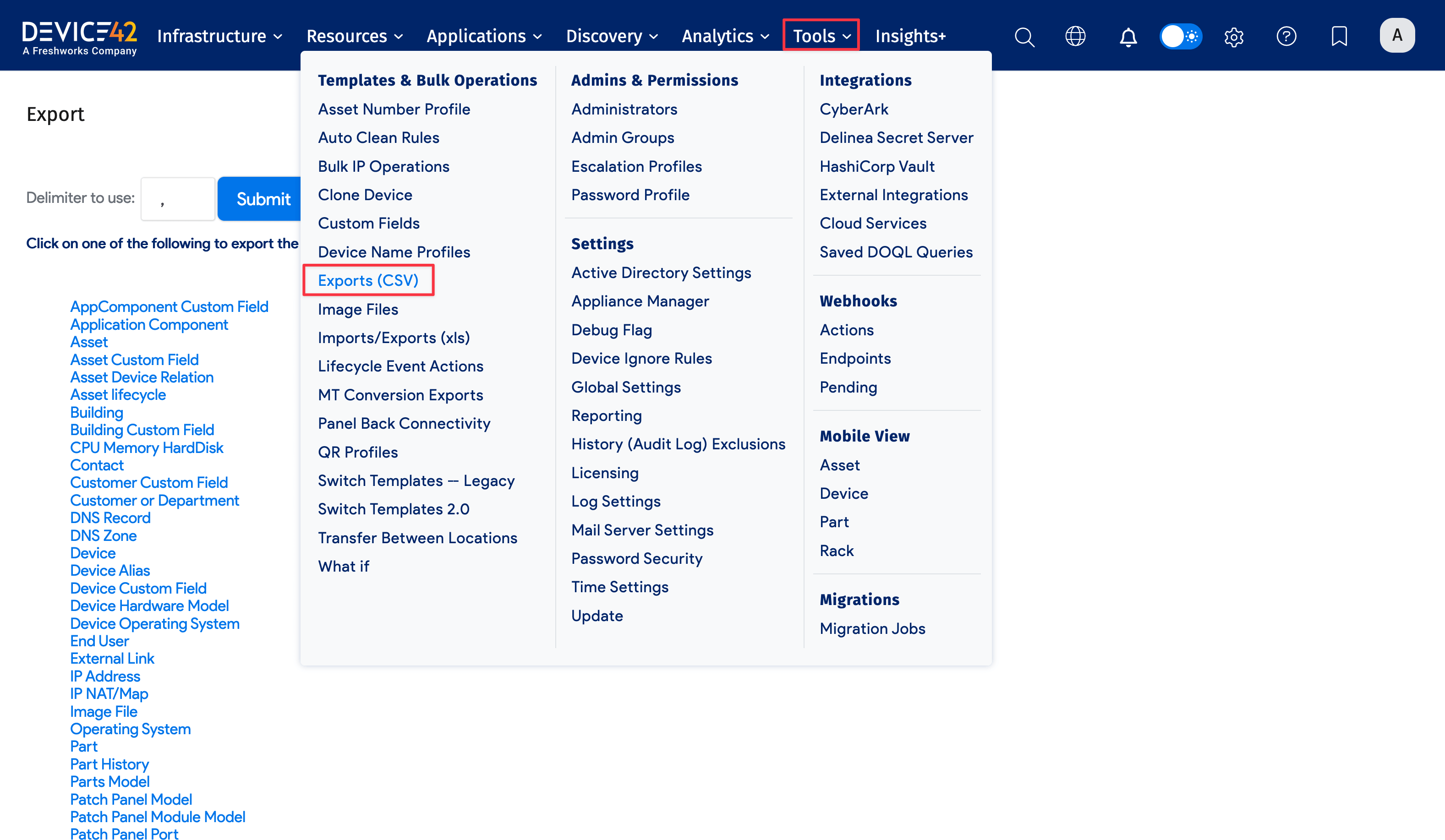
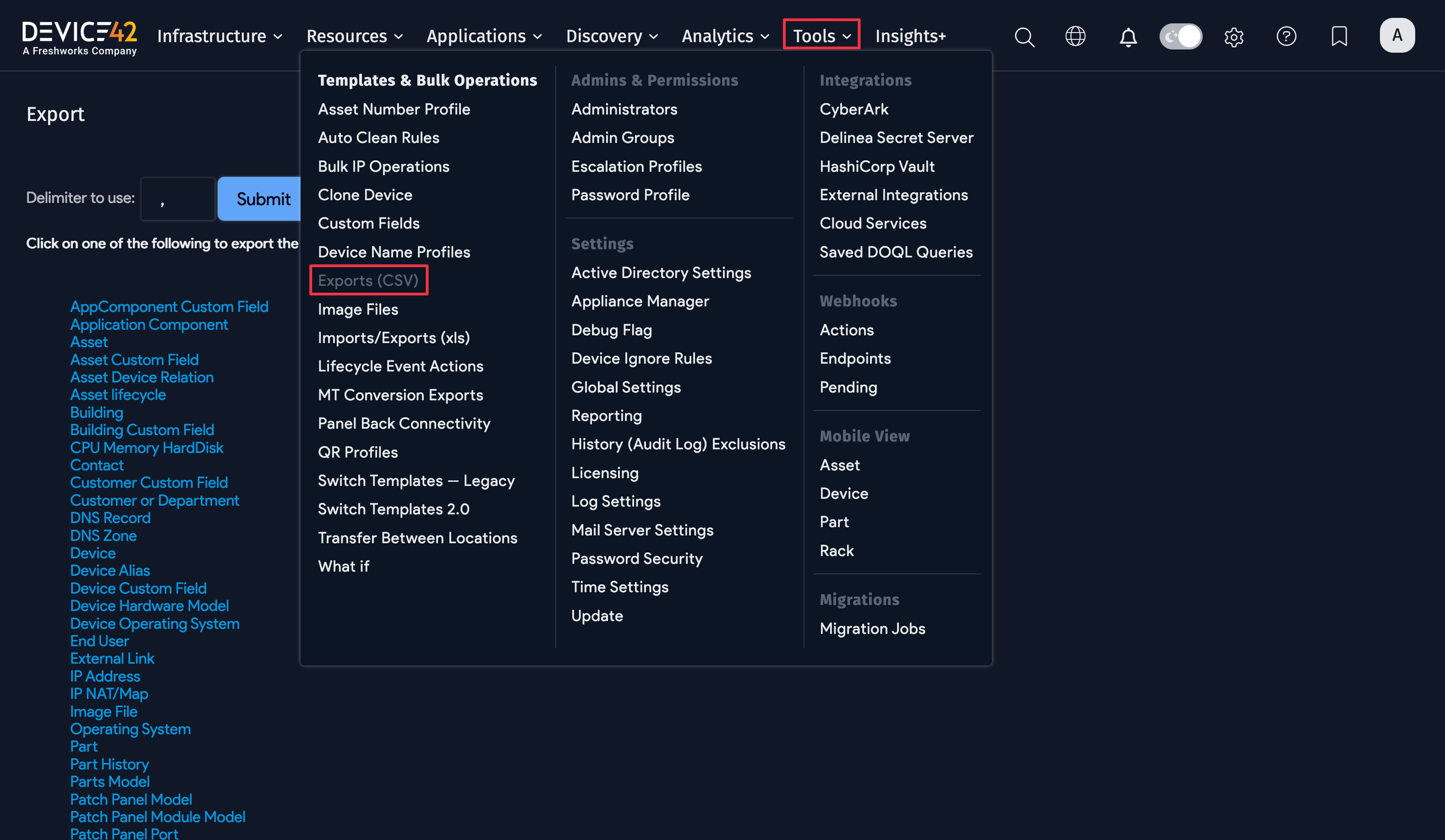
To export data in bulk that can later be reviewed, perform the following steps:
- Hover over Tools, then click Exports (CSV)
- Click the name of the item whose data you want to export (for example, Device)
Generating Reports
There are several useful reports to validate discovered data. To run these reports, perform the following steps:
- Click Insights+
- Click the folder and report you want to use; for example:
- Modernization > Compute to review Utilization, Hardware, and Operating System information
- Compliance/Audit > Environmental Summary to review physical and virtual devices, OS and version information, and installed software package information
- IT Service Delivery > Insights+ Overview to see an overall view of your IT enterprise
Data Validation and Data Import
While Device42's CMDB is primarily updated through discovery jobs, it can also be updated by way of manual entry, data import, or via API.
Manual Entry
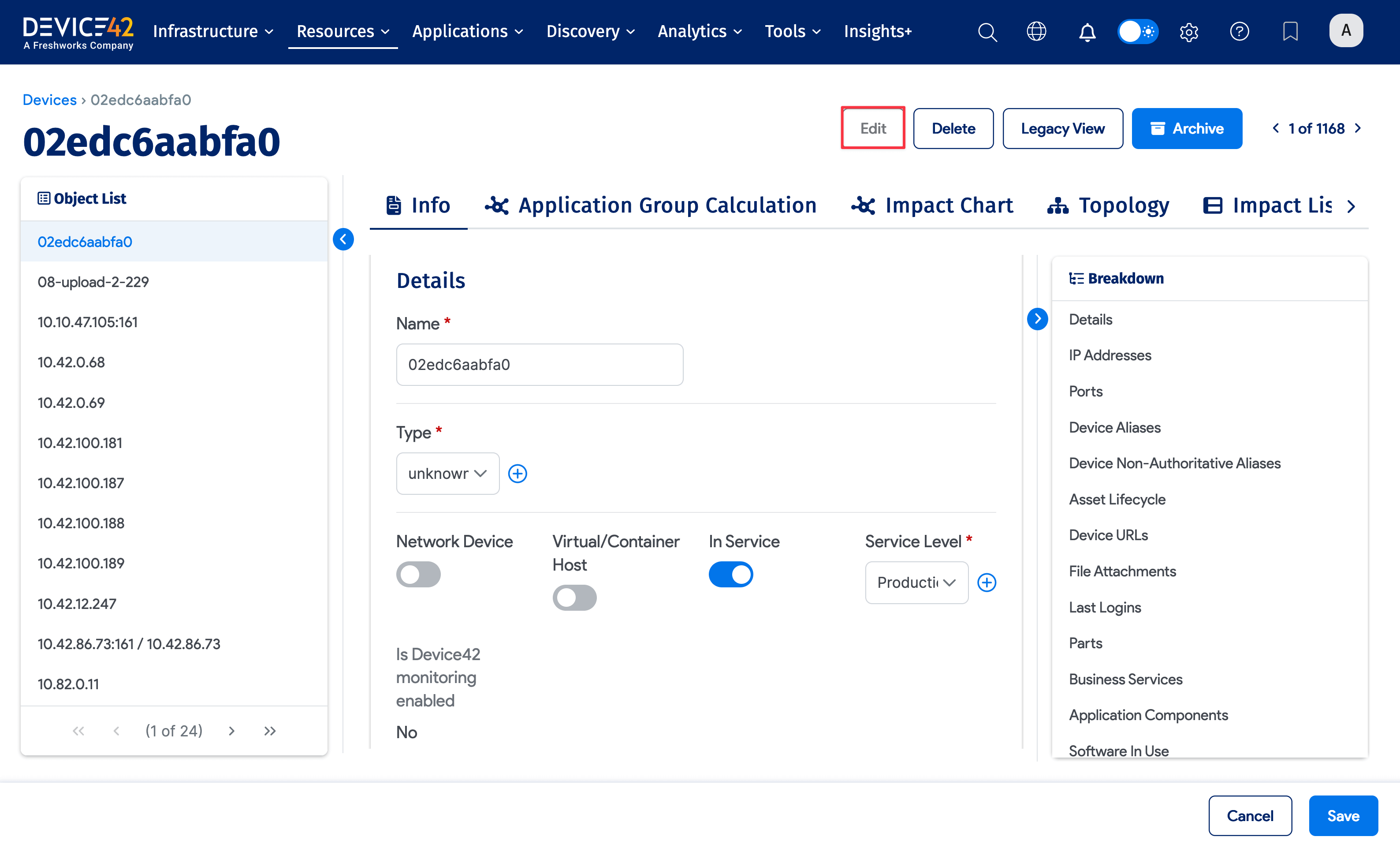
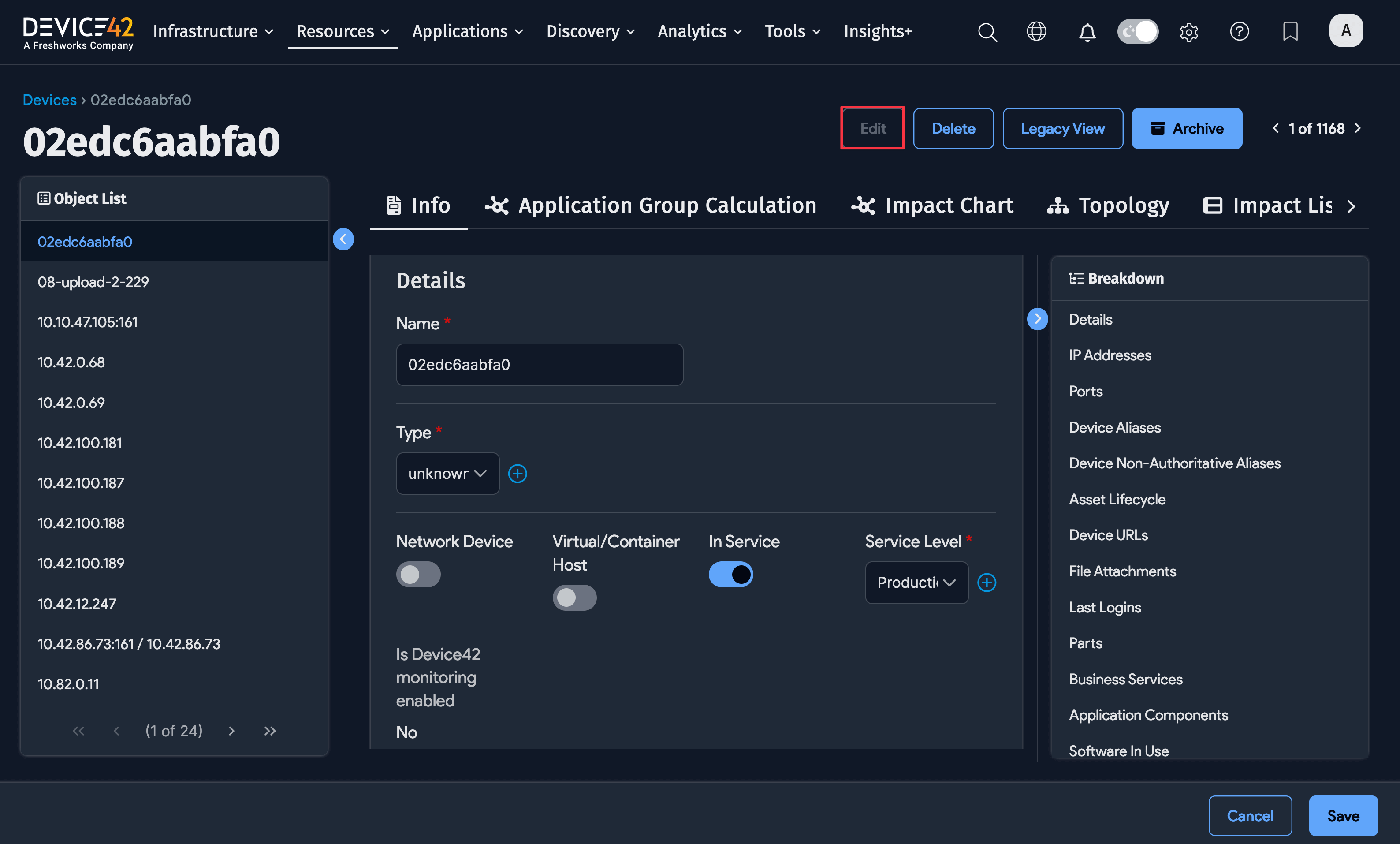
To add or update data manually, perform the following steps:
- Hover over Resources, click on the category of items you want to update (for example, All Devices).
- Click the item you want to update.
- Click the Edit button.
- Enter the information.
- Click the Save button.
Data Import
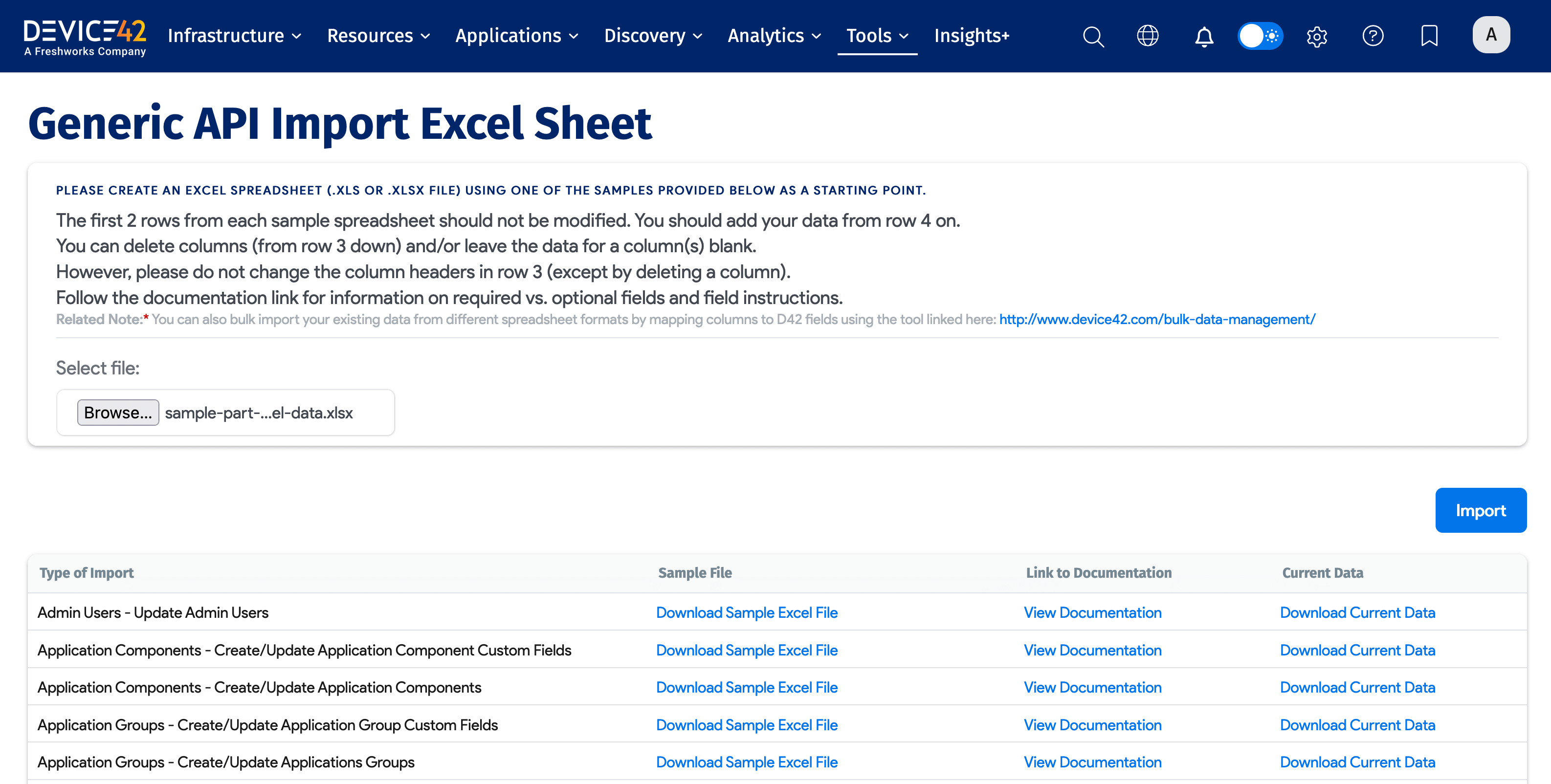
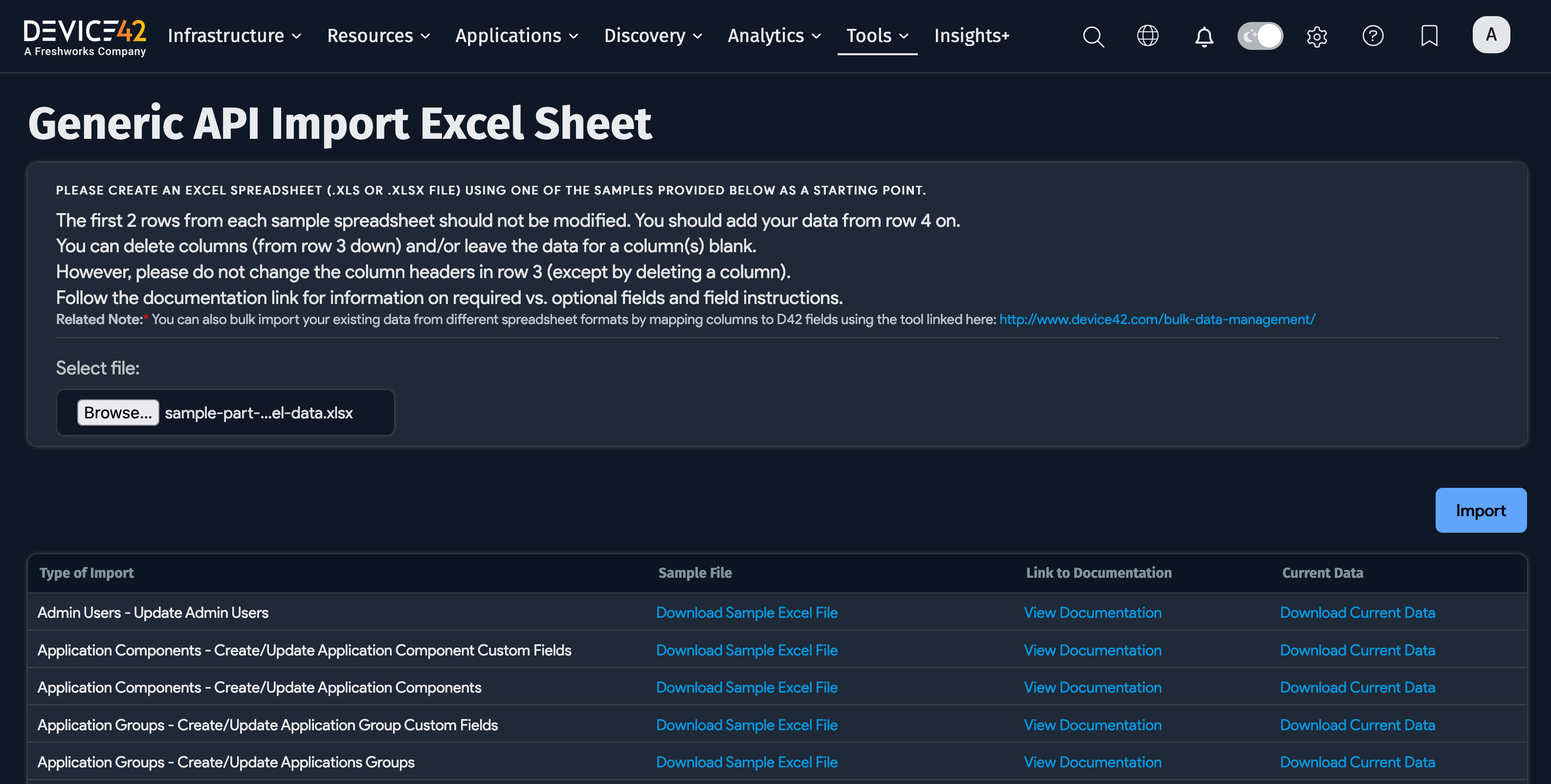
To bulk import data, perform the following steps:
- Hover over Tools, then choose Imports/Exports (xls) under the Templates & Bulk Operations section.
- Either click the Sample File you want to use for import or download the Current Data for that data category.
- Open the downloaded file and add or update the data.
- Click the Choose File button and select the file containing the data you want to import.
- Click the Import button.
Note: You can also bulk import your existing data from different spreadsheet formats by mapping columns to D42 fields using the tool linked here.
API Import
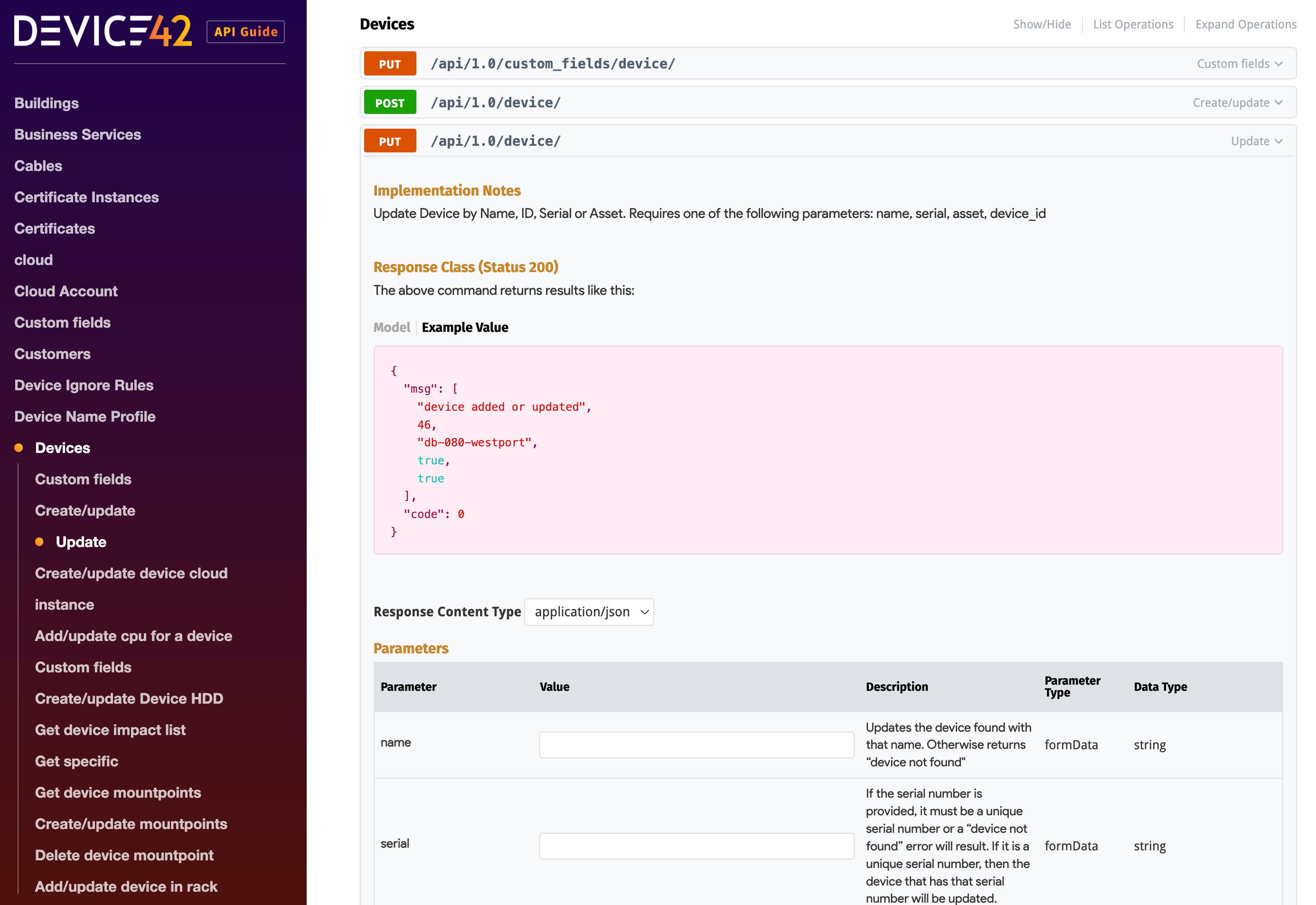
Restful APIs are supported in Device42 as one of the primary methods of entering, editing and retrieving data. Click here to access the Device42 API Guide.
Data Validation Phase Checklist
The Data Validation phase is considered complete when:
- You have reviewed the discovered data by reviewing individual records, by exporting data in bulk and reviewing this data, and/or by running reports
- You have compared the discovered data against existing, trusted data sources in an effort to confirm all data instances were discovered and that all data field values are as expected
- You have investigated and resolved any inconsistencies between the discovered data and your existing, trusted data sources
- You have imported any data you want in Device42 that was not able to be discovered.
Data Validation Phase Support
At the conclusion of Phase 3 you should have confirmed the accuracy of your discovered data.
You may access the Device42 Support page here, where you can submit a request, access our Knowledge Base, or access other general information.
Data Validation and Data Integration
Customers often want to integrate Device42 discovered data with other systems, like Freshservice, Jira Service Management, ServiceNow, or others. We recommend you establish these integrations after you have completed the Data Validation phase. Once you have established these integrations, we recommend you use available mapping/schema data source information to confirm all relevant Device42 data has been successfully transferred to the destination platform.
Click here to navigate to the Device42 Integrations page, where you can view and access integration connectors to a variety of applications.